
winform 自定义自动完成控件
做过前端的朋友肯定很清楚自动完成控件,很多优秀的前端框架都会带有自动完成控件,同样的,winform也有,在我们的TextBox和ComboBox中,只需要设置AutoCompleteSource属性为CustomSource,然后将值加入到AutoCompleteCustomSource中就可以了
比如:
            string[] dataSource=new string[]{"apple","orange","banner"};

            textBox1.AutoCompleteMode = AutoCompleteMode.SuggestAppend;

            textBox1.AutoCompleteCustomSource.AddRange(dataSource);

            textBox1.AutoCompleteSource = AutoCompleteSource.CustomSource;
貌似很好用,但是这个功能很鸡肋:
第一,因为要使用自动完成,我们需要事先将所有值都放到AutoCompleteCustomSource属性中,如果数据少还好说,数据多了就不现实了,往往需要采用异步去读取
第二,自带的这个自动完成功能,只能从头开始匹配,但我们往往输入的可能是包含的含义,比如上面的例子,我们第一个输入a或者o或者b才有提示,而输入其它的是没有提示的,如输入p,但是apple单次里面包含了p字母
第三、在国内,如果要在一个框里面输入一个中文的城市名称,我们更希望输入城市的拼音首字母直接带出来而不是打开输入法去敲中文,这个是自带的自动完成功能实现不了的
当我们碰到类似上面的需求时,怎么办?没辙了么?当然不是,我们可以自己写一个自动完成功能,但是完成一个自定义控件主要有如下问题:
1、自动完成控件像什么?太像一个ListBox,那么我们可以重写ListBox,设置一些属性,使它更像自动完成控件,比如默认是不显示的
2、控件的原型有了,如果页面上有多个地方要使用,如果都定义这么一个控件就麻烦了,所有尽可能使控件是可复用的
3、因为控件要做成可复用了,所有我们需要不停的指定控件的大小和位置,不应该出现你在这里输入,控件在那里显示情况,那么什么时候重置这些属性?
4、控件的数据是可变的,最好是使用委托实现
5、最后是控件的显示隐藏问题,什么时候显示,时候时候隐藏
解决这几个问题,自动完成控件就可以开工了,设计思路如下:
1、我们要使用重写ListBox模拟自动完成控件,如果要使控件可重复使用,那么我们需要一个属性来指明当前控件服务的对象
2、为了要设置这个对象,我们需要一个绑定方法,当调用绑定方法是,设置服务对象,同时可以充值自动完成控件的位置及大小,什么时候调用绑定方法?当然是服务对象获得焦点的时候了
3、当服务对象文本发生改变时,调用一个方法去生成自动完成控件的数据,把它绑定后再显示
4、当选中自动完成控件数据后,将内容填到服务对象的Text中去
5、当服务空间和自动完成控件都失去焦点时,自动完成控件应该被隐藏,并解绑自动完成控件
基于上面的思路,笔者写了一个自动完成控件类,当然里面还有一些细节的东西,读者可以细细体会,现在贴上自动完成控件类的代码:
using System;

using System.Collections.Generic;

using System.Drawing;

using System.Linq;

using System.Text;

using System.Threading;

using System.Threading.Tasks;

using System.Windows.Forms;

namespace WindowsFormsApplication1

{

    public class AutoCompleteBox : ListBox, IMessageFilter

    {

        /// <summary>

        /// 当前服务控件的对象

        /// </summary>

        public Control Target { get; private set; }

        /// <summary>

        /// 显示元素个数

        /// </summary>

        public int MaxCount { get; set; }

        EventHandler texthander = null;//text_changed事件

        EventHandler leavehander = null;//leave事件

        KeyEventHandler keyuphander = null;//keyup事件

        MouseEventHandler parenthander = null;//父窗体获得焦点事件

        bool mouseIsOver = false;//鼠标是否在自动完成控件上

        bool isUserChange = true;//是否是用户输入

        Action<string, Action<string[]>> action;//根据输入的内容,自定义下拉绑定数据

        public AutoCompleteBox()

        {

            DrawMode = System.Windows.Forms.DrawMode.OwnerDrawVariable;

            Font = new System.Drawing.Font("宋体", 9F, System.Drawing.FontStyle.Regular, System.Drawing.GraphicsUnit.Point, ((byte)(134)));

            FormattingEnabled = true;

            HorizontalScrollbar = true;

            ItemHeight = 15;

            Location = new System.Drawing.Point(0, 0);

            Size = new System.Drawing.Size(150, 115);

            DrawItem += new System.Windows.Forms.DrawItemEventHandler(this.listBox_DrawItem);

            MeasureItem += new System.Windows.Forms.MeasureItemEventHandler(this.listBox_MeasureItem);

            KeyUp += new System.Windows.Forms.KeyEventHandler(this.listBox_KeyUp);

            Leave += new System.EventHandler(this.listBox_Leave);

            MouseDoubleClick += new System.Windows.Forms.MouseEventHandler(this.listBox_MouseDoubleClick);

            MouseEnter += new System.EventHandler(this.listBox_MouseEnter);

            MouseLeave += new System.EventHandler(this.listBox_MouseLeave);

            MouseMove += new System.Windows.Forms.MouseEventHandler(this.listBox_MouseMove);

            Visible = false;//控件默认不显示

            texthander = new EventHandler(Target_TextChanged);

            leavehander = new EventHandler(Target_Leave);

            keyuphander = new KeyEventHandler(Target_KeyUp);

            parenthander = new MouseEventHandler(Parent_MouseClick);

        }

        #region 服务控件事件

        /// <summary>

        /// 服务控件文本改变状态

        /// </summary>

        /// <param name="sender"></param>

        /// <param name="e"></param>

        private void Target_TextChanged(object sender, EventArgs e)

        {

            if (Target == null || action == null) return;

            //非用户输入

            if (!isUserChange)

            {

                return;

            }

            //先获取最新的文本

            string text = Target.Text;

            if (!string.IsNullOrEmpty(text))

            {

                action(text, array =>

                {

                    Action callback = () =>

                    {

                        //根据文本去获取列表

                        if (MaxCount > 0)

                        {

                            DataSource = array.Take(MaxCount).ToArray();

                        }

                        else

                        {

                            DataSource = array;

                        }

                        if (array != null && array.Length > 0)//如果列表为空就不显示了

                        {

                            Display();

                        }

                        else

                        {

                            Hidden();

                        }

                    };

                    if (Thread.CurrentThread.GetApartmentState() != ApartmentState.STA)//需要在IO线程中执行

                    {

                        if (Target != null && Target.IsHandleCreated)

                        {

                            BeginInvoke(new Action(() => callback()));

                        }

                        return;

                    }

                    callback();

                });

            }

            else

            {

                Hidden();

            }

        }

        /// <summary>

        /// 服务控件失去焦点事件

        /// </summary>

        /// <param name="sender"></param>

        /// <param name="e"></param>

        private void Target_Leave(object sender, EventArgs e)

        {

            if (Target == null) return;

            if (!mouseIsOver && !Target.Focused)//只有当鼠标不在自动完成控件上,且服务控件也没有焦点时卸载自动完成控件

            {

                Unbind();

                Hidden();

            }

        }

        /// <summary>

        /// 服务控件上下移动,且自动完成控件是显示的,则自动控件获得焦点

        /// </summary>

        /// <param name="sender"></param>

        /// <param name="e"></param>

        private void Target_KeyUp(object sender, KeyEventArgs e)

        {

            if (e.Alt || e.Control || e.Shift) return;

            if ((e.KeyCode == Keys.Up || e.KeyCode == Keys.Down) && Visible)

            {

                //这里处理一下,避免控件失去焦点后列表隐藏了

                var current = mouseIsOver;

                mouseIsOver = true;

                Focus();

                mouseIsOver = current;

            }

        }

        /// <summary>

        /// 父窗体点击事件

        /// </summary>

        /// <param name="sender"></param>

        /// <param name="e"></param>

        private void Parent_MouseClick(object sender, EventArgs e)

        {

            if (Visible)

            {

                Focus();//控件获得焦点,会导致服务对象失去焦点从而隐藏控件

            }

        }

        #endregion

        #region 自动完成控件

        /// <summary>

        /// 自动控件显示

        /// </summary>

        public void Display()

        {

            this.BringToFront();//将控件提到最前面

            this.Visible = true;

        }

        /// <summary>

        /// 自动控件隐藏

        /// </summary>

        public void Hidden()

        {

            this.SendToBack();//将控件置于底层

            this.Visible = false;

        }

        /// <summary>

        /// 将光标置于服务控件最后

        /// </summary>

        public void FocusTarget()

        {

            if (Target == null) return;

            Target.Focus();

            if (Target is TextBox)

            {

                (Target as TextBox).SelectionStart = Target.Text.Length;

            }

            else

            {

                (Target as ComboBox).SelectionStart = Target.Text.Length;

            }

        }

        /// <summary>

        /// 绑定自动完成控件

        /// </summary>

        /// <param name="c"></param>

        /// <param name="func"></param>

        public void AutoComplete(Control c, Func<string, string[]> func)

        {

            AutoComplete(c, (text, action) =>

            {

                var array = func(text);

                action(array);

            });

        }

        /// <summary>

        /// 绑定自动完成控件

        /// </summary>

        /// <param name="c"></param>

        /// <param name="action"></param>

        public void AutoComplete(Control c, Action<string, Action<string[]>> action)

        {

            if (!(c is TextBox || c is ComboBox))//仅支持TextBox和ComboBox

            {

                throw new Exception("only TextBox and ComboBox is supported");

            }

            c.Enter += new EventHandler((s1, e1) =>

            {

                Bind(c, action);

            });

        }

        /// <summary>

        /// 同步加载控件

        /// </summary>

        /// <param name="c">服务控件</param>

        /// <param name="func">根据输入的值返回绑定数据的委托</param>

        public void Bind(Control c, Func<string, string[]> func)

        {

            Bind(c, (text, action) =>

            {

                var array = func(text);

                action(array);

            });

        }

        /// <summary>

        /// 加载控件,可以使用异步

        /// </summary>

        /// <param name="c">服务控件</param>

        /// <param name="action">根据输入的值并绑定数据的委托</param>

        public void Bind(Control c, Action<string, Action<string[]>> action)

        {

            if (Target != null && Target == c) return;

            if (!(c is TextBox || c is ComboBox))//仅支持TextBox和ComboBox

            {

                throw new Exception("only TextBox and ComboBox is supported");

            }

            Target = c;

            this.action = action;

            //重置控件的位置

            var thisParent = this.Parent;

            var cParent = c;

            int x = 0, y = 0;

            while (cParent != null && cParent != thisParent)

            {

                x += cParent.Location.X;

                y += cParent.Location.Y;

                cParent = cParent.Parent;

                cParent.MouseClick += parenthander;

            }

            Location = new Point(x, y + c.Size.Height + 3);

            Size = new Size(c.Size.Width, Size.Height);//控件的大小

            c.TextChanged += texthander;//给控件绑定text_changed事件

            c.Leave += leavehander;//给控件绑定leave事件

            c.KeyUp += keyuphander;//给控件绑定keyup事件

            Hidden();

            Application.AddMessageFilter(this);//注册

        }

        /// <summary>

        /// 卸载自动完成控件

        /// </summary>

        public void Unbind()

        {

            if (Target != null)

            {

                Target.TextChanged -= texthander;

                Target.Leave -= leavehander;

                Target.KeyUp -= keyuphander;

                //取消父窗体的绑定事件

                var thisParent = this.Parent;

                var cParent = Target;

                while (cParent != null && cParent != thisParent)

                {

                    cParent = cParent.Parent;

                    cParent.MouseClick -= parenthander;

                }

                Target = null;

                Application.RemoveMessageFilter(this);//取消注册

            }

        }

        /// <summary>

        /// 完成选中,填内容到Text文本中

        /// </summary>

        private void Complete()

        {

            if (Target == null) return;

            var item = SelectedItem as string;

            if (item != null)

            {

                isUserChange = false;

                Target.Text = item;

                isUserChange = true;

            }

            FocusTarget();//光标后置

            Hidden();

        }

        #endregion

        #region 自动控件事件

        /// <summary>

        /// 当列表被双击时,将文本内容置于服务控件中

        /// </summary>

        /// <param name="sender"></param>

        /// <param name="e"></param>

        private void listBox_MouseDoubleClick(object sender, MouseEventArgs e)

        {

            Complete();

        }

        /// <summary>

        /// 光标进入列表事件

        /// </summary>

        /// <param name="sender"></param>

        /// <param name="e"></param>

        private void listBox_MouseEnter(object sender, EventArgs e)

        {

            mouseIsOver = true;

        }

        /// <summary>

        /// 光标在列表之上

        /// </summary>

        /// <param name="sender"></param>

        /// <param name="e"></param>

        private void listBox_MouseLeave(object sender, EventArgs e)

        {

            mouseIsOver = false;

        }

        /// <summary>

        /// 光标在列表上移动

        /// </summary>

        /// <param name="sender"></param>

        /// <param name="e"></param>

        private void listBox_MouseMove(object sender, MouseEventArgs e)

        {

            mouseIsOver = true;

        }

        /// <summary>

        /// 列表失去焦点

        /// </summary>

        /// <param name="sender"></param>

        /// <param name="e"></param>

        private void listBox_Leave(object sender, EventArgs e)

        {

            Target_Leave(Target, e);

        }

        /// <summary>

        /// 计算列表高度

        /// </summary>

        /// <param name="sender"></param>

        /// <param name="e"></param>

        private void listBox_MeasureItem(object sender, MeasureItemEventArgs e)

        {

            e.ItemHeight = this.ItemHeight;

        }

        /// <summary>

        /// 绘制列表

        /// </summary>

        /// <param name="sender"></param>

        /// <param name="e"></param>

        private void listBox_DrawItem(object sender, DrawItemEventArgs e)

        {

            e.Graphics.FillRectangle(new SolidBrush(e.BackColor), e.Bounds);

            if (e.Index >= 0 && this.Items.Count > 0)

            {

                StringFormat sStringFormat = new StringFormat();

                sStringFormat.LineAlignment = StringAlignment.Center;

                string item = ((ListBox)sender).Items[e.Index].ToString();

                e.Graphics.DrawString(item, e.Font, new SolidBrush(e.ForeColor), e.Bounds, sStringFormat);

            }

            e.DrawFocusRectangle();

        }

        /// <summary>

        /// 处理Enter键

        /// </summary>

        /// <param name="sender"></param>

        /// <param name="e"></param>

        private void listBox_KeyUp(object sender, KeyEventArgs e)

        {

            if (e.Alt || e.Control || e.Shift) return;

            if (e.KeyCode == Keys.Enter)

            {

                Complete();

            }

        }

        #endregion

        /// <summary>

        /// win32消息过滤

        /// </summary>

        /// <param name="m"></param>

        /// <returns></returns>

        public bool PreFilterMessage(ref Message m)

        {

            if (Target == null) return false;

            if (m.Msg == MsgIds.WM_KEYDOWN && (((Keys)(int)m.WParam & Keys.KeyCode) == Keys.Down || ((Keys)(int)m.WParam & Keys.KeyCode) == Keys.Up))

            {

                var c = FromChildHandle(m.HWnd);

                if (m.HWnd == Target.Handle || c == Target)//这里是禁用ComboBox时使用上下键选择

                {

                    return true;

                }

            }

            return false;

        }

    }

    public sealed class MsgIds

    {

        /// <summary>

        /// 键盘按下消息

        /// </summary>

        public const int WM_KEYDOWN = 0x100;

    }

}
AutoCompleteBox
现在,我们在创建个窗体测试一下:
先托几个控件,画个简单的页面:

然后把我们自定义的控件也拖进去,最好是拖到窗体里,而不是拖到里面的群组里
接着再Load时间实现功能:
using System;

using System.Collections.Generic;

using System.ComponentModel;

using System.Data;

using System.Drawing;

using System.Linq;

using System.Text;

using System.Threading;

using System.Threading.Tasks;

using System.Windows.Forms;

namespace WindowsFormsApplication1

{

    public partial class Form1 : Form

    {

        public Form1()

        {

            InitializeComponent();

        }

        private void Form1_Load(object sender, EventArgs e)

        {

            //直接

            string[] allDept = new string[] { "研发部", "人事部" };

            autoCompleteBox1.AutoComplete(tbDept, text => allDept.Where(d => d.Contains(text)).ToArray());

            //远程

            string[] allGroup = new string[] { "研发组", "测试组", "专家组", "顾问组" };

            cbGroup.DataSource = allGroup;

            autoCompleteBox1.AutoComplete(cbGroup, (text, next) =>

            {

                this.Cursor = Cursors.WaitCursor;

                new Thread(() =>

                {

                    Thread.Sleep(100);//模拟远程访问

                    var array = allGroup.Where(d => d.Contains(text)).ToArray();

                    next(array);

                    BeginInvoke(new Action(() =>

                    {

                        this.Cursor = Cursors.Default;

                    }));

                }).Start();

            });

            //拼音

            ListBoxItem[] list = new ListBoxItem[] {

                new ListBoxItem() { Text="北京",Value="bj"},

                new ListBoxItem(){Text="上海",Value="sh"},

                new ListBoxItem(){Text="广州",Value="gz"},

                new ListBoxItem(){Text="深圳",Value="sz"}

            };

            cbCity.DataSource = list;

            cbCity.DisplayMember = "Text";

            cbCity.ValueMember = "Value";

            autoCompleteBox1.AutoComplete(cbCity, text => list.Where(l => l.Value.Contains(text) || l.Text.Contains(text)).Select(l => l.Text).ToArray());

        }

    }

    public class ListBoxItem

    {

        public string Text { get; set; }

        public string Value { get; set; }

    }

}
Form1
按F5或者点击启动按钮,看看我们的功能是否正确:


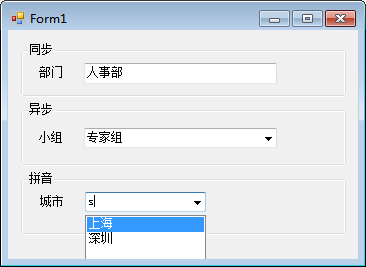
另外,提醒一下,从第三个图我们看到,控件部分被隐藏了,所以我们控件还是有不足的,开发过程中还需要注意这一点
winform 自定义自动完成控件的更多相关文章
- Atitit.auto complete 自动完成控件的实现总结
Atitit.auto complete 自动完成控件的实现总结 1. 框架选型 1 2. 自动完成控件的ioc设置 1 3. Liger 自动完成控件问题 1 4. 官网上的code有问题,不能 ...
- WinForm 自动完成控件实例代码简析
在Web的应用方面有js的插件实现自动完成(或叫智能提示)功能,但在WinForm窗体应用方面就没那么好了. TextBox控件本身是提供了一个自动提示功能,只要用上这三个属性: AutoComple ...
- c#依参数自动生成控件
很多系统都带有自定义报表的功能,而此功能都需依参数自动生成控件,举例如下: 如上图,一条查询语句当中,包含了3个参数,其中两个是日期型(使用:DATE!进行标识),一个是字符型(使用:进行标识),要生 ...
- 嵌套在母版页中的repeater自动生成控件ID
注:如果直接在后台通过e.Item.FindControl()方法直接找控件,然后再通过对其ID赋值,在编译之后会出现“母版页名称_ID“类似的很长的ID值(详情点击) 解决方法:<asp:Co ...
- C# WinForm自定义通用分页控件
大家好,前几天因工作需要要开发一个基于WinForm的小程序.其中要用到分页,最开始的想法找个第三方的dll用一下,但是后来想了想觉得不如自己写一个玩一下 之前的web开发中有各式各样的列表组件基本都 ...
- C# Winform 通过FlowLayoutPanel及自定义的编辑控件,实现快速构建C/S版的编辑表单页面
个人理解,开发应用程序的目的,不论是B/S或是C/S结构类型,无非就是实现可供用户进行查.增.改.删,其中查询用到最多,开发设计的场景也最为复杂,包括但不限于:表格记录查询.报表查询.导出文件查询等等 ...
- Winform 通过FlowLayoutPanel及自定义的编辑控件,实现快速构建C/S版的编辑表单页面 z
http://www.cnblogs.com/zuowj/p/4504130.html 不论是B/S或是C/S结构类型,无非就是实现可供用户进行查.增.改.删,其中查询用到最多,开发设计的场景 也最为 ...
- [转] WinForm自定义函数FindControl实现按名称查找控件
原文地址 WinForm自定义函数FindControl实现按名称查找控件 本文所述实例实现WinForm自定义函数FindControl实现按名称查找控件的功能,在C#程序开发中有一定的实用价值. ...
- C#[WinForm]实现自动更新
C#[WinForm]实现自动更新 winform程序相对web程序而言,功能更强大,编程更方便,但软件更新却相当麻烦,要到客户端一台一台地升级,面对这个实际问题,在最近的一个小项目中,本人设计了一个 ...
随机推荐
- 避免警报疲劳:每个 K8s 工程团队的 8 个技巧
避免警报疲劳:每个 K8s 工程团队的 8 个技巧 监控 Kubernetes 集群并不容易,警报疲劳通常是一个问题.阅读这篇文章,了解减少警报疲劳的有用提示. 如果您是随叫随到团队的一员,您可能知道 ...
- 令无数程序员加班的 Log4j2 远程执行漏洞复现
前情提要 Apache 存在 Log4j 远程代码执行漏洞,将给相关企业带来哪些影响?还有哪些信息值得关注? 构建maven项目引入Log4j2 编写 pom 文件 <?xml version= ...
- 【简】题解 AWSL090429 【价值】
先考虑当要选的物品一定时 显然有个贪心 wi越小的要越先选 所以先按wi从小到大拍序 因为发现正着递推要记录的状态很多 并且wi的贡献与后面选了几个物品有关 考虑正难则反 倒着递推 提前计算wi的贡献 ...
- PDF补丁丁将发布开放源代码的1.0版本
近况 一个月前的今天,母亲永远离开了我. 想起四个月前,我送她了去住院.入院后,做了检查.检查结果没出,我的生日就到了.母亲很关心我的生日.在电话里,她祝我身体健康,又问媳妇有没有给我做生日餐桌的菜肴 ...
- 用 Go 实现一个 LRU cache
前言 早在几年前写过关于 LRU cache 的文章: https://crossoverjie.top/2018/04/07/algorithm/LRU-cache/ 当时是用 Java 实现的,最 ...
- 小迪安全 Web安全 基础入门 第七天 - 资产泄漏、CMS识别、Git监控、SVN、DS_Store、备份
一.CMS指纹识别源码获取方式 1.网站特有文件.如/templets/default/style/dedecms.css-dedecms. 2.网站独有文件的MD5.如favicon.ico但是该文 ...
- Tornadofx学习笔记(4)——IconTextFx开源库,整合5000+个字体图标
JavaFx中其实也可以直接使用字体图标iconfont的,只需要加载ttf字体文件,之后设置unicode即可,具体可以看我给出的代码 既然JavaFx可以,那么以JavaFx为基础的Tornado ...
- LuoguP6857 梦中梦与不再有梦 题解
Update \(\texttt{2020.10.20}\) 增加了证明.感谢@东北小蟹蟹(dbxxxqwq)的提醒. Content 有一个 \(n\) 个点的无向图,每两个点之间都有一条边直接相连 ...
- HTML5 head标签meta标签、title的功能
<!DOCTYPE html> <!-- 解释器--> <html lang="en"> <head> <!--meta标签中 ...
- ftp:500 Illegal PORT command. 425
局域网用FTP命令访问外网的FTP SERVER,执行任何命令(如dir,ls,put,get)总是报下面的错误ftp:500 Illegal PORT command. 425ftp:Use POR ...