
vscode保存代码,自动按照eslint规范格式化代码设置
vscode保存代码,自动按照eslint规范格式化代码设置
编辑器代码风格一致,是前端代码规范的一部分。同一个项目,或者同一个小组,保持代码风格一致很必要。就拿vue项目来说,之前做的几个项目,很多小伙伴代码格式化用的是vue-beautify ,这个格式化工具有个明显的缺点,就是三元不等式明明可以一行显示,非得格式化成3行,import用{}引入多个变量或者函数,非得格式化成好几行,看起来很是别扭。因此,好的格式化工具和团队代码风格一致,显得格外重要。我建议我们整个小组运用同一个编辑器,同一种代码校验,同一个格式化方式。下面我来介绍一下使用vscode+eslint 自动保存,自动格式化的一种方式!
eslint 自动格式化
先说一个前提吧,你在package.json中安装了eslint的依赖,不然配置无用。
"eslint": "^6.1.0",

"eslint-friendly-formatter": "^6.4.1",

"eslint-loader": "^6.4.1",

"eslint-plugin-html": "^6.4.1",
上面说的是一个前提,下面来说一下具体的配置步骤:
首先,在我们项目跟目录添加.eslintrc.js 文件,用于校验代码,编写eslint相关规则,关于eslint的一些具体规则,请查看eslint文档
下面列一下我们项目中常用的eslint规则:
module.exports = {

root: true,

// 添加插件

"plugins": [

"vue"

],

'extends': [

'plugin:vue/essential',

'@vue/standard'

],

rules: {

// allow async-await

'generator-star-spacing': 'off',

// allow debugger during development

'no-debugger': process.env.NODE_ENV === 'production' ? 'error' : 'off',

'vue/no-parsing-error': [2, {

'x-invalid-end-tag': false

}],

'no-undef': 'off',

'camelcase': 'off',

// 允许控制台输出

'no-console': 'off',

'accessor-pairs': 2,

'arrow-spacing': [2, { 'before': true, 'after': true }],

'block-spacing': [2, 'always'],

'brace-style': [2, '1tbs', { 'allowSingleLine': true }],

// 'camelcase': [2, { 'properties': 'always' }],

'comma-dangle': [2, 'never'],

'comma-spacing': [2, { 'before': false, 'after': true }],

'comma-style': [2, 'last'],

'constructor-super': 2,

'curly': [2, 'multi-line'],

'dot-location': [2, 'property'],

'eol-last': 2,

'eqeqeq': [2, 'allow-null'],

'generator-star-spacing': [2, { 'before': true, 'after': true }],

'handle-callback-err': [2, '^(err|error)$' ],

'indent': [2, 2, { 'SwitchCase': 1 }],

'jsx-quotes': [2, 'prefer-single'],

'key-spacing': [2, { 'beforeColon': false, 'afterColon': true }],

'keyword-spacing': [2, { 'before': true, 'after': true }],

'new-cap': [2, { 'newIsCap': true, 'capIsNew': false }],

'new-parens': 2,

'no-array-constructor': 2,

'no-caller': 2,

'no-class-assign': 2,

'no-cond-assign': 2,

'no-const-assign': 2,

'no-control-regex': 2,

'no-delete-var': 2,

'no-dupe-args': 2,

'no-dupe-class-members': 2,

'no-dupe-keys': 2,

'no-duplicate-case': 2,

'no-empty-character-class': 2,

'no-empty-pattern': 2,

'no-eval': 2,

'no-ex-assign': 2,

'no-extend-native': 2,

'no-extra-bind': 2,

'no-extra-boolean-cast': 2,

'no-extra-parens': [2, 'functions'],

'no-fallthrough': 2,

'no-floating-decimal': 2,

'no-func-assign': 2,

'no-implied-eval': 2,

'no-inner-declarations': [2, 'functions'],

'no-invalid-regexp': 2,

'no-irregular-whitespace': 2,

'no-iterator': 2,

'no-label-var': 2,

'no-labels': [2, { 'allowLoop': false, 'allowSwitch': false }],

'no-lone-blocks': 2,

'no-mixed-spaces-and-tabs': 2,

'no-multi-spaces': 2,

'no-multi-str': 2,

'no-multiple-empty-lines': [2, { 'max': 1 }],

'no-native-reassign': 2,

'no-negated-in-lhs': 2,

'no-new-object': 2,

'no-new-require': 2,

'no-new-symbol': 2,

'no-new-wrappers': 2,

'no-obj-calls': 2,

'no-octal': 2,

'no-octal-escape': 2,

'no-path-concat': 2,

'no-proto': 2,

'no-redeclare': 2,

'no-regex-spaces': 2,

'no-return-assign': [2, 'except-parens'],

'no-self-assign': 2,

'no-self-compare': 2,

'no-sequences': 2,

'no-shadow-restricted-names': 2,

'no-spaced-func': 2,

'no-sparse-arrays': 2,

'no-this-before-super': 2,

'no-throw-literal': 2,

'no-trailing-spaces': 2,

'no-undef': 2,

'no-undef-init': 2,

'no-unexpected-multiline': 2,

'no-unmodified-loop-condition': 2,

'no-unneeded-ternary': [2, { 'defaultAssignment': false }],

'no-unreachable': 2,

'no-unsafe-finally': 2,

'no-unused-vars': [2, { 'vars': 'all', 'args': 'none' }],

'no-useless-call': 2,

'no-useless-computed-key': 2,

'no-useless-constructor': 2,

'no-useless-escape': 0,

'no-whitespace-before-property': 2,

'no-with': 2,

'one-var': [2, { 'initialized': 'never' }],

'operator-linebreak': [2, 'after', { 'overrides': { '?': 'before', ':': 'before' } }],

'padded-blocks': [2, 'never'],

'quotes': [2, 'single', { 'avoidEscape': true, 'allowTemplateLiterals': true }],

'semi': [2, 'never'],

'semi-spacing': [2, { 'before': false, 'after': true }],

'space-before-blocks': [2, 'always'],

'space-before-function-paren': [2, 'always'],

'space-in-parens': [2, 'never'],

'space-infix-ops': 2,

'space-unary-ops': [2, { 'words': true, 'nonwords': false }],

'spaced-comment': [2, 'always', { 'markers': ['global', 'globals', 'eslint', 'eslint-disable', '*package', '!', ','] }],

'template-curly-spacing': [2, 'never'],

'use-isnan': 2,

'valid-typeof': 2,

'wrap-iife': [2, 'any'],

'yield-star-spacing': [2, 'both'],

'yoda': [2, 'never'],

'prefer-const': 2,

'no-debugger': process.env.NODE_ENV === 'production' ? 2 : 0,

'object-curly-spacing': [2, 'always', { objectsInObjects: false }],

'array-bracket-spacing': [2, 'never'],

'vue/jsx-uses-vars': 2

},

parserOptions: {

parser: 'babel-eslint'

}

}
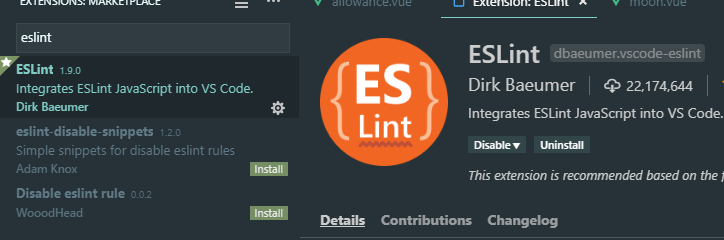
其次,vscode中添加eslint和vetur插件:
如图所示
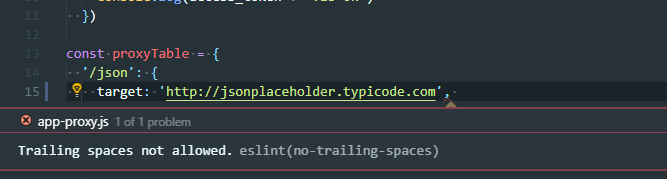
安装好了之后,会自动根据你上面配置的规则进行代码检查,不合格的会高亮显示,如下图:
经过上面步骤,目前保存还不能自动格式化,下面说下如何自动格式化!
自动格式化设置
1、window电脑:文件 > 首选项 > 设置 打开 VSCode 配置文件
2、mac电脑code>首选项 >设置
我的设置如下:
{

"editor.tabSize": 2,

"eslint.autoFixOnSave": true, // 每次保存的时候将代码按eslint格式进行修复

"prettier.eslintIntegration": true, //让prettier使用eslint的代码格式进行校验

"prettier.semi": false, //去掉代码结尾的分号

"prettier.singleQuote": true, //使用单引号替代双引号

"javascript.format.insertSpaceBeforeFunctionParenthesis": true, //让函数(名)和后面的括号之间加个空格

"vetur.format.defaultFormatter.html": "js-beautify-html", //格式化.vue中html

"vetur.format.defaultFormatter.js": "vscode-typescript", //让vue中的js按编辑器自带的ts格式进行格式化

"vetur.format.defaultFormatterOptions": {

"js-beautify-html": {

"wrap_attributes": "force-aligned" //属性强制折行对齐

}

},

"eslint.validate": [ //开启对.vue文件中错误的检查

"javascript",

"javascriptreact",

{

"language": "html",

"autoFix": true

},

{

"language": "vue",

"autoFix": true

}

],

"search.exclude": {

"**/node_modules": true,

"**/bower_components": true,

"**/dist": true

},

"window.title": "${dirty}${activeEditorMedium}${separator}${rootName}",

}
关闭eslint检查
1、vue create的项目在vue.config.js中lintOnSave: false
2、以前的项目,vue init webpack的config/index.js 文件。 将useEslint: true 设置为useEslint: false
其他推荐
其他团队也有自己的代码规范方式例如饿了么团队:https://www.npmjs.com/package/eslint-config-elemefe
vue团队:https://github.com/vuejs/eslint-config-vue
关于vscode扩展插件,目前通用的,不错的推荐看这篇文章:https://github.com/varHarrie/Dawn-Blossoms/issues/10
vscode保存代码,自动按照eslint规范格式化代码设置的更多相关文章
- 按照eslint 规范写代码 [eslint] 'flag' is assigned to itself. (no-self-assign)
按照eslint 规范写代码 [eslint] 'flag' is assigned to itself. (no-self-assign)
- phpstorm2019.1 实现保存(ctrl+s)同时格式化代码
1.选择Edit(编辑)->Macros(宏)->Start Macro Recording(开始录制宏),如下图: 2.直接按想要录制的快捷键,先按Ctrl+ALT+L,然后键盘按Ctr ...
- vim 添加php自动补全 并格式化代码
自动补全,修改/etc/vimrc的配置 vim /etc/vimrc 添加: filetype plugin on autocmd FileType php set omnifunc=phpcomp ...
- pycharm不显示工具栏,自动导入模块,格式化代码快捷键
我们需修改View里面的Toolbar,在前面打上沟,然后就可以显示了 自动导入模块设置:import numpy as np 我们需用鼠标选中numpy,然后在键盘上同时按住Alt+Enter键,通 ...
- VS Code保存使用项目Eslint规则格式化代码
One.文件-首选项-设置-选择项目 Two.打开右上角JSON设置 Three. 插入以下代码 { "eslint.options& ...
- vscode vue eslint 快捷键格式化代码
添加vetur , eslint插件 在工作区添加以下代码 "workbench.startupEditor": "welcomePage", &quo ...
- VSCode保存插件配置并使用 gist 管理代码片段
setting sync 保存配置 由于公司和家里都使用 VSCode 作为主要编辑器,同步配置是最紧要的.VSCode 提供了setting sync插件,很方便我们同步插件配置.引用网上教程: 在 ...
- vscode 中 vue项目使用eslint插件 检查代码
前言 本文章项目由vue-cli3创建 vscode版本1.36.1 eslint1.9.0 在网上找了一大堆文章,不知是什么原因,没有一篇可以直接使用的 折腾了许久,直接按eslint插件的说明,竟 ...
- vscode 使用ESLint 自动检查,保存时自动格式化
1:全局安装eslint `npm install -g eslint`2: 打开vscode 点击 “文件”----->“首选项”---->“设置”,在右侧“用户设置/settings. ...
随机推荐
- python 3.5学习笔记(第三章)
本章内容 1.集合及其运算 2.文件操作 3.字符编码与转码 4.函数与函数式编程 5.局部变量与全局变量 6.递归 7.补充知识点 一.集合及其运算 1.概念: set集合是一个不重复元素集,用 { ...
- youku_androidid
youku_androidid = 1310; imei screenwidth screenhight
- 最大公约数GCD学习笔记
引理 已知:k|a,k|b 求证:k|(m*a+n*b) 证明:∵ k|a ∴ 有p*k=a 同理可得q*k=b ∴ p*k*m=m*a,q*k*n=n*b ∴ k(p*m+q*n)=m*a+n*b ...
- 个人永久性免费-Excel催化剂功能第43波-文本处理类函数增强
Excel的函数有400多个,真正常用的50多个,而常有的文本处理类函数也不多,不是因为文本类处理简单,而是Excel真的有点挤牙膏式的每个版本更新那么几个小函数,普通用户等得急切,但实际上这些小函数 ...
- 个人永久性免费-Excel催化剂功能第31波-数量金额分组凑数功能,财务表哥表姐最爱
在财务工作过程中,很大时候需要使用到凑数的需求,花了两三天时间认真研究了一下,本人水平也只能做代码搬运工,在用户体验上作了一下完善.完成了Excel版的凑数功能. 文章出处说明 原文在简书上发表,再同 ...
- 使用Kubeadm创建k8s集群之部署规划(三十)
前言 上一篇我们讲述了使用Kubectl管理k8s集群,那么接下来,我们将使用kubeadm来启动k8s集群. 部署k8s集群存在一定的挑战,尤其是部署高可用的k8s集群更是颇为复杂(后续会讲).因此 ...
- 阿里云服务器连接以及centos 搭建 web java环境(linux java部署 tomcat部署)
版权声明:本文为博主原创文章,未经博主允许不得转载. 最近弄了个试用阿里云服务器倒腾了半天终于部署好,分享一下. 1.登入阿里云打开你申请的是云服务器的实例: 点击重置密码---重置密码后重启服务器才 ...
- jquery3和layui冲突导,致使用layui.layer.full弹出全屏iframe窗口时高度152px问题
项目中使用的jquery版本是jquery-3.2.1,在使用layui弹出全屏iframe窗口时,iframe窗口顶部总是出现一个152px高的滚动窗口无法实现真正全屏,代码如下: <!DOC ...
- (11)ASP.NET Core 中的配置一(Configuration)
1.前言 ASP.NET Core在应用程序上引入Microsoft.Extensions.Configuration配置,可以支持多种方式配置,包括命令行配置.环境变量配置.文件配置.内存配置,自定 ...
- CSS和html如何结合起来——选择符及优先级
1.选择符 兼容性 统配选择符 * 元素选择符 body 类选择符 .class id选择符 #id 包含原则符 p strong (所有 ...