
201871010134-周英杰《面向对象程序设计(java)》第十四周学习总结
|
项目 |
内容 |
|
这个作业属于哪个课程 |
|
|
这个作业的要求在哪里 |
|
|
作业学习目标 |
(1)掌握GUI布局管理器用法; (2)掌握Java Swing文本输入组件用途及常用API; (3)掌握Java Swing选择输入组件用途及常用API。 |
第一部分:总结第十二章本周理论知识
(1)GUI布局管理器用法;
一>FlowLayout(流式布局)
1>特点:
a、流式布局会将组件按照顺序从左到右添加;
b、当一行排满后会自动换行。
2>构造方法:
FlowLayout( );
FlowLayout( int aligh );
FlowLayOut(int aligh,int hgap,int vgap);
其中,参数aligh决定组件在容器中的对其方式,可选的值为:
CENTER:居中对齐(默认方式);
LEFT:左对齐;
RIGHT:右对齐;
LEADING:与容器方向的开始边对齐;
TRAILING:与容器方向的结束边对齐;
二>BorderLayout(边界布局)
1>特点:
a、边界布局将容器划分为五个区域,分别为东(EAST)、南(SOUTH)、西(WEST)、北(NORTH)、中(CENTER);
b、容器大小调整时,边界布局NORTH和SOUTH区域高度不变长度跟随变化,EAST和WEST长度不变高度跟随变化;
c、容器添加组件时,需调用add(Component comp,Object constraints)方法,constraints可选值为BorderLayout类的五个常数:EAST、WEST、SOUTH、NORTH、CENTER;
2>构造方法:
BorderLayout( );
BorderLayout(int hgap ,int vgap);
参数hgap和vgap分别设定组件之间的水平和垂直间隙,默认值为5像素。
三>CardLayout(卡片布局)
1>特点:
a、卡片布局管理器将容器中的每个组件看作一张卡片,任何时候一次只能看到一张卡片,这张卡片占据整个容器;
b、卡片的顺序由组件对象本身在容器内部的顺序决定;
c、通过调用previous(Container parent),next(Container parent),show(Container parent,String name)方法来切换卡片。其中name参数可通过调用add(Component comp,Object constraints)方法来设定。
2>构造方法:
CardLayout( );
CardLayout(int hgap ,int vgap);
参数hgap和vgap分别设定组件之间的水平和垂直间隙,默认值为5像素。
四>GridLayout(网格布局)
1>特点:
a、网格布局将容器划分为n行m列大小相等的网格,一个网格只能放置一个组件,且各组件大小一样;
b、通过构造方法设定行数和列数为非零值时,指定的列数将被忽略,列数通过指定的行数和布局中的组件总数来确定;
c、网格布局添加组件的默认顺序为从左到右,从上到下;
2>构造方法:
GridLayout( );
GridLayout( int rows ,int cols );
GridLayOut(int rows , int cols,int hgap , int vgap);
参数rows和cols分别指定网格布局的行数和列数,参数hgap和vgap分别设定组件之间的水平和垂直间隙;
(2)Java Swing文本输入组件用途及常用API;
1>文本框(JTextField和JPasswordField)
JTextField组件用于创建文本框。文本框是用来接收用户的单行文本信息输入的区域。通常文本框用于接收用户信息或其他文本信息的输入。当用户输入文本信息后,如果为JTextField对象添加了事件处理,按回车键后就会触发一定的操作。
JPasswordField是JTextField的子类,是一种特殊的文本框,也是用来接收单行文本信息输入的区域,但是会用回显字符串代替输入的文本信息。因此,JPasswordField组件也称为密码文本框。JPasswordField默认的是回显字符是”*”,用户可以自行设置回显字符。
JTextField的常见构造方法有如下几种:
- JTextField():创建一个空文本框。
- JTextField(String text):创建一个具有出事文本信息text的文本框。
- JTextField(String text,int columns):创建一个具有出事文本信息text以及制定列数的文本框。
JTextField的常用方法:
- void setText(String):设置显示内容。
- String getText():获取显示内容。
JPasswordField的构造方法有如下几种:
- JPasswordField():创建一个空的密码文本框。
- JPasswordField(String text):创建一个指定初始文本信息的密码文本框。
- JPasswordField(String text,int columns):创建一个指定文本和列数的密码文本框。
- JPasswordField(int columns):创建一个指定列数的密码文本框。
JPasswordField是JTextField的子类,因此JPasswordField也具有与JTextField类似的名称和功能的方法,此外,它还具有与JTextField类似的名称和功能的方法,此外,它还具有自己的独特方法:
- boolean echoCharIsSet():获取设置回显字符的状态。
- void setEchoChar(char):设置回显字符。
- void getEchoChar():获取回显字符。
- char[] getPassword():获取组件的文本。
(3)掌握Java Swing选择输入组件用途及常用API。
1>单选按钮(JRadioButton)
JRadioButton组件实现的是一个单选按钮。JRadioButton类可以单独使用,也可以与ButtonGroup类联合使用,当单独使用时,该单选按钮可以被选定和取消选定;当与ButtonGroup类联合使用,需要使用add()方法将JRadioButton添加到ButtonGroup中,并组成一个单选按钮组。此时用户只能选定按钮组中的一个单选按钮。
JRadioButton组件的常用方法:
- setText(String text):设置单选按钮的标签文本。
- setSelected(boolean b):设置单选按钮的状态,默认情况下未被选中,当设为true时表示单选按钮被选中。
- add(AbatractButton b):添加按钮到按钮组中。
- remove(AbatractButton b):从按钮组中移除按钮。
- getButtonCount():返回按钮组中包含按钮的个数,返回值为int型。
- getElements():返回一个Enumeration类型的对象,通过该对象可以遍历按钮组中包含的所有按钮对象。
- isSelected():返回单选按钮的状态,当设为true时为选中。
- setSelected(boolean b):设定单选按钮的状态。
2>复选框(JCheckBox)
使用复选框可以完成多项选择。Swing中的复选框与awt中的复选框相比,优点是Swing复选框中可以添加图片。复选框可以为每一次的单击操作添加一个事件。
复选框的构造方法如下。
- JCheckBox(Icon icon):创建一个有图标,但未被选中的复选框。
- JCheckBox(Icon icon,boolean selected):创建一个有图标复选框,并且制定是否被选中。
- JCheckBox(String text):创建一个有文本,但未被选中的复选框。
- JCheckBox(String text,boolean selected):创建一个有文本复选框,并且制定是否被选中。
- JCheckBox(String text,Icon icon):创建一个指定文本和图标,但未被选中的复选框。
- JCheckBox(String text,Icon icon,boolean selected):创建一个指定文本和图标,并且制定是否被选中的复选框。
常用方法:
- public boolean isSelected():返回复选框状态,true时为选中。
- public void setSelected(boolean b):设定复选框状态。
3>组合框(JComboBox)
JComboBox组件用来创建组合框对象。通常,根据组合框是否可编辑的状态,可以将组合框分成两种常见的外观。可编辑状态外观可视为文本框和下拉列表的组合,不可编辑状态的外观可视为按钮和下拉列表的组合。在按钮或文本框的右边有一个带三角符号的下拉按钮,用户可以单击该下拉按钮,便可出现一个内容列表,这也是组合框的得名。组合框通常用于从列表的”多个项目中选择一个”的操作。
JComboBox的构造方法有如下几种:
- JComboBox():创建一个默认模型的组合框。
- JComboBox(ComboBoxModel aModel):创建一个指定模型的组合框。
JComboBox(Object[] items):创建一个具有数组定义列表内容的组合框。
第二部分:实验部分
实验1:测试程序1
测试代码:
import java.awt.*;

import java.awt.event.*;

import javax.swing.*;

/**

 * A panel with calculator buttons and a result display.

 */

public class CalculatorPanel extends JPanel

{

   private JButton display;

   private JPanel panel;

   private double result;

   private String lastCommand;

   private boolean start;

   public CalculatorPanel()

   {

      setLayout(new BorderLayout());

      result = 0;

      lastCommand = "=";

      start = true;

      // add the display

      display = new JButton("0");

      display.setEnabled(false);

      add(display, BorderLayout.NORTH);

      var insert = new InsertAction();

      var command = new CommandAction();

      // add the buttons in a 4 x 4 grid

      panel = new JPanel();

      panel.setLayout(new GridLayout(4, 4));

      panel.setLocation(200, 300);;

      addButton("7", insert);

      addButton("8", insert);

      addButton("9", insert);

      addButton("/", command);

      addButton("4", insert);

      addButton("5", insert);

      addButton("6", insert);

      addButton("*", command);

      addButton("1", insert);

      addButton("2", insert);

      addButton("3", insert);

      addButton("-", command);

      addButton("0", insert);

      addButton(".", insert);

      addButton("=", command);

      addButton("+", command);

      add(panel, BorderLayout.CENTER);

   }

   /**

    * Adds a button to the center panel.

    * @param label the button label

    * @param listener the button listener

    */

   private void addButton(String label, ActionListener listener)

   {

      var button = new JButton(label);

      button.addActionListener(listener);

      panel.add(button);

   }

   /**

    * This action inserts the button action string to the end of the display text.

    */

   private class InsertAction implements ActionListener

   {

      public void actionPerformed(ActionEvent event)

      {

         String input = event.getActionCommand();

         if (start)

         {

            display.setText("");

            start = false;

         }

         display.setText(display.getText() + input);

      }

   }

   /**

    * This action executes the command that the button action string denotes.

    */

   private class CommandAction implements ActionListener

   {

      public void actionPerformed(ActionEvent event)

      {

         String command = event.getActionCommand();

         if (start)

         {

            if (command.equals("-"))

            {

               display.setText(command);

               start = false;

            }

            else lastCommand = command;

         }

         else

         {

            calculate(Double.parseDouble(display.getText()));

            lastCommand = command;

            start = true;

         }

      }

   }

   /**

    * Carries out the pending calculation.

    * @param x the value to be accumulated with the prior result.

    */

   public void calculate(double x)

   {

      if (lastCommand.equals("+")) result += x;

      else if (lastCommand.equals("-")) result -= x;

      else if (lastCommand.equals("*")) result *= x;

      else if (lastCommand.equals("/")) result /= x;

      else if (lastCommand.equals("=")) result = x;

      display.setText("" + result);

   }

}
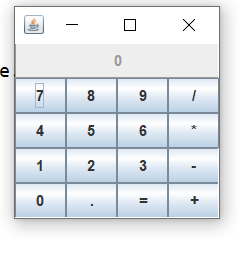
运行结果:
实验1:测试程序2
实验代码:
运行结果:

实验1:测试程序3
实验代码:
package checkBox;

import java.awt.*;

import java.awt.event.*;

import javax.swing.*;

/**

 * A frame with a sample text label and check boxes for selecting font

 * attributes.

 */

public class CheckBoxFrame extends JFrame

{

   private JLabel label;

   private JCheckBox bold;

   private JCheckBox italic;

   private static final int FONTSIZE = 24;

   public CheckBoxFrame()

   {

      // add the sample text label

      label = new JLabel("The quick brown fox jumps over the lazy dog.");

      label.setFont(new Font("Serif", Font.BOLD, FONTSIZE));

      add(label, BorderLayout.CENTER);

      // this listener sets the font attribute of

      // the label to the check box state

      ActionListener listener = event -> {

         int mode = 0;

         if (bold.isSelected()) mode += Font.BOLD;

         if (italic.isSelected()) mode += Font.ITALIC;

         label.setFont(new Font("Serif", mode, FONTSIZE));

      };

      // add the check boxes

      var buttonPanel = new JPanel();

      bold = new JCheckBox("Bold");

      bold.addActionListener(listener);

      bold.setSelected(true);

      buttonPanel.add(bold);

      italic = new JCheckBox("Italic");

      italic.addActionListener(listener);

      buttonPanel.add(italic);

      add(buttonPanel, BorderLayout.SOUTH);

      pack();

   }

}
CheckBoxFrame
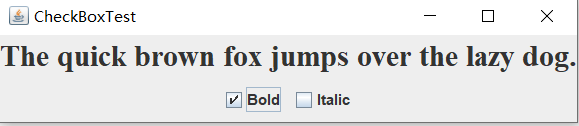
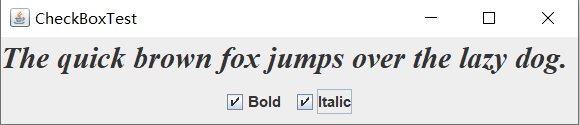
运行结果:
实验1:测试程序4
运行代码:
import java.awt.*;

import java.awt.event.*;

import javax.swing.*;

/**

 * A frame with a sample text label and radio buttons for selecting font sizes.

 */

public class RadioButtonFrame extends JFrame

{

   private JPanel buttonPanel;

   private ButtonGroup group;

   private JLabel label;

   private static final int DEFAULT_SIZE = 36;

   public RadioButtonFrame()

   {

      // add the sample text label

      label = new JLabel("The quick brown fox jumps over the lazy dog.");

      label.setFont(new Font("Serif", Font.PLAIN, DEFAULT_SIZE));

      add(label, BorderLayout.CENTER);

      // add the radio buttons

      buttonPanel = new JPanel();

      group = new ButtonGroup();

      addRadioButton("Small", 8);

      addRadioButton("Medium", 12);

      addRadioButton("Large", 18);

      addRadioButton("Extra large", 36);

      add(buttonPanel, BorderLayout.SOUTH);

      pack();

   }

   /**

    * Adds a radio button that sets the font size of the sample text.

    * @param name the string to appear on the button

    * @param size the font size that this button sets

    */

   public void addRadioButton(String name, int size)

   {

      boolean selected = size == DEFAULT_SIZE;

      var button = new JRadioButton(name, selected);

      group.add(button);

      buttonPanel.add(button);

      // this listener sets the label font size

      ActionListener listener = event -> label.setFont(new Font("Serif", Font.PLAIN, size));

      button.addActionListener(listener);

   }

}
RadioButtonFrame
运行结果:


实验1:测试程序5
实验代码:
import java.awt.*;

import javax.swing.*;

import javax.swing.border.*;

/**

 * A frame with radio buttons to pick a border style.

 */

public class BorderFrame extends JFrame

{

   private JPanel demoPanel;

   private JPanel buttonPanel;

   private ButtonGroup group;

   public BorderFrame()

   {

      demoPanel = new JPanel();

      buttonPanel = new JPanel();

      group = new ButtonGroup();

      addRadioButton("Lowered bevel", BorderFactory.createLoweredBevelBorder());

      addRadioButton("Raised bevel", BorderFactory.createRaisedBevelBorder());

      addRadioButton("Etched", BorderFactory.createEtchedBorder());

      addRadioButton("Line", BorderFactory.createLineBorder(Color.BLUE));

      addRadioButton("Matte", BorderFactory.createMatteBorder(10, 10, 10, 10, Color.BLUE));

      addRadioButton("Empty", BorderFactory.createEmptyBorder());

      Border etched = BorderFactory.createEtchedBorder();

      Border titled = BorderFactory.createTitledBorder(etched, "Border types");

      buttonPanel.setBorder(titled);

      setLayout(new GridLayout(2, 1));

      add(buttonPanel);

      add(demoPanel);

      pack();

   }

   public void addRadioButton(String buttonName, Border b)

   {

      var button = new JRadioButton(buttonName);

      button.addActionListener(event -> demoPanel.setBorder(b));

      group.add(button);

      buttonPanel.add(button);

   }

}
BorderFrame
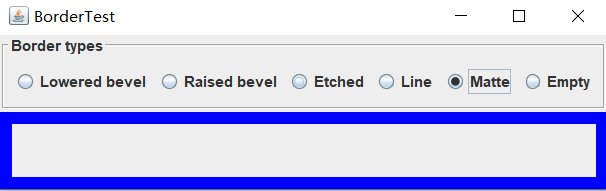
运行结果:

实验1:测试程序6
实验代码:
package comboBox;

import java.awt.BorderLayout;

import java.awt.Font;

import javax.swing.JComboBox;

import javax.swing.JFrame;

import javax.swing.JLabel;

import javax.swing.JPanel;

/**

 * A frame with a sample text label and a combo box for selecting font faces.

 */

public class ComboBoxFrame extends JFrame

{

   private JComboBox<String> faceCombo;

   private JLabel label;

   private static final int DEFAULT_SIZE = 24;

   public ComboBoxFrame()

   {

      // add the sample text label

      label = new JLabel("The quick brown fox jumps over the lazy dog.");

      label.setFont(new Font("Serif", Font.PLAIN, DEFAULT_SIZE));

      add(label, BorderLayout.CENTER);

      // make a combo box and add face names

      faceCombo = new JComboBox<>();

      faceCombo.addItem("Serif");

      faceCombo.addItem("SansSerif");

      faceCombo.addItem("Monospaced");

      faceCombo.addItem("Dialog");

      faceCombo.addItem("DialogInput");

      // the combo box listener changes the label font to the selected face name

      faceCombo.addActionListener(event ->

         label.setFont(

            new Font(faceCombo.getItemAt(faceCombo.getSelectedIndex()),

               Font.PLAIN, DEFAULT_SIZE)));

      // add combo box to a panel at the frame's southern border

      var comboPanel = new JPanel();

      comboPanel.add(faceCombo);

      add(comboPanel, BorderLayout.SOUTH);

      pack();

   }

}
ComboBoxFrame
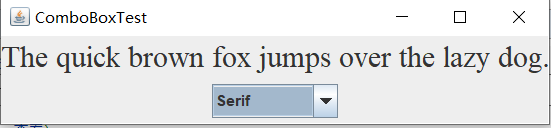
运行结果:

实验2:结对编程练习包含以下4部分:
1) 程序设计思路简述;
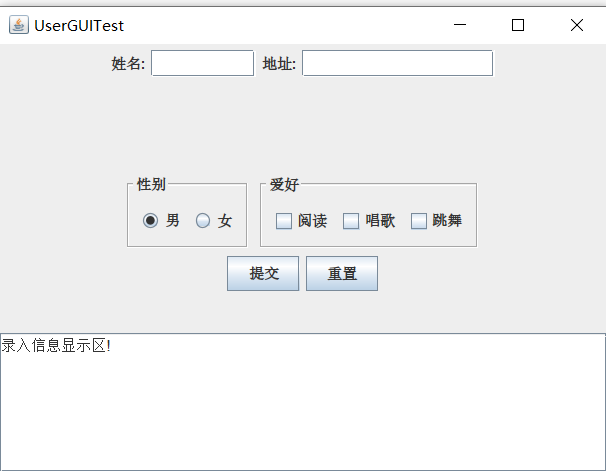
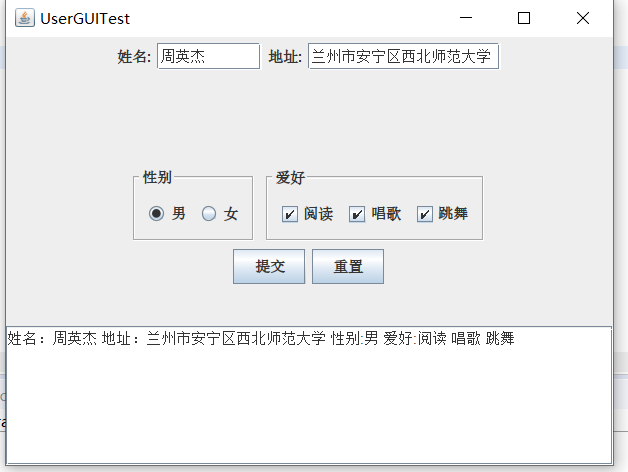
运用GridLayout布局,北边放JTextField(用以处理姓名和地址)以及JLabel,还有性别按钮(此为单选按钮用以处理性别选择)和爱好按钮(此为复选按钮用以处理爱好选择),南边放一个JTextArea(用以打印提交后的信息显示),总归就是把前几个示例代码糅合在一起写出来的。
2) 程序代码;
import java.awt.BorderLayout;

import java.awt.FlowLayout;

import java.awt.GridLayout;

import javax.swing.BorderFactory;

import javax.swing.ButtonGroup;

import javax.swing.JButton;

import javax.swing.JCheckBox;

import javax.swing.JFrame;

import javax.swing.JLabel;

import javax.swing.JPanel;

import javax.swing.JRadioButton;

import javax.swing.JScrollPane;

import javax.swing.JTextArea;

import javax.swing.JTextField;

import javax.swing.border.Border;

public class GUIFrame extends JFrame{

    public GUIFrame() {

        setSize(500,380);

        JPanel northPanel = new JPanel();                    //北面

        add(northPanel,BorderLayout.NORTH);

        //northPanel.setLayout(new GridLayout(1,4));

        JLabel nameLabel = new JLabel("姓名:",JLabel.RIGHT);

        JTextField nameText = new JTextField(8);

        JLabel adressLabel = new JLabel("地址:",JLabel.RIGHT);

        JTextField adressText = new JTextField(15);

        northPanel.add(nameLabel);

        northPanel.add(nameText);

        northPanel.add(adressLabel);

        northPanel.add(adressText);

        JPanel centerPanel = new JPanel();

        centerPanel.setLayout(new GridLayout(3,1));

        add(centerPanel,BorderLayout.CENTER);

        JPanel blankPanel = new JPanel();

        centerPanel.add(blankPanel);

        JPanel choosePanel = new JPanel();

        choosePanel.setLayout(new FlowLayout());

        centerPanel.add(choosePanel);

        choosePanel.setSize(100,100);

        JPanel sexPanel = new JPanel();                                //性别按钮

        choosePanel.add(sexPanel);

        Border etched = BorderFactory.createEtchedBorder();

        Border titled1 = BorderFactory.createTitledBorder(etched,"性别");

        sexPanel.setBorder(titled1);

        ButtonGroup sexGroup = new ButtonGroup();

        JRadioButton manButton = new JRadioButton("男",true);

        sexGroup.add(manButton);

        JRadioButton womenButton = new JRadioButton("女",false);

        sexGroup.add(womenButton);

        sexPanel.add(manButton);

        sexPanel.add(womenButton);

        JPanel hobbyPanel = new JPanel();                            //爱好按钮

        choosePanel.add(hobbyPanel);

        Border titled2 = BorderFactory.createTitledBorder(etched,"爱好");

        hobbyPanel.setBorder(titled2);

        JCheckBox read = new JCheckBox("阅读");

        JCheckBox sing = new JCheckBox("唱歌");

        JCheckBox dance = new JCheckBox("跳舞");

        hobbyPanel.add(read);

        hobbyPanel.add(sing);

        hobbyPanel.add(dance);

        JPanel ButtonPanel = new JPanel();

        centerPanel.add(ButtonPanel);

        JButton submit = new JButton("提交");

        JButton reset = new JButton("重置");

        ButtonPanel.add(submit);

        ButtonPanel.add(reset);

        JTextArea southText = new JTextArea("录入信息显示区!",6,10);    //南面

        JScrollPane scrollPane = new JScrollPane(southText);         //滚动

        southText.setLineWrap(true);

        add(scrollPane,BorderLayout.SOUTH);

        submit.addActionListener(event->{                        //按钮监听器

            String hobby="";

            if(read.isSelected())

                hobby=hobby+"阅读 ";

            if(sing.isSelected())

                hobby=hobby+"唱歌 ";

            if(dance.isSelected())

                hobby=hobby+"跳舞 ";

            String sex="";

            if(manButton.isSelected())

                sex="男";

            else

                sex="女";

            if(southText.getText().equals("录入信息显示区!"))            //清空默认值

                southText.setText("");

            southText.append("姓名:"+nameText.getText()+" 地址:"+adressText.getText()+" 性别:"+sex+" 爱好:"+hobby+"\n");

        });

        reset.addActionListener(event->{

            southText.setText("");

            nameText.setText("");

            adressText.setText("");

        });

    }

}
GUIFrame
import java.awt.EventQueue;

import javax.swing.JFrame;

public class Test {

    public static void main(String[] args)

       {

          EventQueue.invokeLater(() -> {

             JFrame frame = new GUIFrame();

             frame.setTitle("UserGUITest");

             frame.setDefaultCloseOperation(JFrame.EXIT_ON_CLOSE);

             frame.setVisible(true);

          });

       }

}
main
3) 程序运行功能界面截图;
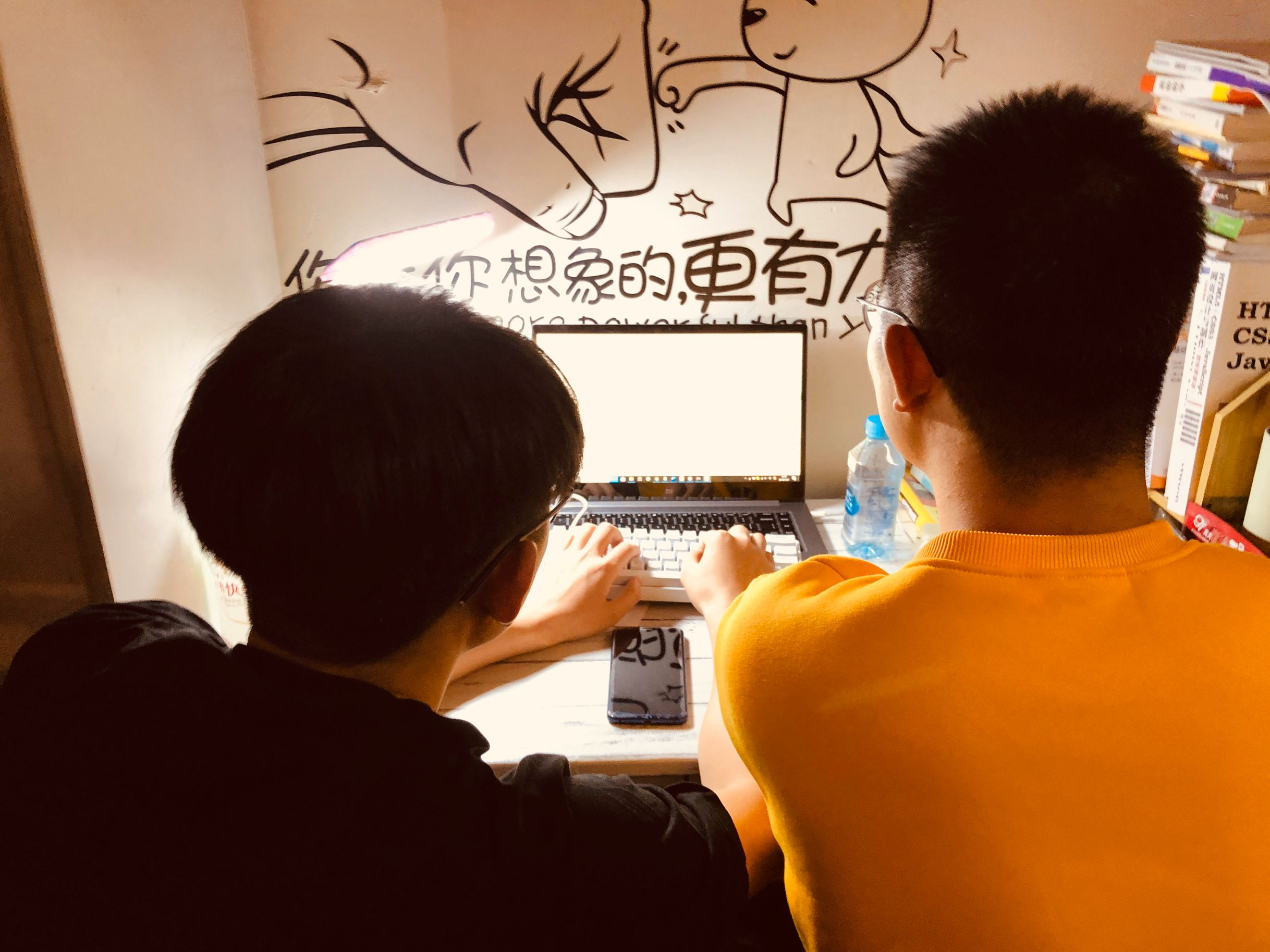
4) 结对过程描述及结对照片(非摆拍)。
实验总结:
通过上一周的学习我们学到了GUI布局管理器用法;和Java Swing文本输入组件用途及常用API;以及Java Swing选择输入组件用途及常用API。GUI布局管理器总共学了4种,分别是流式布局,边界布局,卡片布局以及网格布局;而在Java Swing文本输入组件中学到了TextFile以及PassWord;在Java Swing选择输入组件中学到了,单选按钮,复选框,组合框等;以及上面一改的用法都有了大致的了解;最后,在结对编程的题目中我将前面的测试程序糅合在一起写了这个程序,目前看来还是可以的,以后我要更加的努力了,争取把以前拉下的补回来。

201871010134-周英杰《面向对象程序设计(java)》第十四周学习总结的更多相关文章
- 201521123061 《Java程序设计》第十四周学习总结
201521123061 <Java程序设计>第十四周学习总结 1. 本周学习总结 1.1 以你喜欢的方式(思维导图或其他)归纳总结多数据库相关内容. 2. 书面作业 1. MySQL数据 ...
- 201521123072《java程序设计》第十四周学习总结
201521123072<java程序设计>第十四周学习总结 1. 本周学习总结 1.1 以你喜欢的方式(思维导图或其他)归纳总结多数据库相关内容. 2. 书面作业 1. MySQL数据库 ...
- 201521123038 《Java程序设计》 第十四周学习总结
201521123038 <Java程序设计> 第十四周学习总结 1. 本周学习总结 1.1 以你喜欢的方式(思维导图或其他)归纳总结多数据库相关内容. 接口: DriverManager ...
- 201521123122 《java程序设计》第十四周学习总结
## 201521123122 <java程序设计>第十四周实验总结 ## 1. 本周学习总结 1.1 以你喜欢的方式(思维导图或其他)归纳总结多数据库相关内容. 2. 书面作业 1. M ...
- 201771010134杨其菊《面向对象程序设计java》第九周学习总结
第九周学习总结 第一部分:理论知识 异常.断言和调试.日志 1.捕获 ...
- 201777010217-金云馨《面向对象程序设计Java》第四周总结学习
2019面向对象程序设计(Java)第4周学习指导及要求 项目 内容 这个作业属于哪个课程 <任课教师博客主页链接>https://www.cnblogs.com/nwnu-daizh/ ...
- 汪慧和201771010123《面向对象程序设计JAVA》第四周实验总结
第一部分:理论知识学习部分 1.类 类(class)是具有相同属性和行为的一组对象的集合,是构造程序的基本单元,是构造对象的模板或蓝图. 2.对象 对象:即数据,对象有三个特性——1.行为 2.状态 ...
- 201871010132-张潇潇《面向对象程序设计(java)》第一周学习总结
面向对象程序设计(Java) 博文正文开头 项目 内容 这个作业属于哪个课程 https://www.cnblogs.com/nwnu-daizh/ 这个作业的要求在哪里 https://www.cn ...
- 扎西平措 201571030332《面向对象程序设计 Java 》第一周学习总结
<面向对象程序设计(java)>第一周学习总结 正文开头: 项目 内容 这个作业属于哪个课程 https://www.cnblogs.com/nwnu-daizh/ 这个作业的要求在哪里 ...
- 201621123040《Java程序设计》第十四周学习总结
1.本周学习总结 1.1以你喜欢的方式(思维导图或其他)归纳总结与数据库相关内容. 显示所有数据库: show databases; 创建数据库: create database test; 删除数据 ...
随机推荐
- [C7] Andrew Ng - Sequence Models
About this Course This course will teach you how to build models for natural language, audio, and ot ...
- 剑指Offer-5.用两个栈实现队列(C++/Java)
题目: 用两个栈来实现一个队列,完成队列的Push和Pop操作. 队列中的元素为int类型. 分析: 栈的特点是先进后出,队列的特点则是先进先出. 题目要求我们用两个栈来实现一个队列,栈和队列都有入栈 ...
- [PHP] Laravel5.5 使用 laravel-cors 实现 Laravel 的跨域配置
Laravel5.5 使用 laravel-cors 实现 Laravel 的跨域配置 最开始的时候,我使用的是路由中间件的方式,但是发现中间件不起作用 这是之前使用的方式: 'cros' => ...
- CSP-J&S2019第一轮认证游记
Day-0 晚上和高一大佬BH聊了聊,感觉大佬第一次参加比赛毕竟还是有点慌QAQ,毕竟我这么菜的人都没慌过. 做了一套模拟题,用45分钟瞎打的提高组卷子得了62分,还不错,正式比赛用2个小时好好答的话 ...
- python接口自动化3-发送post及其他请求
前言 发过get请求相信学习post请求也很快学会,无非就是多了传参时的类型与参数格式.在我常见的post请求中用到最多的是json格式,但也有用其它,下面将介绍常用的参数类型格式. 一.Post请求 ...
- LeetCode 283:移动零 Move Zeroes
给定一个数组 nums,编写一个函数将所有 0 移动到数组的末尾,同时保持非零元素的相对顺序. Given an array nums, write a function to move all 0' ...
- 十二、Spring之IOC容器初始化
Spring之IOC容器初始化 前言 在前面我们分析了最底层的IOC容器BeanFactory,接着简单分析了高级形态的容器ApplicationContext,在ApplicationContext ...
- docker安装和配置Grafana
目录 安装 docker 启动 配置 配置域名和端口 配置ldap 配置邮箱 添加数据源 创建dashboard 配置alert 安装 docker 启动 先普通启动,然后把配置文件导出来,修改配置文 ...
- ssh工具推荐MobaXterm 可能是你遇到过的比较出色的一款
之前一直用xshell,现在推荐一个更好用的工具. 一站式的解决你的需求,而且画风个人也比较喜欢,而且随便一百度就能找得到green PJ 的版本
- NPOI 帮助类
NPOI 帮助类 代码实现了来自于互联网 using System; using System.Data; using System.IO; using System.Text; using NPOI ...