
【Win10】开发中的新特性及原有的变更(二)
声明:本文内容适用于 Visual Studio 2015 RC 及 Windows 10 10069 SDK 环境下,若以后有任何变更,请以新的特性为准。
十一、x:Bind 中使用强制转换
这点是补充上一篇文章的,当时忘了写(-__-)b
场景:需要绑定显示某个纯色背景的控件的背景颜色RGB值(感觉挺绕口的)。
因为在传统的绑定里,由于是动态的,而且我们也能确保 Background 的类型为 SolidColorBrush。
那么我们可以这么写绑定:
<Page

    x:Class="Build2015XamlDemo.XBindDemo2"

    xmlns="http://schemas.microsoft.com/winfx/2006/xaml/presentation"

    xmlns:x="http://schemas.microsoft.com/winfx/2006/xaml"

    xmlns:local="using:Build2015XamlDemo"

    xmlns:d="http://schemas.microsoft.com/expression/blend/2008"

    xmlns:mc="http://schemas.openxmlformats.org/markup-compatibility/2006"

    mc:Ignorable="d">

    <Grid Background="{ThemeResource ApplicationPageBackgroundThemeBrush}">

        <StackPanel>

            <Border x:Name="brd"

                    Background="Red"

                    Width="100"

                    Height="100"/>

            <Border BorderBrush="Green" BorderThickness="2">

                <StackPanel>

                    <TextBlock Text="Binding 传统绑定" />

                    <TextBlock Text="{Binding ElementName=brd,Path=Background.Color.R}" />

                    <TextBlock Text="{Binding ElementName=brd,Path=Background.Color.G}" />

                    <TextBlock Text="{Binding ElementName=brd,Path=Background.Color.B}" />

                </StackPanel>

            </Border>

        </StackPanel>

    </Grid>

</Page>
尽管控件的 Background 属性的类型是 Brush,但我们已经确保为 SolidColorBrush,因此在运行时,不会发生错误。
但是,在新的绑定 x:Bind 里这就没法编译通过了,因为 Brush 类并不存在 Color 属性,但是我们已经可以确保这里的 Background 一定是 SolidColorBrush。在 x:Bind 里我们可以使用强制转换来完成这个功能。
<Page

    x:Class="Build2015XamlDemo.XBindDemo2"

    xmlns="http://schemas.microsoft.com/winfx/2006/xaml/presentation"

    xmlns:x="http://schemas.microsoft.com/winfx/2006/xaml"

    xmlns:local="using:Build2015XamlDemo"

    xmlns:d="http://schemas.microsoft.com/expression/blend/2008"

    xmlns:mc="http://schemas.openxmlformats.org/markup-compatibility/2006"

    mc:Ignorable="d">

    <Grid Background="{ThemeResource ApplicationPageBackgroundThemeBrush}">

        <StackPanel>

            <Border x:Name="brd"

                    Background="Red"

                    Width="100"

                    Height="100"/>

            <Border BorderBrush="Green" BorderThickness="2">

                <StackPanel>

                    <TextBlock Text="Binding 传统绑定" />

                    <TextBlock Text="{Binding ElementName=brd,Path=Background.Color.R}" />

                    <TextBlock Text="{Binding ElementName=brd,Path=Background.Color.G}" />

                    <TextBlock Text="{Binding ElementName=brd,Path=Background.Color.B}" />

                </StackPanel>

            </Border>

            <Border BorderBrush="Blue" BorderThickness="2">

                <StackPanel>

                    <TextBlock Text="x:Bind 编译绑定" />

                    <TextBlock Text="{x:Bind Path=brd.Background.(SolidColorBrush.Color).R}" />

                    <TextBlock Text="{x:Bind Path=brd.Background.(SolidColorBrush.Color).G}" />

                    <TextBlock Text="{x:Bind Path=brd.Background.(SolidColorBrush.Color).B}" />

                </StackPanel>

            </Border>

        </StackPanel>

    </Grid>

</Page>
PS:因为 x:Bind 里没有 ElementName 这个旧绑定的属性,但是 x:Bind 的上下文为 Page 或 UserControl,而控件是 Page 或 UserControl 的成员,因此 Path 改为上面的写法。
十二、根据不同设备类型加载不同的 View
在上一篇里,我们使用了一个自定义 StateTrigger 来实现在 Desktop 和 Mobile 下显示不同的文本。这对于根据设备类型适配是很有效的。当然,园子里的东邪独孤(老周)给出的这篇【Win 10应用开发】如何知道UAP在哪个平台上运行,使用后台代码来判断也是一个方法。
对于 View 里仅仅需要少量区别化的话,上面两种方法都是最理想的方案。但是,假如我们需要 Desktop 和 Mobile 下呈现完完全全不同的内容的话,上面的方法就显得难以应付了,维护起来也麻烦。因此,需要一种方案解决这种问题。而现在微软给出的方案就是类似于解决本地化的方法,使用特定名字的文件夹。
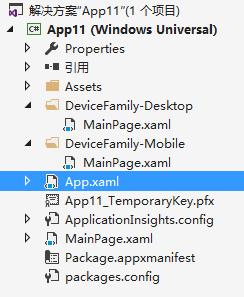
如上图,文件夹的名字需要以"DeviceFamily-"开头,并且以设备名称结尾,里面 View 的文件名必须跟文件夹外面对应的 View 的文件名一致(即这里同样是 MainPage)。
PS:目前已知的设备名称有:Desktop(代表桌面系统)、Mobile(代表移动系统)、Xbox(这个你懂的)、Team(代表 Surface Hub,就是 Build 大会上那台 72 寸大家伙)。
由于目前官方文档还没出来,应该有更多的设备类型。(据说还有个 Holographic 和 IoT,不过目前情况无法测试嘛~~)
细心的你们可能发现,在上面的图片中文件夹里的 xaml 是没有后台文件的。在 Visual Studio 里创建文件选择这个就可以了:
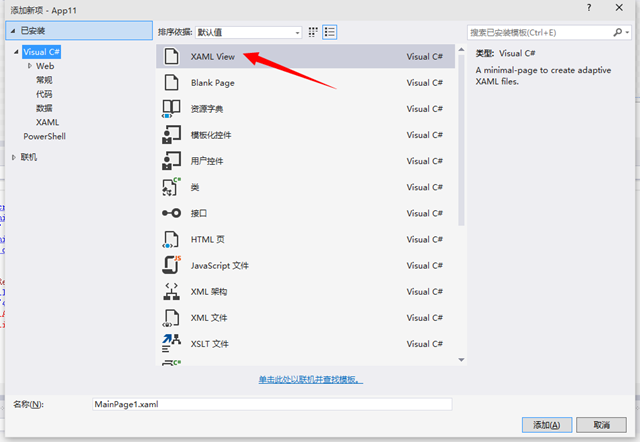
那么创建出来的文件就会像我上面图片里的一样了。
十三、x:DeferLoadStrategy(延迟加载)
在 Web 开发中,比较常见的一个例子就是用户注册时,验证码只有在用户焦点落在输入验证码的文本框时才开始正式加载,而不是页面加载的时候就开始加载。
在 XAML 里我们以前可能比较常做的方案就是在页面里先预留一个 Image 控件,并且隐藏它,等到真正输入验证码时再设置 Image 控件的 Source。
而 x:DeferLoadStrategy 则再进一步,在需要的情况下再初始化控件。这就更加节约了内存加改善了效率了。
1、基本 Demo
XAML:
<Page x:Class="Build2015XamlDemo.XDeferLoadStrategyDemo"

      xmlns="http://schemas.microsoft.com/winfx/2006/xaml/presentation"

      xmlns:x="http://schemas.microsoft.com/winfx/2006/xaml"

      xmlns:local="using:Build2015XamlDemo"

      xmlns:d="http://schemas.microsoft.com/expression/blend/2008"

      xmlns:mc="http://schemas.openxmlformats.org/markup-compatibility/2006"

      mc:Ignorable="d">

    <Grid Background="{ThemeResource ApplicationPageBackgroundThemeBrush}">

        <StackPanel HorizontalAlignment="Center"

                    VerticalAlignment="Center">

            <Border Width="150"

                    Height="100"

                    Background="Red"

                    x:Name="brdDeferLoad"

                    x:DeferLoadStrategy="Lazy"></Border>

            <Button Content="检查"

                    Click="BtnCheck_Click" />

            <Button Content="加载"

                    Click="BtnLoad_Click" />

        </StackPanel>

    </Grid>

</Page>
后台代码:
using System;

using Windows.UI.Popups;

using Windows.UI.Xaml;

using Windows.UI.Xaml.Controls;

namespace Build2015XamlDemo

{

    public sealed partial class XDeferLoadStrategyDemo : Page

    {

        public XDeferLoadStrategyDemo()

        {

            this.InitializeComponent();

        }

        private async void BtnCheck_Click(object sender, RoutedEventArgs e)

        {

            if (brdDeferLoad == null)

            {

                await new MessageDialog("还没加载").ShowAsync();

            }

            else

            {

                await new MessageDialog("已加载").ShowAsync();

            }

        }

        private void BtnLoad_Click(object sender, RoutedEventArgs e)

        {

            this.FindName(nameof(brdDeferLoad));

        }

    }

}
运行程序,然后点击检查按钮
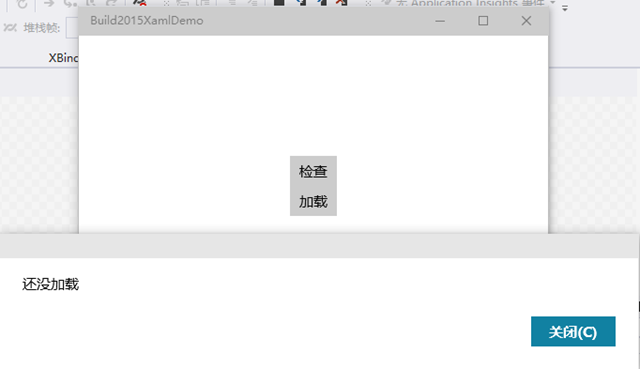
点击加载按钮
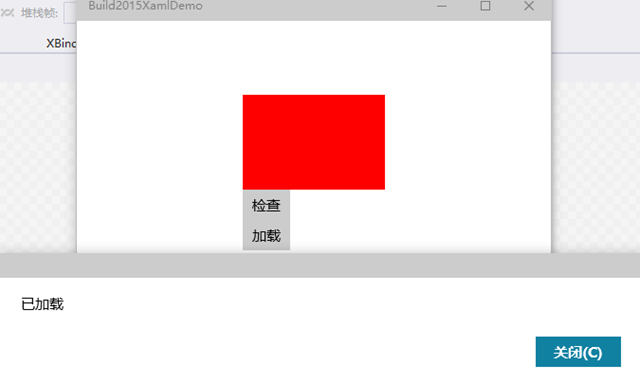
PS:执行 this.FindName 方法,XAML 树将会检索给定名字的控件,如果还没初始化的话,就会初始化。
2、使用 StateTrigger 来确定需要加载的控件
XAML:
<Page x:Class="Build2015XamlDemo.XDeferLoadStrategyDemo2"

      xmlns="http://schemas.microsoft.com/winfx/2006/xaml/presentation"

      xmlns:x="http://schemas.microsoft.com/winfx/2006/xaml"

      xmlns:local="using:Build2015XamlDemo"

      xmlns:d="http://schemas.microsoft.com/expression/blend/2008"

      xmlns:mc="http://schemas.openxmlformats.org/markup-compatibility/2006"

      mc:Ignorable="d">

    <Grid Background="{ThemeResource ApplicationPageBackgroundThemeBrush}">

        <VisualStateManager.VisualStateGroups>

            <VisualStateGroup>

                <VisualState x:Name="narrow">

                    <VisualState.StateTriggers>

                        <AdaptiveTrigger MinWindowWidth="600" />

                    </VisualState.StateTriggers>

                    <VisualState.Setters>

                        <Setter Target="brdLeft.Visibility"

                                Value="Visible" />

                    </VisualState.Setters>

                </VisualState>

                <VisualState x:Name="wide">

                    <VisualState.StateTriggers>

                        <AdaptiveTrigger MinWindowWidth="850" />

                    </VisualState.StateTriggers>

                    <VisualState.Storyboard>

                        <Storyboard>

                            <ObjectAnimationUsingKeyFrames Storyboard.TargetName="brdRight"

                                                           Storyboard.TargetProperty="Visibility">

                                <DiscreteObjectKeyFrame Value="Visible"

                                                        KeyTime="0" />

                            </ObjectAnimationUsingKeyFrames>

                        </Storyboard>

                    </VisualState.Storyboard>

                </VisualState>

            </VisualStateGroup>

        </VisualStateManager.VisualStateGroups>

        <Grid.ColumnDefinitions>

            <ColumnDefinition Width="500" />

            <ColumnDefinition Width="250" />

            <ColumnDefinition Width="*" />

        </Grid.ColumnDefinitions>

        <Border Background="Red" />

        <Border Background="Green"

                x:Name="brdLeft"

                Grid.Column="1"

                x:DeferLoadStrategy="Lazy" />

        <Border Background="Blue"

                x:Name="brdRight"

                Grid.Column="2"

                x:DeferLoadStrategy="Lazy" />

    </Grid>

</Page>
效果:
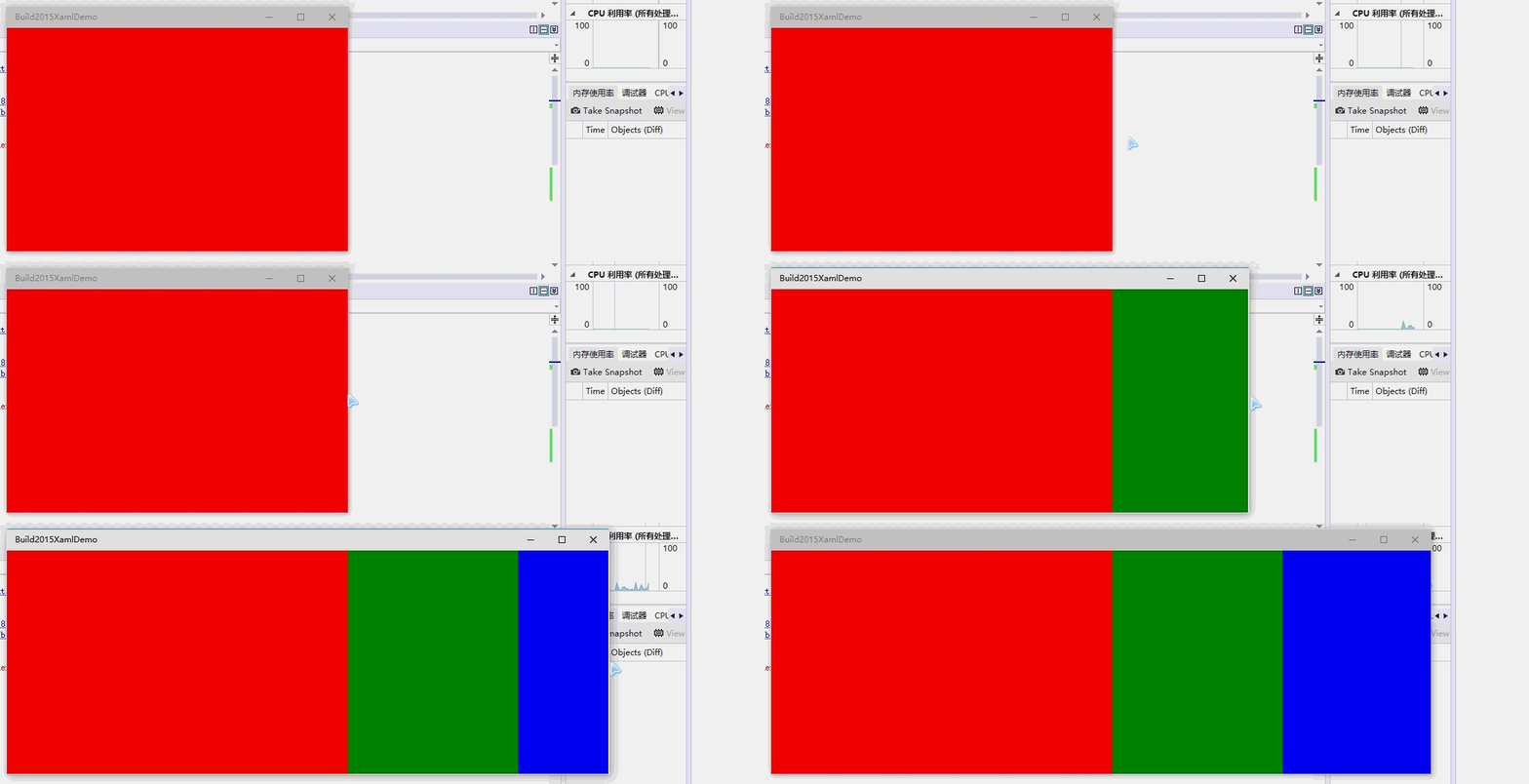
可见,在使用 Setter 或者 Storyboard 的情况下,如果控件没加载,那么系统将会帮我们加载,不再需要在后台代码中调用 this.FindName 方法。
十四、InkCanvas 控件
这是一个新的控件,就像一个涂鸦画板一样。
测试代码:
XAML:
<Page x:Class="Build2015XamlDemo.InkCanvasDemo"

      xmlns="http://schemas.microsoft.com/winfx/2006/xaml/presentation"

      xmlns:x="http://schemas.microsoft.com/winfx/2006/xaml"

      xmlns:local="using:Build2015XamlDemo"

      xmlns:d="http://schemas.microsoft.com/expression/blend/2008"

      xmlns:mc="http://schemas.openxmlformats.org/markup-compatibility/2006"

      mc:Ignorable="d">

    <Grid Background="{ThemeResource ApplicationPageBackgroundThemeBrush}">

        <Grid.ColumnDefinitions>

            <ColumnDefinition Width="Auto" />

            <ColumnDefinition />

        </Grid.ColumnDefinitions>

        <StackPanel Grid.Column="0">

            <ComboBox x:Name="cmb"

                      SelectionChanged="ComboBox_SelectionChanged">

                <ComboBoxItem IsSelected="True">Red</ComboBoxItem>

                <ComboBoxItem>Green</ComboBoxItem>

            </ComboBox>

        </StackPanel>

        <Grid Grid.Column="1"

              Background="DarkGray">

            <Border Background="White"

                    Margin="20">

                <InkCanvas x:Name="canvas" />

            </Border>

        </Grid>

    </Grid>

</Page>
后台代码:
using Windows.UI;

using Windows.UI.Xaml.Controls;

// The Blank Page item template is documented at http://go.microsoft.com/fwlink/?LinkId=234238

namespace Build2015XamlDemo

{

    /// <summary>

    /// An empty page that can be used on its own or navigated to within a Frame.

    /// </summary>

    public sealed partial class InkCanvasDemo : Page

    {

        public InkCanvasDemo()

        {

            this.InitializeComponent();

            UpdateInkCanvas();

        }

        private void UpdateInkCanvas()

        {

            var colorStr = ((ComboBoxItem)(cmb.SelectedItem)).Content.ToString();

            Color color;

            if (colorStr == "Red")

            {

                color = Colors.Red;

            }

            if (colorStr == "Green")

            {

                color = Colors.Green;

            }

            // 必须设置,否则无法响应设备输入。

            canvas.InkPresenter.InputDeviceTypes = Windows.UI.Core.CoreInputDeviceTypes.Mouse | Windows.UI.Core.CoreInputDeviceTypes.Pen | Windows.UI.Core.CoreInputDeviceTypes.Touch;

            var attributes = canvas.InkPresenter.CopyDefaultDrawingAttributes();

            attributes.Color = color;

            canvas.InkPresenter.UpdateDefaultDrawingAttributes(attributes);

        }

        private void ComboBox_SelectionChanged(object sender, SelectionChangedEventArgs e)

        {

            if (canvas != null)

            {

                UpdateInkCanvas();

            }

        }

    }

}
效果:
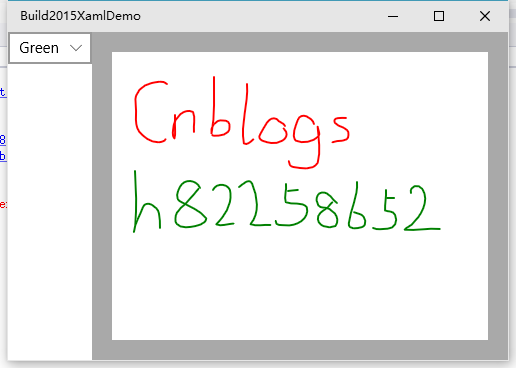
此外,attributes 对象里还有很多属性可以设置,例如笔触大小等等,做一个“图画”出来可不成问题。
今次就讲到这里了,原本还想说一个用户输入数据的验证,但是这项功能在最新的 SDK 里已经被删除了。而且 Windows 10 RTM 发行时也不会再有。(不排除以后更新会回来)
这是微软官方人员在 github 上的回答(地址:https://github.com/Microsoft/Windows-universal-samples/issues/21):

转载请保留到该页面的链接http://www.cnblogs.com/h82258652/articles/4517357.html。谢谢!
【Win10】开发中的新特性及原有的变更(二)的更多相关文章
- 【Win10】开发中的新特性及原有的变更
声明:本文内容适用于 Visual Studio 2015 RC 及 Windows 10 10069 SDK 环境下,若以后有任何变更,请以新的特性为准. 一.Password 控件的小眼睛属性的变 ...
- iOS7开发中的新特性
iOS7到现在已经发布了有一段时间了.相信你现在已经了解了它那些开创性的视觉设计,已经了解了它的新的API,比如说SpirteKit,UIKit Dynamics以及TextKit,作为开发者 ...
- Webpack 3 中的新特性
本文简短地分享下最新发布的 Webpack 3 中的新特性,供大家参考. 1. Webpack 3 的新特性 6 月 20 日,Webpack 发布了最新的 3.0 版本,并在 Medium 发布了公 ...
- 使用示例带你提前了解 Java 9 中的新特性
使用示例带你提前了解 Java 9 中的新特性 转载来源:https://juejin.im/post/58c5e402128fe100603cc194 英文出处:https://www.journa ...
- HTML 5中的新特性
HTML 5中的新特性 html5新增了一些语义化更好的标签元素.首先,让我们来了解一下HTML语义化. 1.什么是HTML语义化? 根据内容的结构化(内容语义化),选择合适的标签(代码语义化)便于开 ...
- ASP.NET 5与MVC 6中的新特性
差点忘了提一句,MVC 6中默认的渲染引擎Razor也将得到更新,以支持C# 6中的新语法.而Razor中的新特性还不只这一点. 在某些情况下,直接在Web页面中嵌入某些JSON数据的方式可能比向服务 ...
- (数据科学学习手札73)盘点pandas 1.0.0中的新特性
本文对应脚本及数据已上传至我的Github仓库https://github.com/CNFeffery/DataScienceStudyNotes 1 简介 毫无疑问pandas已经成为基于Pytho ...
- 1 PHP 5.3中的新特性
1 PHP 5.3中的新特性 1.1 支持命名空间 (Namespace) 毫无疑问,命名空间是PHP5.3所带来的最重要的新特性. 在PHP5.3中,则只需要指定不同的命名空间即可,命名空间的分隔符 ...
- SuperMap iClient 7C——网络客户端GIS开发平台 产品新特性
SuperMap iClient 7C是空间信息和服务的可视化交互开发平台,是SuperMap服务器系列产品的统一客户端.产品基于统一的架构体系,面向Web端和移动端提供了多种类型的SDK开发包,帮助 ...
随机推荐
- MyBatis 通用Mapper接口 Example的实例
一.mapper接口中的方法解析 mapper接口中的函数及方法 方法 功能说明 int countByExample(UserExample example) thorws SQLException ...
- cin 不能直接读入空格,可以用getline(PAT统计字符数)
#include <iostream>#include <cstring>using namespace std; int main(){ string str; ...
- js string 字符串
mutil lines string 多行字符串, 由于多行字符串用\n写起来比较费事,所以最新的ES6标准新增了一种多行字符串的表示方法,用...表示,是单撇号, 不是单引号. 这是一个 多行 字符 ...
- php中的declare
<?php // 事件的回调函数 function func_tick() { echo "call...\r\n"; } // 注册事件的回调函数 register_tic ...
- python生成验证码,文字转换为图片-乾颐堂
在58或者赶集等一些网站上经常看到手机号是图片格式,或者一些网站的验证码.这些都是动态生成的,今天我们来看一下如何用python把文字生成图片.其实今天主要借助pygame的图像渲染模块,这样比较简单 ...
- 旅游类APP原型模板分享——爱彼迎
这是一款专为游客提供全球范围内短租服务的APP,可以让你不论出门在外或在家附近都能开展探索之旅,并且还可以获取世界各地独特房源.当地体验及好去处等相关信息. 这款APP层级清晰简明,此原型模板所用到的 ...
- ipconfig 查看本机IP地址
打开cmd 窗口 然后输入ipconfig 就会为你展示你想要的IP地址了...
- 抽象 abstract 和 接口 interface。 java 的 堆 和 栈。 参数传递(基本类型和普通对象的区别)
package com.test; import com.test.Pro; //protected 修饰的成员只能在本包中和 继承该类的方法中使用 public abstract class Tes ...
- Jbpm4.4+hibernate3.5.4+spring3.0.4+struts2.1.8 整合例子
转自:http://www.blogjava.net/wangxinsh55/archive/2011/07/24/354925.html Jbpm4.4+hibernate3.5.4+sprin ...
- DB2 create into的用法
. 建立表 create table zjt_tables as (select * from tables) definition only; create table zjt_views as ( ...