
ubuntu16.04(64位)建立交叉编译环境,并配置编译内核
安装步骤
1、准备工具安装目录
将压缩包gcc-linaro-arm-linux-bnueabihf-4.9-2014.07_linux.tar存放在一个目录下,这个目录就是你等会解压缩的目录,以后这个目录就不能随便删掉了,我的存放路径是/home/zyr/Am335x/Sourcefiletools,如下图,记住这个路径,等会还会用到。
zyr@ubuntu:~/Am335x/Sourcefiletools$ ls

gcc-linaro-arm-linux-gnueabihf-4.9-.07_linux

gcc-linaro-arm-linux-gnueabihf-4.9-.07_linux.tar

zyr@ubuntu:~/Am335x/Sourcefiletools$ pwd

/home/zyr/Am335x/Sourcefiletools

zyr@ubuntu:~/Am335x/Sourcefiletools
2、安装软件
使用tar命令:tar xvf gcc-linaro-arm-linux-gnueabihf-4.9-2014.07_linux.tar将Sourcefiletools文件夹下的gcc-linaro-arm-linux-gnueabihf-4.9-2014.07_linux.tar解压缩安装到当前目录。通过下图可以看到解压成功了,并且解压后的文件存放在了
- /home/zyr/Am335x/Sourcefiletools/gcc-linaro-arm-linux-gnueabihf-4.9-2014.07_linux
文件夹下,如下图所示,这个存放路径可得记住,如下图
zyr@ubuntu:~/Am335x/Sourcefiletools/gcc-linaro-arm-linux-gnueabihf-4.9-.07_linux$ ls

arm-linux-gnueabihf  bin  lib  libexec  share

zyr@ubuntu:~/Am335x/Sourcefiletools/gcc-linaro-arm-linux-gnueabihf-4.9-.07_linux$
3、配置系统环境变量
配置环境前先坐下普及:
Ubuntu不同目录下profile与bashrc的区别
/etc/profile 此文件为系统的每个用户设置环境信息,当用户第一次登录时,该文件被执行,并从/etc/profile.d目录的配置文件中搜集shell的设置。
/etc/bash.bashrc 为每一个运行bash shell的用户执行此文件,当bash shell被打开时,该文件被读取。
~/.bash_profile 每个用户都可使用该文件输入专用于自己使用的shell信息,当用户登录时,该文件仅仅执行一次,默认情况下,他设置一些环境变量,执行用户的.bashrc文件。
~/.bashrc 该文件包含专用于你的bash shell的bash信息,当登录时以及每次打开新的shell时,该文件被读取。
~/.bash_logout 当每次退出系统(退出bash shell)时,执行该文件。
另外,/etc/profile中设定的变量(全局)的可以作用于任何用户,而~/.bashrc等中设定的变量(局部)只能继承/etc/profile中的变量,他们是"父子"关系。
~/.bash_profile 是交互式、login 方式进入 bash 运行的。
~/.bashrc 是交互式 non-login 方式进入 bash 运行的。
通常二者设置大致相同,所以通常前者会调用后者。
接下来配置系统环境变量,把交叉编译工具链的路径添加到环境变量PATH中去,这样就可以在任何目录下使用这些工具。记下上一步中的安装路径,使用命令:vim /home/aldrich/.bashrc 编辑.bashrc文件,添加环境变量。
在该文件中最后一行添加:
sudo gedit /etc/profile
# /etc/profile: system-wide .profile file for the Bourne shell (sh())

# and Bourne compatible shells (bash(), ksh(), ash(), ...).

if [ "$PS1" ]; then

  if [ "$BASH" ] && [ "$BASH" != "/bin/sh" ]; then

    # The file bash.bashrc already sets the default PS1.

    # PS1='\h:\w\$ '

    if [ -f /etc/bash.bashrc ]; then

      . /etc/bash.bashrc

    fi

  else

    if [ "`id -u`" -eq  ]; then

      PS1='# '

    else

      PS1='$ '

    fi

  fi

fi

if [ -d /etc/profile.d ]; then

  for i in /etc/profile.d/*.sh; do

    if [ -r $i ]; then

      . $i

    fi

  done

  unset i

fi

export PATH=$PATH:/home/zyr/Am335x/Sourcefiletools/gcc-linaro-arm-linux-gnueabihf-4.9-2014.07_linux/bin/
这个路径就是那个bin目录所在的路径,可能你的不一样,按照你实际的目录填就可以了,
编写完保存就好了
4、使环境变量生效
使用命令:source /etc/profile 使环境变量生效
5、检查环境变量是否设置成功
在终端上输入命令 arm-linux-gnueabifh- 再按Tab键,可以看到下图,说明环境变量设置成功了
zyr@ubuntu:~$ arm-linux-gnueabihf-

arm-linux-gnueabihf-addr2line        arm-linux-gnueabihf-gfortran

arm-linux-gnueabihf-ar               arm-linux-gnueabihf-gprof

arm-linux-gnueabihf-as               arm-linux-gnueabihf-ld

arm-linux-gnueabihf-c++              arm-linux-gnueabihf-ld.bfd

arm-linux-gnueabihf-c++filt          arm-linux-gnueabihf-ldd

arm-linux-gnueabihf-cpp              arm-linux-gnueabihf-ld.gold

arm-linux-gnueabihf-dwp              arm-linux-gnueabihf-nm

arm-linux-gnueabihf-elfedit          arm-linux-gnueabihf-objcopy

arm-linux-gnueabihf-g++              arm-linux-gnueabihf-objdump

arm-linux-gnueabihf-gcc              arm-linux-gnueabihf-pkg-config

arm-linux-gnueabihf-gcc-4.9.        arm-linux-gnueabihf-pkg-config-real

arm-linux-gnueabihf-gcc-ar           arm-linux-gnueabihf-ranlib

arm-linux-gnueabihf-gcc-nm           arm-linux-gnueabihf-readelf

arm-linux-gnueabihf-gcc-ranlib       arm-linux-gnueabihf-size

arm-linux-gnueabihf-gcov             arm-linux-gnueabihf-strings

arm-linux-gnueabihf-gdb              arm-linux-gnueabihf-strip

zyr@ubuntu:~$ arm-linux-gnueabihf-
6、安装32位库兼容包(因为系统是64位的,安装的交叉编译器是32位的)
sudo apt-get install ia32-libs 装一些32位的库
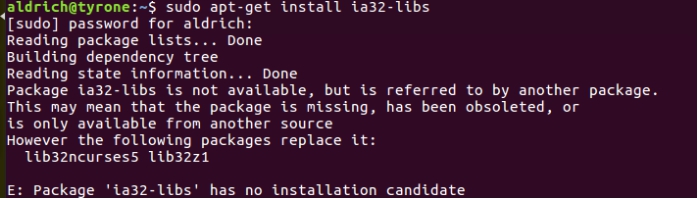
出现上述界面是因为Ubuntu16.04版本已不支持ia32-libs的软件包,而是使用了lib32ncurses5、lib32z1软件包做为替代,所以在Ubuntu16.04版本当中应该安装执行:
sudo apt-get install lib32ncurses5 lib32z1
待安装完32位的库之后,再使用命令:arm-linux-gnueabihf-gcc -v,出现这种错误:
ubuntu arm-linux-gnueabihf-gcc: error while loading shared libraries: libstdc++.so.6
安装:
sudo apt-get install lib32stdc++6
然后再查看arm-linux-gnueabihf-gcc -v就可以看到版本了:
zyr@ubuntu:~/Am335x/Kernel/linux-4.1.$ arm-linux-gnueabihf-gcc -v

Using built-in specs.

COLLECT_GCC=arm-linux-gnueabihf-gcc

COLLECT_LTO_WRAPPER=/home/zyr/Am335x/Sourcefiletools/gcc-linaro-arm-linux-gnueabihf-4.9-.07_linux/bin/../libexec/gcc/arm-linux-gnueabihf/4.9./lto-wrapper

Target: arm-linux-gnueabihf

Configured with: /cbuild/slaves/oorts/crosstool-ng/builds/arm-linux-gnueabihf-linux/.build/src/gcc-linaro-4.9-2014.07/configure --build=i686-build_pc-linux-gnu --host=i686-build_pc-linux-gnu --target=arm-linux-gnueabihf --prefix=/cbuild/slaves/oorts/crosstool-ng/builds/arm-linux-gnueabihf-linux/install --with-sysroot=/cbuild/slaves/oorts/crosstool-ng/builds/arm-linux-gnueabihf-linux/install/arm-linux-gnueabihf/libc --enable-languages=c,c++,fortran --disable-multilib --enable-multiarch --with-arch=armv7-a --with-tune=cortex-a9 --with-fpu=vfpv3-d16 --with-float=hard --with-pkgversion='crosstool-NG linaro-1.13.1-4.9-2014.07 - Linaro GCC 4.9-2014.07' --with-bugurl=https://bugs.launchpad.net/gcc-linaro --enable-__cxa_atexit --enable-libmudflap --enable-libgomp --enable-libssp --with-gmp=/cbuild/slaves/oorts/crosstool-ng/builds/arm-linux-gnueabihf-linux/.build/arm-linux-gnueabihf/build/static --with-mpfr=/cbuild/slaves/oorts/crosstool-ng/builds/arm-linux-gnueabihf-linux/.build/arm-linux-gnueabihf/build/static --with-mpc=/cbuild/slaves/oorts/crosstool-ng/builds/arm-linux-gnueabihf-linux/.build/arm-linux-gnueabihf/build/static --with-isl=/cbuild/slaves/oorts/crosstool-ng/builds/arm-linux-gnueabihf-linux/.build/arm-linux-gnueabihf/build/static --with-cloog=/cbuild/slaves/oorts/crosstool-ng/builds/arm-linux-gnueabihf-linux/.build/arm-linux-gnueabihf/build/static --with-libelf=/cbuild/slaves/oorts/crosstool-ng/builds/arm-linux-gnueabihf-linux/.build/arm-linux-gnueabihf/build/static --enable-threads=posix --disable-libstdcxx-pch --enable-linker-build-id --enable-plugin --enable-gold --with-local-prefix=/cbuild/slaves/oorts/crosstool-ng/builds/arm-linux-gnueabihf-linux/install/arm-linux-gnueabihf/libc --enable-c99 --enable-long-long --with-mode=thumb --disable-multilib --with-float=hard

Thread model: posix

gcc version 4.9.  (prerelease) (crosstool-NG linaro-1.13.-4.9-2014.07 - Linaro GCC 4.9-2014.07)
7、交叉编译工具验证--编译内核:
在内核目录下建立如下脚本文件(bulid-kernel.sh):
#! /bin/bash

echo "Configure the kernel"

until

    echo "1.make the omap2plus.defconfig"

    echo "2.make the menuconfig( Boot options -> Kernel command line type (root=/dev/mmcblk0p2 rootwait console=ttyo0,115200) )"

    echo "3.make the dtb"

    echo "4.make the zImage"

    echo "5.make the uImage"

    echo "6.make the distclean"

    echo "7.make the modules"

    echo "8.quit"

    read input

    test $input =

    do

        case $input in

        )make ARCH=arm CROSS_COMPILE=arm-linux-gnueabihf- omap2plus_defconfig;;

        )make ARCH=arm CROSS_COMPILE=arm-linux-gnueabihf- menuconfig;;

        )make ARCH=arm CROSS_COMPILE=arm-linux-gnueabihf- am335x-boneblack.dtb;;

        )make ARCH=arm CROSS_COMPILE=arm-linux-gnueabihf- zImage;;

        )make ARCH=arm CROSS_COMPILE=arm-linux-gnueabihf- LOADADDR=0x80008000 uImage;;

        )make ARCH=arm CROSS_COMPILE=arm-linux-gnueabihf- distclean;;

        )make ARCH=arm CROSS_COMPILE=arm-linux-gnueabihf- -j8 modules;;

        )echo"quit";;

        esac

        done
运行脚本文件bulid-kernel.sh
sh build-kernel.sh
zyr@ubuntu:~/Am335x/Kernel/linux-4.1.$ sh build-kernel.sh

Configure the kernel

.make the omap2plus.defconfig

.make the menuconfig( Boot options -> Kernel command line type (root=/dev/mmcblk0p2 rootwait console=ttyo0,) )

.make the dtb

.make the zImage

.make the uImage

.make the distclean

.make the modules

.quit

#

# configuration written to .config

#

.make the omap2plus.defconfig

.make the menuconfig( Boot options -> Kernel command line type (root=/dev/mmcblk0p2 rootwait console=ttyo0,) )

.make the dtb

.make the zImage

.make the uImage

.make the distclean

.make the modules

.quit
输入控制命令2时产生错误:
执行make menuconfig时出现如下错误

@ubuntu:/home/dev/busybox-1.19.# make menuconfig

  HOSTCC  scripts/kconfig/lxdialog/checklist.o

In file included from scripts/kconfig/lxdialog/checklist.c:::

scripts/kconfig/lxdialog/dialog.h::: fatal error: curses.h: 没有那个文件或目录

compilation terminated.

make[]: *** [scripts/kconfig/lxdialog/checklist.o] 错误

make[]: *** [menuconfig] 错误

make: *** [menuconfig] 错误

这时因为ubuntu系统中缺少一个套件 ncurses devel ,把此套件安装下即可

apt-get install libncurses5-dev
按以上方法解决,最终可以配置内核了。
ubuntu16.04(64位)建立交叉编译环境,并配置编译内核的更多相关文章
- VisualBox ubuntu14.04 64位 android4.4.4源码编译总结
转载请保留出处:http://www.cnblogs.com/wi100sh/p/4337907.html 折腾了好几天,今天终于编译通过,用了4个多小时,太不容易了.如下图所示: 软件环境 虚拟机: ...
- 【转】Ubuntu 64位系统安装交叉编译环境一直提醒 没有那个文件或目录
安装交叉编译环境搞了一个晚上 一直提示 root@zqs-pc:~# arm-linux-gcc/usr/local/arm/4.3.2/bin/arm-linux-gcc: 行 3: /usr/lo ...
- 阿里云服务器(Ubuntu16.04 64位)远程连接
购买阿里云服务器 1.打开阿里云官方网站,账号登录,选择产品中的云服务器 ECS 2.根据自身需求,选择合适的阿里云服务器系统,(1)点击一键购买,(2)选择地域,(3)根据自身需求,选择系统,这里选 ...
- 阿里云服务器(Ubuntu16.04 64位)的使用
购买阿里云服务器 1.打开阿里云官方网站,账号登录,选择产品中的云服务器 ECS 2.根据自身需求,选择合适的阿里云服务器系统,(1)点击一键购买,(2)选择地域,(3)根据自身需求,选择系统,这里选 ...
- Ubuntu16.04 64位编译安装Hi3520D_SDK_V1.0.4.0
1.复制uboot/tools/mkimage到环境变量路径 2.修改kernel/timeconst.pl,删除define 3.busybox makefile修改: /itc_work/hi35 ...
- 关于全志A20的Ubuntu12.04 64位系统下环境配置及编译过程笔记【转】
本文转载自:https://blog.csdn.net/buqingbuyuan/article/details/43370199 在安装Ubuntu系统之后,安装编译所需的GCC等工具,一般选用GC ...
- Ubuntu 14.04(64位)+GTX970+CUDA8.0+Tensorflow配置 (双显卡NVIDIA+Intel集成显卡) ------本内容是长时间的积累,有时间再详细整理
(后面内容是本人初次玩GPU时,遇到很多坑的问题总结及尝试解决办法.由于买独立的GPU安装会涉及到设备的兼容问题,这里建议还是购买GPU一体机(比如https://item.jd.com/396477 ...
- idea2016 64位 安装,jdk环境变量配置
idea 激活服务器地址: 地址1: http://www.iteblog.com/idea/key.php 地址2: http://idea.qinxi1992.cn/ intelli ...
- ubuntu16.04 64位安装tftp服务器
1.安装tftpd-hpa和xinetd sudo apt-get install tftpd-hpa xined2.针对64位操作系统安装openbsd-inetd apt-get install ...
随机推荐
- zabbix lld使用trapper方式(zabbix_sender)
自动发现脚本文件输出格式: { "data": [ { "{#BIND_PERF}": "BIND INCOMING QUERY" }, { ...
- POJ 2485 Highways( 最小生成树)
题目链接 Description The islandnation of Flatopia is perfectly flat. Unfortunately, Flatopia has no publ ...
- 触发器Demo
--mysql 触发器简单实例 --创建表1 )) ; --创建表2 )); --创建触发器,表一增加数据时,表二自动增加数据 create trigger t_afterinsert_on_tab1 ...
- java map遍历并删除特定值
删除map中包含password和username的键值对 若是在map中直接删除,会指针错误 Iterator<Map.Entry<String,Object>> it = ...
- 好用的工具---screen命令
问 题场景:要在服务器上配置环境,但是我的电脑无法直接连到服务器上,通常要经过好几次ssh跳转.配环境需要设置好几个用户,这自然需要同时打开好几个连 接服务器的终端窗口,每个连接到服务器的终端窗口都要 ...
- 【C语言学习笔记】字符串拼接的3种方法 .
昨天晚上和@buptpatriot讨论函数返回指针(malloc生成的)的问题,提到字符串拼接,做个总结. #include<stdio.h> #include<stdlib.h&g ...
- 05 Go 1.5 Release Notes
Go 1.5 Release Notes Introduction to Go 1.5 Changes to the language Map literals The Implementation ...
- VBA笔记-参考教程
参考教程1: http://www.cnblogs.com/wuzhiblog/tag/VBA/ 1. VBA中字符换行 VBA中字符换行显示需要使用换行符来完成.下面是常用的换行符 ...
- Motan
https://github.com/weibocom/motan/wiki/zh_userguide http://www.cnblogs.com/mantu/p/5885996.html(源码分析 ...
- Maven 基础知识
Maven MavenMaven 简介 Maven MavenMaven 是 Apache Apache Apache 软件基金会组织维护的 软件基金会组织维护的 软件基金会组织维护的 软件基金会组织 ...