
20个有用的linux命令行技巧
20 Unix Command Line Tricks – Part I
http://www.cyberciti.biz/open-source/command-line-hacks/20-unix-command-line-tricks-part-i/
Deleting a HUGE file
I had a huge log file 200GB I need to delete on a production web server. My rm and ls command was crashed and I was afraid that the system to a crawl with huge disk I/O load. To remove a HUGE file, enter:
> /path/to/file.log

# or use the following syntax

: > /path/to/file.log


# finally delete it

rm /path/to/file.log
Want to cache console output?
Try the script command line utility to create a typescript of everything printed on your terminal.
script my.terminal.sessio
Type commands:
ls

date

sudo service foo stop
To exit (to end script session) type exit or logout or press control-D
exit
To view type:
more my.terminal.session

less my.terminal.session

cat my.terminal.session
Restoring deleted /tmp folder
As my journey continues with Linux and Unix shell, I made a few mistakes. I accidentally deleted /tmp folder. To restore it all you have to do is:
mkdir /tmp

chmod 1777 /tmp

chown root:root /tmp

ls -ld /tmp
Locking a directory
For privacy of my data I wanted to lock down /downloads on my file server. So I ran:
chmod 0000 /downloads
The root user can still has access and ls and cd commands will not work. To go back:
chmod 0755 /downloads
Password protecting file in vim text editor
Afraid that root user or someone may snoop into your personal text files? Try password protection to a file in vim, type:
vim +X filename
Or, before quitting in vim use :X vim command to encrypt your file and vim will prompt for a password.
Clear gibberish all over the screen
Just type:
reset
Becoming human
Pass the -h or -H (and other options) command line option to GNU or BSD utilities to get output of command commands like ls, df, du, in human-understandable formats:
ls -lh

# print sizes in human readable format (e.g., 1K 234M 2G)

df -h

df -k

# show output in bytes, KB, MB, or GB

free -b

free -k

free -m

free -g

# print sizes in human readable format (e.g., 1K 234M 2G)

du -h

# get file system perms in human readable format

stat -c %A /boot

# compare human readable numbers

sort -h -a file

# display the CPU information in human readable format on a Linux

lscpu

lscpu -e

lscpu -e=cpu,node

# Show the  size of each file but in a more human readable way

tree -h

tree -h /boot
Show information about known users in the Linux based system
Just type:
## linux version ##

lslogins


## BSD version ##

logins
Sample outputs:
UID USER      PWD-LOCK PWD-DENY LAST-LOGIN GECOS

  0 root             0        0   22:37:59 root

  1 bin              0        1            bin

  2 daemon           0        1            daemon

  3 adm              0        1            adm

  4 lp               0        1            lp

  5 sync             0        1            sync

  6 shutdown         0        1 2014-Dec17 shutdown

  7 halt             0        1            halt

  8 mail             0        1            mail

 10 uucp             0        1            uucp

 11 operator         0        1            operator

 12 games            0        1            games

 13 gopher           0        1            gopher

 14 ftp              0        1            FTP User

 27 mysql            0        1            MySQL Server

 38 ntp              0        1

 48 apache           0        1            Apache

 68 haldaemon        0        1            HAL daemon

 69 vcsa             0        1            virtual console memory owner

 72 tcpdump          0        1

 74 sshd             0        1            Privilege-separated SSH

 81 dbus             0        1            System message bus

 89 postfix          0        1

 99 nobody           0        1            Nobody

173 abrt             0        1

497 vnstat           0        1            vnStat user

498 nginx            0        1            nginx user

499 saslauth         0        1            "Saslauthd user"
How do I fix mess created by accidentally untarred files in the current dir?
So I accidentally untar a tarball in /var/www/html/ directory instead of /home/projects/www/current. It created mess in /var/www/html/. The easiest way to fix this mess:
cd /var/www/html/

/bin/rm -f "$(tar ztf /path/to/file.tar.gz)"
Confused on a top command output?
Seriously, you need to try out htop instead of top:
sudo htop
Want to run the same command again?
Just type !!. For example:
/myhome/dir/script/name arg1 arg2


# To run the same command again

!!


## To run the last command again as root user

sudo !!
The !! repeats the most recent command. To run the most recent command beginning with "foo":
!foo

# Run the most recent command beginning with "service" as root

sudo !service
The !$ use to run command with the last argument of the most recent command:
# Edit nginx.conf

sudo vi /etc/nginx/nginx.conf


# Test nginx.conf for errors

/sbin/nginx -t -c /etc/nginx/nginx.conf


# After testing a file with "/sbin/nginx -t -c /etc/nginx/nginx.conf", you

# can edit file again with vi

sudo vi !$
Get a reminder you when you have to leave
If you need a reminder to leave your terminal, type the following command:
leave +hhmm
Where,
- hhmm - The time of day is in the form hhmm where hh is a time in hours (on a 12 or 24 hour clock), and mm are minutes. All times are converted to a 12 hour clock, and assumed to be in the next 12 hours.
Home sweet home
Want to go the directory you were just in? Run:cd -
Need to quickly return to your home directory? Enter:cd
The variable CDPATH defines the search path for the directory containing directories:
export CDPATH=/var/www:/nas10
Now, instead of typing cd /var/www/html/ I can simply type the following to cd into /var/www/html path:
cd html
Editing a file being viewed with less pager
To edit a file being viewed with less pager, press v. You will have the file for edit under $EDITOR:
less *.c

less foo.html

## Press v to edit file ##

## Quit from editor and you would return to the less pager again ##
List all files or directories on your system
To see all of the directories on your system, run:
find / -type d | less


# List all directories in your $HOME

find $HOME -type d -ls | less
To see all of the files, run:
find / -type f | less


# List all files in your $HOME

find $HOME -type f -ls | less
Build directory trees in a single command
You can create directory trees one at a time using mkdir command by passing the -p option:
mkdir -p /jail/{dev,bin,sbin,etc,usr,lib,lib64}

ls -l /jail/
Copy file into multiple directories
Instead of running:
cp /path/to/file /usr/dir1

cp /path/to/file /var/dir2

cp /path/to/file /nas/dir3
Run the following command to copy file into multiple dirs:
echo /usr/dir1 /var/dir2 /nas/dir3 | xargs -n 1 cp -v /path/to/file
Creating a shell function is left as an exercise for the reader
Quickly find differences between two directories
The diff command compare files line by line. It can also compare two directories:
ls -l /tmp/r

ls -l /tmp/s

# Compare two folders using diff ##

diff /tmp/r/ /tmp/s/
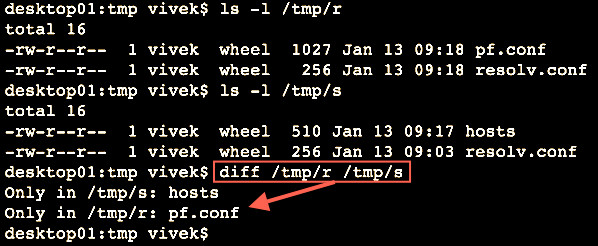
Fig. : Finding differences between folders
Text formatting
You can reformat each paragraph with fmt command. In this example, I'm going to reformat file by wrapping overlong lines and filling short lines:
fmt file.txt
You can also split long lines, but do not refill i.e. wrap overlong lines, but do not fill short lines:
fmt -s file.txt
See the output and write it to a file
Use the tee command as follows to see the output on screen and also write to a log file named my.log:
mycoolapp arg1 arg2 input.file | tee my.log
The tee command ensures that you will see mycoolapp output on on the screen and to a file same time.
20个有用的linux命令行技巧的更多相关文章
- 给新手的 10 个有用 Linux 命令行技巧
我记得我第一次使用 Linux 的时候,我还习惯于 Windows 的图形界面,我真的很讨厌 Linux 终端.那时候我觉得命令难以记忆,不能正确使用它们.随着时间推移,我意识到了 Linux 终端的 ...
- linux===给新手的 10 个有用 Linux 命令行技巧(转)
本文转自:http://www.codeceo.com/article/10-linux-useful-command.html?ref=myread 仅用作学习交流使用.如有侵权,立删 我记得我第一 ...
- Linux命令行技巧
Linux命令行技巧 命令 描述 • apropos whatis 显示和word相关的命令. 参见线程安全 • man -t man | ps2pdf - > man.pdf 生成一个PDF格 ...
- 六个优雅的 Linux 命令行技巧
一些非常有用的命令能让命令行的生活更满足,使用 Linux 命令工作可以获得许多乐趣,但是如果您使用一些命令,它们可以减少您的工作或以有趣的方式显示信息时,您将获得更多的乐趣.在今天的文章中,我们将介 ...
- Linux 命令行技巧
这是一个linux常见命令的列表.那些有• 标记的条目,你可以直接拷贝到终端上而不需要任何修改,因此你最好开一个终端边读边剪切&拷贝.所有的命令已在Fedora和Ubuntu下做了测试 命令 ...
- linux命令行命令
Linux命令行编辑快捷键: history 显示命令历史列表 ↑(Ctrl+p) 显示上一条命令 ↓(Ctrl+n) 显示下一条命令 !num 执行命令历史列表的第num条命令 !! 执行上一条命令 ...
- 最有用的Linux命令行使用技巧集锦
最近在Quora上看到一个问答题目,关于在高效率Linux用户节省时间Tips.将该题目的回答进行学习总结,加上自己的一些经验,记录如下,方便自己和大家参考. 下面介绍的都是一些命令行工具,这些工具在 ...
- 20个linux命令行工具监视性能(下)
昨天晚上第一次翻译了<20 Command Line Tools to Monitor Linux Performance>中的前十个命令,翻译得不是很好,今天晚上继续把后面的十个也翻译给 ...
- linux 命令行 光标移动技巧
linux 命令行 光标移动技巧 看一个真正的专家操作命令行绝对是一种很好的体验-光标在单词之间来回穿梭,命令行不同的滚动.在这里强烈建立适应GUI节目的开发者尝试一下在提示符下面工作.但是事情也不是 ...
随机推荐
- TCP/IP五层层次模型
TCP/IP层次模型共分为五层:应用层HTTP.传输层TCP.网络层IP.数据链路层Data-link.物理层physical.· 应用层-应用层是所有用户所面向的应用程序的统称.IC ...
- border-radius在Android下的几个BUG
图片的外层元素添加border属性, border-radius属性设置成最大 .img{width: 110px; height: 110px; border: 5px solid #ccc; bo ...
- react之自定义迷你redux的实现
export function createStore(reducer){ let currentState={} let currentListeners=[] function getState( ...
- poj3067 二维偏序树状数组
题解是直接对一维升序排列,然后计算有树状数组中比二维小的点即可 但是对二维降序排列为什么不信呢?? /* */ #include<iostream> #include<cstring ...
- 性能测试八:jmeter进阶之beanshell
* BeanShell是一种完全符合Java语法规范的脚本语言,并且又拥有自己的一些语法和方法; * BeanShell是一种松散类型的脚本语言(这点和JS类似); * BeanShell是用Java ...
- python+selenium十二:一个输入框双层input标签
先点击第一个,再对第二个进行操作,否则操作失败 driver.find_element_by_css_selector(".pwd").click()driver.find_ele ...
- python 全栈开发,Day20(object类,继承与派生,super方法,钻石继承)
先来讲一个例子 老师有生日,怎么组合呢? class Birthday: # 生日 def __init__(self,year,month,day): self.year = year self.m ...
- 基于 OSGi 的面向服务的组件编程,helloworld
基于 OSGi 的面向服务的组件编程 OSGi(Open Services Gateway Initiative,开放服务网关协议)提供了一个面向服务组件的编程模型,基于 OSGi 编程,具有模块化, ...
- javafx的scene大小不能在控制器中设置
做个记录,备忘 遇到一个问题,点击提交,红色标识的VBox大小不能改变.问题如图,代码如下 点击后 fxml结构简化代码: 红色框体对应vboxMax <VBox fx:id="vbo ...
- sql分组获取第一条或者最小一条值
很多人都在问这个问题,现在记录一下 select id from test as a where id = (select min(b.id ) from test as b where a.pid ...