
Java界面程序实现图片的放大缩小
Java界面程序实现图片的放大缩小。这个程序简单地实现了图片的打开、保存、放大一倍、缩小一倍和固定缩放尺寸,但是并没有过多的涵盖对图片的细节处理,只是简单地实现了图片大小的放缩。
思维导图如下:

效果图如下:
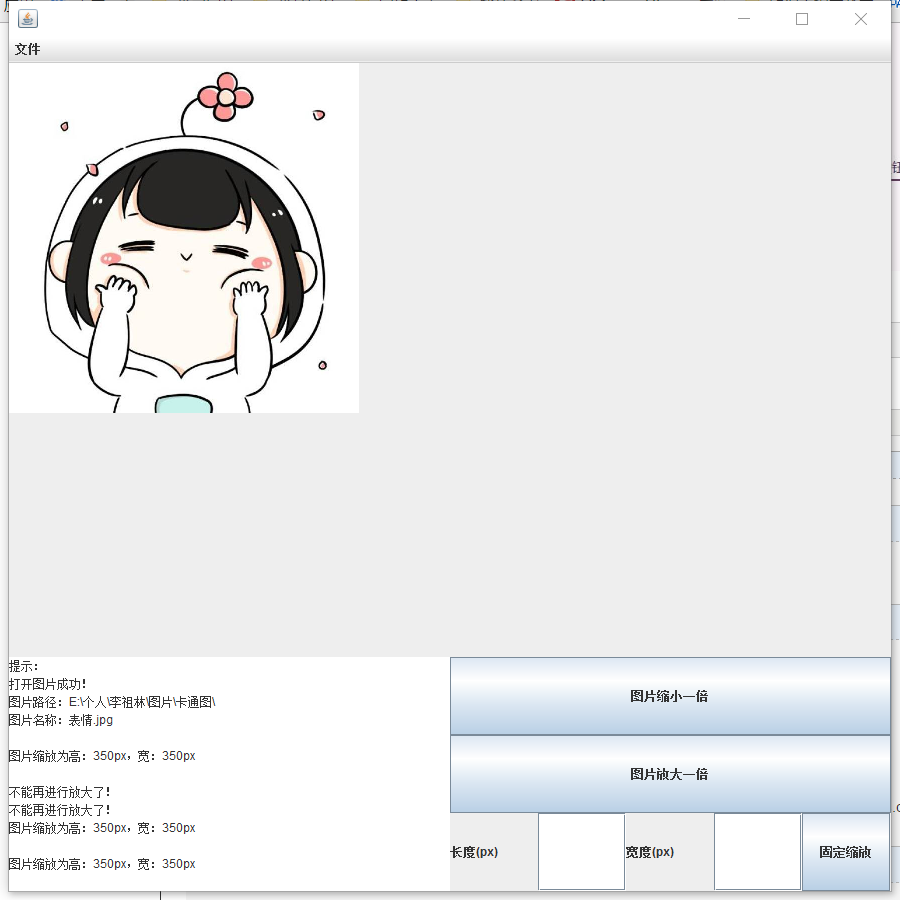

代码如下:
package picture;

import java.awt.*;

import java.awt.event.*;

import java.awt.image.BufferedImage;

import javax.swing.*;

import java.io.*;

import javax.imageio.ImageIO;

public class DialogDemo implements ActionListener{

    private JFrame frame;

    private Panel panel, panelButton, panelText;

    private JLabel labelHight, labelWidth;

    //固定缩放宽度和长度

    private JTextField textHight;

    private JTextField textWidth;

    //操作记录提示框

    private JTextArea textArea;

    //操作按钮

    private JButton buttonReduce, buttonEnlarge, buttonZoom;

    //菜单栏:打开图片、保存图片、关于、退出

    private JMenuItem itemSave, itemOpen,itemAbout, itemExit;

    //打开图片窗口,保存图片窗口

    private FileDialog dialogOpen;

    private FileDialog dialogSave;

  //BufferedImage用于保存图片

      private BufferedImage bufferedImage;

  //图片显示imageCanvas类(继承Canvas)

      private imageCanvas canvas;

      private Image image;

      private Graphics graphics;

    public static void main(String[] args) {

        EventQueue.invokeLater(new Runnable() {

            public void run() {

                try {

                    DialogDemo window = new DialogDemo();

                    window.frame.setVisible(true);

                } catch (Exception e) {

                    e.printStackTrace();

                }

            }

        });

    }

    //图片显示imageCanvas类(继承Canvas),用于图片重新绘制

    class imageCanvas extends Canvas

    {

         //重写Canvas的paint方法

         public void paint(Graphics g)

         {

               //将image绘制到该组件上

               g.drawImage(bufferedImage, 0, 0, null);

               //f.setVisible(true);

         }

    }

    //构造函数初始化图像界面

    public DialogDemo() {

        frame = new JFrame();

        frame.setBounds(100, 100, 900, 900);

        frame.setDefaultCloseOperation(JFrame.EXIT_ON_CLOSE);

        frame.getContentPane().setLayout(new BorderLayout(0, 0));

        canvas = new imageCanvas();

        canvas.setPreferredSize(new Dimension(800, 600));

        frame.getContentPane().add(canvas, BorderLayout.CENTER);

        panel = new Panel();

        frame.getContentPane().add(panel, BorderLayout.SOUTH);

        panel.setLayout(new GridLayout(1, 0, 0, 0));

        textArea = new JTextArea();

        textArea.setEditable(false);

        textArea.setText("\u63D0\u793A\uFF1A\r\n");

        panel.add(textArea);

        panelButton = new Panel();

        panel.add(panelButton);

        panelButton.setLayout(new GridLayout(3, 1, 0, 0));

        buttonReduce = new JButton("\u56FE\u7247\u7F29\u5C0F\u4E00\u500D");

        panelButton.add(buttonReduce);buttonReduce.addActionListener(this);

        buttonEnlarge = new JButton("\u56FE\u7247\u653E\u5927\u4E00\u500D");

        panelButton.add(buttonEnlarge);buttonEnlarge.addActionListener(this);

        panelText = new Panel();

        panelButton.add(panelText);

        panelText.setLayout(new GridLayout(1, 0, 0, 0));

        labelHight = new JLabel("\u957F\u5EA6(px)");

        panelText.add(labelHight);

        textHight = new JTextField();

        panelText.add(textHight);

        textHight.setColumns(10);

        labelWidth = new JLabel("\u5BBD\u5EA6(px)");

        panelText.add(labelWidth);

        textWidth = new JTextField();

        panelText.add(textWidth);

        textWidth.setColumns(10);

        buttonZoom = new JButton("\u56FA\u5B9A\u7F29\u653E");

        panelText.add(buttonZoom);

        buttonZoom.addActionListener(this);

        JMenuBar menuBar = new JMenuBar();

        frame.setJMenuBar(menuBar);

        JMenu newMenu = new JMenu("\u6587\u4EF6\r\n");

        menuBar.add(newMenu);

        itemOpen = new JMenuItem("\u6253\u5F00\u56FE\u7247\r\n");

        newMenu.add(itemOpen);itemOpen.addActionListener(this);

        itemSave = new JMenuItem("\u4FDD\u5B58\u56FE\u7247\r\n");

        newMenu.add(itemSave);itemSave.addActionListener(this);

        itemAbout = new JMenuItem("\u5173\u4E8E");

        newMenu.add(itemAbout);itemAbout.addActionListener(this);

        JSeparator separator = new JSeparator();

        newMenu.add(separator);

        itemExit = new JMenuItem("\u9000\u51FA\r\n");

        newMenu.add(itemExit);itemExit.addActionListener(this);

        dialogOpen = new FileDialog(frame, "选择一张图片", FileDialog.LOAD);

        dialogSave = new FileDialog(frame, "选择保存图片的路径", FileDialog.SAVE);

    }

    /**

     * 界面交互,响应事件(调用对应的函数)

     */

    @Override

    public void actionPerformed(ActionEvent e) {

        if (e.getSource() == itemSave) {

            saveImage();

        } else if (e.getSource() == itemOpen) {

            openImage();

        } else if (e.getSource() == itemExit) {

            System.exit(0);

        } else if (e.getSource() == itemAbout) {

            JOptionPane.showMessageDialog(null, "图片缩放程序:PhotoZoomer 1.0",

                    "版本", JOptionPane.INFORMATION_MESSAGE);

        } else if (e.getSource() == buttonEnlarge) {

            enlargeImage();

        } else if (e.getSource() == buttonReduce) {

            reduceImage();

        } else if (e.getSource() == buttonZoom) {

            zoomImage();

        }

    }

    /**

     * 响应事件封装成函数

     */

    //打开图片

    private void openImage() {

        try {

            // 创建一个不带透明色的BufferedImage对象

             bufferedImage = new BufferedImage(1920, 890, BufferedImage.TYPE_INT_RGB);

             bufferedImage.flush();

             graphics = bufferedImage.getGraphics();

             //打开对话框

             dialogOpen.setVisible(true);

             image = ImageIO.read(new File(dialogOpen.getDirectory() + dialogOpen.getFile()));

             //判断图片是否存在

             if (image != null) {

                 graphics.drawImage(image,0,0, null);

                 canvas.repaint();

             }

             //添加提示

             textArea.append("打开图片成功!\n图片路径:" +

                     dialogOpen.getDirectory()+"\n"+"图片名称:"+dialogOpen.getFile()+"\n");

        } catch (IOException e) {

            e.printStackTrace();

            System.out.println("打开图片发生错误!");

        }

    }

    //保存图片

    private void saveImage() {

        try {

            dialogSave.setVisible(true);

            ImageIO.write(bufferedImage, "jpeg",

                    new File(dialogSave.getDirectory() + dialogSave.getFile()));

            //添加提示

            textArea.append("添加图片成功!\n保存目录:"+dialogSave.getDirectory()+"\n");

        } catch (IOException e) {

            e.printStackTrace();

            System.out.println("保存图片发生错误!");

        }

    }

    //固定放缩图片

    private void zoomImage() {

        int height = Integer.parseInt(textHight.getText());

        int width = Integer.parseInt(textWidth.getText());

        //判断输入是否符合条件

        if (height > 0 && width > 0 && height <= 890 && width <= 1920 ) {

            bufferedImage = new BufferedImage(width, height, BufferedImage.TYPE_INT_RGB);

            graphics = bufferedImage.getGraphics();

            graphics.drawImage(image, 0, 0, width, height, null);

            canvas.repaint();

            textArea.append("\n图片缩放为高:"+height+"px,宽:"+width+"px\n");

            textHight.setText("");

            textWidth.setText("");

        } else {

            textArea.append("\n请输入正确的图片宽度和长度!");

            textHight.setText("");

            textWidth.setText("");

        }

    }

    //放大图片一倍

    private void enlargeImage() {

        int height = image.getHeight(null) * 2;

        int width = image.getWidth(null) * 2;

        //判断输入是否符合条件

        if (height > 0 && width > 0 && height <= 890 && width <= 1920 ) {

            bufferedImage = new BufferedImage(width, height, BufferedImage.TYPE_INT_RGB);

            graphics = bufferedImage.getGraphics();

            graphics.drawImage(image, 0, 0, width, height, null);

            canvas.repaint();

            textArea.append("\n图片缩放为高:"+height+"px,宽:"+width+"px\n");

            textHight.setText("");

            textWidth.setText("");

        } else {

            textArea.append("\n不能再进行放大了!");

            textHight.setText("");

            textWidth.setText("");

        }

    }

    //缩小图片一倍

    private void reduceImage() {

        int height = image.getHeight(null) / 2;

        int width = image.getWidth(null) / 2;

        //判断输入是否符合条件

        if (height > 0 && width > 0 && height <= 890 && width <= 1920 ) {

            bufferedImage = new BufferedImage(width, height, BufferedImage.TYPE_INT_RGB);

            graphics = bufferedImage.getGraphics();

            graphics.drawImage(image, 0, 0, width, height, null);

            canvas.repaint();

            textArea.append("\n图片缩放为高:"+height+"px,宽:"+width+"px\n");

            textHight.setText("");

            textWidth.setText("");

        } else {

            textArea.append("\n不能再进行缩小了!");

            textHight.setText("");

            textWidth.setText("");

        }

    }

}
Java界面程序实现图片的放大缩小的更多相关文章
- jquery 实现点击图片居住放大缩小
该功能是基于jquery实现的,所以 第一步则是引入jquery jquery下载地址:https://jquery.com/download/ 或者使用此时调试的版本(3版本) /*! jQuery ...
- Android 本地/网路下载图片实现放大缩小
Android 本地加载/网路下载图片实现放大缩小拖拉效果,自定义控件. package com.example.ImageViewCustom; import android.app.Activi ...
- java画图程序_图片用字母画出来_源码发布_版本二
在上一个版本:java画图程序_图片用字母画出来_源码发布 基础上,增加了图片同比例缩放,使得大像素图片可以很好地显示画在Notepad++中. 项目结构: 运行效果1: 原图:http://imag ...
- java画图程序_图片用字母画出来_源码发布
在之前写了一篇blog:java画图程序_图片用字母画出来 主要是把一些调试的截图发布出来,现在程序调试我认为可以了(当然,你如果还想调试的话,也可以下载源码自己调试). 就把源码发布出来. 项目结构 ...
- java画图程序_图片用字母画出来
最近在研究怎样将图片用字母在文本编辑工具中“画”出来. 你看了这个可能还不知道我想说什么? 我想直接上图,大家一定就知道了 第一张:小猫 原图:http://www.cnblogs.com/hongt ...
- JS控制图片拖动 放大 缩小 旋转 支持滚轮放大缩小 IE有效
<html> <head> <title>图片拖动,放大,缩小,转向</title> <script type="text/ja ...
- JS中图片的放大缩小没反应
这段代码无反应: 代码如下: <script type="text/javascript"> onload = function () { document.getEl ...
- Android DIY之路 (一) 指定区域多图片合成 放大 缩小 镜像 旋转 等(转)
惯例先看效果图 // 注意做类似这种模板功能时候 方位由后台数据提供,这里我们用假数据 4个点 或者xy 加区域来做示例 //一开始我们公司用的是透明盖住 操作图片 但发现 局限性较大.后来直接限定区 ...
- 用css3实现图片的放大缩小
记录一个公用的css实现图片的放大缩小 @keyframes scaleDraw { /*定义关键帧.scaleDrew是需要绑定到选择器的关键帧名称*/ 0%{ transform: scale(1 ...
随机推荐
- 查看TensorFlow的版本以及安装路径
查看TensorFlow的版本以及安装路径 进入到Python环境 import tensorflow as tf tf.__version__ # 查看版本 tf.__path__ # 查看安装路径 ...
- H265码流格式
一.H265码流格式 VPS:视频参数集,用于传输视频分级信息,有利于兼容标准在可分级视频编码或多视点视频的扩展. NALU header定义: NALU header(){ Descriptor f ...
- Swagger2常用注解和使用方法
一 引入maven依赖 <!--整合Swagger2--> <dependency> <groupId>com.spring4all</groupId&g ...
- CodeForces 788A - Functions again [ DP ]
反着求一遍最大连续子序列(前项依赖) #include <bits/stdc++.h> using namespace std; #define LL long long ; int n; ...
- electron-vue 引入OpenLayer 报错 Unexpected token export
electron-vue 引入OpenLayer 报错 Unexpected token export 解决办法: 在 .electron-vue/webpack.renderer.config.js ...
- Python之hashlib模块的使用
hashlib模块主要的作用: 加密保护消息安全,常用的加密算法如MD5,SHA1等. 1.查看可用的算法有哪些 #!/usr/bin/env python # -*- coding: utf-8 - ...
- screen的安装使用
安装 yum install -y screen [root@instance-- ~]# screen --help Use: screen [-opts] [cmd [args]] or: scr ...
- 对ACID的深层解读
A:Atomieity 通常,原子指不可分解为更小粒度的东西,该术语在计算机的不同领域里面有着相似但却微妙的差异.在多线程并发编程中,如果某线程执行一个原子操作,这意味着其他线程是无法看到该结果的中间 ...
- WPF显示数据库内容
https://www.bilibili.com/video/av45138636?from=search&seid=17612939715579515358 以后用到会详细总结.
- jquery change() 函数 语法
jquery change() 函数 语法 作用:当元素的值发生改变时,会发生 change 事件.该事件仅适用于文本域(text field),以及 textarea 和 select 元素.cha ...