
WPF 4 Ribbon 开发 之 应用程序菜单(Application Menu)
原文:WPF 4 Ribbon 开发 之 应用程序菜单(Application Menu)
在上一篇中我们完成了快捷工具栏的开发,本篇将讲解应用程序菜单开发的相关内容。如下图所示,点击程序窗口左上角的记事本图标(Application Button)会显示出应用程序菜单(Application Menu)列表,列表中的按键即为软件的一些基本功能。
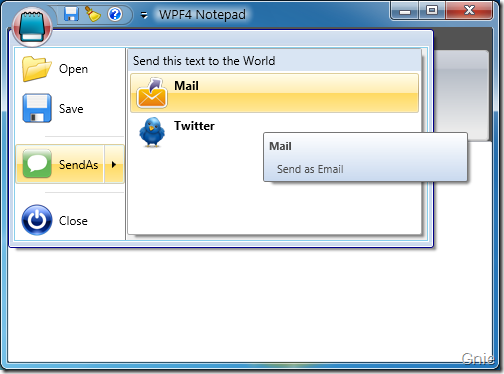
RibbonCommand
以“Open”按键为例,首先仍然需要在<RibbonWindow.Resources>中定义其<RibbonCommand>内容。
<r:RibbonCommand x:Key="OpenCommand" LabelTitle="Open"

                 CanExecute="OpenCommand_CanExecute"

                 Executed="OpenCommand_Executed"

                 SmallImageSource="Images/Open.png"

                 LargeImageSource="Images/Open.png"

                 ToolTipTitle="Open"
                 ToolTipDescription="Open document" />
为<RibbonCommand>添加Command 事件实现打开文档功能:
private void OpenCommand_CanExecute(object sender, CanExecuteRoutedEventArgs e)

{

    e.CanExecute = true;

}

private void OpenCommand_Executed(object sender, ExecutedRoutedEventArgs e)

{

    ShellContainer sc = KnownFolders.DocumentsLibrary as ShellContainer;

    CommonOpenFileDialog cofd = new CommonOpenFileDialog();

    cofd.InitialDirectoryShellContainer = sc;

    cofd.DefaultExtension = ".txt";

    cofd.Filters.Add(new CommonFileDialogFilter("Text Files", "*.txt"));

    if (cofd.ShowDialog() == CommonFileDialogResult.OK)

    {

        txtBox.Text = File.ReadAllText(cofd.FileName, Encoding.Default);

    }

}
ApplicationMenu
<RibbonCommand>完成后继续在<Ribbon>中添加<RibbonApplicationMenu>用于设置菜单列表中的内容。其中<RibbonApplicationMenuItem>即为菜单按键,将相应的<RibbonCommand>添加到Command 属性中。另,按键之间可用<Separator>作为分隔。
<r:Ribbon DockPanel.Dock="Top" FocusManager.IsFocusScope="True" Title="WPF4 Notepad">

    <r:Ribbon.ApplicationMenu>

        <r:RibbonApplicationMenu Command="{StaticResource AppMenuCommand}">

            <r:RibbonApplicationMenuItem Command="{StaticResource OpenCommand}" />

            <r:RibbonApplicationMenuItem Command="{StaticResource SaveCommand}" />

            <Separator/>

            <r:RibbonApplicationSplitMenuItem Command="{StaticResource SendAsCommand}">

                <r:RibbonApplicationMenuItem Command="{StaticResource MailCommand}" />

                <r:RibbonApplicationMenuItem Command="{StaticResource TwitterCommand}" />

            </r:RibbonApplicationSplitMenuItem>

            <Separator/>

            <r:RibbonApplicationMenuItem Command="{StaticResource CloseCommand}" />

        </r:RibbonApplicationMenu>

    </r:Ribbon.ApplicationMenu>

</r:Ribbon>
上面代码中对于存在子菜单的按键(例如,SendAs 按键)可用<RibbonApplicationSplitMenuItem>对其进行扩展。子菜单标题内容可通过<RibbonCommand>的LabelDescription 属性进行设置(如下代码)。
<r:RibbonCommand x:Key="SendAsCommand" LabelTitle="SendAs"

                 LabelDescription="Send this text to the World"

                 CanExecute="SendAsCommand_CanExecute"

                 SmallImageSource="Images/SendAs.png"

                 LargeImageSource="Images/SendAs.png"

                 ToolTipTitle="SendAs"

                 ToolTipDescription="Send this text to the World" />

ApplicationButton
最后来完成应用程序菜单图标(记事本图标)的开发。当然也需要通过<RibbonCommand>进行设置,与之前不同之处在于不用添加CanExecute 和Executed 内容。
<r:RibbonCommand x:Key="AppMenuCommand" LabelTitle="Application Button"

                 SmallImageSource="Images/Notepad.png"

                 LargeImageSource="Images/Notepad.png"

                 ToolTipTitle="WPF4 Notepad"

                 ToolTipDescription="Notepad Application with Ribbon Sample" />
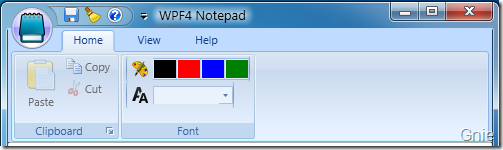
将<RibbonCommand>加入<RibbonApplicationMenu> Command 属性后默认情况呈现下图样式,图标的形状并不与Office 2007 一样为圆形。

如果想要圆形效果其实也很简单,Ribbon 控件库为我们提供了三种样式模板:Office2007Black、Office2007Blue、Office2007Silver,只需在MainWindow() 中加入一行代码即可实现圆形效果和不同的Ribbon 样式。
public MainWindow()

{

    InitializeComponent();

    this.Resources.MergedDictionaries.Add(PopularApplicationSkins.Office2007Black);

}


本篇关于应用程序菜单的开发就介绍到这里,下篇将正式进行标签工具栏(Tab Toolbar)的开发内容。同时本示例源代码也将一同公布。敬请关注… …
WPF 4 Ribbon 开发 之 应用程序菜单(Application Menu)的更多相关文章
- WPF 4 Ribbon 开发 之 标签工具栏(Tab Toolbar)
原文:WPF 4 Ribbon 开发 之 标签工具栏(Tab Toolbar) 本篇将开始介绍标签工具栏的开发内容,标签工具栏可以说是Ribbon 的核心部分,应用程序所有的功能特性都会集中 ...
- WPF 4 Ribbon 开发 之 快捷工具栏(Quick Access Toolbar)
转自 http://www.cnblogs.com/gnielee/archive/2010/05/10/wpf4-ribbon-quick-access-toolbar.html 在Office 2 ...
- VS2010/MFC编程入门之五十二(Ribbon界面开发:创建Ribbon样式的应用程序框架)
上一节中鸡啄米讲了GDI对象之画刷CBrush,至此图形图像的入门知识就讲完了.从本节开始鸡啄米将为大家带来Ribbon界面开发的有关内容.本文先来说说如何创建Ribbon样式的应用程序框架. Rib ...
- VS2010-MFC(Ribbon界面开发:创建Ribbon样式的应用程序框架)
转自:http://www.jizhuomi.com/software/251.html 上一节讲了GDI对象之画刷CBrush,至此图形图像的入门知识就讲完了.从本节开始将为大家带来Ribbon界面 ...
- WPF与WinForm开发有什么区别?
转自http://hi.baidu.com/leoliu83/blog/item/1d1a4a66dcb41134aa184cfd.html WPF开发于WinForm之后,从技术发展的角度,WPF比 ...
- 浅谈Excel开发:二 Excel 菜单系统
在开始Excel开发之前,需要把架子搭起来.最直接的那就是Excel里面的菜单了,他向用户直观的展现了我们的插件具有哪些功能.菜单出来之后我们就可以实现里面的事件和功能了.Excel菜单有两种形式,一 ...
- VSTO 学习笔记(十)Office 2010 Ribbon开发
原文:VSTO 学习笔记(十)Office 2010 Ribbon开发 微软的Office系列办公套件从Office 2007开始首次引入了Ribbon导航菜单模式,其将一系列相关的功能集成在一个个R ...
- WPF简介:VS创建桌面应用程序
1.简介 1/ 什么是WPF WPF,Windows Presentation Foundation也,译过来就是"Windows呈现基础",你看它的目的非常明确,就是用来把数据& ...
- UwpDesktop!WPF也能开发Surface Dial
原文:UwpDesktop!WPF也能开发Surface Dial 前段时间巨硬发布了一款新的输入设备Surface Dial,配合Surface Studio使用简直炫酷到没朋友. 本人由于公司业务 ...
随机推荐
- jquery获取选中select的文本,值等
jquery获取select选择的文本与值获取select :获取select 选中的 text : $("#ddlregtype").find("option:s ...
- thinkphp缩略图
<?php class IndexAction extends Action { public function index() { $Photo = M('Photo'); $list = $ ...
- Android UI:看看Google官方自定义带旋转动画的ImageView-----RotateImageView怎么写(附 图片淡入淡...)
众所周知,想要让ImageView旋转的话,可以用setRotation()让其围绕中心点旋转,但这个旋转是不带动画的,也就是旋转屏幕时图片噌的一下就转过去了,看不到旋转的过程,此UI体验不大好,为此 ...
- js进阶正则表达式14验证邮编(input的pattern属性)(正则表达式加起^始$)
js进阶正则表达式14验证邮编(input的pattern属性)(正则表达式加起^始$) 一.总结 1.input的pattern属性:里面可以直接放正则表达式,<input type=&quo ...
- gen_server的enter_loop分析
http://my.oschina.net/astute/blog/119250?p=1 在看ranch user guide的过程中,发现实现protocol handler需要使用特殊的gen_s ...
- 【BZOJ 1008】[HNOI2008]越狱
[题目链接]:http://www.lydsy.com/JudgeOnline/problem.php?id=1008 [题意] [题解] 相邻就会犯罪的话; 可以考虑它的反面; 即让所有相同信仰的人 ...
- easyui样式及js导入顺序及刷新回车的问题
在使用easyui时,需要导入样式表及其js文件,在导入时.不光要遵守jquery包在easyui包的前面,还需要把样式表放在js的前边 <link type="text/css&qu ...
- Gini 系数与熵的关系
首先来看二者的基本定义: ⎧⎩⎨⎪⎪⎪⎪⎪⎪⎪⎪⎪⎪H(X)=−∑k=1KpklnpkGini(X)=∑k=1Kpk(1−pk) 将 f(x)=−lnx 在 x=1 处进行一阶泰勒展开(忽略高阶无穷小 ...
- matlab 运行 AlexNet
0. alexnet 工具箱下载 下载地址:Neural Network Toolbox(TM) Model for AlexNet Network 需要先注册(十分简单),登陆,下载: 下载完成之后 ...
- 实践-Task
实践-Task 上篇博文中,我们介绍了Thread和ThreadPool: 多线程异步编程示例和实践-Thread和ThreadPool 本文中我们继续,说一下TPL(Task Parallel Li ...