
[MAUI]模仿微信“按住-说话”的交互实现
@
.NET MAUI跨平台框架包含了识别平移手势的功能,在之前的博文[MAUI 项目实战] 手势控制音乐播放器(二): 手势交互中利用此功能实现了pan-pit拖拽系统。
简单来说就是拖拽物(pan)体到坑(pit)中,手势容器控件PanContainer描述了pan运动和pit位置的关系,并在手势运动中产生一系列消息事件。
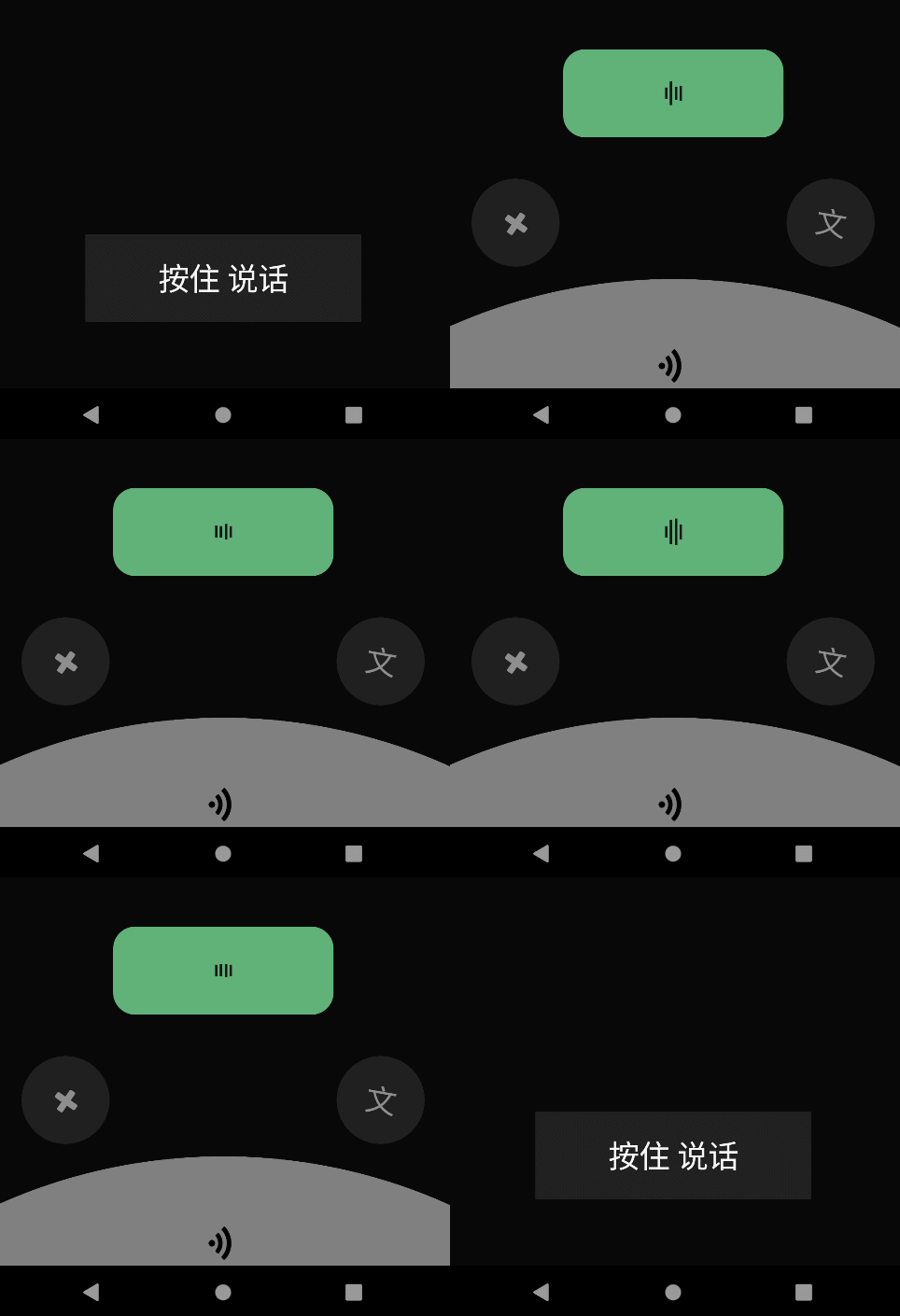
今天使用这个控件,做一个模仿微信“按住-说话”的小功能,最终效果如下:
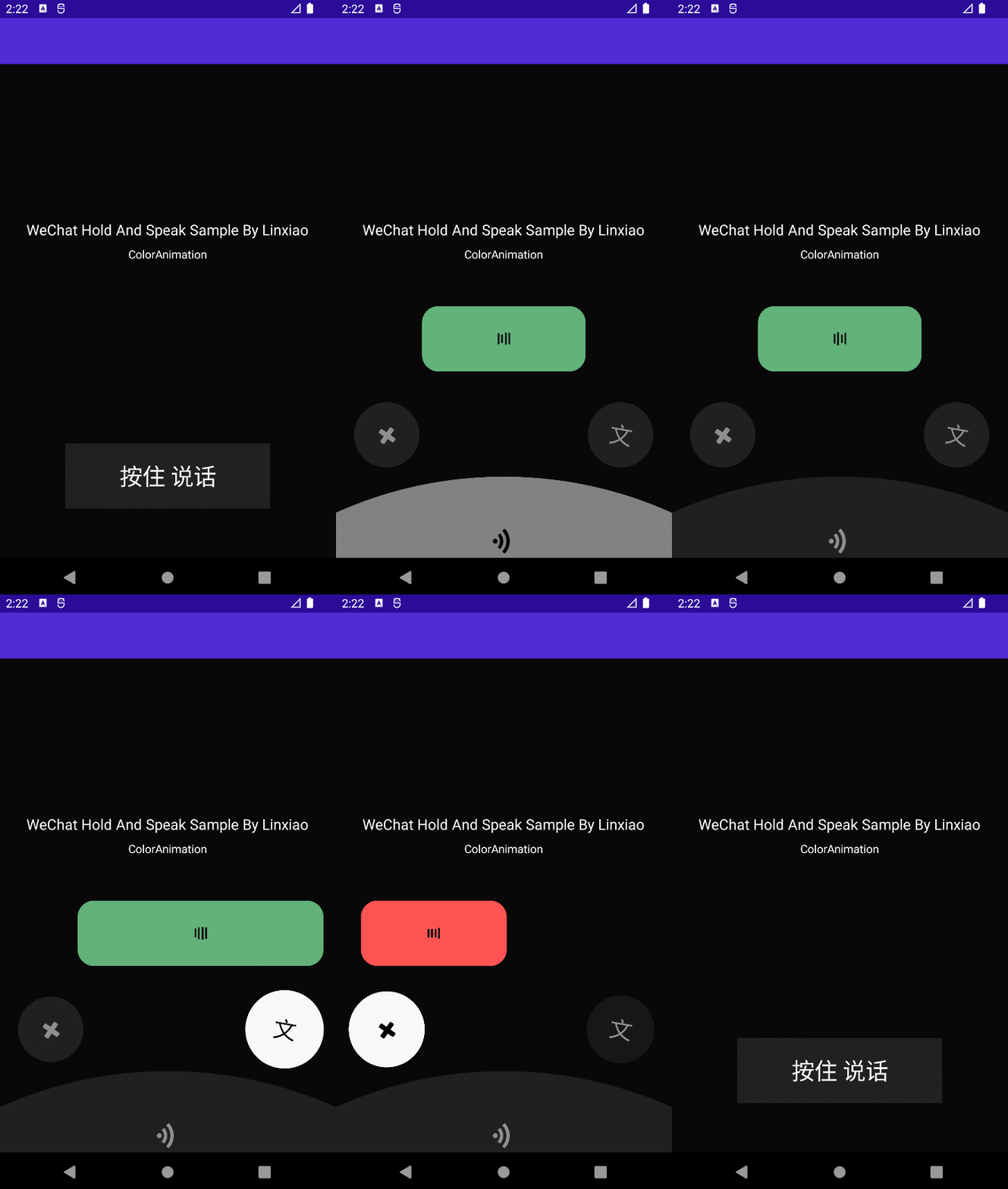
使用.NET MAU实现跨平台支持,本项目可运行于Android、iOS平台。
创建页面布局
新建.NET MAUI项目,命名HoldAndSpeak
MainPage.xaml中创建一个PitContentLayoutGrid容器,并对Grid容器进行如下布局:
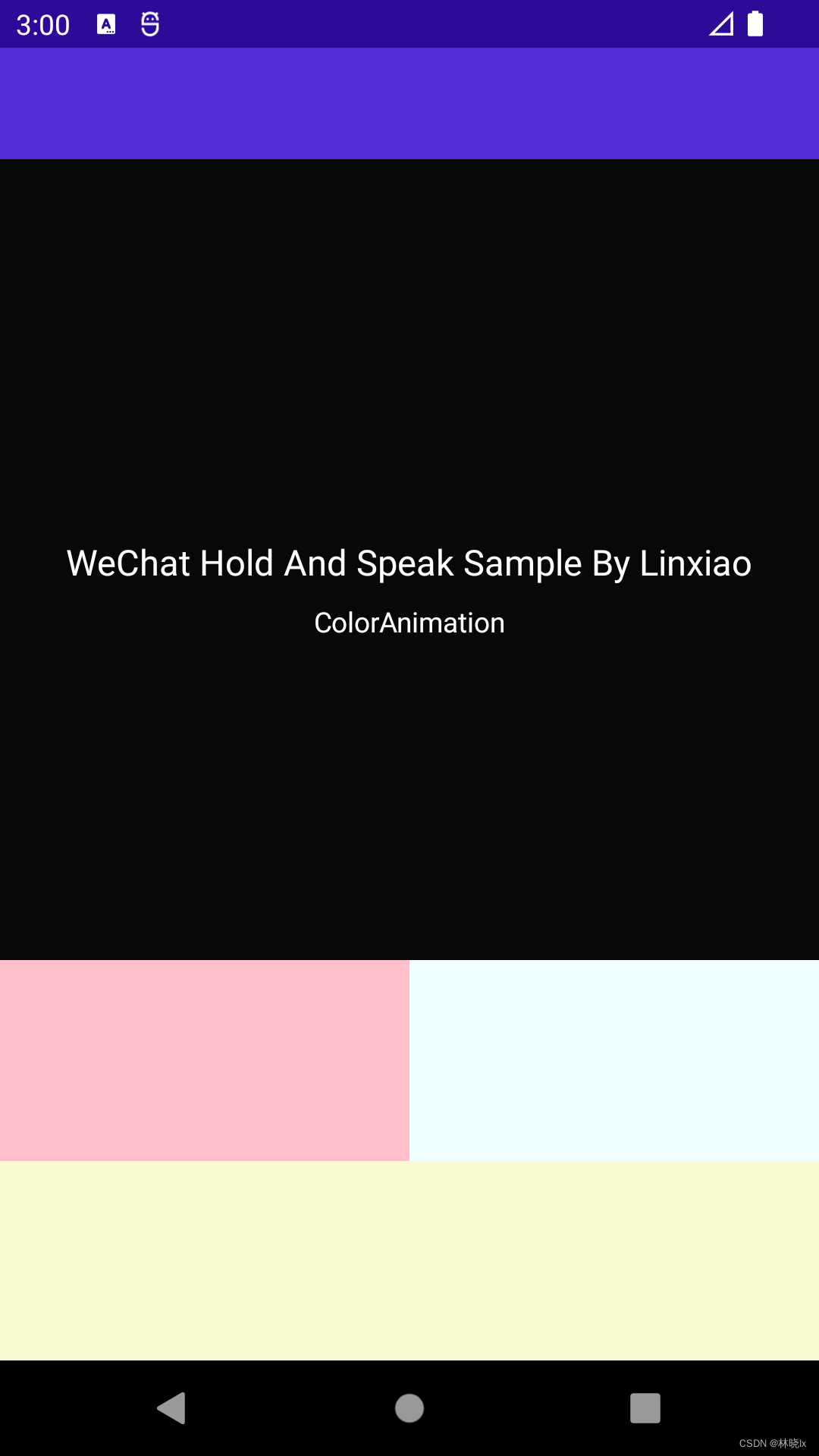
在手机屏幕的底部设置两行两列的布局:
第一行第一列,对应取消发送手势区域,
第一行第二列,对应语音转文字手势区域,
第二行独占两列,对应发送手势区域。
布局如下图所示
<Grid x:Name="PitContentLayout"

        Opacity="1">

    <Grid.RowDefinitions>

        <RowDefinition Height="1*" />

        <RowDefinition Height="1*" />

    </Grid.RowDefinitions>

    <Grid.ColumnDefinitions>

        <ColumnDefinition Width="1*" />

        <ColumnDefinition Width="1*" />

    </Grid.ColumnDefinitions>

</Grid>
创建三个PitGrid控件,并对这三个功能区域的PitGrid控件命名,CancelPit、TransliterationPit,分别对应了取消发送、语音转文字、发送。
为每个PitGrid控件添加内容:
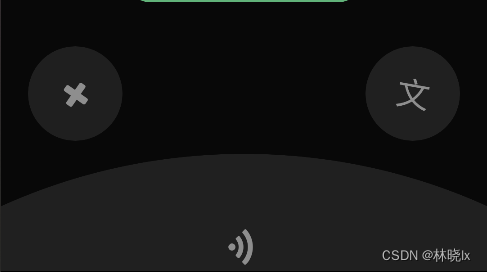
发送区域是一个底部弧形区域,我们用一个巨大的圆形+Y轴方向的偏移,通过只保留屏幕底部往上的一部分圆形区域来实现底部弧形区域的效果,代码如下:
<BoxView TranslationY="450"

        x:Name="SendBox"

        HeightRequest="1000"

        WidthRequest="1000"

        CornerRadius="500">

</BoxView>
取消发送和语音转文字区域是一个圆形区域,我们用一个正常大小的圆形来实现。
PitContentLayout区域整体代码如下
<Grid x:Name="PitContentLayout"

        Opacity="1">

    <Grid.RowDefinitions>

        <RowDefinition Height="1*" />

        <RowDefinition Height="1*" />

    </Grid.RowDefinitions>

    <Grid.ColumnDefinitions>

        <ColumnDefinition Width="1*" />

        <ColumnDefinition Width="1*" />

    </Grid.ColumnDefinitions>

    <controls1:PitGrid x:Name="CancelPit"

                        TranslationX="-40"

                        PitName="CancelPit">

        <BoxView x:Name="CancelBox"

                    HeightRequest="80"

                    WidthRequest="80"

                    CornerRadius="50"

                    Margin="7.5"

                    Color="{StaticResource PhoneContrastBackgroundBrush}"

                    VerticalOptions="CenterAndExpand"

                    HorizontalOptions="CenterAndExpand"></BoxView>

        <Label   x:Name="CancelLabel"

                    TextColor="{StaticResource PhoneContrastForegroundBrush}"

                    FontFamily="FontAwesome"

                    FontSize="28"

                    Rotation="-10"

                    HorizontalOptions="CenterAndExpand"

                    Margin="0"></Label>

    </controls1:PitGrid>

    <controls1:PitGrid x:Name="TransliterationPit"

                        PitName="TransliterationPit"

                        TranslationX="40"

                        Grid.Column="1">

        <BoxView x:Name="TransliterationBox"

                    HeightRequest="80"

                    WidthRequest="80"

                    CornerRadius="50"

                    Margin="7.5"

                    Color="{StaticResource PhoneContrastBackgroundBrush}"

                    VerticalOptions="CenterAndExpand"

                    HorizontalOptions="CenterAndExpand"></BoxView>

        <Label  x:Name="TransliterationLabel"

                TextColor="{StaticResource PhoneContrastForegroundBrush}"

                FontSize="28"

                Text="文"

                Rotation="10"

                HorizontalOptions="CenterAndExpand"

                Margin="0"></Label>

    </controls1:PitGrid>

    <controls1:PitGrid x:Name="SendPit"

                        PitName="SendPit"

                        Grid.ColumnSpan="2"

                        Grid.Row="1">

        <BoxView TranslationY="450"

                    x:Name="SendBox"

                    HeightRequest="1000"

                    WidthRequest="1000"

                    CornerRadius="500"

                    Margin="7.5"

                    Color="{StaticResource PhoneContrastBackgroundBrush}"

                    VerticalOptions="CenterAndExpand"

                    HorizontalOptions="CenterAndExpand"></BoxView>

        <Label x:Name="SendLabel"

                TranslationY="30"

                FontSize="28"

                Rotation="45"

                TextColor="{StaticResource PhoneContrastForegroundBrush}"

                FontFamily="FontAwesome"

                HorizontalOptions="CenterAndExpand"

                Margin="0"></Label>

    </controls1:PitGrid>

</Grid>
效果如下
创建手势控件
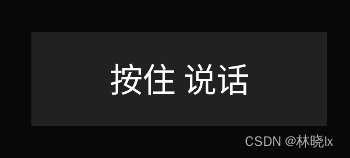
创建一个手势控件。他包裹的内容。是一个带有按住说话的按钮。
<controls1:PanContainer BackgroundColor="Transparent"

        x:Name="DefaultPanContainer"

        OnTapped="DefaultPanContainer_OnOnTapped"

        AutoAdsorption="False"

        OnfinishedChoise="DefaultPanContainer_OnOnfinishedChoise">

    <Grid PropertyChanged="BindableObject_OnPropertyChanged"

            VerticalOptions="Start"

            HorizontalOptions="Start">

        <BoxView HeightRequest="80"

                    WidthRequest="250"

                    Margin="7.5"

                    Color="{StaticResource PhoneContrastBackgroundBrush}"></BoxView>

        <Label  x:Name="PauseLabel"

                HorizontalOptions="CenterAndExpand"

                FontSize="28"

                TextColor="{StaticResource PhoneForegroundBrush}"

                Text="按住 说话"

                Margin="0"></Label>

    </Grid>

</controls1:PanContainer>
此时应该是可以拖动,并且在拖拽开始,进入pit,离开pit,释放时,分别触发Start,In,Out,Over四个状态。
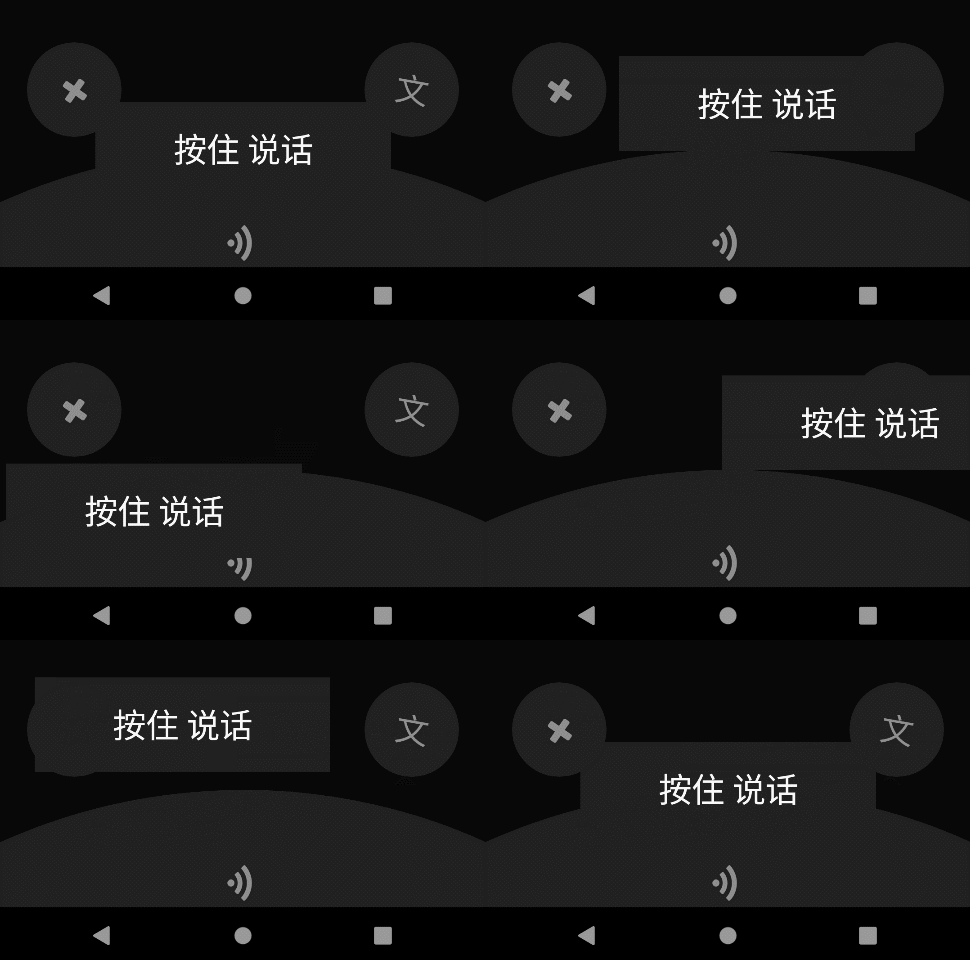
但我们希望在拖拽时隐藏这个按钮,这将在创建动画章节将介绍。
创建TalkBox
创建一个圆角矩形,用来显示正在说话的动画。
<Grid Grid.Row="1"

            Opacity="1"

            x:Name="TalkBoxLayout">

        <BoxView x:Name="TalkBox"

                    HeightRequest="80"

                    WidthRequest="200"

                    CornerRadius="20"

                    Margin="7.5"

                    Color="{StaticResource PhoneAccentBrush}"

                    VerticalOptions="CenterAndExpand"

                    HorizontalOptions="CenterAndExpand"></BoxView>

        <controls:PlayingMotionView   HorizontalOptions="CenterAndExpand"

                                        x:Name="MotionView"

                                        Margin="0"></controls:PlayingMotionView>

    </Grid>

</Grid>
效果如下

创建动画
拖拽物动画
在拖拽时我们希望可以隐藏拖拽物,设置 PanScale和PanScaleAnimationLength属性为0,代码如下:
<controls1:PanContainer BackgroundColor="Transparent"

        x:Name="DefaultPanContainer"

        OnTapped="DefaultPanContainer_OnOnTapped"

        AutoAdsorption="False"

        PanScale="0.0"

        PanScaleAnimationLength="0">
按钮激活动画
Codebeind代码中,配置Active和DeActive方法,用于激活和取消激活功能区域按钮的样式。
激活时,对应功能区域按钮背景颜色变为白色,字体颜色变为黑色,并且放大到1.2倍。
取消激活时,恢复到原来的样式。

代码如下
private void Active(BoxView currentContent, Label text, Color toColor, Color txtToColor, double scaleTo = 1.2)

{

    currentContent.AbortAnimation("ActivateFunctionAnimations");

    var parentAnimation = new Animation();

    var txtFromColor = text.TextColor;

    var animation2 = new Animation(t => text.TextColor = GetColor(t, txtFromColor, txtToColor), 0, 1, Easing.SpringOut);

    var fromColor = currentContent.Color;

    var animation4 = new Animation(t => currentContent.Color = GetColor(t, fromColor, toColor), 0, 1, Easing.SpringOut);

    var animation5 = new Animation(v => currentContent.Scale = v, currentContent.Scale, scaleTo);

    parentAnimation.Add(0, 1, animation2);

    parentAnimation.Add(0, 1, animation4);

    parentAnimation.Add(0, 1, animation5);

    parentAnimation.Commit(this, "ActivateFunctionAnimations", 16, 300);

}

private void DeActive(BoxView currentContent, Label text)

{

    currentContent.AbortAnimation("DeactivateFunctionAnimations");

    var parentAnimation = new Animation();

    var txtFromColor = text.TextColor;

    var txtToColor = (Color)Application.Current.Resources["PhoneContrastForegroundBrush"];

    var animation2 = new Animation(t => text.TextColor = GetColor(t, txtFromColor, txtToColor), 0, 1, Easing.SpringOut);

    var fromColor = currentContent.Color;

    var toColor = (Color)Application.Current.Resources["PhoneContrastBackgroundBrush"];

    var animation4 = new Animation(t => currentContent.Color = GetColor(t, fromColor, toColor), 0, 1, Easing.SpringOut);

    var animation5 = new Animation(v => currentContent.Scale = v, currentContent.Scale, 1.0);

    parentAnimation.Add(0, 1, animation2);

    parentAnimation.Add(0, 1, animation4);

    parentAnimation.Add(0, 1, animation5);

    parentAnimation.Commit(this, "DeactivateFunctionAnimations", 16, 300);

}
在拖拽进入pit的事件中设置激活状态,在拖拽离开pit的事件中设置取消激活状态。
case PanType.Out:

    switch (args.CurrentPit?.PitName)

    {

        case "CancelPit":

            DeActive(this.CancelBox, this.CancelLabel);

            break;

        case "SendPit":

            DeActive(this.SendBox, this.SendLabel);

            break;

        case "TransliterationPit":

            DeActive(this.TransliterationBox, this.TransliterationLabel);

            break;

        default:

            break;

    }

    break;

case PanType.In:

    var parentAnimation = new Animation();

    Color toColor = default;

    double translationX = default;

    double width = default;

    switch (args.CurrentPit?.PitName)

    {

        case "CancelPit":

            Active(this.CancelBox, this.CancelLabel, Colors.White, Colors.Black);

            this.TalkBox.AbortAnimation("TalkBoxAnimations");

            break;

        case "SendPit":

            Active(this.SendBox, this.SendLabel, Colors.Gray, Colors.Black, 1.0);

            break;

        case "TransliterationPit":

            Active(this.TransliterationBox, this.TransliterationLabel, Colors.White, Colors.Black);

            break;

        default:

            break;

    }
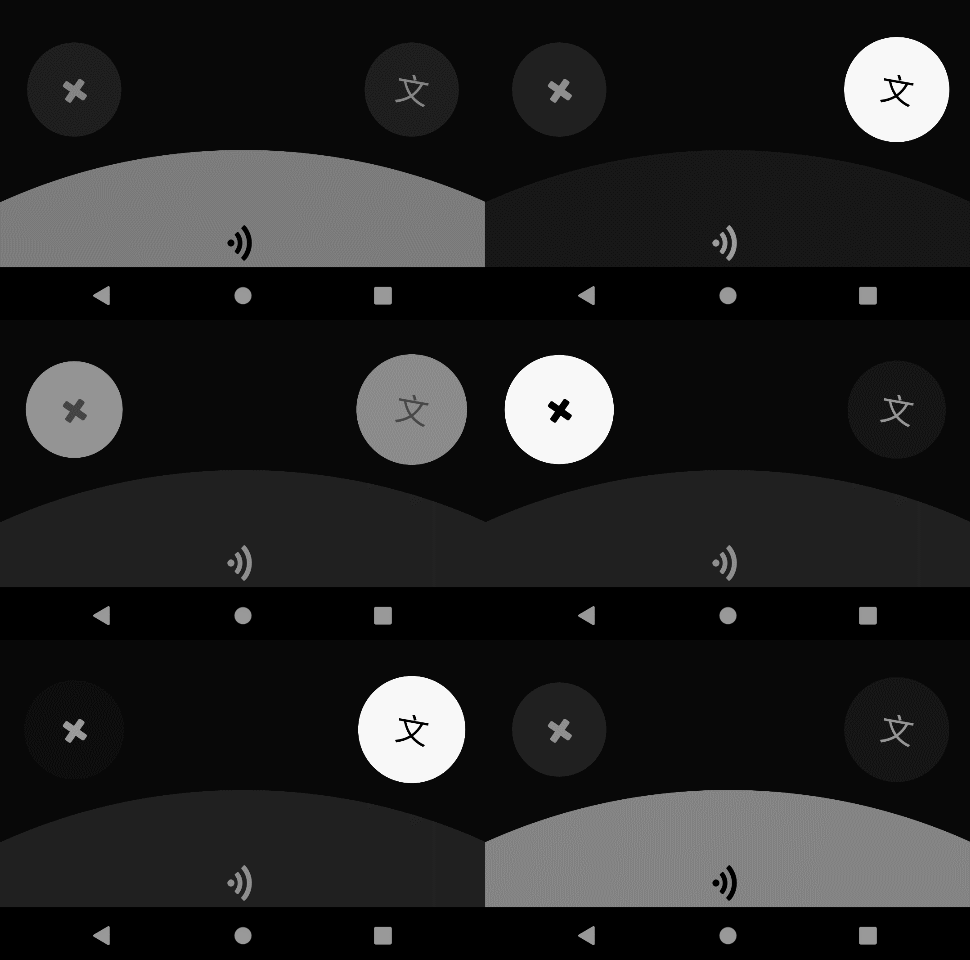
TalkBox动画
创建GetColor方法,使用插值法用于获取渐变过程中获取当前进度的颜色
    private Color GetColor(double t, Color fromColor, Color toColor)

    {

        return Color.FromRgba(fromColor.Red + t * (toColor.Red - fromColor.Red),

                           fromColor.Green + t * (toColor.Green - fromColor.Green),

                           fromColor.Blue + t * (toColor.Blue - fromColor.Blue),

                           fromColor.Alpha + t * (toColor.Alpha - fromColor.Alpha));

    }
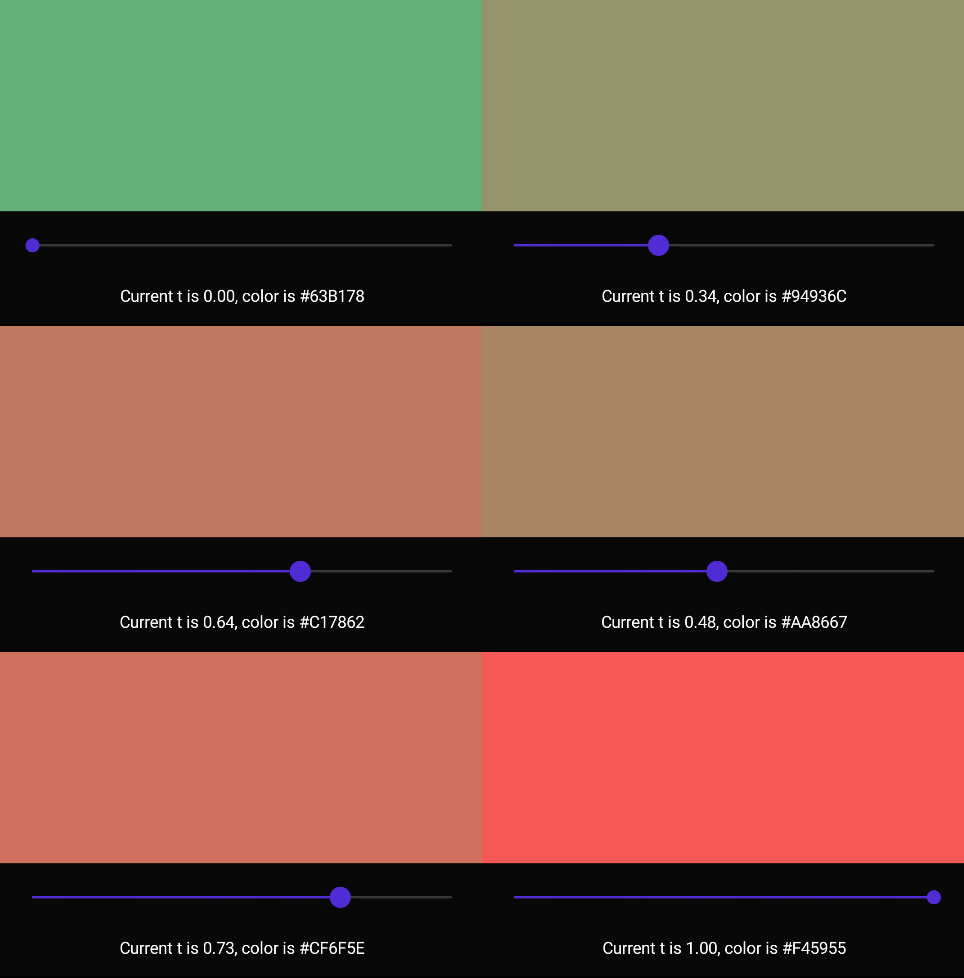
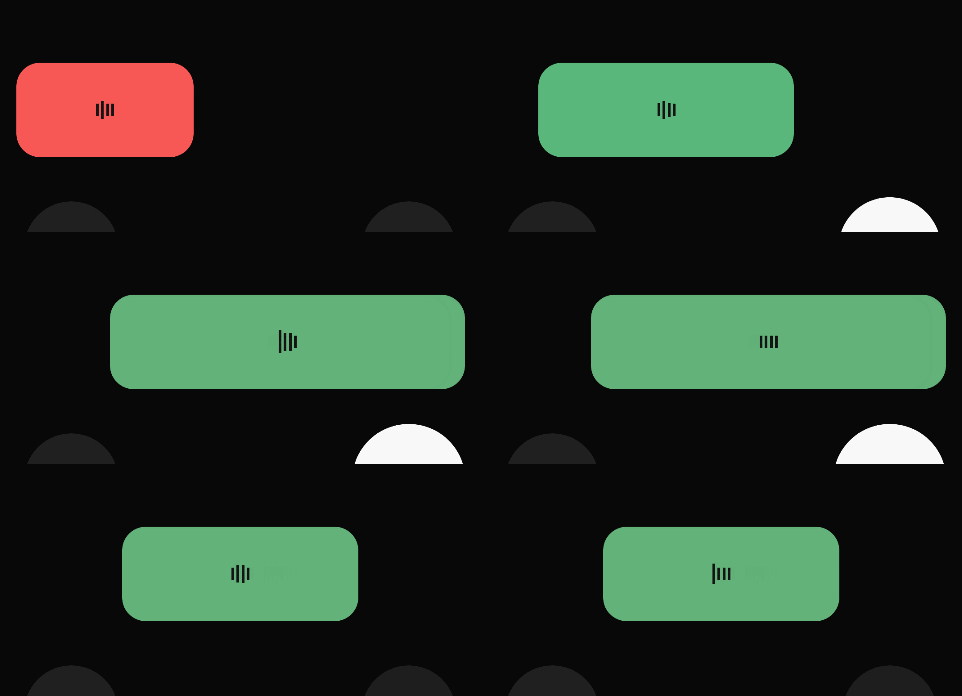
在进入功能区域时,TalkBox的颜色,偏移量和宽度都会发生变化,创建一个复合动画TalkBoxAnimations,用于触发TalkBox的动画效果。
this.TalkBox.AbortAnimation("TalkBoxAnimations");

var fromColor = this.TalkBox.Color;

var animation2 = new Animation(t => this.TalkBox.Color = GetColor(t, fromColor, toColor), 0, 1, Easing.SpringOut);

var animation4 = new Animation(v => this.TalkBoxLayout.TranslationX = v, this.TalkBoxLayout.TranslationX, translationX);

var animation5 = new Animation(v => this.TalkBox.WidthRequest = v, this.TalkBox.Width, width);

parentAnimation.Add(0, 1, animation2);

parentAnimation.Add(0, 1, animation4);

parentAnimation.Add(0, 1, animation5);

parentAnimation.Commit(this, "TalkBoxAnimations", 16, 300);
最终效果如下:
Layout动画
创建一个用于显示功能区域和TalkBox的渐变动画,用于在拖拽开始和结束时,显示和隐藏这两个控件。
private void ShowLayout(double opacity = 1)

{

    this.PitContentLayout.FadeTo(opacity);

    this.TalkBoxLayout.FadeTo(opacity);

}
case PanType.Over:

    ShowLayout(0);

    break;

case PanType.Start:

    ShowLayout();

    break;
项目地址
[MAUI]模仿微信“按住-说话”的交互实现的更多相关文章
- 一个模仿微信群聊的H5页面
开始 上半年小米Max发布的时候,做了一个在朋友圈传播的模仿微信的群聊界面H5页面:一群公司的大咖在群里聊小米Max,用户可以向大咖们提问,以此了解产品. 页面的主体是群聊对话,同时在对话中包含了很多 ...
- 自定义控件(模仿微信ToggleButton控件)
弄过android开发的都知道,系统有一个默认的ToggleButton,但很多人都觉得他很难看,当然也包括我.如果你感觉他不难看,那你就继续使用系统的吧,这篇文章对你来说是多余的了. 今天来写一个模 ...
- (转)ZXing生成二维码和带logo的二维码,模仿微信生成二维码效果
场景:移动支付需要对二维码的生成与部署有所了解,掌握目前主流的二维码生成技术. 1 ZXing 生成二维码 首先说下,QRCode是日本人开发的,ZXing是google开发,barcode4j也是老 ...
- Android Studio精彩案例(三)《模仿微信ViewPage+Fragment实现方式二》
转载本专栏文章,请注明出处,尊重原创 .文章博客地址:道龙的博客 写在前面的话:此专栏是博主在工作之余所写,每一篇文章尽可能写的思路清晰一些,属于博主的"精华"部分,不同于以往专栏 ...
- .Net Webapi SignalR与微信小程序的交互
.Net Webapi SignalR与微信小程序的交互 一.SignalR与Webapi 1.SignalR的安装: Signalr与跨域仅需要安装两个开源库 Microsoft.Owin.Cors ...
- 微信网页悬浮窗交互效果的web实现
一.微信的悬浮窗交互效果 微信更新后,发现多了个悬浮窗功能.公众号阅读,网页浏览回退后默认会出现.再点击,可以回到刚才阅读的地方.于是,再也不会遇到回复老婆的信息,再切换回来重新找刚才阅读东西的麻烦了 ...
- css模仿微信弹出菜单
css模仿微信弹出菜单 效果图: html: <div class="action-sheet-backdrop"> <div class="act ...
- js模仿微信语音播放的小功能
自己写的一个模仿微信语音播放的小功能,实现的主要功能是:点击播放,点击暂停,播放切换,,, 代码如下: <!DOCTYPE html> <html lang="en&qu ...
- Android 模仿微信启动动画(转)
本文内容 环境 项目结构 演示微信启动动画 本文演示微信启动动画.请点击此处下载,自行调试. 顺便抱怨一下,实践性(与研究性质的相对)技术博的“七宗罪”: 第一宗罪,错字连篇,逻辑不清: 第二宗罪,文 ...
- wing带你玩转自定义view系列(3)模仿微信下拉眼睛
发现了爱神的自定义view系列,我只想说一个字:凸(艹皿艹 ) !!相见恨晚啊,早看到就不会走这么多弯路了 另外相比之下我这完全是小儿科..所以不说了,这篇是本系列完结篇....我要从零开始跟随爱哥脚 ...
随机推荐
- ajax的重新学习,以及axios
首先在这次学习之前已经又过了简单的入门,并且在上学期vue的开发中对其中的ajax语法以及方法有所认识,但是还有很多别的框架不同种的写法,因此我需要掌握原生ajax的知识 一.对ajax的简单认识 a ...
- 在Eclipse 中导入maven项目, progress对话框中出现importing maven project的进度条卡住
一.在Eclipse配置Maven 方法1:在Eclipse上下载,太慢了,不用 方法2:在电脑本地下载,然后Eclipse载入 二.方法2详细步骤 1.官网下载:http://maven.apach ...
- 安装SQL Server 2008 R2出现的问题及解决方法(配合Visual Studio )
学校的一个作业需要SQL Server,所以就安装一个,没想到还真是有不少问题 总结:遇到问题,取消安装,完全删除(注册表啥的,小心,细心),重新安装. tips:彻底删除SQL Server应用及组 ...
- abp框架+mysql 数据库 执行批量新增和修改
protected override async Task ExecuteAsync(CancellationToken stoppingToken) { while (!stoppingToken. ...
- 4.javaweb-thymeleaf
1.知识回顾: 1. post提交方式下的设置编码,防止中文乱码 request.setCharacterEncoding("utf-8"); get提交方式,tomcat8开始, ...
- LNK2001 无法解析的外部符号 "int const ROUND"
今天在写代码时出现了这个错误,网上的解决方法都不合适 我的代码是这样,在一个cpp里申明了一个常量 //data.cpp const int ROUND = 3; 然后在一个头文件里申明为全局变量 / ...
- PHP 计算一个月第一天和最后一天
$fistday= date('Y-m-1 23:59:59'); $lastday= strtotime("$fistday+1 month -1 day");
- TypeError: list indices must be integers or slices, not str解决方法
print (response.json()['data']['patientId'])TypeError: list indices must be integers or slices, not ...
- Oracle-账户被锁:The account is locked
Oracle-账户被锁:The account is locked cmd-->sqlplus--> 管理员登录:system@ORCL 密码:1 然后输入:alter user kjb( ...
- win10安装node-red遇到的问题及解决方法
1.安装失败 原因:没有管理员权限,需要用powershell(管理员)来安装 2.安装完成后运行失败 出现下面的情况 PS C:\WINDOWS\system32> node-rednode- ...