
201871020225-牟星源《面向对象程序设计(java)》第十五周学习总结
201871020225-牟星源《面向对象程序设计(java)》第十五周学习总结
|
项目 |
内容 |
|
这个作业属于哪个课程 |
https://www.cnblogs.com/nwnu-daizh/ |
|
这个作业的要求在哪里 |
https://www.cnblogs.com/nwnu-daizh/p/11995615.html |
|
作业学习目标 |
(1) 掌握菜单组件用途及常用API; (2) 掌握对话框组件用途及常用API; (3) 学习设计简单应用程序的GUI。 |
第一部分:总结菜单、对话框两类组件用途及常用API
一、菜单
(1)1创建一个菜单栏:JMenuBar menuBar=new JMenuBar();
2将菜单栏放置在frame的顶部:frame.setMenuBar(menuBar);
3为每个菜单建立一个菜单对象:JMenu editMenu=new jMenu("Edit");
4将顶层菜单添加到菜单栏中:menuBar.add(editMenu);
5往菜单对象中添加菜单项、分隔符和子菜单:-JMenultem pasteltem=new JMenultem("Paste"); -editMenu.add(pasteltem)
6用户点击菜单项的动作监听器为实现ActionListener接口(actionPerformed方法)的类对象或关联一个动作事件:-ActionListenerlistener=pasteltem.addActionListener(listener),或将一个动作直接与菜单项关联
(2)菜单中的图标
JMenuItem类扩展自AbstructButton类,故菜单项与按钮很相似。
有3种方法为菜单项指定一个图标:
1.构造器方法:-JMenultem cutltem=newJMenultem("Cut",newImagelcon("cut.gif") //默认图形在名称的左侧
2.seticon方法:-cutltem.seticon(new Imageicon("cut.gif");
3.把一个图标添加到一个动作上,再用该动作构造菜单项;cutAction.putValue(Action.SMALL_ICON,new Imageicon("cut.gif")); JMenultem cutltem =new JMenultem(cutAction);
使用动作构造菜单项时,Action.NAME将会成为菜单项的文本,而Action.SMALL_ICON成为图标。
(3)弹出菜单
弹出菜单(pop-up menu)即单击鼠标右键可弹出的快捷菜单。
建立弹出菜单的方法与一般菜单相似:
1)创建一个弹出式菜单:JPopupMenu popup=new JPopupMenu()
2)在菜单中添加菜单项:JMenultem item=new JMenultem("Cut")
item.addActionListener(listener);
popup.add(item);
(4)弹出式触发器
弹出式触发器(pop-up tigger):用户点击鼠标某个键时,弹出菜单。
在Windows或者Linux中,弹出式触发器是右键。
要想在用户点击某一个组件的时候弹出菜单,就要使用弹出式触发器:component.setComponentPopupMenu(pop up);
(5)快捷键
可以为菜单项设置快捷键。在当前菜单打开的情况下,可以按下某菜单项的快捷键,相当于鼠标单击了该菜单项。
JMenultem Cutltem=new JMenultem("lndex");
Cutltem.setMnemonic("p")
快捷键就会自动显示在菜单项中,快捷键下面有一条下划线。
(6)加速器
加速器可以在不打开菜单的情况下选中菜单项的快捷键
例如,很多程序把CTRL+O和CTRL+S关联到菜单中的Open和Save项。
使用方法可以将加速器关联到一个菜单项。该方法使用类型的对象作为参数。
当用户按下加速器组合键时,就自动选择了相应的菜单项,同时激活一个动作事件。
注意:加速器实际上并不打开菜单,而是直接激活菜单关联的动作事件。
(7)启用和禁用菜单项
在程序运行过程中,经常需要屏蔽某些暂时不适用的命令,待到条件允许时再使之重新可用。
屏蔽/启用菜单项的方法:aMenultem.setEnabled(boolean)
当参数值为ale时,屏蔽该菜单项,当参数值为tue时,启用该菜单项。
如果需要动态启用/屏蔽某菜单项,则需要为“menu selected”事件注册监听器。javax.swing.event包定义了MenuListener接口,它有三个方法:
void menuSelected(MenuEvent event)
voidmenuDeselected(MenuEventevent)
void menuCanceled(MenuEvent event)
二、工具栏
工具栏是在程序中提供快速访问常用命令的按钮栏。
工具栏的特别之处在于可以移动,脱离工具栏或拖拽到框架其他地方。
(1)工具栏的创建
创建工具栏时,直接将组件添加到工具栏中,再将工具栏放入框架
JToolBar bar=new JToolBar();
-bar. add(blue Button);
-frame.add(bar,BorderLayout.NORTH);
也可以使用添加Action对象的方法来填充工具栏:-bar.add(blueAction)
可以设置工具提示:-setToolTipText(String);
如果使用Action对象,则可使用PutValue方法
注意;按钮是工具栏中最賞见的组件类型。但其它组件也可以放置在工具栏中,例如复选框等。
(2)工具栏相关的常用方法
Java.swing.JToolBar
JToolBar()
JToolBar(String titleString)
JToolBar(intorientation)
JButton add(Action a) //在工具栏添加与动作a关联的按钮
void addSeparator() //在工具栏末尾添加一个分隔符
Java.swing. JToolBar
void setToolTipText(String text) //设置当鼠标停留在组件上时显示的工具提示的文本
三、对话框的种类
对话框分为模式对话框和无模式对话框。
(1)模式对话框
在用户结束对它的操作之前,不允许用户与应用程序其他窗口的交互
模式对话框的作用:在程序继续运行之前,必须获得用户提供的信息。
(2)无模式对话框
无模式对话框运行用户同时在对话框和应用程序的其它窗口中输入信息
例如:工具栏:工具栏可以停靠在任何地方,并且用户可以在需要时与应用程序窗口和工具栏进行交互。
(3)一些常用的对话框:
1选项对话框
Swing提供了一组简单的对话框,用于收集用户提供的简单信息。有四个用于显示这些简单对话框的静态方法
showMessageDialog:显示一条消息,并等待用户点击OK
showConfirmDialog:显示一条消息,并等待用户点击确认(与按钮类似)
showOptionDialog:显示一条消息,并等待用户作出某一种选择
showInputDialog:显示一条消息,并等待用户输入一行信息
创建对话框
创建一个对话框的步骤:
1.创建一个派生自JDialog类的子类。
2.在子类的构造器中,需要进行以下工作
(1)调用超类的构造器,用于指定对话框的拥有者(owner frame),(也可以设置为null,但这样对话框有可能被隐藏在其它窗口后面),对话框的标题以及是否模式对话框
(2)添加对话框的用户界面组件
(3)添加相应的事件处理器
(4)设置对话框的大小
使用对话框的一个重要目的是获取用户的输入信息
2文本对话框
文件对话框甩于帮助用戶打开或煮保存文件。下面是建立文件对话框并且获取用戶选择信息的步骤:
1.建立一个对象。与类构造器不同,这种对象不需要指定父组件,因而允许在多个框架中重用一个文件选择器
JFileChooser chooser=new JFileChooser0);
2.调用方法设置当前目录
chooser.setCurrentDirectory(new File("… "))
3.如果要指定一个默认的文件名,可以使用setSelected方法
chooser.setSelectedFile(newFile(filename))
4.如果要允许用户能同时选中多个文件,可以使用setMultiSelectionEnabled方法
chooser.setMultiSelectionEnabled(true);
5.如果希望在对话框中只显示某一类型的文件(如所有.gif文件),则需要文件过滤器。
6.默认情况下只能选中文件,如果希望允许用户选择目录,则需要使用setFileSelectionMode方法。
7.调用showOpenDialog或者showSaveDialog方法显示对话框。必须为这些调用指定父组件:
int result=chooser.showOpenDialog(parent)
int result=chooser. showSaveDialog(parent);
8.使用getSelectedFile或者getSelectedFiles获得选中的一个或多个文件。这些方法返回一个File对象或者组File对象。如果需要文件对象名字时,可以调用getPath方法
String filename=chooser.getSelectedfile().getPath();
第二部分:实验部分
导入第12章示例程序,测试程序并进行组内讨论。
实验1:测试程序1
l 在elipse IDE中调试运行教材512页程序12-8,结合运行结果理解程序;
l 掌握菜单的创建、菜单事件监听器、复选框和单选按钮菜单项、弹出菜单以及快捷键和加速器的用法。
l 记录示例代码阅读理解中存在的问题与疑惑。
具体代码如下:
import javax.swing.*;
* @version 1.25 2018-04-10
* @author Cay Horstmann
*/
public class MenuTest
{
public static void main(String[] args)
{
EventQueue.invokeLater(() -> {
MenuFrame frame = new MenuFrame();
frame.setTitle("MenuTest");
frame.setDefaultCloseOperation(JFrame.EXIT_ON_CLOSE);
frame.setVisible(true);
});
}
}
import javax.swing.*;
* A frame with a sample menu bar.
*/
public class MenuFrame extends JFrame
{
private static final int DEFAULT_WIDTH = 300;
private static final int DEFAULT_HEIGHT = 200;
private Action saveAction;
private Action saveAsAction;
private JCheckBoxMenuItem readonlyItem;
private JPopupMenu popup;
* A sample action that prints the action name to System.out.
*/
class TestAction extends AbstractAction//菜单项触发命令,通常采用扩展抽象类AbstractAction来定义一个实现Action接口的类
{
public TestAction(String name)
{
super(name);
}
{
System.out.println(getValue(Action.NAME) + " selected.");
}
}
{
setSize(DEFAULT_WIDTH, DEFAULT_HEIGHT);
fileMenu.add(new TestAction("New"));
openItem.setAccelerator(KeyStroke.getKeyStroke("ctrl O"));//快捷键,与ctrl O联系
JMenuItem saveItem = fileMenu.add(saveAction);
saveItem.setAccelerator(KeyStroke.getKeyStroke("ctrl S"));
fileMenu.add(saveAsAction);
fileMenu.addSeparator();
{
public void actionPerformed(ActionEvent event)
{
System.exit(0);//真实功能
}
});
readonlyItem.addActionListener(new ActionListener()
{
public void actionPerformed(ActionEvent event)
{
boolean saveOk = !readonlyItem.isSelected();
saveAction.setEnabled(saveOk);//启用或禁用菜单选项利用setEnabled方法
saveAsAction.setEnabled(saveOk);
}
});
insertItem.setSelected(true);
JRadioButtonMenuItem overtypeItem = new JRadioButtonMenuItem("Overtype");
group.add(overtypeItem);
cutAction.putValue(Action.SMALL_ICON, new ImageIcon("cut.gif"));
TestAction copyAction = new TestAction("Copy");
copyAction.putValue(Action.SMALL_ICON, new ImageIcon("copy.gif"));
TestAction pasteAction = new TestAction("Paste");
pasteAction.putValue(Action.SMALL_ICON, new ImageIcon("paste.gif"));
editMenu.add(cutAction);
editMenu.add(copyAction);
editMenu.add(pasteAction);
optionMenu.addSeparator();
optionMenu.add(insertItem);
optionMenu.add(overtypeItem);
editMenu.add(optionMenu);
helpMenu.setMnemonic('H');
indexItem.setMnemonic('I');
helpMenu.add(indexItem);
var aboutAction = new TestAction("About");
aboutAction.putValue(Action.MNEMONIC_KEY, new Integer('A'));
helpMenu.add(aboutAction);
// add all top-level menus to menu bar
setJMenuBar(menuBar);//将菜单栏添加到框架上
menuBar.add(editMenu);
menuBar.add(helpMenu);
popup.add(cutAction);
popup.add(copyAction);
popup.add(pasteAction);
panel.setComponentPopupMenu(popup);
add(panel);
}
}
运行结果如下:
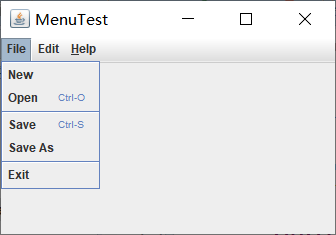
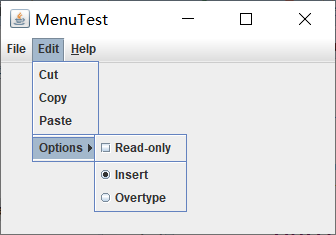

实验1:测试程序2
l 在elipse IDE中调试运行教材517页程序12-9,结合运行结果理解程序;
l 掌握工具栏和工具提示的用法;
l 记录示例代码阅读理解中存在的问题与疑惑。
具体代码如下:
import javax.swing.*;
* @version 1.15 2018-04-10
* @author Cay Horstmann
*/
public class ToolBarTest
{
public static void main(String[] args)
{
EventQueue.invokeLater(() -> {
ToolBarFrame frame = new ToolBarFrame();
frame.setTitle("ToolBarTest");
frame.setDefaultCloseOperation(JFrame.EXIT_ON_CLOSE);
frame.setVisible(true);
});
}
}
import java.awt.event.*;
import javax.swing.*;
* A frame with a toolbar and menu for color changes.
*/
public class ToolBarFrame extends JFrame
{
private static final int DEFAULT_WIDTH = 300;
private static final int DEFAULT_HEIGHT = 200;
private JPanel panel;
{
setSize(DEFAULT_WIDTH, DEFAULT_HEIGHT);
add(panel, BorderLayout.CENTER);//边框布局的中
ColorAction yellowAction = new ColorAction("Yellow", new ImageIcon("yellow-ball.gif"),
Color.YELLOW);
ColorAction redAction = new ColorAction("Red", new ImageIcon("red-ball.gif"), Color.RED);
{
public void actionPerformed(ActionEvent event)
{
System.exit(0);
}
};
exitAction.putValue(Action.SHORT_DESCRIPTION, "Exit");
bar.add(blueAction);//将组件添加到工具栏中
bar.add(yellowAction);
bar.add(redAction);
bar.addSeparator();
bar.add(exitAction);
add(bar, BorderLayout.NORTH);//置于边框布局的北
menu.add(yellowAction);
menu.add(blueAction);
menu.add(redAction);
menu.add(exitAction);
JMenuBar menuBar = new JMenuBar();
menuBar.add(menu);
setJMenuBar(menuBar);
}
* The color action sets the background of the frame to a given color.
*/
class ColorAction extends AbstractAction//菜单项触发命令
{
public ColorAction(String name, Icon icon, Color c)
{
putValue(Action.NAME, name);
putValue(Action.SMALL_ICON, icon);
putValue(Action.SHORT_DESCRIPTION, name + " background");
putValue("Color", c);
}
{
Color c = (Color) getValue("Color");
panel.setBackground(c);
}
}
}
运行结果如下:

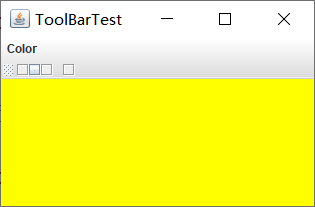

实验1:测试程序3
l 在elipse IDE中调试运行教材544页程序12-15、12-16,结合运行结果理解程序;
l 掌握选项对话框的用法。
l 记录示例代码阅读理解中存在的问题与疑惑。
具体代码如下:
import javax.swing.*;
* @version 1.35 2018-04-10
* @author Cay Horstmann
*/
public class OptionDialogTest
{
public static void main(String[] args)
{
EventQueue.invokeLater(() -> {
OptionDialogFrame frame = new OptionDialogFrame();
frame.setTitle("OptionDialogTest");
frame.setDefaultCloseOperation(JFrame.EXIT_ON_CLOSE);
frame.setVisible(true);
});
}
}
import java.awt.event.*;
import java.awt.geom.*;
import java.util.*;
import javax.swing.*;
* A frame that contains settings for selecting various option dialogs.
*/
public class OptionDialogFrame extends JFrame//继承JFrame
{
private ButtonPanel typePanel;
private ButtonPanel messagePanel;
private ButtonPanel messageTypePanel;
private ButtonPanel optionTypePanel;
private ButtonPanel optionsPanel;
private ButtonPanel inputPanel;
private String messageString = "Message";
private Icon messageIcon = new ImageIcon("blue-ball.gif");
private Object messageObject = new Date();
private Component messageComponent = new SampleComponent();
{
var gridPanel = new JPanel();
gridPanel.setLayout(new GridLayout(2, 3));
messageTypePanel = new ButtonPanel("Message Type", "ERROR_MESSAGE", "INFORMATION_MESSAGE",
"WARNING_MESSAGE", "QUESTION_MESSAGE", "PLAIN_MESSAGE");
messagePanel = new ButtonPanel("Message", "String", "Icon", "Component", "Other",
"Object[]");//五个按钮
optionTypePanel = new ButtonPanel("Confirm", "DEFAULT_OPTION", "YES_NO_OPTION",
"YES_NO_CANCEL_OPTION", "OK_CANCEL_OPTION");
optionsPanel = new ButtonPanel("Option", "String[]", "Icon[]", "Object[]");
inputPanel = new ButtonPanel("Input", "Text field", "Combo box");
gridPanel.add(messageTypePanel);
gridPanel.add(messagePanel);
gridPanel.add(optionTypePanel);
gridPanel.add(optionsPanel);
gridPanel.add(inputPanel);
var showButton = new JButton("Show");
showButton.addActionListener(new ShowAction());
showPanel.add(showButton);
add(showPanel, BorderLayout.SOUTH);//加于南面
pack();
}
* Gets the currently selected message.
* @return a string, icon, component, or object array, depending on the Message panel selection
*/
public Object getMessage()
{
String s = messagePanel.getSelection();
if (s.equals("String")) return messageString;
else if (s.equals("Icon")) return messageIcon;
else if (s.equals("Component")) return messageComponent;
else if (s.equals("Object[]")) return new Object[] { messageString, messageIcon,
messageComponent, messageObject };
else if (s.equals("Other")) return messageObject;
else return null;
}
* Gets the currently selected options.
* @return an array of strings, icons, or objects, depending on the Option panel selection
*/
public Object[] getOptions()
{
String s = optionsPanel.getSelection();
if (s.equals("String[]")) return new String[] { "Yellow", "Blue", "Red" };
else if (s.equals("Icon[]")) return new Icon[] { new ImageIcon("yellow-ball.gif"),
new ImageIcon("blue-ball.gif"), new ImageIcon("red-ball.gif") };
else if (s.equals("Object[]")) return new Object[] { messageString, messageIcon,
messageComponent, messageObject };
else return null;
}
* Gets the selected message or option type
* @param panel the Message Type or Confirm panel
* @return the selected XXX_MESSAGE or XXX_OPTION constant from the JOptionPane class
*/
public int getType(ButtonPanel panel)
{
String s = panel.getSelection();
try
{
return JOptionPane.class.getField(s).getInt(null);
}
catch (Exception e)
{
return -1;
}
}
* The action listener for the Show button shows a Confirm, Input, Message, or Option dialog
* depending on the Type panel selection.
*/
private class ShowAction implements ActionListener
{
public void actionPerformed(ActionEvent event)
{
if (typePanel.getSelection().equals("Confirm")) JOptionPane.showConfirmDialog(
OptionDialogFrame.this, getMessage(), "Title", getType(optionTypePanel),
getType(messageTypePanel));//若typePanel中选择Confirm按钮,得messageTypePanel的内容
else if (typePanel.getSelection().equals("Input"))
{
if (inputPanel.getSelection().equals("Text field")) JOptionPane.showInputDialog(
OptionDialogFrame.this, getMessage(), "Title", getType(messageTypePanel));
else JOptionPane.showInputDialog(OptionDialogFrame.this, getMessage(), "Title",
getType(messageTypePanel), null, new String[] { "Yellow", "Blue", "Red" },
"Blue");
}
else if (typePanel.getSelection().equals("Message")) JOptionPane.showMessageDialog(
OptionDialogFrame.this, getMessage(), "Title", getType(messageTypePanel));
else if (typePanel.getSelection().equals("Option")) JOptionPane.showOptionDialog(
OptionDialogFrame.this, getMessage(), "Title", getType(optionTypePanel),
getType(messageTypePanel), null, getOptions(), getOptions()[0]);
}
}
}
* A component with a painted surface
*/
{
public void paintComponent(Graphics g)
{
var g2 = (Graphics2D) g;
var rect = new Rectangle2D.Double(0, 0, getWidth() - 1, getHeight() - 1);
g2.setPaint(Color.YELLOW);//设置颜色
g2.fill(rect);//进行填充
g2.setPaint(Color.BLUE);
g2.draw(rect);
}
{
return new Dimension(10, 10);
}
}
* A panel with radio buttons inside a titled border.
*/
public class ButtonPanel extends JPanel
{
private ButtonGroup group;
* Constructs a button panel.
* @param title the title shown in the border
* @param options an array of radio button labels
*/
public ButtonPanel(String title, String... options)
{
setBorder(BorderFactory.createTitledBorder(BorderFactory.createEtchedBorder(), title));//设置边框效果
setLayout(new BoxLayout(this, BoxLayout.Y_AXIS));
group = new ButtonGroup();
for (String option : options)//for-each循环打印
{
JRadioButton button = new JRadioButton(option);
button.setActionCommand(option);
add(button);
group.add(button);
button.setSelected(option == options[0]);
}
}
* Gets the currently selected option.
* @return the label of the currently selected radio button.
*/
public String getSelection()
{
return group.getSelection().getActionCommand();
}
}
运行结果如下:

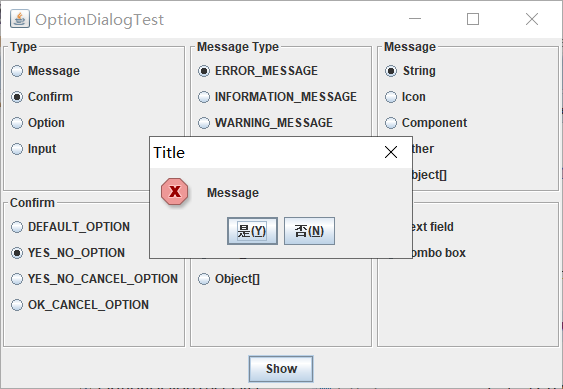


实验1:测试程序4
l 在elipse IDE中调试运行教材552页程序12-17、12-18,结合运行结果理解程序;
l 掌握对话框的创建方法;
l 记录示例代码阅读理解中存在的问题与疑惑。
具体代码如下:
import javax.swing.*;
* @version 1.35 2018-04-10
* @author Cay Horstmann
*/
public class DialogTest
{
public static void main(String[] args)
{
EventQueue.invokeLater(() -> {
DialogFrame frame = new DialogFrame();
frame.setTitle("DialogTest");
frame.setDefaultCloseOperation(JFrame.EXIT_ON_CLOSE);
frame.setVisible(true);
});
}
}
import javax.swing.JDialog;
import javax.swing.JFrame;
import javax.swing.JLabel;
import javax.swing.JPanel;
* A sample modal dialog that displays a message and waits for the user to click
* the OK button.
*/
public class AboutDialog extends JDialog
{
public AboutDialog(JFrame owner)
{
super(owner, "About DialogTest", true);//调用超类的构造器
new JLabel(
"<html><h1><i>Core Java</i></h1><hr>By Cay Horstmann</html>"),
BorderLayout.CENTER);
ok.addActionListener(event -> setVisible(false));//可见
panel.add(ok);
add(panel, BorderLayout.SOUTH);
}
}
import javax.swing.JMenu;
import javax.swing.JMenuBar;
import javax.swing.JMenuItem;
* A frame with a menu whose File->About action shows a dialog.
*/
public class DialogFrame extends JFrame
{
private static final int DEFAULT_WIDTH = 300;
private static final int DEFAULT_HEIGHT = 200;
private AboutDialog dialog;
{
setSize(DEFAULT_WIDTH, DEFAULT_HEIGHT);
setJMenuBar(menuBar);
JMenu fileMenu = new JMenu("File");
menuBar.add(fileMenu);
aboutItem.addActionListener(event -> {
if (dialog == null) // first time
dialog = new AboutDialog(DialogFrame.this);
dialog.setVisible(true); // pop up dialog
});
fileMenu.add(aboutItem);
exitItem.addActionListener(event -> System.exit(0));//退出
fileMenu.add(exitItem);
}
}
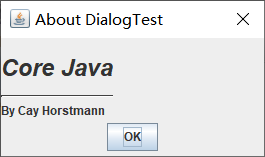
运行结果如下:

实验1:测试程序5
l 在elipse IDE中调试运行教材556页程序12-19、12-20,结合运行结果理解程序;
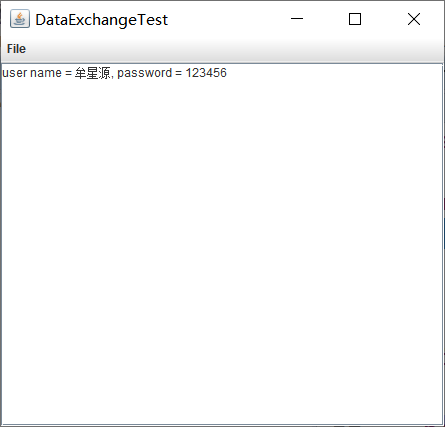
l 掌握对话框的数据交换用法;
l 记录示例代码阅读理解中存在的问题与疑惑。
具体代码如下:
import javax.swing.*;
* @version 1.35 2018-04-10
* @author Cay Horstmann
*/
public class DataExchangeTest
{
public static void main(String[] args)
{
EventQueue.invokeLater(() -> {
var frame = new DataExchangeFrame();
frame.setTitle("DataExchangeTest");
frame.setDefaultCloseOperation(JFrame.EXIT_ON_CLOSE);
frame.setVisible(true);
});
}
}
* A user has a name and password. For security reasons, the password is stored as a char[], not a
* String.
*/
public class User
{
private String name;
private char[] password;
{
name = aName;
password = aPassword;
}
{
return name;
}
{
return password;
}
{
name = aName;
}
{
password = aPassword;
}
}
import java.awt.Component;
import java.awt.Frame;
import java.awt.GridLayout;
import javax.swing.JDialog;
import javax.swing.JLabel;
import javax.swing.JPanel;
import javax.swing.JPasswordField;
import javax.swing.JTextField;
import javax.swing.SwingUtilities;
* A password chooser that is shown inside a dialog.
*/
public class PasswordChooser extends JPanel
{
private JTextField username;
private JPasswordField password;
private JButton okButton;
private boolean ok;//ok是boolean型的
private JDialog dialog;
{
setLayout(new BorderLayout());
panel.setLayout(new GridLayout(2, 2));//网格布局,2*2
panel.add(new JLabel("User name:"));
panel.add(username = new JTextField(""));
panel.add(new JLabel("Password:"));
panel.add(password = new JPasswordField(""));
add(panel, BorderLayout.CENTER);
okButton.addActionListener(event -> {
ok = true;
dialog.setVisible(false);
});
cancelButton.addActionListener(event -> dialog.setVisible(false));//调用取消按钮的添加监听器,设置组件不可见
buttonPanel.add(okButton);//加OK按钮
buttonPanel.add(cancelButton);
add(buttonPanel, BorderLayout.SOUTH);//南边
}
* Sets the dialog defaults.
* @param u the default user information
*/
public void setUser(User u)
{
username.setText(u.getName());
}
* Gets the dialog entries.
* @return a User object whose state represents the dialog entries
*/
public User getUser()
{
return new User(username.getText(), password.getPassword());
}
* Show the chooser panel in a dialog.
* @param parent a component in the owner frame or null
* @param title the dialog window title
*/
public boolean showDialog(Component parent, String title)
{
ok = false;
if (parent instanceof Frame)
owner = (Frame) parent;
else
owner = (Frame) SwingUtilities.getAncestorOfClass(Frame.class, parent);
{
dialog = new JDialog(owner, true);
dialog.add(this);
dialog.getRootPane().setDefaultButton(okButton);
dialog.pack();
}
dialog.setVisible(true);
return ok;
}
}
import java.awt.event.*;
import javax.swing.*;
* A frame with a menu whose File->Connect action shows a password dialog.
*/
public class DataExchangeFrame extends JFrame
{
public static final int TEXT_ROWS = 20;
public static final int TEXT_COLUMNS = 40;
private PasswordChooser dialog = null;
private JTextArea textArea;
{
// construct a File menu
setJMenuBar(mbar);
var fileMenu = new JMenu("File");
mbar.add(fileMenu);
connectItem.addActionListener(new ConnectAction());
fileMenu.add(connectItem);
exitItem.addActionListener(event -> System.exit(0));
fileMenu.add(exitItem);
add(new JScrollPane(textArea), BorderLayout.CENTER);
pack();
}
* The Connect action pops up the password dialog.
*/
private class ConnectAction implements ActionListener
{
public void actionPerformed(ActionEvent event)
{
// if first time, construct dialog
dialog.setUser(new User("yourname", null));
if (dialog.showDialog(DataExchangeFrame.this, "Connect"))
{
// if accepted, retrieve user input
User u = dialog.getUser();
textArea.append("user name = " + u.getName() + ", password = "
+ (new String(u.getPassword())) + "\n");
}
}
}
}
实验1:测试程序6
l 在elipse IDE中调试运行教材556页程序12-21、12-2212-23,结合程序运行结果理解程序;
l 掌握文件对话框的用法;
l 记录示例代码阅读理解中存在的问题与疑惑。
具体代码如下:
import javax.swing.*;
* @version 1.26 2018-04-10
* @author Cay Horstmann
*/
public class FileChooserTest
{
public static void main(String[] args)
{
EventQueue.invokeLater(() -> {
var frame = new ImageViewerFrame();
frame.setTitle("FileChooserTest");
frame.setDefaultCloseOperation(JFrame.EXIT_ON_CLOSE);
frame.setVisible(true);
});
}
}
import javax.swing.*;
import javax.swing.filechooser.*;
import javax.swing.filechooser.FileFilter;
* A file view that displays an icon for all files that match a file filter.
*/
public class FileIconView extends FileView
{
private FileFilter filter;
private Icon icon;
* Constructs a FileIconView.
* @param aFilter a file filter--all files that this filter accepts will be shown
* with the icon.
* @param anIcon--the icon shown with all accepted files.
*/
public FileIconView(FileFilter aFilter, Icon anIcon)
{
filter = aFilter;
icon = anIcon;
}
{
if (!f.isDirectory() && filter.accept(f)) return icon;
else return null;
}
}
import java.io.*;
* A file chooser accessory that previews images.
*/
public class ImagePreviewer extends JLabel
{
/**
* Constructs an ImagePreviewer.
* @param chooser the file chooser whose property changes trigger an image
* change in this previewer
*/
public ImagePreviewer(JFileChooser chooser)
{
setPreferredSize(new Dimension(100, 100));//setPreferredSize在布局管理器会获取空间的PreferredSize
setBorder(BorderFactory.createEtchedBorder());
if (event.getPropertyName() == JFileChooser.SELECTED_FILE_CHANGED_PROPERTY)
{
// the user has selected a new file
File f = (File) event.getNewValue();
if (f == null)
{
setIcon(null);
return;
}
var icon = new ImageIcon(f.getPath());
if (icon.getIconWidth() > getWidth())
icon = new ImageIcon(icon.getImage().getScaledInstance(
getWidth(), -1, Image.SCALE_DEFAULT));
}
});
}
}
import javax.swing.filechooser.*;
import javax.swing.filechooser.FileFilter;
* A frame that has a menu for loading an image and a display area for the
* loaded image.
*/
public class ImageViewerFrame extends JFrame
{
private static final int DEFAULT_WIDTH = 300;
private static final int DEFAULT_HEIGHT = 400;
private JLabel label;
private JFileChooser chooser;
{
setSize(DEFAULT_WIDTH, DEFAULT_HEIGHT);
var menuBar = new JMenuBar();
setJMenuBar(menuBar);
menuBar.add(menu);
menu.add(openItem);
openItem.addActionListener(event -> {
chooser.setCurrentDirectory(new File("."));//用setCurrentDirectory改变进程的当前目录
int result = chooser.showOpenDialog(ImageViewerFrame.this);//(不太理解)用showOpenDialog方法,显示打开文件的对话框
if (result == JFileChooser.APPROVE_OPTION)
{
String name = chooser.getSelectedFile().getPath();
label.setIcon(new ImageIcon(name));
pack();
}
});
menu.add(exitItem);
exitItem.addActionListener(event -> System.exit(0));
label = new JLabel();
add(label);
chooser = new JFileChooser();
var filter = new FileNameExtensionFilter(
"Image files", "jpg", "jpeg", "gif");
chooser.setFileFilter(filter);
}
}
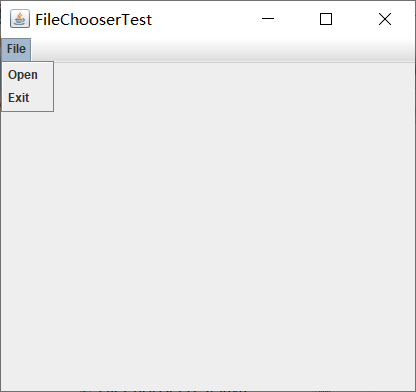
运行结果如下:

实验1:测试程序7
l 在elipse IDE中调试运行教材570页程序12-24,结合运行结果理解程序;
l 了解颜色选择器的用法。
l 记录示例代码阅读理解中存在的问题与疑惑。
具体代码如下:
package colorChooser;
import java.awt.*;
import javax.swing.*;
/**
* @version 1.04 2015-06-12
* @author Cay Horstmann
*/
public class ColorChooserTest
{
public static void main(String[] args)
{
EventQueue.invokeLater(() -> {
JFrame frame = new ColorChooserFrame();
frame.setTitle("ColorChooserTest");
frame.setDefaultCloseOperation(JFrame.EXIT_ON_CLOSE);
frame.setVisible(true);
});
}
}
package colorChooser;
import javax.swing.*;
/**
* A frame with a color chooser panel
*/
public class ColorChooserFrame extends JFrame
{
private static final int DEFAULT_WIDTH = 300;
private static final int DEFAULT_HEIGHT = 200;
public ColorChooserFrame()
{
setSize(DEFAULT_WIDTH, DEFAULT_HEIGHT);//固定大小
ColorChooserPanel panel = new ColorChooserPanel();
add(panel);
}
}
package colorChooser;
import java.awt.Color;
import java.awt.Frame;
import java.awt.event.ActionEvent;
import java.awt.event.ActionListener;
import javax.swing.JButton;
import javax.swing.JColorChooser;
import javax.swing.JDialog;
import javax.swing.JPanel;
/**
* A panel with buttons to pop up three types of color choosers
*/
public class ColorChooserPanel extends JPanel
{
public ColorChooserPanel()
{
JButton modalButton = new JButton("Modal");
modalButton.addActionListener(new ModalListener());
add(modalButton);
JButton modelessButton = new JButton("Modeless");
modelessButton.addActionListener(new ModelessListener());
add(modelessButton);
JButton immediateButton = new JButton("Immediate");
immediateButton.addActionListener(new ImmediateListener());
add(immediateButton);
}
/**
* This listener pops up a modal color chooser
*/
private class ModalListener implements ActionListener
{
public void actionPerformed(ActionEvent event)
{
Color defaultColor = getBackground();
Color selected = JColorChooser.showDialog(ColorChooserPanel.this, "Set background",
defaultColor);
if (selected != null) setBackground(selected);
}
}
/**
* This listener pops up a modeless color chooser. The panel color is changed when the user
* clicks the OK button.
*/
private class ModelessListener implements ActionListener//实现接口
{
private JDialog dialog;//对话框
private JColorChooser chooser;
public ModelessListener()
{
chooser = new JColorChooser();
dialog = JColorChooser.createDialog(ColorChooserPanel.this, "Background Color",
false /* not modal */, chooser,
event -> setBackground(chooser.getColor()),//getColor()设置颜色
null /* no Cancel button listener */);
}//不太理解
public void actionPerformed(ActionEvent event)
{
chooser.setColor(getBackground());
dialog.setVisible(true);
}
}
/**
* This listener pops up a modeless color chooser. The panel color is changed immediately when
* the user picks a new color.
*/
private class ImmediateListener implements ActionListener
{
private JDialog dialog;
private JColorChooser chooser;
public ImmediateListener()
{
chooser = new JColorChooser();
chooser.getSelectionModel().addChangeListener(
event -> setBackground(chooser.getColor()));
dialog = new JDialog((Frame) null, false /* not modal */);
dialog.add(chooser);
dialog.pack();
}
public void actionPerformed(ActionEvent event)
{
chooser.setColor(getBackground());
dialog.setVisible(true);
}
}
}
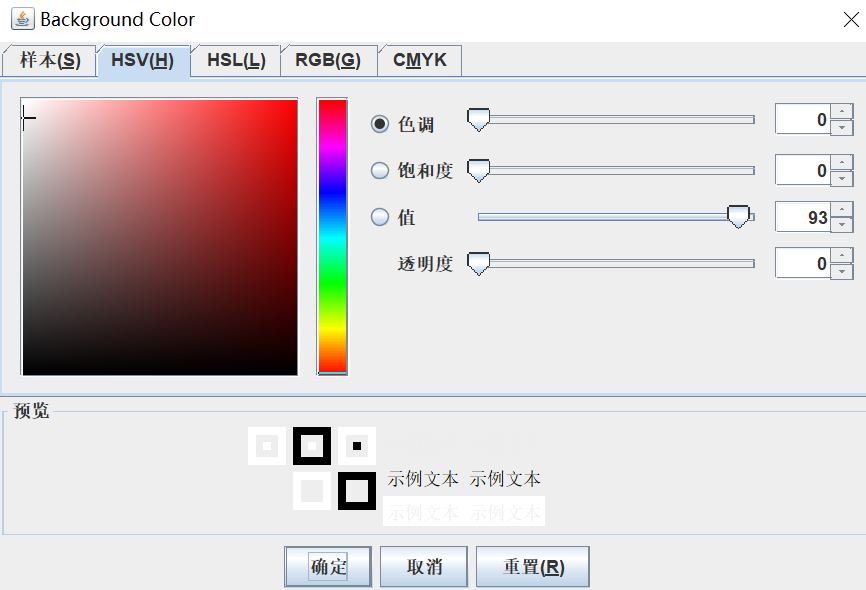
运行结果如下:

第三部分:实验总结:
本周重点学了菜单和对话框,包括在菜单栏上添加菜单项,嵌套菜单,以及弹出菜单的使用,还有对话框的很多类型,有选择对话框,确认对话框,消息对话框,还有确认对话框。本周的实验都是验证性实验,通过看书,注释,网上查找,还有听网课就感觉懂了,但是理解的还不是很透彻,我会课余时间多进行练习以提高编程水平。
201871020225-牟星源《面向对象程序设计(java)》第十五周学习总结的更多相关文章
- 201571030332 扎西平措 《面向对象程序设计Java》第八周学习总结
<面向对象程序设计Java>第八周学习总结 项目 内容 这个作业属于哪个课程 https://www.cnblogs.com/nwnu-daizh/ 这个作业的要求在哪里 https: ...
- 201771010118马昕璐《面向对象程序设计java》第八周学习总结
第一部分:理论知识学习部分 1.接口 在Java程序设计语言中,接口不是类,而是对类的一组需求描述,由常量和一组抽象方法组成.Java为了克服单继承的缺点,Java使用了接口,一个类可以实现一个或多个 ...
- 201771010134杨其菊《面向对象程序设计java》第八周学习总结
第八周学习总结 第一部分:理论知识 一.接口.lambda和内部类: Comparator与comparable接口: 1.comparable接口的方法是compareTo,只有一个参数:comp ...
- 201771010134杨其菊《面向对象程序设计java》第七周学习总结
第七周学习总结 第一部分:理论知识 1.继承是面向对象程序设计(Object Oriented Programming-OOP)中软件重用的关键技术.继承机制使用已经定义的类作为基础建立新的类定义,新 ...
- 201871010126 王亚涛《面向对象程序设计 JAVA》 第十三周学习总结
内容 这个作业属于哪个课程 https://www.cnblogs.com/nwnu-daizh/ 这个作业的要求在哪里 https://www.cnblogs.com/nwnu-daizh/p/ ...
- 马凯军201771010116《面向对象程序设计Java》第八周学习总结
一,理论知识学习部分 6.1.1 接口概念 两种含义:一,Java接口,Java语言中存在的结构,有特定的语法和结构:二,一个类所具有的方法的特征集合,是一种逻辑上的抽象.前者叫做“Java接口”,后 ...
- 周强201771010141《面向对象程序设计Java》第八周学习总结
一.理论知识学习部分 Java为了克服单继承的缺点,Java使用了接口,一个类可以实现一个或多个接口. 接口体中包含常量定义和方法定义,接口中只进行方法的声明,不提供方法的实现. 类似建立类的继承关系 ...
- 201777010217-金云馨《面向对象程序设计Java》第八周学习总结
项目 内容 这个作业属于哪个课程 https://www.cnblogs.com/nwnu-daizh/ 这个作业的要求在哪里 https://www.cnblogs.com/nwnu-daizh/p ...
- 201871010126 王亚涛 《面向对象程序设计 (Java)》第十七周学习总结
内容 这个作业属于哪个课程 https://www.cnblogs.com/nwnu-daizh/ 这个作业的要求在哪里 https://www.cnblogs.com/nwnu-daizh/p/12 ...
随机推荐
- angular6.x 引入echarts
因为angular2+ 使用 ==typescript==开发,所以想要使用echarts,必须安装echarts针对angular的插件ngx-echarts.本文案列实际效果如上图. 安装ngx- ...
- [LOJ 2721][UOJ 396][BZOJ 5418][NOI 2018]屠龙勇士
[LOJ 2721][UOJ 396][BZOJ 5418][NOI 2018]屠龙勇士 题意 题面好啰嗦啊直接粘LOJ题面好了 小 D 最近在网上发现了一款小游戏.游戏的规则如下: 游戏的目标是按照 ...
- bootstrap-switch使用
bootstrap 的开关. 引入相关文件: <link href="https://cdn.bootcss.com/bootstrap-switch/4.0.0-alpha.1/cs ...
- Azure EA (2) 使用Postman访问国内Azure Billing API
<Windows Azure Platform 系列文章目录> 本文介绍的是国内由世纪互联运维的Azure China 请读者先看一下之前的文档内容:Azure EA (1) 查看国内Az ...
- kudu 查看元数据信息
package com.lala.lala.pipe.dbinfo import org.apache.kudu.client.KuduClient import com.lala.lala.comm ...
- 大话设计模式Python实现-模板方法模式
模板方法模式(Template Method Pattern):定义一个操作中的算法骨架,将一些步骤延迟至子类中.模板方法使得子类可以不改变一个算法的结构即可重定义该算法的某些特定步骤. 下面是一个模 ...
- Wamp 下运行 CGI 笔记
虽然假期的余额不足了,但是仔细想想放假又有多少事情可以做呢?休息的差不多了,还是上班的好,长时间的休息人就废了.同意的举手,不同意的就算了. httpd.conf 的配置 我这里使用的是 Wamp 的 ...
- vue 移动端上传图片结合localResizeIMG插件进行图片压缩
localResizeIMG插件的功能是将图片进行压缩,然后转换成base64传给后台. 首先, npm i lrz -save 然后,再main.js里面引入lrz import lrz from ...
- Visual Studio 定制模板类---详细步骤
1.先定义一个类文件,将要定义的信息写入类文件 比如我每次写一个命令都是这个套路,要继承接口,要写上相应的特性,每次都 是重复的工作: 2.提取类模板 项目=>导出模板 这里你可以导出项目模板和 ...
- 【UOJ#75】【UR #6】智商锁(矩阵树定理,随机)
[UOJ#75][UR #6]智商锁(矩阵树定理,随机) 题面 UOJ 题解 这种题我哪里做得来啊[惊恐],,, 题解做法:随机\(1000\)个点数为\(12\)的无向图,矩阵树定理算出它的生成树个 ...