
django rest_framework vue 实现用户登录
django rest_framework vue 实现用户登录
后端代码就不介绍了,可以参考 django rest_framework 实现用户登录认证
这里介绍一下前端代码,和前后端的联调过程
在components下新建login.vue 文件
<template>

    <div class="login">

      <el-form label-width="80px">

        <el-form-item label="用户名">

          <el-input v-model="form.username"></el-input>

        </el-form-item>

        <el-form-item label="密码">

          <el-input v-model="form.password" type="password"></el-input>

        </el-form-item>

        <el-form-item>

          <el-button type="primary" @click="onLogin">登录</el-button>

          <el-button>取消</el-button>

        </el-form-item>

      </el-form>

    </div>

</template>

<script>

import axios from 'axios';

export default {

  name: "login",

  data() {

    return {

      form: {

        username: null,

        password: null

      }

    }

  },

  methods: {

    onLogin() {

      axios.post('http://127.0.0.1:8000/api/v1/auth/',this.form,{withCredentials:true}).then((res)=> {

        console.log(res);

        this.$router.go({path:'/'});

      });

    }

  }

}

</script>

<style scoped>

.login {

  width: 50%;

  margin: 0 auto;

}

</style>
修改rounter下index.js
import Vue from 'vue'

import Router from 'vue-router'

import HelloWorld from '@/components/HelloWorld'

import test from '@/components/test'

import runoob from '@/components/runoob'

import vhtml from '@/components/vhtml'

import Login from '@/components/login'

Vue.use(Router)

var router =  new Router({

  routes: [

    {

      path: '/',

      name: 'HelloWorld',

      component: HelloWorld

    },

    {

      path: '/test',

      name: 'test',

      component: test

    }

    ,

    {

      path: '/login',

      name: 'login',

      component: Login

    }

    ,

    {

      path: '/runoob',

      name: 'runoob',

      component: runoob

    },

    {

      path: '/vhtml',

      name: 'vhtml',

      component: vhtml

    },

  ]

})

router.beforeEach((to,from,next)=> {

  if(to.path==='/login') {

    window.hideLogin = false;

  }

  // if(!window.token&&to.path!=='/login') {

  //   router.go('/login');

  // }else {

  //   next();

  // }

  next();

})

export default router;
修改项目 man.js
// The Vue build version to load with the `import` command

// (runtime-only or standalone) has been set in webpack.base.conf with an alias.

import Vue from 'vue'

import App from './App'

import router from './router'

import ElementUI from 'element-ui'

import axios from 'axios'

Vue.prototype.axios = axios

Vue.config.productionTip = false

Vue.use(ElementUI); // 引入elementui

/* eslint-disable no-new */

new Vue({

  el: '#app',

  router,

  components: { App },

  template: '<App/>'

})
启动项目 npm run dev

输入url,访问查看页面 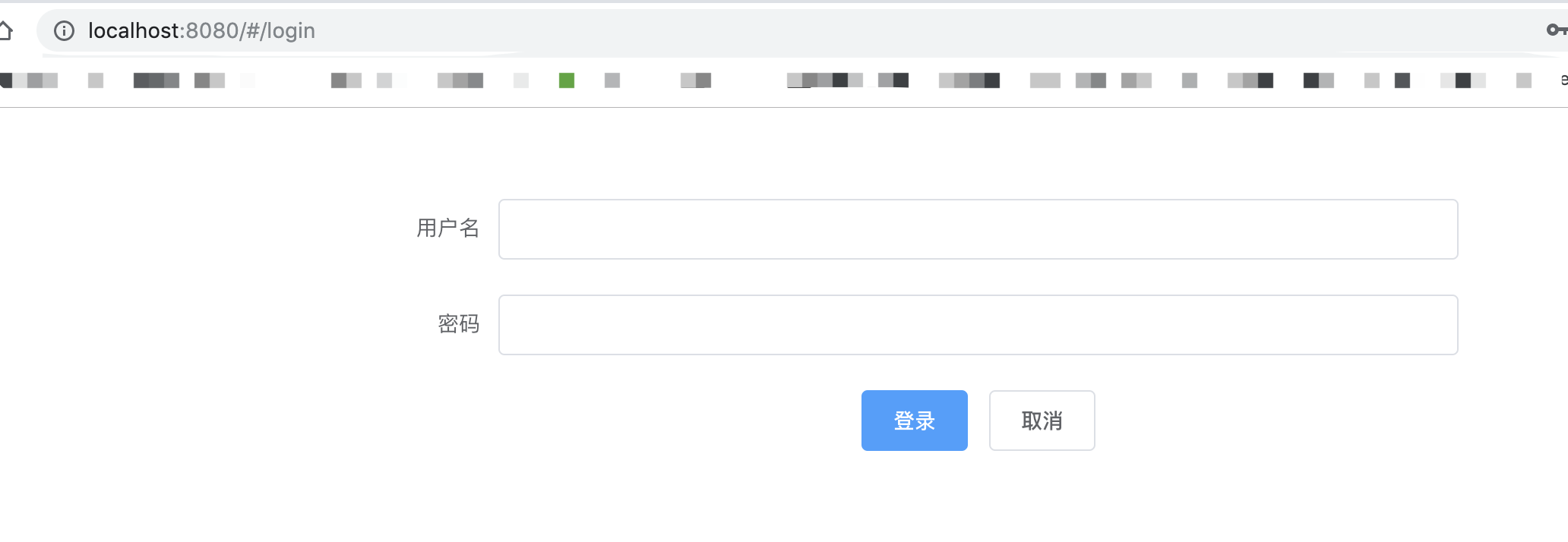
启动服务端
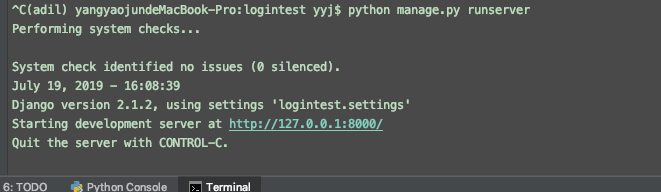
浏览器打开检查功能
数据用户名和密码,点击登录 如下图。

因为还没做登录跳转页。所以 先通过这种方式,检验是否登录成功。
查看后台返回信息

遇到的问题:
1、跨域问题
因为vue 和django项目是两个前后端独立的项目,分别启动后,存在端口不一致的跨域问题。
如这里vue端口是8080,django 是8000,会一直存在找不到服务的问题。
解决方法:修改jango settings.py 文件
首先安装 corsheaders
# 安装

pip install django-cors-headers
# 添加 corsheaders 应用

# Application definition

INSTALLED_APPS = [

    'django.contrib.admin',

    'django.contrib.auth',

    'django.contrib.contenttypes',

    'django.contrib.sessions',

    'django.contrib.messages',

    'django.contrib.staticfiles',

    'rest_framework',

    'api',

    'corsheaders',  # 解决跨域问题 修改1

]
# 中间层设置

# 添加如下

MIDDLEWARE = [

    ...

    'corsheaders.middleware.CorsMiddleware',

    'django.middleware.common.CommonMiddleware',

    ...

]
# CORS 设置跨域域名 配置白名单

CORS_ORIGIN_WHITELIST = [

    "https://example.com",

    "https://sub.example.com",

    "http://localhost:8080",

    "http://localhost:8000",

    "http://127.0.0.1:8000"

]
#直接允许所有主机跨域

CORS_ORIGIN_ALLOW_ALL = True 默认为False
CORS_ALLOW_CREDENTIALS = True # 允许携带cookie
# 下面这两个设置 经测试无用

#

# # 解决跨域问题 修改5

# CORS_ALLOW_METHODS = (

#     'DELETE',

#     'GET',

#     'OPTIONS',

#     'PATCH',

#     'POST',

#     'PUT',

#     'VIEW',

# )

# # 解决跨域问题 修改6

# CORS_ALLOW_HEADERS = (

#     'XMLHttpRequest',

#     'X_FILENAME',

#     'accept-encoding',

#     'authorization',

#     'content-type',

#     'dnt',

#     'origin',

#     'user-agent',

#     'x-csrftoken',

#     'x-requested-with',

#     'Pragma',

# )
settings.py文件
"""

Django settings for logintest project.

Generated by 'django-admin startproject' using Django 2.1.2.

For more information on this file, see

https://docs.djangoproject.com/en/2.1/topics/settings/

For the full list of settings and their values, see

https://docs.djangoproject.com/en/2.1/ref/settings/

"""

import os

# Build paths inside the project like this: os.path.join(BASE_DIR, ...)

BASE_DIR = os.path.dirname(os.path.dirname(os.path.abspath(__file__)))

# Quick-start development settings - unsuitable for production

# See https://docs.djangoproject.com/en/2.1/howto/deployment/checklist/

# SECURITY WARNING: keep the secret key used in production secret!

SECRET_KEY = 'zj9a#c4al&@_up8^g46ke44a1l%p^_wa1_5xgx60ertwu9$y(%'

# SECURITY WARNING: don't run with debug turned on in production!

# DEBUG = True

DEBUG = False

ALLOWED_HOSTS = ['localhost', '127.0.0.1']

# Application definition

INSTALLED_APPS = [

    'django.contrib.admin',

    'django.contrib.auth',

    'django.contrib.contenttypes',

    'django.contrib.sessions',

    'django.contrib.messages',

    'django.contrib.staticfiles',

    'rest_framework',

    'api',

    'corsheaders',  # 解决跨域问题 修改1

]

MIDDLEWARE = [

    'django.middleware.security.SecurityMiddleware',

    'django.contrib.sessions.middleware.SessionMiddleware',

    'django.middleware.common.CommonMiddleware',

    'django.middleware.csrf.CsrfViewMiddleware',

    'django.contrib.auth.middleware.AuthenticationMiddleware',

    'django.contrib.messages.middleware.MessageMiddleware',

    'django.middleware.clickjacking.XFrameOptionsMiddleware',

    'corsheaders.middleware.CorsMiddleware',  # 解决跨域问题 修改2

    'django.middleware.common.CommonMiddleware', # 注意顺序 解决跨域问题 修改3

]

ROOT_URLCONF = 'logintest.urls'

#

# #跨域增加忽略 修改4

CORS_ALLOW_CREDENTIALS = True

CORS_ORIGIN_ALLOW_ALL = True

# # CORS_ORIGIN_WHITELIST = (

# #     '*'

# # )

CORS_ORIGIN_WHITELIST = [

    "https://example.com",

    "https://sub.example.com",

    "http://localhost:8080",

    "http://localhost:8000",

    "http://127.0.0.1:8000"

]

#

#

# # 解决跨域问题 修改5

# CORS_ALLOW_METHODS = (

#     'DELETE',

#     'GET',

#     'OPTIONS',

#     'PATCH',

#     'POST',

#     'PUT',

#     'VIEW',

# )

# # 解决跨域问题 修改6

# CORS_ALLOW_HEADERS = (

#     'XMLHttpRequest',

#     'X_FILENAME',

#     'accept-encoding',

#     'authorization',

#     'content-type',

#     'dnt',

#     'origin',

#     'user-agent',

#     'x-csrftoken',

#     'x-requested-with',

#     'Pragma',

# )

TEMPLATES = [

    {

        'BACKEND': 'django.template.backends.django.DjangoTemplates',

        # 'DIRS': [],

        'DIRS': ['vuefront/dist'],  # 修改1

        'APP_DIRS': True,

        'OPTIONS': {

            'context_processors': [

                'django.template.context_processors.debug',

                'django.template.context_processors.request',

                'django.contrib.auth.context_processors.auth',

                'django.contrib.messages.context_processors.messages',

            ],

        },

    },

]

# 新增2

# Add for vue.js

STATICFILES_DIRS = [

    os.path.join(BASE_DIR, "vuefront/dist/static"),

]

WSGI_APPLICATION = 'logintest.wsgi.application'

# Database

# https://docs.djangoproject.com/en/2.1/ref/settings/#databases

# DATABASES = {

#     'default': {

#         'ENGINE': 'django.db.backends.sqlite3',

#         'NAME': os.path.join(BASE_DIR, 'db.sqlite3'),

#     }

# }

# MySQL  adil   密码:helloyyj

DATABASES = {

    'default':{

     'ENGINE':'django.db.backends.mysql',

     'HOST':'127.0.0.1',

     'PORT':'',

     'NAME':'pyweb',  # 数据库名

     'USER':'adil',

     'PASSWORD':'helloyyj',

     'OPTIONS':{

         'sql_mode': 'traditional'

     },

    }

}

# Password validation

# https://docs.djangoproject.com/en/2.1/ref/settings/#auth-password-validators

AUTH_PASSWORD_VALIDATORS = [

    {

        'NAME': 'django.contrib.auth.password_validation.UserAttributeSimilarityValidator',

    },

    {

        'NAME': 'django.contrib.auth.password_validation.MinimumLengthValidator',

    },

    {

        'NAME': 'django.contrib.auth.password_validation.CommonPasswordValidator',

    },

    {

        'NAME': 'django.contrib.auth.password_validation.NumericPasswordValidator',

    },

]

# Internationalization

# https://docs.djangoproject.com/en/2.1/topics/i18n/

# LANGUAGE_CODE = 'en-us'

#

# TIME_ZONE = 'UTC'

LANGUAGE_CODE = 'zh-Hans'

TIME_ZONE = 'Asia/Shanghai'

USE_I18N = True

USE_L10N = True

USE_TZ = True

# Static files (CSS, JavaScript, Images)

# https://docs.djangoproject.com/en/2.1/howto/static-files/

STATIC_URL = '/static/'
更多设置可以参考 https://github.com/ottoyiu/django-cors-headers/
2、ESlint代码检测,启动vue时系统报错错误警告
解决方式
1、如果对自己信不过。最好的办法就是创建项目的时候不要ESlint 直接N
2、注释掉ESlint
在自己的项目目录下build.js——webpack.base.conf.js文件里面有段代码注释掉就行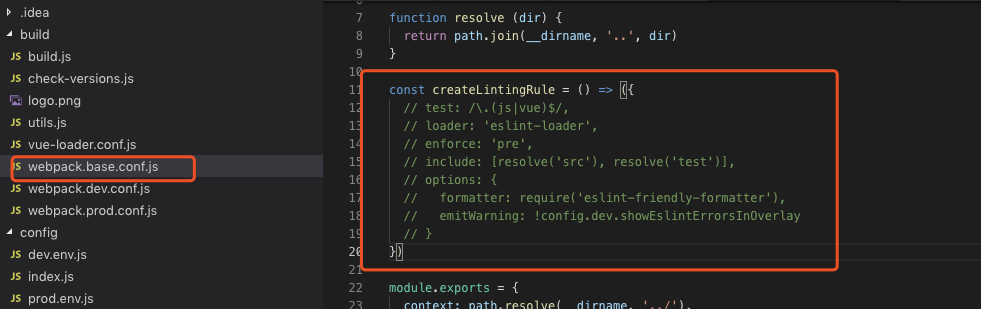
django rest_framework vue 实现用户登录的更多相关文章
- django rest_framework vue 实现用户列表分页
django rest_framework vue 实现用户列表分页 后端 配置urls # 导入view from api.appview.userListView import userListV ...
- 「Django」rest_framework学习系列-用户登录
用户POST登录-->后台验证用户名密码-->验证正确返回TOKEN-->验证错误返回错误信息 class UserAPI(APIView): #用户登录类 def post(sel ...
- django使用JWT保存用户登录信息
在使用前必须弄明白JWT的原理,原理可以看我的另一篇博文:https://www.cnblogs.com/chichung/p/9966027.html JWT的流程 1.签发JWT 在用户正确输入账 ...
- Django 是如何实现用户登录和登出机制的(默认版本-数据库版本)
Django session 字典,保存到数据库的时候是要先序列化的(session.encode方法), 读取的时候反序列化(session.decode),这样比较安全. 一 settings.p ...
- Django+pycharm+mysql 实现用户登录/注册(Django五)
首先是让Django项目与mysql数据库初步建立连接 具体做法见:pycharm连接mysql(注意其中第二步MySQL驱动最好安装最新版的) 这里讲一下我在做这一步遇到的问题.一般Driver 那 ...
- vue项目用户登录状态管理,vuex+localStorage实现
安装vuex cnpm install vuex --save-dev
- 关于django用户登录认证中的cookie和session
最近弄django的时候在用户登录这一块遇到了困难,网上的资料也都不完整或者存在缺陷. 写这篇文章的主要目的是对一些刚学django的新手朋友提供一些帮助.前提是你对django中的session和c ...
- 基于jwt的用户登录认证
最近在app的开发过程中,做了一个基于token的用户登录认证,使用vue+node+mongoDB进行的开发,前来总结一下. token认证流程: 1:用户输入用户名和密码,进行登录操作,发送登录信 ...
- django rest_framework 实现用户登录认证
django rest_framework 实现用户登录认证 1.安装 pip install djangorestframework 2.创建项目及应用 创建过程略 目录结构如图 3.设置setti ...
随机推荐
- Spring data redis的使用
Spring data redis的使用 一.Redis的安装和使用 Redis是用C语言开发的一个高性能键值对数据库,可用于数据缓存,主要用于处理大量数据的高访问负载. 下载地址:https://g ...
- GAN与VAE
经典算法·GAN与VAE Generative Adversarial Networks 及其变体 生成对抗网络是近几年最为经典的生成模型的代表工作,Goodfellow的经典工作.通过两个神经网络结 ...
- 洛谷 U86501 趣味擂台
洛谷 U86501 趣味擂台 题目传送门 题目背景 \(JDFZ\)\(2019\)秋季运动会开始辣!运动会中有一个叫做"趣味擂台"的游戏...... 题目描述 游戏内容是这样的: ...
- html表格及列表
表格的属性: border:边框 cellpadding:内边距 单元格边框跟内容之间的间距 cellspacing:外边距 单元格跟单元格之间的距离 align:表格的对其样式 width:宽度 ...
- 弗洛伊德算法(Floyd )
package com.rao.graph; /** * @author Srao * @className Floyd * @date 2019/12/11 18:43 * @package com ...
- ABP 相关基础知识
好文章: https://www.cnblogs.com/1zhk/p/5268054.html 关键字:Internal 限定的是只有在同一程序集中可访问,可以跨类 关键字:volatile 一个变 ...
- TCP三次握手第三次握手时ACK丢失怎么办
Server 端 第三次的ACK在网络中丢失,那么Server 端该TCP连接的状态为SYN_RECV,并且会根据 TCP的超时重传机制,会等待3秒.6秒.12秒后重新发送SYN+ACK包,以便Cli ...
- Attention篇(二)
主要是对<Attention is all you need>的分析 结合:http://www.cnblogs.com/robert-dlut/p/8638283.html 以及自己的 ...
- 禁用Chrome的“请停用以开发者模式运行的扩展程序”提示
1.前言 每次启动都会有一个烦人的“请停用以开发者模式运行的扩展程序”提示,这个提示有多烦人,接触过的人都知道,启动的时候它不立即提示,等过了几秒钟等你打开某个网页开始执行某些操作时它突然弹出来干扰你 ...
- SpringBoot集成Spring Security(3)——异常处理
源码地址:https://github.com/jitwxs/blog_sample 文章目录 一.常见异常二.源码分析三.处理异常不知道你有没有注意到,当我们登陆失败时候,Spring securi ...