
19-3 auth模块
参考:https://www.cnblogs.com/liwenzhou/p/9030211.html
一 auth使用django默认的user表
1 auth常用方法
1. authenticate()
2. login()
3. create_user()
4. create_superuser()
5. logout()
6. check_password()
7. set_password()
2 利用auth来实现登录和注册功能
登录例子:
在登录之前,在settings.py里面必须先设置
LOGIN_URL = '/login/' # 这里配置成你项目登录页面的路由
否则登录的时候默认会跳到http://127.0.0.1:8000/accounts/login/
from django.contrib import auth # 必须先导入auth

# 登录

def login(request):

    if request.method == "GET":

        return render(request, "login.html")

    else:

        next_url = request.GET.get("next")

        print(next_url)

        username = request.POST.get("username")

        pwd = request.POST.get("password")

        user_obj = auth.authenticate(request, username=username, password=pwd)

        if user_obj:

            auth.login(request, user_obj)  # # 给该次请求设置了session数据,并在响应中回写cookie

            if next_url:

                return redirect(next_url)

            else:

                return redirect("/book_list/")

        else:

            return render(request, "login.html", {"error_msg": "用户名或密码错误"})
html页面
 <!DOCTYPE html>

 <html lang="en">

 <head>

     <meta charset="UTF-8">

     <title>Title</title>

 </head>

 <body>

 <h1>登陆</h1>

 <a href="/reg/">注册</a>

 <form action="" method="post">

     {% csrf_token %}

     <p>

         <input type="text" name="username">

     </p>

     <p>

         <input type="password" name="password">

     </p>

     <p>

         <input type="submit">

         <span>{{ error_msg }}</span>

     </p>

 </form>

 </body>

 </html>
# 注册
from django.contrib.auth.models import User  # 创建用户auth自带

def reg(request):

    if request.method == "GET":

        return render(request, "reg.html")

    else:

        username = request.POST.get("username")

        pwd = request.POST.get("password")

        user_obj = User.objects.create_user(username=username, password=pwd)  # 用auth自带的去创建用户,这里用的是数据库自带的user表

        return redirect("/login/")
装饰器
要想用auth装饰器需要先导入:
from django.contrib.auth.decorators import login_required
然后在你想要装饰的页面上面加上  @login_required

二  auth使用自己定义的表
1 setting.py设置
AUTH_USER_MODEL="fault_reporting.Userinfo" # 告诉djanjo用我自己定义的用户表,点前面的是django的项目名字,点后面的是表名
2 models.py设置,增加两个字段
1. 必须继承AbstractUser
from django.contrib.auth.models import AbstractUser
class UserInfo(AbstractUser):

    phone=models.CharField(max_length=11)

    avatar=models.FileField(upload_to="avatars/",default="avatars/default.png")
3 运行两条创建的命令
python manage.py makemigrations --> 将models.py的改动记录在小本本上

python manage.py migrate
4 根据这个表去写个CMS项目
目录结构:
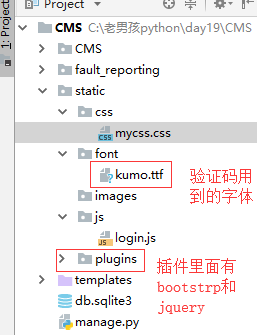
4.1登录--验证码功能
注意:在使用验证码之前必须安装pillow模块,pip install pillow,安装的时候如果报错就where pip查看你的pip安装在哪里,然后进去相应的目录再次安装即可
urls.py
  url(r'^login/$', views.LoginView.as_view()),

    url(r'^index/$', views.index),

    url(r'^vcode/$', views.vcode),   #验证码目录
views.py
 from django.shortcuts import render, redirect, HttpResponse

 from django import views

 from django.contrib import auth

 import random

 # Create your views here.

 class LoginView(views.View):

     def get(self, request):

         return render(request, "login.html")

     def post(self, request):

         next_url = request.GET.get("next","/index/")

         username = request.POST.get("username")

         pwd = request.POST.get("password")

         v_code=request.POST.get("vcode","").upper()  #如果用户不写验证码就是空

         if v_code==request.session.get("v_code"):

             user_obj = auth.authenticate(username=username, password=pwd)

             if user_obj:

                 auth.login(request, user_obj)  # auth认证登录

                 return redirect(next_url)

             else:

                 return render(request, "login.html", {"error_msg": "用户名或密码错误"})

         else:

             return render(request, "login.html", {"error_msg": "验证码错误"})

 # 首页

 def index(request):

     return render(request, "index.html")

 # 验证码路径

 def vcode(request):

     from PIL import Image, ImageDraw, ImageFont  # 导入绘图模块

     # 定义一个生成随机颜色代码的函数

     def random_color():

         return random.randint(0, 255), random.randint(0, 255), random.randint(0, 255)

     # 创建一个随机背景颜色的图片对象

     image_obj = Image.new(

         "RGB",

         (250, 35),  # 背景图片的长和宽

         random_color()

     )

     # 在该图片对象上生成一个画笔对象

     draw_obj = ImageDraw.Draw(image_obj)

     # 加载一个字体对象

     font_obj = ImageFont.truetype('static/font/kumo.ttf', 28)  # 字体大小

     tmp = []

     for i in range(5):

         l = chr(random.randint(97, 122))  # 生成随机的小写字母

         u = chr(random.randint(65, 90))  # 生成随机的大写字母

         n = str(random.randint(0, 9))  # 生成一个随机的数字

         # 从上面三个随机选一个

         r = random.choice([l, u, n])

         # 将选中过的那个字符写到图片上

         draw_obj.text((40 * i + 30, 0), r, fill=random_color(), font=font_obj)  # text指定的是从那开始写位置,fill是字体颜色

         tmp.append(r)

         v_code = "".join(tmp).upper()

         # 将生成的验证码保存

         request.session["v_code"] = v_code

         # 直接在内存中保存图片替代io操作

     from io import BytesIO

     f1 = BytesIO()

     image_obj.save(f1, format="PNG")  # 将背景图片保存到f1里面

     img_data = f1.getvalue()  # 去f1取图片

     return HttpResponse(img_data, content_type="image/png")
login.html
 <!DOCTYPE html>

 <html lang="en">

 <head>

     <meta charset="UTF-8">

     <title>登录</title>

     <link rel="stylesheet" href="/static/plugins/bootstrap-3.3.7/css/bootstrap.min.css">

     <link rel="stylesheet" href="/static/css/mycss.css">

 </head>

 <body>

 <div class="container">

     <div class="row">

         <div class="col-md-6 col-sm-offset-3 login-box">

             <h3>登录页面</h3>

             <form action="" method="post">

                 {% csrf_token %}

                 <div class="form-group">

                     <label for="id_username">用户名</label>

                     <input type="text" class="form-control" id="id_username" name="username" placeholder="用户名">

                 </div>

                 <div class="form-group">

                     <label for="id_password">密码</label>

                     <input type="password" class="form-control" id="id_password" name="password" placeholder="密码">

                 </div>

                 <div class="form-group">

                     <label for="id_vcode" style="display: block">验证码</label>

                     <input type="text" class="form-control" id="id_vcode" name="vcode" placeholder="验证码" style="width: 250px;display: inline-block">

                     <img src="/vcode/" id="v-code-img" style="width: 250px;height: 35px;display: inline-block;float: right">

                 </div>

                 <button type="submit" class="btn btn-success" id="login-button">登陆</button>

                 <p class="login-error">{{ error_msg }}</p>

             </form>

         </div>

     </div>

 </div>

 <script src="/static/plugins/jquery-3.3.1.min.js"></script>

 <script src="/static/js/login.js"></script>

 </body>

 </html>
login.js内容:
// 设置错误信息鼠标点击input自动消失

$(".login-box input").focus(function () {

    $(".login-error").text("");

    }

);

// 设置验证码点击变化

$("#v-code-img").click(function () {

    this.src+="?"

});
关于验证码的额外功能:加干扰线和干扰点
# # 加干扰线

    # width = 250  # 图片宽度(防止越界)

    # height = 35

    # for i in range(5):

    #     x1 = random.randint(0, width)

    #     x2 = random.randint(0, width)

    #     y1 = random.randint(0, height)

    #     y2 = random.randint(0, height)

    #     draw_obj.line((x1, y1, x2, y2), fill=random_color())

    #

    # # 加干扰点

    # for i in range(40):

    #     draw_obj.point([random.randint(0, width), random.randint(0, height)], fill=random_color())

    #     x = random.randint(0, width)

    #     y = random.randint(0, height)

    #     draw_obj.arc((x, y, x+4, y+4), 0, 90, fill=random_color())
19-3 auth模块的更多相关文章
- Django----认证系统和auth模块
COOKIE 与 SESSION 概念 cookie不属于http协议范围,由于http协议无法保持状态,但实际情况,我们却又需要“保持状态”,因此cookie就是在这样一个场景下诞生. cookie ...
- Django之auth模块(用户认证)
auth模块简介 auth模块是对登录认证方法的一种封装,之前我们获取用户输入的用户名及密码后需要自己从user表里查询有没有用户名和密码符合的对象, 而有了auth模块之后就可以很轻松的去验证用户的 ...
- Ansible运维自动化工具19个常用模块使用实例【转】
一.模块列表 1.setup 2.ping 3.file 4.copy 5.command 6.shell 7.script 8.cron 9.yum 10.service 11.group 12.u ...
- auth模块用户认证
一.auth模块什么 auth模块时django自带的用户认证模块 我们在开发一个网站的时候,无可避免的需要设计实现网站的用户系统.此时我们需要实现包括用户注册.用户登录.用户认证.注销.修改密码等功 ...
- Django自带的用户认证auth模块
一.介绍 基本上在任何网站上,都无可避免的需要设计实现网站的用户系统.此时我们需要实现包括用户注册.用户登录.用户认证.注销.修改密码等功能. 使用Django,我们可以不需要自己写这些功能,因为Dj ...
- Django之auth模块
http://www.cnblogs.com/liwenzhou/p/9030211.html 1.首先导入auth模块 from django.contrib import auth 2.创建aut ...
- Auth模块、Forms组件
Auth模块 auth模块是Django自带的用户认证模块: 我们在开发一个网站的时候,无可避免的需要设计实现网站的用户系统.此时我们需要实现包括用户注册.用户登录.用户认证.注销.修改密码等功能,这 ...
- Django 自带认证功能auth模块和User对象的基本操作
一.auth模块 from django.contrib import auth django.contrib.auth中提供了许多方法,这里主要介绍其中的三个: authenticate() ...
- 用户认证--------------auth模块
一.auth模块 from django.contrib import auth 1 .authenticate() :验证用户输入的用户名和密码是否相同 提供了用户认证,即验证用户名以及密码是否 ...
- 使用htpasswd及nginx auth模块对指定页面进行登录验证
某些时候,作为运维挂你人员会部署一些工具用于使用外网对内部服务器进行某些管理,比如phpmyadmin.gateone堡垒机等工具.但是这些软件 一旦部署之后,所有人都可以访问到我们的登录页面似乎并不 ...
随机推荐
- JavaScript 实现回文解码
题目也是源自今日头条前端工程师笔试题.题目描述: 现在有一个字符串,你要对这个字符串进行 n 次操作,每次操作给出两个数字:(p, l) 表示当前字符串中从下标为 p 的字符开始的长度为 l 的一个子 ...
- web端的兼容性测试
目前主流的浏览器有:chrome.firefox.safari.IE edge.Opera等.其中IE edge ,Google浏览器 和firefox被称为现代浏览器. 浏览器排行榜2019年4月浏 ...
- jeecms之全文检索
需要在后台生成检索,如下: . 这样,在首页进行搜索的时候才会显示如下: 注意,一定要先生成索引,才能进行全文检索.
- 【linux配置】Linux同步网络时间
Linux同步网络时间 1.date '+%Y%M%D' 按照格式显示当前日期,结果如下: [root@LAMP ~]# date "+%Y-%m-%d %H:%M:%S" -- ...
- ckfinder提示从服务器读取XML数据出错
在web.xml中加入以下配置,具体路径根据工程配置写 <!-- ckfinder --> <servlet> <servlet-name>ConnectorSer ...
- Linux下安装jboss并设置自启动服务
一.JDK和JBOSS下载jdk:https://www.oracle.com/technetwork/java/javase/downloads/jdk8-downloads-2133151.htm ...
- golang之select
2.switch语句 (1) (2) 3.select语句 4.for语句 (1)常规式 (2)条件式 (3) (4) goto break continue fallthrought ------- ...
- LUOGU P1512 伊甸园日历游戏
题目描述 Adam和Eve玩一个游戏,他们先从1900.1.1到2001.11.4这个日期之间随意抽取一个日期出来.然后他们轮流对这个日期进行操作: 1 : 把日期的天数加1,例如1900.1.1变到 ...
- web前端学习(二)html学习笔记部分(5)--拖放元素、canvas画布使用
1.2.11 拖放 1.2.11.1 html拖放 1.2.11.2 html拖放本次资源 showOjb(一个对象)展示一下一个对象的信息. 1.2.12 html画布(canvas) 标 ...
- LintCode_175 翻转二叉树
题目 翻转一棵二叉树 您在真实的面试中是否遇到过这个题? Yes 样例 1 1 / \ / \ 2 3 => 3 2 / \ 4 4 和前序遍历代码很相似从叶子节点依次翻转递归到根节点C++代码 ...