
3、Qt Project之Socket网络编程
Socket网络编程
Step1:首先完成整个界面的设计
<?xml version="1.0" encoding="UTF-8"?>

<ui version="4.0">

 <class>MainWindow</class>

 <widget class="QMainWindow" name="MainWindow">

  <property name="geometry">

   <rect>

    <x>0</x>

    <y>0</y>

    <width>421</width>

    <height>533</height>

   </rect>

  </property>

  <property name="windowTitle">

   <string>MainWindow</string>

  </property>

  <widget class="QWidget" name="centralWidget">

   <widget class="QLineEdit" name="IP_Address">

    <property name="geometry">

     <rect>

      <x>30</x>

      <y>140</y>

      <width>113</width>

      <height>27</height>

     </rect>

    </property>

   </widget>

   <widget class="QLabel" name="label_4">

    <property name="geometry">

     <rect>

      <x>20</x>

      <y>100</y>

      <width>171</width>

      <height>21</height>

     </rect>

    </property>

    <property name="font">

     <font>

      <pointsize>10</pointsize>

      <italic>true</italic>

      <underline>false</underline>

      <strikeout>false</strikeout>

     </font>

    </property>

    <property name="cursor">

     <cursorShape>BlankCursor</cursorShape>

    </property>

    <property name="text">

     <string>Designed by : mm1994uestc</string>

    </property>

    <property name="alignment">

     <set>Qt::AlignCenter</set>

    </property>

   </widget>

   <widget class="QLabel" name="label_6">

    <property name="geometry">

     <rect>

      <x>0</x>

      <y>-10</y>

      <width>321</width>

      <height>51</height>

     </rect>

    </property>

    <property name="font">

     <font>

      <pointsize>28</pointsize>

      <italic>true</italic>

      <underline>false</underline>

      <strikeout>false</strikeout>

     </font>

    </property>

    <property name="cursor">

     <cursorShape>BlankCursor</cursorShape>

    </property>

    <property name="text">

     <string>Qt interface Demo!</string>

    </property>

    <property name="alignment">

     <set>Qt::AlignCenter</set>

    </property>

   </widget>

   <widget class="QLabel" name="label_5">

    <property name="geometry">

     <rect>

      <x>0</x>

      <y>40</y>

      <width>171</width>

      <height>51</height>

     </rect>

    </property>

    <property name="font">

     <font>

      <pointsize>16</pointsize>

      <italic>true</italic>

      <underline>false</underline>

      <strikeout>false</strikeout>

     </font>

    </property>

    <property name="cursor">

     <cursorShape>BlankCursor</cursorShape>

    </property>

    <property name="text">

     <string>Socket Control</string>

    </property>

    <property name="alignment">

     <set>Qt::AlignCenter</set>

    </property>

   </widget>

   <widget class="QLineEdit" name="Client_Port">

    <property name="geometry">

     <rect>

      <x>200</x>

      <y>140</y>

      <width>51</width>

      <height>27</height>

     </rect>

    </property>

   </widget>

   <widget class="QPushButton" name="Client_Button">

    <property name="geometry">

     <rect>

      <x>260</x>

      <y>140</y>

      <width>151</width>

      <height>27</height>

     </rect>

    </property>

    <property name="text">

     <string>TCP-Client-Connect</string>

    </property>

   </widget>

   <widget class="QLabel" name="label">

    <property name="geometry">

     <rect>

      <x>10</x>

      <y>130</y>

      <width>21</width>

      <height>41</height>

     </rect>

    </property>

    <property name="text">

     <string>IP:</string>

    </property>

   </widget>

   <widget class="QLabel" name="label_2">

    <property name="geometry">

     <rect>

      <x>150</x>

      <y>130</y>

      <width>51</width>

      <height>41</height>

     </rect>

    </property>

    <property name="text">

     <string>PORT:</string>

    </property>

   </widget>

   <widget class="QLineEdit" name="Server_Port">

    <property name="geometry">

     <rect>

      <x>60</x>

      <y>320</y>

      <width>51</width>

      <height>27</height>

     </rect>

    </property>

   </widget>

   <widget class="QLabel" name="label_3">

    <property name="geometry">

     <rect>

      <x>10</x>

      <y>310</y>

      <width>51</width>

      <height>41</height>

     </rect>

    </property>

    <property name="text">

     <string>PORT:</string>

    </property>

   </widget>

   <widget class="QPushButton" name="Server_Button">

    <property name="geometry">

     <rect>

      <x>120</x>

      <y>320</y>

      <width>161</width>

      <height>27</height>

     </rect>

    </property>

    <property name="text">

     <string>TCP-Server-Monitor</string>

    </property>

   </widget>

   <widget class="QLabel" name="label_7">

    <property name="geometry">

     <rect>

      <x>10</x>

      <y>170</y>

      <width>151</width>

      <height>41</height>

     </rect>

    </property>

    <property name="text">

     <string>Data Ricieve Frame:</string>

    </property>

   </widget>

   <widget class="QLabel" name="label_8">

    <property name="geometry">

     <rect>

      <x>230</x>

      <y>170</y>

      <width>151</width>

      <height>41</height>

     </rect>

    </property>

    <property name="text">

     <string>Data Send Frame:</string>

    </property>

   </widget>

   <widget class="QLabel" name="label_9">

    <property name="geometry">

     <rect>

      <x>10</x>

      <y>350</y>

      <width>151</width>

      <height>41</height>

     </rect>

    </property>

    <property name="text">

     <string>Data Ricieve Frame:</string>

    </property>

   </widget>

   <widget class="QLabel" name="label_10">

    <property name="geometry">

     <rect>

      <x>230</x>

      <y>350</y>

      <width>151</width>

      <height>41</height>

     </rect>

    </property>

    <property name="text">

     <string>Data Send Frame:</string>

    </property>

   </widget>

   <widget class="QLabel" name="Corver">

    <property name="geometry">

     <rect>

      <x>220</x>

      <y>40</y>

      <width>171</width>

      <height>91</height>

     </rect>

    </property>

    <property name="text">

     <string>                     Corver</string>

    </property>

   </widget>

   <widget class="QPushButton" name="pushButton">

    <property name="geometry">

     <rect>

      <x>350</x>

      <y>180</y>

      <width>51</width>

      <height>27</height>

     </rect>

    </property>

    <property name="text">

     <string>Send</string>

    </property>

   </widget>

   <widget class="QPushButton" name="ServerSend">

    <property name="geometry">

     <rect>

      <x>350</x>

      <y>360</y>

      <width>51</width>

      <height>27</height>

     </rect>

    </property>

    <property name="text">

     <string>Send</string>

    </property>

   </widget>

   <widget class="QPlainTextEdit" name="Client_Recieve">

    <property name="geometry">

     <rect>

      <x>10</x>

      <y>210</y>

      <width>171</width>

      <height>101</height>

     </rect>

    </property>

   </widget>

   <widget class="QPlainTextEdit" name="Client_Send">

    <property name="geometry">

     <rect>

      <x>230</x>

      <y>210</y>

      <width>171</width>

      <height>101</height>

     </rect>

    </property>

   </widget>

   <widget class="QPlainTextEdit" name="Server_Recieve">

    <property name="geometry">

     <rect>

      <x>10</x>

      <y>390</y>

      <width>171</width>

      <height>101</height>

     </rect>

    </property>

   </widget>

   <widget class="QPlainTextEdit" name="Server_Send">

    <property name="geometry">

     <rect>

      <x>230</x>

      <y>390</y>

      <width>171</width>

      <height>101</height>

     </rect>

    </property>

   </widget>

   <widget class="QPushButton" name="Client_Clear">

    <property name="geometry">

     <rect>

      <x>150</x>

      <y>180</y>

      <width>51</width>

      <height>27</height>

     </rect>

    </property>

    <property name="text">

     <string>Clear</string>

    </property>

   </widget>

   <widget class="QPushButton" name="Server_Clear">

    <property name="geometry">

     <rect>

      <x>150</x>

      <y>360</y>

      <width>51</width>

      <height>27</height>

     </rect>

    </property>

    <property name="text">

     <string>Clear</string>

    </property>

   </widget>

  </widget>

  <widget class="QMenuBar" name="menuBar">

   <property name="geometry">

    <rect>

     <x>0</x>

     <y>0</y>

     <width>421</width>

     <height>25</height>

    </rect>

   </property>

  </widget>

  <widget class="QToolBar" name="mainToolBar">

   <attribute name="toolBarArea">

    <enum>TopToolBarArea</enum>

   </attribute>

   <attribute name="toolBarBreak">

    <bool>false</bool>

   </attribute>

  </widget>

  <widget class="QStatusBar" name="statusBar"/>

 </widget>

 <layoutdefault spacing="6" margin="11"/>

 <resources/>

 <connections/>

</ui>
Ubuntu 16.04 Edition Qt Socket Project Windows 10 端的Socket Tool
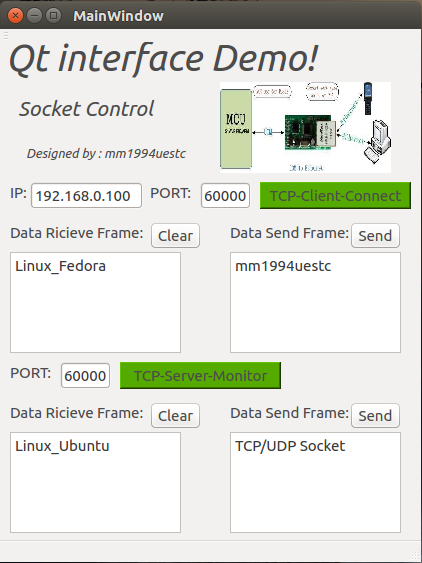
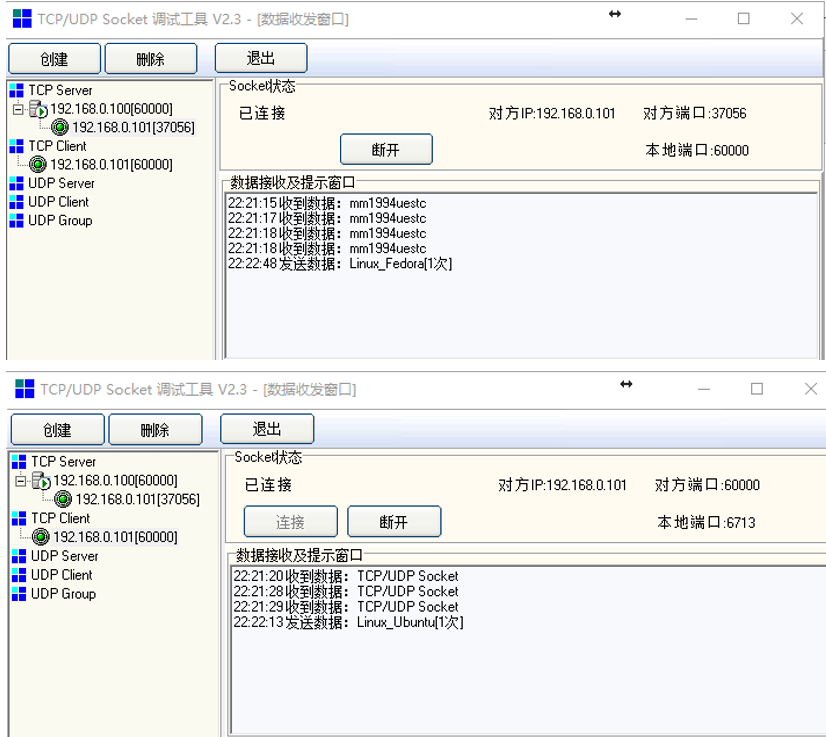
整个界面的样式如图所示,包括了TCP Client以及TCP Server端。
IP表示客户端将要连接的TCP Server的服务器ip地址,PORT填入的是对应的TCP Server的地址开放的监听的端口号
Clear按钮是用来清楚Server或者Client的接收空间,Send是用来发送发送栏当中的数据的。其他按钮用来开启对应的服务。
Step2:相关槽函数已经接收读取函数的实现
void MainWindow::Client_Recieve_Data(void)

{

    QByteArray buf;

    buf = client->readAll();

    if(!buf.isEmpty())

    {

        QString str = this->ui->Client_Recieve->toPlainText();

        str += tr(buf);

        this->ui->Client_Recieve->clear();

        this->ui->Client_Recieve->appendPlainText(str);

    }

    buf.clear();

}

void MainWindow::on_Client_Button_clicked(bool checked)

{

    if(!ClientFlag)

    {

        QString IP,PORT;

        IP = this->ui->IP_Address->text();

        PORT = this->ui->Client_Port->text();

        qDebug() << IP;

        qDebug() << PORT;

        client->connectToHost(QHostAddress(IP),PORT.toInt(),QTcpSocket::ReadWrite);

        qDebug() << "Client is Started!";

        QObject::connect(client,&QTcpSocket::readyRead,this,&MainWindow::Client_Recieve_Data);

        this->ui->Client_Button->setStyleSheet("background-color: rgb(85,170,0);");

    }

    else

    {

        this->ui->Client_Button->setStyleSheet("background-color: rgb(0,0,0);");

        client->close();

        qDebug() << "Client is Closed!";

    }

    ClientFlag = !ClientFlag;

}

void MainWindow::on_pushButton_clicked(bool checked)

{

    if(ClientFlag)

    {

        QString Send_data;

        Send_data = this->ui->Client_Send->toPlainText();

        qDebug() << Send_data;

        client->write(Send_data.toLatin1());

        qDebug() << "Data sended!";

    }

}

void MainWindow::on_Client_Clear_clicked(bool checked)

{

    this->ui->Client_Recieve->clear();

    qDebug() << "Client_Recieve_CLear!";

}

/************************************************************

 * Server Side Programming!

 * The Qt Socket Programming have ever finished binding the port!

 * The accept func is trigger by a new connection signal!

 ***********************************************************/

void MainWindow::readClient(void)

{

    QByteArray buf;

    buf = client_connect->readAll();

    if(!buf.isEmpty())

    {

        QString str = this->ui->Server_Recieve->toPlainText();

        str += tr(buf);

        this->ui->Server_Recieve->clear();

        this->ui->Server_Recieve->appendPlainText(str);

    }

    buf.clear();

}

void MainWindow::accepConnection(void)

{

    client_connect = server->nextPendingConnection();

    QObject::connect(client_connect,&QTcpSocket::readyRead,this,&MainWindow::readClient);

}

void MainWindow::on_Server_Clear_clicked(bool checked)

{

    this->ui->Server_Recieve->clear();

    qDebug() << "Server_Recieve_Clear!";

}

void MainWindow::on_ServerSend_clicked(bool checked)

{

    if(ServerFlag)

    {

        QString SendData;

        SendData = this->ui->Server_Send->toPlainText();

        client_connect->write(SendData.toLatin1());

        qDebug() << SendData;

        qDebug() << "ServerData send!";

    }

}

void MainWindow::on_Server_Button_clicked(bool checked)

{

    if(!ServerFlag)

    {

        QString MonitorPort;

        MonitorPort = this->ui->Server_Port->text();

        int PortNum;

        PortNum = MonitorPort.toInt();

        server->listen(QHostAddress::Any,PortNum);

        QObject::connect(server,&QTcpServer::newConnection,this,&MainWindow::accepConnection);

        qDebug() << "Server Started!";

        qDebug() << "PortNum:" << PortNum;

        this->ui->Server_Button->setStyleSheet("background-color: rgb(85,170,0);");

    }

    else

    {

        this->ui->Server_Button->setStyleSheet("background-color: rgb(0,0,0);");

        client_connect->close();

        server->close();

        qDebug() << "Server Closed!";

    }

    ServerFlag = !ServerFlag;

}
Step3:槽函数的声明&Socket对象定义
private slots:

    void on_Client_Button_clicked(bool checked);

    void on_pushButton_clicked(bool checked);

    void Client_Recieve_Data(void);

    void accepConnection(void);

    void readClient(void);

    void on_Client_Clear_clicked(bool checked);

    void on_Server_Clear_clicked(bool checked);

    void on_ServerSend_clicked(bool checked);

    void on_Server_Button_clicked(bool checked);

    void TimeOutProcess(void);

private:

    Ui::MainWindow *ui;

    QTcpSocket *client;

    QTcpServer *server;

    QTcpSocket *client_connect;

    QTimer *TimeMonitor;

    bool ClientFlag = false;

    bool ServerFlag = false;
Step4:信号和槽的连接
connect(this->ui->Client_Button,SIGNAL(clicked(bool)),this,SLOT(on_Client_Button_clicked()));
connect(this->ui->pushButton,SIGNAL(clicked(bool)),this,SLOT(on_pushButton_clicked()));
connect(this->ui->Client_Clear,SIGNAL(clicked(bool)),this,SLOT(on_Client_Clear_clicked()));
connect(this->ui->Server_Clear,SIGNAL(clicked(bool)),this,SLOT(on_Server_Clear_clicked()));
connect(this->ui->ServerSend,SIGNAL(clicked(bool)),this,SLOT(on_ServerSend_clicked()));
connect(this->ui->Server_Button,SIGNAL(clicked(bool)),this,SLOT(on_Server_Button_clicked()));
connect(TimeMonitor,&QTimer::timeout,this,&MainWindow::TimeOutProcess);
完成上述操作,基本就完成了Qt Socket程序的功能。
3、Qt Project之Socket网络编程的更多相关文章
- windows socket 网络编程
样例代码就在我的博客中,包含六个UDP和TCP发送接受的cpp文件,一个基于MFC的局域网聊天小工具project,和此小工具的全部执行时库.资源和执行程序.代码的压缩包位置是http://www.b ...
- Linux Socket 网络编程
Linux下的网络编程指的是socket套接字编程,入门比较简单.在学校里学过一些皮毛,平时就是自学玩,没有见识过真正的socket编程大程序,比较遗憾.总感觉每次看的时候都有收获,但是每次看完了之后 ...
- Python Socket 网络编程
Socket 是进程间通信的一种方式,它与其他进程间通信的一个主要不同是:它能实现不同主机间的进程间通信,我们网络上各种各样的服务大多都是基于 Socket 来完成通信的,例如我们每天浏览网页.QQ ...
- Python全栈【Socket网络编程】
Python全栈[socket网络编程] 本章内容: Socket 基于TCP的套接字 基于UDP的套接字 TCP粘包 SocketServer 模块(ThreadingTCPServer源码剖析) ...
- python之Socket网络编程
什么是网络? 网络是由节点和连线构成,表示诸多对象及其相互联系.在数学上,网络是一种图,一般认为专指加权图.网络除了数学定义外,还有具体的物理含义,即网络是从某种相同类型的实际问题中抽象出来的模型.在 ...
- Python之路【第七篇】python基础 之socket网络编程
本篇文章大部分借鉴 http://www.cnblogs.com/nulige/p/6235531.html python socket 网络编程 一.服务端和客户端 BS架构 (腾讯通软件:ser ...
- Socket网络编程-基础篇
Socket网络编程 网络通讯三要素: IP地址[主机名] 网络中设备的标识 本地回环地址:127.0.0.1 主机名:localhost 端口号 用于标识进程的逻辑地址 有效端口:0~65535 其 ...
- Socket网络编程--FTP客户端
Socket网络编程--FTP客户端(1)(Windows) 已经好久没有写过博客进行分享了.具体原因,在以后说. 这几天在了解FTP协议,准备任务是写一个FTP客户端程序.直接上干货了. 0.了解F ...
- windows下的socket网络编程
windows下的socket网络编程 windows下的socket网络编程 clinet.c 客户端 server.c 服务器端 UDP通信的实现 代码如下 已经很久没有在windows下编程了, ...
随机推荐
- centos6.5安装python2.7、pip、numpy、scipy
1..安装Development Tools yum groupinstall -y 'development tools' 2.安装SSL.bz2.zlib来为Python的安装做好准备工作 yum ...
- Swift 学习- 01 -- 基础部分
print("世界,你好") var myVariable = 42 myVariable = 50 let myConstant = 42 let implicitinteger ...
- VMware虚拟机安装Linux系统centos7(一)
1.安装虚拟机(自行百度) 2.编辑虚拟机设置 光驱设置,镜像选择:(也可设置2核2G,基于自己计算机选择!) 3.点击开启此虚拟机(上下键选择安装,回车) 4.选择语言 5.设置 如果想安装图形化界 ...
- Confluence 6 编辑一个站点装饰文件
希望编辑一个站点的 decorator 文件: 进入 > 基本配置(General Configuration) > 布局(Layouts )(在Look and Feel 菜单下面) ...
- Spring声明式事务@Transactional 详解,事务隔离级别和传播行为
@Transactional注解支持9个属性的设置,这里只讲解其中使用较多的三个属性:readOnly.propagation.isolation.其中propagation属性用来枚举事务的传播行为 ...
- Python序列[1,2,3,4,5]
序列是用于存放多个值得连续空间,并按一定顺序排列,每一个值(称为元素)都分配一个数,称为索引或位置.通过该索引可以取出相应的值. 索引 序列中的元素都是有序的.拥有自己编号(从0开始),我们可以通过索 ...
- spring-data-mongo的MongoTemplate开发
spring-data-mongo的MongoTemplate开发 1.在实体类Customer.Java中引入注解表明转换方式 @Document //文档 public class Custo ...
- Android 中的缓存
AsimpleCache 1.它可以缓存什么东西? 普通的字符串. json. 序列化的java对象 字节数字. 2.主要特色 1:轻,轻到只有一个JAVA文件. 2:可配置,可以配置缓存路径,缓存 ...
- 集腋成裘-02-css基础-01
CSS 层叠样式表(Cascading Style Sheets)(级联样式表) 1 选择器 1.1 写法 选择器是一个选择标签的过程. 选择器{属性:值;...} 1.2 基础选择器 标签选择器 类 ...
- Java+selenium之WebDriver常见特殊情况如iframe/弹窗处理(四)
1. iframe 的处理 查找元素必须在对应的 ifarme 中查找,否则是找不到的 // 传入参数为 frame 的序号,从0开始 driver.switchTo().frame(Int inde ...