
Canvas 实现绘制图表
这里用canvas实现了两个简单的图表,用到了canvas的基本用法,效果如下

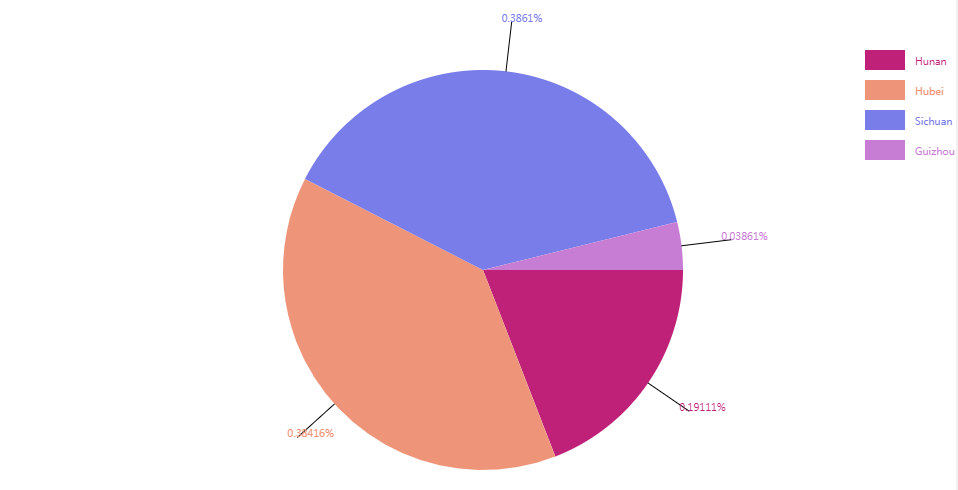
新建 chart.js 文件,封装绘制方法
构造方法
function myChart(config){

    this.width = config.width > 300 ? config.width : 200        //图表宽度

    this.height = config.height > 200 ? config.height : 200        //图表高度

    this.el = config.el         //容器DOM元素

    this.data = config.data     //数据

    this.title = config.title     //title

    this.type = config.type     //类型 line、pie

}
初始化方法
        init: function(){

            this.canvas = document.createElement('canvas')

            this.canvas.width = this.width

            this.canvas.height = this.height

            document.querySelector(this.el).append(this.canvas)

            this.ctx = this.canvas.getContext('2d')

            switch(this.type){

                case 'line':

                    this.drawLineChart()

                    break;

                case 'pie':

                    this.drawPieChart()

                    break;

                default :

                    this.drawLineChart()

                    break;

            }

        },
绘制折线图
        //绘制折线图

        drawLineChart: function(){

            var height = this.height

            this.max = 0

            this.min = Infinity

            this.startPoint = { x: 30, y: height - 15 }    //原点位置

            this.innerHieght = this.height - 30 - 15

            this.innerWidth = this.width - 30

            this.findTerminal()

            this.drawCoordinate()

            this.drawLine()

        },

        //找到最大值和最小值

        findTerminal: function(){

            this.data.map((item, index) => {

                this.max = item.val > this.max ? item.val : this.max

                this.min = item.val < this.min ? item.val : this.min

            })

        },

        //绘制坐标轴

        drawCoordinate: function(){

            //绘制坐标轴

            this.ctx.clearRect(0, 0, this.width, this.height)

            this.ctx.beginPath()

            this.ctx.moveTo(this.startPoint.x, this.startPoint.y)

            this.ctx.lineTo(this.startPoint.x, this.startPoint.y - this.innerHieght)

            this.ctx.moveTo(this.startPoint.x, this.startPoint.y)

            this.ctx.lineTo(this.startPoint.x + this.innerWidth, this.startPoint.y)

            this.ctx.stroke()

            //绘制横向标尺

            var distance = Math.floor(this.innerWidth / this.data.length)

            this.ctx.beginPath()

            this.ctx.strokeStyle = "#999"

            for(let i = 0; i < this.data.length; i++){

                let curX = this.startPoint.x + distance*i

                this.ctx.moveTo(curX , this.startPoint.y)

                this.ctx.lineTo(curX , this.startPoint.y - 5)

                this.ctx.moveTo(curX , this.startPoint.y + 15)

                this.ctx.textAlign = "center"

                this.ctx.fillText(this.data[i]['key'] , curX , this.startPoint.y + 15 )

            }

            this.ctx.stroke()

            //绘制横向坐标

            var unit = Math.floor((this.max - this.min) / 20)

            this.ctx.beginPath()

            this.ctx.strokeStyle = "#999"

            for(let y = 0; y < 20; y++){

                let curY = Math.floor(this.startPoint.y - this.innerHieght / 20 * y)

                let curVal = Math.floor(this.min + unit*y)

                this.ctx.moveTo(this.startPoint.x, curY)

                this.ctx.lineTo(this.startPoint.x + 5, curY)

                this.ctx.moveTo(this.startPoint.x - 30, curY)

                this.ctx.fillText(curVal, this.startPoint.x - 15 , curY + 3 )

            }

            this.ctx.stroke()

            //绘制title

            this.ctx.beginPath()

            this.ctx.font = "20px Arial"

            this.ctx.fillText(this.title, this.width / 2 - 30 , 20)

            this.ctx.stroke()

        },

        //绘制折线

        drawLine: function(){

            var distance = Math.floor(this.innerWidth / this.data.length)

            this.ctx.beginPath()

            this.ctx.moveTo(this.startPoint.x, this.startPoint.y)

            for(let i = 0; i < this.data.length; i++){

                let curY = this.startPoint.y - (((this.data[i].val - this.min)/(this.max - this.min)) * this.innerHieght)

                this.ctx.lineTo(this.startPoint.x + i*distance, curY)

                this.ctx.strokeStyle = "#000"

                this.ctx.font = "10px Arial"

                this.ctx.fillText(Math.floor(this.data[i].val), this.startPoint.x + i*distance, curY + 10 )

                this.ctx.stroke()

                this.ctx.beginPath()

                this.ctx.fillStyle="gray"

                this.ctx.arc(this.startPoint.x + i*distance, curY,3,0,2*Math.PI);

                this.ctx.fill()

                this.ctx.beginPath()

                this.ctx.moveTo(this.startPoint.x + i*distance, curY)

            }

        }
绘制饼状图
        //绘制饼状图

        drawPieChart: function(){

            var shortAxis = this.width < this.height ? this.width : this.height

            this.radius = 0.4 * shortAxis

            var width = this.width

            var height = this.height

            this.centerPoint = { x: width/2, y: height/2 + 20}

            this.drawPieLegend()

            this.calcPercentage()

            this.drawPie()

        },

        //计算饼状图比例

        calcPercentage: function(){

            var total = 0

            this.data.map((item,index) => {

                total += item.val

            })

            this.data.map((item,index) => {

                item.proportion = Math.floor(item.val / total * 100000) / 100000

            })

        },

        //绘制饼状图内容

        drawPie: function(){

            var offset = 0

            for(let i = 0; i < this.data.length; i++){

                this.ctx.beginPath()

                this.ctx.moveTo(this.centerPoint.x, this.centerPoint.y)

                this.ctx.arc(this.centerPoint.x, this.centerPoint.y, this.radius, 2*Math.PI*offset, 2*Math.PI*(this.data[i].proportion + offset))

                this.ctx.closePath()

                this.ctx.fillStyle = this.data[i].bg

                this.ctx.fill()

                this.ctx.beginPath()

                let x = this.centerPoint.x + Math.cos(2*Math.PI*(this.data[i].proportion/2 + offset))*this.radius

                let y = this.centerPoint.y + Math.sin(2*Math.PI*(this.data[i].proportion/2 + offset))*this.radius

                this.ctx.moveTo(x, y)

                let x1 = this.centerPoint.x + Math.cos(2*Math.PI*(this.data[i].proportion/2 + offset))*(this.radius + 50)

                let y1 = this.centerPoint.y + Math.sin(2*Math.PI*(this.data[i].proportion/2 + offset))*(this.radius + 50)

                this.ctx.lineTo(x1, y1)

                this.ctx.stroke()

                this.ctx.fillText(this.data[i].proportion + '%', x1 - 10, y1)

                offset += this.data[i].proportion

            }

        },

        //绘制饼状图图例

        drawPieLegend: function(){

            for(let i = 0; i < this.data.length; i++){

                let color = '#'+Math.floor(Math.random()*0xffffff).toString(16)

                this.data[i].bg = color

                this.ctx.fillStyle = color

                this.ctx.fillRect(this.width - 100, 30 * i + 50, 40, 20)

                this.ctx.fillText(this.data[i].key, this.width - 50 , 30 * i + 65)

            }

        },
使用:
引入 chart.js 文件
<script type="text/javascript" src="chart.js"></script>
    var chart = new myChart({

        width: document.body.clientWidth,

        height: 500,

        el: '#app',

        data: arr,

        title: `${data.name}(${data.symbol})`,

        type: 'line'

    })

    chart.init()
Canvas 实现绘制图表的更多相关文章
- 怎样用JavaScript和HTML5 Canvas绘制图表
原文:https://code.tutsplus.com/zh-...原作:John Negoita翻译:Stypstive 在这篇教程中,我将展示用JavaScript和canvas作为手段,在饼状 ...
- 9款基于HTML5/SVG/Canvas的折线图表应用
1.华丽的HTML5图表 可展示实时数据 HTML5在图表应用中也十分广泛,比起以前的网页图表,HTML5图表制作更便捷,功能更强大.这款HTML5图表插件外观十分华丽和专业,在数据展示方面也很有优势 ...
- mpvue 使用echarts动态绘制图表(数据改变重新渲染图表)
最近在公司开发一款微信小程序,按照客户需求用饼状图显示当前设备状态(开机.故障.关机),于是就在网上寻找各种资料,找了很多mpvue使用关于echarts绘制图表,最终功夫不负有心人,找到一篇关于mp ...
- 10 个超炫绘制图表图形的 Javascript 插件【转载+整理】
原文地址 现在,有很多在线绘制图表和图形(Charts and Graphs)的 JavaScript 插件,这些插件还都是免费,以及图表库.这些插件大量出现的原因是基于一个事实:人们不再依赖于 Fl ...
- 9款很棒的网页绘制图表JavaScript框架脚本
推荐9款很棒的可在网页中绘制图表的JavaScript脚本,这些有趣的JS脚本可以帮助你快速方便的绘制图表(线.面.饼.条…),其中包括jQuery.MooTools.Prototype和一些其它的J ...
- 18个基于 HTML5 Canvas 开发的图表库
如今,HTML5 可谓如众星捧月一般,受到许多业内巨头的青睐.很多Web开发者也尝试着用 HTML 5 来制作各种各样的富 Web 应用.HTML 5 规范引进了很多新特性,其中之一就是 Canvas ...
- 在微信小程序中绘制图表(part2)
本期大纲 1.确定纵坐标的范围并绘制 2.根据真实数据绘制折线 相关阅读:在微信小程序中绘制图表(part1)在微信小程序中绘制图表(part3) 关注我的 github 项目 查看完整代码. 确定纵 ...
- canvas快速绘制圆形、三角形、矩形、多边形
想看前面整理的canvas常用API的同学可以点下面: canvas学习之API整理笔记(一) canvas学习之API整理笔记(二) 本系列文章涉及的所有代码都将上传至:项目代码github地址,喜 ...
- 用html5的canvas画布绘制贝塞尔曲线
查看效果:http://keleyi.com/keleyi/phtml/html5/7.htm 完整代码: <!DOCTYPE html PUBLIC "-//W3C//DTD XHT ...
随机推荐
- 截取所有的winform runtime error
https://stackify.com/csharp-catch-all-exceptions/ AppDomain.CurrentDomain.FirstChanceException += (s ...
- socks5服务器编写经验总结
一.Socks5服务器实现设计 本Socks5服务器是之前做的一个项目中的一个小部分东西,该项目是一个可以实现多级转发代理网络通讯的项目,能够隐藏网络数据包的源IP地址和端口,能够为上网的用户提供安全 ...
- BZOJ5311,CF321E 贞鱼
题意 Problem 5311. -- 贞鱼 5311: 贞鱼 Time Limit: 3 Sec Memory Limit: 162 MBSubmit: 677 Solved: 150[Subm ...
- 精读《C++ primer》学习笔记(第一至三章)
第一章: 重要知识点: 类型:一种类型不仅定义了数据元素的内容,还定义了这类数据上可以进行的运算:所以说类定义,实际上就是定义了一种数据类型: >>和<<运算符返回其左侧的运算 ...
- puzz: 图片和表单上传的不一致问题
1. 方向1 用户提交表单, 图片和表单同步上传.(由同一服务器处理, 服务器压力大. 没有分离) 2. 方向2 图片和表单分开上传. 如图片访问ftp,表单提交后台(图片和后台分离) 2 ...
- 关于eth0 eth0:1 和eth0.1关系介绍
eth0 eth0:1 和eth0.1三者的关系对应于物理网卡.子网卡.虚拟VLAN网卡的关系:物理网卡:物理网卡这里指的是服务器上实际的网络接口设备,这里我服务器上双网卡,在系统中看到的2个物理网卡 ...
- Win10系统下Anaconda下安装多种Python函数库
建议直接安装Anaconda,这是一个包含Numpy,Pandas,Sklearn等函数库的计算机科学软件包,下面的软件可以在此环境下进行安装下载. 一.计算机视觉 1. OpenCV图像处理 在ht ...
- bzoj5108: [CodePlus2017]可做题
Description qmqmqm希望给sublinekelzrip出一道可做题.于是他想到了这么一道题目:给一个长度为n的非负整数序列ai,你需 要计算其异或前缀和bi,满足条件b1=a1,bi= ...
- 报错:Sqoop2 Exception: java.lang.NoSuchMethodError Message: org.apache.hadoop.security.authentication.client.Authenticator
报错过程: 进入sqoop2之后, 输入命令:show connector,报错 报错现象: Exception has occurred during processing command Exce ...
- linux删除文件后,空间未释放的一种情况,使用lsof查看
linux某个目录空间快满了,删除了若干的文件后,使用df -h显示还是快满的,但是df -h *显示的总的文件大小又没那么大. 某个进程正在使用删除的文件,导致删除后,空间仍然不能释放. 查看rm掉 ...