
python预课06 基于百度大脑AI的人工智能,百度颜值检测,语音合成与识别
百度大脑:
如下图,百度开放了许多人工智能接口可以使用,先注册一个百度大脑账户
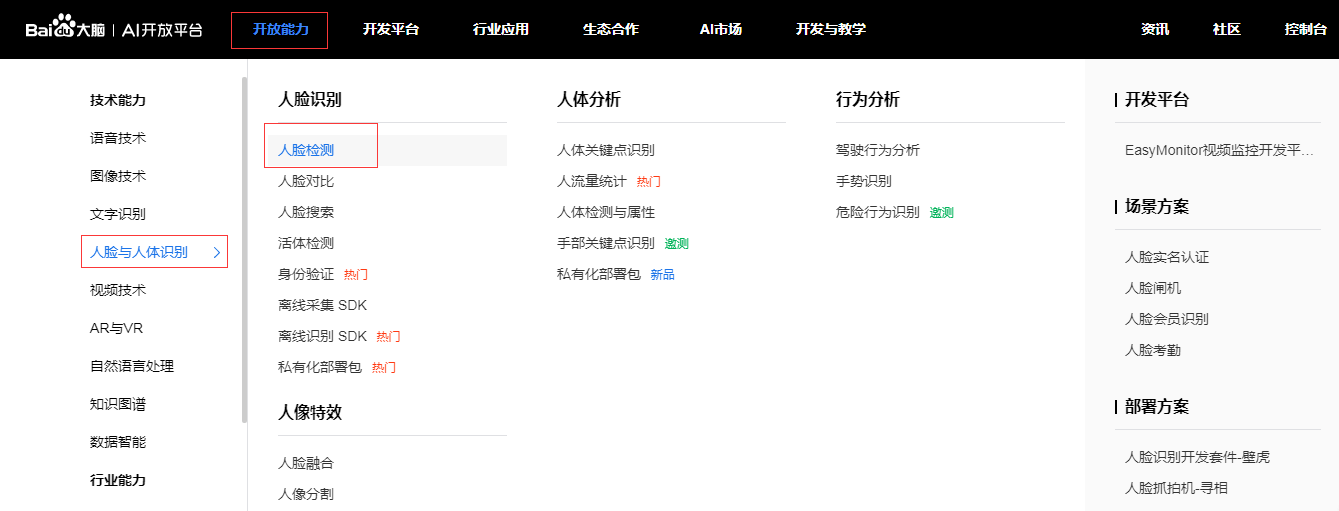
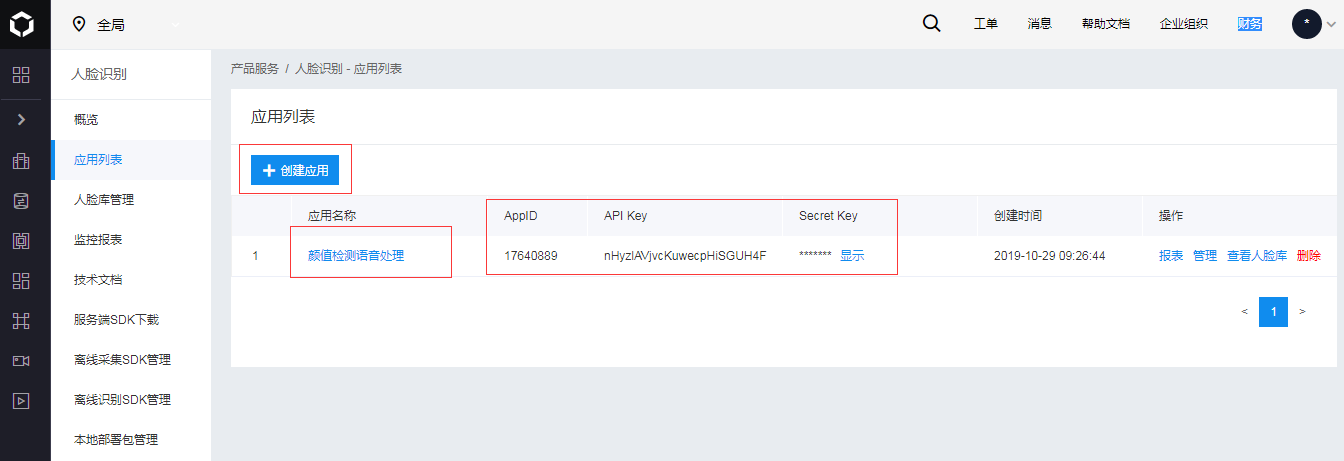
点击创建应用,选择需要的功能,如人脸识别,语音识别等
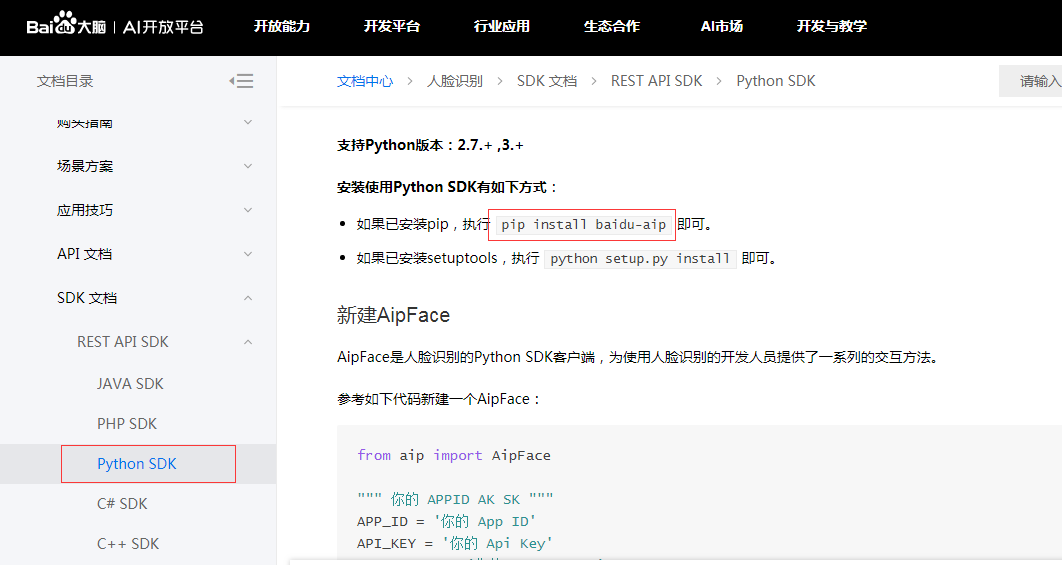
点击查看文档,可以查看功能对应语言的方法,参数。首先在CMD命令下输入pip install baidu-aip安装百度大脑库
颜值测试接口功能实现:
 测试图片
测试图片
运行结果:年龄21,颜值78.65,性别女性
from aip import AipFace        #百度大脑库中导入脸部分析的库

import base64              #用于图片base64转换

""" 你的 APPID AK SK """

APP_ID = ''           #导入百度创建应用所给的ID,如这篇随笔第二幅图给出

API_KEY = 'nHyzlAVjvcKuwecpHiSGUH4F'

SECRET_KEY = 'pcZC7p53Img09Q2WnGaq6cUlS3QKOHGk'

client = AipFace(APP_ID, API_KEY, SECRET_KEY)    #为访问做签名验证

# image = "取决于image_type参数,传入BASE64字符串或URL字符串或FACE_TOKEN字符串"

imageType = "BASE64"

option = {'face_field': 'age,gender,beauty'}

def get_file_content(file_path):

    """获取文件内容"""

    with open(file_path, 'rb') as fr:

        content = base64.b64encode(fr.read())    #把图片转换成base64格式,百度要求格式

        return content.decode('utf8')  # 把二进制编译

# print(get_file_content(r'C:\Users\Administrator\Desktop\12321.jpeg'))

def face_score(file_path):

    """脸部识别分数"""

    result = client.detect(get_file_content(file_path), imageType, option)    #百度给出的方法,参考百度大脑文档

    print(result)              #所得为字典型数据

    age = result['result']['face_list'][0]['age']

    beauty = result['result']['face_list'][0]['beauty']

    gender = result['result']['face_list'][0]['gender']['type']

    return age, beauty, gender

print(face_score('CX.jpg'))
颜值测试窗口功能实现:
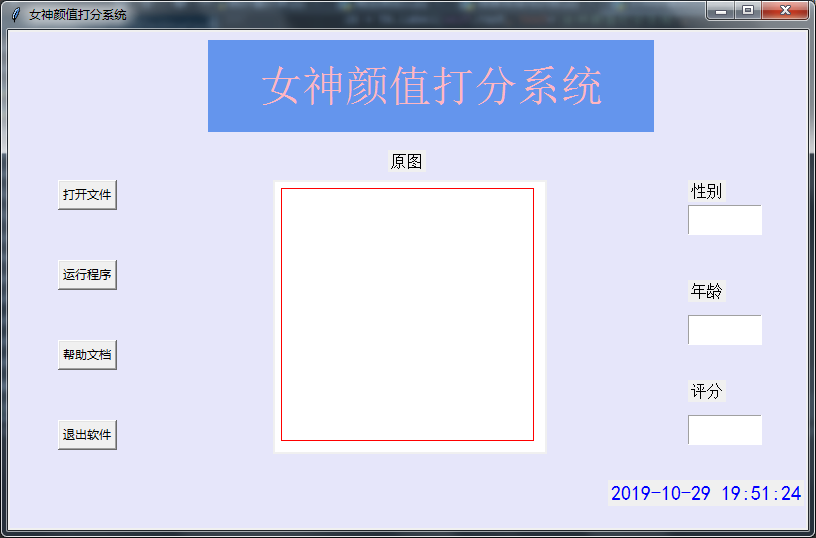
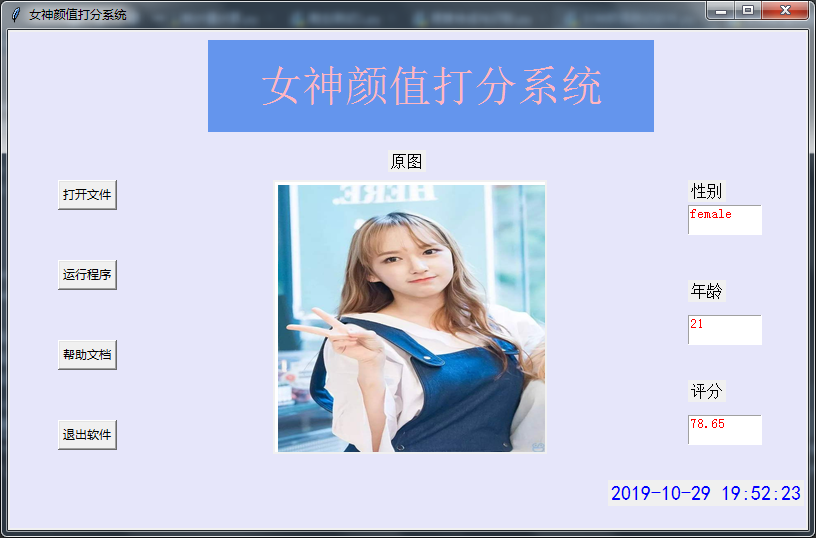
#!/usr/bin/env python

# -*- coding:utf-8 -*-

"""

pip install pillow

pip install baidu-aip

pip install tkinter

"""

import PIL

import time

import base64

import tkinter as tk

from PIL import Image

from PIL import ImageTk

from aip import AipFace

from tkinter.filedialog import askopenfilename

# 配置百度aip参数

APP_ID = ''

API_KEY = 'nHyzlAVjvcKuwecpHiSGUH4F'

SECRET_KEY = 'pcZC7p53Img09Q2WnGaq6cUlS3QKOHGk'

a_face = AipFace(APP_ID, API_KEY, SECRET_KEY)

image_type = 'BASE64'

options = {'face_field': 'age,gender,beauty'}

def get_file_content(file_path):

    """获取文件内容"""

    with open(file_path, 'rb') as fr:

        content = base64.b64encode(fr.read())

        return content.decode('utf8')

def face_score(file_path):

    """脸部识别分数"""

    result = a_face.detect(get_file_content(file_path), image_type, options)

    print(result)

    age = result['result']['face_list'][0]['age']

    beauty = result['result']['face_list'][0]['beauty']

    gender = result['result']['face_list'][0]['gender']['type']

    return age, beauty, gender

class ScoreSystem():

    """打分系统类"""

    root = tk.Tk()

    # 修改程序框的大小

    root.geometry('800x500')

    # 添加程序框标题

    root.title('女神颜值打分系统')

    # 修改背景色

    canvas = tk.Canvas(root,

                       width=800,  # 指定Canvas组件的宽度

                       height=500,  # 指定Canvas组件的高度

                       bg='#E6E6FA')  # 指定Canvas组件的背景色

    canvas.pack()

    def start_interface(self):

        """主运行函数"""

        self.title()

        self.time_component()

        # 打开本地文件

        tk.Button(self.root, text='打开文件', command=self.show_original_pic).place(x=50, y=150)

        # 进行颜值评分

        tk.Button(self.root, text='运行程序', command=self.open_files2).place(x=50, y=230)

        # 显示帮助文档

        tk.Button(self.root, text='帮助文档', command=self.show_help).place(x=50, y=310)

        # 退出系统

        tk.Button(self.root, text='退出软件', command=self.quit).place(x=50, y=390)

        # 显示图框标题

        tk.Label(self.root, text='原图', font=10).place(x=380, y=120)

        # 修改图片大小

        self.label_img_original = tk.Label(self.root)

        # 设置显示图框背景

        self.cv_orinial = tk.Canvas(self.root, bg='white', width=270, height=270)

        # 设置显示图框边框

        self.cv_orinial.create_rectangle(8, 8, 260, 260, width=1, outline='red')

        # 设置位置

        self.cv_orinial.place(x=265, y=150)

        # 显示图片位置

        self.label_img_original.place(x=265, y=150)

        # 设置评分标签

        tk.Label(self.root, text='性别', font=10).place(x=680, y=150)

        self.text1 = tk.Text(self.root, width=10, height=2)

        tk.Label(self.root, text='年龄', font=10).place(x=680, y=250)

        self.text2 = tk.Text(self.root, width=10, height=2)

        tk.Label(self.root, text='评分', font=10).place(x=680, y=350)

        self.text3 = tk.Text(self.root, width=10, height=2)

        # 填装文字

        self.text1.place(x=680, y=175)

        self.text2.place(x=680, y=285)

        self.text3.place(x=680, y=385)

        # 开启循环

        self.root.mainloop()

    def show_original_pic(self):

        """放入文件"""

        self.path_ = askopenfilename(title='选择文件')

        # 处理文件

        img = Image.open(fr'{self.path_}')

        img = img.resize((270, 270), PIL.Image.ANTIALIAS)  # 调整图片大小至270*270

        # 生成tkinter图片对象

        img_png_original = ImageTk.PhotoImage(img)

        # 设置图片对象

        self.label_img_original.config(image=img_png_original)

        self.label_img_original.image = img_png_original

        self.cv_orinial.create_image(5, 5, anchor='nw', image=img_png_original)

    def open_files2(self):

        # 获取百度API接口获得的年龄、分数、性别

        age, score, gender = face_score(self.path_)

        # 清楚text文本框内容并进行插入

        self.text1.delete(1.0, tk.END)

        self.text1.tag_config('red', foreground='RED')

        self.text1.insert(tk.END, gender, 'red')

        self.text2.delete(1.0, tk.END)

        self.text2.tag_config('red', foreground='RED')

        self.text2.insert(tk.END, age, 'red')

        self.text3.delete(1.0, tk.END)

        self.text3.tag_config('red', foreground='RED')

        self.text3.insert(tk.END, score, 'red')

    def show_help(self):

        """显示帮助"""

        pass

    def quit(self):

        """退出"""

        self.root.quit()

    def get_time(self, lb):

        """获取时间"""

        time_str = time.strftime("%Y-%m-%d %H:%M:%S")  # 获取当前的时间并转化为字符串

        lb.configure(text=time_str)  # 重新设置标签文本

        self.root.after(1000, self.get_time, lb)  # 每隔1s调用函数 get_time自身获取时间

    def time_component(self):

        """时间组件"""

        lb = tk.Label(self.root, text='', fg='blue', font=("黑体", 15))

        lb.place(relx=0.75, rely=0.90)

        self.get_time(lb)

    def title(self):

        """标题设计"""

        lb = tk.Label(self.root, text='女神颜值打分系统',

                      bg='#6495ED',

                      fg='lightpink', font=('华文新魏', 32),

                      width=20,

                      height=2,

                      # relief=tk.SUNKEN

                      )

        lb.place(x=200, y=10)

score_system = ScoreSystem()

score_system.start_interface()
语音合成:
 合成的语音
合成的语音
from aip import AipSpeech

#from ffmpy3 import FFmpeg

""" 你的 APPID AK SK """

APP_ID = ''

API_KEY = 'nHyzlAVjvcKuwecpHiSGUH4F'

SECRET_KEY = 'pcZC7p53Img09Q2WnGaq6cUlS3QKOHGk'

client = AipSpeech(APP_ID, API_KEY, SECRET_KEY)

"""语音合成"""

result  = client.synthesis('中国,是以华夏文明为源泉、中华文化为基础,并以汉族为主体民族的多民族国家', 'zh', 1, {

    'vol': 10,

    'per' :0,

})

# 识别正确返回语音二进制 错误则返回dict 参照下面错误码

if not isinstance(result, dict):

    with open('auido.mp3', 'wb') as f:

        f.write(result)
音频文件转码(百度识音要求格式)
下载ffmpeg,并加入到环境变量中
cmd命令行中输入:ffmpeg -y -i auido.mp3 -acodec pcm_s16le -f s16le -ac 1 -ar 16000 audio.pcm
成功生成audio.pcm的文件
语音识别:
 事先准备文件
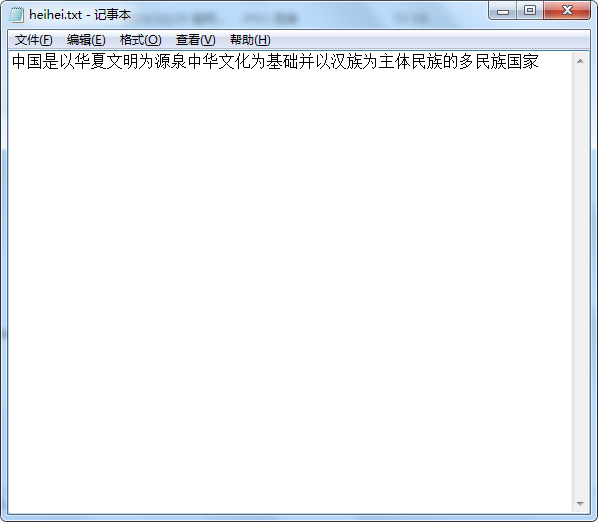 生成记事本及内容
from aip import AipSpeech

#from ffmpy3 import FFmpeg

""" 你的 APPID AK SK """

APP_ID = ''

API_KEY = 'nHyzlAVjvcKuwecpHiSGUH4F'

SECRET_KEY = 'pcZC7p53Img09Q2WnGaq6cUlS3QKOHGk'

client = AipSpeech(APP_ID, API_KEY, SECRET_KEY)

"""语音识别"""

# 读取文件

def get_file_content(filePath):

    with open(filePath, 'rb') as fp:

        return fp.read()

# 识别本地文件

res=client.asr(get_file_content('audio.pcm'), 'pcm', 16000, {       #识别pcm文件

    'dev_pid': 1536,

})

print(res)

print(res['result'][0])         #控制台显示识别出的文字内容

f1 = open('heihei.txt','w')      #把识别内容写入heihei.txt文件

f1.write(res['result'][0])

f1.close()
python预课06 基于百度大脑AI的人工智能,百度颜值检测,语音合成与识别的更多相关文章
- 如何快速将百度大脑AI技术内置智能小程序中
实现效果: 该AI智能小程序目前集成了百度AI开放平台数十个AI服务产品功能,包括人脸识别.文字识别.表格识别.红酒识别.货币识别.地标识别.手势识别.商标识别.果蔬识别.菜品识别等图片识别功能,以及 ...
- 综合5项百度大脑AI技术,快速构建智能交通方案
一.整体方案:思路:整合百度AI功能,通过百度AI解决.优化在公交运行过程中遇到的运营.管理.安全等方面的问题.具体如下: 安全方面:通过驾驶员检测+语音合成,对驾驶员状态进行实时检测,跟踪,告警. ...
- python预课05 爬虫初步学习+jieba分词+词云库+哔哩哔哩弹幕爬取示例(数据分析pandas)
结巴分词 import jieba """ pip install jieba 1.精确模式 2.全模式 3.搜索引擎模式 """ txt ...
- python预课04 列表,元祖,统计值计算示例,py文件转为EXE文件,爬虫初步学习
列表,元组 #list l1 = [1, 2, 3, '高弟弟'] #定义一个列表 #增 l1.append("DSB") #最后增加"DSB"的元素 #删 l ...
- python预课02 time模块,文本进度条示例,数字类型操作,字符串操作
time模块 概述:time库是Python中处理时间的标准库,包含以下三类函数 时间获取: time(), ctime(), gmtime() 时间格式化: strftime(), strptime ...
- python预课03 三元表达式示例,函数定义示例,七段彩码管绘制示例
三元表达式 s = '不下雨' if s == '下雨': print('带伞') if s == '不下雨': print('不带伞') #等效与以下语句 print('带伞' if s == '下 ...
- python预课01 turtle学习
Turtle命令: import turtle # 导入模块 t = turtle.Pen() # 生成画笔 t.speed() #设置速度0-10:0最快 t.forward() # 前进 t.ba ...
- 全面解析百度大脑发布“AI开发者‘战疫’守护计划”
即日起,百度大脑发布“AI开发者战疫守护计划” 大疫当前,人人有责,携手开发者共同出击抗击疫情 基于百度大脑AI开放平台和飞桨深度学习平台,积极运用算法.算力.软件等“武器”助力抗疫! 谁能参与计 ...
- 百度大脑发布“AI开发者‘战疫’守护计划”,AI支援抗疫再升级
面对新冠肺炎疫情,AI开发者们正在积极运用算法.算力.软件等“武器”助力抗疫.针对开发者们在疫情防控期间的开发与学习需求,2月6日,百度大脑推出“AI开发者‘战疫’守护计划”, 正在进行疫情防控相关应 ...
随机推荐
- spring JDBC的应用
原文地址:https://www.iteye.com/blog/chen106106-1574911 1:首先在类路径下面配置访问数据的一些基本信息,包括连接数据库的地址,用户,密码jdbc.prop ...
- 天际PRO-CR16 改装方案
本人现有红色CR16一台,宿舍在7楼,最近找了一份长期兼职,不想挤公交,想骑车去,经常上下楼很是痛苦,琢磨了两天两夜,终于出来第一套小该方案,有不合理地方,或者有个好的零件选择,请各位指点.本人不胜感 ...
- cmake 配置
罗列一下cmake常用的命令.CMake支持大写.小写.混合大小写的命令. 1. 添加头文件目录INCLUDE_DIRECTORIES 语法:include_directories([AFTER|BE ...
- 乘法器——基于Wallace树的4位乘法器实现
博主最近在学习加法器乘法等等相关知识,在学习乘法器booth编码加Wallace树压缩时,发现在压缩部分积的时候用到了进位保留加法器(Carry Save Adder),博主对这种加法器不是很理解,而 ...
- FusionInsight大数据开发---Spark应用开发
Spark应用开发 要求: 了解Spark基本原理 搭建Spark开发环境 开发Spark应用程序 调试运行Spark应用程序 YARN资源调度,可以和Hadoop集群无缝对接 Spark适用场景大多 ...
- SQL分类之DCL:管理用户、授权
DCL:管理用户.授权 SQL分类: DDL:操作数据库和表 DML:增删改表中的数据 DQL:查询表中的数据 DCL:管理用户.授权 DBA:数据库管理员 DCL:管理用户.授权 1.管理用户 1. ...
- java中什么是抽象类(abstract)
一.什么是抽象类 由abstract修饰的方法叫抽象方法:由abstract修饰的类叫抽象类.抽象的类无法进行实例化,因为他不是具体存在的类,或者说这样的类还不够完善,不能直接使用new关键字调用其构 ...
- asp.net core mvc 集成miniprofiler
原文:asp.net core mvc 集成miniprofiler asp.net core mvc 集成miniprofiler 一.环境介绍 二.监控asp.net 页面 三.监控执行的sql语 ...
- .Net Core 指定编码格式的问题
我们在读取txt文件时,如果文件格式不是utf8,则获取的中文会乱码,所以要么另存文件为utf8格式,要么使用和文件相同的编码来读取. 如果文件为utf8,则: //一种 StreamReader s ...
- Web api 右连接
这是原来的代码,两个表的连接的方式是inner join ,查不出我要的全部数据. 后来把代码稍稍改一下,就是left join join into 到一个临时对象里,相当于再select from ...