
21、uwp UI自动化测试(WinAppDriver)
使用 UI自动化测试的好处就是在代码逻辑中写好 case 后,来实现 “一劳永逸” 的作用,并且自动化测试能够模拟人工达不到要求,比如快速切换页面、快速点击按钮等,对于提高软件的稳定性很有帮助。
安装的软件:
1、WinAppDriver
github : https://github.com/microsoft/winappdriver
上面有些 demo。Application Driver直接安装地址:https://github.com/Microsoft/WinAppDriver/releases
安装完成后,默认在系统的:C:\Program Files (x86)\Windows Application Driver\WinAppDriver.exe
这个工具的作用是你写的测试工程,通过本地 localhost(127.0.0.1)以 json 方式与 WinAppDriver 进行通信,使 WinAppDriver调用 win32 api来模拟屏幕操作,如果鼠标点击、拖拽、触屏手势等,后续据说会支持 xbox 手柄、hololens 等操作。
2、 inspect.exe
这个工具是用来查看运行软件(uwp、win32、win form、wpf)的 UI 元素的 Name、ID、Text 等等。包含在 Windows SDK 中。
安装完 Visual Studio2015后,可以在 C盘下找到:C:\Program Files (x86)\Windows Kits\10\bin\x64\inspect.exe
元素对照表:
| Client API | Locator Strategy | Matched Attribute | Example |
|---|---|---|---|
| FindElementByAccessibilityId | accessibility id | AutomationId | AppNameTitle |
| FindElementByClassName | class name | ClassName | TextBlock |
| FindElementById | id | RuntimeId (decimal) | 42.333896.3.1 |
| FindElementByName | name | Name | Calculator |
| FindElementByTagName | tag name | LocalizedControlType (upper camel case) | Text |
这里以爱奇艺uwp作为示例,大概描述一下使用方式:
1、首先在启动 WinAppDriver.exe,运行界面:
路径:C:\Program Files (x86)\Windows Application Driver\WinAppDriver.exe
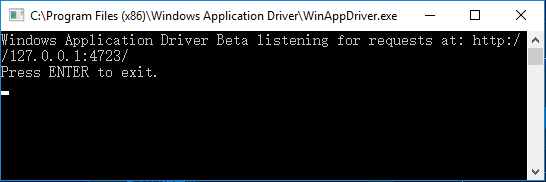
如果不运行它的话,UI自动化工程在运行单元测试的时候,vs 会抛异常:
/* 先启动 C:\Program Files (x86)\Windows Application Driver\WinAppDriver.exe,否则会抛异常

  Unexpected error. System.Net.WebException: 无法连接到远程服务器 ---> System.Net.Sockets.SocketException: 由于目标计算机积极拒绝,无法连接。 127.0.0.1:4723

  在 System.Net.Sockets.Socket.DoConnect(EndPoint endPointSnapshot, SocketAddress socketAddress)

  在 System.Net.ServicePoint.ConnectSocketInternal(Boolean connectFailure, Socket s4, Socket s6, Socket& socket, IPAddress& address, ConnectSocketState state, IAsyncResult asyncResult, Exception& exception)

  --- 内部异常堆栈跟踪的结尾 ---

  在 OpenQA.Selenium.Appium.Service.AppiumCommandExecutor.Execute(Command commandToExecute)

  在 OpenQA.Selenium.Remote.RemoteWebDriver.Execute(String driverCommandToExecute, Dictionary`2 parameters)

*/
2、使用 inspect.exe 工具,确定软件运行时,需要触发事件 UI元素的 ID/Name
路径:C:\Program Files (x86)\Windows Kits\10\bin\x64\inspect.exe
例如,在 xaml 中,添加两个 Button:
第一个设置附加属性:AutomationProperties.AutomationId="button_1"
第二个设置: x:Name=“button_2”
 <StackPanel Width="500" Height="500" Background="Blue" Grid.RowSpan="3">

     <StackPanel.Resources>

         <Style TargetType="Button">

             <Setter Property="Margin" Value="10"/>

         </Style>

     </StackPanel.Resources>

     <Button AutomationProperties.AutomationId="button_1">AutomationId="button_1"</Button>

     <Button x:Name="button_2">x:Name="button_2"</Button>

 </StackPanel>
用 inspect 观测:
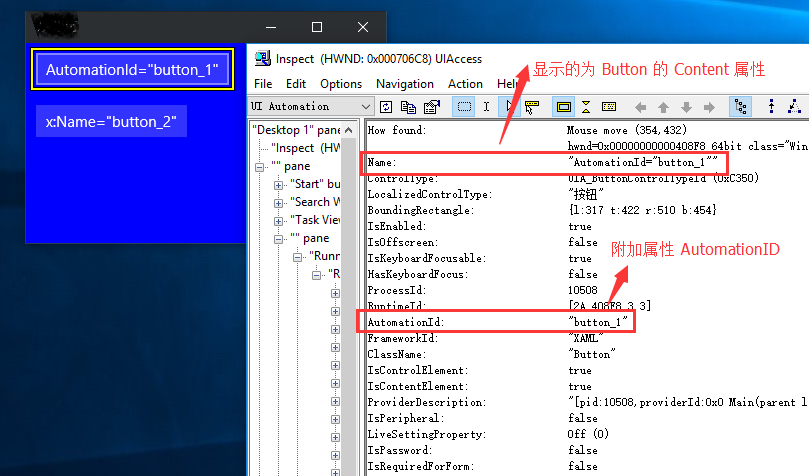
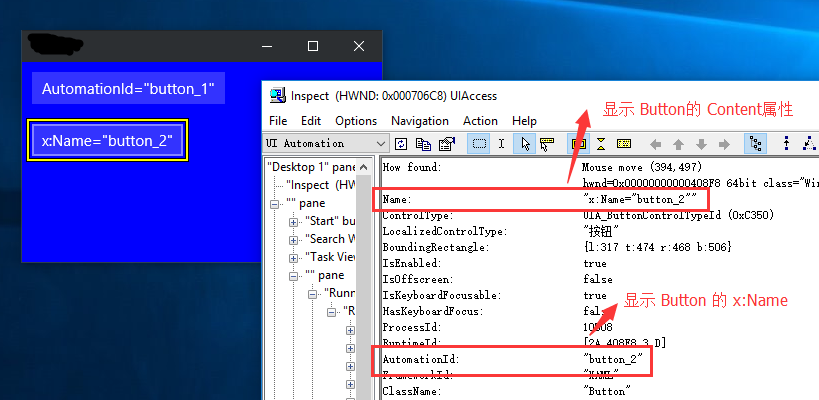
可以看出来,在 inspect 中 Name显示为 Button.Content 属性,如果是 TextBlock控件,Name则显示 TextBlock.Text 属性。
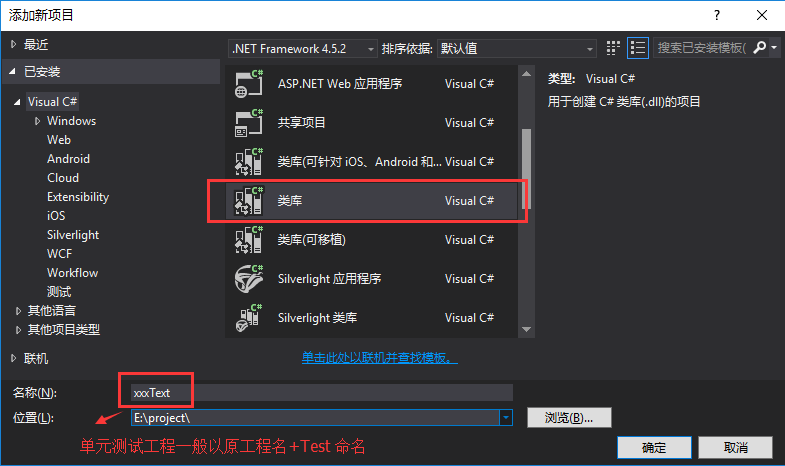
3、创建测试工程
1)创建普通的 C# 类库工程即可:
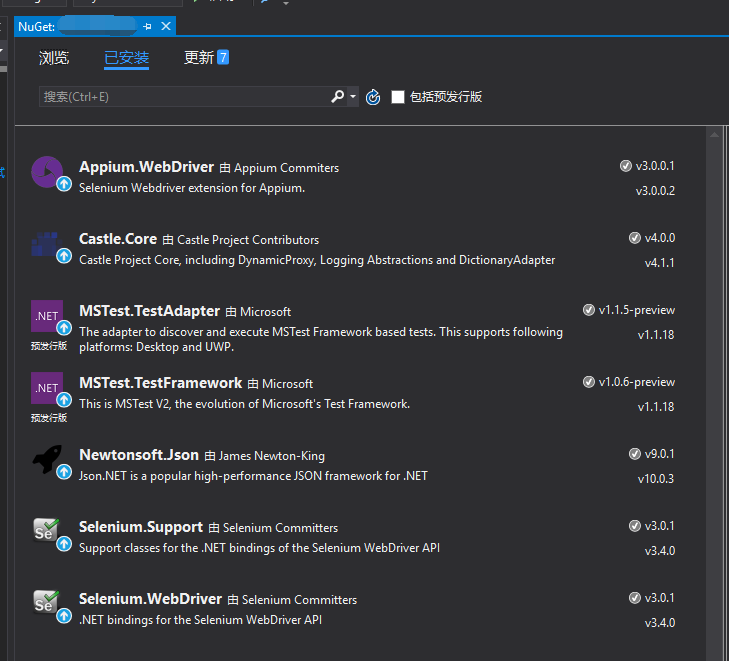
2)通过 nuget 引用相关类库:
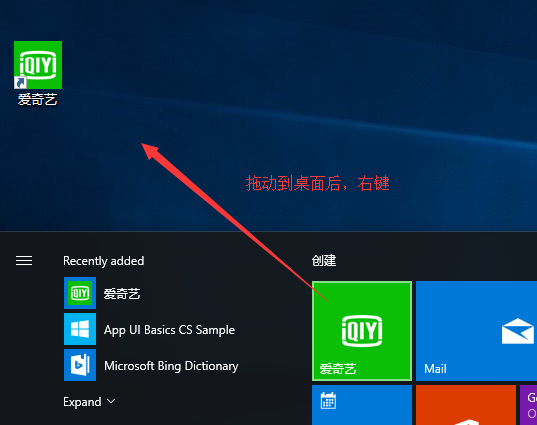
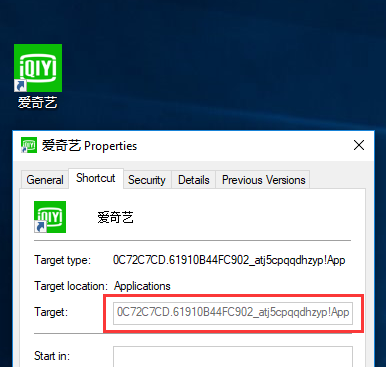
3)获取 uwp 的启动 id,一个的方法右键点击 app 的快捷方式,选择属性:
3)工程中添加两个类 QyClientTestBase 和 PlayerPageScenarios,实现启动 爱奇艺uwp,从首页随机点击一个视频,跳转到播放页,播放3秒后,拖拽进度条到中间位置,然后再随机播放选集视频,在播放页递归播放。
public class QyClientTestBase

{

    // Note: append /wd/hub to the URL if you're directing the test at Appium

    protected const string WindowsApplicationDriverUrl = "http://127.0.0.1:4723";

    protected static WindowsElement Hanburg;

    protected static WindowsElement BackButton;

    protected static WindowsDriver<WindowsElement> QyClientSession;

    protected static string OriginalCalculatorMode;

    public static void BaseSetup(TestContext context)

    {

        if (QyClientSession == null)

        {

            // 启动爱奇艺 app

            DesiredCapabilities appCapabilities = new DesiredCapabilities();

            appCapabilities.SetCapability("app", "0C72C7CD.Beta_atj5cpqqdhzyp!App");

            appCapabilities.SetCapability("deviceName", "WindowsPC");

            QyClientSession = new WindowsDriver<WindowsElement>(new Uri(WindowsApplicationDriverUrl), appCapabilities);

            Assert.IsNotNull(QyClientSession);

            QyClientSession.Manage().Timeouts().ImplicitlyWait(TimeSpan.FromSeconds());

            Hanburg = QyClientSession.FindElementByName("Menu");

            // 已经在播放页时

            //BackButton = QyClientSession.FindElementByAccessibilityId("Back");

        }

        // 在首页时,汉堡按钮显示;在播放页时,Back按钮显示

        Assert.IsNotNull(Hanburg);

    }

    public static void BaseTearDown()

    {

        if (QyClientSession != null)

        {

            Hanburg = null;

            QyClientSession.Dispose();

            QyClientSession = null;

        }

    }

}
 [TestClass]

    public class PlayerPageScenarios : QyClientTestBase  // 子类型需要设置为 public,否则“测试资源管理器”中看不到

    {

        [ClassInitialize] //每个单元测试方法执行前,调用的初始化方法

        public static void Setup(TestContext context)

        {

            BaseSetup(context);

        }

        [ClassCleanup] //每个单元测试方法执行完成后,调用的清理方法

        public static void TearDown()

        {

            BaseTearDown();

        }

        bool isPlaying = false;

        [TestMethod]

        public void SliderClick()

        {

            if (isPlaying == false)

            {

                // 先从 app首页,随机播放一个视频,跳转到播放页

                PlayBRandom();

                Thread.Sleep(TimeSpan.FromSeconds());

                isPlaying = true;

            }

            ShowControls();

            //元素需要在页面中显示,如 Visibility="Collapsed" 则获取不到

            WindowsElement slider = QyClientSession.FindElementByAccessibilityId("slider_position"); //进度条

            Assert.IsNotNull(slider);

            //视频进度条拖动到中间位置

            QyClientSession.Mouse.MouseMove(slider.Coordinates, slider.Size.Width / , );

            // seek进度

            slider.Click();

            Thread.Sleep(TimeSpan.FromSeconds());

            //随机播放页面中的一个视频

            PlayBRandom();

            Thread.Sleep(TimeSpan.FromSeconds());

            // 递归调用,在当前页面切换选集播放

            SliderClick();

        }

        /// <summary>

        /// 播放当前页面中的任意一个 B 对象

        /// </summary>

        void PlayBRandom()

        {

            var list = QyClientSession.FindElementsByName("QyClient._3._0.Model._B");

            if (list.Count > )

            {

                int min = isPlaying ?  : ; //在app首页时,播放 30以后的 B对象

                int index = new Random().Next(min, list.Count - );

                WindowsElement e = list.ElementAt(index);

                e.Click();

            }

            Assert.AreNotEqual(list.Count, );

            Thread.Sleep();

        }

        /// <summary>

        /// 显示播控栏,否则播控按钮获取不到

        /// </summary>

        void ShowControls()

        {

            WindowsElement win = QyClientSession.FindElementByAccessibilityId("mediaPlayer");

            win.Click();

            Thread.Sleep();

        }

    }
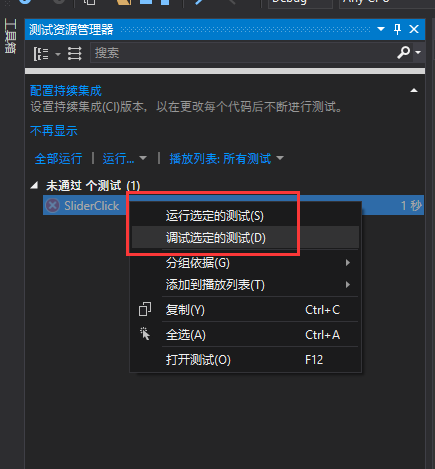
4)在“测试资源管理器” 中可以运行和断点调试测试:
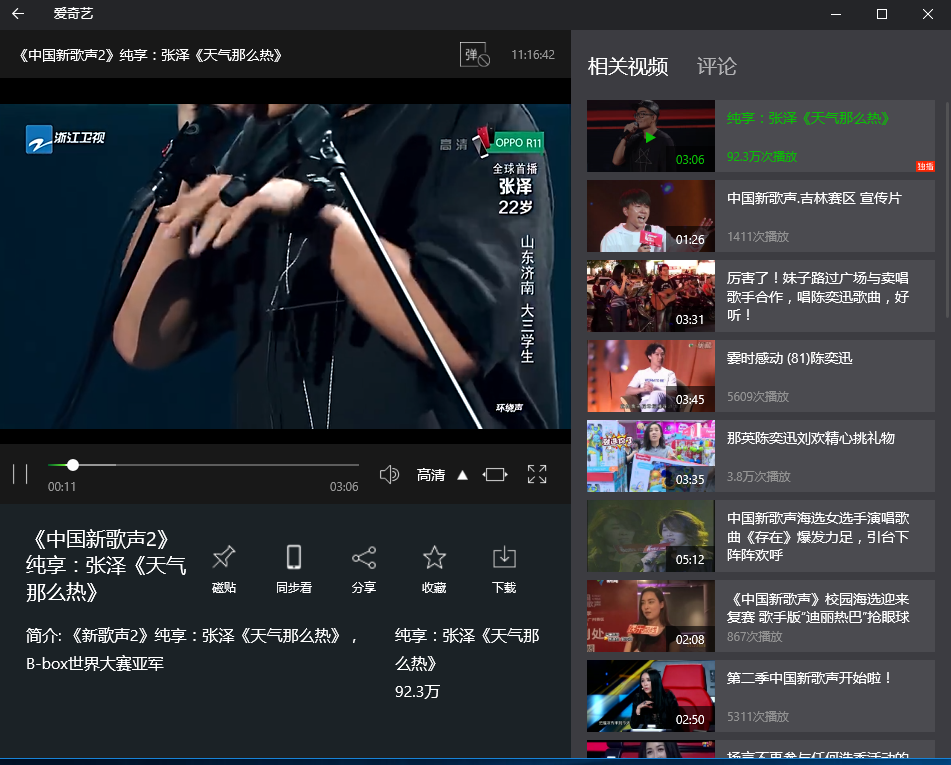
5)运行测试,循环切换选集,播放视频
相关参考:
UI Testing: What's new with WinAppDriver:https://channel9.msdn.com/Events/Build/2017/P4084
Improving App Quality with UI Automation:https://channel9.msdn.com/Events/Connect/2016/202?ocid=player
Automate Windows And Mac Apps With The WebDriver Protocol - Dan Cuellar, FOODIt:https://www.youtube.com/watch?v=MgBRvQOZhec
StarDriver Enterprise Appium to the Future | Jonathan Lipps:https://www.youtube.com/watch?v=e61OhZzbsEI
github WinAppDriver: https://github.com/microsoft/winappdriver
Modern Dev Practices: Unit Testing:https://channel9.msdn.com/Shows/Visual-Studio-Toolbox/Modern-Dev-Practices-Unit-Testing
Inspect.exe: https://msdn.microsoft.com/en-us/library/windows/desktop/dd318521(v=vs.85).aspx
Windows SDK and emulator archive : https://developer.microsoft.com/en-us/windows/downloads/sdk-archive
Windows Automation API: UI Automation:https://msdn.microsoft.com/zh-cn/library/ms726294(vs.85).aspx
AutomationID :https://docs.microsoft.com/en-us/dotnet/framework/ui-automation/use-the-automationid-property
UI Automation Overview:
https://docs.microsoft.com/en-us/dotnet/framework/ui-automation/ui-automation-overview
https://msdn.microsoft.com/zh-cn/library/ms728097(v=vs.85).aspx
21、uwp UI自动化测试(WinAppDriver)的更多相关文章
- 对Windows桌面应用程序进行UI自动化测试
题记:本文简述如何利用appium对Windows桌面应用程序进行UI自动化测试. 所谓UI自动化测试,就是模拟一个用户,对应用程序的UI进行操作,以完成特定场景的功能性集成测试. 要对Windows ...
- UI自动化测试框架(项目实战)python、Selenium(日志、邮件、pageobject)
其实百度UI自动化测试框架,会出来很多相关的信息,不过就没有找到纯项目的,无法拿来使用的:所以我最近就写了一个简单,不过可以拿来在真正项目中可以使用的测试框架. 项目的地址:https://githu ...
- 关于Selenium remote模式分布式执行UI自动化测试必定面临的性能问题
1.大部分自动化测试人员都是在本地执行UI自动化测试,也就是代码和浏览器必须在同一台机器上,这样的的缺陷很多,无法多任务并发执行UI自动化测试用例,效率极低 2.正是如此,Selenium 的remo ...
- 网易与Google合作,于GDC开幕首日发布开源UI自动化测试方案
[TechWeb报道]美西时间3月19日,在GDC开幕第一天的Google开发者专场,Google发布了一款由网易研发的UI自动化测试方案:Airtest Project. Google方面评价,这可 ...
- UI自动化测试框架:关键字驱动+数据驱动
1. 关键字驱动框架简介 2. 工程结构说明 3. 工程代码实现 action 包 page_action.py business_process 包 case_process.py data_so ...
- 腾讯优测优分享 | 游戏的UI自动化测试可以这样开展
腾讯优测是专业的自动化测试平台,提供自动化测试-全面兼容性测试,云真机-远程真机租用,漏洞分析等多维度的测试服务,让测试更简单! 对于目前的两大游戏引擎cocos-2dx.unity3D,其UI自动化 ...
- 使用WatiN进行UI自动化测试
Watin是一个UI自动化测试工具,支持ie/firefox,官方网站:http://watin.org/. 主要有以下特点: 支持主要的html元素,见:http://watin.org/docum ...
- 如何正确选择UI自动化测试
近年流行一个词-UI,和UI搭边好像都那么高大上,软件测试行业也不例外,比如UI自动化测试. 常见的UI自动化测试程序有哪些呢? l 带UI的Unit Test,比如mock掉底层代码,仅仅测试UI ...
- 【转】Web UI自动化测试原理
目前市面上有很多Web UI自动化测试框架,比如WatiN, Selinimu,WebDriver,还有VS2010中的Coded UI等等. 这些框架都可以操作Web中的控件,模拟用户输入,点击等 ...
随机推荐
- shell脚本逐个杀死k8s中某个应用的pod
#!/bin/bash pod01=`kubectl get pod -o wide -n weifeng-system|grep official-ui-node-prod|awk -F : 'NR ...
- cmd下查看端口被某程序占用命令
经常,我们在启动应用的时候发现系统需要的端口被别的程序占用,如何知道谁占有了我们需要的端口,很多人都比较头疼,下面就介绍一种非常简单的方法,希望对大家有用 假如我们需要确定谁占用了我们的9050端口 ...
- 轻量级桌面 openbox + tint2 + conky + stalonetray + pcmanfm + xcompmgr
openbox+tint2+pnmixer+conky=轻量级archlinux桌面环境设置备忘 缘起 机器上的Ubuntu 12.04有一段时间没有使用了,最近在用的时候发现频繁死机的情况,开始以为 ...
- 开发只懂 AFN ?搞定 NSURLSession 才是硬道理
由于傲娇的苹果在 iOS9 之后已经放弃了 NSURLConnection,所以在现在的实际开发中,除了大家常见的 AFN 框架,一般使用的是 iOS7 之后推出的 NSURLSession,作为一名 ...
- Apache2.2和Apache2.4中httpd.conf配置文件 权限的异同
Windows环境从Apache2.2改成Apache2.4后httpd.conf中的设置异同. 1.权限设定方式变更 2.2使用Order Deny / Allow的方式,2.4改用Require ...
- 如何设置IIS程序池的回收时间,才能最大程度的减少对用户的影响?
作为.Net开发人员,其实对IIS的应用程序池知之甚少,在工作中我也有几次遇到过网站无故打不开的情况,找了半天原因也找不到是怎么造成的,有一次我给网站找了一个程序程序池后发现就能正常访问了,这也让我对 ...
- cmake3.8X64编译opencv3.2出现opencv_ffmpeg、opencv_ffmpeg_64、ippicv_windows_20151201.zip无法下载问题解决方案
cmake版本:cmake3.8.0 开发环境:Visual Studio 2017 x64 解决方法:1.在opencv安装目录下sources\3rdparty\ffmpeg\ffmpeg.cma ...
- shell curl 下载图片并另存为(重命名)
curl -o fuck.png http://img30.360buyimg.com/imgzone/jfs/t19711/232/1837927836/150222/e4cd87bb/5ad990 ...
- VS2005快捷键大全
快捷键功能 CTRL + SHIFT + B生成解决方案 CTRL + F7 生成编译 CTRL + O 打开文件 CTRL + SHIFT + O打开项目 CTRL + SHIFT + C显示类视图 ...
- Ubuntu18.04 修改DNS
Ubuntu18.04 修改DNS sudo vim /etc/systemd/resolved.conf 修改如下: [Resolve] DNS=119.29.29.29 保存退出后 systemc ...