
[转] c# 操作Word
来自 风过四季天 的原文 c# 操作Word总结
在医疗管理系统中为保存患者的体检和治疗记录,方便以后的医生或其他人查看。当把数据保存到数据库中,需要新建很多的字段,而且操作很繁琐,于是想 到网页的信息创建到一个word文本中,在显示的时,可以在线打开word,也可以把word转换成html标签显示。 这样使用word代替网页的原因有:
第一:网页生成数学公式和特殊符号存储和显示比较麻烦(如何操作word生成数学公式,有待测试)
第二:生成Word版的报告更容易存档和没有环境下的传阅及打印
第三:客户直接操作Word感觉更亲切,而且非常熟悉
Msdn上的word操作api(不过只有英文版,英文差的先闪过)
Word2007的API:http://msdn.microsoft.com/en-us/library/bb257531(v=office.12).aspx
Word2010的API:http://msdn.microsoft.com/en-us/library/microsoft.office.interop.word(v=office.14).aspx
Word对象模型 (.Net Perspective)
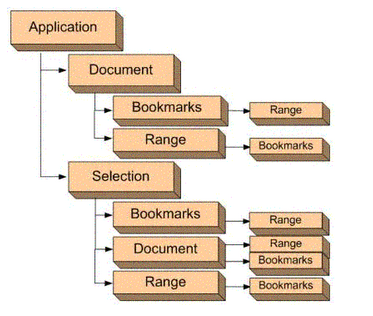
五大对象
Application :代表Microsoft Word应用程序本身
是Document和Selection的基类。通过Application的属性和方法,我们可以控制Word的大环境。
Document :代表一个Word文档
当你新建一个Word文档或者打开一个已有的Word文档,你将创建一个Document对象,该对象被加入到Words Documents
Collection中。拥有焦点的Document称为ActiveDocument,可以通过Application对象的
ActiveDocument属性获得当前文档对象
Selection :代表当前选中的区域(高亮),没有选中区域时代表光标点
它通常是高亮显示的(例如,你要改变一段文字的字体,你首先得选中这段文字,那么选中的这块区域就是当前文档的Selection对象所包含的区域)
Bookmarks :书签
1>书签一般有名字
2>Saved with the document,且文档关闭了之后书签继续存在
3>书签通常是隐藏的,但也可以通过代码设置其为可见
Range :代表一块区域,与Selection类似,不过一般不可见
1>包含一个起始位置和一个结束位置
2>它可以包含光标点,一段文本或者整个文档
3>它包含空格,tab以及paragraph marks
4>它可以是当前选中的区域,当然也可以不是当前选中区域
5>它被动态创建
6>当你在一个Range的末尾插入文本,这将扩展该Range
word文档对象的结构图
关于对象的详细使用,可以参考msdn api
实例使用
创建Word 文档所使用的主要方法是通过微软公司提供的Microsoft Word X Object Library,
其中X 为版本号。Word2010对应14.0, Word 2007 对应12.0,Word 2003 对应11.0。
通过在项目中添加该组件,即可使用微软公司提供的方法创建相应版本的Word 文档。
在实例中我将所要生成word的格式设置为2003版本
新建一个winForm项目文件,
Com组件中添加 Microsoft Word 12.0 Object Library,引用面板中多出Microsoft.Office.Core、Microsoft.Office.Interop.Word两个引用。
在类文件中添加应用如下:
using MSWord = Microsoft.Office.Interop.Word;
using System.IO;
using System.Reflection;
using Microsoft.Office.Interop.Word;
下面从word创建、格式设置、文本添加、图片添加、表格添加展示部分代码:
void CreateWord()

        {

            object path;//文件路径

            string strContent;//文件内容

            MSWord.Application wordApp;//Word应用程序变量

            MSWord.Document wordDoc;//Word文档变量

            path = "d:\\myWord.doc";//保存为Word2003文档

           // path = "d:\\myWord.doc";//保存为Word2007文档

            wordApp = new MSWord.ApplicationClass();//初始化

            if (File.Exists((string)path))

            {

                File.Delete((string)path);

            }

            //由于使用的是COM 库,因此有许多变量需要用Missing.Value 代替

            Object Nothing = Missing.Value;

            //新建一个word对象

            wordDoc = wordApp.Documents.Add(ref Nothing, ref Nothing, ref Nothing, ref Nothing);

            //WdSaveDocument为Word2003文档的保存格式(文档后缀.doc)\wdFormatDocumentDefault为Word2007的保存格式(文档后缀.docx)

            object format = MSWord.WdSaveFormat.wdFormatDocument;

           //将wordDoc 文档对象的内容保存为DOC 文档,并保存到path指定的路径

            wordDoc.SaveAs(ref path, ref format, ref Nothing, ref Nothing, ref Nothing, ref Nothing, ref Nothing, ref Nothing, ref Nothing, ref Nothing, ref Nothing, ref Nothing, ref Nothing, ref Nothing, ref Nothing, ref Nothing);

            //关闭wordDoc文档

            wordDoc.Close(ref Nothing, ref Nothing, ref Nothing);

            //关闭wordApp组件对象

            wordApp.Quit(ref Nothing, ref Nothing, ref Nothing);

            Response.Write("<script>alert('" + path + ": Word文档创建完毕!');</script>");

        }

创建Word文档
创建Word文档
private void SetWordStyle()

        {

            object path;//文件路径

            string strContent;//文件内容

            MSWord.Application wordApp;//Word应用程序变量

            MSWord.Document wordDoc;//Word文档变量

            path = "d:\\myWord.doc";//保存为Word2003文档

            // path = "d:\\myWord.doc";//保存为Word2007文档

            wordApp = new MSWord.ApplicationClass();//初始化

            if (File.Exists((string)path))

            {

                File.Delete((string)path);

            }

            Object Nothing = Missing.Value;

            wordDoc = wordApp.Documents.Add(ref Nothing, ref Nothing, ref Nothing, ref Nothing);

            //页面设置

            wordDoc.PageSetup.PaperSize = Microsoft.Office.Interop.Word.WdPaperSize.wdPaperA4;//设置纸张样式

            wordDoc.PageSetup.Orientation = Microsoft.Office.Interop.Word.WdOrientation.wdOrientPortrait;//排列方式为垂直方向

            wordDoc.PageSetup.TopMargin = 57.0f;

            wordDoc.PageSetup.BottomMargin = 57.0f;

            wordDoc.PageSetup.LeftMargin = 57.0f;

            wordDoc.PageSetup.RightMargin = 57.0f;

            wordDoc.PageSetup.HeaderDistance = 30.0f;//页眉位置

            //设置页眉

            wordApp.ActiveWindow.View.Type = Microsoft.Office.Interop.Word.WdViewType.wdOutlineView;//视图样式

            wordApp.ActiveWindow.View.SeekView = Microsoft.Office.Interop.Word.WdSeekView.wdSeekPrimaryHeader;//进入页眉设置,其中页眉边距在页面设置中已完成

            wordApp.Selection.ParagraphFormat.Alignment = Microsoft.Office.Interop.Word.WdParagraphAlignment.wdAlignParagraphRight;

            //插入页眉图片(测试结果图片未插入成功)

            wordApp.Selection.ParagraphFormat.Alignment = MSWord.WdParagraphAlignment.wdAlignParagraphCenter;

            string headerfile = "d:\\header.jpg";

            Microsoft.Office.Interop.Word.InlineShape shape1 = wordApp.ActiveWindow.ActivePane.Selection.InlineShapes.AddPicture(headerfile, ref Nothing, ref Nothing, ref Nothing);

            shape1.Height = ;

            shape1.Width = ;

            wordApp.ActiveWindow.ActivePane.Selection.InsertAfter("  文档页眉");

            //去掉页眉的横线

            wordApp.ActiveWindow.ActivePane.Selection.ParagraphFormat.Borders[Microsoft.Office.Interop.Word.WdBorderType.wdBorderBottom].LineStyle = Microsoft.Office.Interop.Word.WdLineStyle.wdLineStyleNone;

            wordApp.ActiveWindow.ActivePane.Selection.Borders[Microsoft.Office.Interop.Word.WdBorderType.wdBorderBottom].Visible = false;

            wordApp.ActiveWindow.ActivePane.View.SeekView = Microsoft.Office.Interop.Word.WdSeekView.wdSeekMainDocument;//退出页眉设置

            //为当前页添加页码

            Microsoft.Office.Interop.Word.PageNumbers pns = wordApp.Selection.Sections[].Headers[Microsoft.Office.Interop.Word.WdHeaderFooterIndex.wdHeaderFooterEvenPages].PageNumbers;//获取当前页的号码

            pns.NumberStyle = Microsoft.Office.Interop.Word.WdPageNumberStyle.wdPageNumberStyleNumberInDash;

            pns.HeadingLevelForChapter = ;

            pns.IncludeChapterNumber = false;

            pns.RestartNumberingAtSection = false;

            pns.StartingNumber = ;

            object pagenmbetal = Microsoft.Office.Interop.Word.WdPageNumberAlignment.wdAlignPageNumberCenter;//将号码设置在中间

            object first = true;

            wordApp.Selection.Sections[].Footers[Microsoft.Office.Interop.Word.WdHeaderFooterIndex.wdHeaderFooterEvenPages].PageNumbers.Add(ref pagenmbetal, ref first);

            object format = MSWord.WdSaveFormat.wdFormatDocument;

            wordDoc.SaveAs(ref path, ref format, ref Nothing, ref Nothing, ref Nothing, ref Nothing, ref Nothing, ref Nothing, ref Nothing, ref Nothing, ref Nothing, ref Nothing, ref Nothing, ref Nothing, ref Nothing, ref Nothing);

            wordDoc.Close(ref Nothing, ref Nothing, ref Nothing);

            wordApp.Quit(ref Nothing, ref Nothing, ref Nothing);

            Response.Write("<script>alert('" + path + ": Word文档格式设置完毕!');</script>");

        }

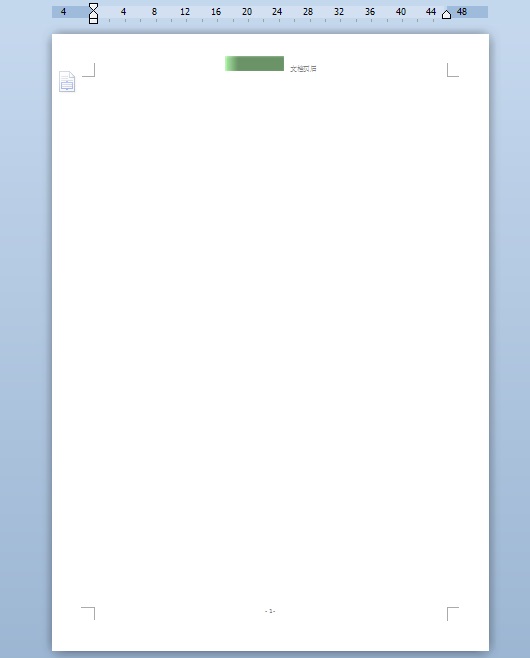
设置Word文档格式
设置word文档格式
效果图:
private void AddWordText()

        {

            object path;//文件路径

            string strContent;//文件内容

            MSWord.Application wordApp;//Word应用程序变量

            MSWord.Document wordDoc;//Word文档变量

            path = "d:\\myWord.doc";//保存为Word2003文档

            // path = "d:\\myWord.doc";//保存为Word2007文档

            wordApp = new MSWord.ApplicationClass();//初始化

            if (File.Exists((string)path))

            {

                File.Delete((string)path);

            }

            Object Nothing = Missing.Value;

            wordDoc = wordApp.Documents.Add(ref Nothing, ref Nothing, ref Nothing, ref Nothing);

            wordApp.Selection.ParagraphFormat.LineSpacing = 35f;//设置文档的行间距

            //写入普通文本

            wordApp.Selection.ParagraphFormat.FirstLineIndent = ;//首行缩进的长度

            strContent = "c#向Word写入文本   普通文本:\n";

            wordDoc.Paragraphs.Last.Range.Text = strContent;

            //将文档的前三个字替换成"asdfasdf",并将其颜色设为蓝色

            object start = ;

            object end = ;

            Microsoft.Office.Interop.Word.Range rang = wordDoc.Range(ref start, ref end);

            rang.Font.Color = Microsoft.Office.Interop.Word.WdColor.wdColorBrightGreen;

            rang.Text = "我是替换文字";

            wordDoc.Range(ref start, ref end);

            //写入黑体文本

            object unite = Microsoft.Office.Interop.Word.WdUnits.wdStory;

            wordApp.Selection.EndKey(ref unite, ref Nothing);

            wordApp.Selection.ParagraphFormat.FirstLineIndent = ;//取消首行缩进的长度

            strContent = "黑体文本\n ";//在文本中使用'\n'换行

            wordDoc.Paragraphs.Last.Range.Font.Name = "黑体";

            wordDoc.Paragraphs.Last.Range.Text = strContent;

           // wordApp.Selection.Text = strContent;

            //写入加粗文本

            strContent = "加粗文本\n ";

            wordApp.Selection.EndKey(ref unite, ref Nothing);

            wordDoc.Paragraphs.Last.Range.Font.Bold = ;//Bold=0为不加粗

            wordDoc.Paragraphs.Last.Range.Text = strContent;

            //  wordApp.Selection.Text = strContent;

            //写入15号字体文本

            strContent = "15号字体文本\n ";

            wordApp.Selection.EndKey(ref unite, ref Nothing);

            wordDoc.Paragraphs.Last.Range.Font.Size = ;

            wordDoc.Paragraphs.Last.Range.Text = strContent;

            //写入斜体文本

            strContent = "斜体文本\n ";

            wordApp.Selection.EndKey(ref unite, ref Nothing);

            wordDoc.Paragraphs.Last.Range.Font.Italic = ;

            wordDoc.Paragraphs.Last.Range.Text = strContent;

            //写入蓝色文本

            strContent = "蓝色文本\n ";

            wordApp.Selection.EndKey(ref unite, ref Nothing);

            wordDoc.Paragraphs.Last.Range.Font.Color = MSWord.WdColor.wdColorBlue;

            wordDoc.Paragraphs.Last.Range.Text = strContent;

            //写入下划线文本

            strContent = "下划线文本\n ";

            wordApp.Selection.EndKey(ref unite, ref Nothing);

            wordDoc.Paragraphs.Last.Range.Font.Underline = MSWord.WdUnderline.wdUnderlineThick;

            wordDoc.Paragraphs.Last.Range.Text = strContent;

            object format = MSWord.WdSaveFormat.wdFormatDocument;

            wordDoc.SaveAs(ref path, ref format, ref Nothing, ref Nothing, ref Nothing, ref Nothing, ref Nothing, ref Nothing, ref Nothing, ref Nothing, ref Nothing, ref Nothing, ref Nothing, ref Nothing, ref Nothing, ref Nothing);

            wordDoc.Close(ref Nothing, ref Nothing, ref Nothing);

            wordApp.Quit(ref Nothing, ref Nothing, ref Nothing);

            Response.Write("<script> alert('" + path + ": Word文档写入文本完毕!');</script>");

        }

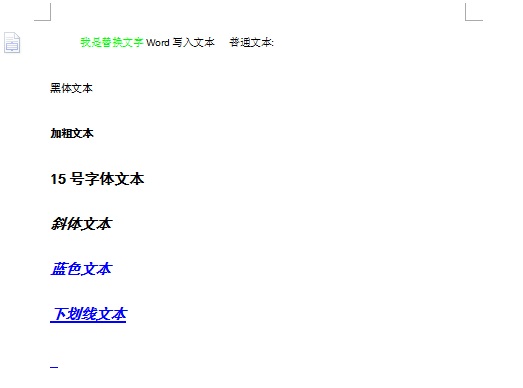
添加文本
添加文本
效果图:
private void AddWordPic()

        {

            object path;//文件路径

            string strContent;//文件内容

            MSWord.Application wordApp;//Word应用程序变量

            MSWord.Document wordDoc;//Word文档变量

            path = "d:\\myWord.doc";//保存为Word2003文档

            // path = "d:\\myWord.doc";//保存为Word2007文档

            wordApp = new MSWord.ApplicationClass();//初始化

            if (File.Exists((string)path))

            {

                File.Delete((string)path);

            }

            Object Nothing = Missing.Value;

            wordDoc = wordApp.Documents.Add(ref Nothing, ref Nothing, ref Nothing, ref Nothing);

            string filename = "d:\\kk.jpg";

            //定义要向文档中插入图片的位置

            object range = wordDoc.Paragraphs.Last.Range;

            //定义该图片是否为外部链接

            object linkToFile = false;//默认

            //定义插入的图片是否随word一起保存

            object saveWithDocument = true;

            //向word中写入图片

            wordDoc.InlineShapes.AddPicture(filename, ref Nothing, ref Nothing, ref Nothing);

            object unite = Microsoft.Office.Interop.Word.WdUnits.wdStory;

            wordApp.Selection.ParagraphFormat.Alignment = MSWord.WdParagraphAlignment.wdAlignParagraphCenter;//居中显示图片

            wordDoc.InlineShapes[].Height = ;

            wordDoc.InlineShapes[].Width = ;

            wordDoc.Content.InsertAfter("\n");

            wordApp.Selection.EndKey(ref unite, ref Nothing);

            wordApp.Selection.ParagraphFormat.Alignment = Microsoft.Office.Interop.Word.WdParagraphAlignment.wdAlignParagraphCenter;

            wordApp.Selection.Font.Size = ;//字体大小

            wordApp.Selection.TypeText("图1 测试图片\n");

            object format = MSWord.WdSaveFormat.wdFormatDocument;

            wordDoc.SaveAs(ref path, ref format, ref Nothing, ref Nothing, ref Nothing, ref Nothing, ref Nothing, ref Nothing, ref Nothing, ref Nothing, ref Nothing, ref Nothing, ref Nothing, ref Nothing, ref Nothing, ref Nothing);

            wordDoc.Close(ref Nothing, ref Nothing, ref Nothing);

            wordApp.Quit(ref Nothing, ref Nothing, ref Nothing);

            Response.Write("<script>alert('" + path + ": Word文档创建图片完毕!');</script>");

        }

添加图片
添加图片
效果图:

private void AddWordTable()

        {

            object path;//文件路径

            string strContent;//文件内容

            MSWord.Application wordApp;//Word应用程序变量

            MSWord.Document wordDoc;//Word文档变量

            path = "d:\\myWord.doc";//保存为Word2003文档

            // path = "d:\\myWord.doc";//保存为Word2007文档

            wordApp = new MSWord.ApplicationClass();//初始化

            if (File.Exists((string)path))

            {

                File.Delete((string)path);

            }

            Object Nothing = Missing.Value;

            wordDoc = wordApp.Documents.Add(ref Nothing, ref Nothing, ref Nothing, ref Nothing);

            int tableRow = ;

            int tableColumn = ;

            //定义一个word中的表格对象

            MSWord.Table table = wordDoc.Tables.Add(wordApp.Selection.Range, tableRow, tableColumn, ref Nothing, ref Nothing);

            wordDoc.Tables[].Cell(, ).Range.Text = "列\n行";

            for (int i = ; i < tableRow; i++)

            {

                for (int j = ; j < tableColumn; j++)

                {

                    if (i == )

                    {

                        table.Cell(i, j+).Range.Text = "Column " + j;

                    }

                    if (j == )

                    {

                        table.Cell(i+, j).Range.Text = "Row " + i;

                    }

                    table.Cell(i+, j+).Range.Text =  i + "行 " + j + "列";

                }

            }

            //添加行

            table.Rows.Add(ref Nothing);

            table.Rows[tableRow + ].Height = ;

            //向新添加的行的单元格中添加图片

            string FileName = "d:\\kk.jpg";//图片所在路径

            object LinkToFile = false;

            object SaveWithDocument = true;

            object Anchor = table.Cell(tableRow+, tableColumn).Range;//选中要添加图片的单元格

            wordDoc.Application.ActiveDocument.InlineShapes.AddPicture(FileName, ref LinkToFile, ref SaveWithDocument, ref Anchor);

            wordDoc.Application.ActiveDocument.InlineShapes[].Width = ;//图片宽度

            wordDoc.Application.ActiveDocument.InlineShapes[].Height = ;//图片高度

            // 将图片设置为四周环绕型

            MSWord.Shape s = wordDoc.Application.ActiveDocument.InlineShapes[].ConvertToShape();

            s.WrapFormat.Type = MSWord.WdWrapType.wdWrapSquare;

            //设置table样式

            table.Rows.HeightRule = MSWord.WdRowHeightRule.wdRowHeightAtLeast;

            table.Rows.Height = wordApp.CentimetersToPoints(float.Parse("0.8"));

            table.Range.Font.Size = 10.5F;

            table.Range.Font.Bold = ;

            table.Range.ParagraphFormat.Alignment = MSWord.WdParagraphAlignment.wdAlignParagraphCenter;

            table.Range.Cells.VerticalAlignment = MSWord.WdCellVerticalAlignment.wdCellAlignVerticalBottom;

            //设置table边框样式

            table.Borders.OutsideLineStyle = MSWord.WdLineStyle.wdLineStyleDouble;

            table.Borders.InsideLineStyle = MSWord.WdLineStyle.wdLineStyleSingle;

            table.Rows[].Range.Font.Bold = ;

            table.Rows[].Range.Font.Size = 12F;

            table.Cell(, ).Range.Font.Size = 10.5F;

            wordApp.Selection.Cells.Height = ;//所有单元格的高度

            for (int i = ; i <= tableRow; i++)

            {

                table.Rows[i].Height = ;

            }

            table.Cell(, ).Range.ParagraphFormat.Alignment = Microsoft.Office.Interop.Word.WdParagraphAlignment.wdAlignParagraphRight;

            table.Cell(, ).Range.Paragraphs[].Format.Alignment = Microsoft.Office.Interop.Word.WdParagraphAlignment.wdAlignParagraphLeft;

            table.Columns[].Width = ;

            for (int i = ; i <=tableColumn; i++)

            {

                table.Columns[i].Width = ;

            }

            //添加表头斜线,并设置表头的样式

            table.Cell(, ).Borders[Microsoft.Office.Interop.Word.WdBorderType.wdBorderDiagonalDown].Visible = true;

            table.Cell(, ).Borders[Microsoft.Office.Interop.Word.WdBorderType.wdBorderDiagonalDown].Color = Microsoft.Office.Interop.Word.WdColor.wdColorGray60;

            table.Cell(, ).Borders[Microsoft.Office.Interop.Word.WdBorderType.wdBorderDiagonalDown].LineWidth = Microsoft.Office.Interop.Word.WdLineWidth.wdLineWidth050pt;

            //表格边框

            //表格内容行边框

            SetTableBorderStyle(table, Microsoft.Office.Interop.Word.WdBorderType.wdBorderHorizontal, Microsoft.Office.Interop.Word.WdColor.wdColorGray20, Microsoft.Office.Interop.Word.WdLineWidth.wdLineWidth025pt);

            //表格内容列边框

            SetTableBorderStyle(table, Microsoft.Office.Interop.Word.WdBorderType.wdBorderVertical, Microsoft.Office.Interop.Word.WdColor.wdColorGray20, Microsoft.Office.Interop.Word.WdLineWidth.wdLineWidth025pt);

            SetTableBorderStyle(table, Microsoft.Office.Interop.Word.WdBorderType.wdBorderLeft, Microsoft.Office.Interop.Word.WdColor.wdColorGray50, Microsoft.Office.Interop.Word.WdLineWidth.wdLineWidth050pt);

            SetTableBorderStyle(table, Microsoft.Office.Interop.Word.WdBorderType.wdBorderRight, Microsoft.Office.Interop.Word.WdColor.wdColorGray50, Microsoft.Office.Interop.Word.WdLineWidth.wdLineWidth050pt);

            SetTableBorderStyle(table, Microsoft.Office.Interop.Word.WdBorderType.wdBorderTop, Microsoft.Office.Interop.Word.WdColor.wdColorGray50, Microsoft.Office.Interop.Word.WdLineWidth.wdLineWidth050pt);

            SetTableBorderStyle(table, Microsoft.Office.Interop.Word.WdBorderType.wdBorderBottom, Microsoft.Office.Interop.Word.WdColor.wdColorGray50, Microsoft.Office.Interop.Word.WdLineWidth.wdLineWidth050pt);

            //合并单元格

            table.Cell(, ).Merge(table.Cell(, ));//横向合并

            table.Cell(, ).Merge(table.Cell(, ));//纵向合并

            object format = MSWord.WdSaveFormat.wdFormatDocument;

            wordDoc.SaveAs(ref path, ref format, ref Nothing, ref Nothing, ref Nothing, ref Nothing, ref Nothing, ref Nothing, ref Nothing, ref Nothing, ref Nothing, ref Nothing, ref Nothing, ref Nothing, ref Nothing, ref Nothing);

            wordDoc.Close(ref Nothing, ref Nothing, ref Nothing);

            wordApp.Quit(ref Nothing, ref Nothing, ref Nothing);

            Response.Write("<script>alert('" + path + ": Word文档创建表格完毕!');</script>");

        }

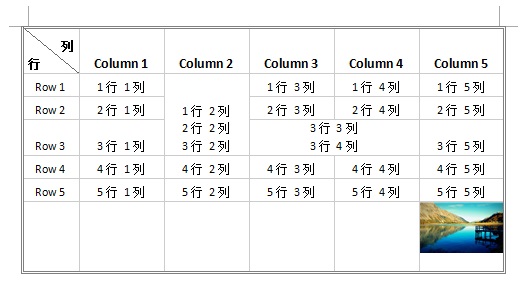
添加表格
添加表格
附:SetTableBorderStyle函数内容
table1.Borders[Microsoft.Office.Interop.Word.WdBorderType.wdBorderLeft].Visible = true;

table1.Borders[Microsoft.Office.Interop.Word.WdBorderType.wdBorderLeft].Color = Word.WdColor.wdColorGreen;

table1.Borders[Microsoft.Office.Interop.Word.WdBorderType.wdBorderLeft].LineWidth = Word.WdLineWidth.wdLineWidth050pt
效果图:
书签使用:
使用步骤:1:建立word模板,并且在word中插入要用到的书签
2:c#方法中新建word操作类,并且打开硬盘中建立好的word模板
3:找到word模板中的书签,并在书签处写入要插入的数据
public void AddDocModel()

        {

            killWinWordProcess();

            wordApp = new ApplicationClass();

            wordApp.DisplayAlerts = WdAlertLevel.wdAlertsNone;

            wordApp.Visible = false;

            object missing = System.Reflection.Missing.Value;

            object templateName = Application.StartupPath + @"\Report";//最终的word文档需要写入的位置

            object ModelName = Application.StartupPath + @"\Report\ReportModel_Stand.doc";//word模板的位置

            object count = ;

            object WdLine = Microsoft.Office.Interop.Word.WdUnits.wdLine;//换一行;

            wordDoc = wordApp.Documents.Open(ref ModelName, ref missing, ref missing,

               ref missing, ref missing, ref missing, ref missing, ref missing, ref missing,

               ref missing, ref missing, ref missing, ref missing, ref missing, ref missing,

               ref missing);//打开word模板

            //在书签处插入文字

            object oStart = "PatName";//word中的书签名

            Range range = wordDoc.Bookmarks.get_Item(ref oStart).Range;//表格插入位置

            range.Text = "这里是您要输入的内容";//在书签处插入文字内容

            //在书签处插入表格

            oStart = "PatInfo";//word中的书签名

            range = wordDoc.Bookmarks.get_Item(ref oStart).Range;//表格插入位置

            MSWord.Table tab_Pat = wordDoc.Tables.Add(range, , , ref missing, ref missing);//开辟一个2行4列的表格

            tab_Pat.Range.Font.Size = 10.5F;

            tab_Pat.Range.Font.Bold = ;

            tab_Pat.Columns[].Width = ;

            tab_Pat.Columns[].Width = ;

            tab_Pat.Columns[].Width = ;

            tab_Pat.Columns[].Width = ;

            tab_Pat.Cell(, ).Range.Text = "病历号";

            tab_Pat.Cell(, ).Range.Text = "PatientNO";

            tab_Pat.Cell(, ).Range.Text = "身高";

            tab_Pat.Cell(, ).Range.Text = "Height";

            tab_Pat.Cell(, ).Range.Text = "姓名";

            tab_Pat.Cell(, ).Range.Text ="PatientName";

            tab_Pat.Cell(, ).Range.Text = "体重";

            tab_Pat.Cell(, ).Range.Text = "Weight";

            //保存word

            object format = WdSaveFormat.wdFormatDocument;//保存格式

            wordDoc.SaveAs(ref templateName, ref format, ref missing, ref missing, ref missing, ref missing, ref missing, ref missing, ref missing, ref missing, ref missing, ref missing, ref missing, ref missing, ref missing, ref missing);

            //关闭wordDoc,wordApp对象

            object SaveChanges = WdSaveOptions.wdSaveChanges;

            object OriginalFormat = WdOriginalFormat.wdOriginalDocumentFormat;

            object RouteDocument = false;

            wordDoc.Close(ref SaveChanges, ref OriginalFormat, ref RouteDocument);

            wordApp.Quit(ref SaveChanges, ref OriginalFormat, ref RouteDocument);

        }

// 杀掉winword.exe进程

        public void killWinWordProcess()

        {

            System.Diagnostics.Process[] processes = System.Diagnostics.Process.GetProcessesByName("WINWORD");

            foreach (System.Diagnostics.Process process in processes)

            {

                bool b = process.MainWindowTitle == "";

                if (process.MainWindowTitle == "")

                {

                    process.Kill();

                }

            }

        }

word书签使用
word书签使用
附: c# 将word文档显示在网页上的方式:
public void WordToHtml(string wordFileName)

        {

            //在此处放置用户代码以初始化页面

            Microsoft.Office.Interop.Word.ApplicationClass word = new Microsoft.Office.Interop.Word.ApplicationClass();

            Type wordType = word.GetType();

            Documents docs = word.Documents;

            //打开文件

            Type docsType = docs.GetType();

            Document doc = (Document)docsType.InvokeMember("Open",

            System.Reflection.BindingFlags.InvokeMethod, null, docs, new Object[] { wordFileName, true, true });

            //转换格式,另存为

            Type docType = doc.GetType();

            string wordSaveFileName = wordFileName.ToString();

            //配置保存htm文件的地址

            string strPath = Server.MapPath("~/Model/Word/Files/");

            string strSaveFileName = strPath + "a.html"; //wordSaveFileName.Substring(0, wordSaveFileName.Length - 3) + "html";

            object saveFileName = (object)strSaveFileName;

            docType.InvokeMember("SaveAs", System.Reflection.BindingFlags.InvokeMethod,

             null, doc, new object[] { saveFileName, WdSaveFormat.wdFormatFilteredHTML });

            docType.InvokeMember("Close", System.Reflection.BindingFlags.InvokeMethod,

             null, doc, null);

            //退出 Word

            wordType.InvokeMember("Quit", System.Reflection.BindingFlags.InvokeMethod,

             null, word, null);

            Response.Write("<script language='javascript'>window.open ('Files/a.html', 'newwindow', 'height=600, width=400, top=0, left=0, toolbar=no, menubar=no, scrollbars=no, resizable=no,location=no, status=no')</script>");

        }

Word转换Html
Word转换成Html
转换思路:
>取得Word文档的本地路径
>将Word文档转换为html文件
>将html保存到项目中
>在当前项目中打开此html文件
局限:
目前只在IE10测试中可以很好使用,在firefox和chrome测试用均有中文乱码的问题,有待解决。
引用:
[转] c# 操作Word的更多相关文章
- python操作word入门
1.安装pywin32 http://sourceforge.net/projects/pywin32 在files里去找适合你的python版本.截止此文,最新版本是pywin32-219快捷路径: ...
- C#中操作Word(1)—— word对象模型介绍
一.开发环境布置 C#中添加对Word的支持,只需添加对Microsoft.Office.Interop.Word的命名空间,如下图所示,右键点击“引用”,在弹出的“添加引用”对话框中选中COM标签页 ...
- C#操作Word的超详细总结
本文中用C#来操作Word,包括: 创建Word: 插入文字,选择文字,编辑文字的字号.粗细.颜色.下划线等: 设置段落的首行缩进.行距: 设置页面页边距和纸张大小: 设置页眉.页码: 插入图片,设置 ...
- C#操作word模板插入文字、图片及表格详细步骤
c#操作word模板插入文字.图片及表格 1.建立word模板文件 person.dot用书签 标示相关字段的填充位置 2.建立web应用程序 加入Microsoft.Office.Interop.W ...
- C#操作Word的辅助类(word2003) 修改完善版
转自:http://blog.csdn.net/jiutao_tang/article/details/6567608 该类在他人编写的几个类基础上扩展完善而来,主要功能有: (1)插入文本 (2)插 ...
- 黄聪:C#操作Word表格的常见操作(转)
几种常见C#操作Word表格操作有哪些呢?让我们来看看具体的实例演示: bool saveChange = false; //C#操作Word表格操作 object missing = System. ...
- c#操作word表格
http://www.webshu.net/jiaocheng/programme/ASPNET/200804/6499.html <% if request("infoid" ...
- Aspose.Words操作word生成PDF文档
Aspose.Words操作word生成PDF文档 using Aspose.Words; using System; using System.Collections.Generic; using ...
- OpenXML操作word
OpenXML概述 项目中经常需要操作word,之前的方式是采用COM接口,这个接口很不稳定,经常报错.现在开始采用OpenXML.OpenXML(OOXML)是微软在Office 2007中提出的一 ...
- c# 操作word
using System; using System.Collections.Generic; using System.Linq; using System.Web; using System.We ...
随机推荐
- 【sklearn】网格搜索 from sklearn.model_selection import GridSearchCV
GridSearchCV用于系统地遍历模型的多种参数组合,通过交叉验证确定最佳参数. 1.GridSearchCV参数 # 不常用的参数 pre_dispatch 没看懂 refit 默认为Tr ...
- VS 工具箱 Dev控件显示
工具箱修复Dev控件显示 用VS2010新打开一个项目,居然发现工具箱里边没了Dev控件. 命令提示符定位到Dev控件的安装目录下的\Components\Tools文件夹下,执行如下命令 添加:To ...
- JSON 总结
<!--Json格式配置映射 直接能访问JSON文本数据--> <system.webServer> <staticContent> <mimeM ...
- 高度注意 Map 类集合 K/V 能不能存储 null 值的情况
集合类 Key Value Super 说明 Hashtable 不允许为 null 不允许为 null Dictionary 线程安全 ConcurrentHashMap 不允许为 null 不允许 ...
- LeetCode 417. Pacific Atlantic Water Flow
原题链接在这里:https://leetcode.com/problems/pacific-atlantic-water-flow/description/ 题目: Given an m x n ma ...
- h5移动端flexible源码适配终端解读以及常用sass函数
;(function(win, lib) { var doc = win.document;// win = window,lib = window.lib; var docEl = doc.docu ...
- Mac 中的sublime text3 如何安装插件
Mac中sublime text安装插件的步骤: 在sublime text中顶部标签栏中View–>Show Console,或者按快捷键control+`打开. 在下面输入框中粘贴进以下代码 ...
- 在MEF中实现延迟加载部件(转)
在MEF的宿主中,当我们通过Import声明导入的对象时,组装(Compose)的时候会创建该对象.例如: interface ILogger { void Log(string ...
- hadoop 之Hadoop生态系统
1.Hadoop生态系统概况 Hadoop是一个能够对大量数据进行分布式处理的软件框架.具有可靠.高效.可伸缩的特点. Hadoop的核心是HDFS和Mapreduce,hadoop2.0还包括YAR ...
- filter防盗链
1这次练习中一直受到相对路径的干扰,现在澄清一点 forward中不是不需要包含根目录的 比如 http://localhost:8080/filter/upload/images/no.jpg 你 ...