
在ubuntu 上创建 ssl 证书
soap webservice 调试工具: soap UI, 可以下载下来玩一玩。
Introduction
TLS, or transport layer security, and its predecessor SSL, which stands for secure sockets layer, are web protocols used to wrap normal traffic in a protected, encrypted wrapper.
Using this technology, servers can send traffic safely between the server and the client without the concern that the messages will be intercepted and read by an outside party. The certificate system also assists users in verifying the identity of the sites that they are connecting with.
In this guide, we will show you how to set up a self-signed SSL certificate for use with an Nginx web server on an Ubuntu 14.04 server. A self-signed certificate will not validate the identity of your server for your users since it is not signed by one of their web browser's trusted certificate authorities, but it will allow you to encrypt communications with your web clients.
Prerequisites
To get started on this guide, you will need to set up some basic things on your server.
You should have a non-root user available who has sudo privileges. You can learn how to set up such a user account by following steps 1-4 in our initial server setup for Ubuntu 14.04.
After that, you'll also need to have the Nginx web server installed. If you would like to install an entire LEMP (Linux, Nginx, MySQL, PHP) stack on your server, you can follow our guide on setting up LEMP on Ubuntu 14.04.
If you just want the Nginx web server, you can instead just type:
sudo apt-get update

sudo apt-get install nginx
Step One — Create the SSL Certificate
We can start off by creating a directory that will be used to hold all of our SSL information. We should create this under the Nginx configuration directory:
sudo mkdir /etc/nginx/ssl
Now that we have a location to place our files, we can create the SSL key and certificate files in one motion by typing:
sudo openssl req -x509 -nodes -days 365 -newkey rsa:2048 -keyout /etc/nginx/ssl/nginx.key -out /etc/nginx/ssl/nginx.crt
You will be asked a series of questions. Before we go over that, let's take a look at what is happening in the command we are issuing:
- openssl: This is the basic command line tool for creating and managing OpenSSL certificates, keys, and other files.
- req: This subcommand specifies that we want to use X.509 certificate signing request (CSR) management. The "X.509" is a public key infrastructure standard that SSL and TLS adheres to for its key and certificate management. We want to create a new X.509 cert, so we are using this subcommand.
- -x509: This further modifies the previous subcommand by telling the utility that we want to make a self-signed certificate instead of generating a certificate signing request, as would normally happen.
- -nodes: This tells OpenSSL to skip the option to secure our certificate with a passphrase. We need Nginx to be able to read the file, without user intervention, when the server starts up. A passphrase would prevent this from happening because we would have to enter it after every restart.
- -days 365: This option sets the length of time that the certificate will be considered valid. We set it for one year here.
- -newkey rsa:2048: This specifies that we want to generate a new certificate and a new key at the same time. We did not create the key that is required to sign the certificate in a previous step, so we need to create it along with the certificate. The
rsa:2048portion tells it to make an RSA key that is 2048 bits long. - -keyout: This line tells OpenSSL where to place the generated private key file that we are creating.
- -out: This tells OpenSSL where to place the certificate that we are creating.
As we stated above, these options will create both a key file and a certificate. We will be asked a few questions about our server in order to embed the information correctly in the certificate.
Fill out the prompts appropriately. The most important line is the one that requests the Common Name (e.g. server FQDN or YOUR name). You need to enter the domain name that you want to be associated with your server. You can enter the public IP address instead if you do not have a domain name.
The entirety of the prompts will look something like this:
Country Name (2 letter code) [AU]:US

State or Province Name (full name) [Some-State]:New York

Locality Name (eg, city) []:New York City

Organization Name (eg, company) [Internet Widgits Pty Ltd]:Bouncy Castles, Inc.

Organizational Unit Name (eg, section) []:Ministry of Water Slides

Common Name (e.g. server FQDN or YOUR name) []:your_domain.com

Email Address []:admin@your_domain.com
Both of the files you created will be placed in the /etc/nginx/ssl directory.
Step Two — Configure Nginx to Use SSL
We have created our key and certificate files under the Nginx configuration directory. Now we just need to modify our Nginx configuration to take advantage of these by adjusting our server block files. You can learn more about Nginx server blocks in this article.
Nginx versions 0.7.14 and above (Ubuntu 14.04 ships with version 1.4.6) can enable SSL within the same server block as regular HTTP traffic. This allows us to configure access to the same site in a much more succinct manner.
Your server block may look something like this:
server {

        listen 80 default_server;

        listen [::]:80 default_server ipv6only=on;

        root /usr/share/nginx/html;

        index index.html index.htm;

        server_name your_domain.com;

        location / {

                try_files $uri $uri/ =404;

        }

}
The only thing we would need to do to get SSL working on this same server block, while still allowing regular HTTP connections, is add a these lines:
server {

        listen 80 default_server;

        listen [::]:80 default_server ipv6only=on;

        listen 443 ssl;

        root /usr/share/nginx/html;

        index index.html index.htm;

        server_name your_domain.com;

        ssl_certificate /etc/nginx/ssl/nginx.crt;

        ssl_certificate_key /etc/nginx/ssl/nginx.key;

        location / {

                try_files $uri $uri/ =404;

        }

}
When you are finished, save and close the file.
Now, all you have to do is restart Nginx to use your new settings:
sudo service nginx restart
This should reload your site configuration, now allowing it to respond to both HTTP and HTTPS (SSL) requests.
Step Three — Test your Setup
Your site should now have SSL functionality, but we should test it to make sure.
First, let's test to make sure we can still access the site with using normal HTTP. In your web browser, go to your server's domain name or IP address:
http://server_domain_or_IP
You should see your normal website. In my example, I'm just serving the default Nginx page:
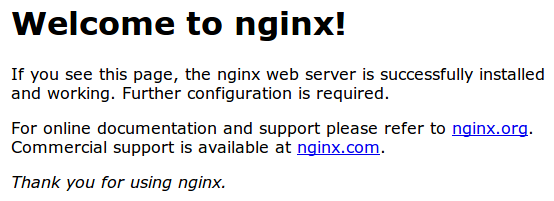
If you get this page, then your server is still handling HTTP requests correctly.
Now, we can check whether our server can use SSL to communicate. Do this by specifying the httpsprotocol instead of the http protocol.
https://server_domain_or_IP
You will likely get a warning in your web browser that looks something like this:
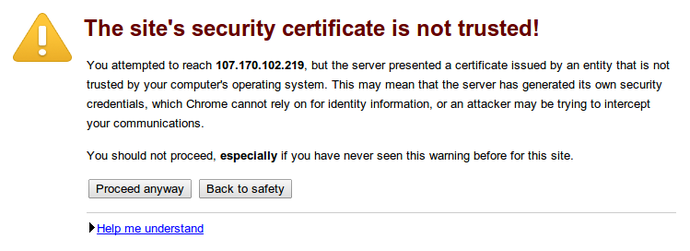
This is expected. It is telling you that it cannot verify the identity of the server you are trying to connect to because it isn't signed by a certificate authority that the browser has been configured to trust. Since we created a self-signed certificate, this makes perfect sense.
Click on "Proceed anyway", "Continue", or whatever similar option is available. You should see your site again:
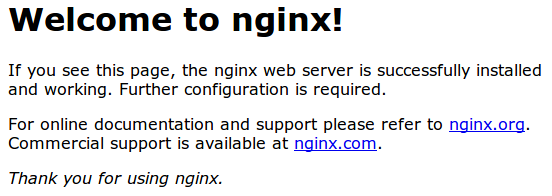
Your browser may show the "https" crossed out in the address bar or a broken or crossed out "lock" icon. If you click on the lock icon, you can see some more information about the connection:
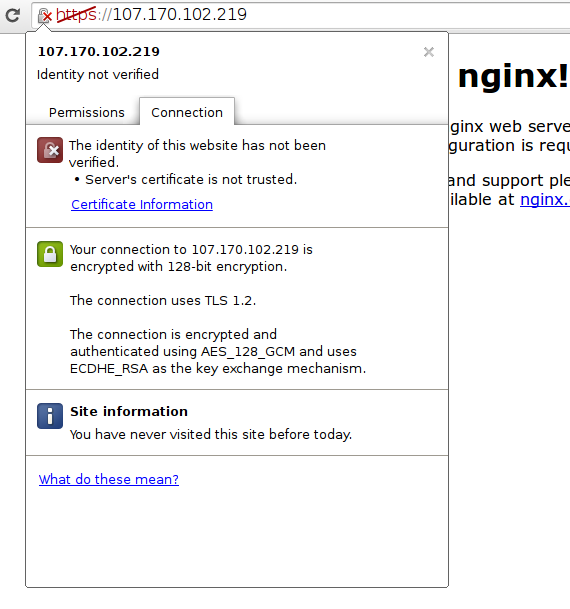
As you can see, the issue is only that the browser cannot verify the identity of the server because it isn't signed by a certificate authority that it is configured to trust. The middle section shows that the connection is encrypted, however, so we have achieved that goal.
Conclusion
You have configured your Nginx server to handle both HTTP and SSL requests. This will help you communicate with clients securely and avoid outside parties from being able to read your traffic.
If you are planning on using SSL for a public website, you should probably purchase an SSL certificate from a trusted certificate authority to prevent the scary warnings from being shown to each of your visitors.
在ubuntu 上创建 ssl 证书的更多相关文章
- 菜鸟玩云计算之十五:在Ubuntu上创建和管理Redhat虚拟机
菜鸟玩云计算之十五:在Ubuntu上创建和管理Redhat虚拟机 chedou@hgdb.net 虚拟机给工作带来巨大的便利,不仅仅体现在资源的按需使用,而且配置的迁移特别方便.本文将使用Ubuntu ...
- nginx上通过ssl证书将http转发为https
环境:阿里云linux,ngnix 1.16.0 ,ssl证书,XXXX.jar 0.自行在阿里云上下载免费的ssl证书.里面有2个文件.key和pem后面要用到. 1.首先将项目在linux上跑起来 ...
- 如何在 CentOS 7 上生成 SSL 证书为 Nginx 加密
本文首发:开发指南:如何在 CentOS 7 上安装 Nginx Let’s Encrypt 是由 Internet Security Research Group (ISRG) 开发的一个自由.自动 ...
- 在Apache服务器上安装SSL证书
参考:链接 前提条件 1.您的Apache服务器上已经开启了443端口(HTTPS服务的默认端口) // 开通443端口 firewall-cmd --zone=public --add-port=4 ...
- Nginx上安装SSL证书
准备 参考 :链接 下载的Nginx证书压缩文件解压后包含: .pem:证书文件.PEM文件的扩展名为CRT格式. .key:证书密钥文件.申请证书时如果未选择自动创建CRS,则下载的证书文件压缩包中 ...
- Ubuntu 上创建常用磁盘阵列
RAID(Redundant Array of Independent Disk 独立冗余磁盘阵列)技术是加州大学伯克利分校1987年提出,最初是为了组合小的廉价磁盘来代替大的昂贵磁盘,同时希望磁盘失 ...
- 如何在Ubuntu上创建及管理LXC容器?
将LXC安装到Ubuntu上 $ sudo apt-get install lxc 安装完毕之后,运行lxc-checkconifg工具,检查当前Linux内核支持LXC的情况.要是一切都已被启用,内 ...
- IIS 7上导入SSL证书
1.将SSL证书文件上传至服务器 2.导入证书 1)在IIS设置项中,打开‘服务器证书’ 2)选择导入 3)将网站绑定SSL证书
- WDCP上传SSL证书
1.在线申请SSL证书 2.网站管理>SSL证书上传 3.将key文件直接上传,cert文件内容复制到crt文件中,再上传 4.开启https 注意:同一个域名下解析的若干域名,只能走主域名的证 ...
随机推荐
- 【第三篇】学习 android 事件总线androidEventbus之发布事件,子线程中接收
发送和接收消息的方式类似其他的发送和接收消息的事件总线一样,不同的点或者应该注意的地方: 1,比如在子线程构造方法里面进行实现总线的注册操作: 2,要想子线程中接收消息的功能执行,必须启动线程. 3, ...
- HDU 5812 Distance
从a变到b,也就是将a一直除素因子,除到1为止,然后乘b的素因子,一直乘到b. 但是gcd(a,b)部分是不用除下去的.所以d(a,b)=a/gcd(a,b)的素因子个数+b/gcd(a,b)的素因子 ...
- webapp 微信开发适配问题
文章摘自:http://www.cnblogs.com/oksite/p/4630462.html 前段时间由于公司要做微信app 前端主要有我一个人独立开发 分享一下自己独立开发微信app的一些经验 ...
- JS电子文档链接
http://www.oschina.net/translate/learning-javascript-design-patterns 学用 JavaScript 设计模式 http://es6 ...
- iOS 2x 3x
iOS中: 备注: Retina是一种显示技术,可以将把更多的像素点压缩至一块屏幕里,从而达到更高的分辨率并提高屏幕显示的细腻程度.而其最初该技术是用于苹果的iPhone4上.其屏幕分辨率为960×6 ...
- iOS申请真机调试证书 -- 图文详解
请参考这篇文章 : http://ios.9tech.cn/news/2013/1011/33117.html 这篇文章完全就是对的,主要是最后一步 “配置Xcode" 图没有配全,也配得不 ...
- Tomcat服务器顶层结构和启动过程【转】
号外:2016 最流行的是哪一种 Java 应用服务器呢? 通过从部署的 1240 个 JVM 中得到的数据,我们能够确定出现了 862 个容器供应商,或者说是占到了运行环境的 70% 左右.这些容器 ...
- build path contains duplicate entry:'src' for project 'XXX'
解决了,原因是编译器配置不正确,原工程使用adk8/android2.3,我用的是最新的4.0,改了下编译环境就好了.
- Linux KVM 安装配置
--------------------------一.前言二.环境三.安装与配置四.创建kvm虚拟机 一.前言 KVM,即Kernel-based Virtual Machine的简称,是一个开源的 ...
- CREATE SCHEMA
CREATE SCHEMA 创建一个架构,即命名空间,在这个空间中可以进一步定义包含表.视图和权限定义等对象. 语法 CREATE SCHEMA AUTHORIZATION owner [ &l ...