
Web Automation with Selenium (C#)
Web Automation is a quite regular task nowadays, scripting for repeated operations and testing. Selenium is a good toolkit for this kind of tasks.
There are four subprojects in Selenium:
Selenuim IDE is a firefox addon. It can record and replay your actions in firefox, then export scripts in your desired language (Selenese, Java, C# or other bindings). Selenium WebDriver is used for driving a browser natively in your language binding, including:
- AndroidDriver
- ChromeDriver
- EventFiringWebDriver
- FirefoxDriver
- HtmlUnitDriver
- InternetExplorerDriver
- IPhoneDriver
- PhantomJSDriver
- RemoteWebDriver
- SafariDriver
We will use FirefoxDriver, ChromeDriver and InternetExplorerDriver in C# here.
Step 1: Download selenium-dotnet-2.37.0.zip
http://code.google.com/p/selenium/downloads/detail?name=selenium-dotnet-2.37.0.zip&can=2&q=
Step 2: Setup the environment
Create an directory for selenium files <selenium>. Then extract selenium-dotnet-2.37.0.zip to <selenium>/lib.

NAnt script for building:
<?xml version="1.0"?>

<project name="selenium" default="run">

    <property name="debug" value="true" />

    <property name="outdir" value="bin" />

    <property name="libdir" value="lib/net40" />

    <property name="datadir" value="data" />

    <target name="clean" description="remove all generated files">

    <!-- Files: '*.xml; *.pdb' -->

        <delete>

            <fileset>

                <include name="*.xml" />

                <include name="*.exe" />

                <include name="*.pdb" />

            </fileset>

        </delete>

        <delete dir="${outdir}" />

    </target>

    <target name="build" description="compiles the source code">

        <mkdir dir="${outdir}" />

        <foreach item="File" property="filename">

            <in>

                <items>

                    <include name="*.cs" />

                    <exclude name="*Test.cs" />

                </items>

            </in>

            <do>

                <echo message="${filename}" />

                <csc debug="${debug}" output="${path::combine(path::combine(path::get-directory-name(filename), outdir), path::get-file-name(path::change-extension(filename, 'exe')))}" target="exe">

                    <sources>

                        <include name="${filename}" />

                    </sources>

                    <references basedir="${libdir}">

                        <include name="WebDriver.dll" />

                        <include name="WebDriver.Support.dll" />

                    </references>

                </csc>

            </do>

        </foreach>

        <foreach item="File" property="filename">

            <in>

                <items>

                    <include name="*Test.cs" />

                </items>

            </in>

            <do>

                <echo message="${filename}" />

                <csc debug="${debug}" output="${path::combine(path::combine(path::get-directory-name(filename), outdir), path::get-file-name(path::change-extension(filename, 'dll')))}" target="library">

                    <sources>

                        <include name="${filename}" />

                    </sources>

                    <references basedir=".">

                        <include name="${nant::scan-probing-paths('nunit.framework.dll')}" />

                        <include name="${libdir}/WebDriver.dll" />

                        <include name="${libdir}/WebDriver.Support.dll" />

                    </references>

                </csc>

            </do>

        </foreach>

        <copy todir="${outdir}">

            <fileset basedir="${libdir}">

              <include name="WebDriver.dll" />

              <include name="WebDriver.Support.dll" />

            </fileset>

        </copy>

    </target>

    <target name="run" depends="build">

        <foreach item="File" property="filename">

            <in>

                <items>

                    <include name="${outdir}/*.exe" />

                </items>

            </in>

            <do>

                <echo message="${filename}" />

                <exec program="${path::combine(outdir,filename)}"  workingdir="${outdir}"/>

            </do>

        </foreach>

    </target>

    <target name="test" depends="build">

        <nunit2>

            <formatter type="Plain" />

            <test>

                <assemblies basedir="${outdir}">

                    <include name="*Test.dll" />

                </assemblies>

            </test>

        </nunit2>

    </target>

</project>
Step 3: Kick start
Just a Hello World in Selenium WebDriver C#. It opens the browser and search 'selenium' in Google, then return the page title.
using System;

using OpenQA.Selenium.IE;

using OpenQA.Selenium.Firefox;

using OpenQA.Selenium.Chrome;

using OpenQA.Selenium;

// Requires reference to WebDriver.Support.dll

using OpenQA.Selenium.Support.UI;

namespace huys

{

    class Program

    {

        static void Main(string[] args)

        {

            // For Firefox

            //var driver = new FirefoxDriver();

            // For IE

            //var driver = new InternetExplorerDriver();

            // For chrome

            var options = new ChromeOptions();

            options.BinaryLocation = "C:\\Program Files (x86)\\Google\\Chrome\\Application\\chrome.exe";

            var driver = new ChromeDriver("..\\lib", options);

            //Notice navigation is slightly different than the Java version

            //This is because 'get' is a keyword in C#

            driver.Navigate().GoToUrl("http://www.google.com/");

            // Find the text input element by its name

            IWebElement query = driver.FindElement(By.Name("q"));

            // Enter something to search for

            query.SendKeys("selenium");

            // Now submit the form. WebDriver will find the form for us from the element

            query.Submit();

            // Google's search is rendered dynamically with JavaScript.

            // Wait for the page to load, timeout after 10 seconds

            WebDriverWait wait = new WebDriverWait(driver, TimeSpan.FromSeconds());

            wait.Until((d) => { return d.Title.ToLower().StartsWith("selenium"); });

            // Should see: "Cheese - Google Search"

            System.Console.WriteLine("Page title is: " + driver.Title);

            //Close the browser

            driver.Quit();

        }

    }

}
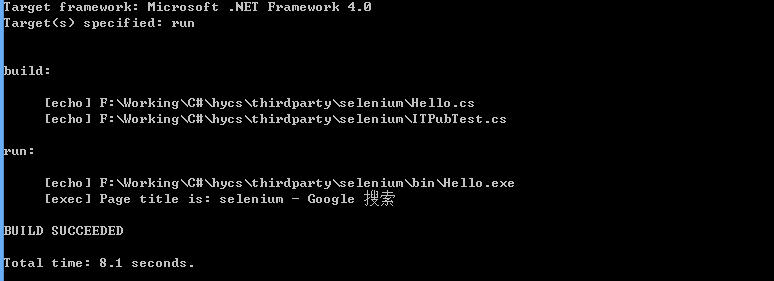
* Problems with ChromeDriver
FireFoxDriver is perfect in selenium, but ChromeDriver isn't. You have to download chromedriver.exe for running ChromeDriver. If chrome wasn't installed under default location, the code definitely will fail.
The server expects you to have Chrome installed in the default location for each system:
| OS | Expected Location of Chrome |
| Linux | /usr/bin/google-chrome1 |
| Mac | /Applications/Google\ Chrome.app/Contents/MacOS/Google\ Chrome |
| Windows XP | %HOMEPATH%\Local Settings\Application Data\Google\Chrome\Application\chrome.exe |
| Windows Vista | C:\Users\%USERNAME%\AppData\Local\Google\Chrome\Application\chrome.exe |
Unfortunately no chrome under default location on my laptop. To overcome this issue, some extra lines for locations.
 // For chrome

 var options = new ChromeOptions();

 options.BinaryLocation = "C:\\Program Files (x86)\\Google\\Chrome\\Application\\chrome.exe"; // Explicitly define the path to chrome.exe

  var driver = new ChromeDriver("..\\lib", options); // Add the directory for chromedriver.exe
[1] http://code.google.com/p/selenium/wiki/ChromeDriver
[2] http://selenium.googlecode.com/git/docs/api/dotnet/index.html
[3] http://docs.seleniumhq.org/
Web Automation with Selenium (C#)的更多相关文章
- 《零成本实现Web自动化测试--基于Selenium》第一章 自动化测试基础
第一篇 Selenium 和WebDriver工具篇 第一章 自动化测试基础 1.1 初识自动化测试 自动化测试有两种常见方式 1.1.1 代码驱动测试,又叫测试驱动开发(TDD) 1.1.2 ...
- 《零成本实现Web自动化测试--基于Selenium》 第四章 Selenium 命令
Selenium 命令,通常被称为Selenese,由一系列运行测试案例所需要的命令构成.按顺序排列这些命令就构成了测试脚本. 一. 验证颜面元素 1.Assertion或者Verification ...
- 《零成本实现Web自动化测试--基于Selenium》第二章 Selenium简介和基础
第一部分 Selenium简介 1.Selenium 组建 1.1 Selenium-IDE Selenium-IDC是开发Selenium测试案例的集成开发环境.它像FireFox插件一样的工作,支 ...
- python自动化测试应用-第6篇(WEB测试)--Selenium元素篇
篇6 python自动化测试应用-Selenium基础篇 --lamecho 1.1概要 大家好!我是lamecho(辣么丑),上一篇我们搭建好p ...
- WEB自动化(Python+selenium)的API
在做Web自动化过程中,汇总了Python+selenium的API相关方法,给公司里的同事做了第二次培训,分享给大家 ...
- 开源Web自动化测试工具Selenium IDE
Selenium IDE(也有简写SIDE的)是一款开源的Web自动化测试工具,它实现了测试用例的录制与回放. Selenium IDE目前版本为 3.6 系列,支持跨浏览器运行,所以IDE的UI从原 ...
- python3 web测试模块selenium
selenium是一个用于web应用程序测试工具,selenium测试直接运行在浏览器中,就像真正的用户在操作一样,支持的浏览器包括IE(7,8,9,10,11),mozilla firefox,sa ...
- .NET项目web自动化测试实战——Selenium 2.0
PS:这次用公司的项目来练手,希望公司不会起诉我,因为我绝对是抱着学习的态度,没有任何恶意.仅供交流学习. 该项目是基于SharePoint平台所开发的门户网站,为了切身感受一下Selenium 2. ...
- web automation 常用技术比较
selenium2支持通过各种driver(FirfoxDriver,IternetExplorerDriver,OperaDriver,ChromeDriver)驱动真实浏览器完成测试. 除此之外, ...
随机推荐
- canvas技术整理
canvas技术整理 html <canvas id= "canvas"></canvas> javascript var canvas = documen ...
- bzoj1214 [HNOI2004]FTP服务器
题目挺复杂的. 但有一点好,就是这题没数据,交个空程序就好了. begin end.
- MT【195】三次函数
(2016年清华大学自主招生暨领军计划试题) 已知$x,y,z\in \mathbf{R}$,满足$x+y+z=1,x^2+y^2+z^2=1$,则下列结论正确的有( ) A.$xyz$的最大值为$0 ...
- 学习Spring Boot:(十九)Shiro 中使用缓存
前言 在 shiro 中每次去拦截请求进行权限认证的时候,都会去数据库查询该用户的所有权限信息, 这个时候就是有一个问题了,因为用户的权限信息在短时间内是不可变的,每次查询出来的数据其实都是重复数据, ...
- bzoj1038
这是一道非常有意思的题目 Description 致力于建设全国示范和谐小村庄的H村村长dadzhi,决定在村中建立一个瞭望塔,以此加强村中的治安.我们将H村抽象为一维的轮廓.如下图所示 我们可以用一 ...
- Maven添加第三方库及部署配置
配置其实很简单,还是修改~/.m2/settings.xml文件,具体用文件说话,其他不解释. <?xml version="1.0" encoding="UTF- ...
- Django通过中间件实现登录验证demo
前提:中间件版的登录验证需要依靠session,所以数据库中要有django_session表. from django.conf.urls import url from django.contri ...
- struts2拦截器interceptor的配置方法及使用
转: struts2拦截器interceptor的配置方法及使用 (2015-11-09 10:22:28) 转载▼ 标签: it 365 分类: Struts2 NormalText Code ...
- C语言复习---二维数组和二级指针的关系:没关系,别瞎想(重点)
前提:一维数组和一维指针为什么可以替换使用? ] = { , , }; int *p = a; ; i < ; i++) printf("%d ", *(p + i)); 上 ...
- Spring RedisTemplate操作-Set操作(5)
@Autowired @Resource(name="redisTemplate") private RedisTemplate<String, String> rt; ...