
Ubuntu Server 18.04 LTS安装
Please choose your preferred language。
选择您喜欢的语言
这里直接选择【English】

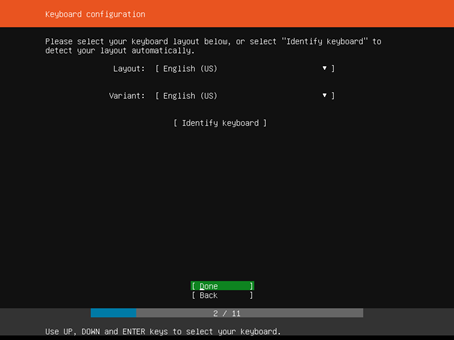
Keyboard configuration
键盘配置
Please select your keyboard layout below,or select "Identify keyboard" to detect your layout automatically
请在下面选择键盘布局,或选择“识别键盘”自动检测布局
这里保持默认设置,直接回车
Welcome to Ubuntu ! The world's favourite platform for clouds, clusters, and amazing internet things. This is the installer for Ubuntu on servers and internet devices.
欢迎来到Ubuntu!世界上最受欢迎的云平台、集群和惊人的互联网事物。这是服务器和Internet设备上Ubuntu的安装程序。
Install Ubuntu
Install MAAS bare-metal cloud (region)
Install MAAS bare-metal cloud (rack)
对于这里我们选择的是【Install Ubuntu】

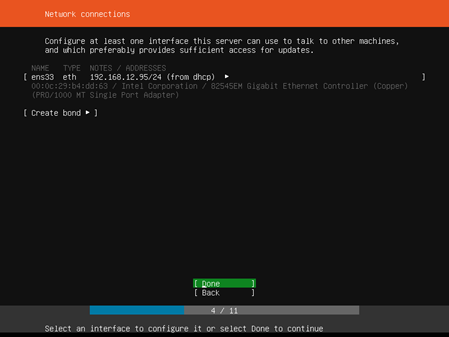
Network connections
网络连接
Configure at least one interface this server can use to talk to other machines,and which preferably provides sufficient access for updates.
配置此服务器可用于与其他计算机对话的至少一个接口,该接口最好为更新提供足够的访问权限。
这里默认通过dhcp的方式获取到一个IP地址192.168.12.65,这里直接选择【Done】执行下一步
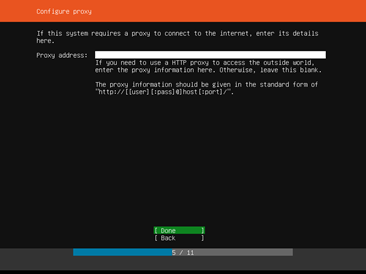
Configure proxy
配置代理
If this system requires a proxy to connect to the internet, enter its details here.
如果此系统需要代理连接到Internet,请在此处输入其详细信息。
If you need to use a HTTP proxy to access the outside world,enter the proxy information here.Otherwise,leave this blank.
如果需要使用HTTP代理访问外部世界,请在此处输入代理信息。否则,请将此项留空。
the proxy information should be given in the standard form of http://[[user][:pass]@]host[:port]/
代理信息应以“http://[[user][:pass]@]host[:port]/”的标准格式提供。
这里我们没有使用到代理,所以直接选择【Done】执行下一步
Configure Ubuntu archive mirror
配置Ubuntu存档镜像
If you use an alternative mirror for Ubuntu, enter its details here.
如果为Ubuntu使用备用镜像,请在此处输入其详细信息。
mirror address:
镜像地址:
you may provide an archive mirror that will be used instead of the default 'http://archive.ubuntu.com/ubuntu'
您可以提供一个存档镜像,而不是默认的'http://archive.ubuntu.com/ubuntu'
关于这个信息是修改apt-get源而对于这个后面我们可以进行修改的,所以这里直接选择【Done】执行下一步

Filesystem setup
文件系统设置
The installer can guide you through partitioning an entire disk either directly or using LVM, or, if you prefer,you can do it manually.
安装程序可以指导您直接或使用lvm对整个磁盘进行分区,或者,如果您愿意,您可以手动分区。
If you choose to partition an entire disk you will still have a chance to review and modify the results.
如果选择对整个磁盘进行分区,您仍有机会查看和修改结果。
Use An entire Disk 使用整个磁盘
Use An Entire Disk And Set Up LVM 使用整个磁盘并设置lvm
Manual 手动
Back 返回
这里我们选择【Manual】手动分区

Filesystem setup 文件系统设置
FILE SYSTEM SUMMARY 文件系统摘要
No disk or partitions mounted 未安装磁盘或分区
AVAILABLE DEVICES 可用设备

按如图

这里我们建立一个500M的/boot分区
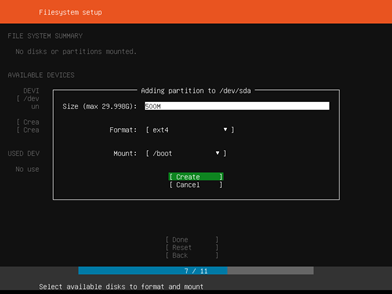
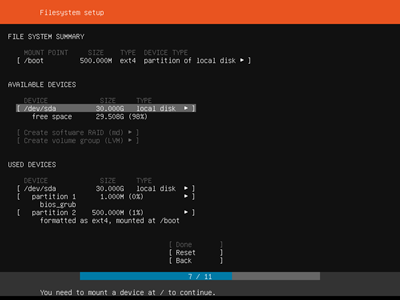
然后再用相同的方法建立/swp分区为16G,因为这里我设置了虚拟机的内存大小为4G;根分区为剩下的大小:

然后,按Tab键选择【Done】后,弹出下面内容:
Confirm destructive action
确认破坏性行为
Selecting Continue below will begin the installation process and result in the loss of data on the disks selected to be formatted.
选择下面的继续将开始安装过程,并导致选定要格式化的磁盘上的数据丢失。
You will not be able to return to this or a previous screen once the installation has started.
安装开始后,您将无法返回此屏幕或上一个屏幕。
Are you sure you want to continue?
是否确实要继续?
对于这里是将我们划分的分区进行格式化,并且说明会丢失分区中的数据,因为我们是虚拟机所以对于这里是没有关系的。这里选择【Continue】直接下一步:

Enter the username and password (or ssh identity) you will use to log in to the system.
输入用于登录系统的用户名和密码(或ssh标识)。
The name it uses when it talks to other computers.
它与其他计算机对话时使用的名称(主机名)。
pick a username
选择用户名(这是登录时候输入的用户名)
这里输入完成后选择【Done】执行下一步。

These are popular snaps in server environments. Select or deselect with SPACE,press ENTER to see more details of the package,publisher and versions abailable.
这些是服务器环境中常见的快照。使用空格选择或取消选择,按Enter键可查看可用的软件包、发布者和版本的详细信息。
这里我们不按照任何快照程序,因为这里都是可以后面需要的时候再进行安装的,使用Tab键选择【Done】下一步:
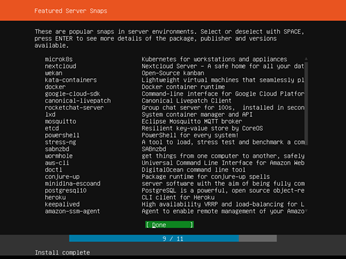
接着是一个安装过程,请耐心等待,安装完成后会在[View full log]按钮下多出一个[Reboot Now]按钮。
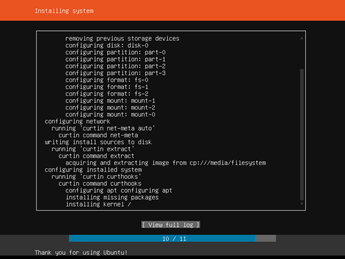
接着我们选择【Reboot Now】重启ubuntu:
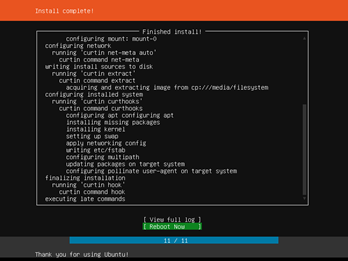
然后会跳转到看到下面看到的画面,然后我们按下键盘上的【回车】,系统就会开始重新启动:

重启后就会来到下面页面,回车就可以看到提示输入用户名:
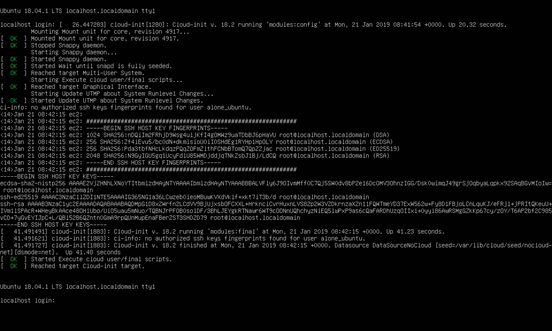
这里的登录用户名就是刚刚的pick a username。
Ubuntu Server 18.04 LTS安装的更多相关文章
- Ubuntu Server 18.04 LTS 安装
版本:Ubuntu Server 18.04.1 LTS 环境:VMware Workstation 14 Player 下载地址:https://www.ubuntu.com/download/se ...
- ubuntu server 18.04 lts 终端中文显示为乱码的解决方案
.最近安装ubuntu server 18.04 lts版本发现系统自带的终端下无论是编辑中文,还是显示中文均出现乱码,还是老毛病, 今天无意中发现通过ssh,远程访问,在windows中安装开源的p ...
- ubuntu server 18.04的安装 以及配置网络还有ssh服务
ubuntu server 18.04的安装 以及配置网络还有ssh服务 服务器是 dell T420 安装过程中规中矩,其中最关键的是分区部分,由于是服务器,如果磁盘比较大的话,一定要用 uef ...
- 如何在Ubuntu Server 18.04 LTS中配置静态IP地址
安装Ubuntu Server 18.04后需要分配一个的静态IP地址.先前的LTS版本Ubuntu 16.04使用/etc/network/interfaces文件配置静态IP地址,但是Ubuntu ...
- ubuntu server 18.04 单机安装openstack
https://ubuntu.com/openstack/install#workstation-deployment sudo snap install microstack --classic - ...
- ubuntu server 14.04 LTS下搭建LAMP环境之最详细笔记之一U盘安装双系统
前言: 一直在WIN上使用PHP,不喜欢用WAMP,每次都是手动在windows配置环境,偶尔有一次装了小红帽玩了两天,感觉不是很习惯就换了回来,过了没几天见讨论LAMP环境,于是安装了ubuntu的 ...
- Ubuntu Server 14.04 LTS(64bit)已安装 weblogic Server 12c(12.1.3) Zip Distribution
这里说的对Ubuntu Server 14.04 LTS(64bit)已安装weblogic Server 12c(12.1.3) Zip Distribution遇到的问题.至于Windows什么好 ...
- 转:ubuntu 18.04 LTS 安装 java10(JDK) 及问题说明
原文地址:ubuntu 18.04 LTS 安装 java10 及问题说明 1.下载相应的安装包,例如jdk-10.0.1_linux-x64_bin.tar.gz.下载地址: http://www. ...
- 基于Ubuntu Server 16.04 LTS版本安装和部署Django之(二):Apache安装和配置
基于Ubuntu Server 16.04 LTS版本安装和部署Django之(一):安装Python3-pip和Django 基于Ubuntu Server 16.04 LTS版本安装和部署Djan ...
随机推荐
- GridSearchCV.grid_scores_和mean_validation_score报错
目录 GridSearchCV.grid_scores_和mean_validation_score报错 0. 写在前面 1. 问题描述和解决过程 2. 不想比比直接看结果部分 GridSearchC ...
- swift 广告轮播图
import UIKit import Kingfisher class BannerView: UIView,UIScrollViewDelegate{ enum ImageType{ case I ...
- JMeter(6) jenkins测试报告及邮件优化
jenkins邮件 使用jenkins执行完任务自动将测试结果发送到邮箱,效果如下: 生成html报告 build文件设置 jenkins设置 SummaryReport写入邮件正文 ...
- 位运算>>和>>>区别
int a=-1; Integer b=0; Integer c=0; System.out.println(Integer.toBinaryString(a)); b=a>>1; c=a ...
- HDU 1260 Tickets DP
http://acm.hdu.edu.cn/showproblem.php?pid=1260 用dp[i]表示处理到第i个的时候用时最短. 那么每一个新的i,有两个选择,第一个就是自己不和前面的组队, ...
- pom文件jar包缺失问题
一般情况,不在中央仓库的jar包,比如自己的版本,要用的话打入maven私服 在eclipse中引入其他项目(包含jar包),类似于放入了私服,删除工程源文件,会导致别的工程引用此jar包失效
- B. Game of the Rows
B. Game of the Rows time limit per test 1 second memory limit per test 256 megabytes input standard ...
- javascript结合nodejs实现多文件上传
前端文件上传功能比较依赖后端,所以第一步用nodejs实现一个供文件上传的功能接口. 因为本人对nodejs也是一知半解,所以刚开始的想法是像原始的ajax交互那样,获取上传文件的内容,然后再通过no ...
- 如何快速构建CMBD系统-glpi
一.CMBD系统构建步骤 起初,开发这套CMBD系统是为了帮助朋友公司简化设备统计操作,以代替人工入库方式.举个例子,单位发放笔记本,或者设备更换了硬盘,都需要人工签到,手动输入统计,安装了CMBD系 ...
- 使用java来压缩图片
使用java来压缩图片,简单几句,清清爽爽 使用0.3的压缩比得到的结果如下(从2.8M压缩到268K,且图片的清晰度看不出明显差别): package carlspringtest; import ...