
Gitlab仓库搭建及在Linux/windows中的免密使用
1. Gitlab简介
Gitlab:代码私有仓库,可以使用Git进行代码的管理。
GitHub:公共仓库。
GitLab 是一个用于仓库管理系统的开源项目,使用Git作为代码管理工具,并在此基础上搭建起来的web服务。
可通过Web界面进行访问公开的或者私人项目。它拥有与Github类似的功能,能够浏览源代码,管理缺陷和注释。可以管理团队对仓库的访问,它非常易于浏览提交过的版本并提供一个文件历史库。团队成员可以利用内置的简单聊天程序(Wall)进行交流。它还提供一个代码片段收集功能可以轻松实现代码复用。
可以将Gitlab理解为一个大型的容器,将代码一块一块的存放到其中,从远程进行连接使用,进行克隆或者下载。
管理的命令
gitlab-ctl stop
gitlab-ctl start
gitlab-ctl restart
2. Gitlab的安装使用
1> 上传二进制压缩包
[root@localhost ~]# rz

[root@localhost ~]# ls

anaconda-ks.cfg gitlab-ce-8.9.-ce..el7.x86_64.rpm STXINWEI.TTF work_git
2> 安装本地文件包
[root@localhost ~]# yum localinstall -y gitlab-ce-8.9.-ce..el7.x86_64.rpm #localinstall命令用来安装本地的rpm包

……..

Installed:

gitlab-ce.x86_64 :8.9.-ce..el7
3> 更改Gitlab配置文件,更改Gitlab的ip
[root@localhost ~]# vim /etc/gitlab/gitlab.rb

external_url 'http://192.168.16.4'              #修改为主机的ip地址
4> 重新配置,此处将内存改大一点,可以很快的完成配置。此处需要几分钟
[root@localhost ~]# gitlab-ctl reconfigure

Running handlers:

Running handlers complete

Chef Client finished, / resources updated in  minutes  seconds

gitlab Reconfigured!
题外话:以后搭建OpenStack内存不够用将swap分区改大一点
5> 配置完成后关掉占用80端口的服务,在windows端输入主机地址进行查看
[root@localhost ~]# ss -tnl

……

LISTEN   ::: :::*

[root@localhost ~]# systemctl stop httpd
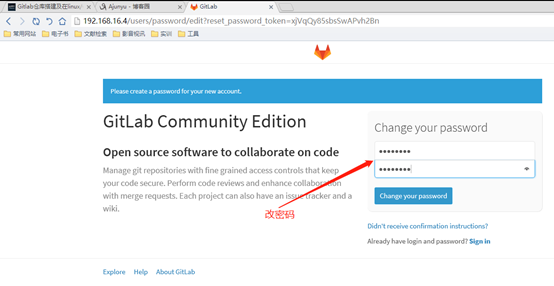
简单起见密码为12345678,密码少于八位无法通过。
密码修改完成后进入注册界面。
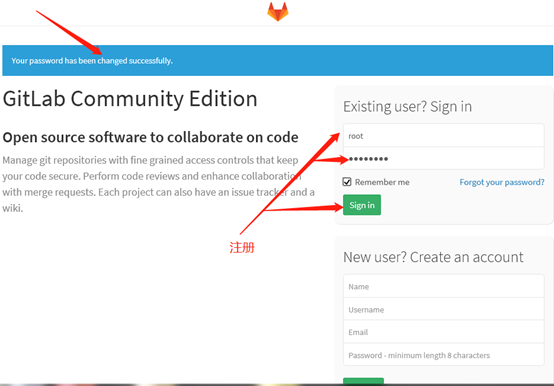
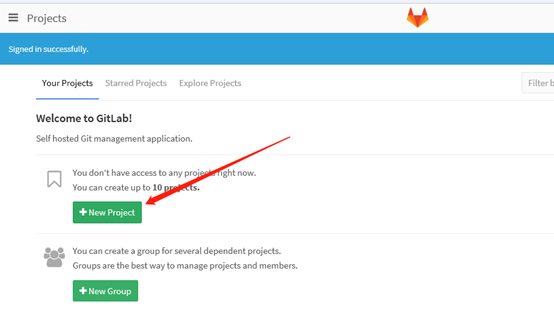
进入Gitlab,可以使用了。
点击new project,创建新项目。
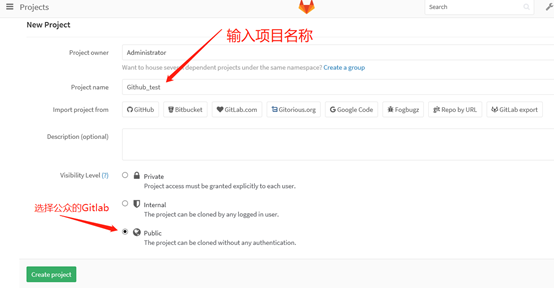
创建项目名称,选择公共的Gitlab,点击create project创建项目。
3. Gitlab项目使用
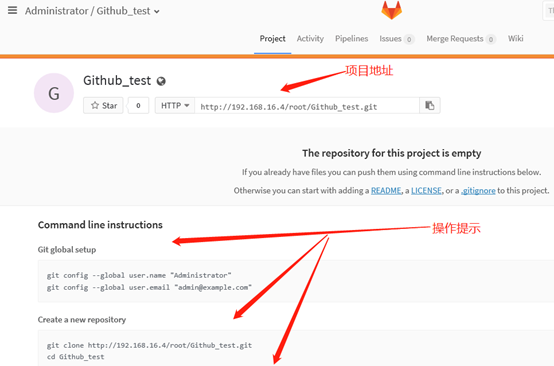
1> 创建Gitlab使用目录
[root@localhost ~]# mkdir gitlab_test

[root@localhost ~]# cd gitlab_test/

[root@localhost gitlab_test]#
2> 克隆远程仓库至本地
[root@localhost gitlab_test]# git clone http://192.168.16.4/root/Github_test.git   # 地址为项目的http地址

Cloning into 'Github_test'...

warning: You appear to have cloned an empty repository.

[root@localhost gitlab_test]# ls

Github_test # 项目名称
3> 编辑文本信息进行推送
[root@localhost gitlab_test]# cd Github_test/

[root@localhost Github_test]# ls -a

. .. .git                                                                #含有git文件

[root@localhost Github_test]# touch zxj

[root@localhost Github_test]# echo "this is gitlab test contents" >> zxj #写入内容
4> 提交
[root@localhost Github_test]# git add .

[root@localhost Github_test]# git commit -m v1

[master (root-commit) 71cd526] v1

 file changed,  insertion(+)

create mode  zxj
5> 进行远程推送
[root@localhost Github_test]# git push -u origin master    #远程的、分支

Username for 'http://192.168.16.4': root                   #用户

Password for 'http://root@192.168.16.4':                   #密码

Counting objects: , done.

Writing objects: % (/),  bytes |  bytes/s, done.

Total  (delta ), reused  (delta )

To http://192.168.16.4/root/Github_test.git

* [new branch] master -> master

Branch master set up to track remote branch master from origin.

[root@localhost Github_test]#
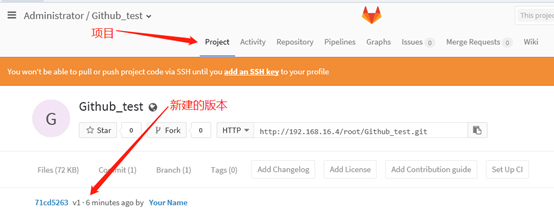
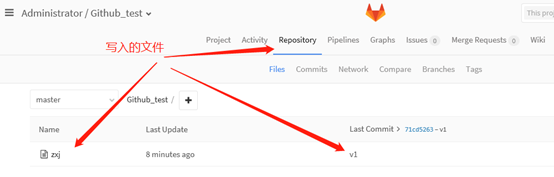
6> Gitlab仓库查看
可以看到更新的v1版本
写入的文件
4. Linux中免密使用Gitlab
1> 生成秘钥
root@localhost Github_test]# ssh-keygen
2> 复制公钥信息
[root@localhost Github_test]# cat /root/.ssh/id_rsa.pub #公钥文件

ssh-rsa AAAAB3NzaC1yc2EAAAADAQABAAABAQDARohqXBK+mnUVAzScFeQxNnWWo96el0wieiUD6WND2U7j/T121obOLqPHrCsTjWP6GYytfqunHi5DC8zEcpJtx73VWgoMbMAavgFL1Cp29nak8qKcUcXLp5M8upxBr0zaM7vsKYgAkTUbUwfG+iPxA6Mk6106NuU9hcjNlkfHGtOUMaM7OllrsDFjBDTmwyONNszJxROXwfxrxOrdhlVhOf30MckIHV+24E63q+UL8DdO34mmSf8Ah2wBGhTJvz1yevqa0TWd3gBO0daZMT/5AWQR9iAHVDON0vKfSsSiG6h7XAiEjryxwn8ZZintJj6NEvYGgOxGgaLsEmc+Ch7v root@localhost.localdomai
3> 把公钥复制到Gitlab中
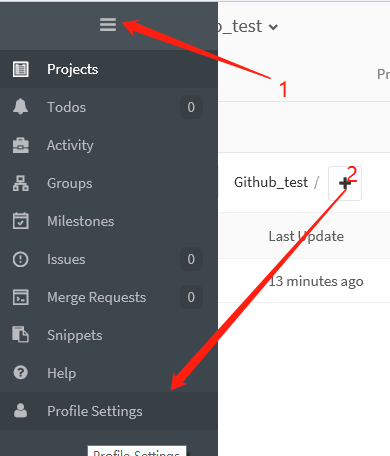
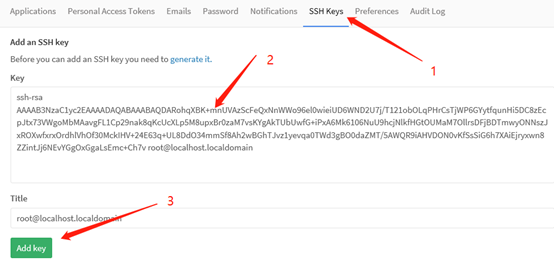
回到项目。
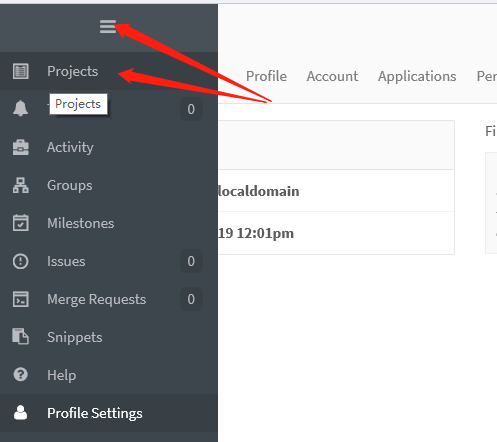
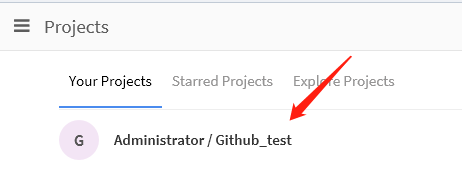
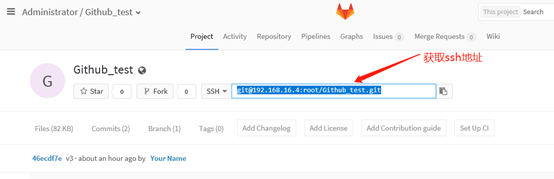
获取ssh地址,利用ssh免密登录
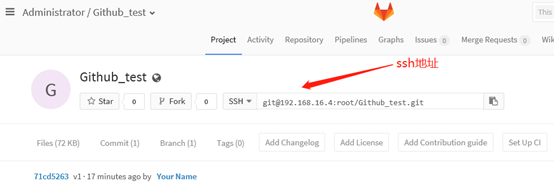
[root@localhost zxj2]# git clone git@192.168.16.4:root/Github_test.git

[root@localhost zxj2]# cd Github_test/

[root@localhost Github_test]# ls

zxj

[root@localhost Github_test]# echo "123_ssh" >> test

[root@localhost Github_test]# cat test

123_ssh

[root@localhost Github_test]# ls

test zxj

[root@localhost Github_test]# git add .

[root@localhost Github_test]# git commit -m v3

[master 46ecdf7] v3

 file changed,  insertion(+)

create mode  test

[root@localhost Github_test]# git push origin master      #直接推送,不再需要用户、密码

Counting objects: , done.

Compressing objects: % (/), done.

Writing objects: % (/),  bytes |  bytes/s, done.

Total  (delta ), reused  (delta )

To git@192.168.16.4:root/Github_test.git

71cd526..46ecdf7 master -> master
在windows端查看
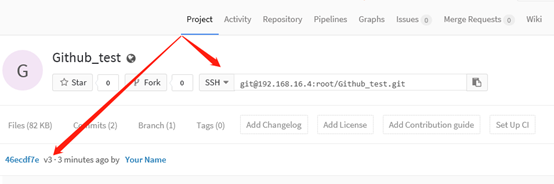

5. 在windows当中免密使用Gitlab
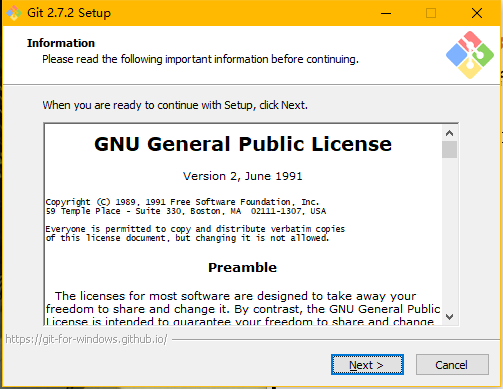
1> 安装软件
常规的windows软件安装步骤
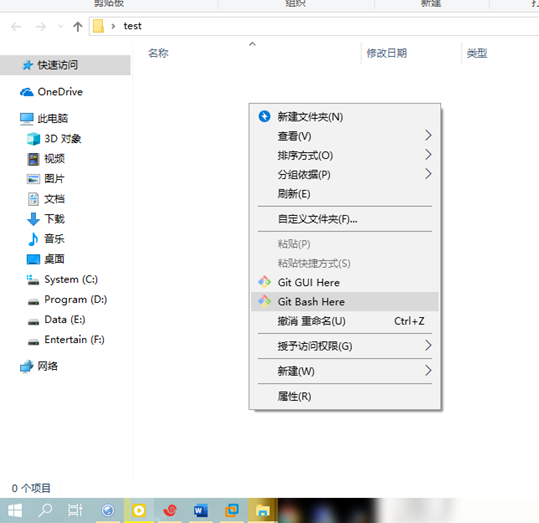
2> 创建目录test,进入后右键,点击bash进入代码
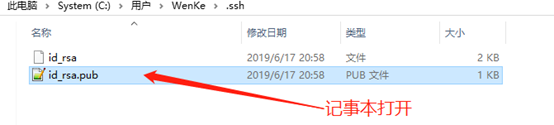
3> 生成秘钥

打开该秘钥文件,获得地址
4> 添加秘钥

获取ssh地址
5> clone

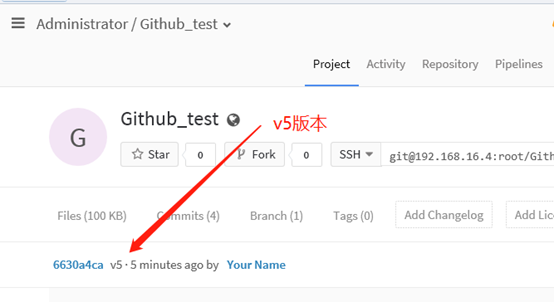
6> 进入文件,创建v4版本
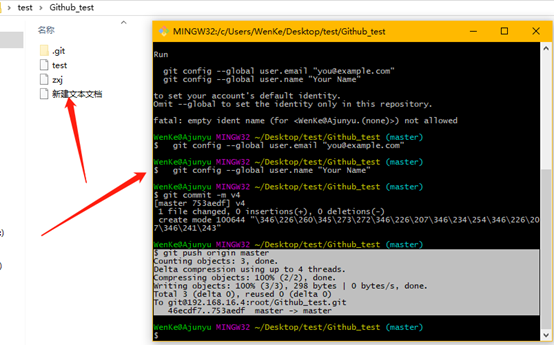
WenKe@Ajunyu MINGW32 ~/Desktop/test/Github_test (master)

$ git add .

WenKe@Ajunyu MINGW32 ~/Desktop/test/Github_test (master)

$ git commit -m v4

*** Please tell me who you are.

Run

git config --global user.email "you@example.com"

git config --global user.name "Your Name"

to set your account's default identity.

Omit --global to set the identity only in this repository.

fatal: empty ident name (for <WenKe@Ajunyu.(none)>) not allowed

WenKe@Ajunyu MINGW32 ~/Desktop/test/Github_test (master)

$ git config --global user.email "you@example.com"

WenKe@Ajunyu MINGW32 ~/Desktop/test/Github_test (master)

$ git config --global user.name "Your Name"

WenKe@Ajunyu MINGW32 ~/Desktop/test/Github_test (master)

$ git commit -m v4

[master 753aedf] v4

 file changed,  insertions(+),  deletions(-)

create mode  "\346\226\260\345\273\272\346\226\207\346\234\254\346\226\207\346\241\243"

$ git push origin master

Counting objects: , done.

Delta compression using up to  threads.

Compressing objects: % (/), done.

Writing objects: % (/),  bytes |  bytes/s, done.

Total  (delta ), reused  (delta )

To git@192.168.16.4:root/Github_test.git

46ecdf7..753aedf master -> master
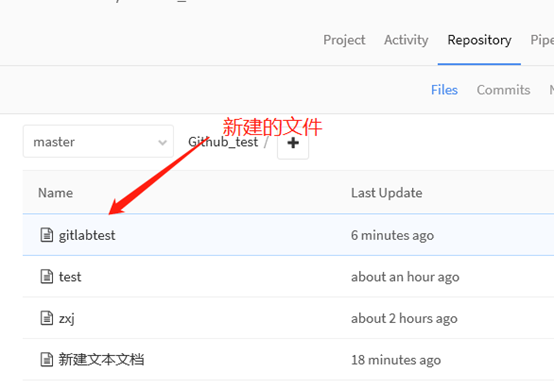
7> 浏览器端查看
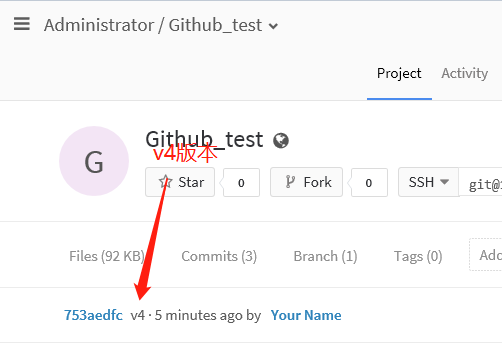
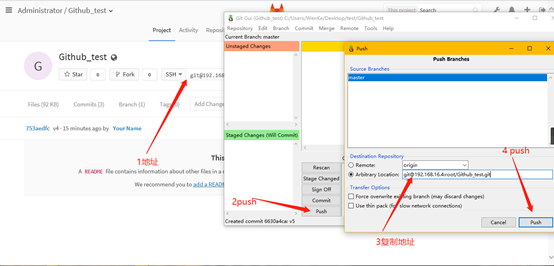
 8> 右键后点击GUI进入图形化界面
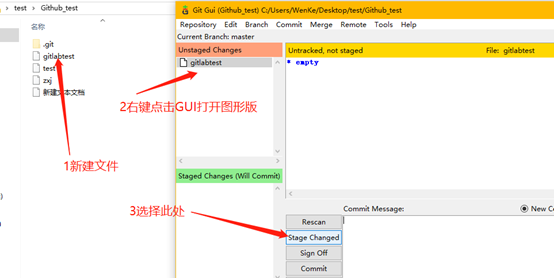
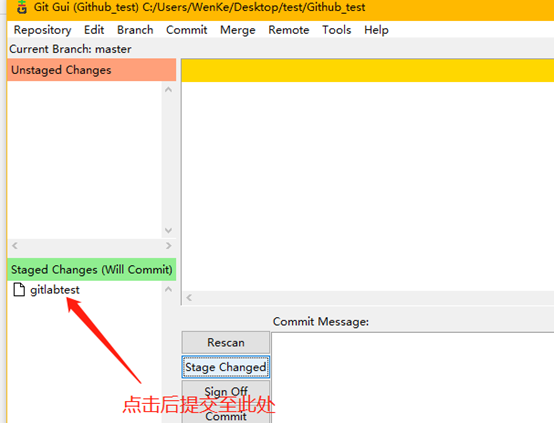
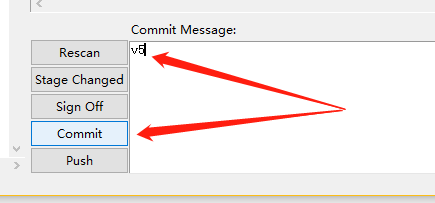
加入版本号进行提交
写入地址,进行push
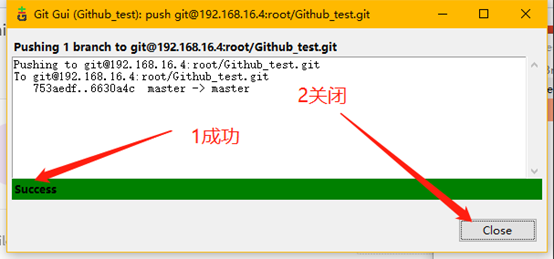
关闭GUI图形化界面
浏览器端查看
Gitlab仓库搭建及在Linux/windows中的免密使用的更多相关文章
- Gitlab仓库搭建及在linux/windows中免密使用gitlab(二)--技术流ken
Gitlab简介 GitLab 是一个用于仓库管理系统的开源项目,使用Git作为代码管理工具,并在此基础上搭建起来的web服务. 可通过Web界面进行访问公开的或者私人项目.它拥有与Github类似的 ...
- linux系统中SSH免密设置报错
执行 ssh-add ~/.ssh/msi_rsa 时报下面错误 Could not open a connection to your authentication agent. 解决办法: 执行命 ...
- Windows到Ubuntu免密登陆
Windows到Ubuntu免密登陆 首先检查C盘用户文件夹下是否有.ssh文件夹,同时检查该文件夹中是否有至少两个文件,一个是xxx_rsa和xxx_rsa.pub,一个是私钥文件一个是公钥文件. ...
- 多台linux主机之间建立免密通信
多台linux主机之间设置免密通信 例:A 向 B设置免密通信 第一步 A生成密钥对 ssh-keygen -t rsa -t 指定秘钥的类型 rsa 秘钥类型 密钥目录:/root/.ssh/(如果 ...
- Linux OS 集群 免密登录
1. ssh-keygen 生成密钥 2. ssh-copy-id 集群主机名 参考: [图文详解]linux下配置远程免密登录
- windows配置ssh免密登录linux
客户端(windows)要做的事情 默认机器上已安装git,若没有,请先安装git 查看本地是否有ssh公钥文件夹,若没有,则创建文件夹 mkdir ~/.ssh //创建文件夹 生成公钥 邮箱最好为 ...
- Windows和Linux下实现ssh免密登录
------------恢复内容开始------------ SSH是一种通讯协议,可以实现远程安全登录.可以通过如putty.MobaXterm等工具通过ssh安全登录到虚拟机进行操作. Opens ...
- 【图文详解】linux下配置远程免密登录
linux下各种集群搭建往往需要配置远程免密登录,本文主要描述了CentOs6.3系统下配置免密登录的详细过程. ssh远程登录,两种身份验证: 用户名+密码 密钥验证 机器1生成密钥对并将公钥发给机 ...
- linux 下的ssh免密登陆设置
一,原理 说明: A为linux服务器a B为linux服务器b 每台linux都有ssh的服务端和客户端,linux下的ssh命令就是一个客户端 我们常用ssh协议来进行登陆或者是文件的拷贝,都需要 ...
随机推荐
- 再回首数据结构—AVL树(二)
前面主要介绍了AVL的基本概念与结构,下面开始详细介绍AVL的实现细节: AVL树实现的关键点 AVL树与二叉搜索树结构类似,但又有些细微的区别,从上面AVL树的介绍我们知道它需要维护其左右节点平衡, ...
- Java并发编程笔记
进程:程序的一次运行活动. 线程:程序的一个控制流程.用于执行一个任务.是cpu进行调度的最小单位. 死锁:所有的线程继续执行所需要的资源都被其他线程占用,导致所有线程都不能继续执行. 死锁的情景:1 ...
- JIRA中的标记语言的语法参考
前言 看到网上有的文章说JIRA是使用Textile这门标记语言,有些语法和Wikitext和Markdown相像.JIRA在2017年进行了一次大更新,某些语法可能和以前不大一样,这里纪录一下常用的 ...
- aix 推荐使用重启
重启os AIX 主机 推荐 shutdown –Fr 在客户一次停机维护中,发现了这个问题. 环境是ORACLE 10G RAC for AIX6,使用了HACMP管理共享磁盘. 在停机维护时间段内 ...
- 别让CDN的回源把你的服务器拖垮,采用正确的回源策略
我们有一台服务器提供的服务主要是以动态页面为主,静态页面都是固定的内容平时更新的很少,最近这台服务器的应用升级到了新版本访问量增大了不少,随之的问题就来了,最近每天一到9点负载就超过警戒值,然后负载持 ...
- eCharts基础知识
eCharts插件介绍 http://echarts.baidu.com/tutorial.html#ECharts%20%E7%89%B9%E6%80%A7%E4%BB%8B%E7%BB%8D
- IE6下png背景不透明——张鑫旭博客读书笔记
从今天开始跟着大牛张鑫旭的步伐,每天进步一点点 问题:IE6不支持png背景透明或半透明 一.可解决的方法 补充:css滤镜主要是用来实现图像的各种特殊效果.(了解) css滤镜的标识符是“filte ...
- Power BI 连接到 Azure 账单,自动生成报表,可刷新
开始研究Azure官网等,提供的链接都是错误的,躺了很大的一个坑,配置后根本无法获取账单信息,经过多次查询找到了方向,过来记录一下: 错误的地址(应该是适用于全球版,国内版无法这样获取): https ...
- 使用JavaScript ES6的新特性计算Fibonacci(非波拉契数列)
程序员面试系列 Java面试系列-webapp文件夹和WebContent文件夹的区别? 程序员面试系列:Spring MVC能响应HTTP请求的原因? Java程序员面试系列-什么是Java Mar ...
- vue的使用-项目总结
1,这是一个重前端逻辑,轻交互,数据展示的项目,可读性差,2,组件划分的坑,复用过多的坑,复用过多导致要在js手动判断太多东西,不便于可读3,vuex的坑,数据分为后台请求数据的暂存,前端页面逻辑的状 ...