
UWP 动画系列之模仿网易云音乐动画
一、前言
最近在弄毕业设计(那时坑爹选了制作个UWP商店的APP),一个人弄得烦躁,在这里记录一些在做毕业设计时的学习过程。由于我的毕业设计是做一个音乐播放器,那么Windows商店上优秀的软件当然是网易云音乐了,为了不用自己去设计一些界面,所以山寨之路走起吧。
二、模仿网易云音乐动画之播放页面切换
直接观察网易云音乐的播放界面切换动图,可以看得出播放界面的变换中心是左小角,通过缩小和放大实现播放界面的切换,同时播放界面是覆盖了原界面上。
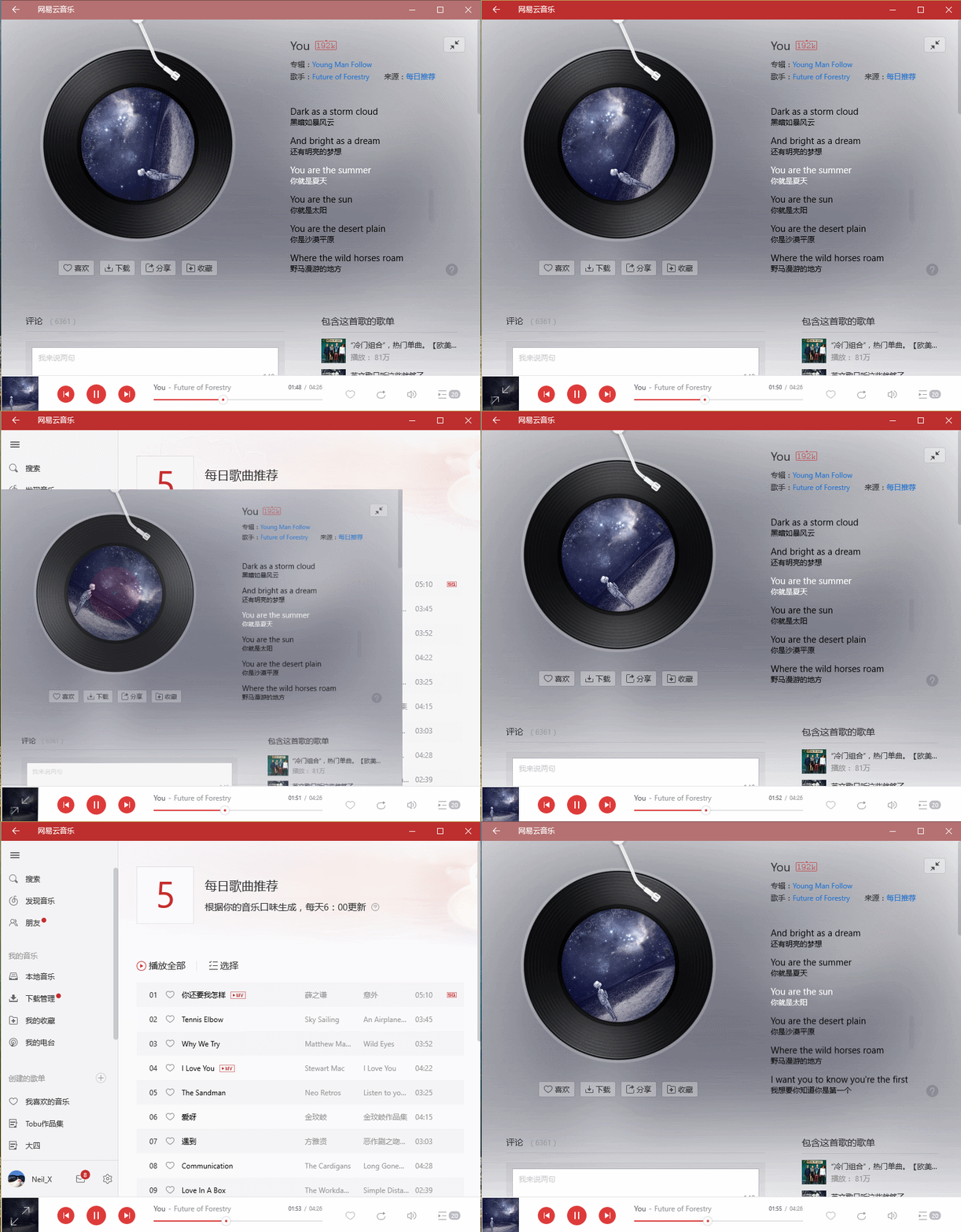
模仿这个动画用xaml很容易就可以实现出来,下面一步步实现。
1、首先准备播放面板和主界面,布局类似网易云界面,xaml如下:
<Grid>
<Grid.RowDefinitions>
<RowDefinition />
<RowDefinition Height="Auto" />
</Grid.RowDefinitions>
<SplitView x:Name="SplitView"
DisplayMode="CompactInline"
IsPaneOpen="{TemplateBinding IsLeftPaneContentOpen}"
CompactPaneLength="40"
OpenPaneLength="200">
<SplitView.Pane>
<Grid >
<Grid.RowDefinitions>
<RowDefinition Height="Auto"/>
<RowDefinition/>
</Grid.RowDefinitions>
<Grid x:Name="HambegerGrid"
Margin="10,10"
Background="Transparent">
<TextBlock FontFamily="Segoe MDL2 Assets"
Text=""
FontSize="20"
Foreground="{TemplateBinding Foreground}"/>
</Grid>
<ContentPresenter x:Name="LeftPaneContentPresenter"
HorizontalAlignment="Stretch"
VerticalAlignment="Stretch"
Grid.Row="1">
</ContentPresenter>
</Grid>
</SplitView.Pane>
<SplitView.Content>
<ContentPresenter x:Name="ContentPresenter">
<ContentPresenter.RenderTransform>
<TranslateTransform x:Name="ContentPresenterTranslateTransform" />
</ContentPresenter.RenderTransform>
</ContentPresenter>
</SplitView.Content> </SplitView> <ContentPresenter x:Name="SplitViewSwapContentPresenter"
Visibility="Collapsed"
VerticalAlignment="Stretch"
HorizontalAlignment="Stretch"
RenderTransformOrigin="0,1">
<ContentPresenter.RenderTransform>
<CompositeTransform ScaleX="0" ScaleY="0"/>
</ContentPresenter.RenderTransform>
</ContentPresenter>
<ContentPresenter x:Name="FooterContentPresenter"
Grid.Row="1"
VerticalAlignment="Bottom"
HorizontalAlignment="Stretch" />
注:SplitView是主页面,SplitViewSwapContentPresenter是播放界面,FooterContentPresenter是底部播放面板
2、设置播放面板界面的变换中心为左下角,在xaml的SplitViewSwapContentPresenter上即可以设置,如下
RenderTransformOrigin="0,1"
3、制作播放面板界面放大缩小动画。
利用Blend设置这一步十分容易方便。生成的xaml代码如下,
                    <Storyboard x:Name="SplitViewSwapContentIn">

                                <ObjectAnimationUsingKeyFrames Storyboard.TargetName="SplitViewSwapContentPresenter"

                                                               Storyboard.TargetProperty="Visibility">

                                    <DiscreteObjectKeyFrame KeyTime="0"

                                                            Value="Visible" />

                                </ObjectAnimationUsingKeyFrames>

                                <DoubleAnimation Duration="0:0:0.4" To="1" Storyboard.TargetProperty="(UIElement.RenderTransform).(CompositeTransform.ScaleX)" Storyboard.TargetName="SplitViewSwapContentPresenter" >

                                    <DoubleAnimation.EasingFunction>

                                        <QuadraticEase EasingMode="EaseIn"/>

                                    </DoubleAnimation.EasingFunction>

                                </DoubleAnimation>

                                <DoubleAnimation Duration="0:0:0.4" To="1" Storyboard.TargetProperty="(UIElement.RenderTransform).(CompositeTransform.ScaleY)" Storyboard.TargetName="SplitViewSwapContentPresenter" >

                                    <DoubleAnimation.EasingFunction>

                                        <QuadraticEase EasingMode="EaseIn"/>

                                    </DoubleAnimation.EasingFunction>

                                </DoubleAnimation>

                            </Storyboard>

                            <Storyboard x:Name="SplitViewSwapContentOut">

                                <ObjectAnimationUsingKeyFrames Storyboard.TargetName="SplitViewSwapContentPresenter"

                                                               Storyboard.TargetProperty="Visibility">

                                    <DiscreteObjectKeyFrame KeyTime="0:0:0.4"

                                                            Value="Collapsed" />

                                </ObjectAnimationUsingKeyFrames>

                                <DoubleAnimation Duration="0:0:0.4" To="0" Storyboard.TargetProperty="(UIElement.RenderTransform).(CompositeTransform.ScaleX)" Storyboard.TargetName="SplitViewSwapContentPresenter" >

                                    <DoubleAnimation.EasingFunction>

                                        <QuadraticEase EasingMode="EaseOut"/>

                                    </DoubleAnimation.EasingFunction>

                                </DoubleAnimation>

                                <DoubleAnimation Duration="0:0:0.4" To="0" Storyboard.TargetProperty="(UIElement.RenderTransform).(CompositeTransform.ScaleY)" Storyboard.TargetName="SplitViewSwapContentPresenter" >

                                    <DoubleAnimation.EasingFunction>

                                        <QuadraticEase EasingMode="EaseOut"/>

                                    </DoubleAnimation.EasingFunction>

                                </DoubleAnimation>

                            </Storyboard>
SplitViewSwapContentIn是放大动画,在keytime=0时,使播放面板呈现,且在keytime=0.4s的时候,使SplitViewSwapContent的(UIElement.RenderTransform).(CompositeTransform.ScaleX)和
属性和(UIElement.RenderTransform).(CompositeTransform.ScaleY)属性值变为1,这样设置会使播放面板当动画触发后0.4s过程中面板从小点变换到原来大小。SplitViewSwapContentOut与上面类似。

4、触发动画
接下来的就是什么时刻触发动画的问题了,首先在后台代码获得动画_splitViewSwapContentIn和_splitViewSwapContentOut,然后控制两个动画即可以控制播放面板的呈现与否。
        void ShowSwapContent()

        {

            _splitViewSwapContentIn.Begin();

        }

        void HideSwapContent()

        {

            _splitViewSwapContentOut.Begin();

        }
三、模仿网易云音乐动画之播放页面的旋转动画


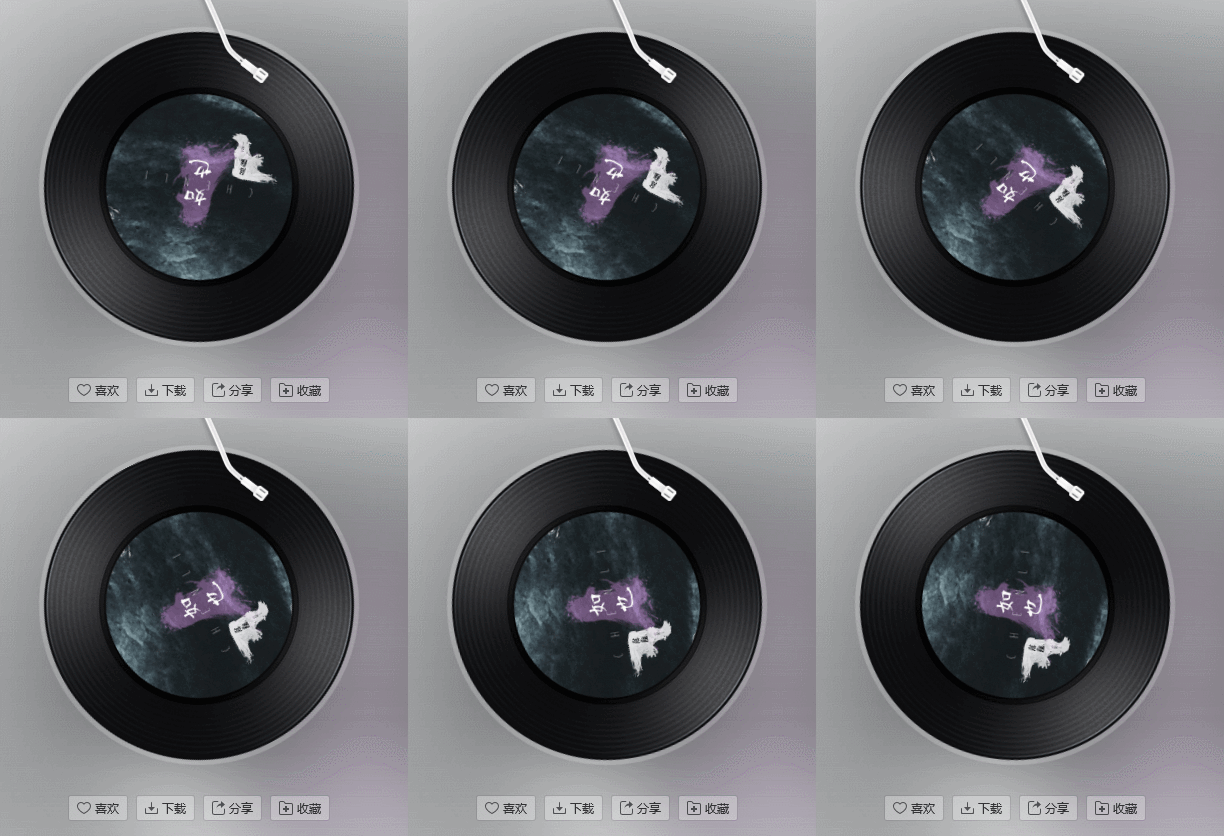
首先准备一类似的圆,xaml如下
 <Ellipse x:Name="ellipse"

                             Width="250"

                             Height="250"

                             VerticalAlignment="Center"

                             HorizontalAlignment="Center"

                             Margin="75,45,75,45"

                             RenderTransformOrigin="0.5,0.5">

                        <Ellipse.RenderTransform>

                            <CompositeTransform/>

                        </Ellipse.RenderTransform>

                        <Ellipse.Fill>

                            <ImageBrush ImageSource="{x:Bind CurrentTrack.PictureUrl, Mode=OneWay}" Stretch="Fill"/>

                        </Ellipse.Fill>

                    </Ellipse>
然后设置动画,xaml如下:
        <Storyboard x:Name="EllStoryboard" RepeatBehavior="Forever">

            <DoubleAnimation Duration="0:0:20" To="360" Storyboard.TargetProperty="(UIElement.RenderTransform).(CompositeTransform.Rotation)" Storyboard.TargetName="ellipse" d:IsOptimized="True"/>

        </Storyboard>
当然需要注意的时候当播放界面没有呈现的时候需要暂停或停止旋转动画的运转,不然会造成性能负担。
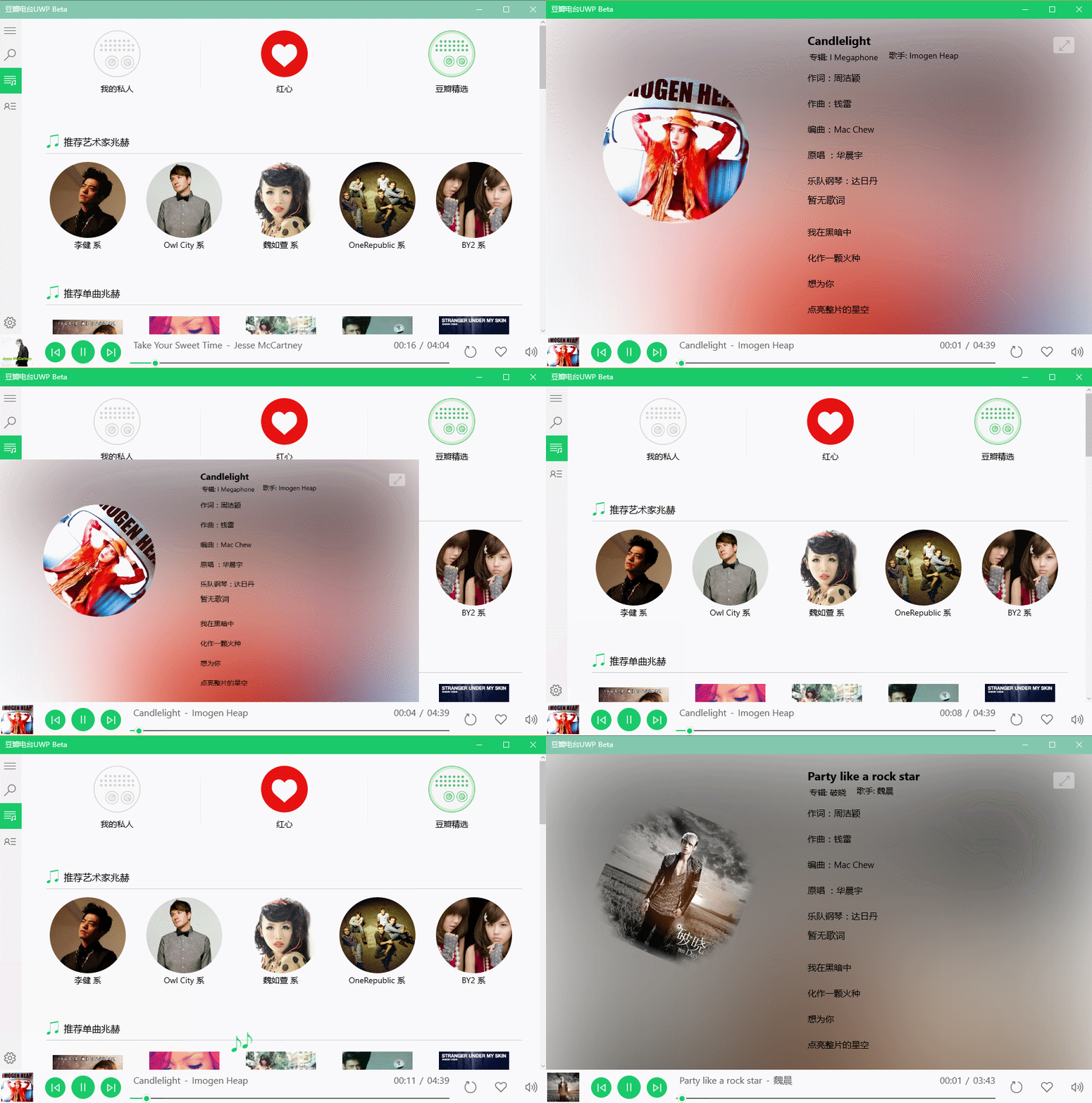
四、最后的实现的效果

最后山寨的效果就是这样了,虽然还有很多缺陷,但不要嫌弃我的毕业设计...
UWP 动画系列之模仿网易云音乐动画的更多相关文章
- NeteaseCloudWebApp模仿网易云音乐的vue自己从开源代码中学习到的
github地址: https://github.com/javaSwing/NeteaseCloudWebApp 1.Vue.prototype.$http = Axios // 类似于vue-re ...
- UWP仿网易云音乐之1-TitleBar
首先,创建一个UWP的项目.我使用的是Visual Studio 2017 社区版. 如图,我们将项目命名为UWP-Music. 现在我们先标题栏的配色调整与网易云音乐一致. 我们先分析一下标题栏,默 ...
- WPF仿网易云音乐系列(一、左侧菜单栏:Expander+RadioButton)
1.简介 上一篇咱们说到,网易云音乐的左侧菜单栏可以通过Expander+RadioButton来实现,具体如何实现,咱们下面开始干: 首先来一张网易云音乐PC版原图(个人觉得PC版比UWP版左侧菜单 ...
- WPF仿网易云音乐系列(序)
1.简介 由于之前做了一个播放器,苦于不懂界面设计,只得去借鉴借鉴一些成功的作品,网易云音乐就甚合朕心,哈哈,最后做出来的效果如下: 本系列文章就来和大家讨论以下,如何用WPF去仿制一个网易云音乐来: ...
- 由 UWP 版网易云音乐闪退引发的博文
今天,不知怎么的.网易云音乐出现了一打开就闪退的情况.百度了好些时候未果,就直接 Windows + i 打开 Windows 设置 > 应用 在应用和功能列表中找到网易云音乐,在展开的 高级选 ...
- Android版网易云音乐唱片机唱片磁盘旋转及唱片机机械臂动画关键代码实现思路
Android版网易云音乐唱片机唱片磁盘旋转及唱片机机械臂动画关键代码实现思路 先看一看我的代码运行结果. 代码运行起来初始化状态: 点击开始按钮,唱片机的机械臂匀速接近唱片磁盘,同时唱片磁盘也 ...
- C# WPF 低仿网易云音乐(PC)Banner动画控件
原文:C# WPF 低仿网易云音乐(PC)Banner动画控件 由于技术有限没能做到一模一样的动画,只是粗略地做了一下.动画有点生硬,还有就是没做出网易云音乐的立体感.代码非常简单粗暴,而且我也写有很 ...
- C# WPF 仿网易云音乐(PC)Banner动画控件
在自定义用户控件内添加3个border(左.中.右,以下分别简称为:b1.b2.b3),对border进行缩放和移动动画.往右切换时b1放大平移到b2的位置,b2缩小平移到b3的位置,b3平移到b1的 ...
- 千万不要更新网易云音乐UWP!!!!!
网易云音乐UWP没了!!! 现在 Micrsoft Store 里面的是垃圾 Win32 转置版!!!! 万不可更新!!! 若已经更新,还有救回来的办法:下载 https://lanzous.com/ ...
随机推荐
- Xcode6 ADD Copy Files Build Phase 是灰色的
在学习的怎样写frameWork的时候,查看一个教程How to Create a Framework for iOS [一个中文翻译 创建自己的framework] 其中一个步骤就是添加一个Cop ...
- 看守所、戒毒所3D指纹门禁系统解决方案
为响应"科技强警"的战略方针,华本构建了一个完整的.集成的.可靠的.易操作的高安全性门禁系统,应用于看守所.戒毒所.公安局和部队等单位,使管理更现代化.规范化,有效地预防和制止越狱 ...
- IOS 微信 6.5.2 自动播放音乐 解决方案
之前仅仅是IPhone7\7p 的问题,现在已经扩展到6 .6s.今天在下也行了最新微信,音乐问题果然来了. 好了 下面直接进入正题 首先 引入 <script src="http:/ ...
- linux文件权限查看及修改(实用)
查看Linux文件的权限:ls -l 文件名称 查看linux文件夹的权限:ls -ld 文件夹名称(所在目录) 修改文件及文件夹权限: sudo chmod -(代表类型)×××(所有者)×××(组 ...
- Nginx模块之———— RTMP 模块的在线统计功能 stat 数据流数据的获取(不同节点则获取的方式不同)
一.目前只有一个Live节点存在 单节点获取方式如下: public function getStreamByIp($outerIP, $streamName) { //查询录像模块的IP地址外网,根 ...
- C语言习题(结构)
实际应用中经常会用到二维平面上的点,点的操作包括设置点的位置( pointT setPoint(double x , double y ) ),显示第n个点的位置( void showPoint(po ...
- 01 ~ 03 headfirst php & mysql
Question : 难道不是所有web页面原先都放在服务器上吗? 甚至存储在.html文件中的HTML页面? Answer : 没错, 网站的所有文件都存储在服务器上, html, css, php ...
- 慕课网__CSS__vertical align
- 对 OverFeat: Integrated Recognition, Localization and Detection using Convolutional Networks 一文的理解
一点最重要的学习方法: 当你读一篇论文读不懂时,如果又读了两遍还是懵懵懂懂时怎么办???方法就是别自己死磕了,去百度一下,如果是很好的论文,大多数肯定已经有人读过并作为笔记了的,比如我现在就把我读过 ...
- javascript高级编程3第三章:基本概念 本章内容 语法 数据类型 流控制语句 函数
3.1 语法 ECMAScript的语法大量借鉴了C及其他类C语言的语法. 3.1.1 区分大小写 3.1.2 标识符 所谓标识符,就是值变量.函数.属性的名字,或者函数的参数.标识符可以是按照下列格 ...