
Android的界面组件使用之ImageButton和ImageView,ImageSwitcher和GridView
(一)ImageButton和ImageView
ImageButton与Button的功能完全相同,只是ImageButton上显示的是图像,并且每个ImageButton组件都必须指定一个id,以便在程序中使用该按钮,
android:src属性则是用来设置它显示的图像
ImageView是一个显示图像的组件,同样的他的src也是用来设置显示的图像的,在程序中可以调用ImageView的setImageResource()方法,来从项目资源类R中加载指定的图像文件。
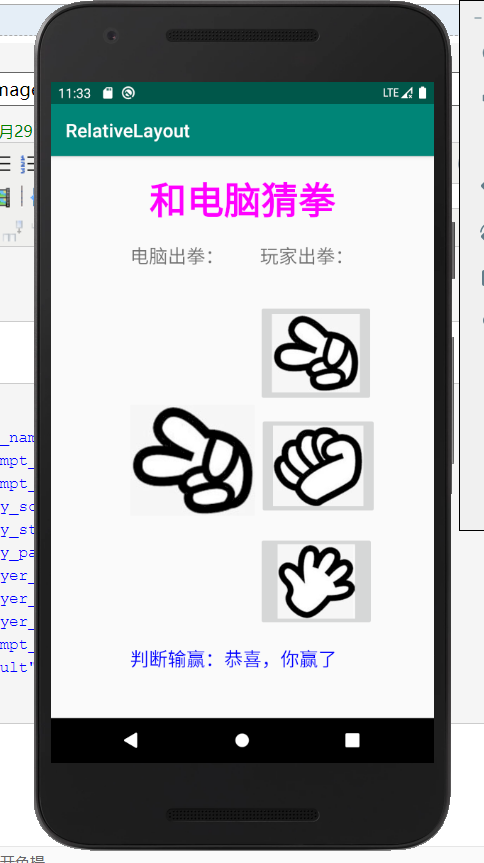
接下来,完成昨天“猜拳游戏的美化版”,从网上找了三张石头剪子布的图片,放到drawable文件下。
界面布局文件:
<?xml version="1.0" encoding="utf-8"?>

<RelativeLayout xmlns:android="http://schemas.android.com/apk/res/android"

    xmlns:app="http://schemas.android.com/apk/res-auto"

    xmlns:tools="http://schemas.android.com/tools"

    android:layout_height="match_parent"

    android:layout_width="400dp"

    android:layout_gravity="center_horizontal"

    tools:context=".MainActivity">

    <TextView

        android:id="@+id/txtTitle"

        android:layout_width="wrap_content"

        android:layout_height="wrap_content"

        android:text="@string/prompt_title"

        android:textColor="#FF00FF"

        android:textSize="40sp"

        android:textStyle="bold"

        android:layout_centerHorizontal="true"

        android:paddingLeft="20dp"

        android:paddingRight="20dp"

        android:layout_marginTop="20dp"

        android:layout_marginBottom="20dp"/>

    <TextView

        android:id="@+id/txtCom"

        android:layout_width="wrap_content"

        android:layout_height="wrap_content"

        android:text="@string/prompt_com_play"

        android:layout_below="@+id/txtTitle"

        android:layout_alignLeft="@+id/txtTitle"

        android:textSize="20sp"

        android:layout_marginBottom="20dp"

        android:layout_alignStart="@+id/txtTitle" />

    <TextView

        android:id="@+id/txtMyPlay"

        android:layout_width="wrap_content"

        android:layout_height="wrap_content"

        android:text="@string/prompt_my_play"

        android:layout_below="@id/txtTitle"

        android:layout_alignRight="@id/txtTitle"

        android:textSize="20sp"

        android:layout_marginBottom="20dp"

        android:layout_alignEnd="@id/txtTitle" />

    <ImageButton

        android:id="@+id/imgBtnScissors"

        android:layout_width="124dp"

        android:layout_height="107dp"

        android:layout_below="@id/txtMyPlay"

        android:layout_alignLeft="@id/txtMyPlay"

        android:layout_marginLeft="-2dp"

        android:layout_marginTop="17dp"

        android:paddingLeft="15dp"

        android:paddingRight="15dp"

        android:scaleType="centerInside"

        android:src="@drawable/scissors" />

    <ImageView

        android:id="@+id/imgViewComPlay"

        android:layout_width="134dp"

        android:layout_height="123dp"

        android:layout_below="@id/imgBtnScissors"

        android:layout_alignLeft="@id/txtCom" />

    <ImageButton

        android:id="@+id/imgBtnStone"

        android:layout_width="127dp"

        android:layout_height="107dp"

        android:layout_below="@id/imgBtnScissors"

        android:layout_alignLeft="@id/imgBtnScissors"

        android:layout_marginLeft="1dp"

        android:layout_marginTop="14dp"

        android:paddingLeft="15dp"

        android:paddingRight="15dp"

        android:scaleType="fitCenter"

        android:src="@drawable/stone" />

    <ImageButton

        android:id="@+id/imgBtnPaper"

        android:layout_width="125dp"

        android:layout_height="99dp"

        android:layout_below="@id/imgBtnStone"

        android:layout_alignLeft="@id/imgBtnStone"

        android:layout_marginLeft="-1dp"

        android:layout_marginTop="21dp"

        android:paddingLeft="15dp"

        android:paddingRight="15dp"

        android:scaleType="fitCenter"

        android:src="@drawable/paper" />

    <TextView

        android:id="@+id/txtResult"

        android:layout_width="wrap_content"

        android:layout_height="wrap_content"

        android:text="@string/result"

        android:layout_below="@id/imgBtnPaper"

        android:layout_alignLeft="@id/txtCom"

        android:textSize="20sp"

        android:textColor="#0000FF"

        android:layout_marginTop="20dp"

        android:layout_alignStart="@id/txtCom" />

</RelativeLayout>
程序文件:
package com.example.relativelayout;

import androidx.appcompat.app.AppCompatActivity;

import android.os.Bundle;

import android.view.View;

import android.widget.Button;

import android.widget.ImageButton;

import android.widget.ImageView;

import android.widget.TextView;

import org.w3c.dom.Text;

public class MainActivity extends AppCompatActivity {

    private TextView mTxtResult;

    private ImageView mImgViewComPlay;

    private ImageButton mImgBtnScissors,mImgBtnStone,mImgBtnPaper;

    @Override

    protected void onCreate(Bundle savedInstanceState) {

        super.onCreate(savedInstanceState);

        setContentView(R.layout.activity_main);

        mImgViewComPlay=(ImageView)findViewById(R.id.imgViewComPlay);

        mTxtResult=(TextView)findViewById(R.id.txtResult);

        mImgBtnStone=(ImageButton)findViewById(R.id.imgBtnStone);

        mImgBtnPaper=(ImageButton)findViewById(R.id.imgBtnPaper);

        mImgBtnScissors=(ImageButton)findViewById(R.id.imgBtnScissors);

        mImgBtnScissors.setOnClickListener(imgBtnScissorsOnClick);

        mImgBtnStone.setOnClickListener(imgBtnStoneOnClick);

        mImgBtnPaper.setOnClickListener(imgBtnPaperOnClick);

    }

    private View.OnClickListener imgBtnScissorsOnClick=new View.OnClickListener(){

        @Override

        public void onClick(View v) {

            int iComPlay=(int)(Math.random()*3+1);

            //1.剪刀,2.石头,3.布

            if(iComPlay==1)

            {

                mImgViewComPlay.setImageResource(R.drawable.scissors);

                mTxtResult.setText(getString(R.string.result)+getString(R.string.player_draw));

            }

            else if(iComPlay==2)

            {

                mImgViewComPlay.setImageResource(R.drawable.stone);

                mTxtResult.setText(getString(R.string.result)+getString(R.string.player_lose));

            }

            else

            {

                mImgViewComPlay.setImageResource(R.drawable.paper);

                mTxtResult.setText(getString(R.string.result)+getString(R.string.player_win));

            }

        }

    };

    private View.OnClickListener imgBtnStoneOnClick=new View.OnClickListener(){

        @Override

        public void onClick(View v) {

            int iComPlay=(int)(Math.random()*3+1);

            //1.剪刀,2.石头,3.布

            if(iComPlay==1)

            {

                mImgViewComPlay.setImageResource(R.drawable.scissors);

                mTxtResult.setText(getString(R.string.result)+getString(R.string.player_win));

            }

            else if(iComPlay==2)

            {

                mImgViewComPlay.setImageResource(R.drawable.stone);

                mTxtResult.setText(getString(R.string.result)+getString(R.string.player_draw));

            }

            else

            {

                mImgViewComPlay.setImageResource(R.drawable.paper);

                mTxtResult.setText(getString(R.string.result)+getString(R.string.player_lose));

            }

        }

    };

    private View.OnClickListener imgBtnPaperOnClick=new View.OnClickListener(){

        @Override

        public void onClick(View v) {

            int iComPlay=(int)(Math.random()*3+1);

            //1.剪刀,2.石头,3.布

            if(iComPlay==1)

            {

                mImgViewComPlay.setImageResource(R.drawable.scissors);

                mTxtResult.setText(getString(R.string.result)+getString(R.string.player_lose));

            }

            else if(iComPlay==2)

            {

                mImgViewComPlay.setImageResource(R.drawable.stone);

                mTxtResult.setText(getString(R.string.result)+getString(R.string.player_win));

            }

            else

            {

                mImgViewComPlay.setImageResource(R.drawable.paper);

                mTxtResult.setText(getString(R.string.result)+getString(R.string.player_draw));

            }

        }

    };

}
字符串资源文件:
<resources>

    <string name="app_name">RelativeLayout</string>

    <string name="prompt_com_play">电脑出拳:</string>

    <string name="prompt_my_play">玩家出拳:</string>

    <string name="play_scissors">剪刀</string>

    <string name="play_stone">石头</string>

    <string name="play_paper">布</string>

    <string name="player_win">恭喜,你赢了</string>

    <string name="player_lose">很可惜,你输了</string>

    <string name="player_draw">双方平手!</string>

    <string name="prompt_title">和电脑猜拳</string>

    <string name="result">判断输赢:</string>

</resources>
应用截图:
(二)ImageSwitcher和GridView
网格试图(GridView)用于在界面上按行,列分布的方式来显示多个组件。
GridView和ListView有共同的父类:AbsListView,因此GridView和ListView具有一定的相似性。GridView和ListView的主要区别在于:ListView只是一个方向上的分布;而GridView则会在两个方向上分布。
与ListView相似的是,GridView也需要通过Adapter来提供显示数据:可以通过SimpleAdapter来为GridView提供数据,也可以通过开发BaseAdapter的子类来问GridView提供数据,不管使用那种方式,GridView和ListView的用法基本是一致的。
GridView中提供了常用的XML属性:
| XML属性 | 相关方法 | 说明 |
| android:columnWidth | setColumnWidth(int) | 设置列的宽度 |
| android:gravity | setGravity(int) | 设置对齐方式 |
| android:horizontalSpacing | setHorizontalSpac(int) | 设置各个元素之间的水平间距 |
| android:numColumn | setNumColumn(int) | 设置列数 |
| android:stretchMode | setStretchMode(int) | 设置拉伸模式 |
| android:verticalSpacing | setVerticalSpacing(int) | 设置各个元素之间的垂直间距 |
注意:使用GridView时一般都应该指定numColumn大于1,否则该属性默认值为1,如果将属性设置为1,则意味着该Gridview只有一列,那Gridview就变成了Listview。
在上面表中提到的android:stretchMode属性支持如下几个属性值:
- NO_STRETCH : 不拉伸
- STRETCH_SPACING:仅拉伸元素之间的间距
- STRETCH_SPACING_UNIFORM:表格元素本身、元素之间的间距一起拉伸
- STRETCH_COLUMN_WIDTH:仅拉伸元素表格元素本身。
图片切换器(ImageSwitcher)是由FrameLayout派生而出,ImageSwitcher组件和ImageView很相似,他们都可用于显示图片,但是ImageView比ImageView多了一个功能:它所显示的图片切换是可以设置动画效果。
使用ImageSwitcher时往往需要为它设置一个ImageSwitcher.ViewFactory,来实现ImageSwitcher.ViewFactory时需要实现一个makeView()方法,该方法通常会返回一个Imageview而ImageSwitcher则负责显示这个ImageView。
Android的界面组件使用之ImageButton和ImageView,ImageSwitcher和GridView的更多相关文章
- Android 自学之基本界面组件(下)
按钮(Button)与图片按钮(ImageButton)组件的功能和用法 Button继承了TextView,ImageButton继承了Button.不管是Button还是ImageButton,他 ...
- Android界面组件的四种启动方式
Android界面组件启动有四种方式 standard,singleTop,singleTask,singleInstance. standard:每次调用都会都会产生新的组件. singletop: ...
- Android的四大组件之Activity
Android的四大组件之Activity Activity:是Android组件中最基本也是最为常见用的四大组件(Activity,Service服务,Content Provider内容提供者,B ...
- android中四大组件之间相互通信
好久没有写有关android有关的博客了,今天主要来谈一谈android中四大组件.首先,接触android的人,都应该知道android中有四大组件,activity,service,broadca ...
- Android四大基本组件介绍与生命周期
Android四大基本组件介绍与生命周期 Android四大基本组件分别是Activity,Service服务,Content Provider内容提供者,BroadcastReceiver广播接收器 ...
- Android中Intent组件详解
Intent是不同组件之间相互通讯的纽带,封装了不同组件之间通讯的条件.Intent本身是定义为一个类别(Class),一个Intent对象表达一个目的(Goal)或期望(Expectation),叙 ...
- Android编程: 界面组成、事件监听器
学习知识:界面组成.事件监听器 ====界面组成==== 1.用户界面的基本组件叫做View,都是继承android.view.View类,Android里面预定义很多基本的界面组件,比如 Butto ...
- Android典型界面设计——ViewPage+Fragment实现区域顶部tab滑动切换
一.问题描写叙述 本系列将结合案例应用,陆续向大家介绍一些Android典型界面的设计,首先说说tab导航,导航分为一层和两层(底部区块+区域内头部导航).主要实现方案有RadioGroup+View ...
- Android之桌面组件AppWidget
转载:Android之桌面组件App Widget初探 Android开发应用除了程序应用,还有App Widget应用.好多人会开发程序应用而不会开发App Widget应用.本帖子就是帮助大家学习 ...
随机推荐
- Java - 字符串操作
字符串常用操作如下 public static void main(String[] args) { /** * 创建字符串 */ String s1="zifuchuan123" ...
- bugku 点击1000000次
首先看一下题目发现进入网页之后是这个样的 然后点击一下发现是有变化 然后用F12 然后选择post data 然后输入clicks=1000000 然后就会发现答案 (clicks 是点击的意思)
- [AST Babel Plugin] Transform code, add line:column number for console log
For example we have current code: function add(a, b) { console.log(a, b) return a + b } function sub ...
- 树莓派raspbian安装matchbox-keyboard虚拟键盘
环境:raspbian-stretch(2018-06-27) 树莓派:3代B型 官网安装地址:http://ozzmaker.com/virtual-keyboard-for-the-raspber ...
- 推荐 C/C++ 人工智能 框架和库
2018年10月22日 22:59:58 yangminggg 阅读数:2217 值得推荐的C/C++框架和库 C++资源大全 关于 C++ 框架.库和资源的一些汇总列表,内容包括:标准库.Web ...
- 对象的上转型和下转型 (instanceof关键字)
1.对象的上转型,就是多态的一种写法 格式:父类名称 对象名 = new 子类名称(): Animal animal = new Cat(); 含义:右侧创建一个子类对象,把它当作父类来使用 向上转型 ...
- IIS-反向代理配置&&插件安装
参考:https://www.cnblogs.com/pengcc/p/4329207.html 网络上好多开场的文章就说了好多的原理之类的这里我们直接开始配置.不过也要简单说下win下配置反向代理只 ...
- A Simple Problem with Integers(树状数组区间变化和区间求和)
You have N integers, A1, A2, ... , AN. You need to deal with two kinds of operations. One type of op ...
- php源码加密--screw plus
screw plus是一个开源的php扩展,作用是对php文件进行加密,网络上提供php加密的服务很多,但大多都只是混淆级别的加密,被人拿到加密文件问只要有足够耐心就能破解,与之不同的是,screw ...
- php集成环境、基础标记符
集成环境:wamp windows apache mysql php lamp linux apache mysql php 标记符: 1.<?php ...... ?> 2.<?p ...