
PO设计模式-实现移动端自动化测试
开发环境:python 3.6.5 + selenium 2.48.0 + pytest框架 + Android 5.1
工具:pycharm + Appium + Genymotion
测试机型:Samsung Galaxy S6
#需求:设计3个测试用例

#1.实现点击设置->显示->放大镜(查找)->输入内容->点击返回按钮

#2.实现点击设置->更多->移动网络->首选网络类型->2G

#3.实现点击设置->更多->移动网络->首选网络类型->3G
以下是PO模式设计文件目录
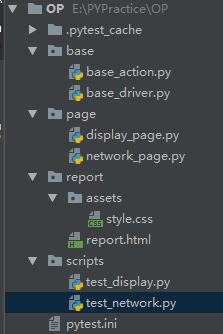
实现设计模式前:
import time

from appium import webdriver

class TestSetting:

    def setup(self):

        # server 启动参数

        desired_caps = {}

        # 设备信息

        desired_caps['platformName'] = 'Android'

        desired_caps['platformVersion'] = '5.1'

        desired_caps['deviceName'] = '192.168.56.101:5555'

        # app的信息

        desired_caps['appPackage'] = 'com.android.settings'

        desired_caps['appActivity'] = '.Settings'

        # 解决输入中文

        desired_caps['unicodeKeyboard'] = True

        desired_caps['resetKeyboard'] = True

        # 声明我们的driver对象

        self.driver = webdriver.Remote('http://127.0.0.1:4723/wd/hub', desired_caps)

    def test_mobile_network_2g(self):

        self.driver.find_element_by_xpath("//*[contains(@text,'更多')]").click()

        self.driver.find_element_by_xpath("//*[contains(@text,'移动网络')]").click()

        self.driver.find_element_by_xpath("//*[contains(@text,'首选网络类型')]").click()

        self.driver.find_element_by_xpath("//*[contains(@text,'2G')]").click()

    def test_mobile_network_3g(self):

        self.driver.find_element_by_xpath("//*[contains(@text,'更多')]").click()

        self.driver.find_element_by_xpath("//*[contains(@text,'移动网络')]").click()

        self.driver.find_element_by_xpath("//*[contains(@text,'首选网络类型')]").click()

        self.driver.find_element_by_xpath("//*[contains(@text,'3G')]").click()

    def test_mobile_display_input(self):

        self.driver.find_element_by_xpath("//*[contains(@text,'显示')]").click()

        self.driver.find_element_by_id("com.android.settings:id/search").click()

        self.driver.find_element_by_id("android:id/search_src_text").send_keys("hello")

        self.driver.find_element_by_class_name("android.widget.ImageButton").click()

    def teardown(self):

        self.driver.quit()
实现设计模式后:
公共部分抽取在base文件夹
抽取前置配置:
base_driver.py
from appium import webdriver

def Testbase():

    # server 启动参数

    desired_caps = {}

    desired_caps['platformName'] = 'Android'

    desired_caps['platformVersion'] = '5.1'

    desired_caps['deviceName'] = '192.168.56.101:5555'

    desired_caps['appPackage'] = 'com.android.settings'

    desired_caps['appActivity'] = '.Settings'

    desired_caps['unicodeKeyboard'] = True

    desired_caps['resetKeyboard'] = True

    # 解决输入中文问题

    desired_caps['unicodeKeyboard'] = True

    desired_caps['resetKeyboard'] = True

    # 声明driver对象

    driver = webdriver.Remote('http://127.0.0.1:4723/wd/hub', desired_caps)

    return driver
抽取公共方法:
base_action.py
from selenium.webdriver.support.wait import WebDriverWait

class BaseAction:

    def __init__(self, driver):

        self.driver = driver

    # 显示等待

    def find_elements(self, loc, time=10, poll=1):

        return WebDriverWait(self.driver, time, poll).until(lambda x: x.find_element(loc[0], loc[1]))

    # 定义一个函数,取按钮的元素

    def act_click(self,loc):

        return self.act_title(loc).click()

    # 定义一个函数,取输入框的元素

    def act_text(self,loc,text):

        return self.act_title(loc).send_keys(text)

    def act_title(self, loc):

        by = loc[0]

        value = loc[1]

        return self.driver.find_element(by, value)
页面主体部分:
page
测试用例1:
display_page.py
from base.base_action import BaseAction

from selenium.webdriver.common.by import By

class DisplayPage(BaseAction):

    # 初始化方法

    # 显示按钮

    see_button = By.XPATH, "//*[contains(@text,'显示')]"

    # 放大镜按钮

    search_button = By.ID, "com.android.settings:id/search"

    # 放大镜旁边的输入文本

    search_edit_text = By.ID, "android:id/search_src_text"

    # 返回按钮

    back_button = By.CLASS_NAME, "android.widget.ImageButton"

    #

    # # 定义一个函数,取按钮的元素

    # def act_click(self,loc):

    #     return self.driver.find_element(loc[0],loc[1]).click()

    # # 定义一个函数,取输入框的元素

    # def act_text(self,loc,text):

    #     return self.driver.find_element(loc[0],loc[1]).send_keys(text)

    # def __init__(self, driver):

    #     self.driver = driver

    # 点击显示

    def click_see(self):

        # self.driver.find_element_by_xpath("//*[contains(@text,'显示')]").click()

        # self.driver.find_element(self.see_button).click()

        self.act_click(self.see_button)

    # 点击放大镜

    def click_search(self):

        # self.driver.find_element_by_id("com.android.settings:id/search").click()

        # self.driver.find_element(self.search_button).click()

        self.act_click(self.search_button)

    # 输入文本

    def input_text(self, text):

        # self.driver.find_element_by_id("android:id/search_src_text").send_keys(text)

        # self.driver.find_element(self.search_edit_text).send_keys(text)

        self.act_text(self.search_edit_text,text)

    # 点击返回

    def click_back(self):

        # self.driver.find_element_by_class_name("android.widget.ImageButton").click()

        # self.driver.find_element(self.back_button).click()

        self.act_click(self.back_button)
测试用例2/3:
network_page.py
from selenium.webdriver.common.by import By

from base.base_action import BaseAction

class NetworkPage(BaseAction):

# 抽离元素

    # 更多按钮

    more_button = By.XPATH, "//*[contains(@text,'更多')]"

    # 网络移动按钮

    network_button = By.XPATH, "//*[contains(@text,'移动网络')]"

    #首选网络类型按钮

    first_network_button = By.XPATH, "//*[contains(@text,'首选网络类型')]"

    # 2G选择按钮

    button_2g = By.XPATH, "//*[contains(@text,'2G')]"

    # 3G选择按钮

    button_3g = By.XPATH, "//*[contains(@text,'3G')]"

# 代码精简方式,提取公共元素

    def click_more(self):

        # self.driver.find_element_by_xpath("//*[contains(@text,'更多')]").click()

        # self.driver.find_element(By.XPATH, "//*[contains(@text,'更多')]").click()

        self.act_click(self.more_button)

    def click_network(self):

        # self.driver.find_element_by_xpath("//*[contains(@text,'移动网络')]").click()

        # self.driver.find_element(By.XPATH, "//*[contains(@text,'移动网络')]").click()

        self.act_click(self.network_button)

    def click_first_network(self):

        # self.driver.find_element_by_xpath("//*[contains(@text,'首选网络类型')]").click()

        # self.driver.find_element(By.XPATH, "//*[contains(@text,'首选网络类型')]").click()

        self.act_click(self.first_network_button)

    def mobile_network_2g(self):

        # self.driver.find_element_by_xpath("//*[contains(@text,'2G')]").click()

        # self.driver.find_element(By.XPATH, "//*[contains(@text,'2G')]").click()

        self.act_click(self.button_2g)

    def mobile_network_3g(self):

        # self.driver.find_element_by_xpath("//*[contains(@text,'3G')]").click()

        # self.driver.find_element(By.XPATH, "//*[contains(@text,'2G')]").click()

        self.act_click(self.button_3g)
测试用例1的脚本:
test_display.py
# 获取本地地址

import sys, os

sys.path.append(os.getcwd())

from base.base_driver import Testbase

from page.display_page import DisplayPage

class TestDisplay:

    def setup(self):

        self.driver = Testbase()

        self.display_page = DisplayPage(self.driver)

    def test_mobile_display_input(self):

        # 点击显示

        self.display_page.click_see()

        # 点击放大镜

        self.display_page.click_search()

        # 文本输入

        self.display_page.input_text("hello")

        # 点击返回

        self.display_page.click_back()

    def teardown(self):

        self.driver.quit()
测试用例2/3的脚本:
test_network.py
import os, sys

sys.path.append(os.getcwd())

from page.network_page import NetworkPage

from base.base_driver import Testbase

class TestNetwork:

    def setup(self):

        self.driver = Testbase()

        self.network_page = NetworkPage(self.driver)

        self.network_page.click_more()

        self.network_page.click_network()

        self.network_page.click_first_network()

    def test_mobile_network_2g(self):

        self.network_page.mobile_network_2g()

    def test_mobile_network_3g(self):

        # self.network_page.click_more()

        # self.network_page.click_network()

        # self.network_page.click_first_network()

        self.network_page.mobile_network_3g()

    def teardown(self):

        self.driver.quit()
pytest框架的执行文件:
pytest.ini
注意:因为文件为ini格式,#不被识别为注释标识,请删掉注释部分
[pytest]

#文件路径,和生成报告

addopts = -s --html=./report/report.html

testpaths = ./scripts

#执行的文件名

python_files = test_*.py

#执行文件里面的类

python_classes = Test*

#执行类中的那些方法

python_functions = test_*
PO设计模式-实现移动端自动化测试的更多相关文章
- selenium自动化测试框架之PO设计模式
面向对象的特性:封装.继承.多态.在自动化中一样适用,Selenium自动化测试中有一个名字常常被提及PageObject(思想与面向对象的特性相同),通过PO模式可以大大提高测试用例的维护效率. 传 ...
- Web自动化测试—PO设计模式(二)
PO设计模式要点一:页面类都继承于BasePage 目录结构 ui_auto_test --src --pages --__init__.py --base_page.py --login_page. ...
- 移动端自动化测试-WTF Appium?
手机App分为两大类,原生App(Native App)和混合APP(Hybrid App) 原生App(Native App) 原生App实际就是我们所常见的传统App开发模式,云端数据存储+App ...
- 基于Python Selenium Unittest PO设计模式详解
本文章会讲述以下几个内容: 1.什么是PO设计模式(Page Object Model) 2.为什么要使用PO设计模式 3.使用PO设计模式要点 4.PO设计模式实例 1.什么是PO设计模式 (Pag ...
- Python Selenium设计模式 - PO设计模式
整理一下python selenium自动化测试实践中使用较多的po设计模式. 为什么要用PO 基于python selenium2开始开始ui自动化测试脚本的编写不是多么艰巨的任务.只需要定位到元素 ...
- 移动端自动化测试-WTF Appium
手机App分为两大类,原生App(Native App)和混合APP(Hybrid App) 原生App(Native App) 原生App实际就是我们所常见的传统App开发模式,云端数据存储+App ...
- 移动端自动化测试Appium 从入门到项目实战Python版☝☝☝
移动端自动化测试Appium 从入门到项目实战Python版 (一个人学习或许会很枯燥,但是寻找更多志同道合的朋友一起,学习将会变得更加有意义✌✌) 说到APP自动化测试,Appium可是说是非常流 ...
- appium 移动端自动化测试工具
appium 移动端自动化测试工具 appium 移动端自动化测试工具 appium 是哟个自动化测试开源工具 支持ios和安卓平台的应用 以及web应用和混合应用 appium 是一个跨平台的工具: ...
- appium+python做移动端自动化测试
1 导言 1.1 编制目的 该文档为选用Appium作为移动设备原生(Native).混合(Hybrid).移动Web(Mobile Web)应用UI自动化测试的相关自动化测试人员.开发人员等提供 ...
随机推荐
- android设备内部添加apn信息
由于工作原因今天需要给多台android设备中写入某张sim卡的apn相关信息,虽然可以通过sqlite命令写sql语句来写入到设备中,但设备一多起来就太低效了,所以在学习的过程中摸索着写了一个将ap ...
- python os.path.dirname() abspath()
测试文件的名称 path_test.py 先确定文件目录 (my_flask3) python@ubuntu:~/Desktop/flask_news_pro$ python path_test.py ...
- rclone使用心得
https://rclone.org/ 一边使用一边更新. 0x00 常用rclone命令: 1) 复制:从remote1到remote2 rclone copy -P remote:path rem ...
- 大言不惭 swank? talk about sth or speak too confidently cán,意思是指说大话而毫不感到难为情。出自《论语·宪问》:“子曰:‘其言之不怍,则为之也难。’”宋·朱熹注:“大言不惭,则无必为之志,而不自度其能否也。欲践其言,其不难哉!” 是不是类似于 swank?
大言不惭 swank? talk about sth or speak too confidently cán,意思是指说大话而毫不感到难为情.出自<论语·宪问>:“子曰:‘其言之不怍,则 ...
- 2017年3月16工作日志【mysql更改字段参数、java8 map()调用方法示例】
修改某个表的字段类型及指定为空或非空 >alter table 表名称 change 字段名称 字段名称 字段类型 [是否允许非空],变更字段名称及属性 >alter table 表名称 ...
- LeetCode——1305. 两棵二叉搜索树中的所有元素
给你 root1 和 root2 这两棵二叉搜索树. 请你返回一个列表,其中包含 两棵树 中的所有整数并按 升序 排序.. 示例 1: 输入:root1 = [2,1,4], root2 = [1,0 ...
- SQL count与distinct的结合使用
select Score,(select count(distinct score) from Scores where score >= s.score) as Rank from Score ...
- [LC] 809. Expressive Words
Example: Input: S = "heeellooo" words = ["hello", "hi", "helo&quo ...
- 吴裕雄--天生自然 JAVA开发学习:多线程编程
class RunnableDemo implements Runnable { private Thread t; private String threadName; RunnableDemo( ...
- G - Radar Scanner Gym - 102220G(中位数~~)
zThere are n rectangle radar scanners on the ground. The sides of them are all paralleled to the axe ...