
微信小程序 上传图的功能
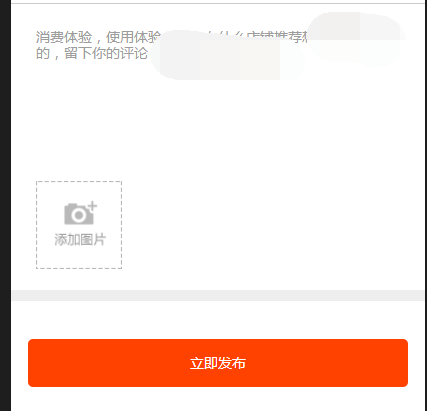
首先选择图片,然后循环,再就是在点击发布的时候循环图片地址赋值,包括删除命令
js代码:
  //选择图片

  uploadImgAdd: function(e) {

    var imgs = this.data.imgs;

    console.log(imgs)

    wx.chooseImage({

      sizeType: ['original', 'compressed'],

      sourceType: ['album', 'camera'],

      success: (res) => {

        console.log(res)

        let tempFilePaths = res.tempFilePaths;

        let imgs = this.data.imgs;

        console.log('imgs')

        console.log(imgs)

        //上传的图片

        for (var i = 0; i < tempFilePaths.length; i++) {

          if (imgs.length >= 9) {

            return false;

          } else {

            imgs.push(tempFilePaths[i])

          }

        }

        //上传的图片放到页面上

        this.setData({

          imgs: imgs

        })

      }

    })

  },

  /**

   * 获取上传图片地址

   */

  //单击发布上传图片和内容

  bindFormSubmit: function(e) {

    var imgArr = this.data.imgs;

    this.addPic(e, imgArr)

  },

  addPic: function(e, imgArr) {

    console.log("imgArr")

    console.log(imgArr)

    let uploadimagsSrc = this.data.uploadimagsSrc;

    console.log("uploadimagsSrc")

    console.log(uploadimagsSrc)

    for (let i in imgArr) {

      wx.uploadFile({

        url: app.data.urls + 'images/Picture',

        filePath: imgArr[i],

        header: {

          'content-type': 'multipart/form-data'

        },

        name: 'file',

        success: res => {

          console.log(res)

          let data = res.data;

          console.log(data)

          console.log([...uploadimagsSrc, data])

          uploadimagsSrc = [...uploadimagsSrc, data];

          console.log(uploadimagsSrc)

          this.setData({

            uploadimagsSrc: uploadimagsSrc

          })

        },

      })

    }

    let timer = setInterval(() => {

      //间歇调用

      if (uploadimagsSrc.length == imgArr.length) {

        console.log(uploadimagsSrc)

        console.log(imgArr)

        debugger

        this.sendMessageInfo(e, uploadimagsSrc);

        clearInterval(timer); //可取消由 setInterval() 函数设定的定时执行操作

      }

    }, 500)

  },

  sendMessageInfo: function(e, imagsSrc) {

    var formData = e.detail.value.message

    if (formData.length == 0) {

      wx.showToast({

        title: '意见反馈内容不能为空,说几句话吧~',

        icon: 'none',

        duration: 1500

      })

      return false;

    }

    var replaceLeftRig = formData.replace(/(^\s*)|(\s*$)/g, "").length

    if (replaceLeftRig < 15) {

      wx.showToast({

        title: '意见反馈内容不能少于15个字',

        icon: 'none',

        duration: 1500

      })

      return false;

    }

    imagsSrc = imagsSrc.join(';')

    wx.request({

      url: app.data.urls + 'feedback/insertCustomerFeedback',

      data: {

        "customerId": app.data.customerId,

        "feedbackMessages": formData,

        "imagesAddress": imagsSrc,

      },

      method: "POST",

      header: {

        'content-type': 'application/json' // 默认值

      },

      success: function(res) {

        console.log(res)

        /**

         *

         * 异常判断

         *

         *

         */

        if (res.data.status == 200) {

          wx.showModal({

            content: '谢谢您提交的反馈,后台的小哥哥会第一时间收到哦~',

            showCancel: false,

            confirmText: "知道了",

            success: function(res) {

              if (res.confirm) {

                wx.navigateBack({

                  delta: 1

                })

              }

            }

          });

        } else {

          wx.showModal({

            content: '系统繁忙',

            showCancel: false,

            confirmText: "知道了",

            success: res => {

              console.log(res)

            }

          });

        }

      }

    })

  },

  //删除图片

  uploadImgClose: function(e) {

    var imgs = this.data.imgs;

    var index = e.currentTarget.dataset.index;

    imgs.splice(index, 1);

    this.setData({

      imgs: imgs

    });

    // console.log(imgs)

  },

feedBack/feedBack
微信小程序 上传图的功能的更多相关文章
- 微信小程序上传Excel文本文件功能
问题: 在开发过程中会发现微信小程序有很多功能都还不能满足我们的需求,谁叫客户就是上帝呢,前几天小编遇到了这么个问题,就是用微信小程序上传文件,但是还以为微信带有这个模块,可是查了许久还是没有找到,只 ...
- 微信小程序上传多张图片,及php后台处理
微信小程序上传多张图片,级小程序页面布局直接来代码index.wxml <view class='body' style='width:{{windowWidth}}px;height:{{wi ...
- 微信小程序上传与下载文件
需要准备的工作: ①.建立微信小程序工程,编写以下代码. ②.通过IDE建立springboot+web工程,编写接收文件以及提供下载文件的方式,并将上传的文件相关信息记录在mysql数据库中.具体请 ...
- 微信小程序上传后发布或者体验版测试无数据解决办法
在做微信小程序开发的过程中,发现小程序在本地调用接口的数据都显示,但是上传之后,发现手机体验没有数据.以下为解决办法: 1.先清除缓存试试. 2.打开微信小程序工具右上角的详情——项目设置,将“不校验 ...
- Taro 微信小程序 上传文件到minio
小程序前端上传文件不建议直接引用minio的js npm包,一来是这个包本身较大,会影响小程序的体积,二来是ak sk需要放到前端存储,不够安全,因此建议通过请求后端拿到签名数据后上传. 由于小程序的 ...
- 微信小程序-上传照片-多张显示
图片就是一个简单的效果 实现 先看wxml和wxss代码 <view class='in-demand'> <view class='dema-title'> <text ...
- 微信小程序上传文件遇到的坑
在开发小程序时,使用的花生壳做的内网映射,域名使用花生壳卖的https域名 在做小程序文件上传时,调用接口,老是报错. Caused by: org.apache.commons.fileupload ...
- 微信小程序-上传下载
wx.uploadFile(OBJECT) 上传 将本地资源上传到开发者服务器.如页面通过 wx.chooseImage(图片)/wx.chooseVideo(视频) 等接口获取到一个本地资源的临时文 ...
- 微信小程序上传一或多张图片
一.要点 1.选取图片 wx.chooseImage({ sizeType: [], // original 原图,compressed 压缩图,默认二者都有 sourceType: [], // a ...
随机推荐
- [实验楼]python11期--NO.1(未完成)
tuple 是 Python 的一种不可变数据类型,用于列表数据一旦初始化就不会再修改的场景.tuple 只能通过位置索引去访问里面的元素,但有时候我们需要给每个元素取个别名,以便通过别名去获取对应的 ...
- ES modules
注意:这篇文章讲的是正经的es module规范 及浏览器的实现!webpack项目中es module会被parse成commonjs,和这个没大关系! 总结: ES模块加载的主要过程: 构造 —— ...
- React-setState源码的理解
首先举一个最简单的例子: this.state={ a:1 } this.setState({ a:2 }) console.log(this.state.a)//1 可以说setState()操作是 ...
- markdown图片设置
工具:typora 1. 设置图片大小(本节引用自 https://support.typora.io/Resize-Image/) Typora允许使用<img>标签显示图像,也可用于调 ...
- Ubuntu下安装curl和corn
Ubuntu下安装curl sudo apt install curl Ubuntu下安装cron apt-get install cron
- Virtual Box 新建一个虚拟机安装系统(补充:WIN7 64 bit 系统虚拟机无法安装 64 bit 系统问题)
1.安装Virtual Box好后,点击新建 2.配置内存大小,这个根据自己需要配置就好 3.创建虚拟硬盘 这里选择固定分配.动态分配都可以,接下来就分配硬盘大小了 4.新建好后我们点击刚才建立的虚拟 ...
- SpringBoot中使用过滤器Filter
场景:API的参数都是经过加密的,于是在过滤器中,将获取到的请求的参数先解密再去进行处理 一.实现Filter接口 public class TestFilter implements Filter ...
- IDEA使用操作说明(自己总结)
1.idea导入一个项目后,如何再导入另一个项目 首先,点击File-->new-->Module from Existing Sources...-->找到该项目所在位置,选中该项 ...
- 【剑指offer】Q31:连续子数组的组大和
简短的分析见:http://blog.csdn.net/shiquxinkong/article/details/17934747 def FindGreatestSumOfSubArray(arra ...
- HDU - 4758 Walk Through Squares (AC自己主动机+DP)
Description On the beaming day of 60th anniversary of NJUST, as a military college which was Secon ...