
Diffusers中基于Stable Diffusion的哪些图像操作
基于Stable Diffusion的哪些图像操作们:
- Text-To-Image generation:
StableDiffusionPipeline - Image-to-Image text guided generation:
StableDiffusionImg2ImgPipeline - In-painting:
StableDiffusionInpaintPipeline - text-guided image super-resolution:
StableDiffusionUpscalePipeline - generate variations from an input image:
StableDiffusionImageVariationPipeline - image editing by following text instructions:
StableDiffusionInstructPix2PixPipeline - ......
辅助函数
import requests

from PIL import Image

from io import BytesIO

def show_images(imgs, rows=1, cols=3):

    assert len(imgs) == rows*cols

    w_ori, h_ori = imgs[0].size

    for img in imgs:

        w_new, h_new = img.size

        if w_new != w_ori or h_new != h_ori:

            w_ori = max(w_ori, w_new)

            h_ori = max(h_ori, h_new)

    grid = Image.new('RGB', size=(cols*w_ori, rows*h_ori))

    grid_w, grid_h = grid.size

    for i, img in enumerate(imgs):

        grid.paste(img, box=(i%cols*w_ori, i//cols*h_ori))

    return grid

def download_image(url):

    response = requests.get(url)

    return Image.open(BytesIO(response.content)).convert("RGB")
Text-To-Image
根据文本生成图像,在diffusers使用StableDiffusionPipeline实现,必要输入为prompt,示例代码:
from diffusers import StableDiffusionPipeline

image_pipe = StableDiffusionPipeline.from_pretrained("CompVis/stable-diffusion-v1-4")

device = "cuda"

image_pipe.to(device)

prompt = ["a photograph of an astronaut riding a horse"] * 3

out_images = image_pipe(prompt).images

for i, out_image in enumerate(out_images):

    out_image.save("astronaut_rides_horse" + str(i) + ".png")
示例输出:
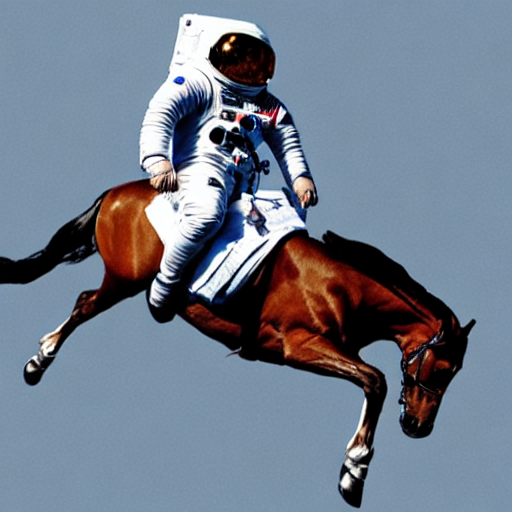
Image-To-Image
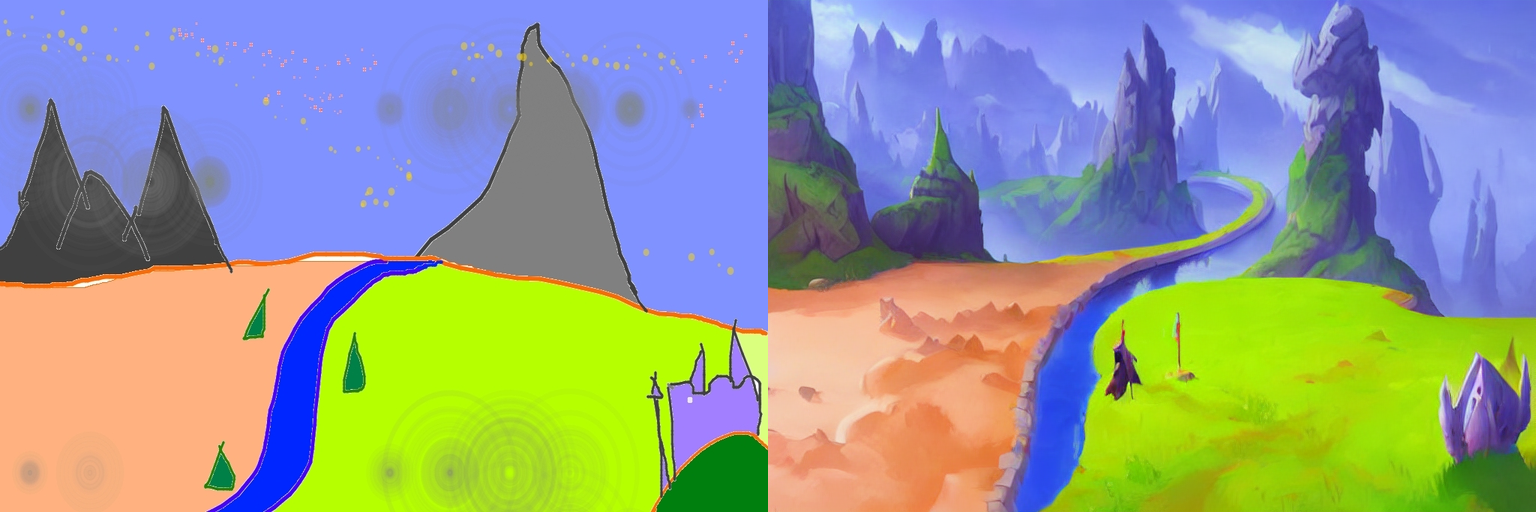
根据文本prompt和原始图像,生成新的图像。在diffusers中使用StableDiffusionImg2ImgPipeline类实现,可以看到,pipeline的必要输入有两个:prompt和init_image。示例代码:
import torch

from diffusers import StableDiffusionImg2ImgPipeline

device = "cuda"

model_id_or_path = "runwayml/stable-diffusion-v1-5"

pipe = StableDiffusionImg2ImgPipeline.from_pretrained(model_id_or_path, torch_dtype=torch.float16)

pipe = pipe.to(device)

url = "https://raw.githubusercontent.com/CompVis/stable-diffusion/main/assets/stable-samples/img2img/sketch-mountains-input.jpg"

init_image = download_image(url)

init_image = init_image.resize((768, 512))

prompt = "A fantasy landscape, trending on artstation"

images = pipe(prompt=prompt, image=init_image, strength=0.75, guidance_scale=7.5).images

grid_img = show_images([init_image, images[0]], 1, 2)

grid_img.save("fantasy_landscape.png")
示例输出:
In-painting
给定一个mask图像和一句提示,可编辑给定图像的特定部分。使用StableDiffusionInpaintPipeline来实现,输入包含三部分:原始图像,mask图像和一个prompt,
示例代码:
from diffusers import StableDiffusionInpaintPipeline

img_url = "https://raw.githubusercontent.com/CompVis/latent-diffusion/main/data/inpainting_examples/overture-creations-5sI6fQgYIuo.png"

mask_url = "https://raw.githubusercontent.com/CompVis/latent-diffusion/main/data/inpainting_examples/overture-creations-5sI6fQgYIuo_mask.png"

init_image = download_image(img_url).resize((512, 512))

mask_image = download_image(mask_url).resize((512, 512))

pipe = StableDiffusionInpaintPipeline.from_pretrained("runwayml/stable-diffusion-inpainting", torch_dtype=torch.float16)

pipe = pipe.to("cuda")

prompt = "Face of a yellow cat, high resolution, sitting on a park bench"

images = pipe(prompt=prompt, image=init_image, mask_image=mask_image).images

grid_img = show_images([init_image, mask_image, images[0]], 1, 3)

grid_img.save("overture-creations.png")
示例输出:

Upscale
对低分辨率图像进行超分辨率,使用StableDiffusionUpscalePipeline来实现,必要输入为prompt和低分辨率图像(low-resolution image),示例代码:
from diffusers import StableDiffusionUpscalePipeline

# load model and scheduler

model_id = "stabilityai/stable-diffusion-x4-upscaler"

pipeline = StableDiffusionUpscalePipeline.from_pretrained(model_id, torch_dtype=torch.float16, cache_dir="./models/")

pipeline = pipeline.to("cuda")

# let's download an  image

url = "https://huggingface.co/datasets/hf-internal-testing/diffusers-images/resolve/main/sd2-upscale/low_res_cat.png"

low_res_img = download_image(url)

low_res_img = low_res_img.resize((128, 128))

prompt = "a white cat"

upscaled_image = pipeline(prompt=prompt, image=low_res_img).images[0]

grid_img = show_images([low_res_img, upscaled_image], 1, 2)

grid_img.save("a_white_cat.png")

print("low_res_img size: ", low_res_img.size)

print("upscaled_image size: ", upscaled_image.size)
示例输出,默认将一个128 x 128的小猫图像超分为一个512 x 512的:
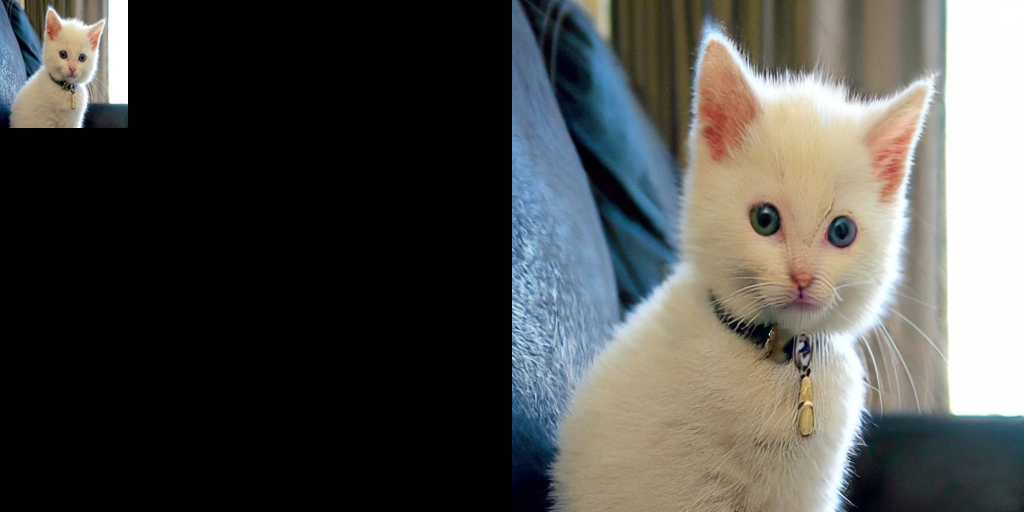
默认是将原始尺寸的长和宽均放大四倍,即:
input: 128 x 128 ==> output: 512 x 512

input: 64 x 256 ==> output: 256 x 1024

...
个人感觉,prompt没有起什么作用,随便写吧。
关于此模型的详情,参考。
Instruct-Pix2Pix
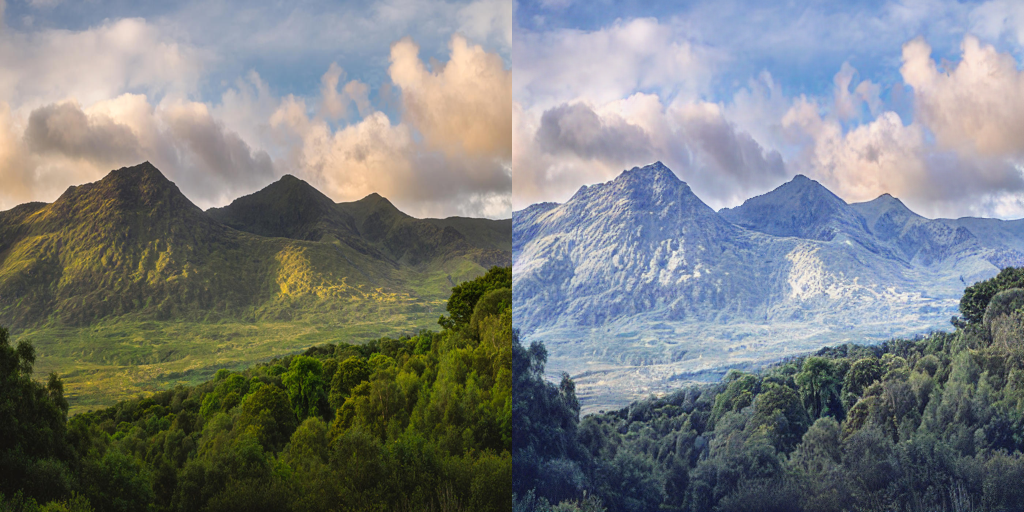
根据输入的指令prompt对图像进行编辑,使用StableDiffusionInstructPix2PixPipeline来实现,必要输入包括prompt和image,示例代码如下:
import torch

from diffusers import StableDiffusionInstructPix2PixPipeline

model_id = "timbrooks/instruct-pix2pix"

pipe = StableDiffusionInstructPix2PixPipeline.from_pretrained(model_id, torch_dtype=torch.float16, cache_dir="./models/")

pipe = pipe.to("cuda")

url = "https://huggingface.co/datasets/diffusers/diffusers-images-docs/resolve/main/mountain.png"

image = download_image(url)

prompt = "make the mountains snowy"

images = pipe(prompt, image=image, num_inference_steps=20, image_guidance_scale=1.5, guidance_scale=7).images

grid_img = show_images([image, images[0]], 1, 2)

grid_img.save("snowy_mountains.png")
示例输出:
Diffusers中基于Stable Diffusion的哪些图像操作的更多相关文章
- 基于Docker安装的Stable Diffusion使用CPU进行AI绘画
基于Docker安装的Stable Diffusion使用CPU进行AI绘画 由于博主的电脑是为了敲代码考虑买的,所以专门买的高U低显,i9配核显,用Stable Diffusion进行AI绘画的话倒 ...
- AI绘画提示词创作指南:DALL·E 2、Midjourney和 Stable Diffusion最全大比拼 ⛵
作者:韩信子@ShowMeAI 深度学习实战系列:https://www.showmeai.tech/tutorials/42 自然语言处理实战系列:https://www.showmeai.tech ...
- 使用 LoRA 进行 Stable Diffusion 的高效参数微调
LoRA: Low-Rank Adaptation of Large Language Models 是微软研究员引入的一项新技术,主要用于处理大模型微调的问题.目前超过数十亿以上参数的具有强能力的大 ...
- C# 中使用Word文档对图像进行操作
C# 中使用Word文档对图像进行操作 Download Files: ImageOperationsInWord.zip 简介 在这篇文章中我们可以学到在C#程序中使用一个Word文档对图像的各种操 ...
- 基于Xilinx FPGA的视频图像采集系统
本篇要分享的是基于Xilinx FPGA的视频图像采集系统,使用摄像头采集图像数据,并没有用到SDRAM/DDR.这个工程使用的是OV7670 30w像素摄像头,用双口RAM做存储,显示窗口为320x ...
- OpenCV_基于局部自适应阈值的图像二值化
在图像处理应用中二值化操作是一个很常用的处理方式,例如零器件图片的处理.文本图片和验证码图片中字符的提取.车牌识别中的字符分割,以及视频图像中的运动目标检测中的前景分割,等等. 较为常用的图像二值化方 ...
- 基于Jittor框架实现LSGAN图像生成对抗网络
基于Jittor框架实现LSGAN图像生成对抗网络 生成对抗网络(GAN, Generative Adversarial Networks )是一种深度学习模型,是近年来复杂分布上无监督学习最具前景的 ...
- 跟我学Python图像处理丨基于灰度三维图的图像顶帽运算和黑帽运算
摘要:本篇文章结合灰度三维图像讲解图像顶帽运算和图像黑猫运算,通过Python调用OpenCV函数实现. 本文分享自华为云社区<[Python图像处理] 十三.基于灰度三维图的图像顶帽运算和黑帽 ...
- [OpenCV实战]20 使用OpenCV实现基于增强相关系数最大化的图像对齐
目录 1 背景 1.1 彩色摄影的一个简短而不完整的历史 1.2 OpenCV中的运动模型 2 使用增强相关系数最大化(ECC)的图像对齐 2.1 findTransformECC在OpenCV中的示 ...
- 从 GPT2 到 Stable Diffusion:Elixir 社区迎来了 Hugging Face
上周,Elixir 社区向大家宣布,Elixir 语言社区新增从 GPT2 到 Stable Diffusion 的一系列神经网络模型.这些模型得以实现归功于刚刚发布的 Bumblebee 库.Bum ...
随机推荐
- .net 温故知新:【10】.NET ORM框架EFCore使用入门之CodeFirs、DBFirst
前言:本系列是我自己学习.net相关知识,以便跟上.net跨平台的步伐,目前工作原因基本在.net Framework4.7以下,所以才有了这一系列的学习总结,但是并不是从基本的C#语法和基础知识开始 ...
- 构建SpringCloud网关服务
搭建网关 导入maven包: <!--网关依赖--> <dependency> <groupId>org.springframework.cloud</gro ...
- RocketMQ Schema——让消息成为流动的结构化数据
本文作者:许奕斌,阿里云智能高级研发工程师. Why we need schema RocketMQ 目前对于消息体没有任何数据格式的约束,可以是 JSON ,可以是对象 toString ,也可以只 ...
- virtualenv 配置(windows)
1.在线安装 virtualenv pip install virtualenv 2.离线安装 下载virtualenv包,解压并进入setup.py所在文件夹中 python setup.py in ...
- Windows下jdk安装与卸载-超详细的图文教程
jdk安装 下载jdk 由于现在主流就是jdk1.8,所以这里就下载jdk1.8进行演示.官方下载地址:https://www.oracle.com/java/technologies/downloa ...
- [深度学习] 基于切片辅助超推理库SAHI优化小目标识别
对象检测是迄今为止计算机视觉中最重要的应用领域.然而,小物体的检测和大图像的推理仍然是实际使用中的主要问题,这是因为小目标物体有效特征少,覆盖范围少.小目标物体的定义通常有两种方式.一种是绝对尺度定义 ...
- [编程基础] C++多线程入门4-数据共享和资源竞争
原始C++标准仅支持单线程编程.新的C++标准(称为C++11或C++0x)于2011年发布.在C++11中,引入了新的线程库.因此运行本文程序需要C++至少符合C++ 11标准. 4 数据共享和资源 ...
- vivo 实时计算平台建设实践
作者:vivo 互联网实时计算团队- Chen Tao 本文根据"2022 vivo开发者大会"现场演讲内容整理而成. vivo 实时计算平台是 vivo 实时团队基于 Apach ...
- SPOJLCMSUM - LCM Sum
简要题意 \(T\) 组数据,每组数据给出一个 \(n\),计算: \[\sum_{i=1}^{n}{\operatorname{lcm}(i,n)} \] \(1 \leq T \leq 3\tim ...
- 【力扣】2400. 恰好移动 k 步到达某一位置的方法数目
题目 2400. 恰好移动 k 步到达某一位置的方法数目 解题思路 观察上面示例,容易画出下面的递归树,因此可以考虑DFS. DFS 很容易写出DFS的代码 class Solution { int ...