
Ubuntu 22.04 LTS 在线/离线安装 Docker
Docker 安装方式
时间:2024-10
准备环境
root@ubuntu2204:~# hostnamectl

 Static hostname: ubuntu2204

       Icon name: computer-vm

         Chassis: vm

      Machine ID: 06204406df2343f89f6ba6550a356854

         Boot ID: 3142ea12a9e64adbab7b8939935e7698

  Virtualization: vmware

Operating System: Ubuntu 22.04.5 LTS

          Kernel: Linux 5.15.0-43-generic

    Architecture: x86-64

 Hardware Vendor: VMware, Inc.

  Hardware Model: VMware Virtual Platform

# 关闭 swap

root@ubuntu2204:~# swapoff -a

root@ubuntu2204:~# sed -ri.bak 's/.*swap.*/#&/' /etc/fstab

# 更换阿里源

root@ubuntu2204:~# cp /etc/apt/sources.list /etc/apt/sources.list_bak

root@ubuntu2204:~# cat /etc/apt/sources.list

deb https://mirrors.aliyun.com/ubuntu/ jammy main restricted universe multiverse

deb-src https://mirrors.aliyun.com/ubuntu/ jammy main restricted universe multiverse

deb https://mirrors.aliyun.com/ubuntu/ jammy-security main restricted universe multiverse

deb-src https://mirrors.aliyun.com/ubuntu/ jammy-security main restricted universe multiverse

deb https://mirrors.aliyun.com/ubuntu/ jammy-updates main restricted universe multiverse

deb-src https://mirrors.aliyun.com/ubuntu/ jammy-updates main restricted universe multiverse

# deb https://mirrors.aliyun.com/ubuntu/ jammy-proposed main restricted universe multiverse

# deb-src https://mirrors.aliyun.com/ubuntu/ jammy-proposed main restricted universe multiverse

deb https://mirrors.aliyun.com/ubuntu/ jammy-backports main restricted universe multiverse

deb-src https://mirrors.aliyun.com/ubuntu/ jammy-backports main restricted universe multiverse

root@ubuntu2204:~# apt update

root@ubuntu2204:~# apt upgrade -y
在线 APT 安装
# 卸载 docker 旧版本

root@ubuntu2204:~# for pkg in docker.io docker-doc docker-compose docker-compose-v2 podman-docker containerd runc; do sudo apt-get remove $pkg; done

root@ubuntu2204:~# rm /var/lib/docker /var/lib/containerd -rf

# 安装必要的依赖包

root@ubuntu2204:~# apt install apt-transport-https ca-certificates curl gnupg lsb-release -y

# 添加软件源的GPG密钥及docker源(三选一)

# ------------------------------------------------------------------------------------------------------------

# 一:阿里

root@ubuntu2204:~# curl -fsSL http://mirrors.aliyun.com/docker-ce/linux/ubuntu/gpg | sudo apt-key add -

root@ubuntu2204:~# add-apt-repository "deb [arch=$(dpkg --print-architecture)] http://mirrors.aliyun.com/docker-ce/linux/ubuntu $(lsb_release -cs) stable"

# 二:清华

curl -fsSL https://mirrors.tuna.tsinghua.edu.cn/docker-ce/linux/ubuntu/gpg | sudo apt-key add -

add-apt-repository "deb [arch=$(dpkg --print-architecture)] https://mirrors.tuna.tsinghua.edu.cn/docker-ce/linux/ubuntu $(lsb_release -cs) stable"

# 三:docker官方

curl -fsSL https://download.docker.com/linux/ubuntu/gpg | sudo apt-key add -

add-apt-repository "deb [arch=$(dpkg --print-architecture)] https://download.docker.com/linux/ubuntu $(lsb_release -cs) stable"

# ------------------------------------------------------------------------------------------------------------

# 方式一:选择安装最新稳定版

root@ubuntu2204:~# apt-get install docker-ce docker-ce-cli containerd.io docker-buildx-plugin docker-compose-plugin -y

# 或方式二:选择安装指定稳定版, 例如 5:24.0.9-1~ubuntu.22.04~jammy

root@ubuntu2204:~# apt-cache madison docker-ce | awk '{ print $3 }' | less

5:27.3.1-1~ubuntu.22.04~jammy

5:27.3.0-1~ubuntu.22.04~jammy

......

5:25.0.3-1~ubuntu.22.04~jammy

5:25.0.2-1~ubuntu.22.04~jammy

5:25.0.1-1~ubuntu.22.04~jammy

5:25.0.0-1~ubuntu.22.04~jammy

5:24.0.9-1~ubuntu.22.04~jammy

5:24.0.8-1~ubuntu.22.04~jammy

......

root@ubuntu2204:~# VERSION_STRING=5:24.0.9-1~ubuntu.22.04~jammy

root@ubuntu2204:~# apt-get install docker-ce=$VERSION_STRING docker-ce-cli=$VERSION_STRING containerd.io docker-buildx-plugin docker-compose-plugin -y

# 查看docker信息

root@ubuntu2204:~# docker -v

Docker version 24.0.9, build 2936816

root@ubuntu2204:~# docker version

Client: Docker Engine - Community

 Version:           24.0.9

 API version:       1.43

 Go version:        go1.20.13

 Git commit:        2936816

 Built:             Thu Feb  1 00:48:39 2024

 OS/Arch:           linux/amd64

 Context:           default

Server: Docker Engine - Community

 Engine:

  Version:          24.0.9

  API version:      1.43 (minimum version 1.12)

  Go version:       go1.20.13

  Git commit:       fca702d

  Built:            Thu Feb  1 00:48:39 2024

  OS/Arch:          linux/amd64

  Experimental:     false

 containerd:

  Version:          1.7.22

  GitCommit:        7f7fdf5fed64eb6a7caf99b3e12efcf9d60e311c

 runc:

  Version:          1.1.14

  GitCommit:        v1.1.14-0-g2c9f560

 docker-init:

  Version:          0.19.0

  GitCommit:        de40ad0

root@ubuntu2204:~# ps -ef | grep docker

root        2032       1  0 14:51 ?        00:00:00 /usr/bin/dockerd -H fd:// --containerd=/run/containerd/containerd.sock

root        2214     940  0 14:51 pts/0    00:00:00 grep --color=auto docker

# 启动|停止|查看|开机自启

root@ubuntu2204:~# systemctl start|stop|status|enable docker

# 测试 docker 是否安装正确

root@ubuntu2204:~# docker run --rm hello-world

Unable to find image 'hello-world:latest' locally

latest: Pulling from library/hello-world

c1ec31eb5944: Pull complete

Digest: sha256:d211f485f2dd1dee407a80973c8f129f00d54604d2c90732e8e320e5038a0348

Status: Downloaded newer image for hello-world:latest

Hello from Docker!

This message shows that your installation appears to be working correctly.

To generate this message, Docker took the following steps:

 1. The Docker client contacted the Docker daemon.

 2. The Docker daemon pulled the "hello-world" image from the Docker Hub.

    (amd64)

 3. The Docker daemon created a new container from that image which runs the

    executable that produces the output you are currently reading.

 4. The Docker daemon streamed that output to the Docker client, which sent it

    to your terminal.

To try something more ambitious, you can run an Ubuntu container with:

 $ docker run -it ubuntu bash

Share images, automate workflows, and more with a free Docker ID:

 https://hub.docker.com/

For more examples and ideas, visit:

 https://docs.docker.com/get-started/

若能正常输出以上信息,则说明安装成功。
二进制离线安装
时间:2024-10 下载 Docker docker-24.0.9.tgz 为例
下载 Docker 地址
- 阿里地址【 docker-24.0.9.tgz 】
- 清华大学地址【 docker-24.0.9.tgz 】
- 官方地址【 docker-24.0.6.tgz 】
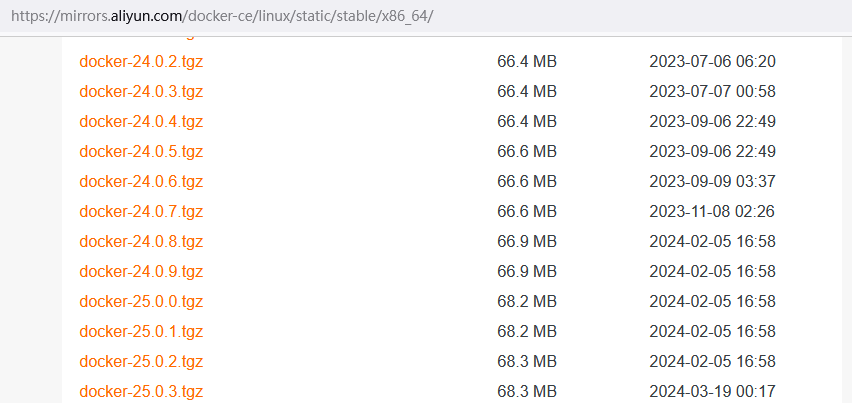
# 下载 Docker docker-24.0.9.tgz 为例 (当前最新版本 docker-27.3.1.tgz)

root@ubuntu2204:~# wget https://mirrors.aliyun.com/docker-ce/linux/static/stable/x86_64/docker-24.0.9.tgz

root@ubuntu2204:~# tar -xf docker-24.0.9.tgz

root@ubuntu2204:~# cp -a docker/* /usr/local/bin/

root@ubuntu2204:~# docker -v

Docker version 24.0.9, build 2936816

root@ubuntu2204:~# docker -h

# 将docker注册为 Systemd 的 service

# /usr/lib/systemd/system/docker.service 或 /etc/systemd/system/docker.service

[root@ubuntu2204 ~]# cat > /usr/lib/systemd/system/docker.service <<EOF

[Unit]

Description=Docker Application Container Engine

Documentation=https://docs.docker.com

After=network-online.target firewalld.service

Wants=network-online.target

[Service]

Type=notify

# the default is not to use systemd for cgroups because the delegate issues still

# exists and systemd currently does not support the cgroup feature set required

# for containers run by docker

ExecStart=/usr/local/bin/dockerd -H unix:///var/run/docker.sock --default-ulimit nofile=65536:65536

ExecReload=/bin/kill -s HUP $MAINPID

# Having non-zero Limit*s causes performance problems due to accounting overhead

# in the kernel. We recommend using cgroups to do container-local accounting.

LimitNOFILE=infinity

LimitNPROC=infinity

LimitCORE=infinity

# Uncomment TasksMax if your systemd version supports it.

# Only systemd 226 and above support this version.

#TasksMax=infinity

TimeoutStartSec=0

# set delegate yes so that systemd does not reset the cgroups of docker containers

Delegate=yes

# kill only the docker process, not all processes in the cgroup

KillMode=process

# restart the docker process if it exits prematurely

Restart=on-failure

StartLimitBurst=3

StartLimitInterval=60s

[Install]

WantedBy=multi-user.target

EOF

# 如果需要开启远程服务ExecStart属性修改为以下命令:

ExecStart=/usr/local/bin/dockerd -H tcp://0.0.0.0:2375 -H unix:///var/run/docker.sock --default-ulimit nofile=65536:65536

# -H tcp://0.0.0.0:2375 开启远程连接命令

# 测试远程连接  docker -H DockerHost_ip version

# 添加文件可执行权限

[root@ubuntu2204 ~]# chmod +x /usr/lib/systemd/system/docker.service

# 启动

[root@ubuntu2204 ~]# systemctl daemon-reload && systemctl start docker

# 启动|停止|查看|开机自启

root@ubuntu2204:~# systemctl start|stop|status|enable docker
此时可能会无法启动报错信息如下
root@ubuntu2204:~# systemctl daemon-reload && systemctl start docker

Job for docker.service failed because the control process exited with error code.

See "systemctl status docker.service" and "journalctl -xeu docker.service" for details.

root@ubuntu2204:~# systemctl status docker.service

......

Oct 21 17:24:36 ubuntu2204 systemd[1]: docker.service: Scheduled restart job, restart counter is at 3.

Oct 21 17:24:36 ubuntu2204 systemd[1]: Stopped Docker Application Container Engine.

Oct 21 17:24:36 ubuntu2204 systemd[1]: docker.service: Start request repeated too quickly.

Oct 21 17:24:36 ubuntu2204 systemd[1]: docker.service: Failed with result 'exit-code'.

Oct 21 17:24:36 ubuntu2204 systemd[1]: Failed to start Docker Application Container Engine.

root@ubuntu2204:~# journalctl -xeu docker.service

Oct 21 17:32:56 ubuntu2204 dockerd[1001]: time="2024-10-21T17:32:56.838180448+08:00" level=info msg="Starting up"

Oct 21 17:32:56 ubuntu2204 dockerd[1001]: time="2024-10-21T17:32:56.838180448+08:00" level=info msg="Starting up"

Oct 21 17:32:56 ubuntu2204 dockerd[1001]: time="2024-10-21T17:32:56.846181372+08:00" level=warning msg="could not change group /var/run/docker.sock to docker: group docker not found"

Oct 21 17:32:56 ubuntu2204 dockerd[1001]: time="2024-10-21T17:32:56.846351136+08:00" level=info msg="containerd not running, starting managed containerd"

Oct 21 17:32:56 ubuntu2204 dockerd[1001]: time="2024-10-21T17:32:56.847171970+08:00" level=info msg="started new containerd process" address=/var/run/docker/containerd/containerd.sock module=libcontainerd pid=1011

Oct 21 17:32:56 ubuntu2204 dockerd[1011]: time="2024-10-21T17:32:56.861897616+08:00" level=info msg="starting containerd" revision=7c3aca7a610df76212171d200ca3811ff6096eb8 version=v1.7.13

Oct 21 17:32:56 ubuntu2204 dockerd[1011]: time="2024-10-21T17:32:56.879453787+08:00" level=info msg="loading plugin \"io.containerd.warning.v1.deprecations\"..." type=io.containerd.warning.v1

......

Oct 21 17:32:56 ubuntu2204 dockerd[1011]: time="2024-10-21T17:32:56.915675066+08:00" level=info msg=serving... address=/var/run/docker/containerd/containerd.sock

Oct 21 17:32:56 ubuntu2204 dockerd[1011]: time="2024-10-21T17:32:56.915690393+08:00" level=info msg="containerd successfully booted in 0.054759s"

Oct 21 17:32:56 ubuntu2204 dockerd[1001]: time="2024-10-21T17:32:56.922245751+08:00" level=info msg="detected 127.0.0.53 nameserver, assuming systemd-resolved, so using resolv.conf: /run/systemd/resolve/resolv.conf"

Oct 21 17:32:57 ubuntu2204 dockerd[1001]: time="2024-10-21T17:32:57.069029579+08:00" level=info msg="Loading containers: start."

Oct 21 17:32:57 ubuntu2204 dockerd[1001]: time="2024-10-21T17:32:57.131593492+08:00" level=warning msg="failed to find iptables" error="exec: \"iptables\": executable file not found in $PATH"

Oct 21 17:32:57 ubuntu2204 dockerd[1001]: time="2024-10-21T17:32:57.134033772+08:00" level=info msg="stopping event stream following graceful shutdown" error="<nil>" module=libcontainerd namespace=moby

Oct 21 17:32:57 ubuntu2204 dockerd[1001]: time="2024-10-21T17:32:57.134833160+08:00" level=info msg="stopping event stream following graceful shutdown" error="context canceled" module=libcontainerd namespace=plugins.moby

Oct 21 17:32:57 ubuntu2204 dockerd[1001]: time="2024-10-21T17:32:57.134935282+08:00" level=info msg="stopping healthcheck following graceful shutdown" module=libcontainerd

Oct 21 17:32:58 ubuntu2204 dockerd[1001]: failed to start daemon: Error initializing network controller: error obtaining controller instance: failed to create NAT chain DOCKER: Iptables not found

Oct 21 17:32:58 ubuntu2204 systemd[1]: docker.service: Main process exited, code=exited, status=1/FAILUR

.....
原因:这些错误表明 Docker 无法找到 iptables 命令,它是用于配置网络规则和转发的重要工具。缺少 iptables 可能会导致 Docker 无法初始化网络控制器,从而无法启动。
解决方法
# 检查 iptables 是否已安装

root@ubuntu2204:~# which iptables

root@ubuntu2204:~# apt-get install iptables  # 或重新安装:apt-get install --reinstall iptables

# 再次启动 docker

root@ubuntu2204:~# systemctl start docker

root@ubuntu2204:~# iptables -L -n

Chain INPUT (policy ACCEPT)

target     prot opt source               destination

Chain FORWARD (policy DROP)

target     prot opt source               destination

DOCKER-USER  all  --  0.0.0.0/0            0.0.0.0/0

DOCKER-ISOLATION-STAGE-1  all  --  0.0.0.0/0            0.0.0.0/0

ACCEPT     all  --  0.0.0.0/0            0.0.0.0/0            ctstate RELATED,ESTABLISHED

DOCKER     all  --  0.0.0.0/0            0.0.0.0/0

ACCEPT     all  --  0.0.0.0/0            0.0.0.0/0

ACCEPT     all  --  0.0.0.0/0            0.0.0.0/0

Chain OUTPUT (policy ACCEPT)

target     prot opt source               destination

Chain DOCKER (1 references)

target     prot opt source               destination

Chain DOCKER-ISOLATION-STAGE-1 (1 references)

target     prot opt source               destination

DOCKER-ISOLATION-STAGE-2  all  --  0.0.0.0/0            0.0.0.0/0

RETURN     all  --  0.0.0.0/0            0.0.0.0/0

Chain DOCKER-ISOLATION-STAGE-2 (1 references)

target     prot opt source               destination

DROP       all  --  0.0.0.0/0            0.0.0.0/0

RETURN     all  --  0.0.0.0/0            0.0.0.0/0

Chain DOCKER-USER (1 references)

target     prot opt source               destination

RETURN     all  --  0.0.0.0/0            0.0.0.0/0

# 测试 Docker 是否安装正确

root@ubuntu2204:~# docker run --rm hello-world

Unable to find image 'hello-world:latest' locally

latest: Pulling from library/hello-world

c1ec31eb5944: Pull complete

Digest: sha256:d211f485f2dd1dee407a80973c8f129f00d54604d2c90732e8e320e5038a0348

Status: Downloaded newer image for hello-world:latest

Hello from Docker!

This message shows that your installation appears to be working correctly.

To generate this message, Docker took the following steps:

 1. The Docker client contacted the Docker daemon.

 2. The Docker daemon pulled the "hello-world" image from the Docker Hub.

    (amd64)

 3. The Docker daemon created a new container from that image which runs the

    executable that produces the output you are currently reading.

 4. The Docker daemon streamed that output to the Docker client, which sent it

    to your terminal.

To try something more ambitious, you can run an Ubuntu container with:

 $ docker run -it ubuntu bash

Share images, automate workflows, and more with a free Docker ID:

 https://hub.docker.com/

For more examples and ideas, visit:

 https://docs.docker.com/get-started/

若能正常输出以上信息,则说明安装成功。
添加 docker 镜像加速
# 每次修改 daemon.json 后,必须重载配置及重启 docker

root@ubuntu2204:~# mkdir -p /etc/docker

root@ubuntu2204:~# tee /etc/docker/daemon.json <<-'EOF'

{

    "registry-mirrors": [

        "https://dockerpull.com",

        "https://docker.anyhub.us.kg",

        "https://dockerhub.jobcher.com",

        "https://dockerhub.icu",

        "https://docker.awsl9527.cn"

    ]

}

EOF

root@ubuntu2204:~# systemctl daemon-reload && sudo systemctl restart docker

root@ubuntu2204:~# docker info
Ubuntu 22.04 LTS 在线/离线安装 Docker的更多相关文章
- 在 Ubuntu 16.04 LTS 上 离线安装 Docker / Docker-compose
前情提要 今天上班后,突然接到现场的工程师的电话: XXX的现场环境组的的局域网,上不了互联网.bla bla bla..... 如果需要安装其他软件的话,只能是自己带过去安装... 听完现场工程师的 ...
- Ubuntu 22.04 LTS 安装 0.A.D 实时策略游戏 并汉化
众所周知,Linux生态中,能玩的正儿八经的大型游戏其实没几个,而 0.A.D 这个游戏就是这其中之一.这是一个类似于帝国时代的实时策略游戏,开源跨平台,这是其官方网站:https://play0ad ...
- 在阿里云Ubuntu 14.04 Linux服务器上安装docker
参考 How To Install and Use Docker: Getting Started 这篇最靠谱的文档在阿里云 Ubuntu 14.04 服务器上成功安装 docker . ---- ...
- 在Ubuntu 16.04 LTS下编译安装OpenCV 4.1.1
目录 一 安装前的准备 二 编译并安装OpenCV 4.1.1 注:原创不易,转载请务必注明原作者和出处,感谢支持! OpenCV目前(2019-8-1)的最新版本为4.1.1.本文将介绍如何在Ubu ...
- Ubuntu 18.04 LTS 常用软件安装杂记
之前个人笔记本装的是 Linux Mint,用了一段时间但是体验不佳,所以打算换成 Ubuntu .作为一个 Linux 小白,当时配置一些软件环境费了不少时间.这次打算简单记录下,和大家分享一下我的 ...
- Ubuntu 16.04 LTS U盘安装要点
一.UltraISO UltraISO是一款功能强大而又方便实用的光盘映像文件制作/编辑/转换工具,它可以直接编辑ISO文件和从ISO中提取文件和目录,也可以从CD-ROM制作光盘映像或者将硬盘上的文 ...
- Docker - 在Ubuntu 14.04 Server上的安装Docker
在 Ubuntu 14.04 Server 上安装过程是最简单的, 其满足了安装 Docker的所有要求,只需要执行如下安装脚本即可. 如果你有可能,请使用14.04版本的Ubuntu, 避免给自己挖 ...
- Ubuntu 14.04 LTS中怎样安装fcitx中文输入法
轉載: http://jingyan.baidu.com/article/4b07be3c60da3f48b380f3f0.html 一,安装fcitx,这么好的软件,ubuntu软件中心肯定是找得到 ...
- Ubuntu 16.04 LTS下matplotlib安装出错
使用命令sudo pip3 install matplotlib已知报错,用同样的命令安装numpy和opencv却没有,因此重装linux系统两次都没有解决(我是在Vmware中创建的).报错如下: ...
- OpenCL科普及在ubuntu 16.04 LTS上的安装
OpenCL(Open Computing Language,开放计算语言)是一个为异构平台编写程序的框架,此异构平台可由CPU.GPU.DSP.FPGA或其他类型的处理器與硬體加速器所组成.Open ...
随机推荐
- python分布式事务方案(一)tcc
python分布式事务方案(一)tcc 随着单体应用的拆分以及服务化的流行,现在分布式事务已经比较常见,分布式事务理论ACID.CAP.BASE等我就不说了,现在就直接说一下一种常见的解决方案-tcc ...
- Linux 进程编程入门
关于进程和线程的关系,之前一口君写过这几篇文章,大家可以参考下. 本文从头带着大家一起学习Linux进程 <搞懂进程组.会话.控制终端关系,才能明白守护进程干嘛的?> <[粉丝问答6 ...
- Word格式刷快捷键失效恢复方法
突然某天写材料的时候发现word格式刷快捷键变成了Ctrl+Alt+C和Ctrl+Alt+V,用着这个别扭,于是探索如何改回Ctrl+Shift+C和Ctrl+Shift+V,下边是步骤记录. 打开w ...
- python3安装虚拟环境并使用freeze命令迁移模块
python3安装虚拟环境 #1.安装虚拟环境 pip3 install virtualenv #2.创建虚拟环境 python3 -m venv venv #或者 python3 -m venv . ...
- 利用分布式锁在ASP.NET Core中实现防抖
前言 在 Web 应用开发过程中,防抖(Debounce) 是确保同一操作在短时间内不会被重复触发的一种有效手段.常见的场景包括防止用户在短时间内重复提交表单,或者避免多次点击按钮导致后台服务执行多次 ...
- WebRTC 简单入门与实践
一.前言 WebRTC 技术已经广泛在各个行业及场景中被应用,但对多数开发者来说,实时音视频及相关技术却是比较不常接触到的. 做为一名 Web 开发者,WebRTC 这块的概念着实花了不少时间才搞明白 ...
- 一文了解svg之stroke属性
属性 stroke-width SVG具有stroke-width定义笔触宽度的CSS属性. <svg width="500" height="120"& ...
- 【赵渝强老师】使用Docker Compose进行服务编排
一.什么是Docker Compose? Docker Compose是一个用来定义和运行复杂应用的Docker工具.一个使用Docker容器的应用,通常由多个容器组成.使用Docker Compos ...
- window使用VNC远程ubuntu16.04
首先保证在同一局域网下 一.设置Ubuntu 16.04 允许进行远程控制 首先在ubuntu下找到下图图标 将[允许其他人查看您的桌面]这一项勾上,然后在安全那项,勾选[要求远程用户输入此密码],并 ...
- 墨天轮访谈 | 腾讯张铭:带你揭秘王者荣耀背后的游戏数据库 TcaplusDB
分享嘉宾:张铭 腾讯数据库专家工程师,TcaplusDB产品负责人 整理:墨天轮社区 导读 大家好,我是腾讯TcaplusDB的产品负责人张铭,TcaplusDB是专为游戏设计的分布式 NoSQL 数 ...