
WinForm中预览Office文件
WinForm预览Office文档
使用WinForm, WPF, Office组件
原理:使用Office COM组件将Word,Excel转换为XPS文档, 将WPF的DocumentViewer控件寄宿到WinForm中, 实现预览.
1. 新建WinForm项目
2. 新建WPF用户控件, 注意是WPF控件
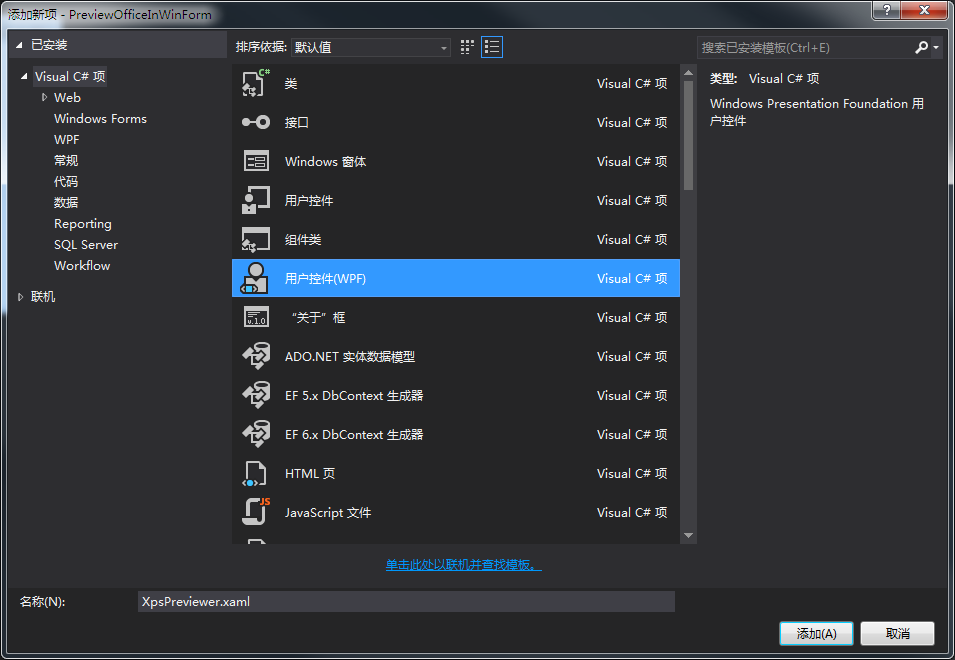
3. 编辑WPF用户控件
<UserControl ...

             ...>

    <Grid>

        <DocumentViewer x:Name="documentViewer"/>

    </Grid>

</UserControl>
VS设计预览显示效果如下:

如果不需要自带的工具栏, 可以添加以下资源隐藏工具栏:
<!--隐藏DocumentViewer边框-->

<UserControl.Resources>

    <Style x:Key="{x:Type DocumentViewer}" TargetType="{x:Type DocumentViewer}">

        <Setter Property="Foreground" Value="{DynamicResource {x:Static SystemColors.WindowTextBrushKey}}" />

        <Setter Property="Background" Value="{DynamicResource {x:Static SystemColors.ControlBrushKey}}" />

        <Setter Property="FocusVisualStyle" Value="{x:Null}" />

        <Setter Property="Template">

            <Setter.Value>

                <ControlTemplate TargetType="{x:Type DocumentViewer}">

                    <Border BorderThickness="{TemplateBinding BorderThickness}" BorderBrush="{TemplateBinding BorderBrush}" Focusable="False">

                        <Grid KeyboardNavigation.TabNavigation="Local">

                            <Grid.Background>

                                <SolidColorBrush Color="{DynamicResource ControlLightColor}" />

                            </Grid.Background>

                            <Grid.RowDefinitions>

                                <RowDefinition Height="Auto" />

                                <RowDefinition Height="*" />

                                <RowDefinition Height="Auto" />

                            </Grid.RowDefinitions>

                            <ScrollViewer Grid.Row="1" CanContentScroll="true" HorizontalScrollBarVisibility="Auto" x:Name="PART_ContentHost" IsTabStop="true">

                                <ScrollViewer.Background>

                                    <LinearGradientBrush EndPoint="0.5,1" StartPoint="0.5,0">

                                        <GradientStop Color="{DynamicResource ControlLightColor}"  Offset="0" />

                                        <GradientStop Color="{DynamicResource ControlMediumColor}" Offset="1" />

                                    </LinearGradientBrush>

                                </ScrollViewer.Background>

                            </ScrollViewer>

                        </Grid>

                    </Border>

                </ControlTemplate>

            </Setter.Value>

        </Setter>

    </Style>

</UserControl.Resources>
4. 新建WinForm用户控件
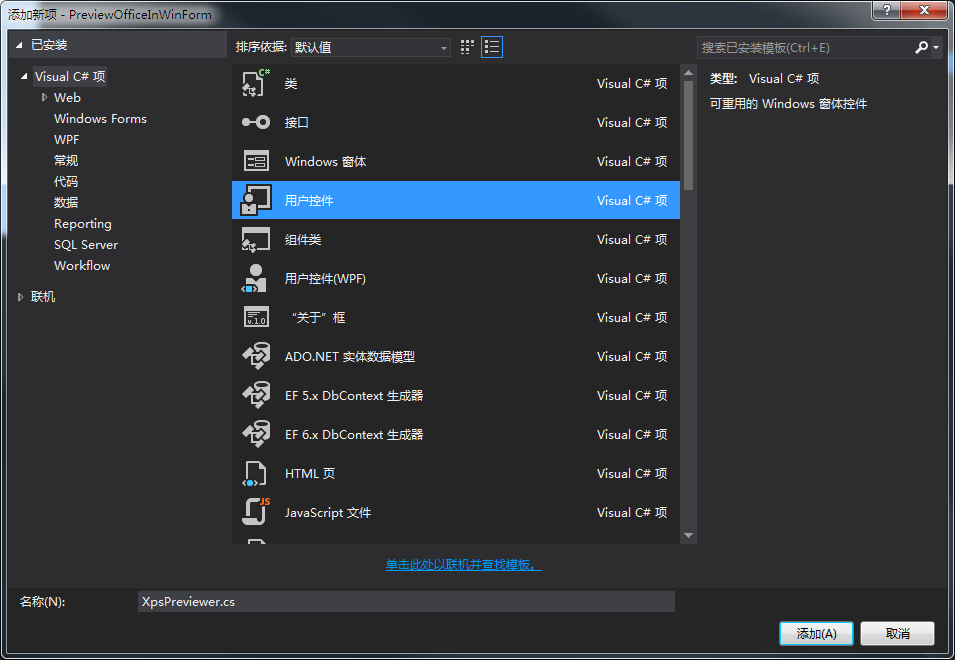
在WinForm上添加ElementHost

将WPF用户控件添加到ElementHost上,设计器代码XpsPreviewer.Designer.cs如下
    //ElementHost

    private System.Windows.Forms.Integration.ElementHost elementHost1;

    //XpsPreviewer变量

    private WPF.XpsPreviewer xpsPreviewer1;

    private void InitializeComponent()

    {

        this.elementHost1 = new System.Windows.Forms.Integration.ElementHost();

        this.xpsPreviewer1 = new WPF.XpsPreviewer();

        //初始化

        //其他属性初始化...

        this.elementHost1.Child = this.xpsPreviewer1;

        //其他属性初始化...

    }
在XpsPreviewer.cs后台代码中定义方法:
    /// <summary>

    /// 加载XPS文件

    /// </summary>

    /// <param name="fileName">XPS文件名</param>

    internal void LoadXps(string fileName)

    {

        var xpsDocument = new XpsDocument(fileName, FileAccess.Read);

        this.xpsPreviewer1.documentViewer.Document = xpsDocument.GetFixedDocumentSequence();

        xpsDocument.Close();

    }
5. 将Excel(Word类似)转换为XPS文件
通过Nuget包管理控制台安装COM组件:
PM> Install-Package Microsoft.Office.Interop.Excel
转换为XPS:
    /// <summary>

    /// 将Excel文件转换为XPS文件

    /// </summary>

    /// <param name="execelFileName">Excel文件名</param>

    /// <param name="xpsFileName">转换的xps文件名</param>

    public void ConvertExcelToXps(string excelFileName, string xpsFileName)

    {

        if (string.IsNullOrWhiteSpace(excelFileName))

            throw new ArgumentNullException(excelFileName);

        if (string.IsNullOrWhiteSpace(xpsFileName))

            throw new ArgumentNullException(xpsFileName);

        var fileInfo = new FileInfo(xpsFileName);

        if (!fileInfo.Directory.Exists)

            fileInfo.Directory.Create();

        //删除已存在的文件

        if (File.Exists(xpsFileName))

            File.Delete(xpsFileName);

        Excel.Application app = new Excel.Application();

        app.DisplayAlerts = false;

        Excel.Workbooks wbs;

        Excel.Workbook wb;

        wbs = app.Workbooks;

        wb = wbs.Add(excelFileName);

        dynamic Nothing = System.Reflection.Missing.Value;

        wb.ExportAsFixedFormat(Excel.XlFixedFormatType.xlTypeXPS, xpsFileName, Nothing, Nothing, Nothing, Nothing, Nothing, Nothing, Nothing);

        wb.Close(true);

        wbs.Close();

        app.Quit();

        KillExcelProcess(app);

    }
扩展: 每次调用Excel打开文件,均会产生一个进程, 在网络上收集的释放Excel进程方式均不起作用. 因此选择直接结束进程, 根据Excel句柄结束进程, 而不是根据进程名称杀死全部正在运行的Excel.
    [DllImport("User32.dll")]

    private static extern int GetWindowThreadProcessId(IntPtr hWnd, out int ProcessId);

    /// <summary>

    /// 结束Excel进程

    /// </summary>

    /// <param name="obj"></param>

    private void KillExcelProcess(Excel.Application app)

    {

        if (app == null)

            return;

        try

        {

            IntPtr intptr = new IntPtr(app.Hwnd);

            int id;

            GetWindowThreadProcessId(intptr, out id);

            var p = Process.GetProcessById(id);

            p.Kill();

        }

        catch { }

    }
现在已经可以正常的预览Excel文件了. 由于Excel另存为XPS文件会耗费一定的时间, 因此建议在后台线程中提前异步生成, 在预览时可直接调取XPS文件.
补充: Word 转换为 PDF
    Word.Application app = new Word.Application();

    Word.Document document = null;

    object missing = System.Reflection.Missing.Value;

    app.Visible = false;

    document = app.Documents.Open(sourcePath);

    document.ExportAsFixedFormat(targetPath, Word.WdExportFormat.wdExportFormatPDF);

    object saveChanges = Word.WdSaveOptions.wdDoNotSaveChanges;

    document.Close(ref saveChanges, ref missing, ref missing);

    ((Word._Application)app).Quit(ref missing, ref missing, ref missing);
WinForm中预览Office文件的更多相关文章
- 在线预览office文件
Office Online 实现在线预览 office的在线预览,针对不同的浏览器版本和系统具有要求,具体的相关文档请参考官方文档. 利用office online 平台进行office 文档的在线查 ...
- React中使用react-file-viewer,实现预览office文件(pdf,word,xlsx等文件)前端实现
最近做一个项目要求在前端浏览器可以直接打开office文件(pdf,doc,xlsx等文件).pdf浏览器可以直接打开(可以直接用a标签href="文件地址"或者iframe标签s ...
- 在线预览Office文件【效果类似百度文库】
引言 结合上个项目和目前做的这个项目,其中都用到了Office文件在线预览,目前项目中是用到公司购买的Ntko控件,该控件每次浏览文件时则会提示安装信任插件,很繁琐,而且浏览效果不好. 提到Offic ...
- 在线预览Office文件【效果类似百度文库】(转载)
转载地址:http://www.cnblogs.com/sword-successful/p/4031823.html 引言 结合上个项目和目前做的这个项目,其中都用到了Office文件在线预览,目前 ...
- 经管资源库项目总结----在线预览office文件的实现与总结
依旧是这个经管的项目.在线预览作为资源和文档管理系统的一个很酷的并且是如此重要的功能,是必须要实现的.然后百度一下office在线预览,看起来so eazy啊,各种博客各种demo,一下子就做出效果来 ...
- 浏览器预览office文件(word,Excel,等)
提示:预览是通过后台转pdf到前台展示的过程,当然网上也有购买的api 举个栗子:(http://www.officeweb365.com/) <!DOCTYPE html> <ht ...
- 文档控件NTKO OFFICE 详细使用说明之预览Excel文件(查看、编辑、保存回服务器)
1.在线预览Excel文件 (1) 运行环境 ① 浏览器:支持IE7-IE11(平台版本还支持Chrome和Firefox) ② IE工具栏-Internet 选项:将www.ntko.com加入到浏 ...
- 文档控件NTKO OFFICE 详细使用说明之预览PDF文件(禁止打印、下载、另存为、防抓包下载)
1.在线预览PDF文件(禁止打印.下载.复制.另存为) (1) 运行环境 ① 浏览器:支持IE7-IE11(平台版本还支持Chrome和Firefox) ② IE工具栏-Internet 选项:将ww ...
- 在网页中预览excel表格文件
项目需求在前端页面中实现预览excel表格的功能,上网了解之后大致总结为一下几种方法. 1.office文档转换为pdf,再转swf,然后通过网页加载flash进行预览 2.通过 xlsx.js,js ...
随机推荐
- nginx配置-为没有后缀的文件(实际上是有html文件)以html形式打开
location ~ index.php@ { add_header content-type "text/html"; }
- css 使元素居中
css使元素水平居中 1.对于行内元素的水平居中 给父元素设置text-align:center <div style="text-align:center;">居中显 ...
- Mac OSX取消Apache(httpd)开机启动(转载)
启动服务时提示Apache启动失败,80端口被占用.查看进程发现存在几个httpd. OS X自带Apache,可是默认是没有启动的.我也没有开启Web共享,怎么就开机启动了呢? 不知道是不是因为安装 ...
- return & finally 执行顺序 这是我读到的最合理的解释
新词:return [expression] 栈顶元素 局部变量的快照 java方法是在栈幀中执行,栈幀是线程私有栈的单位,执行方法的线程会为每一个方法分配一小块栈空间来作为该方法执行时的内存空间, ...
- c++试题2
一.写出下列程序的运行结果(40 分) 1.for(i=1;i<5;i++); cout << “OK” << endl; 程序执行后的输出结果是: OK ___ ...
- Xcode工程编译错误之iOS开发之Sending '__strong typeof (xxx)' (aka 'xxxx *__strong') to parameter of incompatible type 'id<xxx>'
iphone开发出现警告: Sending '__strong typeof (xxx)' (aka 'xxxx *__strong') to parameter of incompatible ty ...
- c->log技巧
介绍: 在C代码里,有时会加入一些打印信息方便分析问题,可用如下代码替代打印函数,更加方便. // // Created by lady on 18-12-10. // #include <st ...
- 最全的MonkeyRunner自动化测试从入门到精通(6)
eclipse中进行插入PyDev插件的使用步骤一:monkeyrunner环境变量的配置.在Android Sdk中的tools目录下,拷贝路径,进行配置环境变量.与上面的配置方法一样,在这里不做过 ...
- java8新特性--Stream的基本介绍和使用
什么是Stream? Stream是一个来自数据源的元素队列并可以进行聚合操作. 数据源:流的来源. 可以是集合,数组,I/O channel, 产生器generator 等 聚合操作:类似SQL语句 ...
- 在Windows Server 2008 R2 Server中,连接其他服务器的数据库遇到“未启用当前数据库的 SQL Server Service Broker,因此查询通知不受支持。如果希望使用通知,请为此数据库启用 Service Broker ”
项目代码和数据库部署在不同的Windows Server 2008 R2 Server中,错误日志显示如下: "未启用当前数据库的 SQL Server Service Broker,因此查 ...