
关于 C# HttpClient的 请求
Efficiently Streaming Large HTTP Responses With HttpClient
Downloading large files with HttpClient and you see that it takes lots of memory space? This post is probably for you. Let's see how to efficiently streaming large HTTP responses with HttpClient.
I see common scenarios where people need to download large files (images, PDF files, etc.) on their .NET projects. What I mean by large files here is probably not what you think. It should be enough to call it large if it’s 500 KB as you will hit a memory limit once you try to download lots of files concurrently in a wrong way as below:
static async Task HttpGetForLargeFileInWrongWay()

{

    using (HttpClient client = new HttpClient())

    {

        const string url = "https://github.com/tugberkugurlu/ASPNETWebAPISamples/archive/master.zip";

        using (HttpResponseMessage response = await client.GetAsync(url))

        using (Stream streamToReadFrom = await response.Content.ReadAsStreamAsync())

        {

            string fileToWriteTo = Path.GetTempFileName();

            using (Stream streamToWriteTo = File.Open(fileToWriteTo, FileMode.Create))

            {

                await streamToReadFrom.CopyToAsync(streamToWriteTo);

            }

            response.Content = null;

        }

    }

}
By calling GetAsync method directly there, we are loading every single byte into memory. You can see this happening in a simple way by opening the Task Manager and observing the memory of the process.
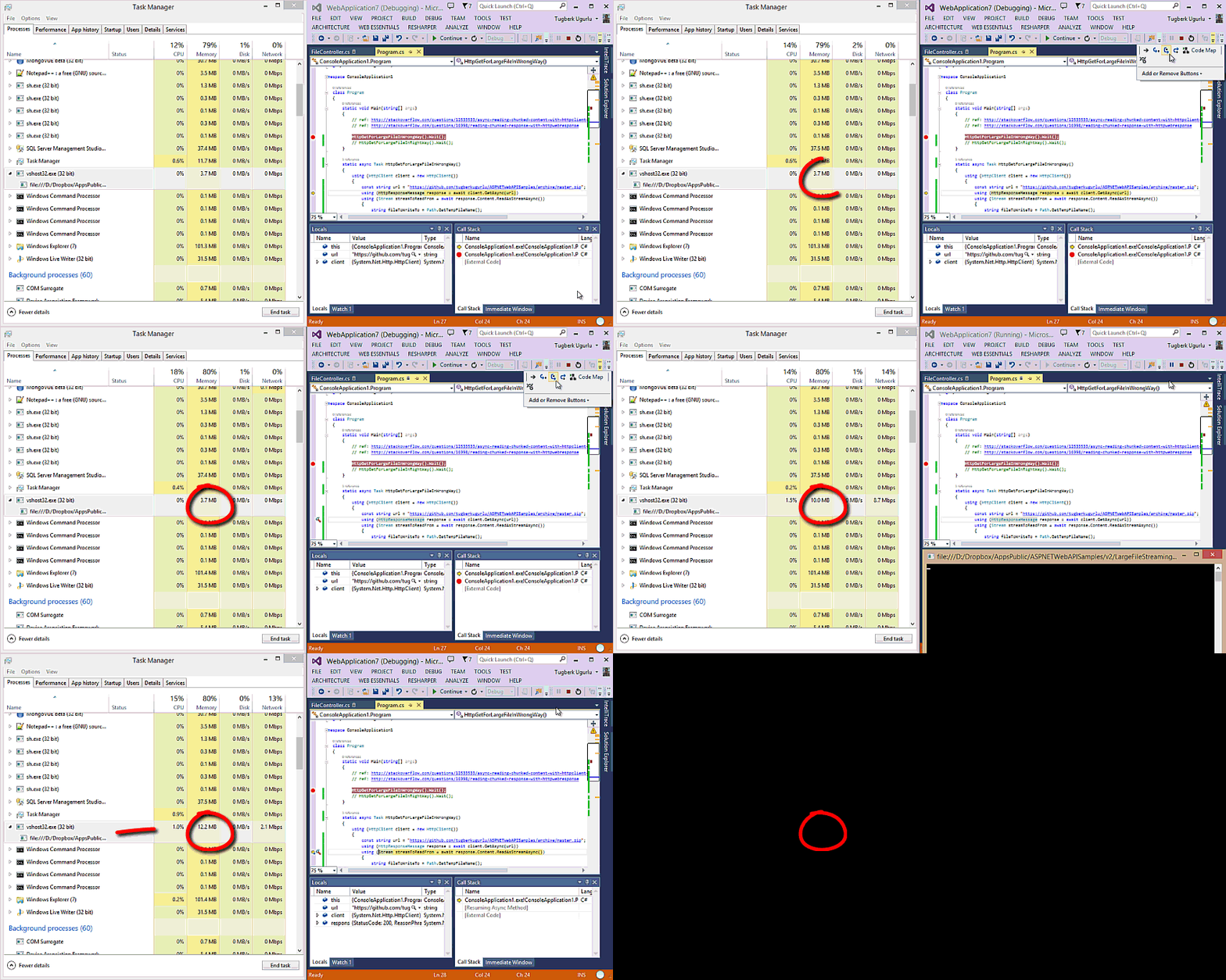
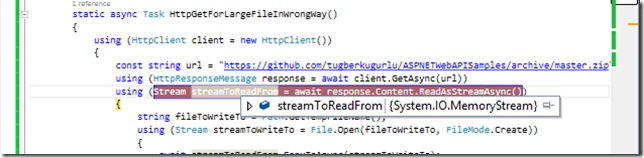
We are calling ReadAsStreamAsync on HttpContent after the GetAsync method is completed. This will just get us the MemoryStream, so there is no point there:
We need a way not to load the response body into memory and have the raw network stream so that we can pass the bytes into another stream without hitting the memory too hard. We can do it by just reading the headers of the response and then getting a handle for the network stream as below:
static async Task HttpGetForLargeFileInRightWay()

{

    using (HttpClient client = new HttpClient())

    {

        const string url = "https://github.com/tugberkugurlu/ASPNETWebAPISamples/archive/master.zip";

        using (HttpResponseMessage response = await client.GetAsync(url, HttpCompletionOption.ResponseHeadersRead))

        using (Stream streamToReadFrom = await response.Content.ReadAsStreamAsync())

        {

            string fileToWriteTo = Path.GetTempFileName();

            using (Stream streamToWriteTo = File.Open(fileToWriteTo, FileMode.Create))

            {

                await streamToReadFrom.CopyToAsync(streamToWriteTo);

            }

        }

    }

}
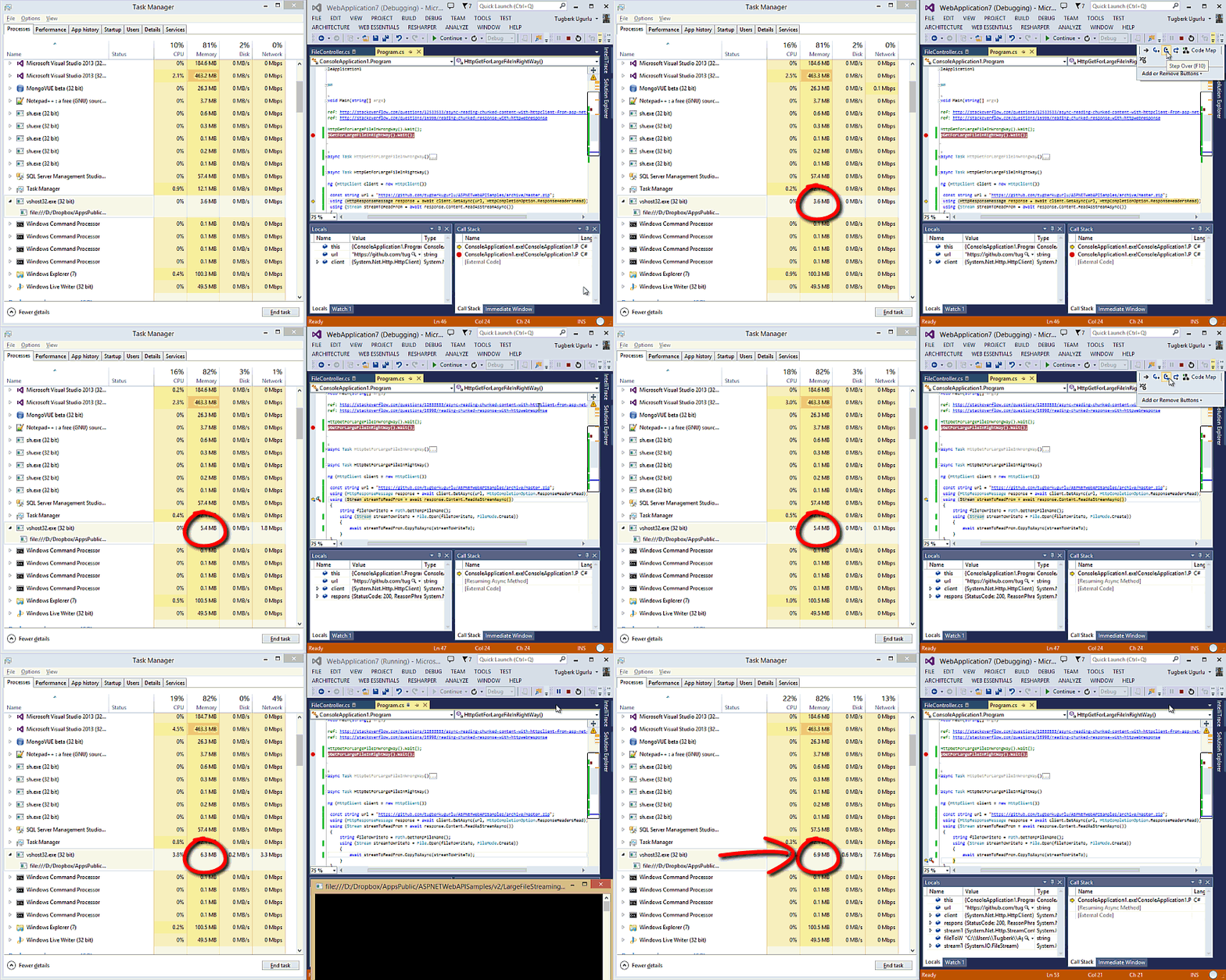
Notice that we are calling another overload of the GetAsync method by passing the HttpCompletionOptionenumeration value as ResponseHeadersRead. This switch tells the HttpClient not to buffer the response. In other words, it will just read the headers and return the control back. This means that the HttpContent is not ready at the time when you get the control back. Afterwards, we are getting the stream and calling the CopyToAsync method on it by passing our FileStream. The result is much better:
Resources
- Streaming with New .NET HttpClient and HttpCompletionOption.ResponseHeadersRead
- Async reading chunked content with HttpClient from ASP.NET WebApi
Over the last few days I’ve been struggling with an issue to capture HTTP content from arbitrary URLs and read only a specified number of bytes from the connection. Seems easy enough, but it turns out that if you want to control bandwidth and only read a small amount of partial data from the TCP/IP connection, that process is not easy to accomplish using the new HttpClient introduced in .NET 4.5, or even HttpWebRequest/Response (on which the new HttpClient is based) because the .NET stack automatically reads a fairly large chunk of data in the first request – presumably to capture the HTTP headers.
I’ll start this post by saying I didn’t find a full solution to this problem, but I’ll layout some of the discoveries I made in my quest for small byte counts on the wire some of which partially address the issue.
Why partial Requests? Why does this matter?
Here’s some background: I’m building a monitoring application that might be monitoring a huge number of URLs that get checked frequently for uptime. I’m talking about maybe 100,000 urls that get on average checked once every minute. As you might expect hitting that many URLs and retrieving the entire HTTP response, when all you need are a few bytes to verify the content would incur a tremendous amount of network traffic. Assuming a URL requested returned an average of 10k bytes of data, that would be 1 gig of data a minute. Yikes!
Using HttpClient with Partial Responses
So my goal was to try and read only a small chunk of data – say the first 1000 or 2000 bytes in which the user is allowed to search for content to match.
Using HttpClient you might do something like this:
[TestMethod]

public async Task HttpGetPartialDownloadTest()

{

    //ServicePointManager.CertificatePolicy = delegate { return true; };

    var httpclient = new HttpClient();

    var response = await httpclient.GetAsync("http://weblog.west-wind.com/posts/2012/Aug/21/An-Introduction-to-ASPNET-Web-API",

                                                HttpCompletionOption.ResponseHeadersRead);

    string text = null;

    using (var stream = await response.Content.ReadAsStreamAsync())

    {

        var bytes = new byte[1000];

        var bytesread = stream.Read(bytes, 0, 1000);

        stream.Close();

        text = Encoding.UTF8.GetString(bytes);

    }

    Assert.IsFalse(string.IsNullOrEmpty(text), "Text shouldn't be empty");

    Assert.IsTrue(text.Length == 1000, "Text should hold 1000 characters");

    Console.WriteLine(text);

}
This looks like it should do the trick, and indeed you get a result in this code that is 1000 characters long.
But not all is as it seem: While the .NET app gets its 1000 bytes, the data on the wire is actually much larger. If I use this code with a file that’s say 10k in size, I find that the entire response is actually travelling over the wire. If the file gets bigger (like the URL above which is a 110k article) the file gets truncated at around 20k or so – depending on how fast the connection is or how quickly the connection is closed.
I’m using WireShark to look at the TCP/IP trace to see the actual data captured and it’s definitely way bigger than my 1000 bytes of data. So what’s happening here?
TCP/IP Buffering
After discussion with a few people more knowledgeable in network theory, I found out that the .NET HTTP client stack is caching TCP/IP traffic as it comes in. Normally this is exactly what you want – have the network connection read as much data as it can, as quickly as possible. The more data that is read the more efficient the data retrieval in general.
But for my use case this unfortunately doesn’t work. I want just 1000 bytes (or as close as possible to that anyway) and then immediately close the connection. No matter how I tried this either with HttpClient or HttpWebRequest, I was unable to make the buffering go away.
Even using the new features in .NET 4.5 that supposedly allow turning off buffering to HttpWebRequest using AllowReadStreamBuffering=false didn’t work:
[TestMethod]

public async Task HttpWebRequestTest()

{

    var request =

        HttpWebRequest.Create("http://weblog.west-wind.com/posts/2012/Aug/21/An-Introduction-to-ASPNET-Web-API")

            as HttpWebRequest;

    request.AllowReadStreamBuffering = false;

    request.AllowWriteStreamBuffering = false;

    Stream stream;

    byte[] buffer;

    using (var response = await request.GetResponseAsync() as HttpWebResponse)

    {

        stream = response.GetResponseStream();

        buffer = new byte[1000];

        int byteCount = await stream.ReadAsync(buffer, 0, buffer.Length);

        request.Abort();  // call ASAP to kill connection

        response.Close();

    }

    stream.Close();

    string text = Encoding.UTF8.GetString(buffer);

    Console.WriteLine(text);

}
Even running this code I get exactly 19,934 bytes of text from a response according to the Wireshark trace, which is not what I was hoping for.
Then I also tried an older application that uses WinInet doing a non-buffered read. There I also got buffering, although the buffer was roughtly 8k bytes which is the size of my HTTP buffer that I specify in the WinInet calls. Better but also not an option because WinInet is not reliable for many simultaneous connections.
TcpClient works better, but…
Several people suggested using TcpClient directly and it turns out that using raw TcpClient connections does give me a lot more control over the data travelling over the wire.
Using the following code I get a much more reasonable 3k data footprint:
[TestMethod]

public void TcpClient()

{

    var server = "weblog.west-wind.com";

    var pageName = "/posts/2012/Aug/21/An-Introduction-to-ASPNET-Web-API";

    int byteCount = 1000;

    const int port = 80;

    TcpClient client = new TcpClient(server, port);

    string fullRequest = "GET " + pageName + " HTTP/1.1\nHost: " + server + "\n\n";

    byte[] outputData = System.Text.Encoding.ASCII.GetBytes(fullRequest);

    NetworkStream stream = client.GetStream();

    stream.Write(outputData, 0, outputData.Length);

    byte[] inputData = new Byte[byteCount];

    var actualByteCountRecieved = stream.Read(inputData, 0, byteCount);

    // If you want the data as a string, set the function return type to a string

    // return 'responseData' rather than 'inputData'

    // and uncomment the next 2 lines

    //string responseData = String.Empty;

    string responseData = System.Text.Encoding.ASCII.GetString(inputData, 0, actualByteCountRecieved);

    stream.Close();

    client.Close();

    Console.WriteLine(responseData);
It’s still bigger than the 1,000 bytes I’m requesting, but significantly smaller than anything I was able to get with any of the Windows HTTP clients.
Unfortunately, using TcpClient generically is not a good option for my use case. I need to hit generic URLs of all kinds and I really don’t want to re-implement a full Http client stack using TcpClient… Implementing SSL, authentication of all sorts, redirects, 100 continues etc. is not a trivial matter – especially SSL.
Why not use HEAD requests?
Http also supports HEAD requests, which retrieves only the HTTP headers. This is often ideal for monitoring situations as it doesn’t bring back any content at all.
Unfortunately in my scenario this is not going to work, at least not for everything. First I need to look at content to determine that the content – not just the headers – are valid. The other problem is that the target URL’s server has to support HEAD requests – not something that’s a given either. ASP.NET and IIS’s default entries in web.config in the past didn’t include HEAD requests for handlers, which would make HEAD requests fail immediately.
So again, for generic URL access this isn’t going to work although it might be good for an option.
What about Range Headers?
HTTP 1.1 supports the concept of range headers, which allow for retrieving partial responses. It’s meant for large files and sending those files in chunks so that individual chunks can be re-loaded if a transmission is aborted. Ranges are easy to grab from the server by requesting a range.
A range request can look as simple as this:
GET http://west-wind.com/presentations/DotnetWebRequest/DotNetWebREquest.htm HTTP/1.1

Range: bytes=0-1000

Host: west-wind.com

Connection: Keep-Alive
Here I’m simply asking for the range of bytes between 0 and 1000. Normally you’re also suppose to send an etag – the normal flow goes: Call the page with a HEAD request, get the size and an ETAG, then start using Range request to chunk the data from the server. The server responds with a 206 Partial Response and only physically pushes down the requested number of bytes.
Using HttpClient this looks like this:
[TestMethod]

public async Task HttpClientGetStreamTest()

{

    string url = "http://west-wind.com/presentations/DotnetWebRequest/DotNetWebREquest.htm";

    int size = 1000;

    using (var httpclient = new HttpClient())

    {

        httpclient.DefaultRequestHeaders.Range = new RangeHeaderValue(0, size);

        var response =  await httpclient.GetAsync(url,HttpCompletionOption.ResponseHeadersRead);

        using (var stream = await response.Content.ReadAsStreamAsync())

        {

            var bytes = new byte[size];

            var bytesread = stream.Read(bytes, 0, bytes.Length);

            stream.Close();

        }

    }

}
This works great – if the server supports this. The server and the request responding has to support it. Most modern Web servers support range requests natively so this works out of the box on static content. However, if content is dynamic it doesn’t work because the server generator code has to support it somehow. It works on the static HTML page I reference above, but it doesn’t work on the dynamic ASP.NET Web Log request I used in the earlier examples.
For my scenario I’m going to always add the range header in hopes that the server and link that I’m hitting support it, but chances are it doesn’t and the response will be a full response.
How to check Wire Traffic
Turns out checking what’s happening on the wire is not as trivial as you might think.
Fiddler – not a good idea
I love Fiddler and use it daily for all sorts of HTTP monitoring and testing. It’s an awesome tool, but for monitoring Wire Traffic size unfortunately it’s not well suited (I think – Eric Lawrence keeps making me realize with his nudges how little of Fiddler’s features I actually use or know about).
So initially when I wanted to see how much data was actually captured I went to Fiddler since it’s my go-to tool. But I quickly found out that no matter what I sent, Fiddler would always retrieve the entire HTTP response. Initially I just assumed that means that the HTTP client is reading the entire response, but that’s not actually the case. Fiddler is a proxy and as such retrieves requests on behalf of the client. You send an HTTP request, and Fiddler then retrieves it for you and feeds it back to your application. This means the entire response is retrieved (unless HTTP headers specify otherwise).
So, Fiddler doesn’t really help in tracking actual wire traffic.
.NET System.Net Tracing
.NET’s tracing system actually provides a ton of information regarding network operations. It tells you when it connects, reads, writes and closes connections and shows bytecounts etc. Unfortunately, it also shows some incorrect information when it comes to TCP/IP data on the wire and read through the actual interface.
To turn on Tracing for the ConsoleTraceListener:
<?xml version="1.0" encoding="utf-8"?>

<configuration>

  <system.diagnostics>

    <trace autoflush="true" />

    <sources>

      <source name="System.Net" maxdatasize="1000000">

        <listeners>

          <add name="MyConsole"/>

        </listeners>

      </source>

    </sources>

    <sharedListeners>

      <add

        name="MyTraceFile"

        type="System.Diagnostics.TextWriterTraceListener"

        initializeData="System.Net.trace.log"

                />

      <add name="MyConsole" type="System.Diagnostics.ConsoleTraceListener" />

    </sharedListeners>

    <switches>

      <add name="System.Net" value="Verbose" />

      <add name="System.Net.Sockets" value="Verbose" />

    </switches>

  </system.diagnostics>

</configuration>
This works great for Tests which can directly display the console output in the test output.
One line in this trace in particular is a problem:
System.Net Information: 0 : [6708] ConnectStream#45653674::ConnectStream(Buffered 110109 bytes.)
Notice that it seems to indicate that the request buffered the entire content! It turns out that this line is actually bullshit – the connect stream is buffering, but it’s not buffering whatever that byte value is. The actual data on the wire ends up being only 19,934 so this line is definitely wrong.
Between this line and the lines that show the actual data read from the connection and the final count, the values that come from the system trace are not reliable for telling what actual network traffic was incurred.
WireShark
So, that led me back to using WireShark. WireShark is a great network packet level sniffer and it works great for these sorts of things. However, I use WireShark once a year or less so every time I fire it up I forget how to set up the filters to get only what I’m interested in. Basically you’ll want to filter requests only by Http traffic and then look through all the captured packets that have data which is tedious. But I can get the data that I need. From this I could tell that on the long 110k request I was not reading the entire response, but on smaller responses I was in fact getting the entire response.
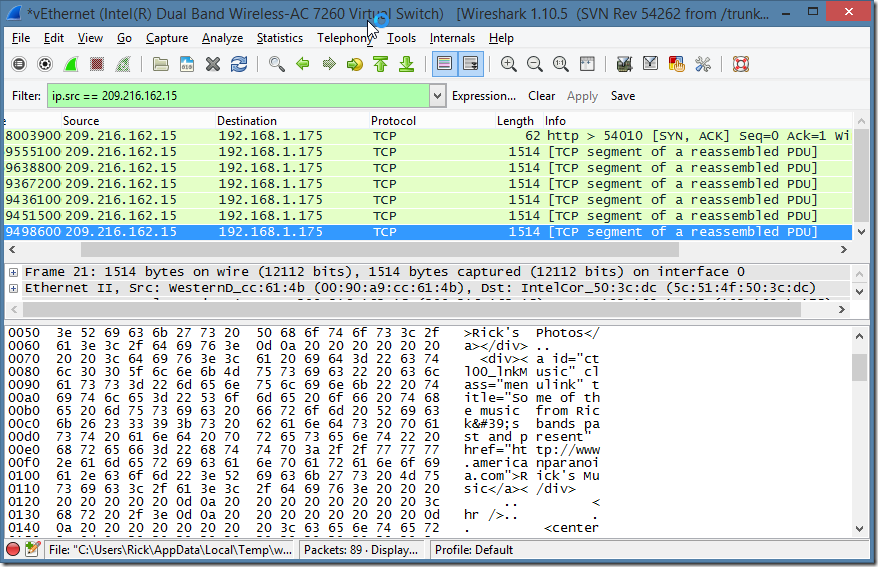
Here’s what the trace looks like on the 110k request (using HttpWebRequest), which is reading ~19k of text:
BTW, here’s a cool tip: Did you know that you can take a WireShark pcap trace export and view it in Fiddler? It’s a much nicer way to look at Http requests, than inside of Wireshark.
To do this:
- In WireShark select all packets capture
- Go to File | Export | Export as .pcap file
- Go into Fiddler
- Go to File | Import Sessions | Packet Capture
- Pick the .pcap file and see the requests in the browser
This may seem silly since you could capture directly in fiddler but remember that Fiddler is a proxy so it will pull data from the server then forward it. By capturing with WireShark at the protocol level you can see what’s really happening on the wire and by importing into Fiddler you can see truncated requests.
Once imported into Fiddler, I can now see more easily what’s happening. The reconstructed trace in Fiddler from my test looks like this:
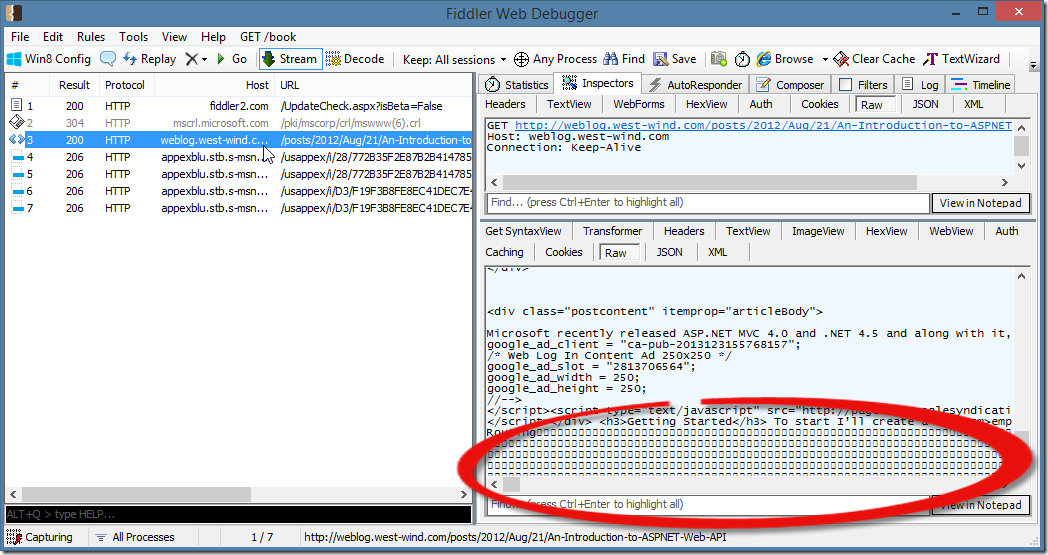
This is the WireShark imported trace. The response header shows the full content-length:
HTTP/1.1 200 OK
Cache-Control: private
Content-Type: text/html; charset=utf-8
Vary: Content-Encoding
Server: Microsoft-IIS/7.0
Date: Sat, 11 Jan 2014 00:30:41 GMT
Content-Length: 110061
but the actual content captured (up to to the highlighted nulls in the screen shot) is exactly 19,934k. Repeatedly. So this tells us the response is indeed getting truncated, but not immediately – there’s buffering of the HTTP stream.
However, if you look at a network trace, you’ll find that that the actual data that was sent is actually much larger. I chose this specific URL because it’s about 110k of text (yeah, a long article :-)). If you chose a smaller file that is say 10-20k in size you’ll find that the entire file was sent. Here with the 110k file I noticed that the actual data that came over the wire is about 20k. While 20k is a lot better than 110k, it’s still too much data to be on the wire when I’m only interested in the first 1000 bytes.
Where are we?
As I mentioned on the outset of this post – I haven’t found a complete solution to my problem at this point. There are a number of ideas to reduce the traffic in some situations, but none of them work for all cases.
I think moving forwardt the best option for this particular application likely will be to create a TCP/IP client and handle the ‘simple’ requests and turn on a byte count with some extra padding for the expected header size. Basically plain URL access without HTTPS, I can handle with the TCP/IP client. For HTTPS requests, Authentication, Redirects etc. then I have to live with the HttpClient/HttpWebRequest behavior and applying Range headers to everything to limit the data output from the server if it happens to be supported.
I’m hoping by posting here, somebody might have some additional ideas about how to limit the initial Http read buffer size for HttpWebRequest/HttpClient.
Resources
- WireShark
- Fiddler
- My original StackOverflow Post from which this was compiled
(thanks to Shawty and Darrel Miller for their help)
Other Posts you might also like
(StreamReader.ReadLine()==null)还是(-1 != StreamReader.Peek())?
这也是微软提供的示例,在实际使用中发现,有时候,该方法的缺陷在于不能读取完整地读取文件所有行。怀疑是缓冲区过小。查MSDN说明:
StringReader . ReadLine 方法将行定义为后面跟有下列符号的字符序列:换行符(“/n”)、回车符(“/r”)或后跟换行符的回车符(“/r/n”)。 所产生的字符串不包含终止回车符和/或换行符。 如果已到达基础字符串的结尾,则返回值为 null 。
http://msdn.microsoft.com/zh-cn/library/system.io.streamreader.readline.aspx
我的理解:如果由于编码的问题,导致读取异常,也就是无法读取行标志时,可能会认为已到文件结尾而中断下行的读取。这也解释了为什么会有时读取不完整的原因。
这里使用 StreamReader的Peek()方法,依据MSDN的说明,
Peek 方法返回一个整数值以便确定是否到达文件末尾,或发生其他错误。 这样一来,用户在将返回值强制转换为 Char 类型之前就可以首先检查该值是否为 -1。
换句话说,它不需要先转换字符,即可返回是否达到文件末尾。
http://msdn.microsoft.com/zh-cn/library/system.io.streamreader.peek.aspx
   string respContent = string.Empty;

            Encoding encode = Encoding.GetEncoding("gb2312");

            try

            {

                using (HttpResponseMessage response = await this.Client.GetAsync(url, HttpCompletionOption.ResponseHeadersRead))

                using (Stream streamOfResponse = await response.Content.ReadAsStreamAsync())

                {

                    //string fileToWriteTo = Path.GetTempFileName();

                    //File.Open(fileToWriteTo, FileMode.Create)

                    using (MemoryStream streamOfBuffer = new MemoryStream())

                    {

                        await streamOfResponse.CopyToAsync(streamOfBuffer);

                        //写入完缓冲后 ,游标设置到流的起始位置

                        streamOfBuffer.Seek(0, SeekOrigin.Begin);

                        var allBytes = streamOfBuffer.ToArray();

                        respContent = encode.GetString(allBytes);

                        //GZipStream gzip = new GZipStream(streamOfBuffer, CompressionMode.Decompress);//解压缩

                        //using (StreamReader reader = new StreamReader(gzip, Encoding.GetEncoding("gb2312")))//中文编码处理

                        //{

                        //    respContent = reader.ReadToEnd();

                        //}

                        //StringBuilder sb = new StringBuilder();

                        //Byte[] buf = new byte[8192];

                        //string tmpString = null;

                        //int count = 0;

                        //do

                        //{

                        //    count = streamOfBuffer.Read(buf, 0, buf.Length);

                        //    if (count != 0)

                        //    {

                        //        tmpString = encode.GetString(buf, 0, count);

                        //        sb.Append(tmpString);

                        //    }

                        //} while (count > 0);

                        //respContent = sb.ToString();

                    }

                }

            }

            catch (Exception ex)

            {

                throw ex;

            }
关于 C# HttpClient的 请求的更多相关文章
- 使用HttpClient发送请求、接收响应
使用HttpClient发送请求.接收响应很简单,只要如下几步即可. 1.创建HttpClient对象. CloseableHttpClient httpclient = HttpClients.c ...
- Java HttpClient伪造请求之简易封装满足HTTP以及HTTPS请求
HttpClient简介 HTTP 协议可能是现在 Internet 上使用得最多.最重要的协议了,越来越多的 Java 应用程序需要直接通过 HTTP 协议来访问网络资源.虽然在 JDK 的 jav ...
- 使用HttpClient发送请求接收响应
1.一般需要如下几步:(1) 创建HttpClient对象.(2)创建请求方法的实例,并指定请求URL.如果需要发送GET请求,创建HttpGet对象:如果需要发送POST请求,创建HttpPost对 ...
- 使用httpclient post请求中文乱码解决办法
使用httpclient post请求中文乱码解决办法 在使用httpclient发送post请求的时候,接收端中文乱码问题解决. 正文: 我们都知道,一般情况下使用post请求是不会出现中文乱码 ...
- java HttpClient POST请求
一个简单的HttpClient POST 请求实例 package com.httpclientget; import java.awt.List; import java.util.ArrayLis ...
- java HttpClient GET请求
HttpClient GET请求小实例,先简单记录下. package com.httpclientget; import java.io.IOException; import org.apache ...
- HttpClient get和HttpClient Post请求的方式获取服务器的返回数据
1.转自:https://blog.csdn.net/alinshen/article/details/78221567?utm_source=blogxgwz4 /* * 演示通过HttpClie ...
- 给HttpClient添加请求头(HttpClientFactory)
前言 在微服务的大环境下,会出现这个服务调用这个接口,那个接口的情况.假设出了问题,需要排查的时候,我们要怎么关联不同服务之间的调用情况呢?换句话就是说,这个请求的结果不对,看看是那里出了问题. 最简 ...
- HttpClient get请求获取数据流
HttpClient get请求获取数据流,将数据保存为文件 public String getStreamFile(String url) throws Exception { HttpClient ...
- httpclient: 设置请求的超时时间,连接超时时间等
httpclient: 设置请求的超时时间,连接超时时间等 public static void main(String[] args) throws Exception{ //创建httpclien ...
随机推荐
- SQL:(转)数据库中的锁机制(数据库中有哪些锁)
数据库中的锁机制 锁是网络数据库中的一个非常重要的概念,它主要用于多用户环境下保证数据库完整性和一致性.各种大型数 据库所采用的锁的基本理论是一致的,但在具体实现上各有差别.目前,大多数数据库管理系统 ...
- Li的前期工作Level_Set_Evolution_Without_Re-initialization_A_New_Variational_Formulation
注意:因为页面显示原因.里头的公式没能做到完美显示,有须要的朋友请到我的资源中下载 无需进行又一次初始化的水平集演化:一个新的变分公式 Chunming Li , Chenyang Xu , Chan ...
- SSL协议具体解释
背景介绍 近期在看<password学与网络安全>相关的书籍,这篇文章主要具体介绍一下著名的网络安全协议SSL. 在開始SSl介绍之前,先给大家介绍几个password学的概念和相关 ...
- 使用 Reachability 获取网络状态
Reachability source https://developer.apple.com/library/ios/samplecode/Reachability/Introduction/Int ...
- js自动补全实例
var oInputField ,oPopDiv , oColorsUl,aColors; //初始化变量 function initVars(modelId,divId,ulId){ oInputF ...
- 用emoji表情包来可视化北京市历史天气状况!
用emoji表情包来可视化北京市历史天气状况! 最近有了一个突如其来的想法,主要是看到了R社区有大神做了emoji表情包,并已经打通了ggplot的链接,所以想用ggplot结合emoji表情做一 ...
- C++:友元运算符重载函数
运算符重载函数:实现对象之间进行算数运算,(实际上是对象的属性之间做运算),包括+(加号).-(减号).*./.=.++.--.-(负号).+(正号) 运算符重载函数分为:普通友元运算符重载函数.成员 ...
- 混沌数学之Rössler(若斯叻)吸引子
若斯叻吸引子(Rössler attractor)是一组三元非线性微分方程: frac{dx(t)}{dt} = -y(t)-z(t) frac{dy(t)}{dt} = x(t)+a*y(t) fr ...
- 简单JavaScript语句实现搜索关键字高亮功能
高亮功能主要是指对页面中指定区域的指定文字进行高亮显示,也就是背景着色.一般在搜索结果页面会经常用到这个功能. 下面就为大家提供一种解决方案,用javascript实现. 首先在<head> ...
- linux CentOS7 安装spark
上次安装了scala-2.11.8,这次安装spark-2.1.0版本 1.下载spark-2.1.0 打开terminal 进入当前用户目录 /home/sks wget http://d3kbcq ...