
Tkinter 之磁盘搜索工具实战
一、效果图

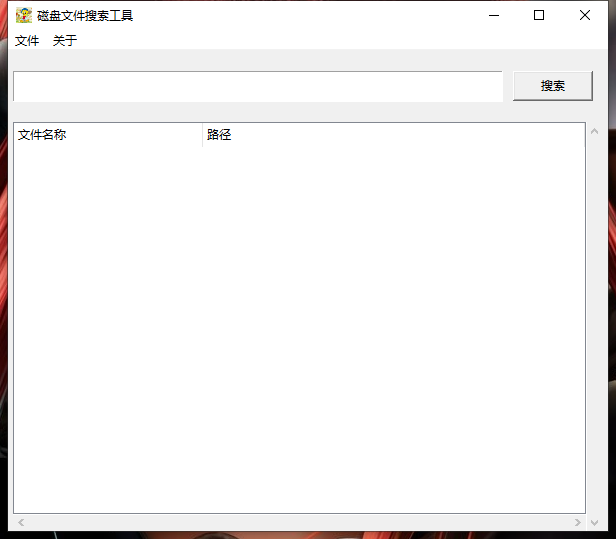
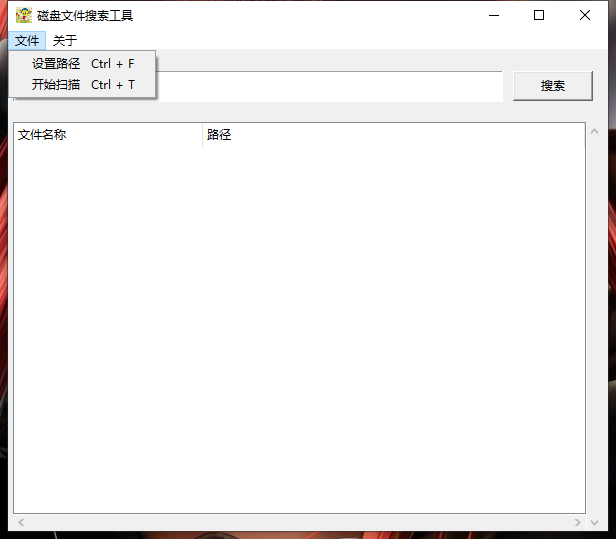
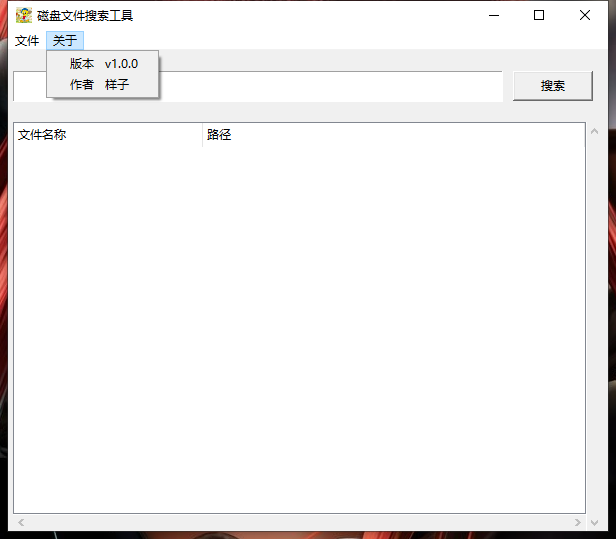
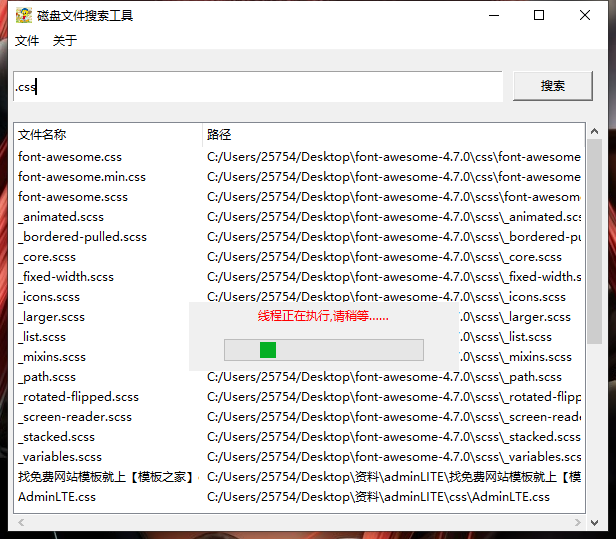
二、代码
miniSearch.py
from tkinter import *

from tkinter import ttk, messagebox, filedialog

from threading import Thread

import os

import queue

import loadingDialog

import re

class Application_UI(object):

    # 默认查找路径

    search_path = os.path.abspath("./")

    # 是否开始查找标志

    is_start = 0

    def __init__(self):

        # 设置UI界面

        self.window = Tk()

        win_width = 600

        win_height = 500

        screen_width = self.window.winfo_screenwidth()

        screen_height = self.window.winfo_screenheight()

        x = int((screen_width - win_width) / 2)

        y = int((screen_height - win_height) / 2)

        self.window.title("磁盘文件搜索工具")

        self.window.geometry("%sx%s+%s+%s" % (win_width, win_height, x, y))

        # 最好用绝对路径

        self.window.iconbitmap(r"G:\PyCharm 2019.1\project\TK\项目\磁盘搜索工具\icon.ico")

        #

        top_frame = Frame(self.window)

        top_frame.pack(side = TOP, padx = 5, pady = 20, fill = X)

        self.search_val = StringVar()

        entry = Entry(top_frame, textvariable = self.search_val)

        entry.pack(side = LEFT, expand = True, fill = X, ipady = 4.5)

        search_btn = Button(top_frame, text = "搜索", width = 10, command = self.search_file)

        search_btn.pack(padx = 10)

        bottom_frame = Frame(self.window)

        bottom_frame.pack(side = LEFT, expand = True, fill = BOTH, padx = 5)

        tree = ttk.Treeview(bottom_frame, show = "headings", columns = ("name", "path"))

        self.treeView = tree

        y_scroll = Scrollbar(bottom_frame)

        y_scroll.config(command = tree.yview)

        y_scroll.pack(side = RIGHT, fill = Y)

        x_scroll = Scrollbar(bottom_frame)

        x_scroll.config(command = tree.yview, orient = HORIZONTAL)

        x_scroll.pack(side = BOTTOM, fill = X)

        tree.config(xscrollcommand = x_scroll.set, yscrollcommand = y_scroll.set)

        tree.column("name", anchor = "w", width = 8)

        tree.column("path", anchor = "w")

        tree.heading("name", text = "文件名称", anchor = "w")

        tree.heading("path", text = "路径", anchor = "w")

        tree.pack(side = LEFT, fill = BOTH, expand = True, ipady = 20)

        menu = Menu(self.window)

        self.window.config(menu = menu)

        set_path = Menu(menu, tearoff = 0)

        set_path.add_command(label = "设置路径", accelerator="Ctrl + F", command = self.open_dir)

        set_path.add_command(label = "开始扫描", accelerator="Ctrl + T", command = self.search_file)

        menu.add_cascade(label = "文件", menu = set_path)

        about = Menu(menu, tearoff = 0)

        about.add_command(label = "版本", accelerator = "v1.0.0")

        about.add_command(label = "作者", accelerator = "样子")

        menu.add_cascade(label = "关于", menu = about)

        self.progressbar = loadingDialog.progressbar()

        # 设置队列,保存查找完毕标志

        self.queue = queue.Queue()

        # 开始监听进度条

        self.listen_progressBar()

        self.window.bind("<Control-Key-f>", lambda event: self.open_dir())

        self.window.bind("<Control-Key-r>", lambda event: self.search_file())

        self.window.protocol("WM_DELETE_WINDOW", self.call_close_window)

        self.window.mainloop()

class Application(Application_UI):

    def __init__(self):

        Application_UI.__init__(self)

    def call_close_window(self):

        self.progressbar.exit_()

        self.window.destroy()

    ''' 监听进度条'''

    def listen_progressBar(self):

        # 窗口每隔一段时间执行一个函数

        self.window.after(400, self.listen_progressBar)

        while not self.queue.empty():

            queue_data = self.queue.get()

            if queue_data == 1:

                # 关闭进度条

                self.progressbar.exit_()

                self.is_start = 0

    ''' 设置默认搜索路径'''

    def open_dir(self):

        path = filedialog.askdirectory(title = u"设置目录", initialdir = self.search_path)

        print("设置路径:"+path)

        self.search_path = path

    ''' 开始搜索'''

    def search_file(self):

        def scan(self, keyword):

            # 清空表格数据

            for _ in map(self.treeView.delete, self.treeView.get_children()):

                pass

            # 筛选文件

            self.find_file_insert(keyword)

            # 设置查找完毕标志

            self.queue.put(1)

        if self.is_start == 0:

            # 获取查找关键词

            keyword = str.strip(self.search_val.get())

            if not keyword:

                messagebox.showerror("提示", "请输入文件名称")

                self.search_val.set("")

                return

            # 设置已经开始查找状态

            self.is_start = 1

            # 开启线程

            self.thread = Thread(target = scan, args = (self, keyword))

            self.thread.setDaemon(True)

            self.thread.start()

             # 显示进度条

            self.progressbar.start()

        else:

            pass

    ''' 查找设置目录下所有文件并插入表格'''

    def find_file_insert(self, keyword):

        try:

            for root, dirs, files in os.walk(self.search_path, topdown = True):

                for file in files:

                    match_result = self.file_match(file, keyword)

                    if match_result is True:

                        file_path = os.path.join(root, file)

                        # 插入数据到表格

                        self.treeView.insert('', END, values = (file, file_path))

                        # 更新表格

                        self.treeView.update()

        except Exception as e:

            print(e)

        return True

    ''' 名称匹配'''

    def file_match(self, file, keyword):

        print("文件匹配:",keyword, file)

        result = re.search(r'(.*)'+keyword+'(.*)', file, re.I)

        if result:

            return True

        return False

if __name__ == "__main__":

    Application()
loadingDialog.py
。。。
有需要这个文件的可以评论联系我哦
有兴趣的可以做磁盘文件内容查找功能:
1、获取磁盘下所有文件
2、打开文件进行正则查找,找到匹配的放入一个列表
3、用TreeView展示文件地址等信息
Tkinter 之磁盘搜索工具实战的更多相关文章
- python实现文件搜索工具(简易版)
在python学习过程中有一次需要进行GUI 的绘制, 而在python中有自带的库tkinter可以用来简单的GUI编写,于是转而学习tkinter库的使用. 学以致用,现在试着编写一个简单的磁文件 ...
- 揭开Faiss的面纱 探究Facebook相似性搜索工具的原理
https://www.leiphone.com/news/201703/84gDbSOgJcxiC3DW.html 本月初雷锋网报道,Facebook 开源了 AI 相似性搜索工具 Faiss.而在 ...
- 8.1 fdisk:磁盘分区工具
fdisk 是Linux下常用的磁盘分区工具.受mbr分区表的限制,fdisk工具只能给小于2TB的磁盘划分分区.如果使用fdisk对大于2TB的磁盘进行分区,虽然可以分区,但其仅识别2TB的空间,所 ...
- ElasticSearch7.X.X-初见-模仿京东搜索的实战
目录 简介 聊聊Doug Cutting ES&Solr&Lucene ES的安装 安装可视化界面ES head插件 了解ELK 安装Kibana ES核心概念 文档 类型 索引 倒排 ...
- 用python制作文件搜索工具,深挖电脑里的【学习大全】
咳咳~懂得都懂啊 点击此处找管理员小姐姐领取正经资料~ 开发环境 解释器: Python 3.8.8 | Anaconda, Inc. 编辑器: pycharm 专业版 先演示效果 开始代码,先导入模 ...
- 如何在Windows Server 2008 R2没有磁盘清理工具的情况下使用系统提供的磁盘清理工具
今天,刚好碰到服务器C盘空间满的情况,首先处理了临时文件和有关的日志文件后空间还是不够用,我知道清理C盘的方法有很多,但今天只分享一下如何在Windows Server 2008 R2没有磁盘清理工具 ...
- centos locate搜索工具
locate搜索工具 [root@localhost ~]# yum install mlocate [root@localhost ~]# locate passwd locate: can not ...
- FileSeek文件内容搜索工具下载
Windows 内建的搜索功能十分简单,往往不能满足用户的需要.很多的第三方搜索工具因此诞生,比如 Everything,Locate32等. 而FileSeek也是一款不错的搜索工具,其不同于其他搜 ...
- 命令行的全文搜索工具--ack
想必大家在命令行环境下工作时候,一定有想要查找当前目录下的源代码文件中的某些字符的需求,这时候如果使用传统方案,你可能需要输入一长串的命令,比如这样: 1. grep -R 'string' dir/ ...
随机推荐
- python超链接抓取工具
python实现自动抓取某站点内所有超链接 (仅供学习使用) 代码部分 #!/usr/bin/python import requests import time import re import s ...
- iOS自动签名网站
node.js作为服务端,调用shell脚本进行iOS包重签名. 需要安装:nodejs ,forever 安装环境: 安装nodejs 安装forever: npm install forever ...
- HTML学习摘要4
DAY 4 text-align 属性规定了元素中文本的水平对齐方式: <html> <body> <h1 style="text-align:center&q ...
- Git创建工作目录与常用指令
1.创建工作目录与常用指令 工作目录(WorkSpace)一般就是你希望Git帮助你管理的文件夹,可以是你项目的目录,也可以是一个空目录,建议不要有中文. 日常使用只要记住下图6个命令: 2.提交管理 ...
- el-pagination分页优化
表格分页优化: <template> <el-pagination small background @size-change="handleSizeChange" ...
- jenkens + github
一 获取github accessToken 依次点击 settings----> Developer settings --->Personal access tokens 到这里如 ...
- 快速为不同 Git 平台配置用户
在 ~ 目录下创建 config 文件可以为项目配置默认的用户信息,但如果希望经常切换,那么最好就是通过命令为项目单独设置用户. 我使用的 shell 是 zsh, 所以我在 ~/.zshrc 文件中 ...
- vue $refs操作DOM
原文链接:https://www.cnblogs.com/xumqfaith/p/7743387.html 如图,ref 被用来给元素或子组件注册引用信息.引用信息将会注册在父组件的 $refs 对象 ...
- Python中的列表推导式
Python里面有个很棒的语法糖(syntactic sugar),它就是 list comprehension ,有人把它翻译成“列表推导式”,也有人翻译成“列表解析式”.名字听上去很难理解,但是看 ...
- 大数据集群Linux CentOS 7.6 系统调优篇
大数据集群Linux CentOS 7.6 系统调优篇 作者:尹正杰 版权声明:原创作品,谢绝转载!否则将追究法律责任. 一.设置主机hosts文件 1>.修改主机名 [root@node100 ...