
【WPF学习】第五十六章 基于帧的动画
除基于属性的动画系统外,WPF提供了一种创建基于帧的动画的方法,这种方法只使用代码。需要做的全部工作是响应静态的CompositionTarge.Rendering事件,触发该事件是为了给每帧获取内容。这是一种非常低级的方法,除非使用标准的基于属性的动画模型不能满足需要(例如,构建简单的侧边滚动游戏、创建基于物理的动画式构建粒子效果模型(如火焰、雪花以及气泡)),否则不会希望使用这种方法。
构建基于帧的动画的基本技术很容易。只需要为静态的CompositionTarget.Rendering事件关联事件处理程序。一旦关联事件处理程序,WPF就开始不断地调用这个事件处理程序(只要渲染代码的执行速度足够快,WPF每秒将调用60次)。在渲染事件处理程序中,需要在窗口中相应地创建或调整元素。换句话说,需要自行管理全部工作。当动画结束时,分离事件处理程序。
下图显示了一个简单示例。在此,随机数量的圆从Canvas面板的顶部向底部下落。它们(根据随机生成的开始速度)以不同速度下降,但一相同的速率加速。当所有的圆到达底部时,动画结束。
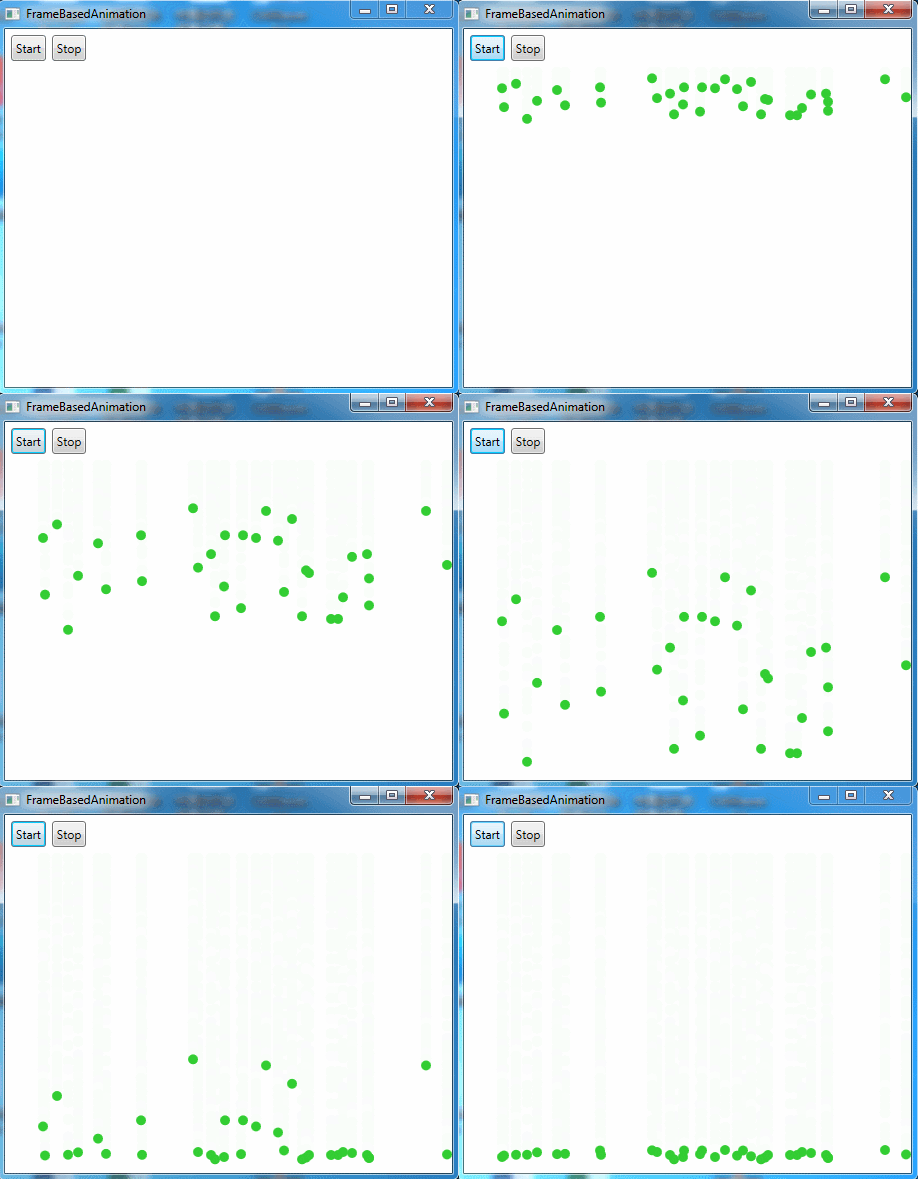
在这个示例中,每个下落的圆由Ellipse元素表示。使用自定义的EllipseInfo类保存椭圆的引用,并跟踪对于物理模型而言十分重要的一些细节。在这个示例中,只有如下信息很重要——椭圆沿X轴的移动速度(可很容易地扩张这个类,使其包含沿着Y轴运动的速度、额外的加速信息等)。
public class EllipseInfo

    {

        public Ellipse Ellipse

        {

            get;

            set;

        }

        public double VelocityY

        {

            get;

            set;

        }

        public EllipseInfo(Ellipse ellipse, double velocityY)

        {

            VelocityY = velocityY;

            Ellipse = ellipse;

        }

    }
应用程序使用集合跟踪每个椭圆的EllipseInfo对象。还有几个窗口级别的字段,它们记录计算椭圆下落时使用的各种细节。可很容易地使这些细节变成可配置的。
private List<EllipseInfo> ellipses = new List<EllipseInfo>();

private double accelerationY = 0.1;

private int minStartingSpeed = ;

private int maxStartingSpeed = ;

private double speedRatio = 0.1;

private int minEllipses = ;

private int maxEllipses = ;

private int ellipseRadius = ;
当单击其中某个按钮时,清空集合,并将事件处理程序关联到CompositionTarget.Rendering事件:
        private bool rendering = false;

        private void cmdStart_Clicked(object sender, RoutedEventArgs e)

        {

            if (!rendering)

            {

                ellipses.Clear();

                canvas.Children.Clear();

                CompositionTarget.Rendering += RenderFrame;

                rendering = true;

            }

        }

        private void cmdStop_Clicked(object sender, RoutedEventArgs e)

        {

            StopRendering();

        }

        private void StopRendering()

        {

            CompositionTarget.Rendering -= RenderFrame;

            rendering = false;

        }
如果椭圆不存在,渲染代码会自动创建它们。渲染代码创建随机数量的椭圆(当前为20到100个),并使他们具有相同的尺寸和颜色。椭圆被放在Canvas面板的顶部,但他们沿着X轴随机移动:
 private void RenderFrame(object sender, EventArgs e)

        {

            if (ellipses.Count == )

            {

                // Animation just started. Create the ellipses.

                int halfCanvasWidth = (int)canvas.ActualWidth / ;

                Random rand = new Random();

                int ellipseCount = rand.Next(minEllipses, maxEllipses + );

                for (int i = ; i < ellipseCount; i++)

                {

                    Ellipse ellipse = new Ellipse();

                    ellipse.Fill = Brushes.LimeGreen;

                    ellipse.Width = ellipseRadius;

                    ellipse.Height = ellipseRadius;

                    Canvas.SetLeft(ellipse, halfCanvasWidth + rand.Next(-halfCanvasWidth, halfCanvasWidth));

                    Canvas.SetTop(ellipse, );

                    canvas.Children.Add(ellipse);

                    EllipseInfo info = new EllipseInfo(ellipse, speedRatio * rand.Next(minStartingSpeed, maxStartingSpeed));

                    ellipses.Add(info);

                }

            }

        }
如果椭圆已经存在,代码处理更有趣的工作,以便进行动态显示。使用Canvas.SetTop()方法缓慢移动每个椭圆。移动距离取决于指定的速度。
            else

            {

                for (int i = ellipses.Count - ; i >= ; i--)

                {

                    EllipseInfo info = ellipses[i];

                    double top = Canvas.GetTop(info.Ellipse);

                    Canvas.SetTop(info.Ellipse, top +  * info.VelocityY);

            }
为提高性能,一旦椭圆到达Canvas面板的底部,就从跟踪集合中删除椭圆。这样,就不需要再处理它们。当遍历集合时,为了能够工作而不会导致丢失位置,需要向后迭代,从集合的末尾向起始位置迭代。
如果椭圆尚未到达Canvas面板的底部,代码会提高速度(此外,为获得磁铁吸引效果,还可以根据椭圆与Canvas面板底部的距离来设置速度):
                    if (top >= (canvas.ActualHeight - ellipseRadius *  - ))

                    {

                        // This circle has reached the bottom.

                        // Stop animating it.

                        ellipses.Remove(info);

                    }

                    else

                    {

                        // Increase the velocity.

                        info.VelocityY += accelerationY;

                    }
最后,如果所有椭圆都已从集合中删除,就移除事件处理程序,然后结束动画:
                    if (ellipses.Count == )

                    {

                        // End the animation.

                        // There's no reason to keep calling this method

                        // if it has no work to do.

                        StopRendering();

                    }
示例完整XAML标记如下所示:
<Window x:Class="Animation.FrameBasedAnimation"

        xmlns="http://schemas.microsoft.com/winfx/2006/xaml/presentation"

        xmlns:x="http://schemas.microsoft.com/winfx/2006/xaml"

        Title="FrameBasedAnimation" Height="396" Width="463.2">

    <Grid Margin="3">

        <Grid.RowDefinitions>

            <RowDefinition Height="Auto"></RowDefinition>

            <RowDefinition></RowDefinition>

        </Grid.RowDefinitions>

        <StackPanel Orientation="Horizontal">

            <Button Margin="3" Padding="3" Click="cmdStart_Clicked">Start</Button>

            <Button Margin="3" Padding="3" Click="cmdStop_Clicked">Stop</Button>

        </StackPanel>

        <Canvas Name="canvas" Grid.Row="1" Margin="3"></Canvas>

    </Grid>

</Window>
FrameBasedAnimation.xaml
using System;

using System.Collections.Generic;

using System.Linq;

using System.Text;

using System.Threading.Tasks;

using System.Windows;

using System.Windows.Controls;

using System.Windows.Data;

using System.Windows.Documents;

using System.Windows.Input;

using System.Windows.Media;

using System.Windows.Media.Imaging;

using System.Windows.Shapes;

namespace Animation

{

    /// <summary>

    /// FrameBasedAnimation.xaml 的交互逻辑

    /// </summary>

    public partial class FrameBasedAnimation : Window

    {

        public FrameBasedAnimation()

        {

            InitializeComponent();

        }

        private bool rendering = false;

        private void cmdStart_Clicked(object sender, RoutedEventArgs e)

        {

            if (!rendering)

            {

                ellipses.Clear();

                canvas.Children.Clear();

                CompositionTarget.Rendering += RenderFrame;

                rendering = true;

            }

        }

        private void cmdStop_Clicked(object sender, RoutedEventArgs e)

        {

            StopRendering();

        }

        private void StopRendering()

        {

            CompositionTarget.Rendering -= RenderFrame;

            rendering = false;

        }

        private List<EllipseInfo> ellipses = new List<EllipseInfo>();

        private double accelerationY = 0.1;

        private int minStartingSpeed = 1;

        private int maxStartingSpeed = 50;

        private double speedRatio = 0.1;

        private int minEllipses = 20;

        private int maxEllipses = 100;

        private int ellipseRadius = 10;

        private void RenderFrame(object sender, EventArgs e)

        {

            if (ellipses.Count == 0)

            {

                // Animation just started. Create the ellipses.

                int halfCanvasWidth = (int)canvas.ActualWidth / 2;

                Random rand = new Random();

                int ellipseCount = rand.Next(minEllipses, maxEllipses + 1);

                for (int i = 0; i < ellipseCount; i++)

                {

                    Ellipse ellipse = new Ellipse();

                    ellipse.Fill = Brushes.LimeGreen;

                    ellipse.Width = ellipseRadius;

                    ellipse.Height = ellipseRadius;

                    Canvas.SetLeft(ellipse, halfCanvasWidth + rand.Next(-halfCanvasWidth, halfCanvasWidth));

                    Canvas.SetTop(ellipse, 0);

                    canvas.Children.Add(ellipse);

                    EllipseInfo info = new EllipseInfo(ellipse, speedRatio * rand.Next(minStartingSpeed, maxStartingSpeed));

                    ellipses.Add(info);

                }

            }

            else

            {

                for (int i = ellipses.Count - 1; i >= 0; i--)

                {

                    EllipseInfo info = ellipses[i];

                    double top = Canvas.GetTop(info.Ellipse);

                    Canvas.SetTop(info.Ellipse, top + 1 * info.VelocityY);

                    if (top >= (canvas.ActualHeight - ellipseRadius * 2 - 10))

                    {

                        // This circle has reached the bottom.

                        // Stop animating it.

                        ellipses.Remove(info);

                    }

                    else

                    {

                        // Increase the velocity.

                        info.VelocityY += accelerationY;

                    }

                    if (ellipses.Count == 0)

                    {

                        // End the animation.

                        // There's no reason to keep calling this method

                        // if it has no work to do.

                        StopRendering();

                    }

                }

            }

        }

    }

    public class EllipseInfo

    {

        public Ellipse Ellipse

        {

            get;

            set;

        }

        public double VelocityY

        {

            get;

            set;

        }

        public EllipseInfo(Ellipse ellipse, double velocityY)

        {

            VelocityY = velocityY;

            Ellipse = ellipse;

        }

    }

}
FrameBasedAnimation.xaml.cs
显然,可扩展的这个动画以使圆跳跃和分散等。使用的技术是相同的——只需要使用更复杂的公式计算速度。
当构建基于帧的动画时需要注意如下问题:它们不依赖与时间。换句话说,动画可能在性能好的计算机上运动更快,因为帧率会增加,会更频繁地调用CompositionTarget.Rendering事件。为补偿这种效果,需要编写考虑当前时间的代码。
开始学习基于帧的动画的最好方式是查看WPF SDK提供的每一帧动画都非常详细的示例。该例演示了几种粒子系统效果,并且使用自定义的TimeTracker类实现了依赖与时间的基于帧的动画。
【WPF学习】第五十六章 基于帧的动画的更多相关文章
- 【WPF学习】第二十六章 Application类——应用程序的生命周期
在WPF中,应用程序会经历简单的生命周期.在应用程序启动后,将立即创建应用程序对象,在应用程序运行时触发各种应用程序事件,你可以选择监视其中的某些事件.最后,当释放应用程序对象时,应用程序将结束. 一 ...
- 【WPF学习】第二十四章 基于范围的控件
WPF提供了三个使用范围概念的控件.这些控件使用在特定最小值和最大值之间的数值.这些控件——ScrollBar.ProgressBar以及Slider——都继承自RangeBase类(该类又继承自Co ...
- “全栈2019”Java第五十六章:多态与字段详解
难度 初级 学习时间 10分钟 适合人群 零基础 开发语言 Java 开发环境 JDK v11 IntelliJ IDEA v2018.3 文章原文链接 "全栈2019"Java第 ...
- 【WPF学习】第二十九章 元素绑定——将元素绑定到一起
数据banding的最简单情形是,源对象时WPF元素而且源属性是依赖性属性.前面章节解释过,依赖项属性具有内置的更改通知支持.因此,当在源对象中改变依赖项属性的值时,会立即更新目标对象中的绑定属性.这 ...
- 【WPF学习】第十四章 事件路由
由上一章可知,WPF中的许多控件都是内容控件,而内容控件可包含任何类型以及大量的嵌套内容.例如,可构建包含图形的按钮,创建混合了文本和图片内容的标签,或者为了实现滚动或折叠的显示效果而在特定容器中放置 ...
- 【WPF学习】第十九章 控件类
WPF窗口充满了各种元素,但这些元素中只有一部分是控件.在WPF领域,控件通常被描述为与用户交互的元素——能接收焦点并接受键盘或鼠标输入的元素.明显的例子包括文本框和按钮.然而,这个区别有时有些模糊. ...
- WP8.1学习系列(第十六章)——交互UX之命令模式
命令模式 在本文中 命令类型 命令放置 相关主题 你可以在应用商店应用的几个曲面中放置命令和控件,包括应用画布.弹出窗口.对话框和应用栏.在正确的时间选择合适的曲面可能就是易于使用的应用和很难使用 ...
- 【WPF学习】第二十二章 文本控件
WPF提供了三个用于输入文本的控件:TextBox.RichTextBox和PasswordBox.PasswordBox控件直接继承自Control类.TextBox和RichTextBox控件间接 ...
- salesforce 零基础学习(五十六)实现getById
本来想通过template封装DAO中的getById,结果template中无法选择$(object_name),所以此种想法打消了,直接封装成一个Helper类,方便以后项目中如果有类似需要可以使 ...
随机推荐
- AD中导出所有计算机的(计算机名+操作系统类型)
要想用powershell管理域,首先先加载activedirectory模块 PS C:\> import-module activedirectory 下面就可以利用get-adcomput ...
- php中的几种四舍五入取整、向上取整、向下取整、小数截取方法
echo intval(4.5);echo "<br />";//直接取整,舍弃小数保留整数echo round(4.5);echo "<br /> ...
- day16-封装(私有静态属性、私有属性、私有方法、类方法、静态方法)
# 一: class P: __age = 30 #私有静态属性 def __init__(self,name): self.__name = name #私有属性:属性名前面加上双下划线是私有属性. ...
- 线程中调用service方法出错
public class PnFileTGIComputeThread implements Runnable { @Resource private AppUsedService appUsedSe ...
- RELAX NG
RELAX NG (读作"relaxing"), 是一种基于语法的XML模式语言,可用于描述.定义和限制XML词汇表. 最初的XML模式语言是DTD,但是因为DTD语法丑陋, 表达 ...
- android完整资讯App、Kotlin新闻应用MVP + RxJava + Retrofit + Dagger2、优雅区间选择器等源码
Android精选源码 Android完整资讯客户端源码 android展示注册进度效果源码 Android Wifi热点数据传输Socket 通信示例源码 Android Dota的辅助信息app源 ...
- Python opencv PIL numpy base64互相转化
PIL2numpy and numpy2PIL from PIL import Image import numpy image = Image.open('timg.jpeg')# image is ...
- 点分治——POJ 1741
写的第一道点分治的题目,权当认识点分治了. 点分治,就是对每条过某个点的路径进行考虑,若路径不经过此点,则可以对其子树进行考虑. 具体可以看menci的blog:点分治 来看一道例题:POJ 1741 ...
- python Ajax的使用
转自:http://www.cnblogs.com/python-study/p/6060530.html 1.使用Ajax在后台传递参数的示例 要使用Ajax传递参数,需要使用jquery,使用jq ...
- Klotski's Blog
教材: 唐朔飞 编著 "计算机组成原理(第2版)"高等教育出版社 2008年1月 习题指导教材: 唐朔飞 编著 "计算机组成原理–学习指导与习题解答(第2版)" ...