
Surface Dial 与 Windows Wheel UWP应用开发
随着微软发布 Surface Studio 在演示视频中非常抢眼的一个配件就是 Surface Dial,Dial 是Windows输入设备大家庭中的新成员我们把它归类为Windows Wheel 类型设备。今天为大家介绍一下如何配合这个神奇设备开发自己的应用。
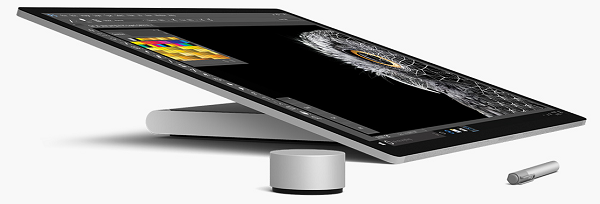
Dial 是一个类似于滚轮的设备,可以协助用户更快的想计算机输入信息,但是Dial并不是一个专为精准输入所设计的设备,换句话说如果用户想点击屏幕上某一个点我们还是推荐用户使用手指触摸或者Surface Pan 或者鼠标完成这项工作,Dial更适合类似于画布的旋转,笔触的选择等快速的操作。
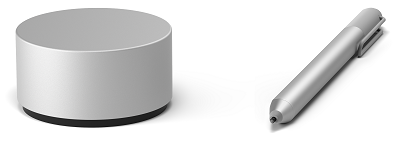
Surface Dial操作非常简单,只有三个操作事件 长按,单击,以及 转动并且如果Surface Dial 与 Surface Studio 一起使用的话 Surface Dial 的菜单可以使用 Surface Dial的屏幕菜单,就是将 Dial 放在 Surface Studio 屏幕上随后通过对Surface Dial的操作,围绕Dial的屏幕周围会出现一个菜单。
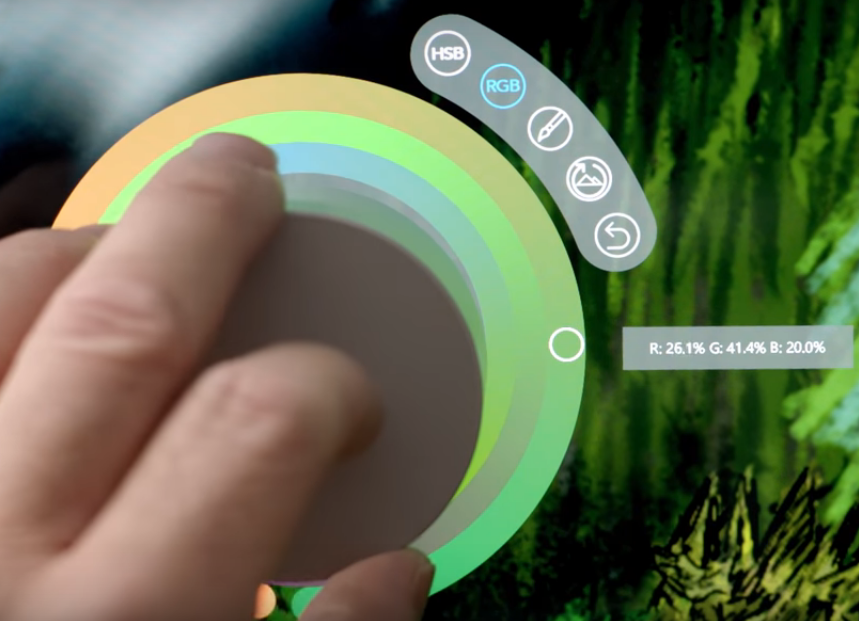
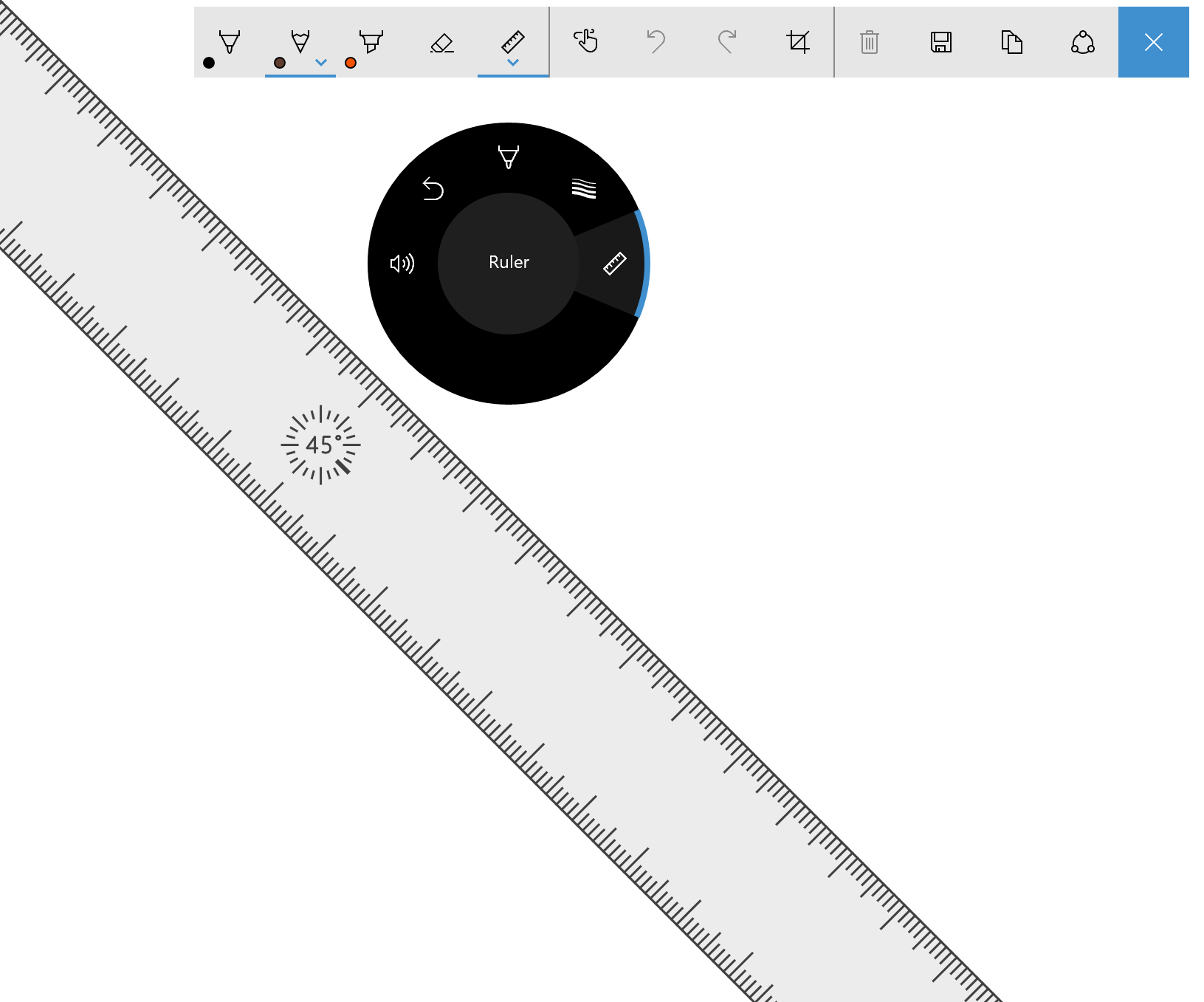
Dial 自身与windows衔接紧密并且内置系统工具例如调整系统音量,大小缩小,以及撤销从做等功能。此外Dial 与 Windows Ink集成也是非常紧密。如果您的WUP应用已经使用了 InkCanvas 和 InkToolbar 那么 Dial就会自动和 InkToolbar中的内容相结合例如 调整标尺的角度和调整笔触的大小等功能。
然而对于我们开发者而言 Surface 也是为我们提供了API(这里分别有UWP 和 Win32版本,本文着重介绍UWP版本),其实开发起来也是非常简单。
首先关键点
RadialController 类,通过CreateForCurrentView()静态方法获取实例。
RadialControllerMenuItem 类,用来自定义菜单内容。当Dial长按时会弹出自定义菜单。
ButtonClicked 事件,用来捕捉Dial的点击事件。
RotationChanged 事件,用来捕捉Dial旋转事件。
ScreenContactStarted 事件,捕捉 Dial 放在了 Surface Studio 上事件,并且可以从回调参数中获取Dial在屏幕中摆放的位置。
ScreenContactContinued 事件,捕捉 Dial 放在了 Surface Studio 上并且移动了位置,并且可以从回调参数中获取Dial在屏幕中摆放的位置。
ScreenContactEnded 事件,捕捉 Dial 从 Surface Studio 上移开事件。
ControlLost 事件,捕捉操作的焦点离开。
照搬一个MSDN上的demo code比较直观的展示这几个事件的用法以及如何判断Dial在Surface Studio上的位置。
Xaml代码
<Grid Background="{ThemeResource ApplicationPageBackgroundThemeBrush}">

<Grid.RowDefinitions>

 <RowDefinition Height="Auto"/>

 <RowDefinition Height="*"/>

</Grid.RowDefinitions>

<StackPanel x:Name="HeaderPanel"

     Orientation="Horizontal"

     Grid.Row="0">

 <TextBlock x:Name="Header"

   Text="RadialController customization sample"

   VerticalAlignment="Center"

   Style="{ThemeResource HeaderTextBlockStyle}"

   Margin="10,0,0,0" />

</StackPanel>

<Grid Grid.Row="1" x:Name="RootGrid">

 <Grid.RowDefinitions>

   <RowDefinition Height="*"/>

   <RowDefinition Height="*"/>

 </Grid.RowDefinitions>

 <Grid.ColumnDefinitions>

   <ColumnDefinition Width="*"/>

   <ColumnDefinition Width="*"/>

 </Grid.ColumnDefinitions>

 <Grid x:Name="Grid0"

   Grid.Row="0"

   Grid.Column="0">

   <StackPanel Orientation="Vertical"

     VerticalAlignment="Center"

     HorizontalAlignment="Center">

     <!-- Slider for rotational input -->

     <Slider x:Name="RotationSlider0"

       Width="300"

       HorizontalAlignment="Left"/>

     <!-- Switch for button input -->

     <ToggleSwitch x:Name="ButtonToggle0"

         HorizontalAlignment="Left"/>

   </StackPanel>

 </Grid>

 <Grid x:Name="Grid1"

   Grid.Row="0"

   Grid.Column="1">

   <StackPanel Orientation="Vertical"

     VerticalAlignment="Center"

     HorizontalAlignment="Center">

     <!-- Slider for rotational input -->

     <Slider x:Name="RotationSlider1"

       Width="300"

       HorizontalAlignment="Left"/>

     <!-- Switch for button input -->

     <ToggleSwitch x:Name="ButtonToggle1"

         HorizontalAlignment="Left"/>

   </StackPanel>

 </Grid>

 <Grid x:Name="Grid2"

   Grid.Row="1"

   Grid.Column="0">

   <StackPanel Orientation="Vertical"

     VerticalAlignment="Center"

     HorizontalAlignment="Center">

     <!-- Slider for rotational input -->

     <Slider x:Name="RotationSlider2"

       Width="300"

       HorizontalAlignment="Left"/>

     <!-- Switch for button input -->

     <ToggleSwitch x:Name="ButtonToggle2"

         HorizontalAlignment="Left"/>

   </StackPanel>

 </Grid>

 <Grid x:Name="Grid3"

   Grid.Row="1"

   Grid.Column="1">

   <StackPanel Orientation="Vertical"

     VerticalAlignment="Center"

     HorizontalAlignment="Center">

     <!-- Slider for rotational input -->

     <Slider x:Name="RotationSlider3"

       Width="300"

       HorizontalAlignment="Left"/>

     <!-- Switch for button input -->

     <ToggleSwitch x:Name="ButtonToggle3"

         HorizontalAlignment="Left"/>

   </StackPanel>

 </Grid>

</Grid>

</Grid>
code-behind 代码
Slider ActiveSlider;

ToggleSwitch ActiveSwitch;

Grid ActiveGrid;

public MainPage()

{

  ...

  myController.ScreenContactStarted +=

    MyController_ScreenContactStarted;

  myController.ScreenContactContinued +=

    MyController_ScreenContactContinued;

  myController.ScreenContactEnded +=

    MyController_ScreenContactEnded;

  myController.ControlLost += MyController_ControlLost;

  //Set initial grid for Surface Dial input.

  ActiveGrid = Grid0;

  ActiveSlider = RotationSlider0;

  ActiveSwitch = ButtonToggle0;

}

private void MyController_ScreenContactStarted(RadialController sender,

  RadialControllerScreenContactStartedEventArgs args)

{

  //find grid at contact location, update visuals, selection

  ActivateGridAtLocation(args.Contact.Position);

}

private void MyController_ScreenContactContinued(RadialController sender,

  RadialControllerScreenContactContinuedEventArgs args)

{

  //if a new grid is under contact location, update visuals, selection

  if (!VisualTreeHelper.FindElementsInHostCoordinates(

    args.Contact.Position, RootGrid).Contains(ActiveGrid))

  {

    ActiveGrid.Background = new

      SolidColorBrush(Windows.UI.Colors.White);

    ActivateGridAtLocation(args.Contact.Position);

  }

}

private void MyController_ScreenContactEnded(RadialController sender, object args)

{

  //return grid color to normal when contact leaves screen

  ActiveGrid.Background = new

  SolidColorBrush(Windows.UI.Colors.White);

}

private void MyController_ControlLost(RadialController sender, object args)

{

  //return grid color to normal when focus lost

  ActiveGrid.Background = new

    SolidColorBrush(Windows.UI.Colors.White);

}

private void ActivateGridAtLocation(Point Location)

{

  var elementsAtContactLocation =

    VisualTreeHelper.FindElementsInHostCoordinates(Location,

      RootGrid);

  foreach (UIElement element in elementsAtContactLocation)

  {

    if (element as Grid == Grid0)

    {

      ActiveSlider = RotationSlider0;

      ActiveSwitch = ButtonToggle0;

      ActiveGrid = Grid0;

      ActiveGrid.Background = new SolidColorBrush(

        Windows.UI.Colors.LightGoldenrodYellow);

      return;

    }

    else if (element as Grid == Grid1)

    {

      ActiveSlider = RotationSlider1;

      ActiveSwitch = ButtonToggle1;

      ActiveGrid = Grid1;

      ActiveGrid.Background = new SolidColorBrush(

        Windows.UI.Colors.LightGoldenrodYellow);

      return;

    }

    else if (element as Grid == Grid2)

    {

      ActiveSlider = RotationSlider2;

      ActiveSwitch = ButtonToggle2;

      ActiveGrid = Grid2;

      ActiveGrid.Background = new SolidColorBrush(

        Windows.UI.Colors.LightGoldenrodYellow);

      return;

    }

    else if (element as Grid == Grid3)

    {

      ActiveSlider = RotationSlider3;

      ActiveSwitch = ButtonToggle3;

      ActiveGrid = Grid3;

      ActiveGrid.Background = new SolidColorBrush(

        Windows.UI.Colors.LightGoldenrodYellow);

      return;

    }

  }

}
当然还有一个关键点如何创建自定义的菜单 使用Controller.Menu.Items.Add()方法添加和使用 Remove()方法删除自定义菜单。
注意:这里Surface Dial 菜单可以容纳7个选项,如果超过7个那么Dial 需要有浮动控件配合选择,这样做会影响用户体验是不推荐的。
        private void CreateMenuItems()

        {

            menuItems = new List<RadialControllerMenuItem>

            {

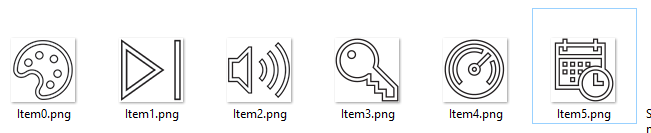
                RadialControllerMenuItem.CreateFromKnownIcon("Item0", RadialControllerMenuKnownIcon.InkColor),

                RadialControllerMenuItem.CreateFromKnownIcon("Item1", RadialControllerMenuKnownIcon.NextPreviousTrack),

                RadialControllerMenuItem.CreateFromKnownIcon("Item2", RadialControllerMenuKnownIcon.Volume),

                RadialControllerMenuItem.CreateFromIcon("Item3", RandomAccessStreamReference.CreateFromUri(new Uri("ms-appx:///Assets/Item3.png"))),

                RadialControllerMenuItem.CreateFromIcon("Item4", RandomAccessStreamReference.CreateFromUri(new Uri("ms-appx:///Assets/Item4.png"))),

                RadialControllerMenuItem.CreateFromIcon("Item5", RandomAccessStreamReference.CreateFromUri(new Uri("ms-appx:///Assets/Item5.png")))

            };

            sliders = new List<Slider> { Slider0, Slider1, Slider2, Slider3, Slider4, Slider5 };

            toggles = new List<ToggleSwitch> { Toggle0, Toggle1, Toggle2, Toggle3, Toggle4, Toggle5 };

            for (int i = ; i < menuItems.Count; ++i)

            {

                RadialControllerMenuItem radialControllerItem = menuItems[i];

                int index = i;

                radialControllerItem.Invoked += (sender, args) => { OnItemInvoked(index); };

            }

        }

        private void OnItemInvoked(int selectedItemIndex)

        {

            activeItemIndex = selectedItemIndex;

        }

        private void AddItem(object sender, RoutedEventArgs e)

        {

            RadialControllerMenuItem radialControllerMenuItem = GetRadialControllerMenuItemFromSender(sender);

            if (!Controller.Menu.Items.Contains(radialControllerMenuItem))

            {

                Controller.Menu.Items.Add(radialControllerMenuItem);

            }

        }

        private void RemoveItem(object sender, RoutedEventArgs e)

        {

            RadialControllerMenuItem radialControllerMenuItem = GetRadialControllerMenuItemFromSender(sender);

            if (Controller.Menu.Items.Contains(radialControllerMenuItem))

            {

                Controller.Menu.Items.Remove(radialControllerMenuItem);

            }

        }

        private void SelectItem(object sender, RoutedEventArgs e)

        {

            RadialControllerMenuItem radialControllerMenuItem = GetRadialControllerMenuItemFromSender(sender);

            if (Controller.Menu.Items.Contains(radialControllerMenuItem))

            {

                Controller.Menu.SelectMenuItem(radialControllerMenuItem);

                PrintSelectedItem();

            }

        }
菜单选项推荐使用64x64像素的PNG透明图像即可,但是同时支持到44x44的最小像素值。
注意:黑色边框是为了在高对比度模式下也可以让我们的图标也可以清晰可见。
最后附上微软的示例代码:RadialControlle
希望上的总结可以帮助到大家, 同时欢迎大家在这里和我沟通交流或者在新浪微博上 @王博_Nick
Surface Dial 与 Windows Wheel UWP应用开发的更多相关文章
- 面向初学者的 Windows 10 UWP 应用开发
眼看 Windows 10 for Mobile 正式版也快要推送了,就先挖个坑吧,原文视频链接为:Windows 10 development for absolute beginners,以下博客 ...
- UWP 手绘视频创作工具技术分享系列 - Ink & Surface Dial
本篇作为技术分享系列的第四篇,详细讲一下手绘视频中 Surface Pen 和 Surface Dial 的使用场景. 先放一张微软官方商城的图,Surface 的使用中结合了 Surface Pen ...
- UwpDesktop!WPF也能开发Surface Dial
原文:UwpDesktop!WPF也能开发Surface Dial 前段时间巨硬发布了一款新的输入设备Surface Dial,配合Surface Studio使用简直炫酷到没朋友. 本人由于公司业务 ...
- UWP应用开发系列视频教程简介 - Built for Windows 10
万分感谢Fdyo同学给我们带来的有中文字幕的系列教程! http://zhuanlan.zhihu.com/MSFaith/20364660 下面是这系列video教程中的一个截图作为示例,有代码,有 ...
- Windows 10 UWP开发:如何去掉ListView默认的选中效果
原文:Windows 10 UWP开发:如何去掉ListView默认的选中效果 开发UWP的时候,很多人会碰到一个问题,就是ListView在被数据绑定之后经常有个默认选中的效果,就像这样: 而且它不 ...
- 如何为Surface Dial设备开发自定义交互功能
随着Surface Studio的发布,微软发布了与之相配套的外设硬件Surface Dial,用户可以将Surface Dail吸附在Surface Studio的屏幕上面,用旋转和点击的实体操作来 ...
- Mobilize.Net Silverlight bridge to Windows 10 UWP
Windows UWP 既 Windows 10 Universal Windows platform,这个微软基于Windows NT内核的个运行时(Runtime)平台,此平台横跨所有的 Wind ...
- 自动启动 Windows 10 UWP 应用
原文: https://docs.microsoft.com/zh-cn/windows/uwp/xbox-apps/automate-launching-uwp-apps 简介 开发人员有多种选项可 ...
- 操作系统-Windows:UWP(Universal Windows Platform)
ylbtech-操作系统-Windows:UWP(Universal Windows Platform) 1.返回顶部 1. UWP即Windows 10中的Universal Windows Pla ...
随机推荐
- Bash shell 的算术运算有四种方式
~~~~~~~~~~~~~~~~~~~~~~~~~~~~~~~~~1:使用 expr 外部程式加法 r=`expr 4 + 5`echo $r注意! '4' '+' '5' 这三者之间要有空白r=`e ...
- [Android]SDK安装
安装Android环境时,出现的问题 //在国内安装Android环境时,经常会因为Google服务器的原因,出现链接失败的问题. Failed to fetch URL http://dl-ssl. ...
- 设计模式笔记之四:MVP+Retrofit+RxJava组合使用
本博客转自郭霖公众号:http://mp.weixin.qq.com/s?__biz=MzA5MzI3NjE2MA==&mid=2650236866&idx=1&sn=da66 ...
- PHP文件夹操作2
mkdir("路径文件名"); 创建文件夹 imdir("路径文件名"); 删除文件夹(只能删除空的文件夹) rename("路径",&qu ...
- 解决KVM中鼠标不同步问题
VNCViewer中的鼠标走得总是比本地系统中的鼠标要慢,不同步,往往实体机中的鼠标都移出vnc窗口外边了,虚拟机中的鼠标指针还没移到需要点击的位置,操作起来很不方便. 起初的想法也是配置的问题,就按 ...
- iOS开发——delegate的相关警告
警告:Assigning to 'id<...Delegate>' from incompatible type '...ViewController *const_strong' 解决方 ...
- S3C2440硬件连接解析
S3c2440是三星公司推出的一款基于ARM920T的处理器,采用ARM内核,不同于单片机,无片上rom与ram,必须搭配相应的外围电路进行使用,现在,让我们从零开始进行这一块MCU的学习,为了入门简 ...
- iOS开发 调用系统相机和相册
调用系统相机和相册 (iPad,iPhone)打开相机:(iPad,iPhone)//先设定sourceType为相机,然后判断相机是否可用(ipod)没相机,不可用将sourceType设定为相片库 ...
- SpringMVC强大的数据绑定(2)——第六章 注解式控制器详解
SpringMVC强大的数据绑定(2)——第六章 注解式控制器详解 博客分类: 跟开涛学SpringMVC 6.6.2.@RequestParam绑定单个请求参数值 @RequestParam用于 ...
- mybatis 参数为list时,校验list是否为空, mybatis ${}与#{}的区别,Mybatis sql in
1.mybatis 参数为list时,校验list是否为空 2. mybatis ${}与#{}的区别 简单来说#{} 解析的是占位符?可以防止SQL注入, 比如打印出来的语句 select * fr ...