
(六)c#Winform自定义控件-单选框
官网
前提
入行已经7,8年了,一直想做一套漂亮点的自定义控件,于是就有了本系列文章。
GitHub:https://github.com/kwwwvagaa/NetWinformControl
码云:https://gitee.com/kwwwvagaa/net_winform_custom_control.git
如果觉得写的还行,请点个 star 支持一下吧
欢迎前来交流探讨: 企鹅群568015492 
目录
https://www.cnblogs.com/bfyx/p/11364884.html
准备工作
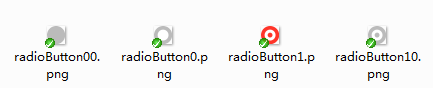
准备4个图片,分别对应选中,没选中,选中禁用,没选中禁用
复选框需要支持分组,当同一面板上具有多种选择的时候,分组就显得更为重要了
开始
添加一个用户控件,命名为:UCRadioButton
看一下有哪些属性
 [Description("选中改变事件"), Category("自定义")]

         public event EventHandler CheckedChangeEvent;

         private Font _Font = new Font("微软雅黑", );

         [Description("字体"), Category("自定义")]

         public new Font Font

         {

             get { return _Font; }

             set

             {

                 _Font = value;

                 label1.Font = value;

             }

         }

         private Color _ForeColor = Color.FromArgb(, , );

         [Description("字体颜色"), Category("自定义")]

         public new Color ForeColor

         {

             get { return _ForeColor; }

             set

             {

                 label1.ForeColor = value;

                 _ForeColor = value;

             }

         }

         private string _Text = "单选按钮";

         [Description("文本"), Category("自定义")]

         public string TextValue

         {

             get { return _Text; }

             set

             {

                 label1.Text = value;

                 _Text = value;

             }

         }

         private bool _checked = false;

         [Description("是否选中"), Category("自定义")]

         public bool Checked

         {

             get

             {

                 return _checked;

             }

             set

             {

                 if (_checked != value)

                 {

                     _checked = value;

                     if (base.Enabled)

                     {

                         if (_checked)

                         {

                             panel1.BackgroundImage = Properties.Resources.radioButton1;

                         }

                         else

                         {

                             panel1.BackgroundImage = Properties.Resources.radioButton0;

                         }

                     }

                     else

                     {

                         if (_checked)

                         {

                             panel1.BackgroundImage = Properties.Resources.radioButton10;

                         }

                         else

                         {

                             panel1.BackgroundImage = Properties.Resources.radioButton00;

                         }

                     }

                     SetCheck(value);

                     if (CheckedChangeEvent != null)

                     {

                         CheckedChangeEvent(this, null);

                     }

                 }

             }

         }

         private string _groupName;

         [Description("分组名称"), Category("自定义")]

         public string GroupName

         {

             get { return _groupName; }

             set { _groupName = value; }

         }

         public new bool Enabled

         {

             get

             {

                 return base.Enabled;

             }

             set

             {

                 base.Enabled = value;

                 if (value)

                 {

                     if (_checked)

                     {

                         panel1.BackgroundImage = Properties.Resources.radioButton1;

                     }

                     else

                     {

                         panel1.BackgroundImage = Properties.Resources.radioButton0;

                     }

                 }

                 else

                 {

                     if (_checked)

                     {

                         panel1.BackgroundImage = Properties.Resources.radioButton10;

                     }

                     else

                     {

                         panel1.BackgroundImage = Properties.Resources.radioButton00;

                     }

                 }

             }

         }
当选中状态改变时需要根据分组名称来做相应的处理
   private void SetCheck(bool bln)

         {

             if (!bln)

                 return;

             if (this.Parent != null)

             {

                 foreach (Control c in this.Parent.Controls)

                 {

                     if (c is UCRadioButton && c != this)

                     {

                         UCRadioButton uc = (UCRadioButton)c;

                         if (_groupName == uc.GroupName && uc.Checked)

                         {

                             uc.Checked = false;

                             return;

                         }

                     }

                 }

             }

         }
当点击时改变选中状态
         private void Radio_MouseDown(object sender, MouseEventArgs e)

         {

             this.Checked = true;

         }
加载时做一下处理,防止多选了
 private void UCRadioButton_Load(object sender, EventArgs e)

         {

             if (this.Parent != null && this._checked)

             {

                 foreach (Control c in this.Parent.Controls)

                 {

                     if (c is UCRadioButton && c != this)

                     {

                         UCRadioButton uc = (UCRadioButton)c;

                         if (_groupName == uc.GroupName && uc.Checked)

                         {

                             Checked = false;

                             return;

                         }

                     }

                 }

             }

         }
来看下完整的代码吧
 // 版权所有  黄正辉  交流群:568015492   QQ:623128629

 // 文件名称:UCRadioButton.cs

 // 创建日期:2019-08-15 16:03:13

 // 功能描述:RadioButton

 // 项目地址:https://gitee.com/kwwwvagaa/net_winform_custom_control

 using System;

 using System.Collections.Generic;

 using System.ComponentModel;

 using System.Drawing;

 using System.Data;

 using System.Linq;

 using System.Text;

 using System.Windows.Forms;

 namespace HZH_Controls.Controls

 {

     [DefaultEvent("CheckedChangeEvent")]

     public partial class UCRadioButton : UserControl

     {

         [Description("选中改变事件"), Category("自定义")]

         public event EventHandler CheckedChangeEvent;

         private Font _Font = new Font("微软雅黑", );

         [Description("字体"), Category("自定义")]

         public new Font Font

         {

             get { return _Font; }

             set

             {

                 _Font = value;

                 label1.Font = value;

             }

         }

         private Color _ForeColor = Color.FromArgb(, , );

         [Description("字体颜色"), Category("自定义")]

         public new Color ForeColor

         {

             get { return _ForeColor; }

             set

             {

                 label1.ForeColor = value;

                 _ForeColor = value;

             }

         }

         private string _Text = "单选按钮";

         [Description("文本"), Category("自定义")]

         public string TextValue

         {

             get { return _Text; }

             set

             {

                 label1.Text = value;

                 _Text = value;

             }

         }

         private bool _checked = false;

         [Description("是否选中"), Category("自定义")]

         public bool Checked

         {

             get

             {

                 return _checked;

             }

             set

             {

                 if (_checked != value)

                 {

                     _checked = value;

                     if (base.Enabled)

                     {

                         if (_checked)

                         {

                             panel1.BackgroundImage = Properties.Resources.radioButton1;

                         }

                         else

                         {

                             panel1.BackgroundImage = Properties.Resources.radioButton0;

                         }

                     }

                     else

                     {

                         if (_checked)

                         {

                             panel1.BackgroundImage = Properties.Resources.radioButton10;

                         }

                         else

                         {

                             panel1.BackgroundImage = Properties.Resources.radioButton00;

                         }

                     }

                     SetCheck(value);

                     if (CheckedChangeEvent != null)

                     {

                         CheckedChangeEvent(this, null);

                     }

                 }

             }

         }

         private string _groupName;

         [Description("分组名称"), Category("自定义")]

         public string GroupName

         {

             get { return _groupName; }

             set { _groupName = value; }

         }

         public new bool Enabled

         {

             get

             {

                 return base.Enabled;

             }

             set

             {

                 base.Enabled = value;

                 if (value)

                 {

                     if (_checked)

                     {

                         panel1.BackgroundImage = Properties.Resources.radioButton1;

                     }

                     else

                     {

                         panel1.BackgroundImage = Properties.Resources.radioButton0;

                     }

                 }

                 else

                 {

                     if (_checked)

                     {

                         panel1.BackgroundImage = Properties.Resources.radioButton10;

                     }

                     else

                     {

                         panel1.BackgroundImage = Properties.Resources.radioButton00;

                     }

                 }

             }

         }

         public UCRadioButton()

         {

             InitializeComponent();

         }

         private void SetCheck(bool bln)

         {

             if (!bln)

                 return;

             if (this.Parent != null)

             {

                 foreach (Control c in this.Parent.Controls)

                 {

                     if (c is UCRadioButton && c != this)

                     {

                         UCRadioButton uc = (UCRadioButton)c;

                         if (_groupName == uc.GroupName && uc.Checked)

                         {

                             uc.Checked = false;

                             return;

                         }

                     }

                 }

             }

         }

         private void Radio_MouseDown(object sender, MouseEventArgs e)

         {

             this.Checked = true;

         }

         private void UCRadioButton_Load(object sender, EventArgs e)

         {

             if (this.Parent != null && this._checked)

             {

                 foreach (Control c in this.Parent.Controls)

                 {

                     if (c is UCRadioButton && c != this)

                     {

                         UCRadioButton uc = (UCRadioButton)c;

                         if (_groupName == uc.GroupName && uc.Checked)

                         {

                             Checked = false;

                             return;

                         }

                     }

                 }

             }

         }

     }

 }
 namespace HZH_Controls.Controls

 {

     partial class UCRadioButton

     {

         /// <summary>

         /// 必需的设计器变量。

         /// </summary>

         private System.ComponentModel.IContainer components = null;

         /// <summary>

         /// 清理所有正在使用的资源。

         /// </summary>

         /// <param name="disposing">如果应释放托管资源,为 true;否则为 false。</param>

         protected override void Dispose(bool disposing)

         {

             if (disposing && (components != null))

             {

                 components.Dispose();

             }

             base.Dispose(disposing);

         }

         #region 组件设计器生成的代码

         /// <summary>

         /// 设计器支持所需的方法 - 不要

         /// 使用代码编辑器修改此方法的内容。

         /// </summary>

         private void InitializeComponent()

         {

             this.label1 = new System.Windows.Forms.Label();

             this.panel1 = new System.Windows.Forms.Panel();

             this.SuspendLayout();

             //

             // label1

             //

             this.label1.Dock = System.Windows.Forms.DockStyle.Fill;

             this.label1.Font = new System.Drawing.Font("微软雅黑", 12F);

             this.label1.ForeColor = System.Drawing.Color.FromArgb(((int)(((byte)()))), ((int)(((byte)()))), ((int)(((byte)()))));

             this.label1.Location = new System.Drawing.Point(, );

             this.label1.Name = "label1";

             this.label1.Padding = new System.Windows.Forms.Padding(, , , );

             this.label1.Size = new System.Drawing.Size(, );

             this.label1.TabIndex = ;

             this.label1.Text = "单选按钮";

             this.label1.TextAlign = System.Drawing.ContentAlignment.MiddleLeft;

             this.label1.MouseDown += new System.Windows.Forms.MouseEventHandler(this.Radio_MouseDown);

             //

             // panel1

             //

             this.panel1.BackgroundImage = global::HZH_Controls.Properties.Resources.radioButton0;

             this.panel1.BackgroundImageLayout = System.Windows.Forms.ImageLayout.Zoom;

             this.panel1.Dock = System.Windows.Forms.DockStyle.Left;

             this.panel1.Location = new System.Drawing.Point(, );

             this.panel1.Name = "panel1";

             this.panel1.Size = new System.Drawing.Size(, );

             this.panel1.TabIndex = ;

             this.panel1.MouseDown += new System.Windows.Forms.MouseEventHandler(this.Radio_MouseDown);

             //

             // UCRadioButton

             //

             this.AutoScaleMode = System.Windows.Forms.AutoScaleMode.None;

             this.Controls.Add(this.label1);

             this.Controls.Add(this.panel1);

             this.Name = "UCRadioButton";

             this.Size = new System.Drawing.Size(, );

             this.Load += new System.EventHandler(this.UCRadioButton_Load);

             this.MouseDown += new System.Windows.Forms.MouseEventHandler(this.Radio_MouseDown);

             this.ResumeLayout(false);

         }

         #endregion

         private System.Windows.Forms.Label label1;

         private System.Windows.Forms.Panel panel1;

     }

 }
用处及效果
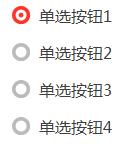
用处:就是单选框
效果:
最后的话
如果你喜欢的话,请到 https://gitee.com/kwwwvagaa/net_winform_custom_control 点个星星吧
(六)c#Winform自定义控件-单选框的更多相关文章
- (十六)c#Winform自定义控件-文本框哪里去了?-HZHControls
官网 http://www.hzhcontrols.com 前提 入行已经7,8年了,一直想做一套漂亮点的自定义控件,于是就有了本系列文章. GitHub:https://github.com/kww ...
- (三十)c#Winform自定义控件-文本框(三)
前提 入行已经7,8年了,一直想做一套漂亮点的自定义控件,于是就有了本系列文章. 开源地址:https://gitee.com/kwwwvagaa/net_winform_custom_control ...
- (三十一)c#Winform自定义控件-文本框(四)
前提 入行已经7,8年了,一直想做一套漂亮点的自定义控件,于是就有了本系列文章. 开源地址:https://gitee.com/kwwwvagaa/net_winform_custom_control ...
- (十八)c#Winform自定义控件-提示框
前提 入行已经7,8年了,一直想做一套漂亮点的自定义控件,于是就有了本系列文章. 开源地址:https://gitee.com/kwwwvagaa/net_winform_custom_control ...
- (八十二)c#Winform自定义控件-穿梭框
前提 入行已经7,8年了,一直想做一套漂亮点的自定义控件,于是就有了本系列文章. GitHub:https://github.com/kwwwvagaa/NetWinformControl 码云:ht ...
- (二十八)c#Winform自定义控件-文本框(一)
前提 入行已经7,8年了,一直想做一套漂亮点的自定义控件,于是就有了本系列文章. 开源地址:https://gitee.com/kwwwvagaa/net_winform_custom_control ...
- (二十九)c#Winform自定义控件-文本框(二)
前提 入行已经7,8年了,一直想做一套漂亮点的自定义控件,于是就有了本系列文章. 开源地址:https://gitee.com/kwwwvagaa/net_winform_custom_control ...
- c#Winform自定义控件-目录
前提 入行已经7,8年了,一直想做一套漂亮点的自定义控件,于是就有了本系列文章. 开源地址:https://gitee.com/kwwwvagaa/net_winform_custom_control ...
- winform 自定义控件(高手)
高手推荐:https://www.cnblogs.com/bfyx/p/11364884.html c#Winform自定义控件-目录 前提 入行已经7,8年了,一直想做一套漂亮点的自定义控件 ...
随机推荐
- 包教包会之Open Live Writer设置代码样式
Open Live Writer(以下简称OLW),作为一个在本地写博文,然后发布到各个博客网站的客户端,在使用上个人觉得还是比较好用的.但是其对IT博文中代码部分的内容样式支持不是很友好.下面是本人 ...
- [WPF自定义控件库]了解WPF的布局过程,并利用Measure为Expander添加动画
1. 前言 这篇文章介绍WPF UI元素的两步布局过程,并且通过Resizer控件介绍只使用Measure可以实现些什么内容. 我不建议初学者做太多动画的工作,但合适的动画可以引导用户视线,提升用户体 ...
- python函数知识三 函数名的使用、格式化、递归
12.函数名的使用 函数是第一类对象 函数名可以当做值被赋值给变量 def func(): print(1) return a = func print(func) print(a) a() 函数名可 ...
- 从无到有构建vue实战项目(六)
十.徒手撸一个vue下拉左侧二级导航 先附上最终效果图: vue代码: <div class="dropdown-menu-explore" v-on:mouseover=& ...
- DML语言DDL
DML(data manipulation language): 它们是SELECT.UPDATE.INSERT.DELETE,就象它的名字一样,这4条命令是用来对数据库里的数据进行操作的语言 . D ...
- spark 源码分析之十八 -- Spark存储体系剖析
本篇文章主要剖析BlockManager相关的类以及总结Spark底层存储体系. 总述 先看 BlockManager相关类之间的关系如下: 我们从NettyRpcEnv 开始,做一下简单说明. Ne ...
- 关于python3与python2同时存在情况下导入pyqt失败解决记录
最近感觉tkinter功能还是比较不适合新手做出高大上的界面,故开始使用pyqt,通过pip安装好了之后,利用qt设计师设计好界面之后,cmd运行之,报错提示没有找到pyqt5模块,IDE运行能正常加 ...
- 【ML入门】李宏毅机器学习笔记01-Learning Map
版权声明:小博主水平有限,希望大家多多指导.本文仅代表作者本人观点,转载请联系知乎原作者——BG大龍. 目录 1 什么是机器学习? 2 机器学习的3个步骤 3 李宏毅老师的机器学习课程 4 按“模型的 ...
- 解决Windows10下安装Ubuntu16.04双系统后开机没有Ubuntu引导
转载 https://blog.csdn.net/qq_27838307/article/details/79149791 1.按照网上教程在磁盘中压缩硬盘并且不需要给他新建卷标,就让他显示空闲就好了 ...
- java练习---2
//程序员:罗元昊 2017.9.6public class My{ public static void main(String[] args){ int a= ...