
selenium webdriver(4)---模拟鼠标键盘操作
webdriver提供Actions来模拟鼠标悬浮、拖拽和键盘输入等操作,详细代码见org.openqa.selenium.interactions.Actions.本文通过几个实例来说明Actions的相关操作
输入数据
需求:登录安居客网站,在二手房板块输入"@@@",点击搜索,正确跳转成功反之失败,大部分情况下我们这样写
 //搜索二手房

 import org.openqa.selenium.By;

 import org.openqa.selenium.WebDriver;

 import org.openqa.selenium.chrome.ChromeDriver;

 import org.openqa.selenium.WebElement;

 public class NewTest{

     public static void main(String[] args) throws InterruptedException {

        System.setProperty ( "webdriver.chrome.driver" ,

        "C:\\Program Files (x86)\\Google\\Chrome\\Application\\chromedriver.exe" );

        WebDriver driver = new ChromeDriver();

        driver.get("http://shanghai.anjuke.com");

        try{

           WebElement input=driver.findElement(By.xpath("//input[@id='glb_search0']"));

           WebElement search=driver.findElement(By.xpath("//input[@id='btnSubmit']"));

           input.sendKeys("@@@");

           search.click();

           if(driver.getTitle().contains("@"))

               System.out.println("搜索成功,跳转到"+driver.getTitle()+"页面");

           else

               System.out.println("搜索失败,跳转到了"+driver.getTitle()+"页面");

        }catch(Exception e){

            e.printStackTrace();

        }finally{

            Thread.sleep(3000);

            driver.quit();

        }

 }
使用Actions类还可以这样写
 import java.util.List;

 import java.util.Set;

 import org.openqa.selenium.By;

 import org.openqa.selenium.Keys;

 import org.openqa.selenium.WebDriver;

 import org.openqa.selenium.chrome.ChromeDriver;

 import org.openqa.selenium.interactions.Actions;

 import org.openqa.selenium.WebElement;

 public class NewTest{

     public static void main(String[] args) throws InterruptedException {

        System.setProperty ( "webdriver.chrome.driver" ,

        "C:\\Program Files (x86)\\Google\\Chrome\\Application\\chromedriver.exe" );

        WebDriver driver = new ChromeDriver();

        driver.get("http://shanghai.anjuke.com");

        try{

           WebElement input=driver.findElement(By.xpath("//input[@id='glb_search0']"));

           WebElement search=driver.findElement(By.xpath("//input[@id='btnSubmit']"));

           //生成Actions实例对象

           Actions actions=new Actions(driver);

           //输入@@@点击搜索

           actions.keyDown(input, Keys.SHIFT).sendKeys("222")

           .keyUp(Keys.SHIFT).click(search).perform();

           if(driver.getTitle().contains("@"))

               System.out.println("搜索成功,跳转到"+driver.getTitle()+"页面");

           else

               System.out.println("搜索失败,跳转到了"+driver.getTitle()+"页面");

        }catch(Exception e){

            e.printStackTrace();

        }finally{

            Thread.sleep(3000);

            driver.quit();

        }

 }
keyDown表示按下键盘,keyUp表示松开键盘。上述代码中先是执行keyDown,这时shift键按下后面的sendKeys内容也是在shift键按下的情况输入的,所以实际输入的是@@@.
鼠标悬浮
需求:登录安居客首页,切换城市到杭州
 import org.openqa.selenium.By;

 import org.openqa.selenium.Keys;

 import org.openqa.selenium.WebDriver;

 import org.openqa.selenium.chrome.ChromeDriver;

 import org.openqa.selenium.interactions.Actions;

 import org.openqa.selenium.WebElement;

 public class NewTest{

     public static void main(String[] args) throws InterruptedException {

        System.setProperty ( "webdriver.chrome.driver" ,

        "C:\\Program Files (x86)\\Google\\Chrome\\Application\\chromedriver.exe" );

        WebDriver driver = new ChromeDriver();

        driver.get("http://shanghai.anjuke.com");

        try{

           WebElement city=driver.findElement(By.xpath("//a[@id='switch_apf_id_8']"));

           WebElement citys=driver.findElement(By.xpath("//div[@id='city-panel']"));

           WebElement cityOption=driver.findElement(By.xpath("//a[@title='杭州房产网']"));

           //生成Actions实例对象

           Actions actions=new Actions(driver);

           //鼠标悬浮到城市标签

           actions.moveToElement(city).perform();

           if(citys.isDisplayed())

               System.out.println("鼠标悬浮成功,城市模块的display:"+

                       citys.getCssValue("display"));

           else

               System.out.println("鼠标悬浮失败,城市模块的display:"+

                       citys.getCssValue("display"));

           //点击杭州

           actions.click(cityOption).perform();

           if(driver.getTitle().contains("杭州"))

               System.out.println("切换成功,跳转到"+driver.getTitle()+"页面");

           else

               System.out.println("切换失败,跳转到了"+driver.getTitle()+"页面");

        }catch(Exception e){

            e.printStackTrace();

        }finally{

            Thread.sleep(3000);

            driver.quit();

        }

 }
多选框
由于安居客网站没有这方面的例子,下面就采用YUI类库的DEMO界面来演示
 import java.util.List;

 import java.util.Set;

 import org.openqa.selenium.By;

 import org.openqa.selenium.Keys;

 import org.openqa.selenium.WebDriver;

 import org.openqa.selenium.chrome.ChromeDriver;

 import org.openqa.selenium.interactions.Actions;

 import org.openqa.selenium.WebElement;

 public class NewTest{

     public static void main(String[] args) throws InterruptedException {

        System.setProperty ( "webdriver.chrome.driver" ,

        "C:\\Program Files (x86)\\Google\\Chrome\\Application\\chromedriver.exe" );

        WebDriver driver = new ChromeDriver();

        driver.get("http://jqueryui.com/selectable/");

        try{

           WebElement frame=driver.findElement(By.xpath("//iframe[@class='demo-frame']"));

           driver.switchTo().frame(frame);

           List<WebElement> selects=driver

                   .findElements(By.xpath("//li[@class='ui-widget-content ui-selectee']"));

           //生成Actions实例对象

           Actions actions=new Actions(driver);

           actions.clickAndHold(selects.get(0)).clickAndHold(selects.get(1)).click().perform();

        }catch(Exception e){

            e.printStackTrace();

        }finally{

            Thread.sleep(3000);

            driver.quit();

        }

 }
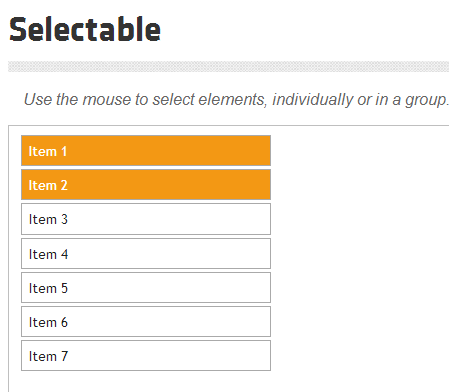
clickAndHold是点击并维持着点击的状态,上面代码效果如下图
拖拽框体
响应式网站和OA系统这方面的需求较多,下面演示如何将拖拽对象拖拽到右下角
 import org.openqa.selenium.By;

 import org.openqa.selenium.Keys;

 import org.openqa.selenium.WebDriver;

 import org.openqa.selenium.chrome.ChromeDriver;

 import org.openqa.selenium.interactions.Actions;

 import org.openqa.selenium.WebElement;

 public class NewTest{

     public static void main(String[] args) throws InterruptedException {

        System.setProperty ( "webdriver.chrome.driver" ,

        "C:\\Program Files (x86)\\Google\\Chrome\\Application\\chromedriver.exe" );

        WebDriver driver = new ChromeDriver();

        driver.get("http://jqueryui.com/draggable/");

        try{

           WebElement frame=driver.findElement(By.xpath("//iframe[@class='demo-frame']"));

           driver.switchTo().frame(frame);

           WebElement dragTable=driver.findElement(By.xpath("//div[@id='draggable']"));

           //生成Actions实例对象

           Actions actions=new Actions(driver);

           //拖拽对象

           actions.dragAndDropBy(dragTable, 270, 170).perform();

        }catch(Exception e){

            e.printStackTrace();

        }finally{

            Thread.sleep(3000);

            driver.quit();

        }

 }
其实dragAndDropBy方法就是clickAndHold和moveByOffset方法的组合而已
  actions.dragAndDropBy(dragTable, 270, 170).perform();

  actions.clickAndHold(dragTable).moveByOffset(270, 170).click().perform();
这两行代码功能是一样的,正所谓条条大路通罗马,我们只需选择最近、最安全的一条就好了。
selenium webdriver(4)---模拟鼠标键盘操作的更多相关文章
- 将CodedUI Test 放到控制台程序中,模拟鼠标键盘操作
CodedUI Test是微软的自动化测试工具,在VS中非常好用.可以用来模拟鼠标点击,键盘输入.但执行的时候必须要用mstest调用,无法传入参数(当然可以写入config文件中,但每次修改十分麻烦 ...
- selenium webdriver模拟鼠标键盘操作
在测试使用Selenium webdriver测试WEB系统的时候,用到了模拟鼠标.键盘的一些输入操作. 1.鼠标的左键点击.双击.拖拽.右键点击等: 2.键盘的回车.回退.空格.ctrl.alt.s ...
- selenium webdriver从安装到使用(python语言),显示等待和隐性等待用法,切换窗口或者frame,弹框处理,下拉菜单处理,模拟鼠标键盘操作等
selenium的用法 selenium2.0主要包含selenium IDE 和selenium webDriver,IDE有点类似QTP和LoadRunner的录制功能,就是firefox浏览器的 ...
- Java+selenium之WebDriver模拟鼠标键盘操作(六)
org.openqa.selenium.interactions.Actions类,主要定义了一些模拟用户的鼠标mouse,键盘keyboard操作.对于这些操作,使用 perform()方法进行执行 ...
- selenium模拟鼠标键盘操作
简单操作: 1.点击(鼠标左键)页面按钮:click() 2.清空输入框:clear() 3.输入字符串:send_keys()submit提交表单: 1.一般情况可以点击搜索按钮来搜索 2.也可以用 ...
- python模拟鼠标键盘操作 GhostMouse tinytask 调用外部脚本或程序 autopy右键另存为
0.关键实现:程序窗口前置 python 通过js控制滚动条拉取全文 通过psutil获取pid窗口句柄,通过win32gui使程序窗口前置 通过pyauto实现右键菜单和另存为操作 1.参考 aut ...
- selenium之 玩转鼠标键盘操作(ActionChains)
用selenium做自动化,有时候会遇到需要模拟鼠标操作才能进行的情况,比如单击.双击.点击鼠标右键.拖拽等等.而selenium给我们提供了一个类来处理这类事件——ActionChains sele ...
- selenuim2模拟鼠标键盘操作
有时候有些元素不便点击或者做其他的操作,这个时候可以借助selenium提供的Actions类,它可以模拟鼠标和键盘的一些操作,比如点击鼠标右键,左键,移动鼠标等操作.对于这些操作,使用perform ...
- selenium层级定位及鼠标键盘操作
#code:utf-8 from selenium import webdriver from selenium.webdriver.common.action_chains import Actio ...
随机推荐
- OpenCV(7)-图像直方图
直方图定义可参考这里.图像的直方图用来表示图像像素的统计信息,它统计了图像每一个通道(如果是多通道)中,每个像素的个数(比例). 计算直方图 OpenCV提供了直接计算直方图的函数 void calc ...
- WebRTC 音视频开发之路
早在2014年就通过WebRTC实现了PC客户端的实时视频语音,那时P2P连接的建立使用的WebRTC自带的libjingle库,使用peerconnection的API实现的.后来在做远程桌面,文件 ...
- Name control
static: (Page 406) In both C and C++ the keyword static has two basic meanings, which unfortunately ...
- MongoDB3.2版本与3.0版本写场景压力测试对比
我们主要是为了测试journal对写操作性能的影响.分别测试了3.2版本,3.0版本在ramdisk,hdd上有journal,和没journal的情况. 发现一个很怪异的现象,3.2版本时候,随着y ...
- Linux 进程编程
Linux通过维护者五个状态来调度进程的运行.这五个状态分别为:运行.可中断.不可中断.僵死.停止 . PID来标识不同的进程的,Linux中每一个进程都有一个唯一的进程号 . PCB块就是一个进程资 ...
- jQuery如何检查某个元素在网页上是否存在
$("ID")获取的永远是对象,即使网页上没有此元素.因此当要用jQuery检查某个元素在网页上是否存在时,不能使用以下代码: if($("#ID")){ // ...
- 浅谈页面无刷新技术ajax
现在一般网站都是用ajax来实现页面无刷新操作的. 什么是无刷新:ajax可以实现页面与后台的数据交互,用户完全感觉不出页面有任何的刷新,这就是AJAX的无刷新. ajax方法实现: 可以对ajax进 ...
- [C#]Thread Safe Dictionary in .NET 2.0
using System.Collections.Generic; using System.Threading; namespace CSharpUtilHelpV2 { /// <summa ...
- 『奇葩问题集锦』Fedora ubuntu 下使用gulp 报错 Error: watch ENOSPC 解决方案
用gulp启动,错误如下 Error: watch ENOSPC at exports._errnoException (util.js:746:11) at FSWatcher.start (fs. ...
- python学习_数据处理编程实例(一)
目的:用一个实例总结学习到的with语句,函数,列表推导,集合,排序,字符分割等内容 要求:分别以james,julie,mikey,sarah四个学生的名字建立文本文件,分别存储各自的成绩,时间格式 ...