
groovyConsole — the Groovy Swing console
1. Groovy : Groovy Console
The Groovy Swing Console allows a user to enter and run Groovy scripts. This page documents the features of this user interface.
2. Basics

Groovy Console is launched via
groovyConsoleorgroovyConsole.bat, both located in$GROOVY_HOME/binThe Console has an input area and an output area.
You type a Groovy script in the input area.
When you select
Runfrom theActionsmenu, the console compiles the script and runs it.Anything that would normally be printed on
System.outis printed in the output area.If the script returns a non-null result, that result is printed.
3. Features
3.1. Running Scripts
There are several shortcuts that you can use to run scripts or code snippets:
Ctrl+EnterandCtrl+Rare both shortcut keys forRun Script.If you highlight just part of the text in the input area, then Groovy runs just that text.
The result of a script is the the value of the last expression executed.
You can turn the System.out capture on and off by selecting
Capture System.outfrom theActionsmenu
3.2. Editing Files
You can open any text file, edit it, run it (as a Groovy Script) and then save it again when you are finished.
Select
File > Open(shortcut keyctrl+O) to open a fileSelect
File > Save(shortcut keyctrl+S) to save a fileSelect
File > New File(shortcut keyctrl+Q) to start again with a blank input area
3.3. History and results
You can pop-up a gui inspector on the last (non-null) result by selecting
Inspect Lastfrom theActionsmenu. The inspector is a convenient way to view lists and maps.The console remembers the last ten script runs. You can scroll back and forth through the history by selecting
NextandPreviousfrom theEditmenu.Ctrl-Nandctrl-Pare convenient shortcut keys.The last (non-null) result is bound to a variable named
_(an underscore).The last result (null and non-null) for every run in the history is bound into a list variable named
(two underscores). The result of the last run is[-1], the result of the second to last run is__[-2]and so forth.
3.4. Interrupting a script
The Groovy console is a very handy tool to develop scripts. Often, you will find yourself running a script multiple times until it works the way you want it to. However, what if your code takes too long to finish or worse, creates an infinite loop? Interrupting script execution can be achieved by clicking the interrupt button on the small dialog box that pops up when a script is executing or through the interrupt icon in the tool bar.

However, this may not be sufficient to interrupt a script: clicking the button will interrupt the execution thread, but if your code doesn’t handle the interrupt flag, the script is likely to keep running without you being able to effectively stop it. To avoid that, you have to make sure that the Script > Allow interruption menu item is flagged. This will automatically apply an AST transformation to your script which will take care of checking the interrupt flag (@ThreadInterrupt). This way, you guarantee that the script can be interrupted even if you don’t explicitly handle interruption, at the cost of extra execution time.
3.5. And more
You can change the font size by selecting
Smaller FontorLarger Fontfrom theActions menuThe console can be run as an Applet thanks to
groovy.ui.ConsoleAppletCode is auto indented when you hit return
You can drag’n’drop a Groovy script over the text area to open a file
You can modify the classpath with which the script in the console is being run by adding a new JAR or a directory to the classpath from the
ScriptmenuError hyperlinking from the output area when a compilation error is expected or when an exception is thrown
4. Embedding the Console
To embed a Swing console in your application, simply create the Console object, load some variables, and then launch it. The console can be embedded in either Java or Groovy code. The Java code for this is:
import groovy.ui.Console;

    ...

    Console console = new Console();

    console.setVariable("var1", getValueOfVar1());

    console.setVariable("var2", getValueOfVar2());

    console.run();

    ...
Once the console is launched, you can use the variable values in Groovy code.
5. Visualizing script output results
You can customize the way script output results are visualized. Let’s see how we can customize this. For example, viewing a map result would show something like this:
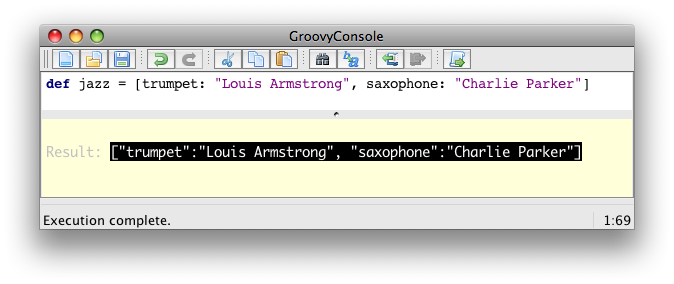
What you see here is the usual textual representation of a Map. But, what if we enabled custom visualization of certain results? The Swing console allows you to do just that. First of all, you have to ensure that the visualization option is ticked: View → Visualize Script Results — for the record, all settings of the Groovy Console are stored and remembered thanks to the Preference API. There are a few result visualizations built-in: if the script returns a java.awt.Image, a javax.swing.Icon, or a java.awt.Component with no parent, the object is displayed instead of its toString() representation. Otherwise, everything else is still just represented as text. Now, create the following Groovy script in ~/.groovy/OutputTransforms.groovy:
import javax.swing.*

transforms << { result ->

    if (result instanceof Map) {

        def table = new JTable(

            result.collect{ k, v ->

                [k, v?.inspect()] as Object[]

            } as Object[][],

            ['Key', 'Value'] as Object[])

        table.preferredViewportSize = table.preferredSize

        return new JScrollPane(table)

    }

}
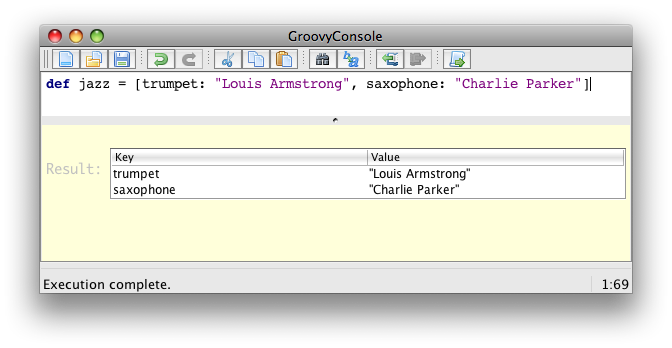
The Groovy Swing console will execute that script on startup, injecting a transforms list in the binding of the script, so that you can add your own script results representations. In our case, we transform the Map into a nice-looking Swing JTable. And we’re now able to visualize maps in a friendly and attractive fashion, as the screenshot below shows:
6. AST browser
Groovy Console can visualize the AST (Abstract Syntax Tree) representing the currently edited script, as shown by the screenshot below. This is particularly handy when you want to develop AST transformations.

groovyConsole — the Groovy Swing console的更多相关文章
- atitit.groovy 语法特性
atitit.groovy 语法特性 1. Groovy 1.6概览1 1.1. 多路赋值2 2. 新发布的Groovy2.0为这门语言带来了关键的静态特性:静态类型检查和静态编译:2 3. 参考3 ...
- 3 不用IDE开发groovy
1 不用IDE开发groovy 1.1 不用IDE开发的方法 可以在IDE中运行Groovy类或者脚本,但是Groovy也提供了其他运行途径.你能运行Groovy代码基于以下: · ...
- Groovy入门教程
Groovy入门教程 kmyhy@126.com 2009-5-13 一.groovy是什么 简单地说,Groovy 是下一代的java语言,跟java一样,它也运行在 JVM 中. 作为跑在JVM ...
- Groovy新手教程
Groovy新手教程 kmyhy@126.com 2009-5-13 一.groovy是什么 简单地说,Groovy 是下一代的java语言,跟java一样,它也执行在 JVM 中. 作为跑在JVM ...
- groovy 弹出菜单
import groovy.swing.* import javax.swing.* import java.awt.* def swing = new SwingBuilder() swing.fr ...
- Groovy常见语法汇总
一.groovy是什么 简单地说,Groovy 是下一代的java语言,跟java一样,它也运行在 JVM 中. 作为跑在JVM中的另一种语言,groovy语法与 Java 语言的语法很相似.同时,G ...
- Groovy 学习手册(2)
二. 工具 1. 控制台 groovyConsole: Groovy 控制台是一个非常易于使用和简单的轻量级的编辑器.你可以在里面做很多事情. 在编辑器里面可以书写代码,Windows 下,按下Ctr ...
- 愉快地使用Groovy Shell
这是一篇有关Groovy Shell的帖子,以及它如何在日常工作中为您提供帮助(只要您是软件开发人员).无论您使用哪种编程语言或技术,都可以从Groovy Shell中受益.唯一真正的要求是您能够编写 ...
- Groovy学习:第五章 学习回顾groovy
一.groovy是什么 简单地说,Groovy 是下一代的java语言,跟java一样,它也运行在 JVM 中. 作为跑在JVM中的另一种语言,groovy语法与 Java 语言的语法很相似.同时,G ...
随机推荐
- 字符设备驱动——memory编译问题及解决办法
1.fatal error:asm/system.h:No such file or directory #include <linux/version.h> #if LINUX_VERS ...
- OpenStack三个节点icehouse-gre模式部署
一.环境准备 1.架构 创建3台虚拟机,分别作为controll节点.network节点和compute1节点. Controller节点:1processor,2G memory,5G storag ...
- [转]excel set drop-down values based on vlookup
本文转自:http://stackoverflow.com/questions/10657811/set-drop-down-values-based-on-vlookup 问: I have a w ...
- 循环 wxl
#include <cstdio> #include <cstring> #include <string> #include <algorithm> ...
- 在Android Studio中使用shareSDK进行社会化分享(图文教程)
[声明] 欢迎转载,但请保留文章原始出处→_→ 生命壹号:http://www.cnblogs.com/smyhvae/ 文章来源:http://www.cnblogs.com/smyhvae/p/4 ...
- Unity 2D Sprite Lighting
2D游戏中也可以使用灯光?这真是一个好消息,接下来,我将为大家写一下教程 操作步骤 1.创建一个Materilas,修改Shader为 2.创建一个Sprite(使用黑色的图片) 3.创建一个Poin ...
- Unity键值(KeyCode)
Unity的Input管理 keyCode示例 keyCode Demo function OnGUI(){ var e:Event=Event.current; if(e.isKey){ Debug ...
- Oracle中没有 if exists(...)
对于Oracle中没有 if exists(...) 的语法,目前有许多种解决方法,这里先分析常用的三种,推荐使用最后一种 第一种是最常用的,判断count(*)的值是否为零,如下declare v ...
- window7 右键菜单显示-》在此处打开命令窗口
window7 右键菜单显示->在此处打开命令窗口: 注册表中: HKEY_CLASSES_ROOT\Directory\Background\shell\cmd下将[Extended]重命名或 ...
- mysql数据库误删除后的数据恢复操作说明
在日常运维工作中,对于mysql数据库的备份是至关重要的!数据库对于网站的重要性使得我们对mysql数据的管理不容有失!然后,是人总难免会犯错误,说不定哪天大脑短路了来个误操作把数据库给删除了,怎么办 ...