
Redis 客户端安装与远程连接图解
Linux环境:Centos 6.8
Redis服务端版本:3.2.6
Redis客户端下载链接:https://redisdesktop.com/download
省略Linux系统安装Redis教程,网上安装教程很多;建议用tar.gz包安装
Redis官网tar.gz下载地址:wget http://download.redis.io/releases/redis-3.2.6.tar.gz
安装时可能遇到的问题
问题1:make[3]: gcc: Command not found
解决:Centos系统执行yum install gcc;Ubuntu系统执行apt-get install gcc
问题2:zmalloc.h:50:31: error: jemalloc/jemalloc.h: No such file or directory
zmalloc.h:55:2: error: #error “Newer version of jemalloc required”
make[1]: * [adlist.o] Error 1
解决:输入make MALLOC=libc,然后重新编译
安装完之后,进入Redis安装目录
[root@Karle redis-3.2.6]# ll

总用量 208

-rw-rw-r--.  1 root root 80406 12月  6 2016 00-RELEASENOTES

drwxr-xr-x.  2 root root  4096 1月   4 2017 bin

-rw-rw-r--.  1 root root    53 12月  6 2016 BUGS

-rw-rw-r--.  1 root root  1805 12月  6 2016 CONTRIBUTING

-rw-rw-r--.  1 root root  1487 12月  6 2016 COPYING

drwxrwxr-x.  7 root root  4096 1月   4 2017 deps

drwxr-xr-x.  2 root root  4096 1月   4 2017 etc

-rw-rw-r--.  1 root root    11 12月  6 2016 INSTALL

-rw-rw-r--.  1 root root   151 12月  6 2016 Makefile

-rw-rw-r--.  1 root root  4223 12月  6 2016 MANIFESTO

-rw-rw-r--.  1 root root  6834 12月  6 2016 README.md

-rw-rw-r--.  1 root root 46696 9月  10 10:06 redis.conf (Redis配置文件)

-rwxrwxr-x.  1 root root   271 12月  6 2016 runtest

-rwxrwxr-x.  1 root root   280 12月  6 2016 runtest-cluster

-rwxrwxr-x.  1 root root   281 12月  6 2016 runtest-sentinel

-rw-rw-r--.  1 root root  7606 12月  6 2016 sentinel.conf

drwxrwxr-x.  2 root root  4096 9月  10 10:08 src (执行脚本)

drwxrwxr-x. 10 root root  4096 12月  6 2016 tests

drwxrwxr-x.  7 root root  4096 12月  6 2016 utils
进入src目录,执行脚本
[root@Karle src]# ./redis-server
[root@Karle src]# ./redis-server

2745:C 10 Sep 10:16:13.130 # Warning: no config file specified, using the default config. In order to specify a config file use ./redis-server /path/to/redis.conf

2745:M 10 Sep 10:16:13.131 * Increased maximum number of open files to 10032 (it was originally set to 1024).

                _._

           _.-``__ ''-._

      _.-``    `.  `_.  ''-._           Redis 3.2.6 (00000000/0) 64 bit

  .-`` .-```.  ```\/    _.,_ ''-._

 (    '      ,       .-`  | `,    )     Running in standalone mode

 |`-._`-...-` __...-.``-._|'` _.-'|     Port: 6379

 |    `-._   `._    /     _.-'    |     PID: 2745

  `-._    `-._  `-./  _.-'    _.-'

 |`-._`-._    `-.__.-'    _.-'_.-'|

 |    `-._`-._        _.-'_.-'    |           http://redis.io

  `-._    `-._`-.__.-'_.-'    _.-'

 |`-._`-._    `-.__.-'    _.-'_.-'|

 |    `-._`-._        _.-'_.-'    |

  `-._    `-._`-.__.-'_.-'    _.-'

      `-._    `-.__.-'    _.-'

          `-._        _.-'

              `-.__.-'

2745:M 10 Sep 10:16:13.145 # WARNING: The TCP backlog setting of 511 cannot be enforced because /proc/sys/net/core/somaxconn is set to the lower value of 128.

2745:M 10 Sep 10:16:13.145 # Server started, Redis version 3.2.6

2745:M 10 Sep 10:16:13.147 # WARNING overcommit_memory is set to 0! Background save may fail under low memory condition. To fix this issue add 'vm.overcommit_memory = 1' to /etc/sysctl.conf and then reboot or run the command 'sysctl vm.overcommit_memory=1' for this to take effect.

2745:M 10 Sep 10:16:13.147 # WARNING you have Transparent Huge Pages (THP) support enabled in your kernel. This will create latency and memory usage issues with Redis. To fix this issue run the command 'echo never > /sys/kernel/mm/transparent_hugepage/enabled' as root, and add it to your /etc/rc.local in order to retain the setting after a reboot. Redis must be restarted after THP is disabled.

2745:M 10 Sep 10:16:13.147 * DB loaded from disk: 0.000 seconds

2745:M 10 Sep 10:16:13.147 * The server is now ready to accept connections on port 6379
此时Redis服务已经可以成功启动了;但问题来了,界面一直停留在Redis服务窗口中,按Ctrl+C虽然可以屏蔽服务窗口,但同时也会结束Redis服务。
2745:M 10 Sep 10:23:04.765 # User requested shutdown…
2745:M 10 Sep 10:23:04.765 * Saving the final RDB snapshot before exiting.
2745:M 10 Sep 10:23:04.767 * DB saved on disk
2745:M 10 Sep 10:23:04.767 # Redis is now ready to exit, bye bye…
Redis服务默认是前台运行,需要修改为后台运行;返回上一层目录,修改redis.conf配置文件。找到daemonize(守护进程)配置,默认false。
修改后:
daemonize yes
此时满脸自信地回到src目录执行
[root@Karle src]# ./redis-server
擦,还是前台运行;咋回事?什么毛病?这是咱们修改了配置文件,但没告诉Redis读取最新的配置文件。
启动服务的同时读取最新的配置文件(必须)
[root@Karle src]# ./redis-server ../redis.conf
下载RedisDesktopManager客户端,输入服务器IP地址,端口(缺省值:6379);点击Test Connection按钮测试连接,噢,My God,连接失败!
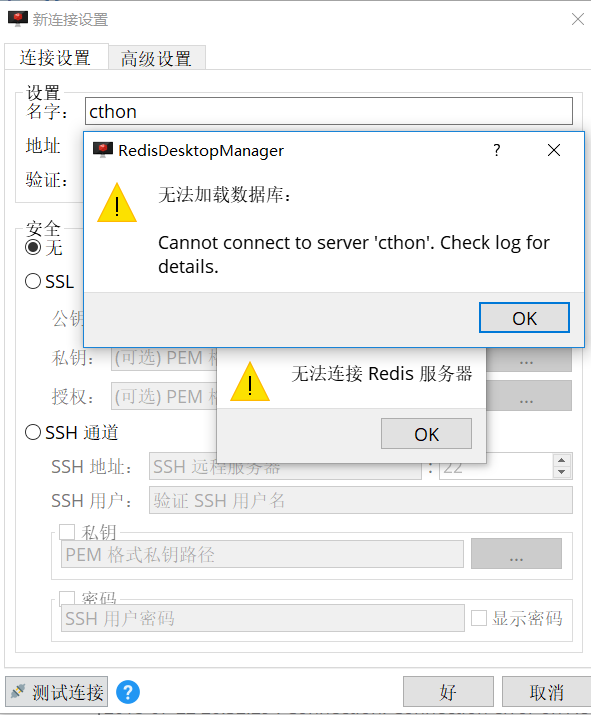
什么问题呢?原因是Redis默认只支持本地链接,输入进程命令查看得知(127.0.0.1:6379)
[root@Karle src]# ps -ef | grep redis
root 5239 1 0 10:37 ? 00:00:00 ./redis-server 127.0.0.1:6379
root 5244 2321 0 10:37 pts/0 00:00:00 grep redis
问题解决:编辑redis.conf配置文件;注释掉61行本地链接限制以及80行配置修改为no
61 # bind 127.0.0.1
80 protected-mode no
读取最新配置文件并重启,查看Redis进程情况!我再擦,什么鬼,都开放IP链接权限了,怎么还是127.0.0.1:6379!!
[root@Karle src]# ./redis-server ../redis.conf
[root@Karle src]# ps -ef | grep redis
root 5352 1 0 10:59 ? 00:00:00 ./redis-server 127.0.0.1:6379
root 5367 2321 0 11:00 pts/0 00:00:00 grep redis
问题解决:先杀掉Redis进程,src目录下依次执行
[root@Karle src]# redis-cli shutdown
[root@Karle src]# ./redis-server ../redis.conf
再查看进程情况:
[root@Karle src]# ps -ef | grep redis
root 5391 1 0 11:05 ? 00:00:00 ./redis-server *:6379
root 5395 2321 0 11:05 pts/0 00:00:00 grep redis
哇塞,*.6379,这意味着已经成功开放IP访问权限了。万事俱备,只欠点击RedisDesktopManager客户端测试链接按钮了。好,走起。
当你信心满满的时候,现实总泼你一盆冷水来清醒!链接失败,链接失败,我都不好意思截图上传了!!这又是闹哪样啊?还让我活不???
左思右想,突然,我想到一个词——防火墙
[root@Karle src]# service iptables status

表格:filter

Chain INPUT (policy ACCEPT)

num  target     prot opt source               destination

1    ACCEPT     all  --  0.0.0.0/0            0.0.0.0/0           state RELATED,ESTABLISHED

2    ACCEPT     icmp --  0.0.0.0/0            0.0.0.0/0

3    ACCEPT     all  --  0.0.0.0/0            0.0.0.0/0

4    ACCEPT     tcp  --  0.0.0.0/0            0.0.0.0/0           state NEW tcp dpt:22

5    ACCEPT     tcp  --  0.0.0.0/0            0.0.0.0/0           state NEW tcp dpt:8080

6    ACCEPT     tcp  --  0.0.0.0/0            0.0.0.0/0           state NEW tcp dpt:80

7    ACCEPT     tcp  --  0.0.0.0/0            0.0.0.0/0           state NEW tcp dpt:3306

8    ACCEPT     tcp  --  0.0.0.0/0            0.0.0.0/0           state NEW tcp dpt:15672

9   REJECT     all  --  0.0.0.0/0            0.0.0.0/0           reject-with icmp-host-prohibited
编辑Linux防火墙
[root@Karle src]# vi /etc/sysconfig/iptables
加入防火墙规则:-A INPUT -m state –state NEW -m tcp -p tcp –dport 6379 -j ACCEPT
[root@cthon src]# service iptables status

表格:filter

Chain INPUT (policy ACCEPT)

num  target     prot opt source               destination

1    ACCEPT     all  --  0.0.0.0/0            0.0.0.0/0           state RELATED,ESTABLISHED

2    ACCEPT     icmp --  0.0.0.0/0            0.0.0.0/0

3    ACCEPT     all  --  0.0.0.0/0            0.0.0.0/0

4    ACCEPT     tcp  --  0.0.0.0/0            0.0.0.0/0           state NEW tcp dpt:22

5    ACCEPT     tcp  --  0.0.0.0/0            0.0.0.0/0           state NEW tcp dpt:8080

6    ACCEPT     tcp  --  0.0.0.0/0            0.0.0.0/0           state NEW tcp dpt:80

7    ACCEPT     tcp  --  0.0.0.0/0            0.0.0.0/0           state NEW tcp dpt:3306

8    ACCEPT     tcp  --  0.0.0.0/0            0.0.0.0/0           state NEW tcp dpt:15672

9    ACCEPT     tcp  --  0.0.0.0/0            0.0.0.0/0           state NEW tcp dpt:6379

10   REJECT     all  --  0.0.0.0/0            0.0.0.0/0           reject-with icmp-host-prohibited
重启Linux防火墙
[root@Karle src]# service iptables restart
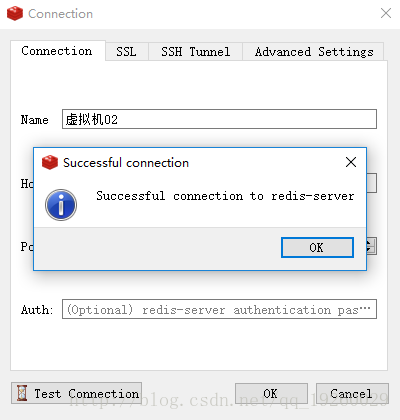
点击Test Connection按钮测试连接,连接成功,大功告成
补充:在ubuntu等版本的linux系统下,不妨将redis.cconf文件中 的bind改为0.0.0.0
Redis 客户端安装与远程连接图解的更多相关文章
- linux安装mysql全纪录[包括yum和rpm安装,编码,远程连接以及大小写问题]
linux安装mysql全纪录[包括yum和rpm安装,编码,远程连接以及大小写问题] 一.查看mysql是否已经安装 使用“whereis mysql”命令来查看mysql安装路径: [root@h ...
- 3 Oracle 32位客户端安装及arcgis连接
关于Oracle服务器端安装及配置的过程详见第2篇文章,链接如下:http://www.cnblogs.com/gistrd/p/8494292.html,本篇介绍客户端安装配置及连接arcgis过程 ...
- centos7最小安装后——网络配置、常见命令安装,远程连接、yum源安装软件包
安装环境 #软件:vmware 14 #centos版本:CentOS-7-x86_64-DVD-1810 下载地址: #网络配置:NAT模式 配置 网络配置 #动态获取ip: centos7最小安装 ...
- redis安装以及远程连接
第一步下载: Window 下安装 下载地址:https://github.com/MSOpenTech/redis/releases. 第二步: 运行安装 记录安装路径 C:\Program Fil ...
- centos7远程服务器中redis的安装与java连接
1.下载安装redis 在远程服务器中你想下载的位置执行以下命令来下载redis文件到服务器中 $ wget http://download.redis.io/releases/redis-4.0.9 ...
- 基于Git项目管理客户端SourceTree的免注册安装及远程连接方法
作为程序员,不可避免的要在github上查询代码,而在企业项目中,为了使得项目好管理需要使用项目管理客户端,所以接下来详细讲解一下基于git的sourceTree在windows系统下的安装及与Git ...
- Oracle客户端的安装与远程连接配置
在继续Oracle客户端的安装之前,需要分析一下Oracle客户端与数据库服务器之间的连接机制. 一.Oracle客户端与服务器端的通讯机制 1.Oracle Net协议 如下图所示,Oracle通过 ...
- MySql数据库安装&修改密码&开启远程连接图解
相关工具下载地址: mysql5.6 链接:http://pan.baidu.com/s/1o8ybn4I密码:aim1 SQLyog-12.0.8 链接:http://pan.baidu.com/s ...
- Redis02 Redis客户端之Java、连接远程Redis服务器失败
1 查看支持Java的redis客户端 本博文采用 Jedis 作为redis客户端,采用 commons-pool2 作为连接redis服务器的连接池 2 下载相关依赖与实战 2.1 到 Repos ...
随机推荐
- EventListener中的handleEvent
在研究代码时发现类似这样一段代码: function TEST() {} TEST.prototype = { init:function() { window.addEventListener('m ...
- java String概述
class StringDemo { public static void main(String[] args) { String s1 = "abc";//s1 是一个类类 ...
- C语言的运算符的优先级与结合性+ASCII表
[0]README 0.1) 内容来源于 C程序设计语言, 旨在整理出C语言的运算符的优先级与结合性, 如下图所示(哥子 记了大半年都没有记住,也是醉了,每次都要去翻): Alert)以下内容转自:h ...
- Option可选值可选值(二)
//: Playground - noun: a place where people can play import Cocoa var str1 = "供选链接和强制拆包的不同. &qu ...
- 【BZOJ4408】[Fjoi 2016]神秘数 主席树神题
[BZOJ4408][Fjoi 2016]神秘数 Description 一个可重复数字集合S的神秘数定义为最小的不能被S的子集的和表示的正整数.例如S={1,1,1,4,13},1 = 12 = 1 ...
- 【BZOJ4198】[Noi2015]荷马史诗 贪心+堆
[BZOJ4198][Noi2015]荷马史诗 Description 追逐影子的人,自己就是影子. ——荷马 Allison 最近迷上了文学.她喜欢在一个慵懒的午后,细细地品上一杯卡布奇诺,静静地阅 ...
- 用nvm管理windows nodejs时用npm全局安装的插件无法调用的解决方案
在环境变量中啊新建变量NODE_PATH赋值为prefix设置的地址即 prefix=D:\Users\xxx\AppData\Roaming\nodejs\npm-global 然后把%NODE_P ...
- 使用T4模板技术
1.右键->添加->新建项,选择“文本模板” 2.修改代码为: <#@ template debug="false" hostspecific="fal ...
- MarkdownPad - The Markdown Editor for Windows http://markdownpad.com/
MarkdownPad - The Markdown Editor for Windows http://markdownpad.com/
- Webpack探索【10】--- 懒加载详解
本文主要讲懒加载方面相关内容.