
【nodejs代理服务器三】nodejs注册windows服务
node-windows
I no longer have enough time to properly maintain this project and am seeking a new primary maintainer.
This project has gained traction for two reasons:
- It works well on Windows.
- The same API can be used on macOS and Linux.
The ideal maintainer would also support or at least closely work with the maintainer of (node-mac & node-linux). Please get in touch if you are interested in taking over.



Follow the author on G+
or Twitter (@goldglovecb).
This README provides a pretty good overview of what node-windows has to offer, but better
documentation is now available at the node-windows documentation portal.
node-windows
This is a standalone module, originally designed for internal use in NGN.
However; it is capable of providing the same features for Node.JS scripts
independently of NGN.
For alternative versions, see node-mac
and node-linux
Overview
The following features are available in node-windows:
- Service Management: Run Node.js scripts as native Windows services. Includes monitoring.
- Event Logging: Create logs in the Event log.
- Commands:
- Elevated Permissions: Run a command with elevated privileges (may prompt user for acceptance)
- Sudo: Run an
execcommand as a sudoer. - Identify Administrative Privileges: Determines whether the current user has administrative privileges.
- List Tasks: A method to list running windows tasks/services.
- Kill Task: A method to kill a specific windows service/task (by PID).
Installation
The recommended way to install node-windows is with npm, using the global flag:
npm install -g node-windows
Then, in your project root, run:
npm link node-windows
However; it is possible to use node-windows without the global flag (i.e. install directly into the project root).
More details regarding why this is not the recommended approach are available throughout this Readme.
NO NATIVE MODULES
Using native node modules on Windows can suck. Most native modules are not distributed in a binary format.
Instead, these modules rely on npm to build the project, utilizing node-gyp.
This means developers need to have Visual Studio (and potentially other software) installed on the system,
just to install a native module. This is portable, but painful... mostly because Visual Studio
itself is over 2GB.
node-windows does not use native modules. There are some binary/exe utilities, but everything
needed to run more complex tasks is packaged and distributed in a readily usable format. So, no need for
Visual Studio... at least not for this module.
Windows Services
node-windows has a utility to run Node.js scripts as Windows services. Please note that like all
Windows services, creating one requires administrative privileges. To create a service with
node-windows, prepare a script like:
var Service = require('node-windows').Service;

// Create a new service object

var svc = new Service({

  name:'Hello World',

  description: 'The nodejs.org example web server.',

  script: 'C:\\path\\to\\helloworld.js',

  nodeOptions: [

    '--harmony',

    '--max_old_space_size=4096'

  ]

});

// Listen for the "install" event, which indicates the

// process is available as a service.

svc.on('install',function(){

  svc.start();

});

svc.install();
The code above creates a new Service object, providing a pretty name and description.
The script attribute identifies the Node.js script that should run as a service. Upon running
this, the script will be visible from the Windows Services utility.

The Service object emits the following events:
- install - Fired when the script is installed as a service.
- alreadyinstalled - Fired if the script is already known to be a service.
- invalidinstallation - Fired if an installation is detected but missing required files.
- uninstall - Fired when an uninstallation is complete.
- alreadyuninstalled - Fired when an uninstall is requested and no installation exists.
- start - Fired when the new service is started.
- stop - Fired when the service is stopped.
- error - Fired in some instances when an error occurs.
In the example above, the script listens for the install event. Since this event
is fired when a service installation is complete, it is safe to start the service.
Services created by node-windows are similar to most other services running on Windows.
They can be started/stopped from the windows service utility, via NET START or NET STOP commands,
or even managed using the sc
utility.
Environment Variables
Sometimes you may want to provide a service with static data, passed in on creation of the service. You can do this by setting environment variables in the service config, as shown below:
var svc = new Service({

  name:'Hello World',

  description: 'The nodejs.org example web server.',

  script: 'C:\\path\\to\\helloworld.js',

  env: {

    name: "HOME",

    value: process.env["USERPROFILE"] // service is now able to access the user who created its' home directory

  }

});
You can also supply an array to set multiple environment variables:
var svc = new Service({

  name:'Hello World',

  description: 'The nodejs.org example web server.',

  script: 'C:\\path\\to\\helloworld.js',

  env: [{

    name: "HOME",

    value: process.env["USERPROFILE"] // service is now able to access the user who created its' home directory

  },

  {

    name: "TEMP",

    value: path.join(process.env["USERPROFILE"],"/temp") // use a temp directory in user's home directory

  }]

});
User Account Attributes
If you need to specify a specific user or particular credentials to manage a service, the following
attributes may be helpful.
The user attribute is an object with three keys: domain,account, and password.
This can be used to identify which user the service library should use to perform system commands.
By default, the domain is set to the local computer name, but it can be overridden with an Active Directory
or LDAP domain. For example:
app.js
var Service = require('node-windows').Service;

// Create a new service object

var svc = new Service({

  name:'Hello World',

  script: require('path').join(__dirname,'helloworld.js')

});

svc.logOnAs.domain = 'mydomain.local';

svc.logOnAs.account = 'username';

svc.logOnAs.password = 'password';

...
Both the account and password must be explicitly defined if you want the service module to
run commands as a specific user. By default, it will run using the user account that launched
the process (i.e. who launched node app.js).
The other attribute is sudo. This attribute has a single property called password. By supplying
this, the service module will attempt to run commands using the user account that launched the
process and the password for that account. This should only be used for accounts with administrative
privileges.
app.js
var Service = require('node-windows').Service;

// Create a new service object

var svc = new Service({

  name:'Hello World',

  script: require('path').join(__dirname,'helloworld.js')

});

svc.sudo.password = 'password';

...
Cleaning Up: Uninstall a Service
Uninstalling a previously created service is syntactically similar to installation.
var Service = require('node-windows').Service;

// Create a new service object

var svc = new Service({

  name:'Hello World',

  script: require('path').join(__dirname,'helloworld.js')

});

// Listen for the "uninstall" event so we know when it's done.

svc.on('uninstall',function(){

  console.log('Uninstall complete.');

  console.log('The service exists: ',svc.exists);

});

// Uninstall the service.

svc.uninstall();
The uninstall process only removes process-specific files. It does NOT delete your Node.js script!
What Makes node-windows Services Unique?
Lots of things!
Long Running Processes & Monitoring:
The built-in service recovery for Windows services is fairly limited and cannot easily be configured
from code. Therefore, node-windows creates a wrapper around the Node.js script. This wrapper
is responsible for restarting a failed service in an intelligent and configurable manner. For example,
if your script crashes due to an unknown error, node-windows will attempt to restart it. By default,
this occurs every second. However; if the script has a fatal flaw that makes it crash repeatedly,
it adds unnecessary overhead to the system. node-windows handles this by increasing the time interval
between restarts and capping the maximum number of restarts.
Smarter Restarts That Won't Pummel Your Server:
Using the default settings, node-windows adds 25% to the wait interval each time it needs to restart
the script. With the default setting (1 second), the first restart attempt occurs after one second.
The second occurs after 1.25 seconds. The third after 1.56 seconds (1.25 increased by 25%) and so on.
Both the initial wait time and the growth rate are configuration options that can be passed to a new
Service. For example:
var svc = new Service({

  name:'Hello World',

  description: 'The nodejs.org example web server.',

  script: 'C:\\path\\to\\helloworld.js',

  wait: 2,

  grow: .5

});
In this example, the wait period will start at 2 seconds and increase by 50%. So, the second attempt
would be 3 seconds later while the fourth would be 4.5 seconds later.
Don't DOS Yourself!
Repetitive recycling could potentially go on forever with a bad script. To handle these situations, node-windows
supports two kinds of caps. Using maxRetries will cap the maximum number of restart attempts. By
default, this is unlimited. Setting it to 3 would tell the process to no longer restart a process
after it has failed 3 times. Another option is maxRestarts, which caps the number of restarts attempted
within 60 seconds. For example, if this is set to 3 (the default) and the process crashes/restarts repeatedly,
node-windows will cease restart attempts after the 3rd cycle in a 60 second window. Both of these
configuration options can be set, just like wait or grow.
Finally, an attribute called abortOnError can be set to true if you want your script to not restart
at all when it exits with an error.
How Services Are Made
node-windows uses the winsw utility to create a unique .exe
for each Node.js script deployed as a service. A directory called daemon is created and populated
with myappname.exe and myappname.xml. The XML file is a configuration for the executable. Additionally,
winsw will create some logs for itself in this directory (which are viewable in the Event log).
The myappname.exe file launches the node-windows wrapper, which is responsible for monitoring and managing
the script. Since this file is a part of node-windows, moving the node-windows directory could result in
the .exe file not being able to find the Node.js script. However; this should not be a problem if
node-windows is installed globally, per the recommended installation instructions.
All of these daemon-specific files are created in a subdirectory called daemon, which is created in the
same directory where the Node.js script is saved. Uninstalling a service will remove these files.
Event Logging
Services created with node-windows have two event logs that can be viewed through the Windows Event Viewer.
A log source named myappname.exe provides basic logging for the executable file. It can be used to see
when the entire service starts/stops or has errors. A second log, named after your service name (i.e. My App Name),
is used by the node-windows monitor. It is possible to write to this log from the Node.js script using
the node-windows Event Logging.
Event Logging
New as of v0.1.0 is a non-C++ based event logging utility. This utility can write to the event log,
making your logs visible from the Event Viewer.
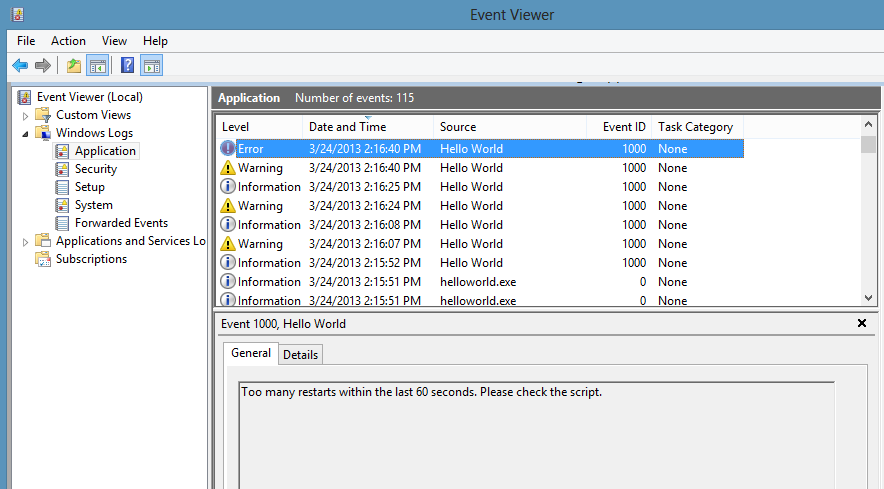
To create a logger:
var EventLogger = require('node-windows').EventLogger;

var log = new EventLogger('Hello World');

log.info('Basic information.');

log.warn('Watch out!');

log.error('Something went wrong.');
Looks similar to:
Some lesser-used options are also available through node-windows event logging.
log.auditSuccess('AUser Login Success');

log.auditFailure('AUser Login Failure');
Each log type (info, warn, error, auditSuccess, and auditFailure) method optionally accepts two additional
arguments, including a code and callback. By default, the event code is 1000 if not otherwise specified.
To provide a custom event code with a log message and write that message to the console, the following code could
be used:
log.info('Something different happened!', 1002, function(){

  console.log('Something different happened!');

});
By default, event logs are all part of the APPLICATION scope. However; it is also possible to use the SYSTEM log.
To do this, a configuration object must be passed to the new log:
var EventLogger = require('node-windows').EventLogger;

var log = new EventLogger({

  source: 'My Event Log',

  eventLog: 'SYSTEM'

});
Commands
node-windows ships with several commands to simplify tasks on MS Windows.
elevate
Elevate is similar to sudo on Linux/Mac. It attempts to elevate the privileges of the
current user to a local administrator. Using this does not require a password, but it
does require that the current user have administrative privileges. Without these
privileges, the command will fail with a access denied error.
On systems with UAC enabled, this may prompt the user for permission to proceed:

Syntax:
elevate(cmd[,options,callback])
- cmd: The command to execute with elevated privileges. This can be any string that would be typed at the command line.
- options (optional): Any options that will be passed to
require('child_process').exec(cmd,<OPTIONS>,callback). - callback (optional): The callback function passed to
require('child_process').exec(cmd,options,<CALLBACK>).
sudo
Sudo acts similarly to sudo on Linux/Mac. Unlike elevate, it requires a password, but it
will not prompt the user for permission to proceed. Like elevate, this
still requires administrative privileges for the user, otherwise the command will fail.
The primary difference between this and elevate() is the prompt.
Syntax:
sudo(cmd,password[,options,callback])
- cmd: The command to execute with elevated privileges. This can be any string that would be typed at the command line.
- password: The password of the user
- options (optional): Any options that will be passed to
require('child_process').exec(cmd,<OPTIONS>,callback). - callback (optional): The callback function passed to
require('child_process').exec(cmd,options,<CALLBACK>).
isAdminUser
This asynchronous command determines whether the current user has administrative privileges.
It passes a boolean value to the callback, returning true if the user is an administrator
or false if it is not.
Example
var wincmd = require('node-windows');

wincmd.isAdminUser(function(isAdmin){

  if (isAdmin) {

    console.log('The user has administrative privileges.');

  } else {

    console.log('NOT AN ADMIN');

  }

});
list
The list method queries the operating system for a list of running processes.
var wincmd = require('node-windows');

wincmd.list(function(svc){

  console.log(svc);

},true);
This returns an array of running processes. Supplying the optional true
argument in the above example provides a list with verbose output. The output is
specific to the version of the operating system. Here is an example of verbose
output on a Windows 8 computer.
[{

  ImageName: 'cmd.exe',

  PID: '12440',

  SessionName: 'Console',

  'Session#': '1',

  MemUsage: '1,736 K',

  Status: 'Unknown',

  UserName: 'Machine\\Corey',

  CPUTime: '0:00:00',

  WindowTitle: 'N/A'

},{

  ImageName: 'tasklist.exe',

  PID: '1652',

  SessionName: 'Console',

  'Session#': '1',

  MemUsage: '8,456 K',

  Status: 'Unknown',

  UserName: 'Machine\\Corey',

  CPUTime: '0:00:00',

  WindowTitle: 'N/A'

}]
The regualar (non-verbose) output typically provides the ImageName,PID,SessionName,
Session#, MemUsage, and CPUTime.
kill
This method will kill a process by PID.
var wincmd = require('node-windows');

wincmd.kill(12345,function(){

  console.log('Process Killed');

});
In this example, process ID 12345 would be killed. It is important to note that the
user account executing this node script may require administrative privileges.
Troubleshooting
If you're experiencing issues with the examples, please review the TESTS.md file.
If you are encountering the invalidinstallation event, take a look at the daemon
directory that is created during the installation to make sure the .exe and .xml
files are there. In some circumstances, primarily during _un_installation, it is
possbile for the process to temporarily lock a log file, which prevents Windows
from removing it. In this scenario, simply run the uninstall again. In most cases this
will fix the issue. If not, manually remove the daemon directory before running the
installation again.
Thank You
There have been many contributors who have done everything from committing features to helping pick up slack while I've been swamped. I'm incredibly appreciative for the help.
Special thanks to @arthurblake whose modifications have FINALLY been added. Thanks to @hockeytim11, who helped compile and update a bunch of outstanding issues and started bringing support to the other node-* libraries.
Licenses
winsw and sudowin are the copyrights of their respective owners. winsw
is distributed under an MIT license. sudowin is distributed under a BSD license.
All other scripts are Copyright (c) Corey Butler under an MIT license.
(The MIT License)
Copyright (c) 2013 Corey Butler
Permission is hereby granted, free of charge, to any person obtaining
a copy of this software and associated documentation files (the
'Software'), to deal in the Software without restriction, including
without limitation the rights to use, copy, modify, merge, publish,
distribute, sublicense, and/or sell copies of the Software, and to
permit persons to whom the Software is furnished to do so, subject to
the following conditions:
The above copyright notice and this permission notice shall be
included in all copies or substantial portions of the Software.
THE SOFTWARE IS PROVIDED 'AS IS', WITHOUT WARRANTY OF ANY KIND,
EXPRESS OR IMPLIED, INCLUDING BUT NOT LIMITED TO THE WARRANTIES OF
MERCHANTABILITY, FITNESS FOR A PARTICULAR PURPOSE AND NONINFRINGEMENT.
IN NO EVENT SHALL THE AUTHORS OR COPYRIGHT HOLDERS BE LIABLE FOR ANY
CLAIM, DAMAGES OR OTHER LIABILITY, WHETHER IN AN ACTION OF CONTRACT,
TORT OR OTHERWISE, ARISING FROM, OUT OF OR IN CONNECTION WITH THE
SOFTWARE OR THE USE OR OTHER DEALINGS IN THE SOFTWARE.
【nodejs代理服务器三】nodejs注册windows服务的更多相关文章
- SpringBoot注册Windows服务和启动报错的原因
SpringBoot注册Windows服务和启动报错的原因 Windows系统启动Java程序会弹出黑窗口.黑窗口有几点不好.首先它不美观:其次容易误点导致程序关闭:但最让我匪夷所思的是:将鼠标光标选 ...
- C#后台HttpWebRequest模拟跨域Ajax请求,注册Windows服务到服务器上
项目需求,暂且叫A.B公司吧.我们公司需要从A公司哪里读取机器上的数据,放到我们数据库中.然后再将数据库中存的数据,提供一个接口,B公司来调用,大概这个意思. 好了,言归正传.这个是之前做好的界面,用 ...
- 【MongoDB】如何注册windows服务
一.为什么要注册windows服务 mongodb启动比较麻烦,每次都要cmd去开启.注册windows服务,可以设置开机启动,比较友好. 二.如何注册windows服务 1.安装mongodb 2. ...
- Elasticsearch 注册windows服务后,服务启动失败,意外终止
直接双击elasticsearch.bat可以成功启动,注册成服务后就启动失败 从网上查找问题,发现是jdk版本的问题,用ES自带的jdk就可以启动成功. 默认ES会先找JAVA_HOME环境变量,如 ...
- tomcat注册windows服务
1,首先查看当前window服务中是否已经存在同名服务.查看方法: 在服务列表里查看有没有Apache 或tomcat相关的服务, 如果有的话,请在上面点鼠标右键--->属性,记下此服务的名称, ...
- MongoDB注册Windows服务启动
下载MongoDB安装到:E:\Work_App\MongoDB 这个目录 安装:E:\Work_App\MongoDB (安装在专门的目录中) 配置: 1.在E:\Work_App\MongoDB\ ...
- Windows10安装多个版本的PostgreSQL数据库,但是均没有自动注册Windows服务的解决方法
1.确保正确安装了PostgreSQL数据库,注意端口号不能相同 我的安装目录如图: 其中9.6版本的端口号为5432,10版本的端口号为5433,11版本的端口号为5434.若不知道端口号,可在Po ...
- C# 注册windows 服务
sc delete CCGSQueueService sc create CCGSQueueService binpath= "D:\DKX4003\services\CCGSQueueSe ...
- SpringBoot jar 注册windows服务
1.pom.xml中添加 <plugin> <groupId>cn.joylau.code</groupId> <artifactId>joylau-s ...
随机推荐
- python设置socket的超时时间(可能使用locust压测千级并发的时候要用到,先记录在此)
在使用urllib或者urllib2时,有可能会等半天资源都下载不下来,可以通过设置socket的超时时间,来控制下载内容时的等待时间. 如下python代码 import socket timeou ...
- 如何做ui自动化---步骤详解
第一步: 得到功能测试的常规用例,查看是否可以进行自动化,要明确,自动化不是为了自动化而自动化,自动化是节省人力,主要做回归测试,如果变动性特别大,不建议做自动化,具体可查看其它文章“什么适合做自动化 ...
- mssql的update :from语法
一条Update更新语句是不能更新多张表的,除非使用触发器隐含更新.而表的更新操作中,在很多情况下需要在表达式中引用要更新的表以外的数据.我们先来讨论根据其他表数据更新你要更新的表 一.MS S ...
- bootstrap:时间日期日历控件(datetimepicker)
https://blog.csdn.net/qq_33368846/article/details/82223676 Bootstrap datetimepicker控件的使用 1.支持日期选择,格式 ...
- JavaScript图形实例:图形的扇形变换和环形变换
1.1 扇形变换 将如图1所示的上边长方形的图形变换为下边的扇形图形的变换称为扇形变换. 设长方形图形中任一点P1(X1,Y1)变换为扇形图形上的点P2(X2,Y2),长方形的长为X,扇形圆心坐标为 ...
- (模板)hdoj2544(最短路--bellman-ford算法&&spfa算法)
题目链接:https://vjudge.net/problem/HDU-2544 题意:给n个点,m条边,求点1到点n的最短路. 思路: 今天学了下bellman_ford,抄抄模板.dijkstra ...
- Quartz.Net—Calendar
动态的排除一些触发器的时间. DailyCalendar-天日历 定义: This implementation of the Calendar excludes (or includes - see ...
- 使用TypeScript创建Vue项目
Vue的灵活性总是让代码看起来非常洗练,对TypeScript来说也是一种挑战, 好在Vue对TypeScript进行了一次全方位的适配. 相对于React严谨的代码,Redux啰嗦的样板代码,Vue ...
- STL源码剖析——空间配置器Allocator#2 一/二级空间配置器
上节学习了内存配置后的对象构造行为和内存释放前的对象析构行为,在这一节来学习内存的配置与释放. C++的内存配置基本操作是::operator new(),而释放基本操作是::operator del ...
- sublime3 安装markdown插件
sublime3 安装markdown插件 第一步安装package control 自动安装package control 手动安装package control 安装具体的markdown相关的p ...