
Andorid实现点击获取验证码倒计时效果
我们在开发中经常用到倒计时的功能,比如发送验证码后,倒计时60s再进行验证码的获取,为了方便以后使用,这里做个记录,讲讲倒计时器的实现。
1、先进行倒计时工具类的封装
 public class CountDownTimerUtils extends CountDownTimer {

   private TextView mTextView;

   /**

    * @param textView     The TextView

    *

    *

    * @param millisInFuture  The number of millis in the future from the call

    *             to {@link #start()} until the countdown is done and {@link #onFinish()}

    *             is called.

    * @param countDownInterval The interval along the way to receiver

    *             {@link #onTick(long)} callbacks.

    */

   public CountDownTimerUtils(TextView textView, long millisInFuture, long countDownInterval) {

     super(millisInFuture, countDownInterval);

     this.mTextView = textView;

   }

   /**

    * 倒计时期间会调用

    * @param millisUntilFinished

    */

   @Override

   public void onTick(long millisUntilFinished) {

     mTextView.setClickable(false); //设置不可点击

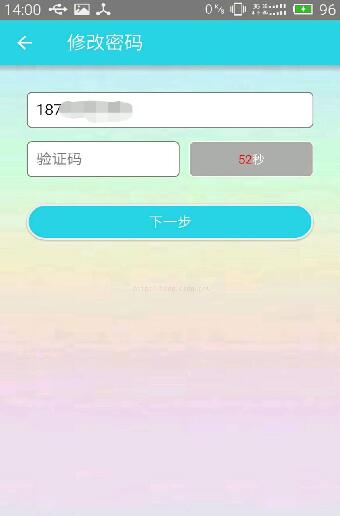
     mTextView.setText(millisUntilFinished / 1000 + "秒"); //设置倒计时时间

     mTextView.setBackgroundResource(R.drawable.shape_verify_btn_press); //设置按钮为灰色,这时是不能点击的

     SpannableString spannableString = new SpannableString(mTextView.getText().toString()); //获取按钮上的文字

     ForegroundColorSpan span = new ForegroundColorSpan(Color.RED);

     /**

      * public void setSpan(Object what, int start, int end, int flags) {

      * 主要是start跟end,start是起始位置,无论中英文,都算一个。

      * 从0开始计算起。end是结束位置,所以处理的文字,包含开始位置,但不包含结束位置。

      */

     spannableString.setSpan(span, 0, 2, Spannable.SPAN_INCLUSIVE_EXCLUSIVE);//将倒计时的时间设置为红色

     mTextView.setText(spannableString);

   }

   /**

    * 倒计时完成后调用

    */

   @Override

   public void onFinish() {

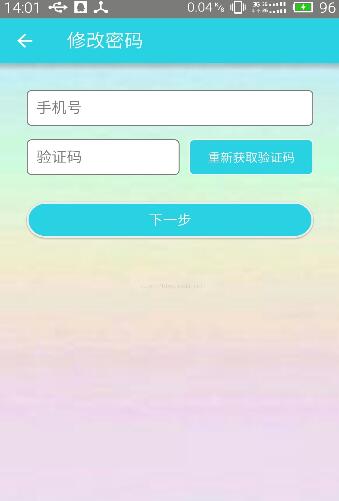
     mTextView.setText("重新获取验证码");

     mTextView.setClickable(true);//重新获得点击

     mTextView.setBackgroundResource(R.drawable.shape_verify_btn_normal); //还原背景色

   }

 }
让这个工具类继承CountDownTimer,然后把显示倒计时的View传进去,在倒计时期间会调用onTick方法,在这个方法里面对View的倒计时界面进行刷新,倒计时结束后,会调用onFinish方法,在里面恢复View的状态即可。
2、布局文件
未点击获取验证码时的view布局 shape_verify_btn_normal.xml
 <?xml version="1.0" encoding="utf-8"?>

 <shape xmlns:android="http://schemas.android.com/apk/res/android"

   android:shape="rectangle" >

   <!-- 填充的颜色:这里设置背景透明 -->

   <solid android:color="@color/maincolor" />

   <!-- 边框的颜色 :不能和窗口背景色一样-->

   <stroke

     android:width="1dp"

     android:color="@color/white" />

   <!-- 设置按钮的四个角为弧形 -->

   <!-- android:radius 弧形的半径 -->

   <corners android:radius="5dip" />

   <!-- padding:Button里面的文字与Button边界的间隔 -->

   <padding

     android:bottom="5dp"

     android:left="5dp"

     android:right="5dp"

     android:top="5dp" />

 </shape>
点击获取验证码之后的view布局 shape_verify_btn_press.xml
 <?xml version="1.0" encoding="utf-8"?>

 <shape xmlns:android="http://schemas.android.com/apk/res/android"

   android:shape="rectangle" >

   <!-- 填充的颜色:这里设置背景透明 -->

   <solid android:color="@color/graywhite" />

   <!-- 边框的颜色 :不能和窗口背景色一样-->

   <stroke

     android:width="1dp"

     android:color="@color/white" />

   <!-- 设置按钮的四个角为弧形 -->

   <!-- android:radius 弧形的半径 -->

   <corners android:radius="5dip" />

   <!-- padding:Button里面的文字与Button边界的间隔 -->

   <padding

     android:bottom="5dp"

     android:left="5dp"

     android:right="5dp"

     android:top="5dp" />

 </shape>
整个界面的布局
 <LinearLayout xmlns:android="http://schemas.android.com/apk/res/android"

   android:orientation="vertical"

   android:layout_width="match_parent"

   android:layout_height="match_parent"

   android:background="@drawable/login_bg">

   <EditText

     android:id="@+id/rst_phone_number"

     android:layout_width="match_parent"

     android:layout_height="40dp"

     android:inputType="phone"

     android:hint="@string/phone_number"

     android:textSize="16sp"

     android:textColor="@color/black"

     android:singleLine="true"

     android:background="@drawable/shape_form"

     android:textCursorDrawable="@drawable/text_cursor"

     android:layout_marginLeft="30dp"

     android:layout_marginRight="30dp"

     android:layout_marginTop="30dp"

     android:layout_gravity="center_vertical"/>

   <LinearLayout

     android:layout_width="match_parent"

     android:layout_height="40dp"

     android:layout_marginLeft="30dp"

     android:layout_marginRight="30dp"

     android:layout_marginTop="15dp"

     android:orientation="horizontal">

     <EditText

       android:id="@+id/rst_verify_code"

       android:layout_width="wrap_content"

       android:layout_height="match_parent"

       android:layout_weight="1"

       android:inputType="number"

       android:hint="@string/rst_verify_code"

       android:textSize="16sp"

       android:textColor="@color/black"

       android:singleLine="true"

       android:background="@drawable/shape_form"

       android:textCursorDrawable="@drawable/text_cursor" />

     <TextView

       android:id="@+id/rst_send_code"

       android:layout_width="130dp"

       android:layout_height="match_parent"

       android:text="@string/rst_send_code"

       android:textSize="13sp"

       android:textColor="@color/white"

       android:gravity="center"

       android:layout_marginLeft="10dp"

       android:background="@drawable/shape_verify_btn_normal"/>

   </LinearLayout>

   <Button

     android:id="@+id/rst_next_step"

     android:layout_width="match_parent"

     android:layout_height="40dp"

     android:layout_margin="30dp"

     android:text="@string/rst_next_step"

     android:textSize="15sp"

     android:textColor="@color/white"

     android:background="@drawable/shape_btn"/>

 </LinearLayout>
这里布局有个问题,因为获取验证码这个TextView中的字会在倒计时期间有变化,而且每次字的变化长度不一样,如果把它的layout_width设为wrap_content,那么这个TextView的长度会变化,影响界面美观,所以可以把它的长度固定,然后把验证码输入框的layout_weight设为1,这样就可以了。
3、具体使用方法
 // 发送成功进入倒计时

 countDownTimer = new CountDownTimerUtils(tv_send_code, 60000, 1000);

 countDownTimer.start();
其中60000代表要倒计时的时长,即60s;1000代表每次递减1s。
以上就是具体的实现过程,下面附几张效果图!

以上就是本文的全部内容,希望对大家的学习有所帮助。
Andorid实现点击获取验证码倒计时效果的更多相关文章
- 前端学习——ionic/AngularJs——获取验证码倒计时按钮
按钮功能为:点击"获取验证码"--按钮不可用-设置倒计时-60秒后重新获取. 代码借鉴于:http://plnkr.co/edit/Swj82MpJSix3a47jZRHP?p= ...
- Android 获取验证码倒计时实现
Android 获取验证码倒计时实现 2017年10月24日 09:55:41 FBY展菲 阅读数:2002 版权声明:本文为博主原创文章,未经博主允许不得转载. https://blog.cs ...
- day80:luffy:短信sdk接入&点击获取验证码&注册功能的实现&Celery实现短信发送功能
目录 1.短信sdk接入 2.前端点击获取验证码效果 3.注册后端接口实现 4.注册-前端 5.Celery 6.Celery完成短信发送功能 1.短信sdk接入 1.准备工作 1.下载云通讯相关的文 ...
- jQuery实现的手机发送验证码倒计时效果代码分享
这是一款基于jquery实现的手机发送验证码倒计时效果代码,可实现实时显示秒数倒计时的功能,还可实现对手机号码格式验证的功能,是一款常用的网站注册发送手机验证码特效代码. 效果描述:注册一个网站,当需 ...
- day79:luffy:注册之对手机号的验证&实现基本的注册功能逻辑&点击获取验证码&redis
目录 1.前端和后端对于手机号的验证 2.实现基本的注册功能-不包括验证码 3.点击获取验证码 4.解决登录不上Xadmin的bug 5.redis register.vue页面 <templa ...
- Jquery插件实现点击获取验证码后60秒内禁止重新获取
通过jquery.cookie.js插件可以快速实现“点击获取验证码后60秒内禁止重新获取(防刷新)”的功能 先到官网(http://plugins.jquery.com/cookie/ )下载coo ...
- JQuery 获取验证码倒计时
HTML代码: <button id="btn">点击获取验证码</button> Jquery:代码: $(document).ready(functio ...
- angular中service封装$http做权限时拦截403等状态及获取验证码倒计时、跨域问题解决
封装$http.做权限时拦截403等状态及获取验证码倒计时: 拦截接口返回状态 var app = angular.module('app'); app.factory('UserIntercepto ...
- 微信小程序实现验证码倒计时效果
效果图 wxml <input class='input-pwd' placeholder="新密码" placeholder-style='color: #000' pas ...
随机推荐
- Good Bye 2016 //智商再次下线,边界爆炸.....
A B很水就略了.. C.又是一次wannafly一样的判断区间的..... 边界设为2000000 正好GG...... fst的时候立马想到上次也是这么wa过的...... 所以下次遇到这种题 ...
- 美化radio和checkbox样式
HTML部分 <div id="holder"> <div> <div class="tag">Checkbox Small ...
- ubuntu搭建shad(-_-)owscoks(影梭)
准备步骤 apt-get updateapt-get install python-gevent python-pippip install shadowsocks 新建一个json文件内容如下,文件 ...
- samsung bios configuration怎么设置U盘启动
1.用第三方U盘制作软件制作U盘启动盘,并下载正版系统镜像或纯净版镜像,下载后缀为ISO的镜像文件拷贝到U盘根目录.2.开机按F2键进入BIOS设置.选择BOOT选项—Secure Boot设置为“D ...
- Leetcode 94. Binary Tree Inorder Traversal
Given a binary tree, return the inorder traversal of its nodes' values. For example:Given binary tre ...
- Zabbix监控mysql主从复制状态
原理 mysql slave show slave status\G 在输出信息中查看I/O线程和SQL线程的状态值(YES为正常,NO为错误) Slave_IO_Running: Yes Slave ...
- Beta阶段第四次Scrum Meeting
情况简述 Beta阶段第四次Scrum Meeting 敏捷开发起始时间 2016/12/13 24:00 敏捷开发终止时间 2016/12/14 24:00 会议基本内容摘要 进度平稳推进,分配新任 ...
- 【Alpha版本】十天冲刺——日志集合贴
No Bug 031402401鲍亮 031402402曹鑫杰 031402403常松 031402412林淋 031402418汪培侨 031402426许秋鑫 Day1 Day2 Day3 Day ...
- PS快捷键
- 《Python核心编程》18.多线程编程(三)
18.6使用threading模块 #!/usr/bin/env python # -*- coding:utf-8 -*- """从Thread类中派生出一个子例,创建 ...