
centos7下编译安装redis5.05
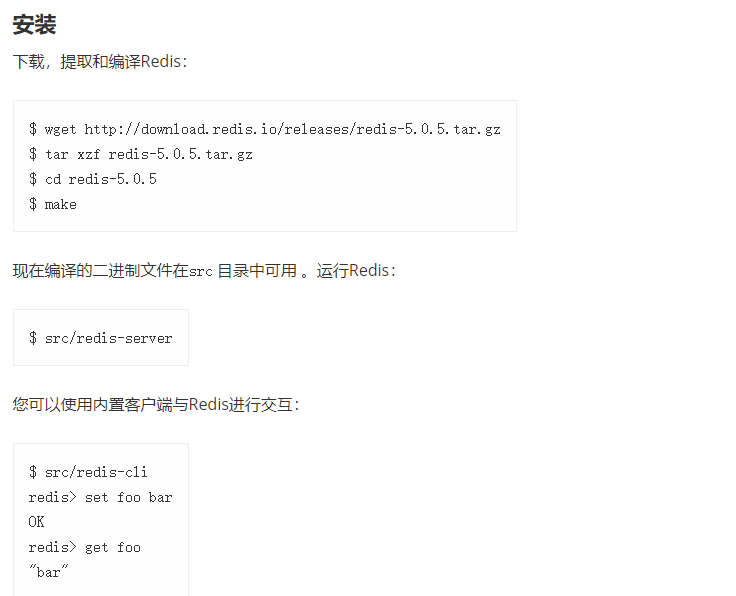
准备环境:
1、一台centos7机器,配置没有什么要求(能联网)
2、下载好redis压缩包
下载redis包:
1、登录redis官网:
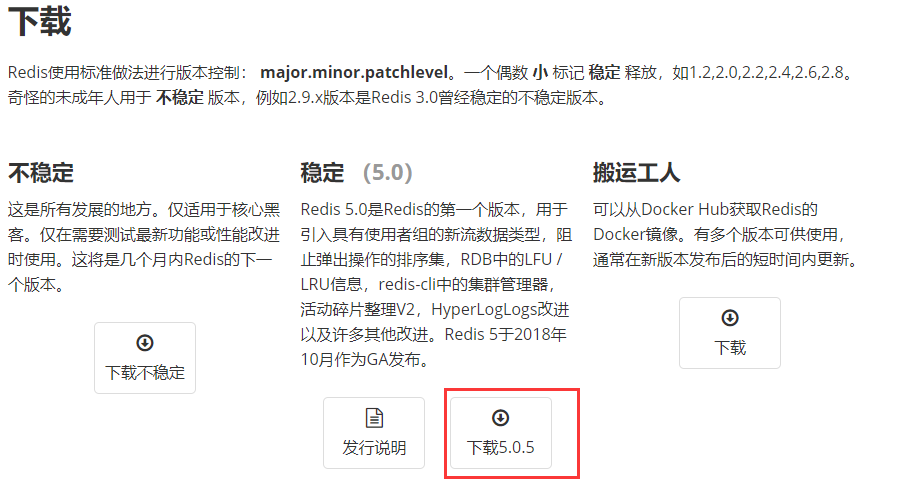
2、选择适合自己用的版本,一定要下载稳定版,不推荐下载最新版本
我这里就下载5.05版本作为案例:
下载其它版本:
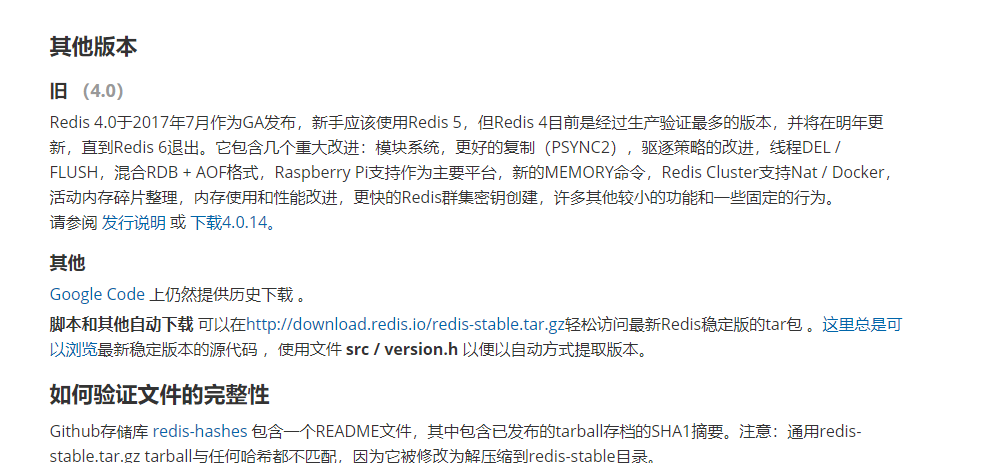
其它历史版本需要在google code上下载
官方的安装教程:
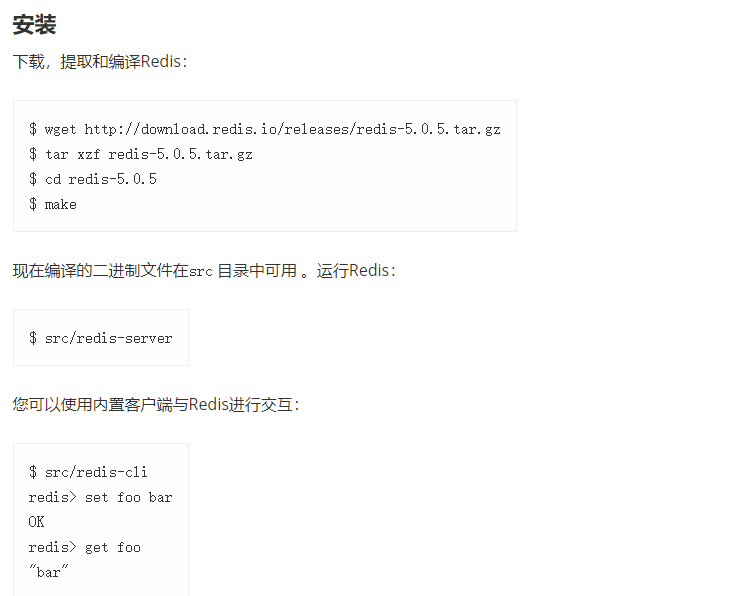
我这边直接按照提供操作步骤安装出现报错:
解压安装包到/usr/local目录下
进入解压目录:
执行编译:
提示未找到gcc命令:
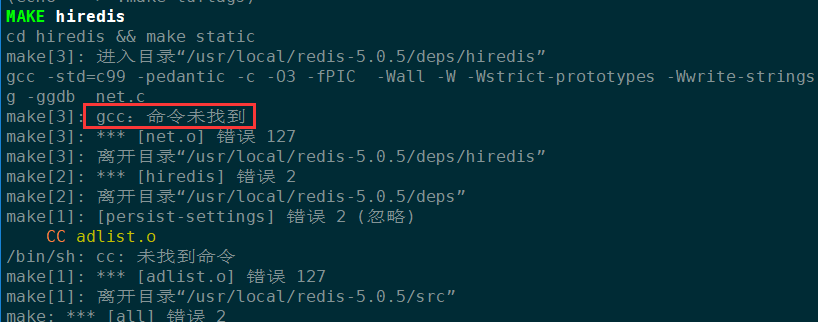
解决办法安装gcc命令:
# yum -y install gcc
gcc安装完成后从新执行make编译命令:
又出现报错:
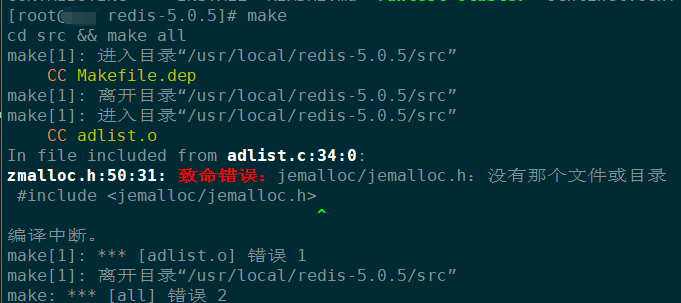
根据redis4.0的安装命令添加MALLOC=libc:
# make MALLOC=libc
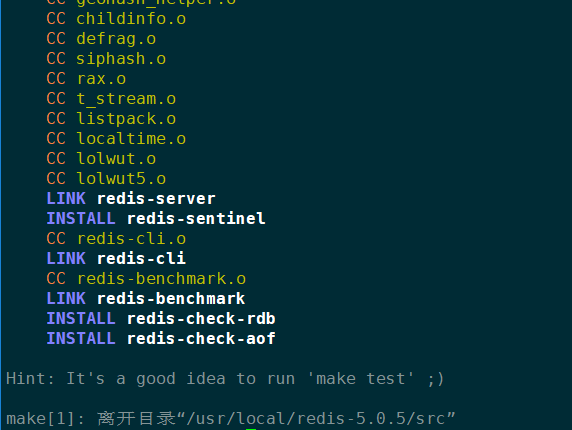
执行成功:
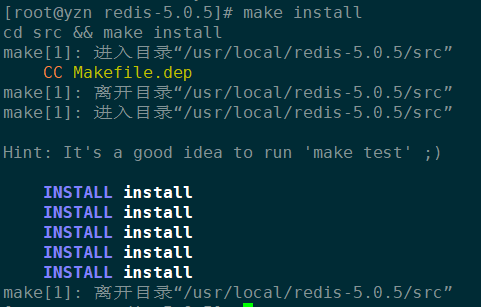
安装:
# make install
二、启动redis的三种方式:
切换到redis的src目录下:
[root@yzn redis-5.0.5]# cd src/
1、直接启动redis
[root@yzn src]# ./redis-server

12670:C 08 Jul 2019 15:17:07.387 # oO0OoO0OoO0Oo Redis is starting oO0OoO0OoO0Oo

12670:C 08 Jul 2019 15:17:07.387 # Redis version=5.0.5, bits=64, commit=00000000, modified=0, pid=12670, just started

12670:C 08 Jul 2019 15:17:07.387 # Warning: no config file specified, using the default config. In order to specify a config file use ./redis-server /path/to/redis.conf

12670:M 08 Jul 2019 15:17:07.389 * Increased maximum number of open files to 10032 (it was originally set to 1024).

                _._

           _.-``__ ''-._

      _.-``    `.  `_.  ''-._           Redis 5.0.5 (00000000/0) 64 bit

  .-`` .-```.  ```\/    _.,_ ''-._

 (    '      ,       .-`  | `,    )     Running in standalone mode

 |`-._`-...-` __...-.``-._|'` _.-'|     Port: 6379

 |    `-._   `._    /     _.-'    |     PID: 12670

  `-._    `-._  `-./  _.-'    _.-'

 |`-._`-._    `-.__.-'    _.-'_.-'|

 |    `-._`-._        _.-'_.-'    |           http://redis.io

  `-._    `-._`-.__.-'_.-'    _.-'

 |`-._`-._    `-.__.-'    _.-'_.-'|

 |    `-._`-._        _.-'_.-'    |

  `-._    `-._`-.__.-'_.-'    _.-'

      `-._    `-.__.-'    _.-'

          `-._        _.-'

              `-.__.-'

12670:M 08 Jul 2019 15:17:07.391 # WARNING: The TCP backlog setting of 511 cannot be enforced because /proc/sys/net/core/somaxconn is set to the lower value of 128.

12670:M 08 Jul 2019 15:17:07.391 # Server initialized

12670:M 08 Jul 2019 15:17:07.391 # WARNING overcommit_memory is set to 0! Background save may fail under low memory condition. To fix this issue add 'vm.overcommit_memory = 1' to /etc/sysctl.conf and then reboot or run the command 'sysctl vm.overcommit_memory=1' for this to take effect.

12670:M 08 Jul 2019 15:17:07.391 # WARNING you have Transparent Huge Pages (THP) support enabled in your kernel. This will create latency and memory usage issues with Redis. To fix this issue run the command 'echo never > /sys/kernel/mm/transparent_hugepage/enabled' as root, and add it to your /etc/rc.local in order to retain the setting after a reboot. Redis must be restarted after THP is disabled.

12670:M 08 Jul 2019 15:17:07.391 * Ready to accept connections
如图:redis启动成功,但是这种凡是需要一直打开窗口,不能进行其他操作,不方便
ctrl+c可以关闭程序
2、以后台进程方式启动redis
第一步:修改redis.conf文件
daemonize参数:

      redis.conf配置文件中daemonize守护进程,默认是NO。

      daemonize是用来指定redis是否要用守护进程的方式启动

daemonize设置yes或者no的区别:

  daemonize:yes:redis采用的是单进程多线程的模式,当redis.conf中选项daemonize参数为yes时,代表开启守护进程模式,该模式下,redis会在后台运行,并将进程pid号写入到redis.conf选项pidfile设置的文件中,此时redis将一直运行,除非手动kill该进程。

  daemonize:no:当daemonize选项设置为no时,当前界面将进入redis的命令界面,exit强制退出或者关闭连接工具(putty、xshell等工具)都会导致redis进程退出
redis的配置文件在redis的主目录下:
文件名:redis.conf
编辑文件:
# vim redis.conf

我们修改为yes:

绑定地址(默认仅主机可连接,修改为任意主机可以连接):
第二步:指定redis.conf文件启动
[root@yzn redis-5.0.5]# /usr/local/redis-5.0.5/src/redis-server /usr/local/redis-5.0.5/redis.conf
12706:C 08 Jul 2019 15:33:16.232 # oO0OoO0OoO0Oo Redis is starting oO0OoO0OoO0Oo
12706:C 08 Jul 2019 15:33:16.233 # Redis version=5.0.5, bits=64, commit=00000000, modified=0, pid=12706, just started
12706:C 08 Jul 2019 15:33:16.233 # Configuration loaded
查看程序是否启动

这里我们看到已经后台运行了,注意这里监听的地址为127.0.0.1:6379也就是只能本机连接需要局域网其它设别连接我们需要再修改配置文件修改bind参数
使用kill杀死进程:
# kill 12707
# 注意:这里的12707是进程id号,在ps命令中查到的
3、设置redis开机自启:
第一步、添加开机启动服务:
[root@yzn ~]# vim /etc/systemd/system/redis-server.service #文件不存在要编辑创建
[Unit]
Description=The redis-server Process Manager
After=syslog.target network.target
[Service]
Type=forking
PIDFile=/var/run/redis_6379.pid
ExecStart=/usr/local/redis-5.0.5/src/redis-server /usr/local/redis-5.0.5/redis.conf
PrivateTmp=True
[Install]
WantedBy=multi-user.target
设置为开机启动:
# systemctl daemon-reload
启动服务
# systemctl start redis-server
# 注:暂时没有添加暂停服务,后续会添加上
centos7下编译安装redis5.05的更多相关文章
- CentOS7下编译安装redis-5.0.9
CentOS7下编译安装redis-5.0.9 本文地址http://yangjianyong.cn/?p=171转载无需经过作者本人授权 下载redis #code start wget https ...
- centos7下编译安装php-7.0.15(PHP-FPM)
centos7下编译安装php-7.0.15(PHP-FPM) 一.下载php7源码包 http://php.net/downloads.php 如:php-7.0.15.tar.gz 二.安装所需依 ...
- CentOS7 下编译安装 Samba,什么是 SMB/CIFS 协议
目录 一.关于 Samba 1. SMB 2. Samba 二.yum 安装 Samba 1. 安装 Samba 2. 查看版本 3. 查看配置文件 4. 启动服务 5. 本地客户端验证 6. Win ...
- centos7下编译安装php7.3
一.下载php7.3的源码 https://www.php.net/downloads.php 下载php-7.3.4.tar.gz 二.安装gcc,gcc-c++,kernel-devel yum ...
- CentOS7下编译安装Python3.7.x【亲测有效】
所有操作都在root用户下操作 下载安装包 编译安装 建立软链接 验证 安装: 更新yum: yum update 安装Python依赖: yum install openssl-devel bzip ...
- centos7下编译安装nginx-1.16.0
一.下载nginx源码 http://nginx.org/en/download.html 如:nginx-1.16.0.tar.gz 二.创建用户和组,并解压 groupadd www userad ...
- Centos7下编译安装php扩展redis5.0.2
安装环境:centos7 + php 7.2.191. 下载地址:http://pecl.php.net/get/redis-5.0.2.tgz .tgz http://pecl.php.net/ge ...
- CentOS7中编译安装redis5.0
1. 环境介绍 CentOS7 (未安装Development Tools) 2. 下载Redis5.0-rc3 wget -O redis-5.0-rc3.tar.gz https://github ...
- centos7下编译安装python3.7,且与python2.7.5共存
环境:Centos7.6 x64 一.安装python3.7 下载python源码包: wget https://www.python.org/ftp/python/3.7.4/Python-3.7. ...
随机推荐
- MongoDB高可用架构集群管理(一)
MongoDB数据库核心的两个特点:第一个特点是副本集的自动切换,保证数据的高可靠.服务的高可用:第二个特点是自动分片.服务的横向扩展能力. (一)副本集架构 MongoDB的副本集是一组保持相同数据 ...
- w13scan扫描器的使用
0x01 w13scan第三方包下载 环境:python3以上 下载:pip install w13scan 0x02 利用w13scan API接口编写w13scan.py from W13SCAN ...
- MySQL 8 升级数据库
开始升级前 因为从MySQL 8.0 到MySQL 5.7,或者从MySQL 8.0 到之前的 MySQL 8.0版本都是不支持的.所有在在升级前要做好数据库备份,包括mysql 系统schema(数 ...
- 软考复习之UML设计篇
UML统一建模语言 构件图:描述系统的物理结构,它可以用来显示程序代码如何分解成模块 部署图:描述系统中硬件和软件的物理结构,它描述构成系统架构的软件构件,处理器和设备 用例图:描述系统与外部系统及用 ...
- 源码编译安装python2/3版本
1- 源码编译安装python2.7版本 1.1- 下载源码包 wget https://www.python.org/ftp/python/2.7.14/Python-2.7.14.tgz 1.2- ...
- cf1184E1
题意简述:给出n个点m条边的无向图,你可以修改第一条边的权值,使得他可能会处于一棵最小生成树中,问你第一条的权值最大(不超过1e9)可以改为多少 题解:不去使用第一条边去跑最小生成树,然后在跑的过程中 ...
- Page Object设计模式(二)——poium测试库
一.简介 poium是一个基于Selenium/appium的Page Object测试库,最大的特点是简化了Page层元素的定义. 项目地址:https://github.com/SeldomQA/ ...
- 快捷使用 Iterm2 连接SSH ( HTTP代理 )
1,配置iterm2 > Preferences.. > Profiles > 填写:name : 别名 : Command : expect /Users/jerryxu/wwwr ...
- linux系统如何进行录屏
linux系统如何录屏安装SimpleScreenRecorder 按Ctrl+ALt+T打开终端 添加源: sudo add-apt-repository ppa:maarten-baert/sim ...
- 《80x86汇编语言程序设计教程》第二章课后题答案
2.5 习题 2.1 数据寄存器 1. 八个通用寄存器除了各自规定的专门用途外,它们均可以用于传送和暂存数据,可以保存算术逻辑运算中的各种操作数和运算结果. 2.1 AX和Al寄存器又称为累加器(ac ...