
DataBindings的用法
在C#操作数据库过程中,针对一般的文本控件,比如TextBox,Label等,我们赋值直接使用类似TextBox.Text=****的方式来进行,这种方式从某种意义上来说的确是最简便的方式,但是对于复杂一些的空间,比如说DataGridView,这个时候,绑定数据源我们一般使用DataGridView1.DataSource=****的方式来进行,如果数据源稍微有更改,那么只需要重新调用绑定一遍即可。可以说这种方式是单向的,也即从数据库到UI,但是有没有一种方式能够实现数据源改变的时候,不用重新绑定DataGridView就让它能够自动刷新数据呢,当然,这里要提到的就是DataBinding了。
代码如下
Form2.cs代码:
using System;

using System.Collections.Generic;

using System.ComponentModel;

using System.Data;

using System.Drawing;

using System.Linq;

using System.Text;

using System.Windows.Forms;

namespace DataBindingsTest

{

    public partial class Form2 : Form

    {

        public Form2()

        {

            InitializeComponent();

        }

        MyDataSource mydatasource = new MyDataSource();  //应用于第二种方式

        public int Num { get; set; }  //应用于第三种方式

        public List<BlogNew> blogNews { get; set; }  //应用于第四种方式

        public BindingList<BlogNew> blogNewsRegardUI { get; set; }  //应用于DataGridView界面UI更新

        private void mainFrm_Load(object sender, EventArgs e)

        {

            #region 测试一

            /************************************************

             * 第一个值:要绑定到TextBox的什么地方

             * 第二个值:数据源是什么

             * 第三个值:应该取数据源的什么属性

             * 第四个值:是否开启数据格式化

             * 第五个值:在什么时候启用数据源绑定

             * *********************************************/

            textBox1.DataBindings.Add("Text", trackBar1, "Value", false, DataSourceUpdateMode.OnPropertyChanged);

            #endregion

            #region 测试二

            /*********************************************

             * 这个主要就是通过一个外部的类,当做数据源

             * *********************************************/

            mydatasource.Myvalue = "这是个测试";

            textBox2.DataBindings.Add("Text", mydatasource, "Myvalue", false, DataSourceUpdateMode.OnPropertyChanged);

            #endregion

            #region 测试三

            /*****************************************

             *这个主要就是通过本身拥有的属性,当做数据源

             ****************************************/

            Num = ;

            textBox3.DataBindings.Add("Text", this, "Num", false, DataSourceUpdateMode.OnPropertyChanged);

            #endregion

            /*

             * 注意:上面的3个测试,改变文本框中的值,数据源中对应的属性值会改变

             *       但是,数据源的属性值改变了,文本框中的值不会改变

             */

            #region 测试四 : List<T>

            blogNews = new List<BlogNew>();

            blogNews.Add(new BlogNew { BlogID = , BlogTitle = "人生若只如初见" });

            blogNews.Add(new BlogNew { BlogID = , BlogTitle = "何事秋风悲画扇" });

            blogNews.Add(new BlogNew { BlogID = , BlogTitle = "最喜欢纳兰性德" });

            dataGridView1.DataBindings.Add("DataSource", this, "blogNews", false, DataSourceUpdateMode.OnPropertyChanged);

            #endregion

            #region 测试五 : BindingList<T>

            blogNewsRegardUI = new BindingList<BlogNew>();

            blogNewsRegardUI.Add(new BlogNew { BlogID = , BlogTitle = "僵卧孤村不自哀" });

            blogNewsRegardUI.Add(new BlogNew { BlogID = , BlogTitle = "尚思为国戍轮台" });

            blogNewsRegardUI.Add(new BlogNew { BlogID = , BlogTitle = "夜阑卧听风吹雨" });

            dataGridView2.DataBindings.Add("DataSource", this, "blogNewsRegardUI", false, DataSourceUpdateMode.OnPropertyChanged);

            #endregion

        }

        private void button1_Click(object sender, EventArgs e)

        {

            //从这里可以看出,改变了TextBox2中的值,这里的值也改变了,原因是因为类属于引用类型

            MessageBox.Show(mydatasource.Myvalue);

        }

        private void button2_Click(object sender, EventArgs e)

        {

            //从这里可以看出,改变了TextBox3中的值,这里的值也改变了,

            //原因是Num被当做了当前窗体的一个属性(窗体本身就是一个类),也属于引用类型

            MessageBox.Show(Num.ToString());

            //this.Num = 10;

            //MessageBox.Show(Num.ToString());

        }

        private void button3_Click(object sender, EventArgs e)

        {

            //在这里向DataGridView中插入一行

            var data = dataGridView1.DataSource as List<BlogNew>;

            data.Add(new BlogNew { BlogID = , BlogTitle = "取次花丛懒回顾,半缘修道半缘君" });

            foreach (BlogNew blogNew in dataGridView1.DataSource as List<BlogNew>)

            {

                /***********

                 * 当我们心插入一条BlogID记录为4的数据的时候,在界面上可以看出dataGridView1的dataSource已经被更新,

                 * 但是界面上依旧显示为BlogID为1,2,3三条数据,很奇怪

                 * *********************/

                MessageBox.Show(blogNew.BlogID + "--" + blogNew.BlogTitle);

            }

        }

        private void button4_Click(object sender, EventArgs e)

        {

            /*这里主要用来解决DataGridView1界面不更新的问题,其实原因在于使用了List<BlogNew>,这里我们采用BindList<BlogNew>

             *通过测试,我们发现,只要数据源改变,界面就可以自动的进行更新了,很是方便,不需要重新绑定

             */

            var dataRegardUI = dataGridView2.DataSource as BindingList<BlogNew>;

            dataRegardUI.Add(new BlogNew { BlogID = , BlogTitle = "竹外桃花三两枝,春江水暖鸭先知" });

        }

    }

    public class MyDataSource

    {

        public string Myvalue { get; set; }

    }

    public class BlogNew

    {

        public int BlogID { get; set; }

        public string BlogTitle { get; set; }

    }

}
Form2.Designer.cs代码:
namespace DataBindingsTest

{

    partial class Form2

    {

        /// <summary>

        /// Required designer variable.

        /// </summary>

        private System.ComponentModel.IContainer components = null;

        /// <summary>

        /// Clean up any resources being used.

        /// </summary>

        /// <param name="disposing">true if managed resources should be disposed; otherwise, false.</param>

        protected override void Dispose(bool disposing)

        {

            if (disposing && (components != null))

            {

                components.Dispose();

            }

            base.Dispose(disposing);

        }

        #region Windows Form Designer generated code

        /// <summary>

        /// Required method for Designer support - do not modify

        /// the contents of this method with the code editor.

        /// </summary>

        private void InitializeComponent()

        {

            this.groupBox1 = new System.Windows.Forms.GroupBox();

            this.groupBox2 = new System.Windows.Forms.GroupBox();

            this.button1 = new System.Windows.Forms.Button();

            this.textBox2 = new System.Windows.Forms.TextBox();

            this.groupBox3 = new System.Windows.Forms.GroupBox();

            this.button2 = new System.Windows.Forms.Button();

            this.textBox3 = new System.Windows.Forms.TextBox();

            this.groupBox4 = new System.Windows.Forms.GroupBox();

            this.button3 = new System.Windows.Forms.Button();

            this.dataGridView1 = new System.Windows.Forms.DataGridView();

            this.groupBox5 = new System.Windows.Forms.GroupBox();

            this.button4 = new System.Windows.Forms.Button();

            this.dataGridView2 = new System.Windows.Forms.DataGridView();

            this.textBox1 = new System.Windows.Forms.TextBox();

            this.trackBar1 = new System.Windows.Forms.TrackBar();

            this.groupBox1.SuspendLayout();

            this.groupBox2.SuspendLayout();

            this.groupBox3.SuspendLayout();

            this.groupBox4.SuspendLayout();

            ((System.ComponentModel.ISupportInitialize)(this.dataGridView1)).BeginInit();

            this.groupBox5.SuspendLayout();

            ((System.ComponentModel.ISupportInitialize)(this.dataGridView2)).BeginInit();

            ((System.ComponentModel.ISupportInitialize)(this.trackBar1)).BeginInit();

            this.SuspendLayout();

            //

            // groupBox1

            //

            this.groupBox1.Controls.Add(this.trackBar1);

            this.groupBox1.Controls.Add(this.textBox1);

            this.groupBox1.Location = new System.Drawing.Point(, );

            this.groupBox1.Name = "groupBox1";

            this.groupBox1.Size = new System.Drawing.Size(, );

            this.groupBox1.TabIndex = ;

            this.groupBox1.TabStop = false;

            this.groupBox1.Text = "方式一";

            //

            // groupBox2

            //

            this.groupBox2.Controls.Add(this.button1);

            this.groupBox2.Controls.Add(this.textBox2);

            this.groupBox2.Location = new System.Drawing.Point(, );

            this.groupBox2.Name = "groupBox2";

            this.groupBox2.Size = new System.Drawing.Size(, );

            this.groupBox2.TabIndex = ;

            this.groupBox2.TabStop = false;

            this.groupBox2.Text = "方式二";

            //

            // button1

            //

            this.button1.Location = new System.Drawing.Point(, );

            this.button1.Name = "button1";

            this.button1.Size = new System.Drawing.Size(, );

            this.button1.TabIndex = ;

            this.button1.Text = "查看已修改的数据源的值";

            this.button1.UseVisualStyleBackColor = true;

            this.button1.Click += new System.EventHandler(this.button1_Click);

            //

            // textBox2

            //

            this.textBox2.Location = new System.Drawing.Point(, );

            this.textBox2.Name = "textBox2";

            this.textBox2.Size = new System.Drawing.Size(, );

            this.textBox2.TabIndex = ;

            //

            // groupBox3

            //

            this.groupBox3.Controls.Add(this.button2);

            this.groupBox3.Controls.Add(this.textBox3);

            this.groupBox3.Location = new System.Drawing.Point(, );

            this.groupBox3.Name = "groupBox3";

            this.groupBox3.Size = new System.Drawing.Size(, );

            this.groupBox3.TabIndex = ;

            this.groupBox3.TabStop = false;

            this.groupBox3.Text = "方式三";

            //

            // button2

            //

            this.button2.Location = new System.Drawing.Point(, );

            this.button2.Name = "button2";

            this.button2.Size = new System.Drawing.Size(, );

            this.button2.TabIndex = ;

            this.button2.Text = "查看已修改的数据源的值";

            this.button2.UseVisualStyleBackColor = true;

            this.button2.Click += new System.EventHandler(this.button2_Click);

            //

            // textBox3

            //

            this.textBox3.Location = new System.Drawing.Point(, );

            this.textBox3.Name = "textBox3";

            this.textBox3.Size = new System.Drawing.Size(, );

            this.textBox3.TabIndex = ;

            //

            // groupBox4

            //

            this.groupBox4.Controls.Add(this.button3);

            this.groupBox4.Controls.Add(this.dataGridView1);

            this.groupBox4.Location = new System.Drawing.Point(, );

            this.groupBox4.Name = "groupBox4";

            this.groupBox4.Size = new System.Drawing.Size(, );

            this.groupBox4.TabIndex = ;

            this.groupBox4.TabStop = false;

            this.groupBox4.Text = "方式四";

            //

            // button3

            //

            this.button3.Location = new System.Drawing.Point(, );

            this.button3.Name = "button3";

            this.button3.Size = new System.Drawing.Size(, );

            this.button3.TabIndex = ;

            this.button3.Text = "插入一行";

            this.button3.UseVisualStyleBackColor = true;

            this.button3.Click += new System.EventHandler(this.button3_Click);

            //

            // dataGridView1

            //

            this.dataGridView1.ColumnHeadersHeightSizeMode = System.Windows.Forms.DataGridViewColumnHeadersHeightSizeMode.AutoSize;

            this.dataGridView1.Location = new System.Drawing.Point(, );

            this.dataGridView1.Name = "dataGridView1";

            this.dataGridView1.RowTemplate.Height = ;

            this.dataGridView1.Size = new System.Drawing.Size(, );

            this.dataGridView1.TabIndex = ;

            //

            // groupBox5

            //

            this.groupBox5.Controls.Add(this.button4);

            this.groupBox5.Controls.Add(this.dataGridView2);

            this.groupBox5.Location = new System.Drawing.Point(, );

            this.groupBox5.Name = "groupBox5";

            this.groupBox5.Size = new System.Drawing.Size(, );

            this.groupBox5.TabIndex = ;

            this.groupBox5.TabStop = false;

            this.groupBox5.Text = "方式五";

            //

            // button4

            //

            this.button4.Location = new System.Drawing.Point(, );

            this.button4.Name = "button4";

            this.button4.Size = new System.Drawing.Size(, );

            this.button4.TabIndex = ;

            this.button4.Text = "插入一行";

            this.button4.UseVisualStyleBackColor = true;

            this.button4.Click += new System.EventHandler(this.button4_Click);

            //

            // dataGridView2

            //

            this.dataGridView2.ColumnHeadersHeightSizeMode = System.Windows.Forms.DataGridViewColumnHeadersHeightSizeMode.AutoSize;

            this.dataGridView2.Location = new System.Drawing.Point(, );

            this.dataGridView2.Name = "dataGridView2";

            this.dataGridView2.RowTemplate.Height = ;

            this.dataGridView2.Size = new System.Drawing.Size(, );

            this.dataGridView2.TabIndex = ;

            //

            // textBox1

            //

            this.textBox1.Location = new System.Drawing.Point(, );

            this.textBox1.Name = "textBox1";

            this.textBox1.Size = new System.Drawing.Size(, );

            this.textBox1.TabIndex = ;

            //

            // trackBar1

            //

            this.trackBar1.Location = new System.Drawing.Point(, );

            this.trackBar1.Name = "trackBar1";

            this.trackBar1.Size = new System.Drawing.Size(, );

            this.trackBar1.TabIndex = ;

            //

            // Form2

            //

            this.AutoScaleDimensions = new System.Drawing.SizeF(6F, 12F);

            this.AutoScaleMode = System.Windows.Forms.AutoScaleMode.Font;

            this.ClientSize = new System.Drawing.Size(, );

            this.Controls.Add(this.groupBox5);

            this.Controls.Add(this.groupBox4);

            this.Controls.Add(this.groupBox3);

            this.Controls.Add(this.groupBox2);

            this.Controls.Add(this.groupBox1);

            this.Name = "Form2";

            this.Text = "Form2";

            this.Load += new System.EventHandler(this.mainFrm_Load);

            this.groupBox1.ResumeLayout(false);

            this.groupBox1.PerformLayout();

            this.groupBox2.ResumeLayout(false);

            this.groupBox2.PerformLayout();

            this.groupBox3.ResumeLayout(false);

            this.groupBox3.PerformLayout();

            this.groupBox4.ResumeLayout(false);

            ((System.ComponentModel.ISupportInitialize)(this.dataGridView1)).EndInit();

            this.groupBox5.ResumeLayout(false);

            ((System.ComponentModel.ISupportInitialize)(this.dataGridView2)).EndInit();

            ((System.ComponentModel.ISupportInitialize)(this.trackBar1)).EndInit();

            this.ResumeLayout(false);

        }

        #endregion

        private System.Windows.Forms.GroupBox groupBox1;

        private System.Windows.Forms.GroupBox groupBox2;

        private System.Windows.Forms.Button button1;

        private System.Windows.Forms.TextBox textBox2;

        private System.Windows.Forms.GroupBox groupBox3;

        private System.Windows.Forms.Button button2;

        private System.Windows.Forms.TextBox textBox3;

        private System.Windows.Forms.GroupBox groupBox4;

        private System.Windows.Forms.Button button3;

        private System.Windows.Forms.DataGridView dataGridView1;

        private System.Windows.Forms.GroupBox groupBox5;

        private System.Windows.Forms.Button button4;

        private System.Windows.Forms.DataGridView dataGridView2;

        private System.Windows.Forms.TrackBar trackBar1;

        private System.Windows.Forms.TextBox textBox1;

    }

}
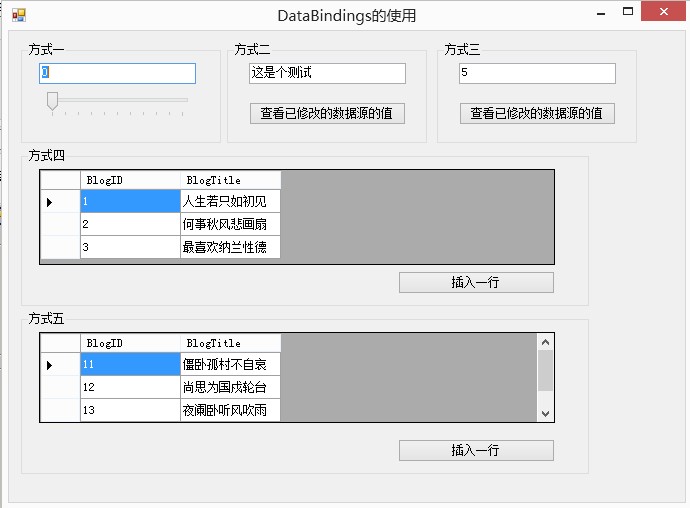
效果图:
DataBindings的用法的更多相关文章
- Control.DataBinding数据绑定简单用法:
DataBindings的用法: 第一个值:要绑定到TextBox的什么地方 第二个值:数据源是什么 第三个值:应该取数据源的什么属性 第四个值:是否开启数据格式化 第五个值:在什么时候启用数据源绑定 ...
- Control.DataBinding数据绑定细解
在C#操作数据库过程中,针对一般的文本控件,比如TextBox,Label等,我们赋值直接使用类似TextBox.Text=****的方式 来进行,这种方式从某种意义上来说的确是最简便的方式,但是对于 ...
- datagridview,textbox,combobox的数据绑定,数据赋值,picturebox的用法
一:datagridview数据绑定 二:textbox的数据绑定(datetimepicker) 总结: 最好还是写成双向绑定那种,不要再写出发事件了,只要在给textbox赋值就能重新绑定了,不然 ...
- TextBox控件的DataBindings属性
DataBindings属性是很多控件都有的属性,作用有2方面.一方面是用于与数据库的数据进行绑定,进行数据显示.另一方面用于与控件或类的对象进行数据绑定.这里主要关注后者.主要用法是将某个对象的某个 ...
- EditText 基本用法
title: EditText 基本用法 tags: EditText,编辑框,输入框 --- EditText介绍: EditText 在开发中也是经常用到的控件,也是一个比较必要的组件,可以说它是 ...
- jquery插件的用法之cookie 插件
一.使用cookie 插件 插件官方网站下载地址:http://plugins.jquery.com/cookie/ cookie 插件的用法比较简单,直接粘贴下面代码示例: //生成一个cookie ...
- Java中的Socket的用法
Java中的Socket的用法 Java中的Socket分为普通的Socket和NioSocket. 普通Socket的用法 Java中的 ...
- [转载]C#中MessageBox.Show用法以及VB.NET中MsgBox用法
一.C#中MessageBox.Show用法 MessageBox.Show (String) 显示具有指定文本的消息框. 由 .NET Compact Framework 支持. MessageBo ...
- python enumerate 用法
A new built-in function, enumerate() , will make certain loops a bit clearer. enumerate(thing) , whe ...
随机推荐
- pyqt5改变窗体颜色
from PyQt5.QtWidgets import QApplication,QWidget from PyQt5.QtGui import QColor import sys from t im ...
- Jquery 官网下载流程
选中解压版本,然后把ctrl+s保存另存为他的min版本
- CodeForces 772A Voltage Keepsake
二分答案,验证. 二分到一个答案,比他小的时间都需要补充到这个时间,计算所需的量,然后和能提供的量进行比较. #include <cstdio> #include <cmath> ...
- Python并发编程-一个简单的多进程实例
import time from multiprocessing import Process import os def func(args,args2): #传递参数到进程 print(args, ...
- Python之路【第五篇】: 函数、闭包、装饰器、迭代器、生成器
目录 函数补充进阶 函数对象 函数的嵌套 名称空间与作用域 闭包函数 函数之装饰器 函数之可迭代对象 函数之迭代器 函数之生成器 面向过程的程序设计思想 一.函数进阶之函数对象 1. 函数对象 秉承着 ...
- Vue 2.0学习(二)数据绑定
Vue实例对象 创建一个vue应用很简单,通过构造函数Vue就能创建一个Vue的根实例: var app = new Vue({ el: '#app', data: { message: 'Hello ...
- Linux Shall命令入门
Linux Shall命令入门 ifconfig //查看ip信息 service network start ...
- 【枚举】【DFS序】Gym - 101617G - Rainbow Roads
题意:一颗树,每条边有个颜色,一条路径被定义为“彩虹”,当且仅当其上没有长度大于等于2的同色子路径.一个结点被定义为“超级结点”,当且仅当从其发出的所有路径都是“彩虹”. 枚举所有长度为2,且同色的路 ...
- 91网漏洞打包#越权+爆破+存储xss可打cookie
漏洞一.主站存在登录口爆破 抓包,爆破一下 爆破成功 漏洞二.检测app时一处存储xss 在app登录后 我要提问那里插入xss 然后弹窗 可以打到cookie 漏洞三.app个人资料处平行越权可查看 ...
- Android为什么需要广播Broadcast
在Android系统中,为什么需要广播机制呢?广播机制,本质上它就是一种组件间的通信方式,如果是两个组件位于不同的进程当中,那么可以用Binder机制来实现,如果两个组件是在同一个进程中,那么它 ...