
26.QT颜色与布局
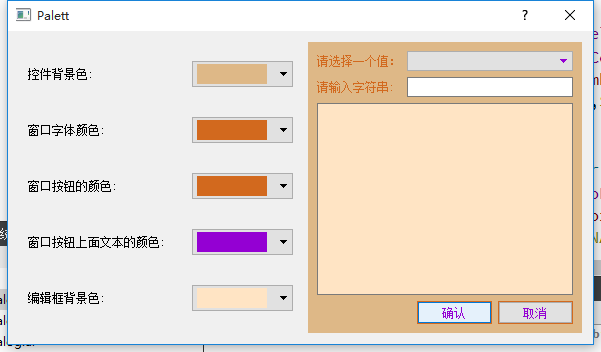
dialog.h
 #ifndef PALETTE_H

 #define PALETTE_H

 #include <QDialog>

 #include <QComboBox>

 #include <QLabel>

 #include <QTextEdit>

 #include <QPushButton>

 #include <QLineEdit>

 class Palette : public QDialog

 {

     Q_OBJECT

 public:

     Palette(QWidget *parent = );

     ~Palette();

     //创建左边布局

     void createCtrlFrame();

     //创建右边布局

     void createContentFrame();

     //给下拉框填充颜色

     void fillColorList(QComboBox *);

 private slots:

     void showWindow();

     void showWindowText();

     void showButton();

     void showButtonText();

     void showBase();

 private:

     QFrame *ctrlFrame;

     QLabel *windowLabel;

     QComboBox *windowComboBox;

     QLabel *windowTextLabel;

     QComboBox *windowTextComboBox;

     QLabel *buttonLabel;

     QComboBox *buttonComboBox;

     QLabel *buttonTextLabel;

     QComboBox *buttonTextComboBox;

     QLabel *baseLabel;

     QComboBox *baseComboBox;

     QFrame *contentFrame;

     QLabel *label1;

     QComboBox *comboBox1;

     QLabel *label2;

     QLineEdit *lineEdit2;

     QTextEdit *textEdit;

     QPushButton *okBtn;

     QPushButton *cancelBtn;

 };

 #endif // PALETTE_H
dialog.cpp
 #include "dialog.h"

 #include <QHBoxLayout>

 #include <QGridLayout>

 #include <QPalette>

 #include <QBoxLayout>

 Palette::Palette(QWidget *parent)

     : QDialog(parent)

 {

     createCtrlFrame();

     createContentFrame();

     QHBoxLayout *mainLayout = new QHBoxLayout(this);

     mainLayout->addWidget(ctrlFrame);

     mainLayout->addWidget(contentFrame);

 }

 //创建左边布局

 void Palette::createCtrlFrame()

 {

     //创建框架

     ctrlFrame = new QFrame;

     //窗口背景色

     windowLabel = new QLabel(tr("控件背景色: "));

     windowComboBox = new QComboBox;

     fillColorList(windowComboBox);

     //控件与时间绑定

     connect(windowComboBox,SIGNAL(activated(int)),this,SLOT(showWindow()));

      //窗口前景色

     windowTextLabel = new QLabel(tr("窗口字体颜色: "));

     windowTextComboBox = new QComboBox;

     fillColorList(windowTextComboBox);

     connect(windowTextComboBox,SIGNAL(activated(int)),this,SLOT(showWindowText()));

     //窗口按钮的颜色

     buttonLabel = new QLabel(tr("窗口按钮的颜色: "));

     buttonComboBox = new QComboBox;

     fillColorList(buttonComboBox);

     connect(buttonComboBox,SIGNAL(activated(int)),this,SLOT(showButton()));

     //窗口按钮上面文本的颜色

     buttonTextLabel = new QLabel(tr("窗口按钮上面文本的颜色: "));

     buttonTextComboBox = new QComboBox;

     fillColorList(buttonTextComboBox);

     connect(buttonTextComboBox,SIGNAL(activated(int)),this,SLOT(showButtonText()));

     //编辑框背景色

     baseLabel = new QLabel(tr("编辑框背景色: "));

     baseComboBox = new QComboBox;

     fillColorList(baseComboBox);

     connect(baseComboBox,SIGNAL(activated(int)),this,SLOT(showBase()));

     //创建网格布局,框架是ctrFrame

     QGridLayout *mainLayout = new QGridLayout(ctrlFrame);

     //设置间距

     mainLayout->setSpacing();

     mainLayout->addWidget(windowLabel,,);

     mainLayout->addWidget(windowComboBox,,);

     mainLayout->addWidget(windowTextLabel,,);

     mainLayout->addWidget(windowTextComboBox,,);

     mainLayout->addWidget(buttonLabel,,);

     mainLayout->addWidget(buttonComboBox,,);

     mainLayout->addWidget(buttonTextLabel,,);

     mainLayout->addWidget(buttonTextComboBox,,);

     mainLayout->addWidget(baseLabel,,);

     mainLayout->addWidget(baseComboBox,,);

 }

 //创建右边布局

 void Palette::createContentFrame()

 {

     contentFrame = new QFrame;

     label1 = new QLabel(tr("请选择一个值:"));

     comboBox1 = new QComboBox;

     label2 = new QLabel(tr("请输入字符串: "));

     lineEdit2 = new QLineEdit;

     textEdit = new QTextEdit;

     //创建网格布局

     QGridLayout *topLayout = new QGridLayout;

     topLayout->addWidget(label1,,);

     topLayout->addWidget(comboBox1,,);

     topLayout->addWidget(label2,,);

     topLayout->addWidget(lineEdit2,,);

     topLayout->addWidget(textEdit,,,,);

     okBtn = new QPushButton(tr("确认"));

     cancelBtn = new QPushButton(tr("取消"));

     //创建水平布局

     QHBoxLayout *bottomLayout = new QHBoxLayout;

     //设置伸缩性

     bottomLayout->addStretch();

     bottomLayout->addWidget(okBtn);

     bottomLayout->addWidget(cancelBtn);

     //创建垂直布局,把两个布局加入,框架是contentFrame

     QVBoxLayout *mainlayout = new QVBoxLayout(contentFrame);

     mainlayout->addLayout(topLayout);

     mainlayout->addLayout(bottomLayout);

     //允许自动填充

     okBtn->setAutoFillBackground(true);

     cancelBtn->setAutoFillBackground(true);

     //设置可以填充

     contentFrame->setAutoFillBackground(true);

 }

 //用于控制背景颜色的显示

 void Palette::showWindow()

 {

     QStringList colorList = QColor::colorNames();

     QColor color = QColor(colorList[windowComboBox->currentIndex()]);

     QPalette p = contentFrame->palette();

     p.setColor(QPalette::Window, color);

     contentFrame->setPalette(p);

     contentFrame->update();

 }

 //对窗体的前景色进行设置

 void Palette::showWindowText()

 {

     QStringList colorList = QColor::colorNames();

     QColor color = colorList[windowTextComboBox->currentIndex()];

     QPalette p = contentFrame->palette();

     p.setColor(QPalette::WindowText, color);

     contentFrame->setPalette(p);

 }

 //按钮文字颜色设置

 void Palette::showButtonText()

 {

     QStringList colorList = QColor::colorNames();

     QColor color = QColor(colorList[buttonTextComboBox->currentIndex()]);

     QPalette p = contentFrame->palette();

     p.setColor(QPalette::ButtonText , color);

     contentFrame->setPalette(p);

 }

 //edit背景颜色设置

 void Palette::showBase()

 {

     QStringList colorList = QColor::colorNames();

     QColor color = QColor(colorList[baseComboBox->currentIndex()]);

     QPalette p = contentFrame->palette();

     p.setColor(QPalette::Base , color);

     contentFrame->setPalette(p);

 }

 //控件添加颜色

 void Palette::fillColorList(QComboBox *comboBox)

 {

     QStringList colorList = QColor::colorNames();

     QString color;

     foreach (color, colorList)

     {

         QPixmap pix(QSize(,));

         pix.fill(QColor(color));

         comboBox->addItem(QIcon(pix), NULL);

         comboBox->setIconSize(QSize(,));

         comboBox->setSizeAdjustPolicy(QComboBox::AdjustToContents);

     }

 }

 //按钮颜色设置

 void Palette::showButton()

 {

     QStringList colorList = QColor::colorNames();

     QColor color = QColor(colorList[buttonComboBox->currentIndex()]);

     //contentFrame->setAutoFillBackground(true);

     QPalette p = contentFrame->palette();

     p.setColor(QPalette::Button , color);

     contentFrame->setPalette(p);

     contentFrame->update();

 }

 Palette::~Palette()

 {

 }
26.QT颜色与布局的更多相关文章
- (Android UI)Android应用程序中资源:图片、字符串、颜色、布局等
Android系统设计采用代码和布局分离的设计模式,因此在设计Android应用程序时需要遵循该设计模式. “把非代码资源(如图片和字符串常量)和代码分离开来始终是一种很好的做法.”---<An ...
- qt坐标系统与布局的简单入门
qt坐标系统 qt坐标系统比較简单 ); 上面的代码把button显示为父窗体的20,20处宽度为100,高度为100 接下去是布局 qt里面布局须要增加<QLayout.h>这个头 ...
- QT设置centralWidget布局
QT设置centralWidget布局 设置之前是这样的,这时候即使设置了控件的布局,实际上控件大小还是不会跟这变,因为centralWidget没有设置布局. 需要在没有控件的空白区域,点击右键在布 ...
- Qt中的布局浅析与弹簧的使用,以及Qt居中的两种方法
1. 布局 为什么要布局: 布局之后窗口的排列是有序的 布局之后窗口的大小发生变化, 控件的大小也会对应变化 如果不对控件布局, 窗口显示出来之后有些控件的看不到的 布局是可以嵌套使用 常用的布局方式 ...
- (一)Qt界面设计布局
Qt提供四种布局: 这种布局生成的格局比较单一,这时候需要另外两个填充控件,来生成整行或整列的格式. 注意:使用Spacers控件时,必须要放在layouts中的布局中,否则无法保存. 示例: 1.往 ...
- Qt入门(6)——Qt的界面布局
Qt提供四种布局: VBoxLayout:垂直布局 HBoxLayout:水平布局 GridLayout:二维布局. FormLayout: 窗体布局
- Qt颜色下拉框
上周为了用Qt写一个类似颜色下拉框的东西,查阅了网上的多数相关资料,依然没有我想要的.终于在周四的时候下定决心重写QCombobox类来实现功能,现在把它贴出来,望看到的人,批评指正.废话不多说,先上 ...
- qt——常用的布局方法
布局相关对象及简介 窗体上的所有的控件必须有一个合适的尺寸和位置.Qt提供了一些类负责排列窗体上的控件,主要有:QHBoxLayout,QVBoxLayout,QGridLayout,QStackLa ...
- QT的组件布局
在QT的IDE下,编写一个自定义布局. #include<QApplication> #include<QWidget> #include<QSpinBox> #i ...
随机推荐
- href 与 src
href:常用有两个标签<a>和<link> 1.<a href="http://www.w3school.com.cn">W3School&l ...
- WordPress的wordfence插件的设置方法
- Java I/O streams
I/O Streams Byte Streams 输入输出以字节为单位,所有的使用字节流的类都继承自 InputStream 和 OutputStream. Byte Streams 属于 low-l ...
- 【华科考研机试题】最长&最短文本
题目 输入多行字符串,请按照原文本中的顺序输出其中最短和最长的字符串,如果最短和最长的字符串不止一个,请全部输出. 解题思路 1.输入所有字符串(有空格不另算字符串). 2.将char*字符串转换成s ...
- 读<<大数据时代>>的一些感想
第一次听说<<大数据时代>>这本书,是在网上看到的央视搞的一个2013中国好书评选活动推荐的25本“中国好书”的榜单中看到的.然后迅速上豆瓣上查看了一下对该书的评价,一看非常高 ...
- Java中方法重载
方法重载:指在同一个类中,允许存在一个以上的同名方法,只要它们的参数列表不同即可,与修饰符和返回值类型无关. 参数列表:个数不同,数据类型不同,顺序不同. 重载方法调用:JVM通过方法的参数列表,调用 ...
- 转载:轻量级浏览器特性检测库:feature.js
feature.js是一个很简单.快速和轻量级的浏览器特性检测库,它没有任何依赖,体积压缩最后只有1KB,它可以自动初始化,在你需要知道某个特性是否可用时,直接引入即可.以下中文为个人理解. /*! ...
- mac安装win10后触摸板没有右键功能键的添加技巧
一些mac用户也会在自己的笔记本电脑上安装windows10系统. 但最近有部分用户发现,安装上win10正式版后,发现无论点击触摸板哪个位置,都只有左键,根本无法右键的问题, 针对此问题,现笔者分享 ...
- kali 安装nessus
下载home版: http://www.tenable.com/products/nessus/select-your-operating-system#tos 获取激活码:http://www.te ...
- Python笔记11------一个K-means聚类的小例子
#导入scipy库,库中已经有实现的kmeans模块,直接使用, #根据六个人的分数分为学霸或者学渣两类 import numpy as np from scipy.cluster.vq import ...