
201871010124-王生涛《面向对象程序设计(java)》第十三周学习总结
|
项目 |
内容 |
|
这个作业属于哪个课程 |
<任课教师博客主页链接>https://www.cnblogs.com/nwnu-daizh/ |
|
这个作业的要求在哪里 |
<作业链接地址>https://www.cnblogs.com/nwnu-daizh/p/118568.html |
|
作业学习目标 |
(1) 掌握事件处理的基本原理,理解其用途; (2) 掌握AWT事件模型的工作机制; (3) 掌握事件处理的基本编程模型; (4) 了解GUI界面组件观感设置方法; (5) 掌握WindowAdapter类、AbstractAction类的用法; (6) 掌握GUI程序中鼠标事件处理技术。 |
第一部分:理论知识学习部分
第11章 事件处理
11.1 事件处理基础
- 事件源(event source):能够产生事件的对象都可 以成为事件源,如文本框、按钮等。一个事件源是一个 能够注册监听器并向监听器发送事件对象的对象。
- 事件监听器(event listener):事件监听器对象接 收事件源发送的通告(事件对象),并对发生的事件作 出响应。一个监听器对象就是一个实现了专门监听器接 口的类实例,该类必须实现接口中的方法,这些方法当 事件发生时,被自动执行。
- 事件对象(event object):Java将事件的相关信息 封装在一个事件对象中,所有的事件对象都最终派生于 java.util.EventObject类。不同的事件源可以产生不 同类别的事件。
1、AWT事件处理机制的概要:
1>监听器对象是一个实现了特定监听器接口的类的实例;
2>事件源是一个能够注册监听器对象并发送事件对象的对象;
3>当事件发生时,事件源将事件对象传递给所有注册的监听器;
4>监听器对象将利用事件对象中的信息决定如何对事件做出响应
GUI设计中,程序员需要对组件的某种事件进行响应和处理时,必须完成两个步骤:
1> 定义实现某事件监听器接口的事件监听器类,具体化接口中声明的事件处理抽象方法。
2>为组件注册实现了规定接口的事件监听器对象;
- 注册监听器方法 eventSourceObject.addEventListener(eventListenerObject)。
下面是监听器的一个示例: ActionListener listener = …;
JButton button=new JButton(“Ok”); button.addActionListener(listener);
动作事件(ActionEvent):当特定组件动作(点 击按钮)发生时,该组件生成此动作事件。
该 事 件 被 传 递 给 组 件 注 册 的 每 一 个 ActionListener 对象, 并 调 用 监 听 器 对 象 的 actionPerformed方法以接收这类事件对象。
能够触发动作事件的动作,主要包括:
(1) 点击按钮
(2) 双击一个列表中的选项;
(3) 选择菜单项;
(4) 在文本框中输入回车。
11.2 动作
- 动作事件
激活一个命令可以有多种方式,如用户可以通过菜单、击键或工具栏上的按钮选择特定的功能。
在AWT事件模型中,可设置用不同方式下达命令: (如:点击按钮、菜单选项、按下键盘),其操作动作都是一-样的。
- 动作接口及其类
Swing包提供了非常实用的机制来封装动作命令,并将它们连接到多个事件源,这就是Action接口。
动作对象是一个封装下列内容的对象:1.命令的说明: 一个文本字符串和一个可选图标;2.执行命令所需要的参数。
Action扩展于ActionListener接口,包含下列方法:
void act ionPerformed (Act ionEvent event)void setEnabled(bool ean b);
void isEnabled();
void putValue (String key, 0bject va lue);
void getValue (String key);
void addPropertyChangeListner (ProperChangeL istener listener);
void removePropertyChangeListener (Pr operChangeListener listener);
Action是一个接口,而不是一个类,实现这个接口的类必须要实现它的7个方法。
AbstractAction类实现了Action接口中除actionPerformed方法之外的所有方法,这个类存储了所有名/值对,并管理着属性变更监听器。
在动作事件处理应用中,可以直接扩展AbstractAction类,并在扩展类中实现act ionPerformed方法。
- 击键关联映射
将一个动作对象添加到击键中,以便让用户敲击键盘命令来执行这个动作。
将动作与击键关联起来,需生成KeyStroke类对象。
KeyStroke ctrBKey = KeyStroke.getKeyStroke("Ctrl B");
下面是将击键与动作对象关联起来的方式(桥梁:动作键对象描述字符串)
InputMap imap = buttonPanel.getInputMap(JComponent.WHEN_ ANCESTOR_ OF_FOCUSED_ COMPONENT);
imap.put(KeyStroke. getKeyStroke("ctrl Y"), "panel.yellow");
ActionMap amap = buttonPanel.getActionMap();
amap.put("panel,.yellow", yellowAction);
11.3 鼠标事件
a)鼠标事件 – MouseEvent
b)鼠标监听器接口 – MouseListener – MouseMotionListener
c) 鼠标监听器适配器 – MouseAdapter – MouseMotionAdapter
11.4 AWT事件继承层次
a) 所有的事件都是由java.util包中的EventObject 类扩展而来。
b) AWTEevent 是所有AWT 事件类的父类, 也是 EventObject的直接子类。
c) 有些Swing组件生成其他类型的事件对象,一般直 接 扩 展 于 EventObject, 而不是AWTEvent,位于 javax.swing.event.*。
d) 事件对象封装了事件源与监听器彼此通信的事件 信息。在必要的时候,可以对传递给监听器对象的 事件对象进行分析。
第二部分:实验部分
实验1: 导入第11章示例程序,测试程序并进行代码注释。
测试程序1:
l 在elipse IDE中调试运行教材443页-444页程序11-1,结合程序运行结果理解程序;
l 在事件处理相关代码处添加注释;
l 用lambda表达式简化程序;
l 掌握JButton组件的基本API;
l 掌握Java中事件处理的基本编程模型。
代码如下:
ButtonFrame.java:
|
1
2
3
4
5
6
7
8
9
10
11
12
13
14
15
16
17
18
19
20
21
22
23
24
25
26
27
28
29
30
31
32
33
34
35
36
37
38
39
40
41
42
43
44
45
46
47
48
49
50
51
52
53
54
55
56
57
58
59
60
61
62
63
|
package button;import java.awt.*;import java.awt.event.*;import javax.swing.*;/** * 一个带按钮面板的框架 */public class ButtonFrame extends JFrame{ private JPanel buttonPanel;//定义JPanel属性 private static final int DEFAULT_WIDTH = 300; private static final int DEFAULT_HEIGHT = 200; public ButtonFrame() { setSize(DEFAULT_WIDTH, DEFAULT_HEIGHT);//setSize更改宽度和高度的属性值 // 创建按钮 var yellowButton = new JButton("Yellow"); var blueButton = new JButton("Blue"); var redButton = new JButton("Red"); buttonPanel = new JPanel();//使new JPanel指向对象buttonPanel //在面板中添加按钮,使用add方法 buttonPanel.add(yellowButton); buttonPanel.add(blueButton); buttonPanel.add(redButton); // 添加面板到框架 add(buttonPanel); //创建按钮动作 var yellowAction = new ColorAction(Color.YELLOW); var blueAction = new ColorAction(Color.BLUE); var redAction = new ColorAction(Color.RED); //用按钮关联动作,监听器对象与组件之间的注册机制 yellowButton.addActionListener(yellowAction); blueButton.addActionListener(blueAction); redButton.addActionListener(redAction); } /** * 设置面板背景颜色的动作侦听器 */ private class ColorAction implements ActionListener { private Color backgroundColor; public ColorAction(Color c) { backgroundColor = c; } public void actionPerformed(ActionEvent event) { buttonPanel.setBackground(backgroundColor); } }} |
ButtonTest.java:
|
1
2
3
4
5
6
7
8
9
10
11
12
13
14
15
16
17
18
19
20
21
|
package button;import java.awt.*;import javax.swing.*;/** * @version 1.35 2018-04-10 * @author Cay Horstmann */public class ButtonTest{ public static void main(String[] args) { EventQueue.invokeLater(() -> { var frame = new ButtonFrame();//生成ButtonFrame对象 frame.setTitle("ButtonTest");//设置组建的自定义标题测试按钮 frame.setDefaultCloseOperation(JFrame.EXIT_ON_CLOSE);//设置默认的关闭操作,参数在关闭动作时退出 frame.setVisible(true);//图形界面设置为可见 }); }} |
实验结果如图:
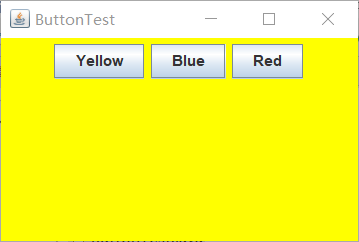
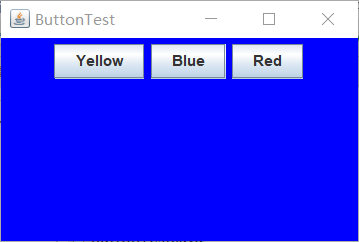
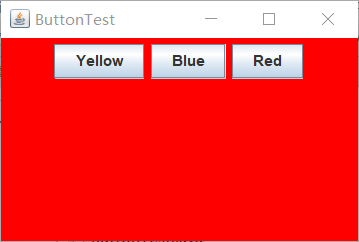
lambda表达式简化程序:
ButtonFrame1.java:
|
1
2
3
4
5
6
7
8
9
10
11
12
13
14
15
16
17
18
19
20
21
22
23
24
25
26
27
28
29
30
31
32
33
34
35
36
37
38
39
40
41
42
43
44
45
46
47
48
49
50
|
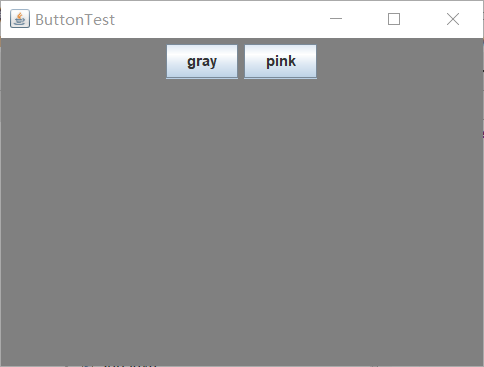
package button;import java.awt.*;import java.awt.event.*;import javax.swing.*;/** * 一个带按钮面板的框架 */public class ButtonFrame1 extends JFrame { private JPanel buttonPanel;//定义JPanel属性 private static final int DEFAULT_WIDTH = 400; private static final int DEFAULT_HEIGHT = 300; public ButtonFrame1() { setSize(DEFAULT_WIDTH, DEFAULT_HEIGHT);//setSize更改宽度和高度的属性值 buttonPanel = new JPanel();//使new JPanel指向对象buttonPanel makeButton("gray", Color.gray); makeButton("pink", Color.pink); add(buttonPanel); } protected void makeButton(String name,Color backgound) { //创建按钮 JButton button = new JButton(name); //在面板中添加按钮,使用add方法 buttonPanel.add(button); //Lambda表达式 button.addActionListener((e)->{ buttonPanel.setBackground(backgound); }); } /** * 设置面板背景颜色的动作侦听器 */ /*private class ColorAction implements ActionListener { private Color backgroundColor; public ColorAction(Color c) { backgroundColor = c; } public void actionPerformed(ActionEvent event) { buttonPanel.setBackground(backgroundColor); } }*/} |
运行结果如图:

测试程序2:
l 在elipse IDE中调试运行教材449页程序11-2,结合程序运行结果理解程序;
l 在组件观感设置代码处添加注释;
l 了解GUI程序中观感的设置方法。
实验代码如下:
PlafFrame.java:
|
1
2
3
4
5
6
7
8
9
10
11
12
13
14
15
16
17
18
19
20
21
22
23
24
25
26
27
28
29
30
31
32
33
34
35
36
37
38
39
40
41
42
43
44
45
46
47
48
49
50
51
52
53
54
55
|
package plaf;import javax.swing.JButton;import javax.swing.JFrame;import javax.swing.JPanel;import javax.swing.SwingUtilities;import javax.swing.UIManager;/** *带有按钮面板的框架,用于改变外观和感觉 */public class PlafFrame extends JFrame{ private JPanel buttonPanel; public PlafFrame() { buttonPanel = new JPanel(); //获取所有的显示样式UIManager.setLookAndFeel(infos[0].getClassName()) UIManager.LookAndFeelInfo[] infos = UIManager.getInstalledLookAndFeels(); for (UIManager.LookAndFeelInfo info : infos) makeButton(info.getName(), info.getClassName()); add(buttonPanel);//增加按键点击事件 pack(); } /** * 制作一个按钮来改变可插入的外观和感觉。 * @param name the button name * @param className the name of the look-and-feel class */ private void makeButton(String name, String className) { // 添加按钮至Panel JButton button = new JButton(name); buttonPanel.add(button); //设置按钮操作 button.addActionListener(event -> { // 按钮操作:切换到新的外观和感觉 try { //设置成你所使用的平台的外观。 java的图形界面外观有3种,默认是java的金属外观,还有就是windows系统,motif系统外观. UIManager.setLookAndFeel(className); SwingUtilities.updateComponentTreeUI(this); pack();//依据放置的组件设定窗口的大小, 使之正好能容纳放置的所有组件 } catch (Exception e)//抛出异常 { e.printStackTrace();//深层次的输出异常调用的流程 } }); }} |
PlafTest.java:
|
1
2
3
4
5
6
7
8
9
10
11
12
13
14
15
16
17
18
19
20
21
|
package plaf;import java.awt.*;import javax.swing.*;/** * @version 1.32 2015-06-12 * @author Cay Horstmann */public class PlafTest{ public static void main(String[] args) { EventQueue.invokeLater(() -> { JFrame frame = new PlafFrame();//生成PlafFrame对象 frame.setTitle("PlafTest");//设置组建的自定义标题测试按钮 frame.setDefaultCloseOperation(JFrame.EXIT_ON_CLOSE);//设置默认的关闭操作 frame.setVisible(true); }); }} |
运行结果如图:





测试程序3:
l 在elipse IDE中调试运行教材457页-458页程序11-3,结合程序运行结果理解程序;
l 掌握AbstractAction类及其动作对象;
l 掌握GUI程序中按钮、键盘动作映射到动作对象的方法。
实验代码如下:
ActionFrame.java:
|
1
2
3
4
5
6
7
8
9
10
11
12
13
14
15
16
17
18
19
20
21
22
23
24
25
26
27
28
29
30
31
32
33
34
35
36
37
38
39
40
41
42
43
44
45
46
47
48
49
50
51
52
53
54
55
56
57
58
59
60
61
62
63
64
65
66
67
68
69
70
71
|
package action;import java.awt.*;import java.awt.event.*;import javax.swing.*;/** * 具有显示颜色变化动作的面板的框架 */public class ActionFrame extends JFrame{ private JPanel buttonPanel; private static final int DEFAULT_WIDTH = 300; private static final int DEFAULT_HEIGHT = 200; public ActionFrame() { setSize(DEFAULT_WIDTH, DEFAULT_HEIGHT);//设置宽度和高度 buttonPanel = new JPanel(); var yellowAction = new ColorAction("Yellow", new ImageIcon("yellow-ball.gif"), Color.YELLOW); var blueAction = new ColorAction("Blue", new ImageIcon("blue-ball.gif"), Color.BLUE); var redAction = new ColorAction("Red", new ImageIcon("red-ball.gif"), Color.RED); //创建一个按钮,其属性从所提供的 Action中获取 buttonPanel.add(new JButton(yellowAction)); buttonPanel.add(new JButton(blueAction)); buttonPanel.add(new JButton(redAction)); //将添加好按钮的面板添加到原框架中 add(buttonPanel); // associate the Y, B, and R keys with names InputMap inputMap = buttonPanel.getInputMap(JComponent.WHEN_ANCESTOR_OF_FOCUSED_COMPONENT); inputMap.put(KeyStroke.getKeyStroke("ctrl Y"), "panel.yellow"); inputMap.put(KeyStroke.getKeyStroke("ctrl B"), "panel.blue"); inputMap.put(KeyStroke.getKeyStroke("ctrl R"), "panel.red"); // associate the names with actions ActionMap actionMap = buttonPanel.getActionMap(); actionMap.put("panel.yellow", yellowAction); actionMap.put("panel.blue", blueAction); actionMap.put("panel.red", redAction); } public class ColorAction extends AbstractAction { /** *构造颜色动作 * @param name the name to show on the button * @param icon the icon to display on the button * @param c the background color */ public ColorAction(String name, Icon icon, Color c) { putValue(Action.NAME, name); putValue(Action.SMALL_ICON, icon); putValue(Action.SHORT_DESCRIPTION, "Set panel color to " + name.toLowerCase()); putValue("color", c); //在构造器中设置一些键值对映射,这些设置的属性将会被JPanel读取 } public void actionPerformed(ActionEvent event) { var color = (Color) getValue("color"); buttonPanel.setBackground(color);//设置背景颜色 } }} |
ActionTest.java:
|
1
2
3
4
5
6
7
8
9
10
11
12
13
14
15
16
17
18
19
20
21
|
package action;import java.awt.*;import javax.swing.*;/** * @version 1.34 2015-06-12 * @author Cay Horstmann */public class ActionTest{ public static void main(String[] args) { EventQueue.invokeLater(() -> { var frame = new ActionFrame(); frame.setTitle("ActionTest");//设置标题 frame.setDefaultCloseOperation(JFrame.EXIT_ON_CLOSE); frame.setVisible(true); }); }} |
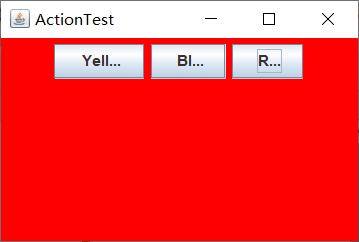
运行结果如图:


测试程序4:
l 在elipse IDE中调试运行教材462页程序11-4、11-5,结合程序运行结果理解程序;
l 掌握GUI程序中鼠标事件处理技术。
实验代码如下:
MouseComponent.java:
|
1
2
3
4
5
6
7
8
9
10
11
12
13
14
15
16
17
18
19
20
21
22
23
24
25
26
27
28
29
30
31
32
33
34
35
36
37
38
39
40
41
42
43
44
45
46
47
48
49
50
51
52
53
54
55
56
57
58
59
60
61
62
63
64
65
66
67
68
69
70
71
72
73
74
75
76
77
78
79
80
81
82
83
84
85
86
87
88
89
90
91
92
93
94
95
96
97
98
99
100
101
102
103
104
105
106
107
108
109
110
111
112
113
114
115
116
117
118
119
120
121
122
123
124
125
126
127
128
129
|
package mouse;import java.awt.*;import java.awt.event.*;import java.awt.geom.*;import java.util.*;import javax.swing.*;/** * 一个带有鼠标操作的用于添加和删除正方形的组件。 */public class MouseComponent extends JComponent{ private static final int DEFAULT_WIDTH = 300; private static final int DEFAULT_HEIGHT = 200; private static final int SIDELENGTH = 10; private ArrayList<Rectangle2D> squares;//声明一个正方形集合 private Rectangle2D current; // java类库中用来描述矩形的类,它的对象可以看作是一个矩形 public MouseComponent() { squares = new ArrayList<>(); current = null; addMouseListener(new MouseHandler());// 添加一个我们实现的类,这个类继承了监测鼠标点击情况的MouseListener addMouseMotionListener(new MouseMotionHandler());// 添加另一个实现类,这个类继承了监测鼠标移动情况的MouseMotionListener } public Dimension getPreferredSize() { return new Dimension(DEFAULT_WIDTH, DEFAULT_HEIGHT); } public void paintComponent(Graphics g) { var g2 = (Graphics2D) g; // 绘制所有的正方形 for (Rectangle2D r : squares) g2.draw(r); } /** * 判断在这个坐标上是否有图形 * @param p a point * @return the first square that contains p */ public Rectangle2D find(Point2D p) { for (Rectangle2D r : squares) { if (r.contains(p)) return r; //contains方法:测定坐标是否在图形的边界内 } return null; } /** * 在这个坐标位置增加一个图形 . * @param p the center of the square */ public void add(Point2D p) { //获取x,y的坐标 double x = p.getX(); double y = p.getY(); current = new Rectangle2D.Double(x - SIDELENGTH / 2, y - SIDELENGTH / 2, SIDELENGTH, SIDELENGTH);//用获得的坐标和既定的边长构建一个新的正方形,并将其赋值给current squares.add(current); repaint(); } /** * 从集合中移除正方形 * @param s the square to remove */ public void remove(Rectangle2D s) { if (s == null) return;//移除内容为空,返回 if (s == current) current = null;//如果要移除的内容和current正指向的内容相同,则将current清空 squares.remove(s); repaint(); } private class MouseHandler extends MouseAdapter { public void mousePressed(MouseEvent event) { // 如果光标不在正方形中,则添加一个新的正方形 current = find(event.getPoint()); if (current == null) add(event.getPoint()); } public void mouseClicked(MouseEvent event) { // 如果双击,删除当前方块 current = find(event.getPoint()); if (current != null && event.getClickCount() >= 2) remove(current); } } private class MouseMotionHandler implements MouseMotionListener { public void mouseMoved(MouseEvent event) { // set the mouse cursor to cross hairs if it is inside a rectangle设置鼠标光标 if (find(event.getPoint()) == null) setCursor(Cursor.getDefaultCursor()); else setCursor(Cursor.getPredefinedCursor(Cursor.CROSSHAIR_CURSOR)); } public void mouseDragged(MouseEvent event) { if (current != null) { //因为在调用这个方法之前肯定会调用点击鼠标的方法 //所以我们直接判断:如果现在current不为空 //像素(强制转换为int) int x = event.getX(); int y = event.getY(); // drag the current rectangle to center it at (x, y) current.setFrame(x - SIDELENGTH / 2, y - SIDELENGTH / 2, SIDELENGTH, SIDELENGTH); repaint(); } } } } |
MouseTest.java:
|
1
2
3
4
5
6
7
8
9
10
11
12
13
14
15
16
17
18
19
20
21
|
package mouse;import java.awt.*;import javax.swing.*;/** * @version 1.35 2018-04-10 * @author Cay Horstmann */public class MouseTest{ public static void main(String[] args) { EventQueue.invokeLater(() -> { var frame = new MouseFrame(); frame.setTitle("MouseTest"); frame.setDefaultCloseOperation(JFrame.EXIT_ON_CLOSE); frame.setVisible(true); }); }} |
MouseFrame.java:
|
1
2
3
4
5
6
7
8
9
10
11
12
13
14
15
|
package mouse;import javax.swing.*;/** * A frame containing a panel for testing mouse operations */public class MouseFrame extends JFrame{ public MouseFrame() { add(new MouseComponent());//向框架中添加一个JComponent的实例 pack();//依据放置的组件设定窗口的大小, 使之正好能容纳放置的所有组件 }} |
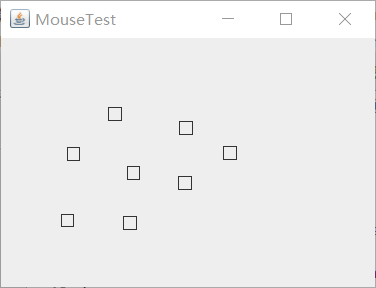
运行结果如下:
实验2:结对编程练习包含以下4部分:
1) 程序设计思路简述;
2) 符合编程规范的程序代码;
3) 程序运行功能界面截图;
4) 结对过程描述,提供两人在讨论、细化和编程时的结对照片(非摆拍)。
代码如下:
Test.java:
nameRardom.java:
|
1
2
3
4
5
6
7
8
9
10
11
12
13
14
15
16
17
18
19
20
21
22
23
24
25
26
27
28
29
30
31
32
33
34
35
36
37
38
39
40
41
42
43
44
45
46
47
48
49
50
51
52
53
54
55
56
57
58
59
60
61
62
63
64
65
66
67
68
69
70
|
import java.awt.Color;import java.awt.Container;import java.awt.event.*;import java.io.*;import java.util.*;import java.util.Timer;import javax.swing.*;public class nameRardom extends JFrame { private ArrayList arrayList; { arrayList = new ArrayList<>(); //读文件 File file = new File("D:/2019studentlist.txt"); FileInputStream fis; try { fis = new FileInputStream(file); InputStreamReader in = new InputStreamReader(fis); BufferedReader buf = new BufferedReader(in); String readLine; while ((readLine = buf.readLine())!=null) { arrayList.add(readLine); } } catch (FileNotFoundException e1) { e1.printStackTrace(); } catch (IOException e1) { e1.printStackTrace(); } } private JPanel a; private static final int DEFAULT_WIDTH = 500; private static final int DEFAULT_HEIGHT = 300; public nameRardom() { setSize(DEFAULT_WIDTH, DEFAULT_HEIGHT); a = new JPanel(); a.setLayout(null); JLabel jLabel = new JLabel("随机点名器"); JButton jButton = new JButton("开始"); jLabel.setBounds(200, 50, 65, 40); jButton.setBounds(200, 90, 65, 40); jButton.addActionListener(new ActionListener() { Timer timer; public void actionPerformed(ActionEvent e) { if (jButton.getText().equals("开始")) { timer = new Timer();; TimerTask timerTask = new TimerTask() { public void run() { jButton.setText("停止"); jButton.setBackground(Color.pink); jLabel.setText((String) arrayList.get((int) (Math.random() * 35))); } }; timer.schedule(timerTask, 0, 100); } if (jButton.getText().equals("停止")) { timer.cancel(); jButton.setText("开始"); jButton.setBackground(Color.LIGHT_GRAY); } } }); a.add(jLabel); a.add(jButton); add(a); }} |
201871010124-王生涛《面向对象程序设计(java)》第十三周学习总结的更多相关文章
- 201771010134杨其菊《面向对象程序设计java》第九周学习总结
第九周学习总结 第一部分:理论知识 异常.断言和调试.日志 1.捕获 ...
- 201871010132-张潇潇《面向对象程序设计(java)》第一周学习总结
面向对象程序设计(Java) 博文正文开头 项目 内容 这个作业属于哪个课程 https://www.cnblogs.com/nwnu-daizh/ 这个作业的要求在哪里 https://www.cn ...
- 扎西平措 201571030332《面向对象程序设计 Java 》第一周学习总结
<面向对象程序设计(java)>第一周学习总结 正文开头: 项目 内容 这个作业属于哪个课程 https://www.cnblogs.com/nwnu-daizh/ 这个作业的要求在哪里 ...
- 201871010124 王生涛《面向对象程序设计JAVA》第一周学习总结
项目 内容 这个作业属于哪个课程 https://www.cnblogs.com/nwnu-daizh/ 这个作业的要求在哪里 https://edu.cnblogs.com/campus/xbsf/ ...
- 杨其菊201771010134《面向对象程序设计Java》第二周学习总结
第三章 Java基本程序设计结构 第一部分:(理论知识部分) 本章主要学习:基本内容:数据类型:变量:运算符:类型转换,字符串,输入输出,控制流程,大数值以及数组. 1.基本概念: 1)标识符:由字母 ...
- 201871010115——马北《面向对象程序设计JAVA》第二周学习总结
项目 内容 这个作业属于哪个课程 https://www.cnblogs.com/nwnu-daizh/ 这个作业的要求在哪里 https://www.cnblogs.com/nwnu-daizh/p ...
- 201871010132——张潇潇《面向对象程序设计JAVA》第二周学习总结
项目 内容 这个作业属于哪个课程 https://www.cnblogs.com/nwnu-daizh/ 这个作业的要求在哪里 https://www.cnblogs.com/nwnu-daizh/p ...
- 201777010217-金云馨《面向对象程序设计(Java)》第二周学习总结
项目 内容 这个作业属于哪个课程 https://www.cnblogs.com/nwnu-daizh/ 这个作业的要求在哪里 https://www.cnblogs.com/nwnu-daizh/p ...
- 201771010123汪慧和《面向对象程序设计Java》第二周学习总结
一.理论知识部分 1.标识符由字母.下划线.美元符号和数字组成, 且第一个符号不能为数字.标识符可用作: 类名.变量名.方法名.数组名.文件名等.第二部分:理论知识学习部分 2.关键字就是Java语言 ...
- 201521123061 《Java程序设计》第十三周学习总结
201521123061 <Java程序设计>第十三周学习总结 1. 本周学习总结 2. 书面作业 1. 网络基础 1.1 比较ping www.baidu.com与ping cec.jm ...
随机推荐
- day65_10_9vue循环指令与组件
一.v-once v-once指令赋值给标签后,这个标签中的所有变量都不能被更改,只能被渲染一次.之后的改动不能改变该标签中的值: <div id="app"> < ...
- day51_9_15_Django
一.pycharm接受网页信息原理. 如何实现在后端接受浏览器的数据,并解析出有用的信息呢? 使用socket编写网络连接,然后通过浏览器访问ip+端口号. import socket def ind ...
- [东西]neverOpen
一.介绍 用于完成一项光荣而伟大的使命. 二.更新日志 当前版本:V5.0 - 20191107 --------------------------------------------------- ...
- Luogu P5416 [CTSC2016]时空旅行
第一次写线段树分治的题目,没想到是道这么毒的题233 首先发现题目里的\((x,y,z,c)\)就是在放屁,只有\((x,c)\)是有用的 因此我们可以把题意转化为,在某一个时间节点上,求出所有元素的 ...
- MySQL实战45讲学习笔记:第三十九讲
一.本节概况 MySQL实战45讲学习笔记:自增主键为什么不是连续的?(第39讲) 在第 4 篇文章中,我们提到过自增主键,由于自增主键可以让主键索引尽量地保持递增顺序插入,避免了页分裂,因此索引更紧 ...
- Paper | Deep Residual Learning for Image Recognition
目录 1. 故事 2. 残差学习网络 2.1 残差块 2.2 ResNet 2.3 细节 3. 实验 3.1 短连接网络与plain网络 3.2 Projection解决短连接维度不匹配问题 3.3 ...
- python yield: send, close, throw
send 1. yield可以产出值,可以接收值 2. 在调用send发送非none值之前,我们必须启动一次生成器, 方式有两种 a. gen.send(None) b. next(gen) def ...
- MySQL性能诊断与调优
LAMP 系统性能调优,第 3 部分: MySQL 服务器调优http://www.ibm.com/developerworks/cn/linux/l-tune-lamp-3.html LoadRun ...
- C# 之扩展方法
在编程过程中,有时由于新的需求,可能就会需要对类型进行修改,但当需要为类型添加新功能但并不拥有类型的已有代码时,就需要用到 扩展方法; 使用扩展方法的方式:创建一个新的类,这个类必须是静态类. 在这个 ...
- WebApi生成文档
本文包括两个部分: webapi中使用swagger 修改webapi的路由和默认参数 WebApi中使用swagger 项目打开之后,选择 引用,右键,管理NuGet程序包 浏览,搜索swagger ...