
23.Quick QML-简单且好看的图片浏览器-支持多个图片浏览、缩放、旋转、滑轮切换图片
之前我们已经学习了Image、Layout布局、MouseArea、Button、GroupBox、FileDialog等控件.
所以本章综合之前的每章的知识点,来做一个图片浏览器,使用的Qt版本为Qt5.12
1.图片浏览器介绍
该示例使用了两个自定义控件:
- DynamicGroupBox (路径:https://www.cnblogs.com/lifexy/p/14751099.html)
- DynamicBtn (路径:https://www.cnblogs.com/lifexy/p/14671855.html)
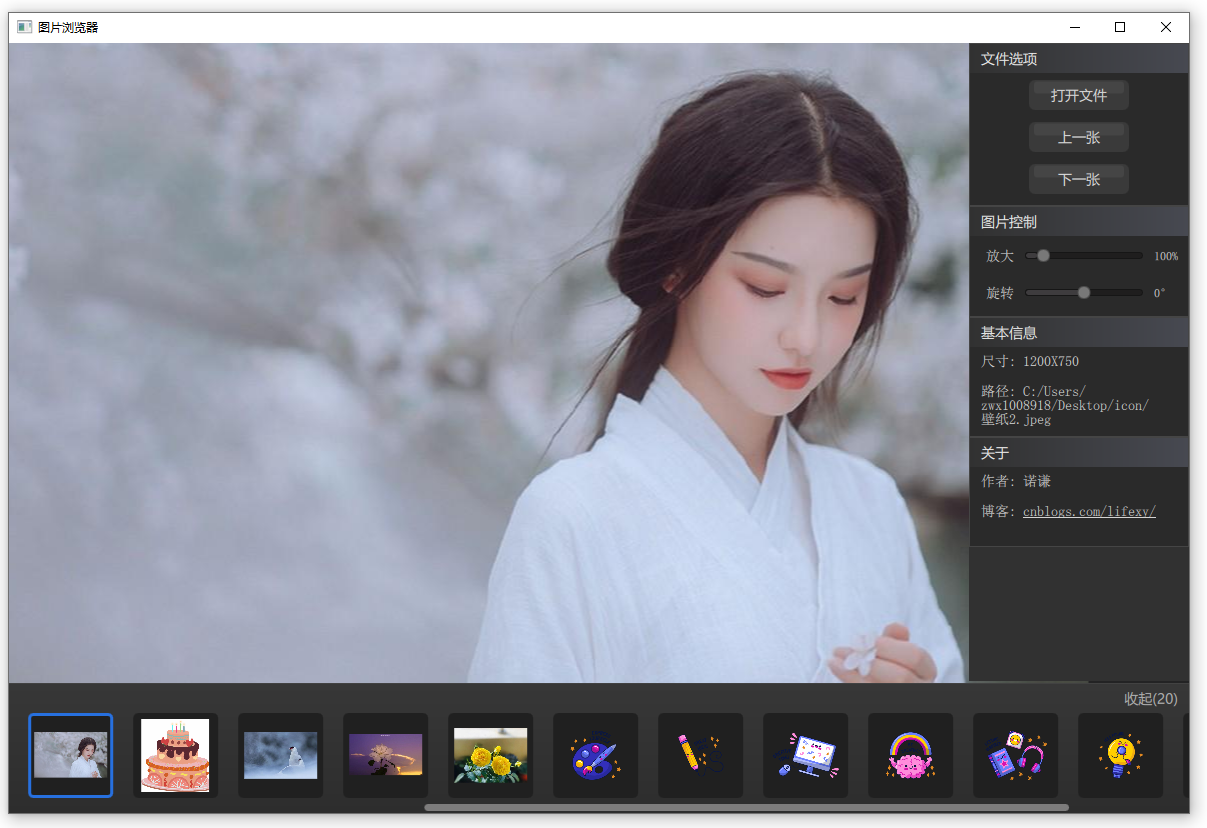
界面截图如下所示:
效果如下所示(动图有点大,加载有点久):

快捷键说明:
- 如果鼠标位于大图浏览区,则可以通过鼠标滑轮来放大缩小图片,通过ctrl+滑轮则可以进行旋转图片,通过鼠标左键按下则可以随意拖动图片
- 如果鼠标位于多个图片浏览区(最下面一排的图片那里),则可以通过鼠标滑轮来进行切换上一张和下一张
2.代码介绍
- flick : 用来存放放置当前大图的一个Flickable容器
- photoImage : 用来显示当前大图的一个Image
- fileGroup : 文件选项组合框,里面有"打开文件"、"上一张"、"下一张"按钮
- ctrlGroup : 图片控制组合框,里面有"放大"、"旋转"滑动条
- imageInfoGroup: 基本信息组合框,里面有"尺寸"、"路径"文本
- authorInfoGroup: 关于组合框,里面有笔者信息
- images: 存放用户打开的所有图片的浏览区
代码如下所示:
import QtQuick 2.14
import QtQuick.Window 2.0
import QtQuick.Controls 2.4
import QtQuick.Layouts 1.14
import Qt.labs.platform 1.1
import QtGraphicalEffects 1.14
Window {
visible: true;
width: 1180
height: 770
minimumWidth: 1050
minimumHeight: 680
color: "#232324"
title: "图片浏览器" property string picturesLocation : "";
property var imageNameFilters : ["所有图片格式 (*.png; *.jpg; *.bmp; *.gif; *.jpeg)"];
property var pictureList : []
property var pictureIndex : 0
property var scaleMax : 800 // 最大800%
property var scaleMin : 10 // 最小10%
property var titleColor : "#E8E8E8"
property var contentColor : "#D7D7D7" property var ctrlSliderList : [
["放大", scaleMin, scaleMax , photoImage.scale * 100 , "%"],
["旋转", -180, 180 , photoImage.rotation, "°"],
] FileDialog {
id: fileDialog
title: "请打开图片(可以多选)"
fileMode: FileDialog.OpenFiles
folder: picturesLocation
nameFilters: imageNameFilters
onAccepted: {
pictureList = files
openNewImage(0)
}
onFolderChanged: picturesLocation = folder
} ColumnLayout {
anchors.fill: parent
spacing: 2
RowLayout {
Layout.fillHeight: true
Layout.fillWidth: true
spacing: 1 Flickable { // 图片浏览区
id: flick
Layout.fillHeight: true
Layout.fillWidth: true MouseArea { // 设置滑轮效果
anchors.fill: parent
onWheel: {
if (wheel.modifiers & Qt.ControlModifier) { // ctrl + 滑轮 则进行旋转图片
photoImage.rotation += wheel.angleDelta.y / 120 * 5;
if (photoImage.rotation > 180)
photoImage.rotation = 180
else if (photoImage.rotation < -180)
photoImage.rotation = -180
if (Math.abs(photoImage.rotation) < 4) // 如果绝对值小于4°,则摆正图片
photoImage.rotation = 0;
} else {
photoImage.scale += photoImage.scale * wheel.angleDelta.y / 120 / 10;
if (photoImage.scale > scaleMax / 100)
photoImage.scale = scaleMax / 100
else if (photoImage.scale < scaleMin / 100)
photoImage.scale = scaleMin / 100
}
}
}
Image {
id: photoImage
fillMode: Image.Pad
source: (typeof pictureList[pictureIndex] === 'undefined') ? "" : pictureList[pictureIndex]
smooth: true
mipmap: true
antialiasing: true
Component.onCompleted: {
x = parent.width / 2 - width / 2
y = parent.height / 2 - height / 2
pictureList.length = 0
} PinchArea {
anchors.fill: parent
pinch.target: parent
pinch.minimumRotation: -180 // 设置拿捏旋转图片最大最小比例
pinch.maximumRotation: 180
pinch.minimumScale: 0.1 // 设置拿捏缩放图片最小最大比例
pinch.maximumScale: 10
pinch.dragAxis: Pinch.XAndYAxis
} MouseArea { // 设置拖动效果
anchors.fill: parent
drag.target: parent
drag.axis: Drag.XAndYAxis
drag.minimumX: 20 - photoImage.width
drag.maximumX: flick.width - 20
drag.minimumY: 20 - photoImage.height
drag.maximumY: flick.height - 20
}
} }
Rectangle {
Layout.fillHeight: true
Layout.fillWidth: false
Layout.preferredWidth : 220
color: "#313131" DynamicGroupBox {
id: fileGroup
title: "文件选项"
width: parent.width ColumnLayout {
anchors.centerIn: parent
spacing: 12
Repeater {
model : ListModel {
id: fileModel
ListElement { name: "打开文件"; }
ListElement { name: "上一张"; }
ListElement { name: "下一张"; } }
DynamicBtn {
text: fileModel.get(index).name
backColor: "#3A3A3A"
fontColor: contentColor
fontPixelSize: 14
onPressed: fileGroupPressed(index) }
}
}
Component.onCompleted: initGroupBox(this);
} DynamicGroupBox {
id: ctrlGroup
title: "图片控制"
width: parent.width
anchors.top: fileGroup.bottom ColumnLayout {
anchors.centerIn: parent
spacing: 12
Repeater {
model : 2
RowLayout {
width: parent.width
Text {
color: contentColor
Layout.fillWidth: false
Layout.preferredWidth : 50
text: ctrlSliderList[index][0]
horizontalAlignment: Text.AlignRight
font.pixelSize: 14
}
DynamicSlider {
id: ctrlSlider
Layout.fillWidth: true
Layout.preferredWidth : 130
from: ctrlSliderList[index][1]
value: ctrlSliderList[index][3]
to: ctrlSliderList[index][2]
stepSize: 1
onMoved: setCtrlValue(index, value);
}
Text {
color: "#D4D4D4"
Layout.fillWidth: false
Layout.preferredWidth : 40
text: parseInt(ctrlSliderList[index][3].toString()) + ctrlSliderList[index][4]
}
}
}
}
Component.onCompleted: initGroupBox(this);
} DynamicGroupBox {
id: imageInfoGroup
title: "基本信息"
width: parent.width
height: 120
anchors.top: ctrlGroup.bottom
ColumnLayout {
width: parent.width
spacing: 16
Text {
color: contentColor
text: "尺寸: " + photoImage.sourceSize.width + "X" + photoImage.sourceSize.height
font.pixelSize: 14
}
Text {
color: contentColor
text: "路径: " + ((typeof pictureList[pictureIndex] === 'undefined') ?
"等待打开文件..." : pictureList[pictureIndex].replace("file:///","")) Layout.preferredWidth: parent.width - 20
Layout.preferredHeight: 60
wrapMode: Text.Wrap
font.pixelSize: 14
} }
Component.onCompleted: initGroupBox(this);
}
DynamicGroupBox {
id: authorInfoGroup
title: "关于"
width: parent.width
height: 110
anchors.top: imageInfoGroup.bottom ColumnLayout {
width: parent.width
spacing: 16
Text {
color: contentColor
text: "作者: 诺谦"
Layout.preferredWidth: parent.width - 20
wrapMode: Text.Wrap
font.pixelSize: 14
}
Text {
color: contentColor
text: "博客: <font color=\"#D4D4D4\"><a href=\"http://www.cnblogs.com/lifexy/\">cnblogs.com/lifexy/</a></font>"
font.pixelSize: 14
onLinkActivated: Qt.openUrlExternally(link)
}
}
Component.onCompleted: initGroupBox(this);
}
}
} Rectangle {
id: images
Behavior on Layout.preferredHeight { NumberAnimation { duration: 250 } }
Layout.fillHeight: false
Layout.fillWidth: true
Layout.preferredHeight: 130
LinearGradient {
anchors.fill: parent
source: parent
start: Qt.point(0, 0)
end: Qt.point(0, parent.height)
gradient: Gradient {
GradientStop { position: 0.0; color: "#484848" }
GradientStop { position: 0.01; color: "#373737" }
GradientStop { position: 1.0; color: "#2D2D2D" }
}
}
Button {
id: imageCtrlBtn
text: images.Layout.preferredHeight <= 30 ? "展开("+pictureList.length+")" :
"收起("+pictureList.length+")"
anchors.right: parent.right
anchors.rightMargin: 3
z: 100
background: Rectangle {
color: "transparent"
}
contentItem: Label { // 设置文本
id: btnForeground
text: parent.text
font.family: "Microsoft Yahei"
font.pixelSize: 14
color: imageCtrlBtn.hovered ? "#D7D7D7" : "#AEAEAE"
horizontalAlignment: Text.AlignHCenter
verticalAlignment: Text.AlignVCenter
}
onPressed: {
if (text.indexOf("收起") >= 0) {
images.Layout.preferredHeight = 30
} else {
images.Layout.preferredHeight = 130
}
}
}
ScrollView {
id: imageScroll
anchors.fill: parent
anchors.leftMargin: 10
anchors.rightMargin: 10
wheelEnabled: true
WheelHandler {
onWheel: openNewImageAndUpdateScroll(event.angleDelta.y > 0 ? pictureIndex - 1 : pictureIndex + 1)
} ScrollBar.horizontal.policy: ScrollBar.horizontal.size >= 1.0 ?
ScrollBar.AlwaysOff : ScrollBar.AlwaysOn
ScrollBar.vertical.policy: ScrollBar.AlwaysOff ScrollBar.horizontal.contentItem: Rectangle {
implicitHeight: 7
implicitWidth: 100
radius: height / 2
color: "#7D7C7C"
visible: images.Layout.preferredHeight <= 30 ? false : true
}
Row {
anchors.fill: parent
anchors.topMargin: 30
spacing: 20
Repeater {
model: pictureList.length Button {
implicitWidth: 85
implicitHeight: 85
onPressed: openNewImage(index)
background: Rectangle {
color: "#202020"
border.color: pictureIndex == index ? "#2770DF" :
hovered ? "#6C6A6A" : "transparent"
radius: 5
border.width: 3
}
Image {
anchors.fill:parent
anchors.margins: 6
antialiasing: true
fillMode: Image.PreserveAspectFit
source: pictureList[index] }
}
}
}
}
} } function initGroupBox(group) {
group.titleLeftBkColor = "#313131"
group.titleRightBkColor = "#474951"
group.titleColor = titleColor
group.contentBkColor = "#2A2A2A"
group.borderColor = "#454545"
group.titleFontPixel = 14
group.radiusVal = 0
group.borderWidth = 1
} function fileGroupPressed(index) {
switch (index) {
case 0 : fileDialog.open(); break;
case 1 : openNewImageAndUpdateScroll(pictureIndex - 1); break;
case 2 : openNewImageAndUpdateScroll(pictureIndex + 1); break;
}
} function setCtrlValue(index, value) {
switch (index) {
case 0 : photoImage.scale = value / 100; break;
case 1 : photoImage.rotation = value; break;
}
} function openNewImage(index) {
if (index < 0 || index >= pictureList.length) {
}
pictureIndex = index
photoImage.x = flick.width / 2 - photoImage.width / 2
photoImage.y = flick.height / 2 - photoImage.height / 2
photoImage.scale = 1.0
photoImage.rotation = 0 } function openNewImageAndUpdateScroll(index) {
if (index < 0 || index >= pictureList.length) {
return false
}
pictureIndex = index
photoImage.x = flick.width / 2 - photoImage.width / 2
photoImage.y = flick.height / 2 - photoImage.height / 2
photoImage.scale = 1.0
photoImage.rotation = 0 var scrollLen = 1.0 - imageScroll.ScrollBar.horizontal.size;
if (scrollLen > 0) {
scrollLen = scrollLen * pictureIndex / (pictureList.length - 1)
imageScroll.ScrollBar.horizontal.position = scrollLen
}
return true
} }
23.Quick QML-简单且好看的图片浏览器-支持多个图片浏览、缩放、旋转、滑轮切换图片的更多相关文章
- android listview的HeadView左右切换图片(仿新浪,网易,百度等切换图片)
首先我们还是看一些示例:(网易,新浪,百度) 显示效果都不错,可是手感就不一样了,百度最棒,网易还行,新浪就操作很不好,这里我说的是滑动切换图片.自己可以测试一下.不得不说牛叉的公司确实有哦牛叉的道理 ...
- 【转】Android android listview的HeadView左右切换图片(仿新浪,网易,百度等切换图片)
首先我们还是看一些示例:(网易,新浪,百度) 下面我简单的介绍下实现方法:其实就是listview addHeaderView.只不过这个view是一个可以切换图片的view,至于这个vie ...
- 纯JS打造比QQ空间更强大的图片浏览器-支持拖拽、缩放、过滤、缩略图等
在线演示地址(打开网页后,点击商家图册): http://www.sport7.cn/cc/jiangnan/football5.html 先看一看效果图: 该图片浏览器实现的功能如下: 1. 鼠标滚 ...
- 图片在 canvas 中的 选中/平移/缩放/旋转,包含了所有canvas的2D变化,让你认识到数学的重要性
1.介绍 canvas 已经出来好久了,相信大家多少都有接触. 如果你是前端页面开发/移动开发,那么你肯定会有做过图片上传处理,图片优化,以及图片合成,这些都是可以用 canvas 实现的. 如果你是 ...
- [Android] 对自定义图片浏览器经常内存溢出的一些优化
首先关于异步加载图片可以参见 夏安明 的博客:http://blog.csdn.net/xiaanming/article/details/9825113 这篇文章最近有了新的更改,大概看了一下,内容 ...
- Android开发工程师文集-Fragment,适配器,轮播图,ScrollView,Gallery 图片浏览器,Android常用布局样式
Android开发工程师文集-Fragment,适配器,轮播图,ScrollView,Gallery 图片浏览器,Android常用布局样式 Fragment FragmentManager frag ...
- WPF图片浏览器(显示大图、小图等)
原文:WPF图片浏览器(显示大图.小图等) 版权声明:本文为博主原创文章,未经博主允许不得转载. https://blog.csdn.net/wangshubo1989/article/details ...
- NSIS:简单按钮美化插件SkinButton,支持透明PNG图片。
原文 NSIS:简单按钮美化插件SkinButton,支持透明PNG图片. 征得作者贾可的同意,特发布按钮美化插件SkinButton. 插件说明: 使用GDI+库写的一个简单按钮美化插件,支持透明P ...
- Java实现简单的图片浏览器
第一次写博客,不喜勿喷. 最近一个小师弟问我怎么用Java做图片浏览器,感觉好久没玩Java了,就自己动手做了一下. 学校的教程是用Swing来做界面的,所以这里也用这个来讲. 首先要做个大概的界面出 ...
随机推荐
- 攻防世界 reverser secret-galaxy-300
secret-galaxy-300 school-ctf-winter-2015 运行程序 完全没有flag的身影呀 ida查看字符串 也没有相关信息 动态调试,看运行后内存信息 发现了一串字符 al ...
- 使用ant design vue的日历组件,实现一个简单交易日与非交易日的切换
使用ant design vue的日历组件,实现一个简单交易日与非交易日的切换 需求: 日历区分交易日.非交易日 可以切换面板查看整年交易日信息 可以在手动调整交易日.非交易日 演示实例 序--使用软 ...
- 【接入指南】一个Demo带你玩转华为帐号服务
在<接入指南:一文带你了解华为帐号服务>中已经给大家介绍了华为帐号服务有哪些优势,如一键授权登录华为全场景共享.共享华为帐号所有用户资源.帐号安全可靠.接入方便快捷等,以及为什么能帮助开发 ...
- 华为联运游戏或应用审核驳回:HMS Core升级提示语言类型错误
问题描述 最近项目组应用集成华为的HMS Core SDK相关能力后,发布地区选择中国大陆,提交审核,华为审核驳回:在低于2.5.3版本的华为移动服务手机上启动时或调出支付时拉起升级提示为英文,正确的 ...
- 并发编程(ReentrantLock&&同步模式之顺序控制)
4.13 ReentrantLock 相对于 synchronized 它具备如下特点 可中断 可以设置超时时间 可以设置为公平锁 支持多个条件变量,即对与不满足条件的线程可以放到不同的集合中等待 与 ...
- 解决IDEA Gradle构建报错"Cause: zip END header not found"
1 问题描述 某天使用Gradle构建项目时,IDEA报错如下: 2 原因 原因是下载的Gradle,也就是zip压缩包不完整,导致无法使用Gradle构建. 3 解决方法 3.1 删除本地缓存重新下 ...
- JRebel激活
邮箱随便填,URL为 https://jrebel.qekang.com/ 加上UUID,比如 https://jrebel.qekang.com/2c0c926f-5664-4d0e-afe2-60 ...
- 11. Grub 介绍
Grub 全称:Grand Unified Bootloader grub引导也分为两个阶段stage1阶段和stage2阶段(有些较新的grub又定义了stage1.5阶段). 一般配置文件:/bo ...
- Day05_19_方法回顾
方法回顾 * 静态方法 和 非静态方法 1.静态方法属于类所有,类实例化前即可使用: 2.非静态方法可以访问类中的任何成员,静态方法只能访问类中的静态成员: 3.因为静态方法会在类加载的时候就进行初始 ...
- python读取excel数据为json格式(兼容xls\xlsx)
做自动化时需要从excel读取数据: 本文实现将excel文件数据读取为json格式,方便自动化调用 读取xls文件 使用xlrd读取xls文件代码: import xlrd def read_xls ...