
iOS 新浪微博-5.3 首页微博列表_集成图片浏览器
实际上,我们可以使用李明杰在教程里集成的MJPhotoBrowser,地址:
http://code4app.com/ios/快速集成图片浏览器/525e06116803fa7b0a000001
使用起来也很简单,只需要两步:
引入头文件:
#import "MJPhotoBrowser.h"

#import "MJPhoto.h"
给图片添加手势监听器及显示
- (id)initWithFrame:(CGRect)frame

{

    self = [super initWithFrame:frame];

    if (self) {

        // 预先创建9个图片控件

        for (int i = ; i<HMStatusPhotosMaxCount; i++) {

            HMStatusPhotoView *photoView = [[HMStatusPhotoView alloc] init];

            photoView.tag = i;

            [self addSubview:photoView];

            // 添加手势监听器(一个手势监听器 只能 监听对应的一个view)

            UITapGestureRecognizer *recognizer = [[UITapGestureRecognizer alloc] init];

            [recognizer addTarget:self action:@selector(tapPhoto:)];

            [photoView addGestureRecognizer:recognizer];

        }

    }

    return self;

}

/**

 *  监听图片的点击

 */

- (void)tapPhoto:(UITapGestureRecognizer *)recognizer

{

    // 1.创建图片浏览器

    MJPhotoBrowser *browser = [[MJPhotoBrowser alloc] init];

    // 2.设置图片浏览器显示的所有图片

    NSMutableArray *photos = [NSMutableArray array];

    int count = self.pic_urls.count;

    for (int i = ; i<count; i++) {

        HMPhoto *pic = self.pic_urls[i];

        MJPhoto *photo = [[MJPhoto alloc] init];

        // 设置图片的路径

        photo.url = [NSURL URLWithString:pic.bmiddle_pic];

        // 设置来源于哪一个UIImageView

        photo.srcImageView = self.subviews[i];

        [photos addObject:photo];

    }

    browser.photos = photos;

    // 3.设置默认显示的图片索引

    browser.currentPhotoIndex = recognizer.view.tag;

    // 3.显示浏览器

    [browser show];

}
但这个库是2013年的,现在已经停止更新了,当然存在很多BUG.因为,这个项目中,选用另一个集成图片浏览器SDPhotoBrowser,细看了一下,应该是基于李明杰的修改的。
code4app : http://code4app.com/ios/SDPhotoBrowser/54db1e3f933bf0d44f8b5464
github : https://github.com/gsdios/SDPhotoBrowser
引用到项目中,使用方法和MJPhotoBrowser差不多。
头部引用
#import "SDPhotoBrowser.h"
给每个UIImageView设置手势
        photoView.tag = i;

        // 添加手势监听器(一个手势监听器 只能 监听对应的一个view)

        UITapGestureRecognizer *recognizer = [[UITapGestureRecognizer alloc] init];

        [recognizer addTarget:self action:@selector(tapPhoto:)];

        [photoView addGestureRecognizer:recognizer];
实现相关的代码:
- (void)tapPhoto:(UITapGestureRecognizer *)recognizer

{

    SDPhotoBrowser *browser = [[SDPhotoBrowser alloc] init];

    browser.sourceImagesContainerView = self; // 原图的父控件

    browser.imageCount = self.photos.count; // 图片总数

    browser.currentImageIndex = recognizer.view.tag;

    browser.delegate =self; //self.subviews[recognizer.view.tag];

    [browser show];

}

#pragma mark - photobrowser代理方法

// 返回临时占位图片(即原来的小图)

- (UIImage *)photoBrowser:(SDPhotoBrowser *)browser placeholderImageForIndex:(NSInteger)index

{

    return  [(StatusPhotoView *)self.subviews[index] image];

}

// 返回高质量图片的url

- (NSURL *)photoBrowser:(SDPhotoBrowser *)browser highQualityImageURLForIndex:(NSInteger)index

{

    NSString *urlStr = [[self.photos[index] thumbnail_pic] stringByReplacingOccurrencesOfString:@"thumbnail" withString:@"bmiddle"];

    return [NSURL URLWithString:urlStr];

}
完整的代码结构
//
// StatusPhotosView.m
//
// Created by jiangys on 15/10/25.
// Copyright © 2015年 Jiangys. All rights reserved.
// #import "StatusPhotosView.h"
#import "StatusPhotoView.h"
#import "Photo.h"
#import "SDPhotoBrowser.h" #define StatusPhotoWH 70
#define StatusPhotoMargin 10
#define StatusPhotoMaxCol(count) ((count==4)?2:3) @implementation StatusPhotosView - (void)setPhotos:(NSArray *)photos
{
_photos = photos; NSUInteger photosCount = photos.count; // 创建足够多的图片控制
while (self.subviews.count < photosCount) {
StatusPhotoView *photoView = [[StatusPhotoView alloc] init];
[self addSubview:photoView];
} // 遍历所有的图片控件,设置图片
for (int i = ; i < self.subviews.count; i++) {
StatusPhotoView *photoView = self.subviews[i]; if (i < photosCount) {
photoView.photo = photos[i];
photoView.hidden = NO;
} else{
photoView.hidden=YES;
} photoView.tag = i;
// 添加手势监听器(一个手势监听器 只能 监听对应的一个view)
UITapGestureRecognizer *recognizer = [[UITapGestureRecognizer alloc] init];
[recognizer addTarget:self action:@selector(tapPhoto:)];
[photoView addGestureRecognizer:recognizer];
} } - (void)tapPhoto:(UITapGestureRecognizer *)recognizer
{
SDPhotoBrowser *browser = [[SDPhotoBrowser alloc] init];
browser.sourceImagesContainerView = self; // 原图的父控件
browser.imageCount = self.photos.count; // 图片总数
browser.currentImageIndex = recognizer.view.tag;
browser.delegate =self; //self.subviews[recognizer.view.tag];
[browser show];
} #pragma mark - photobrowser代理方法 // 返回临时占位图片(即原来的小图)
- (UIImage *)photoBrowser:(SDPhotoBrowser *)browser placeholderImageForIndex:(NSInteger)index
{
return [(StatusPhotoView *)self.subviews[index] image];
} // 返回高质量图片的url
- (NSURL *)photoBrowser:(SDPhotoBrowser *)browser highQualityImageURLForIndex:(NSInteger)index
{
NSString *urlStr = [[self.photos[index] thumbnail_pic] stringByReplacingOccurrencesOfString:@"thumbnail" withString:@"bmiddle"];
return [NSURL URLWithString:urlStr];
} - (void)layoutSubviews
{
[super layoutSubviews]; // 设置图片的尺寸和位置
NSUInteger photosCount = self.photos.count;
int maxCol = StatusPhotoMaxCol(photosCount);
for (int i = ; i<photosCount; i++) {
StatusPhotoView *photoView = self.subviews[i]; int col = i % maxCol;
photoView.x = col * (StatusPhotoWH + StatusPhotoMargin); int row = i / maxCol;
photoView.y = row * (StatusPhotoWH + StatusPhotoMargin);
photoView.width = StatusPhotoWH;
photoView.height = StatusPhotoWH;
}
} + (CGSize)sizeWithCount:(NSUInteger)count
{
// 最大列数(一行最多有多少列)
int maxCols = StatusPhotoMaxCol(count); NSUInteger cols = (count >= maxCols)? maxCols : count;
CGFloat photosW = cols * StatusPhotoWH + (cols - ) * StatusPhotoMargin; // 行数
NSUInteger rows = (count + maxCols - ) / maxCols;
CGFloat photosH = rows * StatusPhotoWH + (rows - ) * StatusPhotoMargin; return CGSizeMake(photosW, photosH);
}
@end
要注意,因为是UIImageView,想点击某个图片能交互,需要给UIImageView开启交互功能。
StatusPhotoView.m -- >initWithFrame
     // 开启交互

        self.userInteractionEnabled = YES;
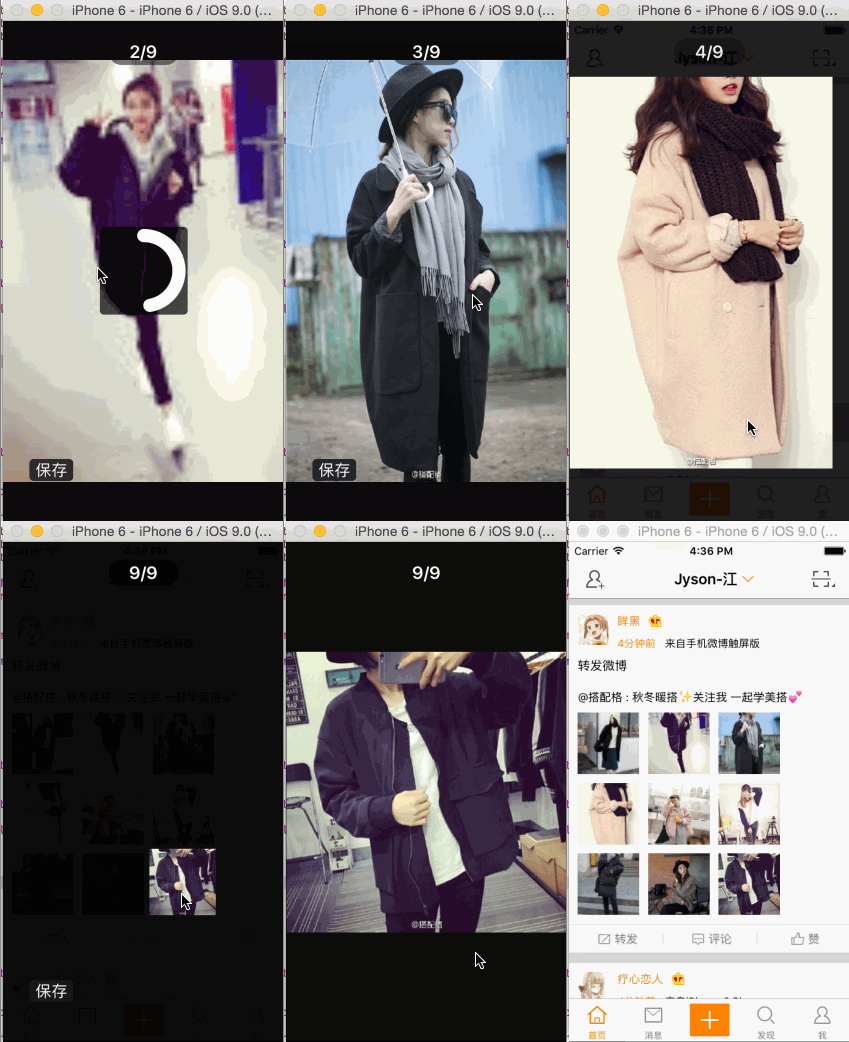
最终效果:
章节源代码下载:http://pan.baidu.com/s/1qWtKrMG
新浪微博Github:https://github.com/jiangys/Weibo
iOS 新浪微博-5.3 首页微博列表_集成图片浏览器的更多相关文章
- iOS 新浪微博-5.1 首页微博列表_时间/配图
在上一篇中,我们已经把首页微博显示出来了,但还有很多细节,需要我们去调整的.这一章中,我们将处理好时间,配图,工具框及转发微博等小细节的功能. 时间处理 第一步:定义一个时间的类别,用于判断是昨天.今 ...
- iOS 新浪微博-5.2 首页微博列表_转发微博/工具栏
继续于上一篇,还是做首页的功能,这一篇把剩下的首页继续完善. 看看上面的图片,分析: 1.转发微博里面的内容,和原创微博是一样的,由文字+配图组成.这应该放在一个UIView里处理. 2.工具栏也当成 ...
- iOS 新浪微博-5.0 首页微博列表
首页显示微博列表,是微博的核心部分,这一章节,我们主要是显示出微博的列表. 导入第三方类库 pod 'SDWebImage', '~> 3.7.3' pod 'MJRefresh', '~> ...
- IOS SWIFT UITableView 实现简单微博列表
// // Weibo.swift // UITableViewCellExample // // Created by XUYAN on 15/8/15. // Copyright (c) 2015 ...
- 新浪微博登陆以及发送微博(附python源码)
原文链接(本人):https://blog.csdn.net/A5878989/article/details/76275855 说明 本文主要记录分析新浪微博登陆以及发送文字和图片微博的详细过程 分 ...
- Day8-微信小程序实战-交友小程序-首页用户列表渲染及多账号调试及其点赞功能的实现
在这之前已经把编辑个人的所有信息的功能已经完成了 之后先对首页的列表搞动态的,之前都是写死的静态 1.之前都是把好友写死的,现在就在js里面定义一个数组,用循环来动态的绑定 在onReady中定义,取 ...
- 【Android 我的博客APP】1.抓取博客首页文章列表内容——网页数据抓取
打算做个自己在博客园的博客APP,首先要能访问首页获取数据获取首页的文章列表,第一步抓取博客首页文章列表内容的功能已实现,在小米2S上的效果图如下: 思路是:通过编写的工具类访问网页,获取页面源代码, ...
- PHPCMS v9 实现首页,列表页,内容页调用点击量方法
大家好,今天有点闲,看很多朋友经常问PHPCMS v9 首页,列表页,内容页调用点击怎么弄,打算抽时间把代码全部归纳出来,以便大家日后使用,如下: 1,首页调用点击量 {pc:content acti ...
- 织梦首页、列表页调用文章body内容的两种方法
http://blog.csdn.net/langyu1021/article/details/52261411 关于首页.列表页调用文章body内容的两种方法,具体方法如下: 第一种方法: {ded ...
随机推荐
- HDU 6228 - Tree - [DFS]
题目链接:http://acm.hdu.edu.cn/showproblem.php?pid=6228 Time Limit: 2000/1000 MS (Java/Others) Memory Li ...
- [No0000E1]C# 关键字
关键字是 C# 编译器预定义的保留字.这些关键字不能用作标识符,但是,如果您想使用这些关键字作为标识符,可以在关键字前面加上 @ 字符作为前缀. 在 C# 中,有些标识符在代码的上下文中有特殊的意义, ...
- MySQL的一些概念
数据库与服务器.客户端的层次关系 关于数据库 程序中需要存储数据的方式: 1 变量(列表.元组.集合.字典.嵌套) 2 外存(文件)(*.ini) 3 表格.Excel(*.xls.*.xlsx.*. ...
- Eclipse项目小红叉
问题:导入自己本子上的项目后,出现小红叉,经检查jar包无误. 原因: 1. 之前电脑和现在电脑上的JDK 版本不一致or JRE 环境不一致,在项目右键菜单Build Path -->conf ...
- day5:字典dict
1, 判断是不是列表 li = ['lis3a', 'mary', 'lucy', 'hh', 'kk', 'gg', 'mm', 'oo', 'vv'] if type(li) == list: p ...
- php源码笔记
php global 你global了一个变量,那么Zend就会去全局symbol_table去寻找,如果找不到,就会在全局symbol_table中分配相应的变量.通过这样的机制,实现了全局变量. ...
- 部署WEB项目到服务器(一)安装java到linux服务器(Ubuntu)详解
突发奇想,想在自己电脑上部署一个web网站. 1,首先要下载一个适合已经安装的linux系统的java版本. 登录网址:http://www.oracle.com/technetwork/java/j ...
- python运算符,数据类型,数据类型操作,三目运算,深浅拷贝
算数运算符: Py2中精确除法需要导入:from __future__ import division,(符由特 ,将来的.滴未省,除法) py3不需要导入 赋值运算符: 比较运算符: 成员运算符: ...
- 20165317 Linux安装及学习
Linux安装及学习 一.Linux的安装 我通过virtualbox和ubuntu官网下载了virtualbox5.2.6和ubuntu17.04版本. 在操作过程中,我基本是按照老师的步骤进行的, ...
- 提取json响应结果值_后置处理器JSON Extractor
Json响应格式 json串中{}表示对象,[]表示数组 JSON Extractor使用json path表达式匹配,可以一次取多个变量值. $表示响应的根对象. 取子对象或对象的属性用. 取数组里 ...