
GitHub实战系列~1.环境部署+创建第一个文件 2015-12-9
GitHub实战系列汇总:http://www.cnblogs.com/dunitian/p/5038719.html
——————————————————————————————————————————————————————
很多人问,明明有git gui 和 github可以直接图形化操作的吗?全部指令干啥???
呃(⊙o⊙)…呃(⊙o⊙)… ===> 装逼~
O(∩_∩)O~,开玩笑的,其实就是为了通用和熟悉git,linux里面照样这样用,多熟悉点基础指令很有用的,
如果觉得顿时不开心了、无爱了==>推荐你快速入门:http://www.imooc.com/learn/390
———————————————————————————————————————————————————————
安装系列:
软件下载:http://git-scm.com/download/
环境搭建:(比较简单,看图)

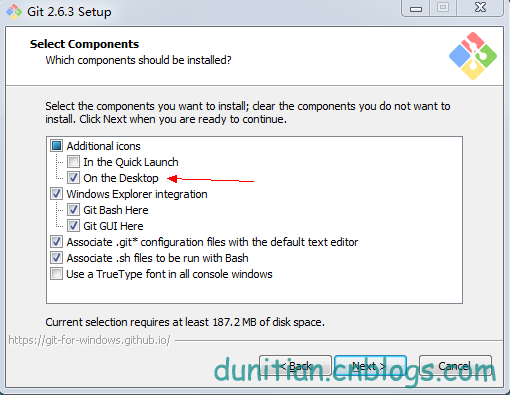
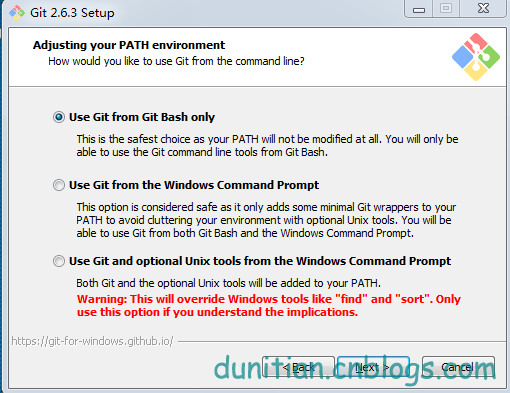
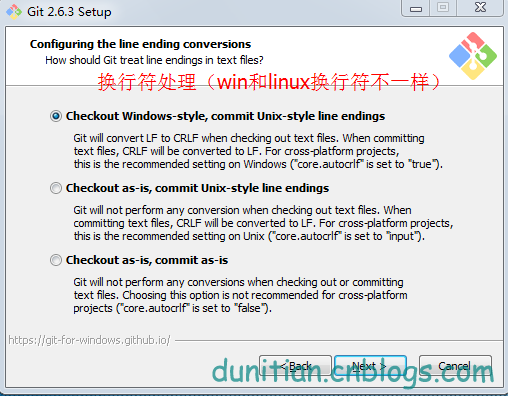

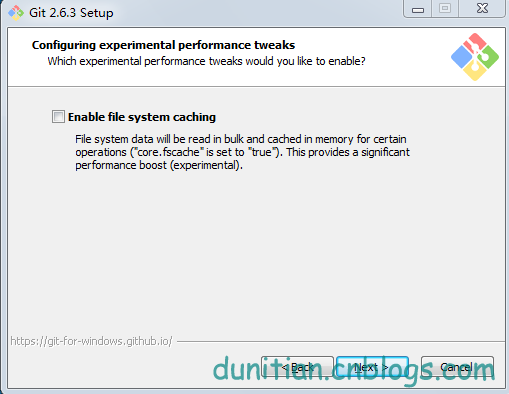
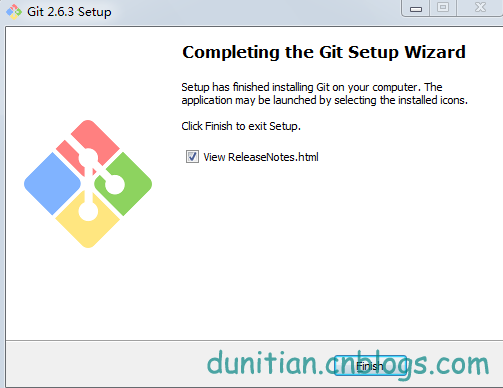
下面是命令模式,需要一点点linux基础(Linux基础学习),没有也没事,看详解
1.我们看看git的配置都有哪些:

git config
————————————————————————————————————————
usage: git config [<options>]
Config file location
--global use global config file
--system use system config file
--local use repository config file
-f, --file <file> use given config file
--blob <blob-id> read config from given blob object
Action
--get get value: name [value-regex]
--get-all get all values: key [value-regex]
--get-regexp get values for regexp: name-regex [value-regex]
--get-urlmatch get value specific for the URL: section[.var] URL
--replace-all replace all matching variables: name value [value_rege x]
--add add a new variable: name value
--unset remove a variable: name [value-regex]
--unset-all remove all matches: name [value-regex]
--rename-section rename section: old-name new-name
--remove-section remove a section: name
-l, --list list all
-e, --edit open an editor
--get-color find the color configured: slot [default]
--get-colorbool find the color setting: slot [stdout-is-tty]
Type
--bool value is "true" or "false"
--int value is decimal number
--bool-or-int value is --bool or --int
--path value is a path (file or directory name)
Other
-z, --null terminate values with NUL byte
--name-only show variable names only
--includes respect include directives on lookup
————————————————————————————————————————
2.设置名字:

git config --global user.name "你的名字"
3.设置邮箱:
git config --global user.email "你的邮箱"
————————————————————————————————————————
4.输出更显目的设置
git config --global color.ui auto
5.如果忘记自己的配置,就用这个命令来查看一下
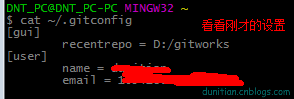
cat ~/.gitconfig
或者用git命令:git config --list
————————————————————————————————————————
[user]
name = 你的名字
email = 你的邮箱
[color]
ui = auto
————————————————————————————————————————
6.设置SSH Key
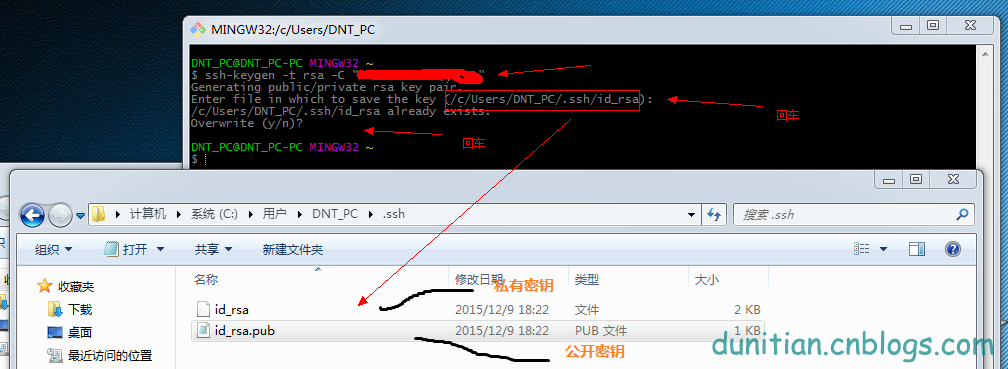
ssh-keygen -t rsa -C "你的邮箱"
Generating public/private rsa key pair.
Enter file in which to save the key (/c/Users/DNT_PC/.ssh/id_rsa): 回车一下
/c/Users/DNT_PC/.ssh/id_rsa already exists.
Overwrite (y/n)? 回车一下
————————————————————————————————————————
7.记不得key用这个指令:
$ cat ~/.ssh/id_rsa.pub
————————————————————————————————————————
ssh-rsa AAAAB3NzaC1yc2EAAAADAQABAAABAQD3joLDvLaBHnP4aMJwcjo6gjcipBoOnCzETPkQBu+LdBit8L3CSltQ6AhgOL8xcUHxR+ZojdNhd0XXvOfIfuPJVBH57dqptvAeqDkQHiBE5lX2/7pjPVPHSeTiQd0ijYtc1HxtqMo4U++sR6M7QYXPFnHBogUmZdxItVWr***********************4H2h19aIUImZU2KLndgP1AYGFh1FsprWO0oa6ebsIsPGtgrtHqBfHd9e2yF0/1fIFhidXgGvgmt4K9nO0WJ24vW****************
————————————————————————————————————————
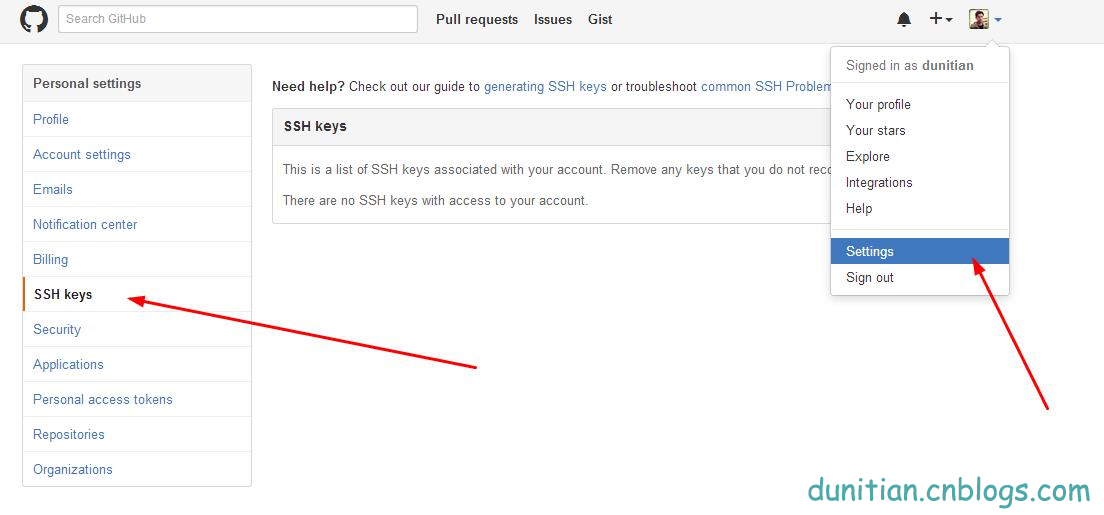
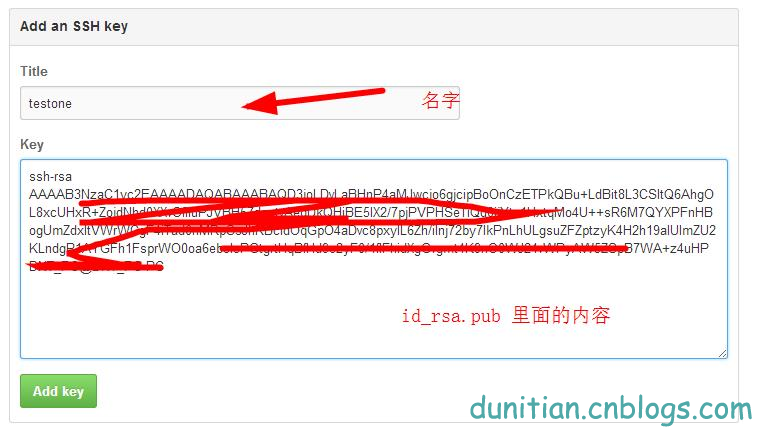
8.在github里面添加密钥(公共)
————————————————————————————————————————
9.用手中的私人密钥和github验证

ssh -T git@github.com
————————————————————————————————————————
The authenticity of host 'github.com (192.30.252.128)' can't be established.
RSA key fingerprint is SHA256:nThbg6k*************************viKw6E5********.
Are you sure you want to continue connecting (yes/no)? 输入yes
Warning: Permanently added 'github.com,192.30.252.128' (RSA) to the list of known hosts.
Hi 你的姓名! You've successfully authenticated, but GitHub does not provide shell access.
————————————————————————————————————————
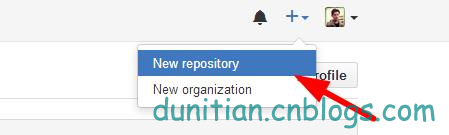
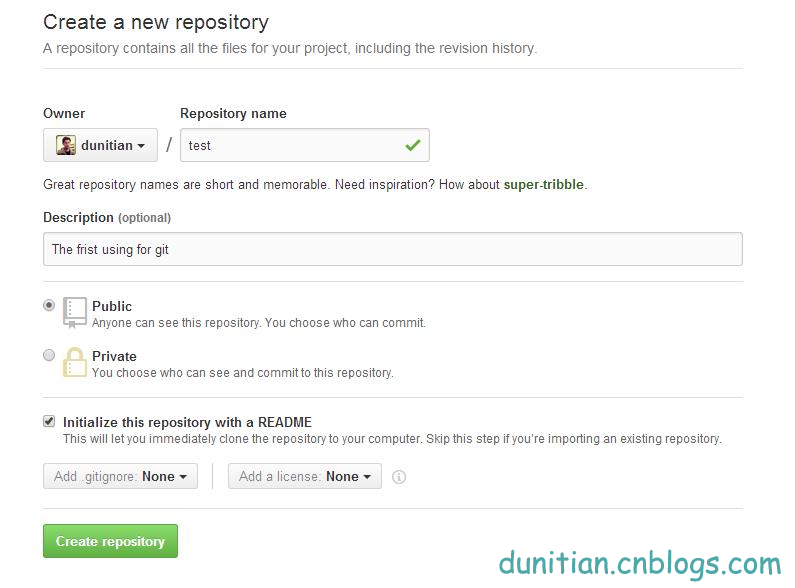
10.在github里面创建一个公开仓库(私有的收费)并初始化仓库(最下面的复选框,最下面的两个下拉列表后面说)
————————————————————————————————————————
11.复制一份github ssh库的地址,一会儿有用
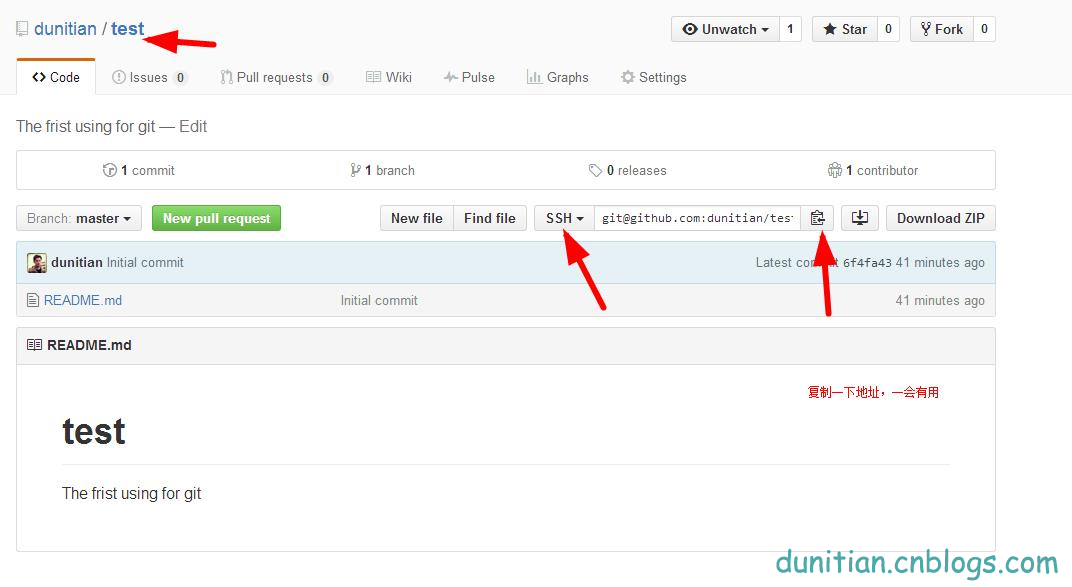
————————————————————————————————————————
12.克隆一份到本地
git clone git@github.com:dunitian/test.git(刚才的地址)
————————————————————————————————————————
Cloning into 'test'...
Warning: Permanently added the RSA host key for IP address '192.30.252.131' to the list of known hosts.
remote: Counting objects: 3, done.
remote: Total 3 (delta 0), reused 0 (delta 0), pack-reused 0
Receiving objects: 100% (3/3), done.
Checking connectivity... done.
————————————————————————————————————————
13.写点东西测试一下
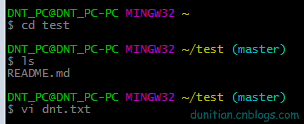
cd test(项目名,注意大小写)
DNT_PC@DNT_PC-PC MINGW32 ~/test (master)
ls (查看当前目录有哪些东西)
README.md
DNT_PC@DNT_PC-PC MINGW32 ~/test (master)
vi dnt.txt (如果有dnt.txt的文件就打开,没有就创建一个dnt.txt的文件)

输入你想写的东西,i 进入编辑模式 ,按esc 输入 :wq 并回车 是保存
————————————————————————————————————————
14.查看git的状态 (没提交,所以是untracked files状态)

git status
————————————————————————————————————————
On branch master
Your branch is up-to-date with 'origin/master'.
Untracked files:
(use "git add <file>..." to include in what will be committed)
dnt.txt
nothing added to commit but untracked files present (use "git add" to track)
————————————————————————————————————————
15.把文件提交到仓库

git add dnt.txt (添加到暂存区)

git commit -m "add first file to my git" (提交;引号里面是注释)
————————————————————————————————————————
[master 4e69105] add first file to my git
warning: LF will be replaced by CRLF in dnt.txt.
The file will have its original line endings in your working directory.
1 file changed, 1 insertion(+)
create mode 100644 dnt.txt
————————————————————————————————————————
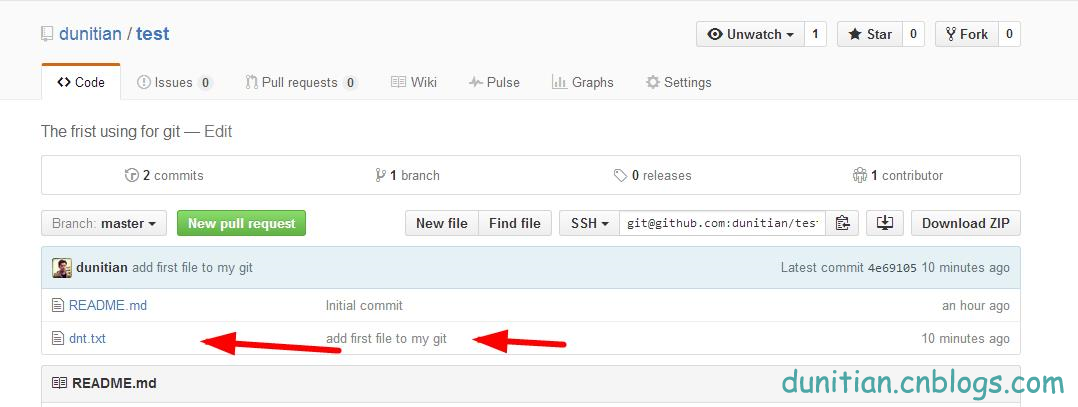
16.到github看看,发现这个时候是木有添加我们的文件的(不要怕)
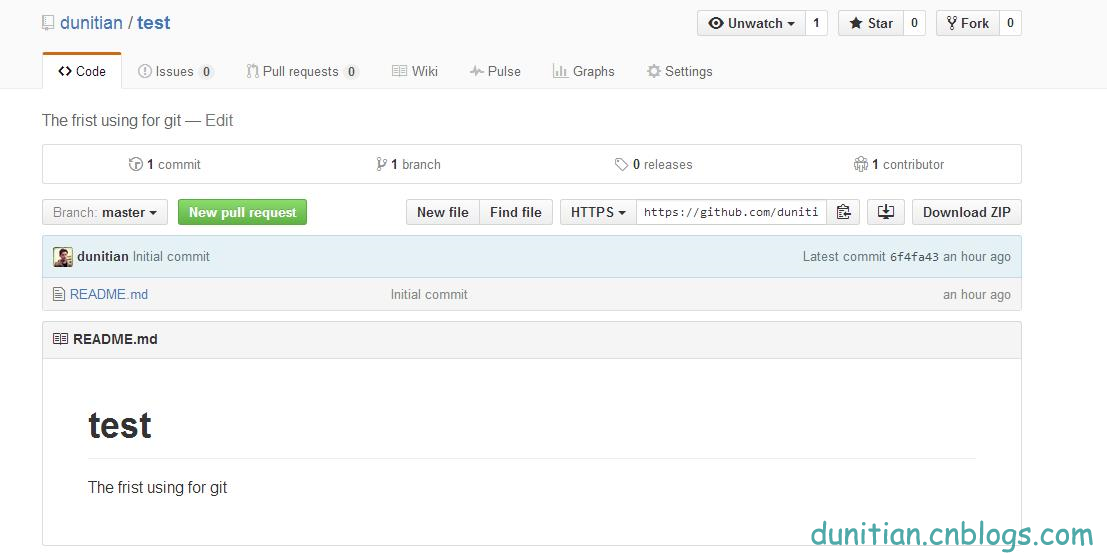
————————————————————————————————————————
17.查看提交日记 (吓死宝宝了,赶紧看看log)
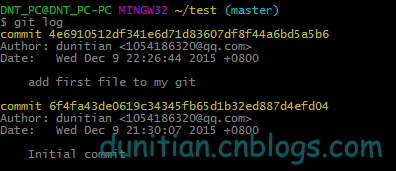
git log
————————————————————————————————————————
commit 4e6910512df341e6d71d83607df8f44a6bd5a5b6
Author: dunitian <1054186320@qq.com>
Date: Wed Dec 9 22:26:44 2015 +0800
add first file to my git
commit 6f4fa43de0619c34345fb65d1b32ed887d4efd04
Author: dunitian <1054186320@qq.com>
Date: Wed Dec 9 21:30:07 2015 +0800
Initial commit
————————————————————————————————————————
18.原来是要push一下,更新github(如果发现command not found之类的问题再输入一遍就ok了)
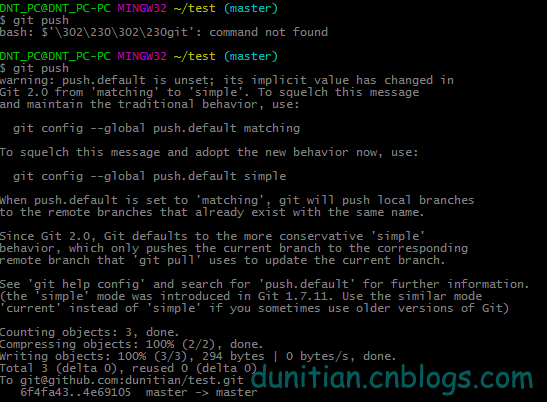
git push
————————————————————————————————————————
warning: push.default is unset; its implicit value has changed in
Git 2.0 from 'matching' to 'simple'. To squelch this message
and maintain the traditional behavior, use:
git config --global push.default matching
To squelch this message and adopt the new behavior now, use:
git config --global push.default simple
When push.default is set to 'matching', git will push local branches
to the remote branches that already exist with the same name.
Since Git 2.0, Git defaults to the more conservative 'simple'
behavior, which only pushes the current branch to the corresponding
remote branch that 'git pull' uses to update the current branch.
See 'git help config' and search for 'push.default' for further information.
(the 'simple' mode was introduced in Git 1.7.11. Use the similar mode
'current' instead of 'simple' if you sometimes use older versions of Git)
Counting objects: 3, done.
Compressing objects: 100% (2/2), done.
Writing objects: 100% (3/3), 294 bytes | 0 bytes/s, done.
Total 3 (delta 0), reused 0 (delta 0)
To git@github.com:dunitian/test.git
6f4fa43..4e69105 master -> master
————————————————————————————————————————
收工,媳妇催了。。。。明天继续
简单汇总一下:
————————————设置——————————————————

01.设置名字:

git config --global user.name "你的名字"

02.设置邮箱:

git config --global user.email "你的邮箱"

03.输出更显目的设置

git config --global color.ui auto

04.设置SSH Key

ssh-keygen -t rsa -C "你的邮箱"

————————————基础——————————————————

05.克隆一份到本地

git clone git@github.com:dunitian/test.git(ssh的项目地址)

06.把文件提交到仓库

git add dnt.txt (添加到暂存区)

git commit -m "注释" (提交)

07.push一下,更新github

git push

————————————查看——————————————————

08.查看自己的配置

git config --list

09.查看key

cat ~/.ssh/id_rsa.pub

10.查看git的状态

git status

11.查看提交日记

git log

————————————其他——————————————————
GitHub实战系列~1.环境部署+创建第一个文件 2015-12-9的更多相关文章
- GitHub实战系列汇总篇
基础: 1.GitHub实战系列~1.环境部署+创建第一个文件 2015-12-9 http://www.cnblogs.com/dunitian/p/5034624.html 2.GitHub实战系 ...
- GitHub实战系列~3.提交github的时候过滤某些文件 2015-12-10
GitHub实战系列汇总:http://www.cnblogs.com/dunitian/p/5038719.html ———————————————————————————————————————— ...
- 07.GitHub实战系列~7.Git之VS2013团队开发(如果不想了解git命令直接学这篇即可)
GitHub实战系列汇总:http://www.cnblogs.com/dunitian/p/5038719.html ———————————————————————————————————————— ...
- GitHub实战系列~2.把本地项目提交到github中 2015-12-10
GitHub实战系列汇总:http://www.cnblogs.com/dunitian/p/5038719.html ———————————————————————————————————————— ...
- GitHub实战系列~4.把github里面的库克隆到指定目录+日常使用 2015-12-11
GitHub实战系列汇总:http://www.cnblogs.com/dunitian/p/5038719.html ———————————————————————————————————————— ...
- 05.GitHub实战系列~5.发布版本之分支操作+Tag讲解 2015-12-14
GitHub实战系列汇总:http://www.cnblogs.com/dunitian/p/5038719.html ———————————————————————————————————————— ...
- .Net Core 跨平台系列之环境部署
前言 作为一名.NET程序员,很多时候都会被什么拖控件.跨平台等字眼所鄙视过,但是在我的的内心还是没有把自己看低过.因为说到底,平台和语言只是我们吃饭的工具.很多时候公司的发展是取决于商业竞争的,微软 ...
- react实战系列 —— 起步(mockjs、第一个模块、docusaurus)
其他章节请看: react实战 系列 起步 本篇我们首先引入 mockjs ,然后进入 spug 系统,接着模仿"任务计划"模块实现一个类似的一级导航页面("My任务计划 ...
- 8.GitHub实战系列~8.使用GitHub建立自己的免费博客
github实战汇总:http://www.cnblogs.com/dunitian/p/5038719.html 创建一个用户名.github.io的仓库 选择设置页面风格 页面基本信息 选择一个你 ...
随机推荐
- H5坦克大战之【建造敌人的坦克】
公司这几天在准备新版本的上线,今天才忙里偷闲来写这篇博客.接着上一篇的"H5坦克大战之[玩家控制坦克移动2]"(http://www.cnblogs.com/zhouhuan/ ...
- 在一个空ASP.NET Web项目上创建一个ASP.NET Web API 2.0应用
由于ASP.NET Web API具有与ASP.NET MVC类似的编程方式,再加上目前市面上专门介绍ASP.NET Web API 的书籍少之又少(我们看到的相关内容往往是某本介绍ASP.NET M ...
- CorelDRAW X8 如何破解激活(附国际版安装包+激活工具) 2016-12-15
之前有位搞平面的好友“小瘦”说CDR X8无法破解,只能用X7.呃……呃……呃……好像是的 其实CDR8难激活主要在于一个点“没有离线激活了,只可以在线激活”,逆天不是专供逆向的,当然没能力去破解,这 ...
- Angular企业级开发(3)-Angular MVC实现
1.MVC介绍 Model-View-Controller 在20世纪80年代为程序语言Smalltalk发明的一种软件架构.MVC模式的目的是实现一种动态的程序设计,使后续对程序的修改和扩展简化,并 ...
- 《LoadRunner12七天速成宝典》签售会2016-12-17北京
报名地址: http://www.after615.com/actives/s?id=3141&time=1480042829608&sign=9ac8e25e9ab3cf57f613 ...
- Spring resource bundle多语言,单引号format异常
Spring resource bundle多语言,单引号format异常 前言 十一假期被通知出现大bug,然后发现是多语言翻译问题.法语中有很多单引号,单引号在format的时候出现无法匹配问题. ...
- iOS微信里打开app,Universal Links
这两天在弄分享,从第三方应用或者浏览器打开自己app的东西 传统的方式是通过URL Scheme的方式,但是iOS9以后又出了新的更完美的方式Universal Links. 传统的URL Schem ...
- c# 基础 object ,new操作符,类型转换
参考页面: http://www.yuanjiaocheng.net/webapi/config-webapi.html http://www.yuanjiaocheng.net/webapi/web ...
- java springMVC SSM 操作日志 4级别联动 文件管理 头像编辑 shiro redis
A 调用摄像头拍照,自定义裁剪编辑头像 B 集成代码生成器 [正反双向](单表.主表.明细表.树形表,开发利器)+快速构建表单; 技术:313596790freemaker模版技术 ,0个代码不用写 ...
- H5 canvas的 width、height 与style中宽高的区别
Canvas 的width height属性 1.当使用width height属性时,显示正常不会被拉伸:如下 <canvas id="mycanvas" width=&q ...