
Android组件---四大布局的属性详解
【声明】
欢迎转载,但请保留文章原始出处→_→
文章来源:http://www.cnblogs.com/smyhvae/p/4372222.html
Android常见布局有下面几种:
- LinearLayout:线性布局。所有的控件都是串在一条线上的。
- RelativeLayout:相对布局。所有的控件的位置,都是相对于父控件的。
- FrameLayout:帧布局。FrameLayout布局中的控件都是一层一层的。帧布局每次添加的控件都显示在最上面,最后显示在界面上的是最后添加的一个控件。
- TableLayout:表格布局。表格布局可以实现的.一般 可以使用 线性布局实现。
- AbsoluteLayout:绝对布局。已经是废弃的状态,很少用了。
线性布局 LinearLayout 属性详解
orientation:属性是指定线性布局的排列方向。
- horizontal 水平。线性布局默认的朝向是水平的。
- vertical 垂直
例如:
android:orientation="vertical"
gravity:指定当前控件里面的内容容显示位置。(四大layout中均可使用)
- left 左边
- right 右边
- top 上边
- bottom 底边
例如:
android:gravity="center"
gravity中的属性可以组合使用。例如:
android:gravity="bottom|right"
layout_gravity:指定当前控件在父元素的位置。(只在 LinearLayout 和 FrameLayout 中有效)
- left 左边
- right 右边
- top 上边
- bottom 底边
- center
- center_horizontal
- center_vertical
例如:
android:layout_gravity="center"
另外,需要提示的是,对于 LinearLayout :
- 当 android:orientation="vertical" 时, 只有水平方向的设置才起作用,垂直方向的设置不起作用。即:left,right,center_horizontal 是生效的。(top,bottom,center_vertical 无效)
- 当 android:orientation="horizontal" 时, 只有垂直方向的设置才起作用,水平方向的设置不起作用。即:top,bottom,center_vertical 是生效的。(left,right,center_horizontal 无效)
layout_weightSum:把线性布局中剩余空间分成N份。
layout_weight:用于分配剩余空间的比例。【重要】
例如,在线性布局中,当空间处于horizontal水平放置时,如果设置两个控件的width属性和layout_weight属性时,就可以平分宽度:
android:layout_width="0dp"

android:layout_weight="1"
visibility:是控制布局是否显示。
- visible 显示
- invisible 不显示但占空间
- gone 隐藏
例如:
android:visibility="gone"
RelativeLayout 相对布局 属性详解
一、常用属性:
1、第一类:属性值为true或false
android:layout_centerHrizontal 相对于父元素水平居中
android:layout_centerVertical 相对于父元素垂直居中
android:layout_centerInparent 相对于父元素完全居中
android:layout_alignParentBottom 贴紧父元素的下边缘(align:对齐)
android:layout_alignParentLeft 贴紧父元素的左边缘
android:layout_alignParentRight 贴紧父元素的右边缘(默认值为false)
android:layout_alignParentTop 贴紧父元素的上边缘
android:layout_alignWithParentIfMissing 如果对应的兄弟元素找不到的话就以父元素做参照物
2、第二类:属性值必须为id的引用名"@id/id-name"
android:layout_below 在某元素的下方
android:layout_above 在某元素的的上方
android:layout_toLeftOf 在某元素的左边
android:layout_toRightOf 在某元素的右边
android:layout_alignTop 本元素的上边缘和某元素的的上边缘对齐
android:layout_alignLeft 本元素的左边缘和某元素的的左边缘对齐
android:layout_alignBottom 本元素的下边缘和某元素的的下边缘对齐
android:layout_alignRight 本元素的右边缘和某元素的的右边缘对齐
3、第三类:属性值为具体的像素值,如30dp(外边距和内边距)
android:layout_margin 外边距(margin:边缘)
android:layout_marginTop 上外边距
android:layout_marginBottom 下外边距
android:layout_marginLeft 左外边距
android:layout_marginRight 右外边距
android:padding 内边距(padding:填充)
android:paddingTop 上内边距
android:paddingBottom 下内边距
android:paddingLeft 左内边距
android:paddingRight 右内边距
4、第四类:android4.2新增属性
android:layout_alignStart 两个控件开始对齐
android:layout_alignEnd 两个控件结束对齐
android:layout_alignParentStart 子控件和父控件开始对齐
android:layout_alignParentEnd 子控件和父控件结束对齐
注:所有控件,默认处在左上角。
二、外边距和内边距的解释:
来看下面这张图:
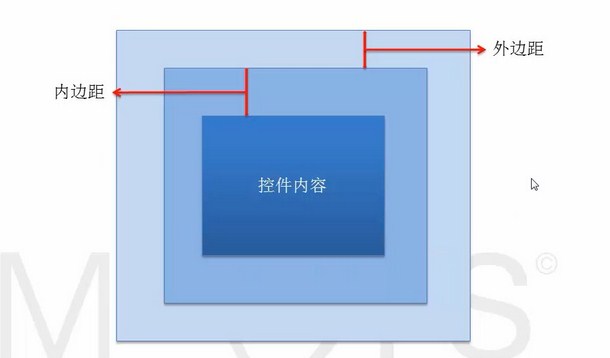
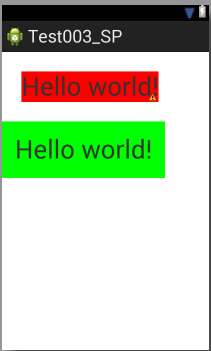
例如:当在布局文件中,
将第一个TextView加入如下代码:(注:margin的意思是“边缘”)
android:layout_margin="30dp"
将第二个TextView加入如下代码:(注:padding的意思是“填充”)
android:padding="20dp"
最终效果如下:
三、对齐至控件的基准线:
android:layout_alignBaseline 与某元素的基准线对齐
什么是基准线?
基准线:为了保证印刷字母的整齐而划定的线。

上图中的第三条线就是基准线。
完整版代码举例:
 <RelativeLayout xmlns:android="http://schemas.android.com/apk/res/android"

     xmlns:tools="http://schemas.android.com/tools"

     android:layout_width="match_parent"

     android:layout_height="match_parent"  >

     <TextView

         android:id="@+id/tv1"

         android:layout_width="wrap_content"

         android:layout_height="wrap_content"

         android:background="#FFE4E1"

         android:textSize="30dp"

         android:text="shengmingyihao" />

      <TextView

         android:id="@+id/tv2"

         android:layout_width="wrap_content"

         android:layout_height="wrap_content"

         android:background="#D3D3D3"

         android:layout_toRightOf="@id/firstView"

         android:layout_alignBaseline="@id/tv1"

         android:text="smyhvae" />

 </RelativeLayout>
上方代码的第19行就是将tv2对齐至tv1的基准线。
显示效果如下:

上图中绿色的虚线即为基准线。
三、其他属性:
1、EditText控件:
android:hint 设置EditText为空时输入框内的提示信息。
2、android:gravity
android:gravity 该属性是对该view里面的内容的限定。比如一个button里面的text,你可以设置该text在view的靠左、靠右等位置。
以button为例:
android:gravity="right" 可以让button里面的文字靠右
android:gravity="top" 可以让编辑框EditText的光标置于左上方
3、android:gravity和android:layout_gravity区别:
- gravity 控制当前控件里面的内容显示区域
- 线性布局中的layout_gravity 当前控件在父元素的位置
比如弄个最外布局,然后里面包了几个布局,如果要使这几个布局都靠底,就可以在最外布局的属性里设置androi:gravity="botton" 因为gravity是对里面的内容起作用。
TableLayout 表格布局属性详解
TableLayout 表格布局:
android:shrinkColumns 收缩列
android:stretchColumns 拉伸列
android:collapseColumns 隐藏列
android:layout_column 指定列(作用在列的身上)
android:layout_span 合并列(作用在列的身上)
注:TableRow为一行,这个单元行里的单元格的宽度小于默认的宽度时就不起作用,其默认是fill_parent,高度可以自定义大小。
其实,表格布局可以实现的,线性布局也可以实现。
代码举例:
1、线性布局的代码举例:(小米计算器界面)
要实现的效果如下:
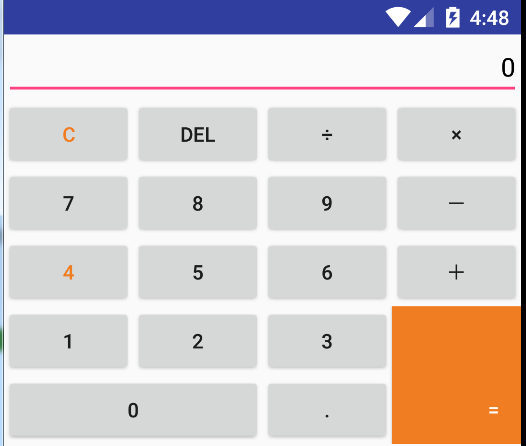
对应的xml文件的代码如下:
<?xml version="1.0" encoding="utf-8"?>

<LinearLayout xmlns:android="http://schemas.android.com/apk/res/android"

              android:layout_width="match_parent"

              android:layout_height="match_parent"

              android:orientation="vertical" >

    <EditText

        android:gravity="right"

        android:hint="0"

        android:textColorHint="#000000"

        android:layout_height="wrap_content"

        android:layout_width="fill_parent"/>

    <LinearLayout

        android:layout_width="fill_parent"

        android:layout_height="wrap_content"

        android:orientation="horizontal">

        <Button

            android:layout_width="0dip"

            android:layout_height="wrap_content"

            android:layout_weight="1"

            android:text="C"

            android:textColor="#F07D22" />

        <Button

            android:layout_width="0dip"

            android:layout_height="wrap_content"

            android:layout_weight="1"

            android:text="DEL" />

        <Button

            android:layout_width="0dip"

            android:layout_height="wrap_content"

            android:layout_weight="1"

            android:text="÷" />

        <Button

            android:layout_width="0dip"

            android:layout_height="wrap_content"

            android:layout_weight="1"

            android:text="×" />

    </LinearLayout>

    <LinearLayout

        android:layout_width="fill_parent"

        android:layout_height="wrap_content" >

        <Button

            android:layout_width="0dip"

            android:layout_height="wrap_content"

            android:layout_weight="1"

            android:text="7" />

        <Button

            android:layout_width="0dip"

            android:layout_height="wrap_content"

            android:layout_weight="1"

            android:text="8" />

        <Button

            android:layout_width="0dip"

            android:layout_height="wrap_content"

            android:layout_weight="1"

            android:text="9" />

        <Button

            android:layout_width="0dip"

            android:layout_height="wrap_content"

            android:layout_weight="1"

            android:text="-" />

    </LinearLayout>

    <LinearLayout

        android:layout_width="fill_parent"

        android:layout_height="wrap_content" >

        <Button

            android:layout_width="0dip"

            android:layout_height="wrap_content"

            android:layout_weight="1"

            android:text="4"

            android:textColor="#F07D22" />

        <Button

            android:layout_width="0dip"

            android:layout_height="wrap_content"

            android:layout_weight="1"

            android:text="5" />

        <Button

            android:layout_width="0dip"

            android:layout_height="wrap_content"

            android:layout_weight="1"

            android:text="6" />

        <Button

            android:layout_width="0dip"

            android:layout_height="wrap_content"

            android:layout_weight="1"

            android:text="+" />

    </LinearLayout>

    <LinearLayout

        android:layout_width="fill_parent"

        android:layout_height="wrap_content" >

        <LinearLayout

            android:orientation="vertical"

            android:layout_width="0dip"

            android:layout_height="match_parent"

            android:layout_weight="3" >

            <LinearLayout

                android:layout_width="fill_parent"

                android:layout_height="wrap_content">

                <Button

                    android:text="1"

                    android:layout_height="wrap_content"

                    android:layout_width="0dip"

                    android:layout_weight="1"/>

                <Button

                    android:text="2"

                    android:layout_height="wrap_content"

                    android:layout_width="0dip"

                    android:layout_weight="1"/>

                <Button

                    android:text="3"

                    android:layout_height="wrap_content"

                    android:layout_width="0dip"

                    android:layout_weight="1"/>

            </LinearLayout>

            <LinearLayout

                android:layout_width="fill_parent"

                android:layout_height="wrap_content">

                <Button

                    android:text="0"

                    android:layout_height="wrap_content"

                    android:layout_width="0dip"

                    android:layout_weight="2"/>

                <Button

                    android:text="."

                    android:layout_height="wrap_content"

                    android:layout_width="0dip"

                    android:layout_weight="1"/>

            </LinearLayout>

        </LinearLayout>

        <Button

            android:gravity="right|bottom"

            android:textColor="#ffffff"

            android:text="="

            android:paddingRight="15dp"

            android:paddingBottom="15dp"

            android:background="#F07D22"

            android:layout_width="0dip"

            android:layout_height="fill_parent"

            android:layout_weight="1" >

        </Button>

    </LinearLayout>

</LinearLayout>
再看一遍效果图:
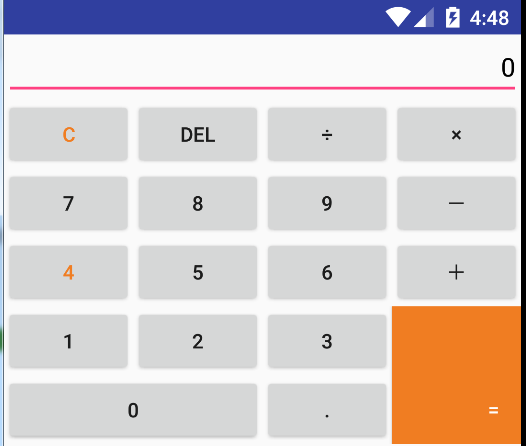
2、相对布局的代码举例:
要实现的效果如下:
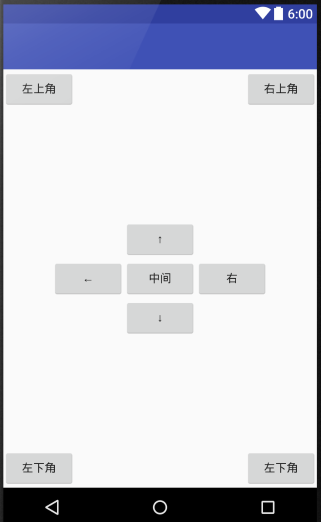
完整版代码实现:
<?xml version="1.0" encoding="utf-8"?>

<RelativeLayout xmlns:android="http://schemas.android.com/apk/res/android"

    android:layout_width="match_parent"

    android:layout_height="match_parent" >

    <Button

        android:id="@+id/center"

        android:layout_centerInParent="true"

        android:text="中间"

        android:layout_width="wrap_content"

        android:layout_height="wrap_content"/>

    <Button

        android:layout_alignLeft="@id/center"

        android:layout_above="@id/center"

        android:text="↑"

        android:layout_width="wrap_content"

        android:layout_height="wrap_content"/>

    <Button

        android:layout_alignLeft="@id/center"

        android:layout_below="@id/center"

        android:text="↓"

        android:layout_width="wrap_content"

        android:layout_height="wrap_content"/>

    <Button

        android:layout_alignBottom="@id/center"

        android:layout_toLeftOf="@id/center"

        android:text="←"

        android:layout_width="wrap_content"

        android:layout_height="wrap_content"/>

    <Button

        android:layout_alignBottom="@id/center"

        android:layout_toRightOf="@id/center"

        android:text="右"

        android:layout_width="wrap_content"

        android:layout_height="wrap_content"/>

    <Button

        android:text="左上角"

        android:layout_width="wrap_content"

        android:layout_height="wrap_content"/>

    <Button

        android:layout_alignParentRight="true"

        android:text="右上角"

        android:layout_width="wrap_content"

        android:layout_height="wrap_content"/>

    <Button

        android:layout_alignParentBottom="true"

        android:text="左下角"

        android:layout_width="wrap_content"

        android:layout_height="wrap_content"/>

    <Button

        android:layout_alignParentRight="true"

        android:layout_alignParentBottom="true"

        android:text="左下角"

        android:layout_width="wrap_content"

        android:layout_height="wrap_content"/>

</RelativeLayout>
3、TableLayout 表格布局的代码举例:(表格布局可以实现的,线性布局也可以实现)
要实现的效果如下:
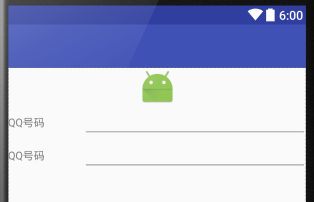
完整的代码实现:
<?xml version="1.0" encoding="utf-8"?>

<TableLayout xmlns:android="http://schemas.android.com/apk/res/android"

             android:layout_width="match_parent"

             android:layout_height="match_parent" >

    <ImageView

        android:src="@mipmap/ic_launcher"

        android:layout_width="fill_parent"

        android:layout_height="wrap_content"/>

    <TableRow

        android:layout_width="fill_parent"

        android:layout_height="wrap_content">

        <TextView

            android:text="QQ号码"

            android:layout_width="0dip"

            android:layout_weight="1"

            android:layout_height="wrap_content"/>

        <EditText

            android:layout_width="0dip"

            android:layout_weight="3"

            android:layout_height="wrap_content"/>

    </TableRow>

    <TableRow

        android:layout_width="fill_parent"

        android:layout_height="wrap_content">

        <TextView

            android:text="QQ号码"

            android:layout_width="0dip"

            android:layout_weight="1"

            android:layout_height="wrap_content"/>

        <EditText

            android:layout_width="0dip"

            android:layout_weight="3"

            android:layout_height="wrap_content"/>

    </TableRow>

</TableLayout>
Android组件---四大布局的属性详解的更多相关文章
- Android XML文件布局各个属性详解
第一常用类:属性值为true或false android:layout_centerHrizontal 水平居中 android:layout_centerVertical 垂直居中 android: ...
- Android之drawable state各个属性详解
android:drawable 放一个drawable资源android:state_pressed 是否按下,如一个按钮触摸或者点击.android:state_focused 是否取得焦点,比如 ...
- RelativeLayout相对布局 各个属性详解
RelativeLayout相对布局 相对布局 RelativeLayout 允许子元素指定它们相对于其父元素或兄弟元素的位置,这是实际布局中最常用的布局方式之一.它灵活性大很多,当然属性也多,操作难 ...
- 【转】Android之drawable state各个属性详解
我们在定义一个drawable的时候可以通过xml定义的drawable对象.它使得一个图片能在不同的状态下显示不同的图案,比如一个Button,它有pressed,focused,或者其它状态,通过 ...
- Android笔记-2-TextView的属性详解
[Android 基础]TextView的属性详解 android:autoLink :设置是否当文本为URL链接/email/电话号码/map时,文本显示为可点击的链接.可选值(none/web / ...
- Android零基础入门第80节:Intent 属性详解(下)
上一期学习了Intent的前三个属性,本期接着学习其余四个属性,以及Android系统常用内置组件的启动. 四.Data和Type属性 Data属性通常用于向Action属性提供操作的数据.Data属 ...
- android:exported 属性详解
属性详解 标签: android 2015-06-11 17:47 27940人阅读 评论(7) 收藏 举报 分类: Android(95) 项目点滴(25) 昨天在用360扫描应用漏洞时,扫描结果, ...
- Android中的windowSoftInputMode属性详解
这篇文章主要介绍了Android中的windowSoftInputMode属性详解,本文对windowSoftInputMode的9个属性做了详细总结,需要的朋友可以参考下 在前面的一篇文章中 ...
- Android开发–Intent-filter属性详解
Android开发–Intent-filter属性详解 2011年05月09日 ⁄ Andriod ⁄ 暂无评论 ⁄ 被围观 1,396 views+ 如果一个 Intent 请求在一片数据上执行一个 ...
随机推荐
- ASP.NET WebAPI 12 Action的执行
Action的激活大概可以分为如下两个步骤:Action对应方法的调用,执行结果的协商.在WebAPI中由HttpActionInvoker(System.Web.Http.Controllers)进 ...
- 公司mysql数据库设计与优化培训ppt
cnblogs无法上传附件. http://pan.baidu.com/s/1kVGqMn9
- Java 进程占用 VIRT 虚拟内存超高的问题研究
1. 现象 最近发现线上机器 java 8 进程的 VIRT 虚拟内存使用达到了 50G+,如下图所示: 2. 不管用的 -Xmx 首先第一想到的当然使用 java 的 -Xmx 去限制堆的使用.但是 ...
- winform(无边框窗体与timer)
一.无边框窗体 1.控制按钮如何制作就是放置可以点击的控件,不局限于使用按钮或是什么别的,只要放置的控件可以点击能触发点击事件就可以了 做的好看一点,就是鼠标移入(pictureBox1_MouseE ...
- OSX cordova+Ionic的安装配置
0.安装前确定你的系统安装了node和xcode 1.cordova (1)安装cordova npm config set registry http://registry.cnpmjs.org s ...
- SAP 金额在表中的存储及货币转换因子
场景:一个接口出问题了,SAP通过RFC将SO数据传输到Java系统,错误的将100日元传为1.00日元. 其实查看SAP透明表发现,表中存储的的确是1.00,是前台真实数据的1/100,开发接口时没 ...
- 在Mac上配置Android adb命令
一 adb定义: adb(android debug bridge)是android系统中的一种命令行工具,通过它可以和android设备或模拟器通信. 二 在Mac上的配置过程 启动终端 进入当前用 ...
- 【读书笔记】iOS-GCD-block-后台运行
当一个app按home键退出的时候,只有最多5秒的时间做一些保存或清理资源的工作.但是调用beginBackgroundTaskWithExpirationHandler方法,可以最多有10分时间在后 ...
- GCD中的dispatch_semaphore的语法与作用
(一)引入问题 当并行执行的处理更新数据时,会产生数据不一致的情况,有时应用程序还会异常结束,虽然使用Serial Dipatch queue和dispatch_barrier_async函数可避免这 ...
- 通过设置虚拟机(ubantu15.10)的分辨率达到全屏效果
最近搭建了一个ubantu 15.10虚拟机,怎么折腾都不能全屏显示.虽然我已经点了, 还是无法达到真正的全屏. 查了一下,http://jingyan.baidu.com/article/0964 ...