
CyanogenMod wiki reading tips | Android tips
To Enable the Developer and Performance settings on CyanogenMod 10.1
In the Settings app, choose the About Phone (or About Tablet) option.
Scroll down, and tap the Build number seven times. On the seventh tap, you will be notified that "You are now a developer."
Return back to the main Settings menu. The Developer options and Performance settings should now be visible.
NOTE THIS IS THE SAME TRICK WHICH AOSP USES:
Note: On Android 4.2 and newer, Developer options is hidden by default. To make it available, go to Settings > About phone and tap Build number seven times. Return to the previous screen to find Developer options.
-------------------
Starting into recovery mode
There are several methods for booting into recovery mode. If you are already using CyanogenMod, there is an option to boot into recovery mode by holding down the power button and then choosing Reboot and then Reboot into Recovery.
If the Android SDK is installed on your computer, you can use the command:
adb reboot recovery
From the Terminal app on the device itself, you can usually use the following command (if you have superuser or root access available to your apps):
su
reboot recovery
-------------------
"side-loading"
In the world of Apple's iOS operating system, iPads and iPhones are generally unable to normally load apps from any source except the official App Store. Android works differently. Google's Play Store is a source for many hundreds of thousands of apps that can be downloaded and installed automatically. However, the process of "side-loading" allows you to directly install an app from your computer or via any non-Play Store source, such as directly from a web site or even another device.
This process of loading an app that didn't originate from a store is very common in the Android world and is simply a matter of checking a box in the Settings to enable it.
With Apple's tighter control of the user experience, steps such as "jailbreaking" must be taken to enable side-loading. Not so for Android. Generally speaking, you can load anything you want.
(Exceptions to this include severely-restricted incarnations of Android that appear on some phones and tablets. CyanogenMod may be an option to remove this restriction.)
-------------------
"unlocking a phone"
AKA "Subsidy Unlock" -- AKA "Sim Unlock" AKA "Network Unlock" AKA "Use a foreign SIM Card"
SIM-unlocking your phone will offer the benefit of allowing you to use your phone with other carriers.
In many markets, when you buy a phone (or mobile-enabled tablet), it can be "locked" so that it will only work with a particular carrier in a particular market. The process of "unlocking" a phone typically means that the device can be used with any compatible carrier in any market. The phone effectively becomes a "universal" or "international" device that can be used with a new regional carrier when travelling, for example.
Note that unlocking the phone may violate the terms of your agreement with your carrier, although some US carriers such as T-Mobile are known to send you "unlock codes" if you contact them before travelling. On the other hand, in some countries it is not permitted to lock the phone at all.
It is also important to understand that an unlocked phone still must meet the mobile network requirements for the new carrier-- it must use a compatible system (such as GSM or CDMA) and support the frequencies of the new carrier as well.
-------------------
superCID
You may also hear the term "SuperCID" in reference to unlocking phones.
CID is believed to stand for "Carrier IDentification". It is a special number in the phone that restricts which software can be installed on a particular phone. The CID determines for example, that only an officially-signed T-Mobile radio image can be installed on a T-Mobile phone. And it's why you can't flash a Vodafone ROM onto a Bell Desire Z, two devices which are otherwise very similar.
It may be helpful to think of the CID as a kind of "region coding" like you find on DVDs, where a North American DVD can't be played in a European player. But if you hack your DVD player, you could switch it from a European player to a North American one. Or you might even hack it to play both DVDS.
You can do the same with phones. SuperCID is, as the name implies, a universal CID where the phone will accept any kind of firmware image.
-------------------
"unlocking a bootloader"
Note:
Unlocking a bootloader and unlocking a phone are two entirely different things.
The "bootloader" is the name of the program that first loads when you press the "on" button (or power button) on your device. Its responsibilities include initializing hardware and then starting the next few steps of the boot process by first loading and then running subsequent stages of the boot. These next stages load even further stages, until the operating system as a whole is loaded and you can start to use the device.
A "locked bootloader" typically has some kind of restriction on what it will load, based on a digital signature provided by an authority (such as the manufacturer of the device). Devices, which have locked bootloaders, are therefore limited in the operating system that they can load.
Many developers of free and open general-purpose computers look at locked bootloaders as a kind of "system bug" or design flaw, because they restrict the freedom of the owner of the device to replace the operating system with one which may be newer, better, faster, more secure, etc. For that reason, many otherwise "locked" bootloaders have been given a "bugfix" to removes this flaw and allow the user to replace the operating system with one that she or he prefers.
Some devices, such as Google Nexus devices, are sold with a bootloader that is locked and therefore that can only load Google-provided updates. However, Nexus devices can easily be unlocked by developers and others through the use of the fastboot tool, available for free via the android sdk.
-------------------
S-OFF (Security OFF) Mode
Some bootloaders include a "Security ON" (AKA "S-ON") mode, whereby certain operational restrictions are imposed on the boot. On some devices (such as the T-Mobile G2), the S-ON bootloader may put the operating system partition in a "read-only" mode. For others, S-ON may cause the device to adopt behavior similar to a fully-locked bootloader. Switching the bootloader to S-OFF mode is therefore a prerequisite on some devices to allow the operating system to be modified or replaced. Note that S-OFF does not imply that a device is rooted.
-------------------
SPL
Second Program Loader, in conjunction with the IPL comprise a device's bootloader. Aside from bootstrapping Android, the bootloader also fulfills various diagnostic functions. One of these functions is the manipulation of data in the device's internal flash ram. Depending on the SPL installed, the user might be able to flash signed NBH files, flash nand images, and more. Note that the SPL is installed and operates independently of the Android build that runs atop it.
Generally speaking, there are two variants of the SPL: Stock, which is 'locked' and is installed on most devices from the factory, and Engineering, which is 'unlocked' and has to be manually flashed - usually after 'rooting'.
-------------------
Zipalign
Reduces the amount of RAM consumed when running the application by allowing data to be mmap'd in; which causes all uncompressed data within the .apk, such as images or raw files, to be aligned on 4-byte boundaries.
-------------------
ADB: Secure USB Debugging (NEW in Android 4.2.2)
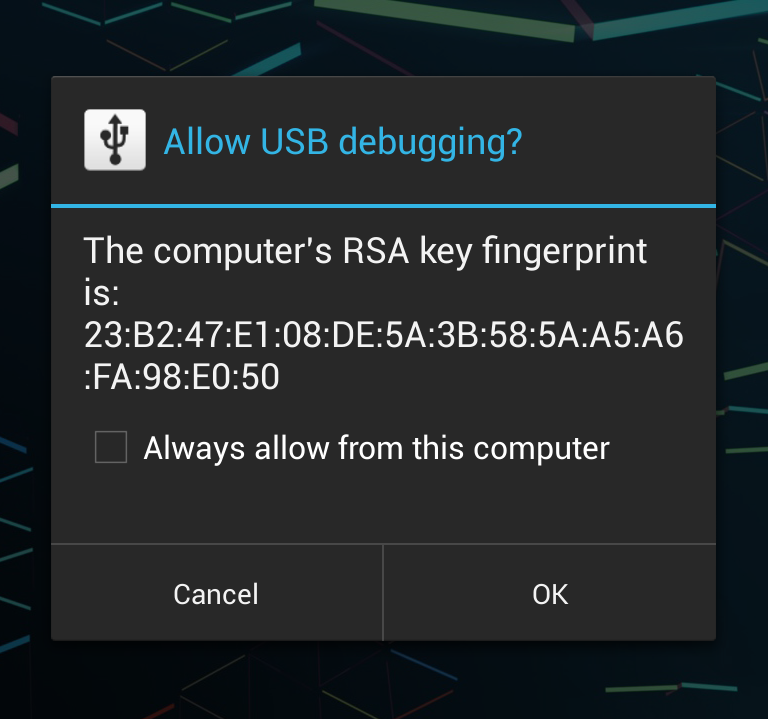
In Android 4.2.2 (which corresponds to CyanogenMod 10.1), Google implemented some new security features for using adb. The new "secure debugging" feature requires that you manually approve your computer for an adb connection. This approval must be done from within the device, and only after any screen lock has been bypassed.
To access your 4.2.2 or higher device via adb, you MUST ensure you are using a recently-updated Android SDK. Once the sdk (and therefore adb) has been updated, you must adb kill-server and adb start-server any existing adb daemon running on your computer. The first time you try to connect via adb, you should receive a prompt on your device to Allow usb debugging? for this device (along with an RSA fingerprint identifying the computer). You may select the Always allow from this computer check box if you want the device to remember this computer, in which case you will not be prompted again when connecting your device to that specific PC.
More readings:
[ADB overview]
The Android Debug Bridge serves two main purposes: it keeps track of all devices (or emulators) connected to a host, and it offers various services to its clients (command line clients, IDEs, etc.). It consists of three main components: the ADB server, the ADB daemon (adbd) and the default command line client (adb). The ADB server runs on the host machine as a background process and decouples clients from the actual devices or emulators. It monitors device connectivity and sets their state appropriately (CONNECTED, OFFLINE, RECOVERY, etc.). The ADB daemon runs on an Android device (or emulator) and provides the actual services client use. It connects to the ADB server through USB or TCP/IP, and receives and process commands from it. Finally, adb is the command line client that lets you send commands to a particular device. In practice it is implemented in the same binary as the ADB server and thus shares much of its code.
The client talks to the local ADB server via TCP (typically via localhost:5037) using text based commands, and receives OK or FAIL responses in return. Some commands, like enumerating devices, port forwarding or daemon restart are handled by the local daemon, and some (e.g., shell or log access) naturally require a connection to the target Android device. Device access is generally accomplished by forwarding input and output streams to/from the host. The transport layer that implements this uses simple messages with a 24 byte header and an optional payload to exchange commands and responses. We will not go into further details about those, but will only note the newly added authentication commands in the next section. For more details refer to the protocol description in system/core/adb/protocol.txt and this presentation which features quite a few helpful diagrams and examples.
[Secure ADB implementation]
The ADB host authentication functionality is enabled by default when the ro.adb.secure system property is set to 1, and there is no way to disable it via the system settings interface (which is a good thing). The device is initially in the OFFLINE state and only goes into the ONLINE state once the host has authenticated. As you may already know, hosts use RSA keys in order to authenticate to the ADB daemon on the device. Authentication is typically a three step process:
- After a host tries to connect, the device sends and AUTH message of type TOKEN that includes a 20 byte random value (read from /dev/urandom).
- The host responds with a SIGNATURE packet that includes a SHA1withRSA signature of the random token with one of its private keys.
- The device tries to verify the received signature, and if signature verification succeeds, it responds with a CONNECT message and goes into the ONLINE state. If verification fails, either because the signature value doesn't match or because there is no corresponding public key to verify with, the device sends another AUTH TOKEN with a new random value, so that the host can try authenticating again (slowing down if the number of failures goes over a certain threshold).
Signature verification typically fails the first time you connect the device to a new host because it doesn't yet have the host key. In that case the host sends its public key in an AUTH RSAPUBLICKEY message. The device takes the MD5 hash of that key and displays it in the 'Allow USB debugging' confirmation dialog. Since adbd is a native daemon, the key needs to be passed to the main Android OS. This is accomplished by simply writing the key to a local socket (aptly named, 'adbd'). When you enable ADB debugging from the developer settings screen, a thread that listens to the 'adbd' socket is started. When it receives a message starting with "PK" it treats it as a public key, parses it, calculates the MD5 hash and displays the confirmation dialog (an activity actually, part of the SystemUI package). If you tap 'OK', it sends a simple simple "OK" response and adbd uses the key to verify the authentication message (otherwise it just stays offline). In case you check the 'Always allow from this computer' checkbox, the public key is written to disk and automatically used for signature verification the next time you connect to the same host. The allow/deny debugging functionality, along with starting/stopping the adbd daemon, is exposed as public methods of the UsbDeviceManager system service.
We've described the ADB authentication protocol in some detail, but haven't said much about the actual keys used in the process. Those are 2048-bit RSA keys and are generated by the local ADB server. They are typically stored in $HOME/.android as adbkey and adbkey.pub. On Windows that usually translates to %USERPOFILE%\.android, but keys might end up in C:\Windows\System32\config\systemprofile\.android in some cases (see issue 49465). The default key directory can be overridden by setting the ANDROID_SDK_HOME environment variable. If the ADB_VENDOR_KEYS environment variable is set, the directory it points to is also searched for keys. If no keys are found in any of the above locations, a new key pair is generated and saved. On the device, keys are stored in the /data/misc/adb/adb_keys file, and new authorized keys are appended to the same file as you accept them. Read-only 'vendor keys' are stored in the /adb_keys file, but it doesn't seem to exist on current Nexus devices. The private key is in standard OpenSSL PEM format, while the public one consists of the Base 64 encoded key followed by a `user@host` user identifier, separated by space. The user identifier doesn't seem to be used at the moment and is only meaningful on Unix-based OS'es, on Windows it is always 'unknown@unknown'.
-------------------
A brief introduction to fastboot
fastboot is a small tool that comes with the Android SDK (software developer kit) that can be used to re-flash partitions on your device. It is an alternative to the recovery mode for doing installations and updates.
Because fastboot mode can start on your device even before Android loads (and can even run when Android isn't installed at all), fastboot mode is useful for updating the firmware quickly, without having to use a recovery mode. In fact, it's frequently the preferred way to initially install the recovery image on many devices. Fastboot can also be used for developer operations like unlocking the bootloader of Google's Nexus devices.
Not all devices support fastboot, but many do. But it is disabled almost all production devices since USB support is disabled in the bootloader.
There are two "sides" to using fastboot-- the computer side and the device side. Typically your device first is connected to your computer via a USB cable. Then you boot to the "fastboot mode" on the device. On your computer, you then run the fastboot tool to issue commands. Please note that fastboot commands will ONLY work while the device is in fastboot mode.
[Installing recovery using fastboot]
You can use fastboot to install your recovery image to the device.
Installing ClockworkMod Recovery on the device
- Connect the device to the computer via USB.
- Make sure the fastboot binary is in your PATH or that you place the downloaded image in the same directory as fastboot.
- Open a terminal on your PC and reboot the device into fastboot mode by typing "adb reboot bootloader" or by using the hardware key combination.
- Once the device is in fastboot mode, verify your PC sees the device by typing "fastboot devices". If you don't see your device serial number, and instead see "<waiting for device>", fastboot is not configured properly on your machine. See fastboot documentation for more info.
- Flash ClockworkMod Recovery onto your device by entering the following command: "fastboot flash recovery your_recovery_image.img" where the latter part is the name of the file you downloaded. Once the flash completes successfully, reboot the device into recovery to verify the installation. This can be done by typing "fastboot boot your_recovery_image.img".
Note: Some ROMs overwrite recovery at boot time so if you do not plan to immediately boot into recovery to install CyanogenMod, please be aware that this may overwrite your custom recovery with the stock one. So that's why we need "fastboot boot your_recovery_image.img".
-------------------
edify files
edify就是recovery中使用的.zip刷机包中的脚本和脚本解释程序。以前叫amend。
There are typically two parts to an edify script. These two files are usually found within the .zip file in the /META-INF/com/google/android directory. Note that both the script and the code that interprets the script are together within the .zip.
The files are:
update-binary -- the binary interpreter that is executed when the user selects the .zip to be flashed, typically from recovery mode. This binary loads the updater-script into memory and follows the instructions contained within.
updater-script -- the script itself, which is a text file.
the source for the language interpreter is here:
https://github.com/CyanogenMod/android_bootable_recovery/tree/jellybean/edify
-------------------
[Package management cmds]
You can also list installed packages using the package manager, either in Terminal Emulator or via adb shell:
$ pm list packages
To see a list of installed packages along with their associated files:
$ pm list packages -f
At a lower level, you can pull the packages.xml and the packages.list files using adb and examine them directly to determine what is installed and what the related .apk file is called and where it is stored. packages.xml will show you the package name and the .apk file installation path and name. In packages.list you can look up the package name and locate the data path. Both of these files will tell you a great deal more, these are the things that pertain to the present article.
$ adb pull /data/system/packages.xml
$ adb pull /data/system/packages.list
[How to remove applications]
1. Using ADB
/system apps
$ adb remount
$ adb shell rm -f /system/app/<apk name>.apk
/data apps
$ adb uninstall <package name>
2. Term (on device)
/system apps
$ su
$ mount -o rw,remount /system
$ rm -f /system/app/<apk name>.apk
/data apps
$ su
$ mount -o rw,remount /data
$ rm -f /data/app/<apk name>.apk
$ pm uninstall <package name> # remember to use pm to remove the app from list
-------------------
[Logcat]
[NOTE for Android 4.1+]
Due to changes Google made in the internal APIs of Android starting with CM 10.0/Android 4.1 (Jellybean), you will need root permission for apps on the device to access the full logcat (the apps are now limited to only the logs generated by themselves). To do this with the built-in Terminal Emulator, you just need to type su and hit enter before you run the logcat command.
adb logcat offers extra functionality to filter logs based on priority. The usage is adb logcat *:# where # is one of the following.
V Verbose (show all possibly useless logs, default level)
D Debug (show all reasonable debug logs)
I Info (show expected logs for regular usage)
W Warn (show possible issues that are not yet errors)
E Error (show issues that have caused errors)
F Fatal (show issues that are fatal to runtime and will often result in rebooting)
All priorities automatically include higher priorities, so adb logcat *:W will show warnings, errors and fatal errors. When an app crashes, for example, you can usually use adb logcat *:E to see the cause of the issue without having to look through irrelevant debug logging. However, when providing logs to developers make sure to include all logging (without any filtering tag) because debugging logs can often explain the error.
Color
adb logcat -C can be used to show logs with color to make them easier to read when viewing.
Clearing
If you find your screen is getting spammed with log messages you don't want, but you still need verbose logging, you can use adb logcat -c to clear the log buffer. This will reset the log and only logs after the reset will be shown.
Logcat for Bugtracker
On device
This will generate a logcat on your sdcard which you can then attatch to a bug you want to report.
Open Console Application of your choice (CM comes with 'Terminal Emulator' preinstalled)
type logcat -d -f /sdcard/logcat.log *:V
alternatively the radio buffer can be viewed with logcat -b radio
-d makes it dump the logcat
-f tell it where to save the log to
*:V gets all Logs in Verbose mode
CyanogenMod wiki reading tips | Android tips的更多相关文章
- Android Tips – 填坑手册
出于: androidChina http://www.androidchina.net/3595.html 学习 Android 至今,大大小小的坑没少踩,庆幸的是,在强大的搜索引擎与无私奉献的 ...
- java.lang.SecurityException: Permission Denial: reading com.android.providers.media.MediaProvider uri content://media/external/images/media/20 from pid=711, uid=10074 requires android.permission.READ_
java.lang.SecurityException: Permission Denial: reading com.android.providers.media.MediaProvider ur ...
- android tips—NumberPicker,DataPicker,TimePicker样式改动
在使用NumberPicker.DataPicker,TimePicker这几个控件时,非常easy出现例如以下这个界面 可是我们想要的却是以下图示的结果 改动Application.activity ...
- Android Tips
(1).设置图片缓存大小,一般可以设置为内存的1/8 int memoryCache = (int) (Runtime.getRuntime().maxMemory() / 8); (2). (3). ...
- Android tips tool 发现的性能问题(转载翻译)
先翻译刚好在研究到的一段,其余的无限期待续. 1.ObsoleteLayoutParam不起作用的标签 Invalid layout param in a LinearLayout: layout_c ...
- [Android Tips] 25. ADB Command Note
copy from https://github.com/operando/Android-Command-Note Android Command Note Logcat adb logcat -v ...
- [Android Tips] 24. Gradle listing project dependencies
./gradlew app:dependencies or install this Android Studio Plugin https://github.com/rholder/gradle-v ...
- [Android Tips] 21. Regex Named Groups in Android
Android SDK 并没有包含 Java 7 新增加的命名捕获组功能,需要使用第三方库 https://github.com/tony19/named-regexp import com.goog ...
- [Android Tips] 20. Android Studio Tips
[译]Android Studio 使用技巧系列(一)-快捷键 [译]Android Studio 使用技巧系列(二)-快捷键 [译]Android Studio 使用技巧系列(三)-调试 [译]An ...
随机推荐
- atitit.为什么java体系开发效率这样低的原因and解决
atitit.为什么java体系开发效率这样低的原因and解决 #---开发理念问题(影响度:很大的,2-3倍效率) mvc<>webform server control ajax< ...
- 分享几段JavaScript
正则表达式 /*http://www.cnblogs.com/woxpp/*/ intege: "^-?[1-9]\\d*$", /*整数*/ intege1: "^[1 ...
- iOS学习笔记-精华整理
iOS学习笔记总结整理 一.内存管理情况 1- autorelease,当用户的代码在持续运行时,自动释放池是不会被销毁的,这段时间内用户可以安全地使用自动释放的对象.当用户的代码运行告一段 落,开始 ...
- iOS开发——高级技术&通讯录功能的实现
通讯录功能的实现 iOS 提供了对通讯录操作的组建,其中一个是直接操作通讯录,另一个是调用通讯录的 UI 组建.实现方法如下: 添加AddressBook.framework到工程中. 代码实现: 1 ...
- js系列(9)js的运用(一)
本节开始介绍javascript在html页面中的运用. (1)link样式表的动态绑定:(http://files.cnblogs.com/files/MenAngel/text04 ...
- [推荐]Zookeeper大型分布式系统的可靠协调系统知识介绍
[推荐]Zookeeper大型分布式系统的可靠协调系统知识介绍 基于Zookeeper的锁开发手册 http://wenku.baidu.com/view/acbb8fc6102de2bd960588 ...
- Knockout.Js官网学习(系列)
1.Knockout.Js官网学习(简介) 2.Knockout.Js官网学习(监控属性Observables) Knockout.Js官网学习(数组observable) 3.Knockout.Js ...
- Openresty 安装教程
Openresty的简单安装方法,如需高级编译安装,请参照安装选项 1.安装配置好Yum源,不赘述此步骤 2.安装必要组件 yum install pcre-devel openssl-devel g ...
- 【Linux】文件特殊权限 SUID/SGID/Sticky Bit
linux中除了常见的读(r).写(w).执行(x)权限以外,还有3个特殊的权限,分别是setuid.setgid和stick bit 1.setuid.setgid 先看个实例,查看你的/usr/b ...
- 【LeetCode】258. Add Digits (2 solutions)
Add Digits Given a non-negative integer num, repeatedly add all its digits until the result has only ...