
纯手工打造dropdownlist控件
先上图吧,看看效果。
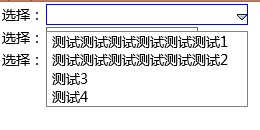
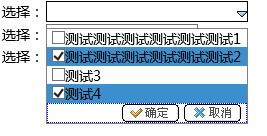
JS代码:
 ; (function ($) {

     var DropdownList = function (oDataSouce, oControlsContainer, oListContainer) {

         this._DataSouce = typeof (oDataSouce) == "object" ? oDataSouce : $.parseJSON(oDataSouce);

         this._parentElement = oControlsContainer;//容器控件对象

         this._oSelectInputDiv;//选择后显示内容控件

         this._ListContainer = oListContainer;//下拉列表控件对象

         this._ListContainerClick = false;//判断列表是否被点击过

         this._ListPostionLeft;//列表左边的距离

         this._ListPostionTop;//列表上边的距离

         this._IsInited = false;//是否已经初始化数据

         this._MouseoutElement = false;//判断鼠标是否离开某个元素

         this._RemberMouseClickNum = 1;////记录鼠标点击下拉时的次数;

         this._ArrayCollection = new Array;//多选后用于存放结果;

         this.AllowShowCheckBox = false;//是否允许多选

         this.ControlsContainerWidth = 200;//默认控件宽度为200像素

     };

     DropdownList.prototype = {

         InitControl: function () {

             var _oSelf = this;

             var _oSelectBorderDiv = $("<div>", { "class": "selectBorder", style: "width:" + _oSelf.ControlsContainerWidth + "px;" }).appendTo(this._parentElement);

             _oSelectBorderDiv.mouseover(function () { $(this).css({ border: "1px solid blue" }) }).mouseout(function () { $(this).css({ border: "1px solid black" }) });

             _oSelf._oSelectInputDiv = $("<div>", { "class": "selectInput", style: "width:" + (_oSelf.ControlsContainerWidth - 10) + "px;" }).appendTo($(_oSelectBorderDiv));

             var _oSelectImgDiv = $("<div>", { "class": "selectImg" }).appendTo($(_oSelectBorderDiv));

             var _oSelectImg = $("<img>", {

                 src: "images/arrow.gif", style: "cursor:pointer",

                 click: function () {

                     var _oShowList = { width: _oSelectBorderDiv.width(), border: " 1px solid gray", display: "" };

                     if (!_oSelf._IsInited) {

                         _oSelf._InitData();

                         _oSelf._ListPostionLeft = _oSelectBorderDiv.position().left;

                         _oSelf._ListPostionTop = _oSelectBorderDiv.position().top + _oSelectBorderDiv.height() + 10;

                         _oSelf._ListContainer.css(_oShowList);

                         _oSelf._ListContainer.offset({ top: _oSelf._ListPostionTop, left: _oSelf._ListPostionLeft });

                         _oSelf._IsInited = true;

                         _oSelf._RemberMouseClickNum += 1;

                     } else {

                         if (_oSelf._RemberMouseClickNum % 2 == 0) {

                             _oSelf._MouseoutElement = true;

                             _oSelf._RemberMouseClickNum = 1;

                         } if (_oSelf._ListContainerClick) {

                             _oSelf._RemberMouseClickNum += 1;

                             _oSelf._MouseoutElement = false;

                             _oSelf._BindDocumentEvent();

                             _oSelf._ListContainer.css(_oShowList);

                             _oSelf._ListContainerClick = false;

                         }

                         else {

                             _oSelf._RemberMouseClickNum += 1;

                             _oSelf._BindDocumentEvent();

                             _oSelf._ListContainer.css(_oShowList);

                         }

                     } _oSelf._SetListboxSelectedStatus(_oSelf.AllowShowCheckBox);

                 }, mouseout: function () {

                     _oSelf._MouseoutElement = true;

                     _oSelf._RemberMouseClickNum += 1;

                 }

             }).appendTo(_oSelectImgDiv);

         },

         _InitData: function () {

             var _oSelf = this;

             var _oSelectCollection;

             for (var i = 0, _iDataCpount = _oSelf._DataSouce.length; i < _iDataCpount; i++) {

                 var _oDiv = $("<div>", {

                     "class": "lists", id: "div_" + i, selected: "false", selectedIndex: "" + i + "", title: "" + this._DataSouce[i].text + "", click: function () {

                         if (_oSelf.AllowShowCheckBox) {

                             _oSelf._BindListboxChecboxClickEvent(this);

                         } else { _oSelf._GetListboxText(this); }

                     }, mouseout: function () { _oSelf._MouseoutElement = true; }

                 }).mouseover(function () {

                     _oSelf._BindMouseoverEvent($(this));

                     _oSelf._BindDocumentEvent();

                 }).mouseout(function () {

                     _oSelf._BindMouseoutEvent($(this));

                 });

                 this._ListContainer.append(_oDiv);

                 if (_oSelf.AllowShowCheckBox) {

                     _oDiv.append($("<input>", {

                         type: "checkbox", id: "checkbox_" + i, "for": "label_" + i, click: function (oCheck) {

                             var _sID = oCheck.srcElement.id || oCheck.tagName.id;

                             var _oParentDiv = $("#" + _sID).parent();

                             _oSelf._BindListboxChecboxClickEvent(_oParentDiv);

                         }

                     }));

                 } _oDiv.append($("<label>", { id: "label_" + i, key: "" + this._DataSouce[i].value + "" }).html(this._DataSouce[i].text));

             } if (_oSelf.AllowShowCheckBox) {

                 _oSelf._CreateListboxFoot();

             }

         },

         _BindMouseoverEvent: function (oDiv) {

             oDiv.mouseover(function () {

                 if ($(this).attr("selected") != "selected") {

                     $(this).css({ backgroundColor: "#3A8FCF" })

                 }

             });

         },

         _BindMouseoutEvent: function (oDiv) {

             oDiv.mouseout(function () {

                 if ($(this).attr("selected") != "selected") {

                     $(this).css({ backgroundColor: "#fff" })

                 }

             });

         },

         _BindCheckboxClickEvent: function (oCheckBox, oDiv) {

             _oSelf = this; if (!oCheckBox[0].checked) {

                 oCheckBox[0].checked = true; oDiv.css({ backgroundColor: "#3A8FCF" }).unbind("mouseover").unbind("mouseout");

             } else {

                 oCheckBox[0].checked = false;

                 oDiv.css({ backgroundColor: "#fff" }).bind("mouseover", _oSelf._BindMouseoverEvent(oDiv)).bind("mouseout", _oSelf._BindMouseoutEvent(oDiv));

             }

         },

         _BindListboxChecboxClickEvent: function (oDiv) {

             var _oSelf = this;

             var _oParentContainer = $(oDiv);

             var _oCheckBoxElement = _oParentContainer.children().first();

             var _oLabelElement = _oParentContainer.find("label");

             _oSelf._BindCheckboxClickEvent(_oCheckBoxElement, $(oDiv));

             _oSelf._MouseoutElement = false;

             _oSelectCollection = { key: _oLabelElement.attr("key"), value: _oLabelElement.html(), selectedIndex: $(oDiv).attr("selectedIndex") };

             _oSelf._ArrayCollection.push(_oSelectCollection);

         },

         _BindDocumentEvent: function () {

             var _oSelf = this;

             $(document).click(function () {

                 if (_oSelf._MouseoutElement) {

                     _oSelf._ListContainer.css({ display: "none" });

                     _oSelf._MouseoutElement = false;

                     _oSelf._RemberMouseClickNum = 1;

                     if (_oSelf.AllowShowCheckBox) {

                         if (_oSelf._oSelectInputDiv.html() == "") {

                             _oSelf._SetCheckboxSelectedStatus(false, "#fff");

                             _oSelf._ArrayCollection = new Array;

                         }

                     }

                 }

             });

         },

         _GetListboxText: function (oDiv) {

             var _oSelf = this;

             var _oLabelElement = $(oDiv).find("label");

             var _sSelectedText = _oLabelElement.html();

             var _sSelectedValue = _oLabelElement.attr("key");

             var _oDisplayText = _oSelf._oSelectInputDiv;

             var _iSelectedIndex = $(oDiv).attr("selectedIndex");

             _oDisplayText.html(_sSelectedText);

             _oDisplayText.attr({ "key": _sSelectedValue, "selected": true, "selectedIndex": _iSelectedIndex, title: "" + _sSelectedText + "" });

             _oSelf._SetListboxDisplayStatus();

         },

         _SetListboxDisplayStatus: function () {

             var _oSelf = this;

             _oSelf._ListContainer.css({ display: "none" });

             _oSelf._ListContainerClick = true;

             _oSelf._MouseoutElement = false;

         },

         _SetListboxSelectedStatus: function (bAllowShowCheckBox) {

             var _oSelf = this;

             if (bAllowShowCheckBox) {

                 if (_oSelf._ArrayCollection.length > 0) {

                     _oSelf._SetCheckboxSelectedStatus(true, "#3A8FCF")

                 }

             } else {

                 var _sCurrentSelectedText = _oSelf._oSelectInputDiv.attr("selectedIndex");

                 for (var libIndex = 0, libLen = _oSelf._ListContainer.children().length; libIndex < libLen; libIndex++) {

                     var _oDiv = _oSelf._ListContainer.children().eq(libIndex);

                     if (_oDiv.attr("selectedIndex") == _sCurrentSelectedText) {

                         _oDiv.attr("selected", true).css({ background: "#3A8FCF" });

                     } else { _oDiv.attr("selected", false).css({ background: "#fff" }); }

                 }

             }

         },

         _SetCheckboxSelectedStatus: function (bChecked, sColor) {

             var _oSelf = this;

             for (var _iAcIndex = 0, _iAcLen = _oSelf._ArrayCollection.length; _iAcIndex < _iAcLen; _iAcIndex++) {

                 var _oDiv = _oSelf._ListContainer.children().eq(_oSelf._ArrayCollection[_iAcIndex].selectedIndex);

                 _oDiv.find("input[type=checkbox]")[0].checked = bChecked;

                 _oDiv.css({ background: sColor });

             }

         },

         _CreateListboxFoot: function () {

             var _oSelf = this;

             $("<div>", { "class": "foot", selectedIndex: "9999" }).append(

                 $("<img>", {

                     src: "images/ok.gif", click: function () {

                         var _sRsult = "";

                         for (var _iAcIndex = 0, _iAcLen = _oSelf._ArrayCollection.length; _iAcIndex < _iAcLen; _iAcIndex++) {

                             if (_iAcIndex == 0) {

                                 _sRsult += _oSelf._ArrayCollection[_iAcIndex].value + ";";

                             }

                             if (_iAcIndex == _iAcLen - 1) {

                                 _sRsult += _oSelf._ArrayCollection[_iAcIndex].value;

                             }

                         }

                         _oSelf._oSelectInputDiv.html(_sRsult);

                         _oSelf._MouseoutElement = false;

                         _oSelf._ListContainer.css({ display: "none" });

                     }

                 })).append($("<img>", {

                     src: "images/cancle.gif", click: function () {

                         _oSelf._SetCheckboxSelectedStatus(false, "#fff");

                         _oSelf._ArrayCollection = new Array();

                         _oSelf._MouseoutElement = true;

                         _oSelf._BindDocumentEvent();

                         _oSelf._oSelectInputDiv.html("");

                     }

                 })).appendTo(_oSelf._ListContainer);

         },

     };

     $.extend(true, window, {

         Controls: { DropdownList: DropdownList }

     })

 }(jQuery));
下面是HTML
 <!DOCTYPE html>

 <html xmlns="http://www.w3.org/1999/xhtml">

 <head>

     <meta http-equiv="Content-Type" content="text/html; charset=utf-8" />

     <title></title>

     <link href="css/JsDropdownList.css" rel="stylesheet" />

     <script src="Js/jquery-1.8.3.min.js"></script>

     <script src="Js/JsDropdownList.js"></script>

     <script type="text/javascript">

         $(function () {

             var _oDropdownList = new Controls.DropdownList([{ "value": , "text": "测试测试测试测试测试测试1" }, { "value": , "text": "测试测试测试测试测试测试2" }, { "value": , "text": "测试3" }, { "value": , "text": "测试4" }], $("#div_Container"), $("#div_list"));

             _oDropdownList.AllowShowCheckBox = true;

             _oDropdownList.InitControl();

         });

     </script>

 </head>

 <body>

     <table>

         <tr>

             <td>选择:</td>

             <td>

                 <div id="div_Container">

                 </div>

             </td>

         </tr>

         <tr>

             <td>选择:</td>

             <td>

                 <div id="div1" style="float: left;">

                     <input id="Text2" type="text" />

                 </div>

             </td>

         </tr>

         <tr>

             <td>选择:</td>

             <td>

                 <div id="div2" style="float: left;">

                     <input id="Text1" type="text" />

                 </div>

             </td>

         </tr>

     </table>

     <div id="div_list" style="display: none; overflow: hidden; padding: 0px; margin: 0px;">

     </div>

 </body>

 </html>
还是那句话,表喷啊。 希望各位给点宝贵的意见, 第一次弄这个东西,还不太会。 见谅!!
后续打算写一个grid表格控件,并结合这个下拉框控件和后台处理程序。grid还在构思中。不知道咋个插入代码下载连接,需要代码的童靴可以留个邮箱吧, 或者直接拷贝上面的代码。
纯手工打造dropdownlist控件的更多相关文章
- 纯手工打造漂亮的瀑布流,五大插件一个都不少Bootstrap+jQuery+Masonry+imagesLoaded+Lightbox!
前两天写的文章<纯手工打造漂亮的垂直时间轴,使用最简单的HTML+CSS+JQUERY完成100个版本更新记录的华丽转身!>受到很多网友的喜爱,今天特别推出姊妹篇<纯手工打造漂亮的瀑 ...
- [置顶] 纯手工打造漂亮的瀑布流,五大插件一个都不少Bootstrap+jQuery+Masonry+imagesLoaded+Lightbox!
前两天写的文章<纯手工打造漂亮的垂直时间轴,使用最简单的HTML+CSS+JQUERY完成100个版本更新记录的华丽转身!>受到很多网友的喜爱,今天特别推出姊妹篇<纯手工打造漂亮的瀑 ...
- DropDownList控件
1.DropDownList控件 <asp:DropDownList runat="server" ID="DropDownList1" AutoPost ...
- DropDownList 控件不能触发SelectedIndexChanged 事件
相信DropDownList 控件不能触发SelectedIndexChanged 事件已经不是什么新鲜事情了,原因也无外乎以下几种: 1.DropDownList 控件的属性 AutoPostBac ...
- 三级联动---DropDownList控件
AutoPostBack属性:意思是自动回传,也就是说此控件值更改后是否和服务器进行交互比如Dropdownlist控件,若设置为True,则你更换下拉列表值时会刷新页面(如果是网页的话),设置为fl ...
- c#中DropDownList控件绑定枚举数据
c# asp.net 中DropDownList控件绑定枚举数据 1.枚举(enum)代码: private enum heros { 德玛 = , 皇子 = , 大头 = , 剑圣 = , } 如果 ...
- DropDownList 控件
今天打算学习下dropdownlist控件的取值,当你通过数据库控件或dataset绑定值后,但又希望显示指定的值,这可不是简单的值绑定就OK,上网搜了一些资料,想彻底了解哈,后面发现其中有这么大的奥 ...
- DropDownList控件学习
using System; using System.Collections.Generic; using System.Linq; using System.Web; using System.We ...
- 客户端用JavaScript填充DropDownList控件 服务器端读不到值
填充没有任何问题,但是在服务器端却取不出来下拉表中的内容.页面代码如下. <form id="form1" runat="server"> < ...
随机推荐
- hdoj 2401 Baskets of Gold Coins
Baskets of Gold Coins Time Limit: 1000/1000 MS (Java/Others) Memory Limit: 32768/32768 K (Java/Ot ...
- 普通身份运行Tomcat
普通身份运行Tomcat 转载1 权限分配问题 su - username -c “command”这样的形式可以使用任意一个有执行权限的用户执行 -c后边的命令. 注意,- username中间 ...
- iOS socket小结01
一.网络各个协议:TCP/IP.SOCKET.HTTP等 网络七层由下往上分别为物理层.数据链路层.网络层.传输层.会话层.表示层和应用层. 其中物理层.数据链路层和网络层通常被称作媒体层,是网络工程 ...
- WindowsService的调试方法
本人转载:http://www.cnblogs.com/xiebin1986/archive/2011/12/15/2288893.html 调试WindowsService,以前用过一个附加到进程的 ...
- python学习笔记(六)文件夹遍历,异常处理
python学习笔记(六) 文件夹遍历 1.递归遍历 import os allfile = [] def dirList(path): filelist = os.listdir(path) for ...
- JAVA向文件中追加内容(转)
向文件尾加入内容有多种方法,常见的方法有两种: RandomAccessFile类可以实现随机访问文件的功能,可以以读写方式打开文件夹的输出流 public void seek(long pos)可以 ...
- hdu2035java
人见人爱A^B Time Limit: 2000/1000 MS (Java/Others) Memory Limit: 65536/32768 K (Java/Others)Total Sub ...
- WTL的核心机制
WTL背景介绍 WTL是微软ATL开发组成员Nenad Stefanovic先生在ATL Windowing机制上发展起来的一整套GUI框架,运用template技术组织和创建GUI对象,构筑了精致的 ...
- Android图片异步加载之Android-Universal-Image-Loader
将近一个月没有更新博客了,由于这段时间以来准备毕业论文等各种事务缠身,一直没有时间和精力沉下来继续学习和整理一些东西.最近刚刚恢复到正轨,正好这两天看了下Android上关于图片异步加载的开源项目,就 ...
- IT技能栈
C++.JAVA.Objective-C 基本数据类型,集合类如字符串数组字典,自定义数据对象 内存布局,编译运行期的变化 语言特性 输入输出流,文件流,序列化 多线程,并发控制,线程池,锁 网络编程 ...