
[转]Build An Image Manager With NativeScript, Node.js, And The Minio Object Storage Cloud
When building a mobile application, there are often scenarios where you need to storage files remotely and when I say files, I don’t mean database data. For example, maybe you want to develop an image manager or photo storage solution like what Facebook and Instagram offer? There are many solutions, for example you could store the files in your database as binary data, or you could store the files on the same server as your web application. However, there are better options, for example, you could use an object storage solution to store files uploaded from your mobile application. Popular object storage solutions include AWS S3 as well as the open source alternative Minio.
We’re going to see how to leverage Minio to store images that have been uploaded from an Android and iOS mobile application built with NativeScript and Angular.

Going into this you need to understand that we won’t be communicating directly to Minio via our mobile application. The Minio JavaScript client requires both an access key and secret key, both of which should never be stored in a client facing application. If someone were to reverse engineer your application and get these keys, your data would then be compromised. This means that we’ll be using NativeScript to communicate with a Node.js server that communicates with Minio.
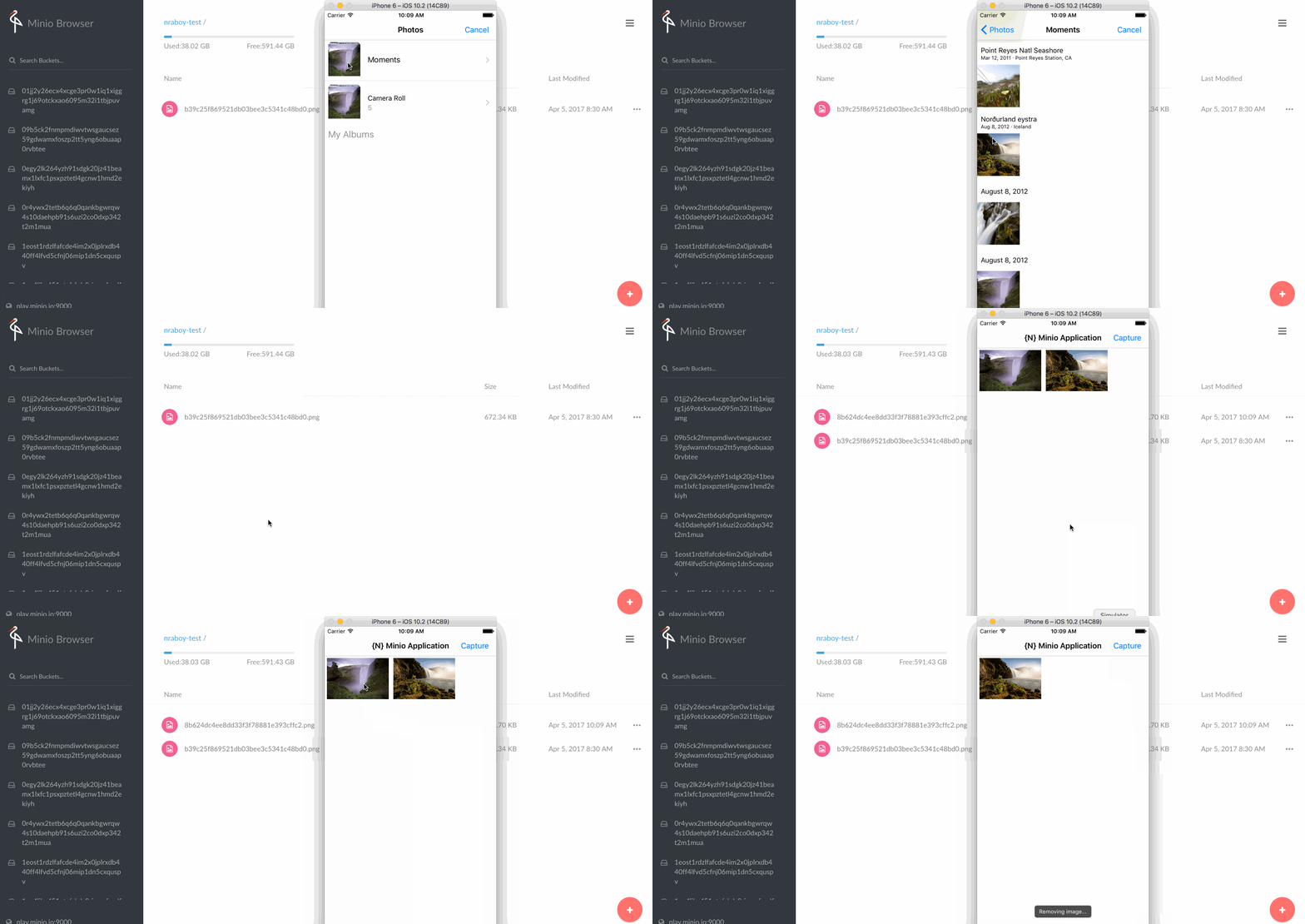
Above is an animated image that explains the goal of our application. We’ll have a basic application that we can use to take pictures. After an image is captured it will be uploaded to our Node.js application which will upload it to Minio. Any image in our Minio bucket will be presented within the application. We’ll also have the ability to delete images as well.
The Requirements
To be successful with this tutorial, you’ll need the following prior to starting it:
- NativeScript 2.5+
- Node.js 6.0+
- Minio Server
- Android SDK for Android or Xcode for iOS
If you have NativeScript installed, chances are you also have Node.js installed. Make sure that your versions meet the minimums that I’ve listed above. While you should have your own instance of Minio running, you can actually use the playground instance of Minio for free. However, don’t expect your data to live on forever and note that it is public.
Adding Features to the Node.js RESTful API
Not too long ago I wrote about using Minio in a Node.js API with Multer. To keep things easy, we’re going to use that example as a baseline and expand upon it. If you haven’t already, visit my previous tutorial, Upload Files to a Minio Object Storage Cloud with Node.js and Multer. While I recommend you read and understand what’s happening, you can download the code here. Note that the project you’re being provided with includes everything we plan to accomplish.
Everything we care about will be in the project’s app.js file. Before adding a few more features, it should have looked like this:
var Express = require("express");

var Multer = require("multer");

var Minio = require("minio");

var BodyParser = require("body-parser");

var app = Express();

app.use(BodyParser.json({limit: "4mb"}));

var minioClient = new Minio.Client({

    endPoint: 'play.minio.io',

    port: 9000,

    secure: true,

    accessKey: 'Q3AM3UQ867SPQQA43P2F',

    secretKey: 'zuf+tfteSlswRu7BJ86wekitnifILbZam1KYY3TG'

});

app.post("/upload", Multer({storage: Multer.memoryStorage()}).single("upload"), function(request, response) {

    minioClient.putObject("nraboy-test", request.file.originalname, request.file.buffer, function(error, etag) {

        if(error) {

            return console.log(error);

        }

        response.send(request.file);

    });

});

app.post("/uploadfile", Multer({dest: "./uploads/"}).single("upload"), function(request, response) {

    minioClient.fPutObject("nraboy-test", request.file.originalname, request.file.path, "application/octet-stream", function(error, etag) {

        if(error) {

            return console.log(error);

        }

        response.send(request.file);

    });

});

app.get("/download", function(request, response) {

    minioClient.getObject("nraboy-test", request.query.filename, function(error, stream) {

        if(error) {

            return response.status(500).send(error);

        }

        stream.pipe(response);

    });

});

minioClient.bucketExists("nraboy-test", function(error) {

    if(error) {

        return console.log(error);

    }

    var server = app.listen(3000, function() {

        console.log("Listening on port %s...", server.address().port);

    });

});
The above code gives us a way to upload and download files via Node.js and Minio, but we don’t currently have a way to list files or remove files. Having these features are critical in our mobile application.
Take the following method for example:
app.delete("/delete", function(request, response) {

    minioClient.removeObject("nraboy-test", request.query.filename, function(error) {

        if(error) {

            return response.status(500).send(error);

        }

        response.send({"deleted": true, "filename": request.query.filename});

    });

});
The above method looks similar to what we’ve already seen, but this time it removes a file from a particular bucket based on its name.
So when it comes to listing files that exist in a bucket, we can include a method similar to this:
app.get("/list", function(request, response) {

    var stream = minioClient.listObjects("nraboy-test");

    var data = [];

    stream.on("data", function(chunk) {

        data.push(chunk);

    });

    stream.on("end", function() {

        response.send(data);

    });

});
Per the Minio documentation, listing involves working with a stream of data. Each response in the stream is one object. The above code allows us to take all objects in the stream, add them to an array, and return the array when it has closed.
Here is an example of what might come back in the response:
[

    {

        "name": "8b624dc4ee8dd33f3f78881e393cffc2.png",

        "lastModified": "2017-04-05T17:09:33.380Z",

        "etag": "a686f47a8618fd5873460015f65cf513",

        "size": 679624

    }

]
At this point we can run our Node.js web application. Take note that in the example we just saw, we are using the Minio playground instance, not one that I’m hosting myself. Feel free to use whatever you wish.
This brings us to the development of our mobile application with NativeScript.
Creating a NativeScript with Angular Image Manager Project
To start things off, we’re going to create a fresh NativeScript project that makes use of Angular. Using the NativeScript CLI, execute the following:
tns create minio-project --ng
The --ng flag indicates that we are creating an Angular project rather than a vanilla NativeScript project.
There will be two platform plugins used in this project that play a critical role towards its success. After taking a picture we’ll need to upload it. While we could do this with a standard HTTP request, it’s been known to have issues with larger files. For this reason we’ll be using the nativescript-background-http plugin. To install this plugin, execute the following:
tns plugin add nativescript-background-http
To prevent our application from keeping the user uninformed about slow tasks, we’re going to use Toast notifications to share things with the user. The nativescript-toast plugin can be installed by executing the following:
tns plugin add nativescript-toast
For more information on using Toast notifications, not discussed in this tutorial, check out a previous tutorial I wrote on the topic called, Display Toast Notifications in a NativeScript Angular Application.
Now there is a JavaScript plugin used in the application. This is not specific to NativeScript, but works fine because it is a JavaScript framework.
We won’t be manually naming the pictures captured in the application, but instead generating a name. This name will be an MD5 hash so we’ll need an appropriate plugin. From the command line, execute the following:
npm install blueimp-md5 --save
There are plenty of other options available, but this is the first that came to my mind.
At this point we can start developing our application.
Cleaning the Boilerplate Code in the NativeScript Template
Because we’re going to be creating a single page application, there is a lot of excess code that should be removed from the base template before continuing. This will help us prevent errors amongst other things.
Start by opening the project’s app/app.routing.ts file and make it look like the following:
import { NgModule } from "@angular/core";

import { NativeScriptRouterModule } from "nativescript-angular/router";

import { Routes } from "@angular/router";

const routes: Routes = [];

@NgModule({

    imports: [NativeScriptRouterModule.forRoot(routes)],

    exports: [NativeScriptRouterModule]

})

export class AppRoutingModule {}
Since we are building a single page application, we want to remove all routing from the application. By default NativeScript will give you some item pages. The goal here is just to remove them.
Now head over to the project’s app/app.module.ts file and make it look like the following:
import { NgModule, NO_ERRORS_SCHEMA } from "@angular/core";

import { NativeScriptModule } from "nativescript-angular/nativescript.module";

import { NativeScriptHttpModule } from "nativescript-angular/http";

import { AppRoutingModule } from "./app.routing";

import { AppComponent } from "./app.component";

@NgModule({

    bootstrap: [

        AppComponent

    ],

    imports: [

        NativeScriptModule,

        NativeScriptHttpModule,

        AppRoutingModule

    ],

    declarations: [

        AppComponent

    ],

    providers: [],

    schemas: [

        NO_ERRORS_SCHEMA

    ]

})

export class AppModule { }
Again, we’ve just removed the other page components that the NativeScript CLI had added for us when we started our project. Take note that in the above we’ve also added the NativeScriptHttpModule that will allow us to make HTTP requests to our API.
Building the Image Manager Component with Angular
Let’s focus on the core component in our application. It will have a stylesheet, HTML markup, and TypeScript logic for not only taking pictures, but also working with our Minio API.
You’re about to see a lot of code, but don’t worry, we’re going to break it down. Open the project’s app/app.component.ts file and include the following:
import { Component, OnInit, NgZone } from "@angular/core";

import { Http, Headers, RequestOptions } from "@angular/http";

import { Observable } from "rxjs/Observable";

import { ImageFormat } from "ui/enums";

import * as Camera from "camera";

import * as Toast from "nativescript-toast";

import "rxjs/Rx";

var FileSystem = require("file-system");

var BackgroundHttp = require("nativescript-background-http");

var MD5 = require("blueimp-md5");

@Component({

    selector: "ns-app",

    templateUrl: "app.component.html",

})

export class AppComponent implements OnInit {

    public images: Array<string>;

    public constructor(private http: Http, private zone: NgZone) {

        this.images = [];

    }

    public ngOnInit() {

        this.list()

            .subscribe(result => {

                this.images = result;

            });

    }

    public takePicture() {

        Camera.takePicture({saveToGallery: false, width: 320, height: 240}).then(picture => {

            let folder = FileSystem.knownFolders.documents();

            let path = FileSystem.path.join(folder.path, MD5(new Date()) + ".png");

            picture.saveToFile(path, ImageFormat.png, 60);

            this.upload("http://localhost:3000/upload", "upload", path)

                .subscribe(result => {

                    this.zone.run(() => {

                        this.images.push(path.replace(/^.*[\\\/]/, ''));

                    });

                }, error => {

                    console.dump(error);

                });

        });

    }

    public upload(destination: string, filevar: string, filepath: string) {

        return new Observable((observer: any) => {

            let session = BackgroundHttp.session("file-upload");

            let request = {

                url: destination,

                method: "POST"

            };

            let params = [{ "name": filevar, "filename": filepath, "mimeType": "image/png" }];

            let task = session.multipartUpload(params, request);

            task.on("complete", (event) => {

                let file = FileSystem.File.fromPath(filepath);

                file.remove().then(result => {

                    observer.next("Uploaded `" + filepath + "`");

                    observer.complete();

                }, error => {

                    observer.error("Could not delete `" + filepath + "`");

                });

            });

            task.on("error", event => {

                console.dump(event);

                observer.error("Could not upload `" + filepath + "`. " + event.eventName);

            });

        });

    }

    public list(): Observable<any> {

        return this.http.get("http://localhost:3000/list")

            .map(result => result.json())

            .map(result => result.filter(s => s.name.substr(s.name.length - 4) == ".png"))

            .map(result => result.map(s => s.name));

    }

    public remove(index: number) {

        Toast.makeText("Removing image...").show();

        this.http.delete("http://localhost:3000/delete?filename=" + this.images[index])

            .map(result => result.json())

            .subscribe(result => {

                this.images.splice(index, 1);

            });

    }

}
All application logic for this example will happen in the above.
After importing all the previously downloaded dependencies, we create a public variable for hold all the images obtained from the Minio Node.js API. By images I mean filenames, not actual image data.
The constructor method allows us to initialize this public variable as well as inject our Angular services for making HTTP requests and controlling the zone.
You should never load data in the constructor method, so instead we use the ngOnInit method to try to list the contents of our bucket. The list method called, looks like this:
public list(): Observable<any> {

    return this.http.get("http://localhost:3000/list")

        .map(result => result.json())

        .map(result => result.filter(s => s.name.substr(s.name.length - 4) == ".png"))

        .map(result => result.map(s => s.name));

}
Using RxJS we can make a request against our API and transform the results. The results are first converted to JSON, then we filter for only results where the filename has the PNG extension. All other items are removed from our result set. After transforming to return only PNG files, we do a transformation to only return the file names, rather than meta information about the files.
Jumping back up, we have the takePicture method:
public takePicture() {

    Camera.takePicture({saveToGallery: false, width: 320, height: 240}).then(picture => {

        let folder = FileSystem.knownFolders.documents();

        let path = FileSystem.path.join(folder.path, MD5(new Date()) + ".png");

        picture.saveToFile(path, ImageFormat.png, 60);

        this.upload("http://localhost:3000/upload", "upload", path)

            .subscribe(result => {

                this.zone.run(() => {

                    this.images.push(path.replace(/^.*[\\\/]/, ''));

                });

            }, error => {

                console.dump(error);

            });

    });

}
In this method we call the native device camera. After taking a picture, the picture is returned so we can manipulate it. For us, we want to upload it. To do this it must first be saved to the device filesystem. Since this example is simple, we generate a random filename based on the timestamp and save it to the correct path on the filesystem. After it is saved we can attempt to upload it using the HTTP plugin that was installed previously. If successful, the image filename is added to our list of images. This is done in a zone because of the alternative threads that we’re working with. The UI won’t update unless we’re in the correct zone. The plugin we’re using puts us in a different zone.
So what does uploading consist of? The upload method looks like the following:
public upload(destination: string, filevar: string, filepath: string) {

    return new Observable((observer: any) => {

        let session = BackgroundHttp.session("file-upload");

        let request = {

            url: destination,

            method: "POST"

        };

        let params = [{ "name": filevar, "filename": filepath, "mimeType": "image/png" }];

        let task = session.multipartUpload(params, request);

        task.on("complete", (event) => {

            let file = FileSystem.File.fromPath(filepath);

            file.remove().then(result => {

                observer.next("Uploaded `" + filepath + "`");

                observer.complete();

            }, error => {

                observer.error("Could not delete `" + filepath + "`");

            });

        });

        task.on("error", event => {

            console.dump(event);

            observer.error("Could not upload `" + filepath + "`. " + event.eventName);

        });

    });

}
We want to return an observable that can be subscribed to. This means we need to first define an upload request, provide the path to our file, then start a multipart upload. There are a few listener values as part of the HTTP plugin. When complete, we want to delete the file from our local device filesystem, and add a message to the data stream. If there is an error, we’ll push that to the stream instead.
Our final method is responsible for removing files:
public remove(index: number) {

    Toast.makeText("Removing image...").show();

    this.http.delete("http://localhost:3000/delete?filename=" + this.images[index])

        .map(result => result.json())

        .subscribe(result => {

            this.images.splice(index, 1);

        });

}
The above method is called during a press event so we’re passing in the index of the item that was pressed. We then show a Toast notification to say we’re going to be deleting a file.
When the API returns a response we can remove the image from the array which will remove it from the screen.
So what does the HTML behind this logic look like? Open the project’s app/app.component.html file and include the following HTML markup:
<ActionBar title="{N} Minio Application">

    <ActionItem text="Capture" (tap)="takePicture()" ios.position="right"></ActionItem>

</ActionBar>

<ScrollView>

    <FlexboxLayout flexWrap="wrap" flexDirection="row">

        <StackLayout *ngFor="let image of images; let index = index" flexShrink="1" class="minio-image">

            <Image  src="http://localhost:3000/download?filename={{ image }}" (tap)="remove(index)"></Image>

        </StackLayout>

    </FlexboxLayout>

</ScrollView>
In the above example we have an action bar button that will call the takePicture method. In the core of the content we have a Flexbox that acts as a wrapping grid for our images. If images don’t fit on a row, they will be moved to the next row.
The FlexboxLayout is filled by looping through the array of images. They are downloaded on demand and displayed on the screen using the appropriate Node.js API endpoint. If any image is tapped, it will be removed.
The minio-image class name is custom and it was added to the app/app.css file like so:
@import 'nativescript-theme-core/css/core.light.css';

.minio-image {

    height: 90;

    margin: 5;

}
At this point the application should be ready to go!
Seeing the Application in Action
At this point you should have a Node.js API and NativeScript mobile application ready to go. If you decided not to walk through the tutorial, you can download all the code here.
Starting with the Node.js API, execute the following:
node app.js
If you didn’t already, you would have needed to download all the project dependencies first. With the API running, it should be available at http://localhost:3000.
Now jump into the NativeScript project and execute the following:
tns run ios --emulator
If you don’t have Xcode available, you can also use Android. Keep in mind that if you’re using Genymotion, you may need to change localhost in the API because VirtualBox operates a bit differently.
After uploading a file, you can find the file in Minio. If you’re using the playground like I was, you can check out https://play.minio.io:9000/minio/nraboy-test/.
Conclusion
You just saw how to upload files, more specifically images, in a NativeScript Android and iOS application to a Node.js API that is connected to a Minio object storage cloud.
It is useful to upload your media to object storage versus a database or application filesystem because with an object storage solution you get replication which protects your data from server failure. While you could replicate manually, it is far more convenient to use a solution that exists with a very nice set of SDKs.
[转]Build An Image Manager With NativeScript, Node.js, And The Minio Object Storage Cloud的更多相关文章
- Node.js NPM Tutorial: Create, Publish, Extend & Manage
A module in Node.js is a logical encapsulation of code in a single unit. It's always a good programm ...
- Node.js npm 详解
一.npm简介 安装npm请阅读我之前的文章Hello Node中npm安装那一部分,不过只介绍了linux平台,如果是其它平台,有前辈写了更加详细的介绍. npm的全称:Node Package M ...
- Node.js、express、mongodb 入门(基于easyui datagrid增删改查)
前言 从在本机(win8.1)环境安装相关环境到做完这个demo大概不到两周时间,刚开始只是在本机安装环境并没有敲个Demo,从周末开始断断续续的想写一个,按照惯性思维就写一个增删改查吧,一方面是体验 ...
- 编写原生Node.js模块
导语:当Javascript的性能需要优化,或者需要增强Javascript能力的时候,就需要依赖native模块来实现了. 应用场景 日常工作中,我们经常需要将原生的Node.js模块做为依赖并在项 ...
- 编写原生的Node.js模块
导语:当Javascript的性能遭遇瓶颈,或者需要增强Javascript能力的时候,就需要依赖native模块来实现了. 应用场景 日常工作中,我们经常需要将原生的Node.js模块做为依赖并在项 ...
- 部署Node.js项目(CentOS)
Node.js 是一个基于 Chrome V8 引擎的 JavaScript 运行环境,用来方便地搭建快速的易于扩展的网络应用.Node.js 使用了一个事件驱动.非阻塞式 I/O 的模型,使其轻量又 ...
- 阿里云部署Node.js项目(CentOS)
Node.js 是一个基于 Chrome V8 引擎的 JavaScript 运行环境,用来方便地搭建快速的易于扩展的网络应用.Node.js 使用了一个事件驱动.非阻塞式 I/O 的模型,使其轻量又 ...
- 【转载】Centos系统采用NVM安装Node.js环境
Node.js 是一个基于 Chrome V8 引擎的 JavaScript 运行环境,用来方便地搭建快速的易于扩展的网络应用.Node.js 使用了一个事件驱动.非阻塞式 I/O 的模型,使其轻量又 ...
- Practical Node.js摘录(2018版)第1,2章。
大神的node书,免费 视频:https://node.university/courses/short-lectures/lectures/3949510 另一本书:全栈JavaScript,学习b ...
随机推荐
- Forward团队-爬虫豆瓣top250项目-项目总结
托管平台地址:https://github.com/xyhcq/top250 小组名称:Forward团队 组长:马壮 成员:李志宇.刘子轩.年光宇.邢云淇.张良 我们这次团队项目内容是爬取豆瓣电影T ...
- Fragment+Viewpaager
<?xml version="1.0" encoding="utf-8"?> <LinearLayout xmlns:android=&quo ...
- eclipse 工作区空格和回车键显示为乱码
eclipse 工作区空格和回车键显示为乱码 解决方法:Windows => Preferences => General =>Editors =>Text Editor =& ...
- 关于iOS与html交互,隐藏或修改html标签内容
wkwebview 1.隐藏顶部标题栏 [webView evaluateJavaScript:@"document.getElementsByClassName('page-header' ...
- Redis-03.事务
Redis事务: 在一个队列(queue)中依次执行一系列的命令. 事务的三个阶段: 1.开始事务(MULTI) 2.命令加入队列 (QUEUE) 3.执行事务 (EXEC) 示例1: MULTI & ...
- 【腾讯Bugly干货分享】人人都可以做深度学习应用:入门篇
导语 2016年,继虚拟现实(VR)之后,人工智能(AI)的概念全面进入大众的视野.谷歌,微软,IBM等科技巨头纷纷重点布局,AI 貌似将成为互联网的下一个风口. 很多开发同学,对人工智能非常感兴趣, ...
- configSections必须是根节点下第一个节点
对webconfig文档进行配置,添加了一个节点configSectionS,添加时,我自个想,按节点的名称以字母排序,就放在appSettings节点下. 谁知,在程序运行时,出现了错误: 参考上面 ...
- 【CSS/JS】如何实现单行/多行文本溢出的省略(...)--老司机绕过坑道的正确姿势
写前端UI的朋友们也许都遇到过这样的问题:我们需要实现这样一个需求,在一个父级元素中隐藏一个可能过长的文本: 这个文本可能是单行的: 也可能是多行的: 下面我就给大家展示如何简单或优雅地实 ...
- CTF中文件包含的一些技巧
i春秋作家:lem0n 原文来自:浅谈内存取证 0x00 前言 网络攻击内存化和网络犯罪隐遁化,使部分关键数字证据只存在于物理内存或暂存于页面交换文件中,这使得传统的基于文件系统的计算机取证不能有效应 ...
- 每天学点SpringCloud(八):使用Apollo做配置中心
由于Apollo支持的图形化界面相对于我们更加的友好,所以此次我们使用Apollo来做配置中心 本篇文章实现了使用Apollo配置了dev和fat两个环境下的属性配置.Apollo官方文档https: ...