
UITableView与UITableViewCell
转自:http://blog.sina.com.cn/s/blog_4cd14afb01014j97.html
UITableView用来以表格的形式显示数据。关于UITableView,我们应该注意:
(1)UITableView用来显示表格的可见部分,UITableViewCell用来显示表格的一行。
(2)UITableView并不负责存储表格中的数据,而是仅仅存储足够的数据使得可以画出当前可见部分。
(3)UITableView从UITableViewDelegate协议获取配置信息,从UITableViewDataSource协议获得数据信息。
(4)所有的UITableView实现时实际上只有一列,但是我们可以通过向UITableViewCell中添加子视图,使得它看起来有好几列。
(5)UITableView有两种风格:
① Grouped:每一组看起来像是圆矩形;
② Plain:这是默认风格,可以修改成Indexed风格。
在下边的小例子中,我们将先实现显示一列数据,然后在每行添加图像,之后再看看UITableViewCell的四种分别是什么样的。最后再进行其他操作,比如设置缩进、修改字体大小和行高等。
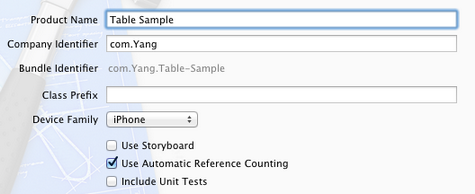
1、运行Xcode 4.2,新建一个Single View Application,名称为Table Sample:
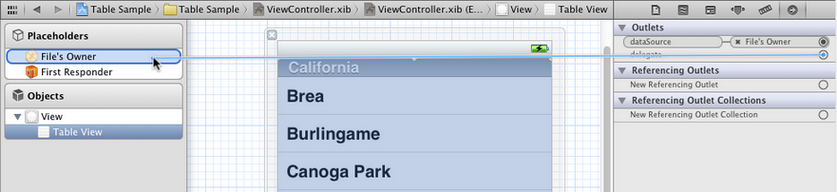
2、单击ViewController.xib,使用Interface Builder给视图添加一个UITableView控件,并使其覆盖整个视图:

3、选中新添加的UITableView控件,打开Connection Inspector,找到delegate和datasource,从它们右边的圆圈拉线到File's Owner图标:
4、单击ViewController.h,在其中添加代码:
#import <UIKit/UIKit.h> @interface ViewController : UIViewController<UITableViewDelegate, UITableViewDataSource> @property (strong, nonatomic) NSArray *listData; @end
5、单击ViewController.m,在其中添加代码:
5.1 在@implementation后面添加代码:
@synthesize listData;
5.2 在viewDidLoad方法中添加代码:
- (void)viewDidLoad { [super viewDidLoad]; // Do any additional setup after loading the view, typically from a nib. NSArray *array = [[NSArray alloc] initWithObjects:@"Tree", @"Flower", @"Grass", @"Fence", @"House", @"Table", @"Chair", @"Book", @"Swing" , nil]; self.listData = array; }
5.3 在viewDidUnload方法中添加代码:
- (void)viewDidUnload { [super viewDidUnload]; // Release any retained subviews of the main view. // e.g. self.myOutlet = nil; self.listData = nil; }
5.4 在@end之前添加代码:
#pragma mark - #pragma mark Table View Data Source Methods //返回行数 - (NSInteger)tableView:(UITableView *)tableView numberOfRowsInSection:(NSInteger)section { return [self.listData count]; } //新建某一行并返回 - (UITableViewCell *)tableView:(UITableView *)tableView cellForRowAtIndexPath:(NSIndexPath *)indexPath { static NSString *TableSampleIdentifier = @"TableSampleIdentifier"; UITableViewCell *cell = [tableView dequeueReusableCellWithIdentifier: TableSampleIdentifier]; if (cell == nil) { cell = [[UITableViewCell alloc] initWithStyle:UITableViewCellStyleDefault reuseIdentifier:TableSampleIdentifier]; } NSUInteger row = [indexPath row]; cell.textLabel.text = [listData objectAtIndex:row]; return cell; }
上面的第二个方法中,
UITableViewCell *cell = [tableView dequeueReusableCellWithIdentifier: TableSampleIdentifier];
这个语句根据标识符TableSampleIdentifier寻找当前可以重用的UITableViewCell。当某行滑出当前可见区域后,我们重用它所对应的UITableViewCell对象,那么就可以节省内存和时间。
如果执行词语后,cell为nil,那我们再创建一个,并设置去标识符为TableSampleIdentifier:
cell = [[UITableViewCell alloc] initWithStyle:UITableViewCellStyleDefault reuseIdentifier:TableSampleIdentifier];
这里UITableViewCellStyleDefault是表示UITableViewCell风格的常数,除此之外,还有其他风格,后面将会用到。
注意参数(NSIndexPath *)indexPath,它将行号row和部分号section合并了,通过[indexPath row];获取行号。之后给cell设置其文本:
cell.textLabel.text = [listData objectAtIndex: row];
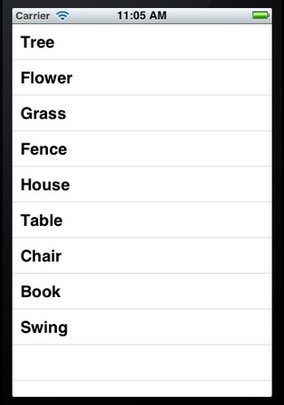
6、运行一下:
7、给每一行添加图片:
7.1 将图片资源添加到工程:拖到工程中,前面的文章有提到。
7.2 在cellForRowAtIndexPath方法的return语句之前添加代码:
UIImage *image = [UIImage imageNamed:@"blue.png"]; cell.imageView.image = image; UIImage *highLighedImage = [UIImage imageNamed:@"yellow.png"]; cell.imageView.highlighedImage = highLighedImage;
7.3 运行,效果如下:
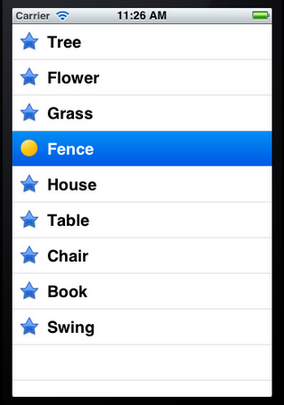
可以看到,每行左边都出现一张图片。当选中某行,其图片改变。
8、设置行的风格:
表示UITableViewCell风格的常量有:
UITableViewCellStyleDefault UITableViewCellStyleSubtile UITableViewCellStyleValue1 UITableViewCellStyleValue2
这几种风格的区别主要体现在Image、Text Label以及Detail Text Label。
为了体现风格,在cellForRowAtIndexPath方法的return语句之前添加代码:
cell.detailTextLabel.text = @"Detail Text";
然后将
cell = [[UITableViewCell alloc] initWithStyle:UITableViewCellStyleDefault reuseIdentifier:TableSampleIdentifier];
中的UITableViewCellStyleDefault依次换成上面提到的四个风格常量,并运行,效果分别如下:

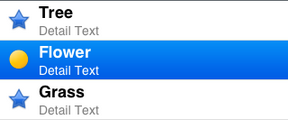
UITableViewCellStyleDefault UITableViewCellStyleSubtle
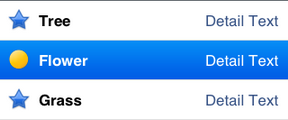

UITableViewCellStyleValue1 UITableViewCellStyleValue2
9、设置缩进:
将所有行的风格改回UITableViewCellStyleDefault,然后在@end之前添加代码如下:
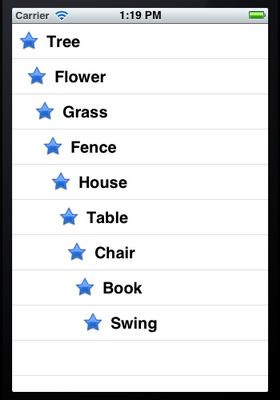
#pragma mark Table Delegate Methods - (NSInteger)tableView:(UITableView *)tableView indentationLevelForRowAtIndexPath:(NSIndexPath *)indexPath { NSUInteger row = [indexPath row]; return row; }
这里将第row行缩进row,如下图所示:
10、操纵行选择:
在@end之前添加代码:
- (NSIndexPath *)tableView:(UITableView *)tableView willSelectRowAtIndexPath:(NSIndexPath *)indexPath { NSUInteger row = [indexPath row]; if (row%2 == 0) { return nil; } return indexPath; }
上面的方法在选择某行之前执行,我们可以在这个方法中添加我们想要的操作。这里,我们实现的是,如果选择的行号(从0开始计)是偶数,则取消选择。
在@end之前添加代码:
- (void)tableView:(UITableView *)tableView didSelectRowAtIndexPath:(NSIndexPath *)indexPath { NSUInteger row = [indexPath row]; NSString *rowValue = [listData objectAtIndex:row]; NSString *message = [[NSString alloc] initWithFormat: @"You selected %@", rowValue]; UIAlertView *alert = [[UIAlertView alloc] initWithTitle:@"Row Selected!" message:message delegate:nil cancelButtonTitle:@"Yes I Did" otherButtonTitles:nil]; [alert show]; [tableView deselectRowAtIndexPath:indexPath animated:YES]; }
当选择某行之后,就弹出一个Alert,用来显示我们所做的选择。
运行一下,你会发现第0、2等行无法选择。选择奇数行时会弹出提示:

而且关闭提示框后,选择的那行也被取消了选择,用的语句
[tableView deselectRowAtIndexPath:indexPath animated:YES];
11、设置字体大小和表格行高:
11.1 在cellForRowAtIndexPath方法中的return之前添加代码,用于设置字体和大小:
cell.textLabel.font = [UIFont boldSystemFontOfSize:50];
11.2 在@end之前添加代码,用于设置行高:
- (CGFloat)tableView:(UITableView *)tableView heightForRowAtIndexPath:(NSIndexPath *)indexPath { return 70; }
运行,看看效果:

UITableView与UITableViewCell的更多相关文章
- UITableView和UITableViewCell的几种样式
UITableView和UITableViewCell的几种样式 转至 http://blog.csdn.net/crazyzhang1990/article/details/12503163 一. ...
- [OC] UITableView 与 UItableViewCell 的使用
UITableView //UIViewController里添加一个UITableView @interface ViewController : UIViewController<UITa ...
- iOS 初学UITableView、UITableViewCell、Xib
注意事项: 1.一个.xib里面最多设置一个cell 2.要仔细调整自动布局,其实它不太好用 3.记得设置<UITableViewDataSource>委托 4.记得在ViewContro ...
- UI第十八节——UITableView
在iOS开发中UITableView可以说是使用最广泛的控件,我们平时使用的软件中到处都可以看到它的影子,基本大部分应用都有UITableView.当然它的广泛使用自然离不开它强大的功能,今天就针对U ...
- iOS开发系列--UITableView全面解析
--UIKit之UITableView 概述 在iOS开发中UITableView可以说是使用最广泛的控件,我们平时使用的软件中到处都可以看到它的影子,类似于微信.QQ.新浪微博等软件基本上随处都是U ...
- UITableView或UIScrollVIew上的UIButton的高亮效果
UITableView或UIScrollVIew上的UIButton的高亮效果 原文地址:http://www.jianshu.com/p/b4331f06bd34 最近做项目的时候发现,UIScro ...
- 去掉UITableView多余的空白行分割线
一.问题描述 在学习和开发中经常会遇到下面的问题,UITableView的UITableViewCell很少或者没有时,但UITableView有很多的空白行分割线.如下图: 如何去掉UITableV ...
- UITableView全面解析
本文转自:http://www.cocoachina.com/ios/20140922/9710.html 在iOS开发中UITableView可以说是使用最广泛的控件,我们平时使用的软件中到处都可以 ...
- UITableView全面解析,讲的好详细
--UIKit之UITableView 概述 在iOS开发中UITableView可以说是使用最广泛的控件,我们平时使用的软件中到处都可以看到它的影子,类似于微信.QQ.新浪微博等软件基本上随处都是U ...
随机推荐
- [20190522]How to get dump or list parameters set at session level.txt
[20190522]How to get dump or list parameters set at session level.txt 1.环境:SCOTT@book> @ ver1PORT ...
- Mysql双主加Keepalived+读写分离
一.MySQL于keepalived简介** 前言: 在企业中,数据库高可用一直是企业的重中之重,中小企业很多都是使用mysql主从方案,一主多从,读写分离等,但是单主存在单点故障,从库切换成主库需要 ...
- [日常] 使用TCPDUMP和Ethereal抓包分析HTTP请求中的异常情况
在测试功能的过程中,出现这样一种现象.前端js发起ajax请求后,在浏览器的审查元素网络状态中可以看到status为pending,等15秒以后js会把当前超时的请求取消掉,变成了红色的cancel. ...
- wsl笔记
目录 环境 修改更新源 新建用户 设置超级用户 环境变量 zsh美化终端 设zsh为默认shell 环境变量PATH 开启 ssh 远程连接 apt命令与问题 windows 和 wsl 互相访问文件 ...
- 8. 多态——编译时类型&运行时类型
一.引用变量的两种类型 1. 编译时类型:由声明该变量时使用的类型决定 2. 运行时类型:由实际赋给该变量的对象决定 如果编译时类型和运行时类型不一致,就可能出现多态. class BaseClass ...
- python,adb,分别给多个设备安装多个apk文件,os.popen(); os.system; os.path.splitext(); a.split(' \t'); readlines(); append(); os.path.join(); time.sleep();
#encoding:utf-8import os,time#=======================查找手机设备序列号=============a='adb devices'b=os.popen ...
- 2015年蓝桥杯B组C/C++决赛题目
2015年第六届蓝桥杯B组C/C++国赛题目 点击查看2015年第六届蓝桥杯B组C/C++国赛题解 1.积分之迷 小明开了个网上商店,卖风铃.共有3个品牌:A,B,C. 为了促销,每件商品都会 ...
- ACM-冒泡排序
将多组输入数据进行冒泡排序,并去除相同的数据 #include <iostream> #include <vector> using namespace std; void R ...
- c# 第36节 接口的声明
本节内容: 1:字面理解接口 2:计算机的接口是什么呢 3:接口的声明 4:接口的注意点 1:字面理解接口 大家现在手机上,可能有很多app软件,比如天气预报的软件,有很多种,什么墨迹天气啊之类的等等 ...
- Python网络编程基础 ❷ 基于upd的socket服务 TCP黏包现象
TCP的长连接 基于upd的socket服务 TCP黏包现象